Table of Contents
There are two ways. To sell or deliver a PDF after purchase, tick Downloadable on the product, add the file under Product data > Downloadable files, and set the download method and limits under WooCommerce > Settings > Products > Downloadable products. To show a free PDF like a spec sheet or manual on the product page, add a link in the description or use a product attachment plugin, since native downloads are gated to buyers only.
Key Takeaways
A PDF on a product can be two very different things: a file the customer pays for and downloads after checkout, or a free reference document such as a datasheet, manual, or size guide shown openly on the page. WooCommerce handles each differently, so the first job is choosing the right one.
- Paid or gated PDF: delivered after purchase, accessible only to buyers. Use the native Downloadable product feature.
- Free PDF on the page: any visitor can open it without buying. Use the description or a plugin.
Method 1: Add a paid downloadable PDF (native)
Use this when the PDF is the product, or is delivered with it.
- Open the product and find the Product data panel.
- Tick Downloadable (and Virtual if there is nothing physical to ship).
- Under Downloadable files, click Add File, give it a name, and add the PDF URL or upload it.
- Set a Download limit (how many times it can be downloaded; blank for unlimited) and Download expiry (days until the link expires; blank for never).
- Update the product.
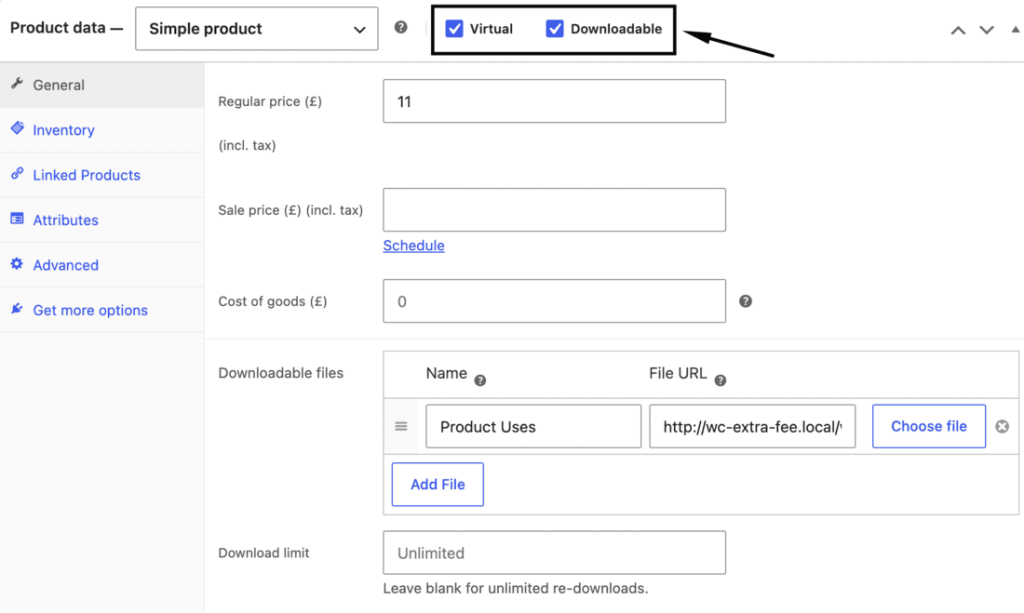
The buyer gets a download link on the order confirmation, in the confirmation email, and under My Account > Downloads. A product marked both Virtual and Downloadable skips Processing and goes straight to Completed.
Configure delivery and security
How the file is served matters for security. Go to WooCommerce > Settings > Products > Downloadable products:
- File download method:
- Force Downloads delivers the file through PHP and blocks direct linking. Best for security, but can time out on very large files or weak hosting.
- X-Accel-Redirect/X-Sendfile lets your server deliver the file directly and securely, if the server module is enabled.
- Redirect only (insecure) sends the customer to the file URL, which anyone with the link can then reach. Avoid for paid files.
- Allow using redirect mode as a last resort falls back to redirect only if the chosen method cannot deliver.
- Grant access to downloadable products after payment opens access when the order is Processing rather than waiting for Completed.
- Downloads require login restricts downloads to logged-in customers.
- Append a unique string to filename for security makes file URLs harder to guess.
For paid PDFs, use Force Downloads and tick the unique-string option so files are not publicly accessible.
Method 2: Add a free PDF to the product page
Use this for a spec sheet, manual, or brochure any visitor should open without buying. Native downloads will not work here, because they are gated to purchasers.
- Quick way: upload the PDF to the Media Library and add a link in the product description or short description.
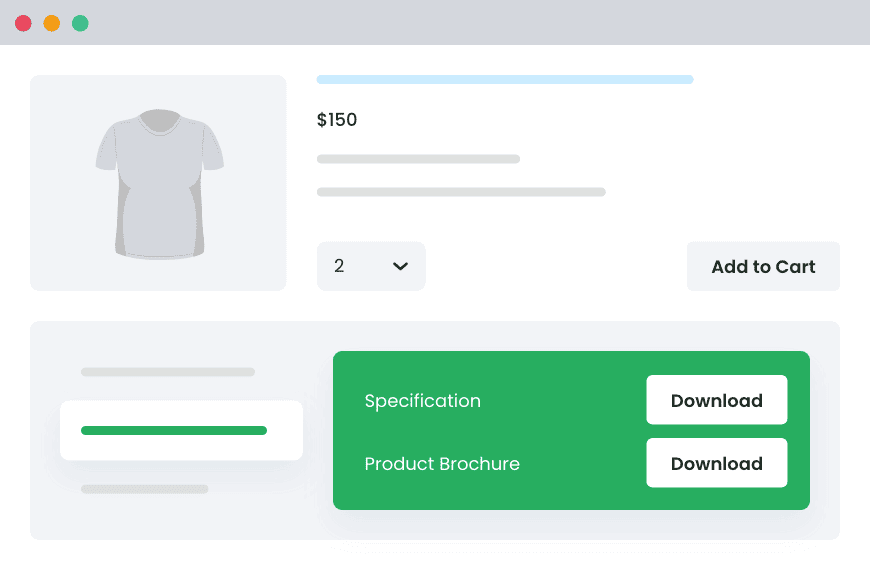
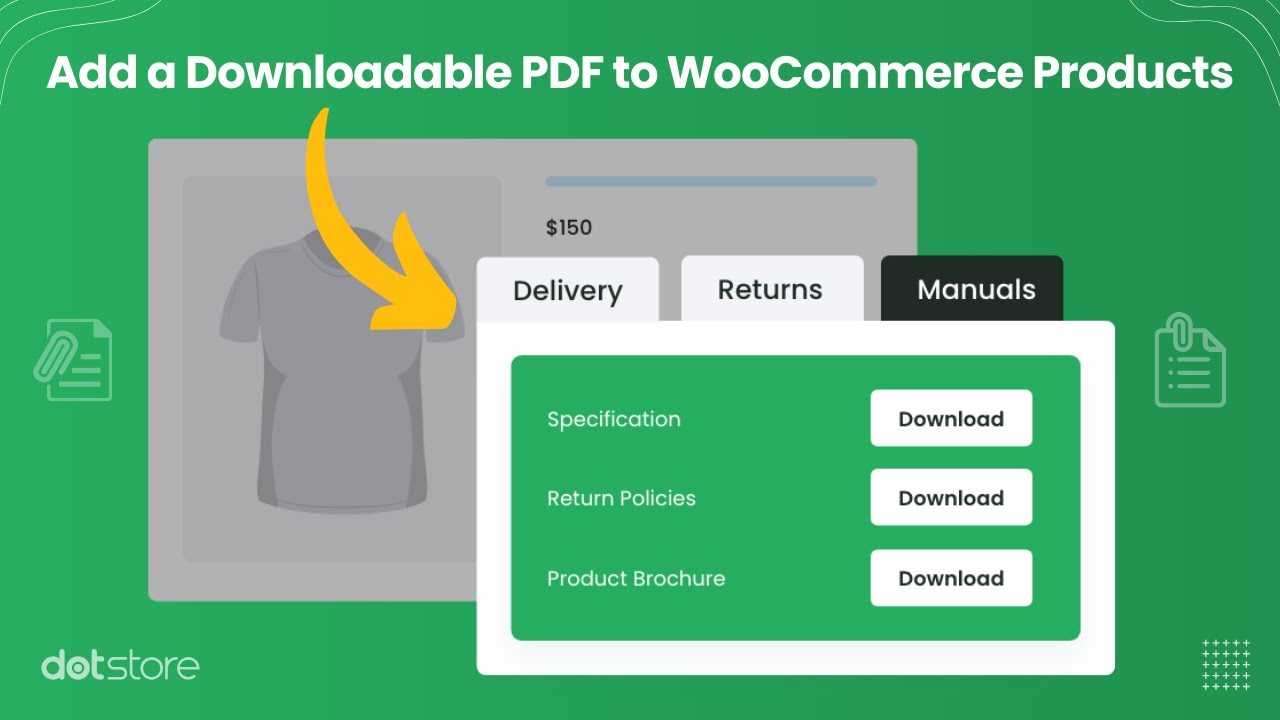
- Cleaner way: use a product attachment plugin to show one or more downloadable files in a dedicated section on the product page, with no code and consistent styling.
The plugin route is better when you attach files to many products or want a tidy, repeatable block rather than a link buried in body text. It also lets you reuse the same PDF across multiple products in bulk.
WooCommerce Product Attachment
Increase conversion rates with detailed information using multiple attachments.
14-day, no-questions-asked money-back guarantee.
Showing PDFs in a tab or order email
For a fuller experience, you can present PDFs in a custom product tab, or attach a PDF to the order email so buyers receive it directly. For sending files with the order confirmation, see how to add an email attachment to WooCommerce orders.
Best practices
A few things to get right:
- Decide first: gated paid download (native) or free on-page reference (plugin).
- For paid PDFs, use Force Downloads and the unique-filename option.
- Set download limits and expiry on premium files to discourage link sharing.
- Store sensitive files so they are not publicly guessable.
- For many products, use a plugin to attach the same PDF in bulk.
Conclusion
Adding a PDF to a WooCommerce product starts with the goal. For a paid or post-purchase file, the native Downloadable feature plus the right download method and security settings does the job.
For a free spec sheet on the product page, a description link or the Product Attachment for WooCommerce plugin is the way, since native downloads are buyer-only, and the plugin lets you reuse one file across many products. Match the method to the use case and the PDF lands exactly where customers expect it.
WooCommerce Product Attachment
Increase conversion rates with detailed information using multiple attachments.
14-day, no-questions-asked money-back guarantee.
Frequently asked questions
How do I make a PDF downloadable in WooCommerce?
Edit the product, tick Downloadable in the Product data panel, add the PDF under Downloadable files, and update. Buyers get the link after purchase.
Can I add a PDF to a product without selling it?
Yes. Native downloads are gated to buyers, so for a free PDF on the page, add a link in the description or use a product attachment plugin.
How do I protect my downloadable PDF files?
Set the File download method to Force Downloads, enable “Append a unique string to filename for security,” and optionally require login.
Can customers download the PDF without buying?
Not with native downloads, which are buyer-only. To allow open access, use a plugin or a description link instead.
How do I set a download limit or expiry?
In the Downloadable files section, set Download limit for the number of downloads and Download expiry for the days the link stays valid.
Can I attach the same PDF to many products?
Yes, most easily with a product attachment plugin that lets you reuse a file across products without editing each one.