Table of Contents
This step-by-step guide explains how to add a credit card surcharge in Shopify, stay compliant with regulations, and protect your profit margins.

Key Takeaways
- Credit card surcharges enable Shopify merchants to recover part or all of payment processing fees without increasing base product prices.
- Shopify doesn’t support surcharges natively, but you can add them using an app like Dotstore’s Extra Fees Manager.
- Credit card surcharges must only be applied to credit card payments and must be shown clearly as a separate line item in the checkout flow before payment is completed.
- Specific guidelines pertaining to adding credit card surcharges vary based on location and card network. Merchants must follow local laws, disclosure requirements, and surcharge limits.
- Offering alternative fee-free payment methods provides customers with the option to avoid the credit card surcharge fee and avoids impacting conversion rates.
Do you want to add a credit card surcharge in Shopify?
Credit card processing fees are an unavoidable cost of running an ecommerce business. However, as your store scales, it can cut deeply into your profits.
In this post, we’ll discuss what credit card surcharges are, why merchants use them, and show you step by step how to add a credit card surcharge in Shopify using the powerful Dotstore Extra Fees Manager app (available in free and pro versions).
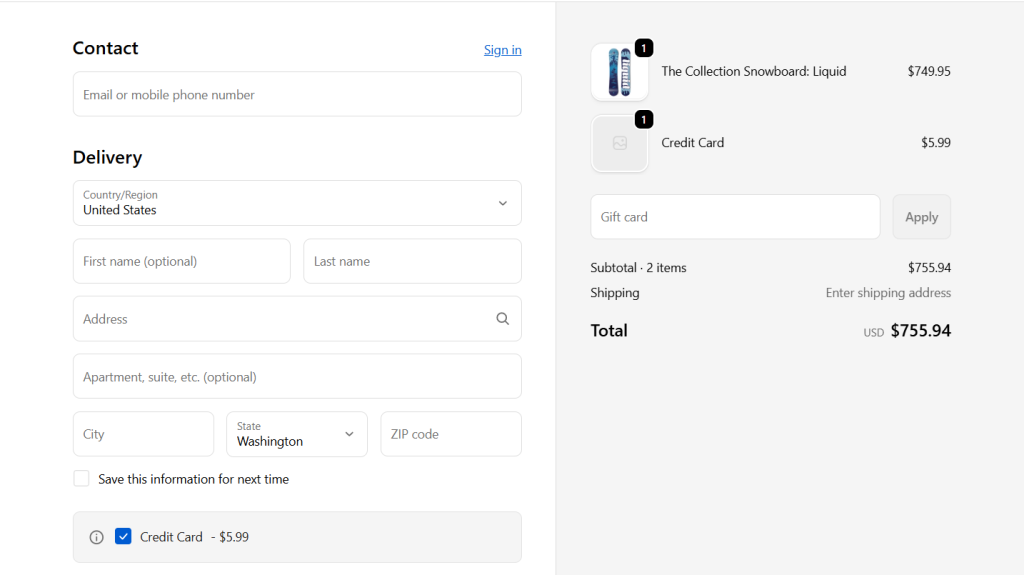
We’ll also cover guidelines and best practices for passing on credit card surcharges to customers and answer frequently asked questions you need to be aware of before enabling them in your Shopify store.
Shopify Extra Fees Manager
Add dynamic checkout fees for add-ons, upcharges, surcharges, etc., to your Shopify store — the easy way!
14-day, no-questions-asked money-back guarantee.
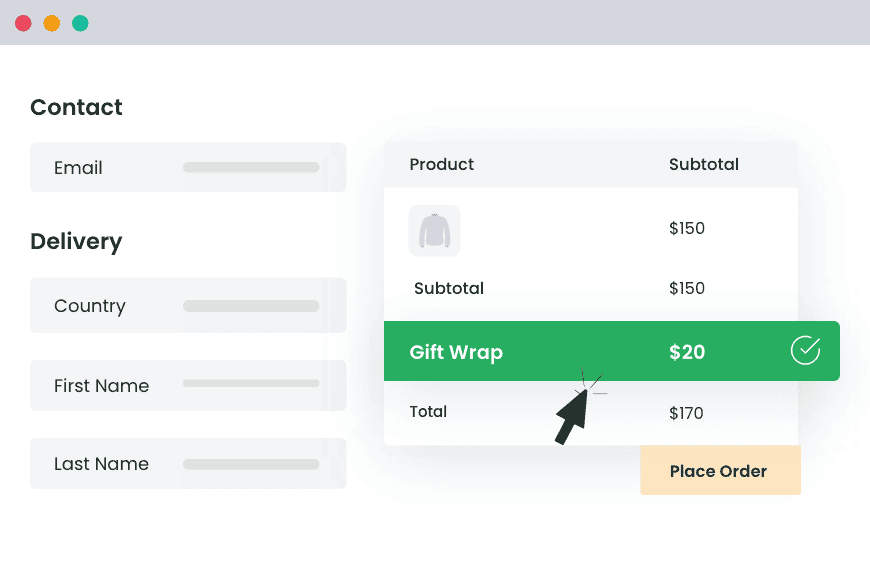
First things first, let’s start with the most fundamental question.
What is a credit card surcharge in Shopify?
A credit card surcharge in Shopify is an extra fee added to an order only when a customer chooses to pay using a credit card at checkout.
The purpose of a credit card surcharge is to recover part or all of the payment processing costs that merchants pay to card networks and payment gateways.
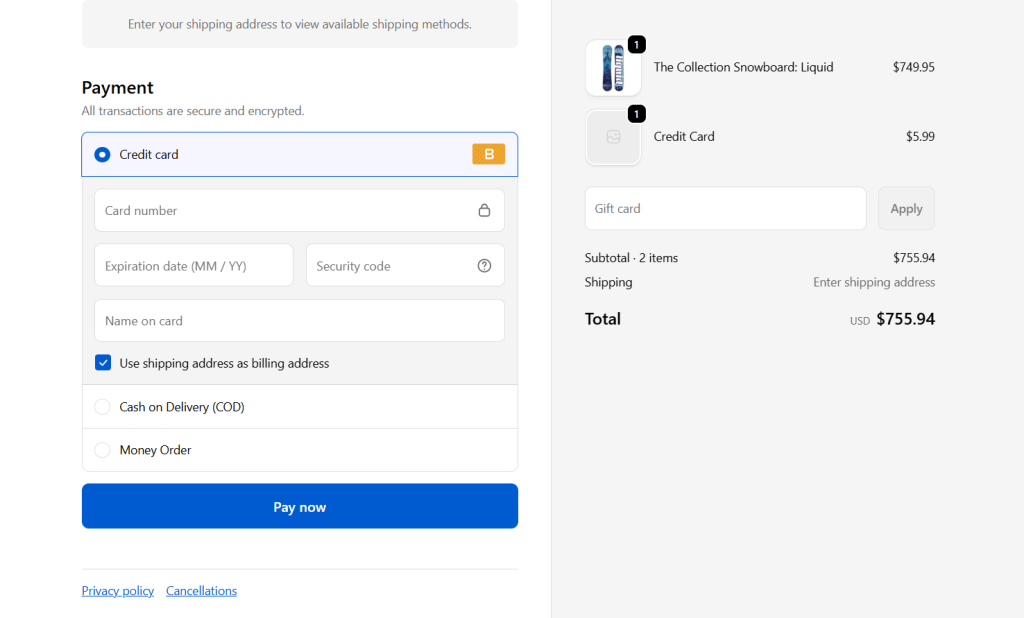
Note: Credit card surcharges are only applied when a credit card is selected. Customers who choose an alternative payment method (for example, a bank transfer or local payment option) don’t see the surcharge.
Payment processing fee vs. Credit card surcharge
A payment processing fee is what you, the merchant, pay to process a credit card transaction. This fee is charged by your payment provider and card networks, not by Shopify itself.
For instance, Shopify Payments charges payment processing fees of 2.9% + $0.30 per transaction (as of this writing). Customers aren’t shown the payment processing fee in the checkout or order confirmation; however, it is automatically deducted from your payout, not shown to customers.
A credit card surcharge is a fee passed on to a customer who chooses to pay for their order using a credit card. Credit card surcharges are applied only when a credit card is selected as the payment method and is shown in the Shopify checkout.
Adding a credit card surcharge helps merchants offset the cost of the payment processing fee, so it doesn’t impact profit margins.
Why add a credit card surcharge in Shopify?
Customers don’t like to pay extra fees. New and seasoned merchants alike know that adding another line item to the checkout flow can result in reduced conversion rates. So why are more and more merchants opting to add credit card surcharges to their Shopify stores? Here are the top reasons.
- ✔️ To recover rising payment processing costs. Credit card fees vary by card type, region, and payment provider. Plus, they change based on order volumes. For example, with Shopify Payments processing fees, a store that processes 1,000 orders per month with an average order value of $75 will pay over $2,400 in monthly processing costs alone. Adding a credit card surcharge allows merchants to recover those costs per transaction, instead of absorbing them.
- ✔️ To protect profits on low-margin orders. Stores that operate on thin margins (e.g., wholesalers, discounted stores) can’t afford to absorb credit card fees and still remain competitive. In these cases, absorbing credit card fees can turn a profitable sale into a break-even one. For instance, if a wholesaler receives a $400 order with a profit margin of $60. A credit card fee of approximately $11.9 wipes out nearly 25% of the profit on that order.
- ✔️ To avoid raising product prices across the board. Increasing the prices of all items in your product catalog to cover payment fees makes your products seem more expensive than they are — especially if your customers don’t follow the same approach. With a credit card surcharge, customers paying by card cover the card processing cost. Customers who use alternative payment methods, such as bank transfers, local payment methods, cash, etc., won’t be forced to subsidize card users.
- ✔️ To maintain flexibility without changing core pricing. A credit card surcharge can be adjusted as processing fees change, applied only to specific regions or order values, and turned on or off without changing product prices. When transparently added, customers can see exactly when the fee applies, why the total changes, and the option to choose another lower-cost payment method — which can improve conversions and brand trust.
Introducing a powerful Shopify credit card surcharge app
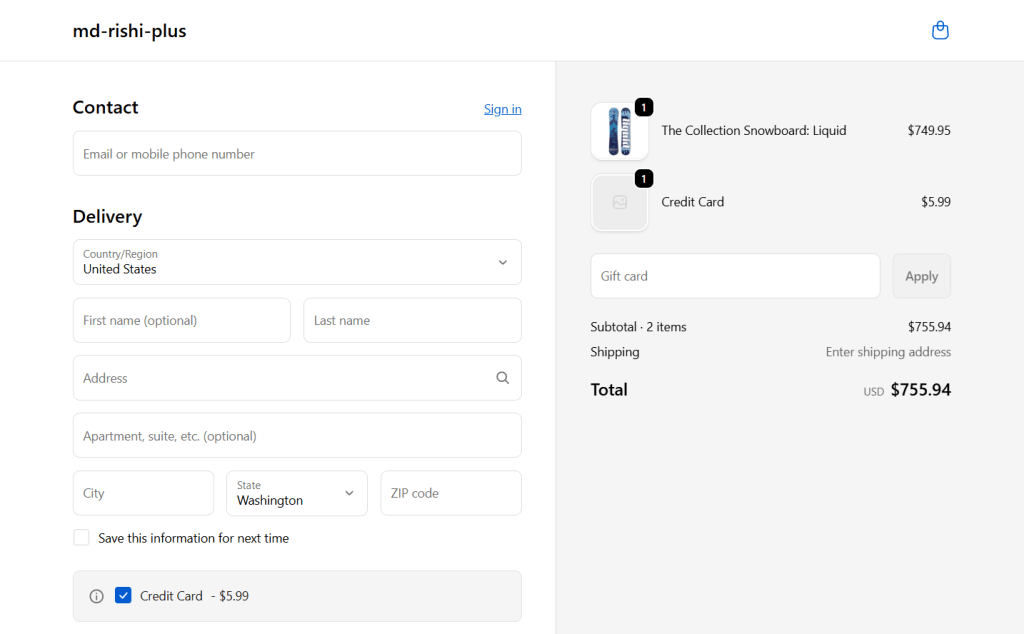
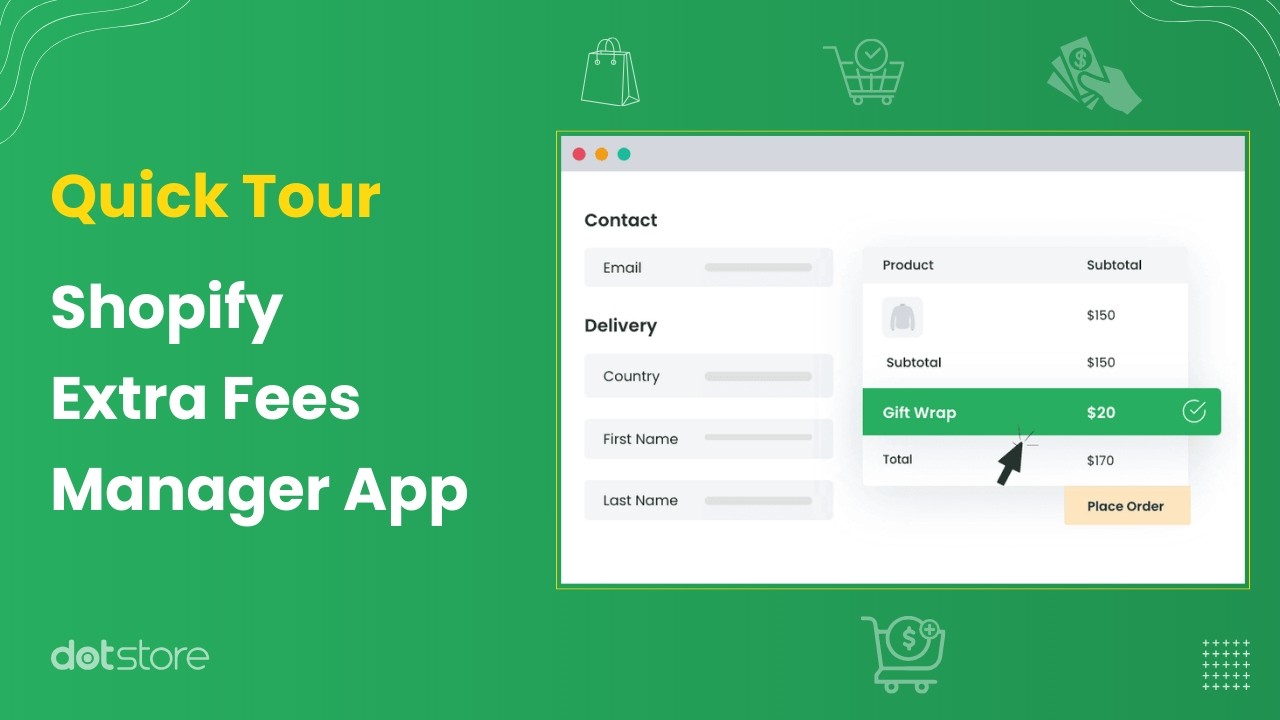
The Dotstore Extra Fees Manager app is a powerful app that lets you create credit card surcharges and other kinds of payment method–based fees.
The credit card surcharge is clearly shown in a separate section on the checkout page. Plus, you can add a brief explanation of its purpose, so that customers are unmistakably clear what the fee is for.
You can set the credit card surcharge as a fixed amount (for example, $2.50 per order) or a percentage-based fee (for example, 2.9% to match processing costs).
In addition to credit card surcharges, you can add surcharges based on payment method (credit card vs others), cart total or order value, products or collections, customer location, quantity thresholds, and more. You can also combine surcharge rules using AND / OR logic, which is useful for more complex setups.
The Dotstore’s Extra Fees Manager app is available in both free and pro versions. It is super easy to use from a clean, beginner-friendly dashboard. And after installation, its built-in setup wizard walks you through the steps to create your first surcharge in minutes.
Top features
- Fixed and percentage-based credit card surcharges. Extra Fees Manager lets you define surcharges exactly how your business needs. You can use whole numbers or decimal values to set a fixed or percentage-based surcharge per order.
- Specific targeting. It lets you control where the surcharge applies by targeting it to specific products only, collections, or the entire cart.
- Dynamic conditions. It supports dynamic conditions that enable you to trigger credit card surcharges based on selected shipping methods, date ranges such as weekends, holidays, or promotional periods, and more.
- Separate line item. Credit card surcharges are displayed as a separate line item in the checkout flow. Customers see the surcharge clearly labeled, the exact amount added, and the updated total before completing payment. So there’s no room for post-purchase disputes.
- Tax calculations. Because tax treatment varies by region, Extra Fees Manager permits you to choose to mark the surcharge as taxable or keep it tax-exempt. This helps ensure accurate reporting and fewer accounting issues down the line.
How to add a credit card surcharge to Shopify
Follow the steps below to add a credit card surcharge in Shopify using the Dotstore Extra Fees Manager app.
- Start by logging into your Shopify admin and navigating to Apps → Shopify App Store.
- Search for “Extra Fees Manager” app by The Dotstore and install the app.
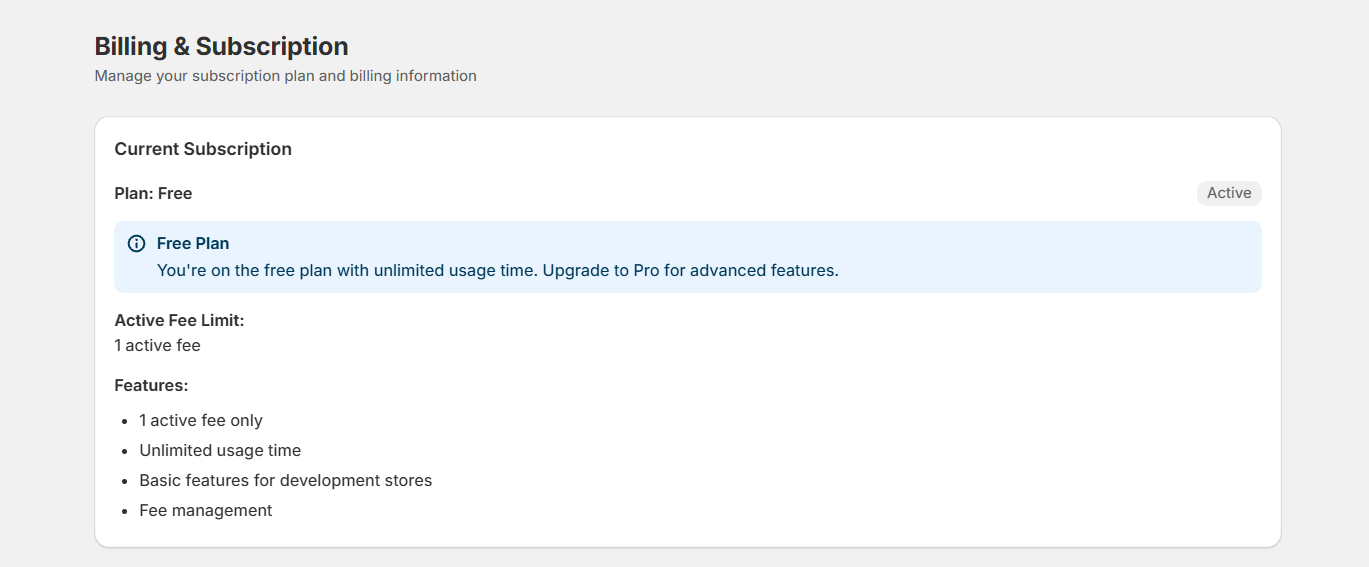
- Once installed, go to Apps →Extra Fees Manager → Billing. Before creating a credit card surcharge, you’ll need to activate a plan. Note: The free plan allows you to add one surcharge to your Shopify store.
- Next, head to Apps → Extra Fees Manager → Fees and click “Create Fee” to set up your credit card surcharge.
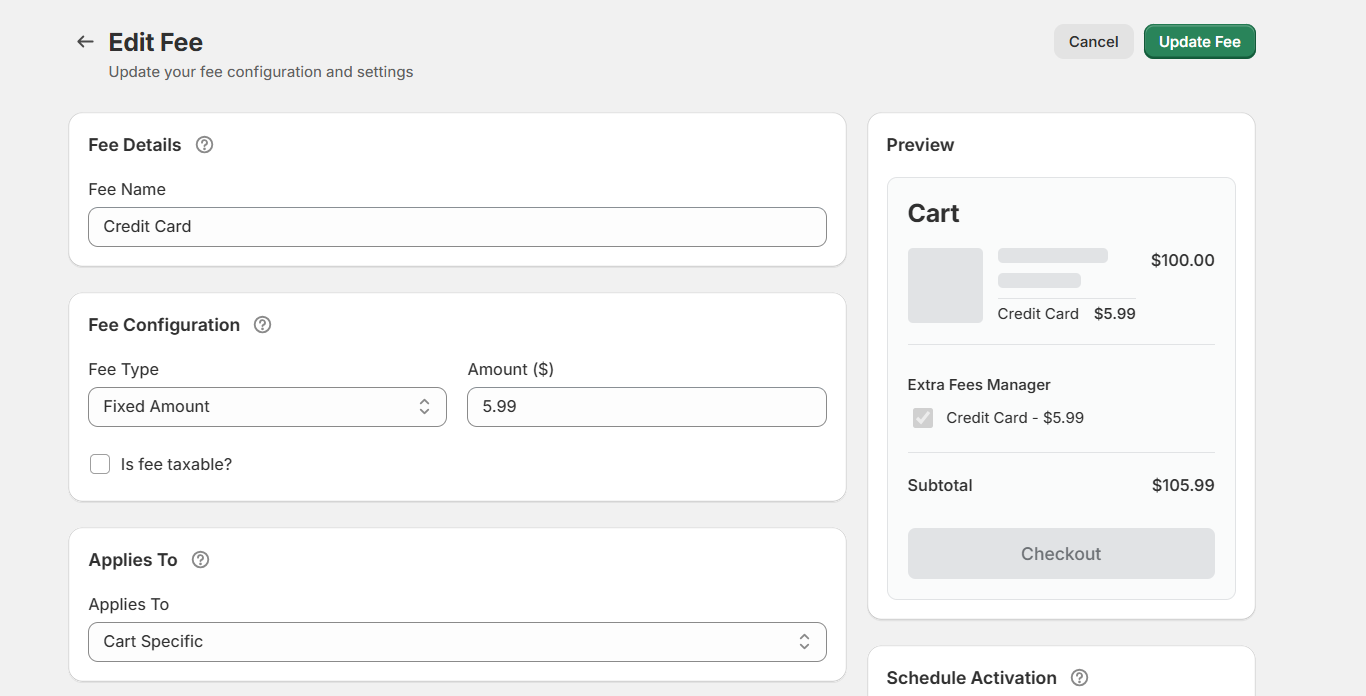
- Now configure the surcharge details:
- Name the surcharge (this label will appear in the cart and checkout, such as “Credit Card Processing Fee”).
- Choose the surcharge type: fixed amount or percentage-based.
- Enter the surcharge value and specify whether it should be taxable or tax-exempt.
- Select where the surcharge applies, either at the product level or across the entire cart.
- You can also fine-tune the surcharge using optional settings:
- Description: Add a short explanation so customers understand why the credit card fee is being charged.
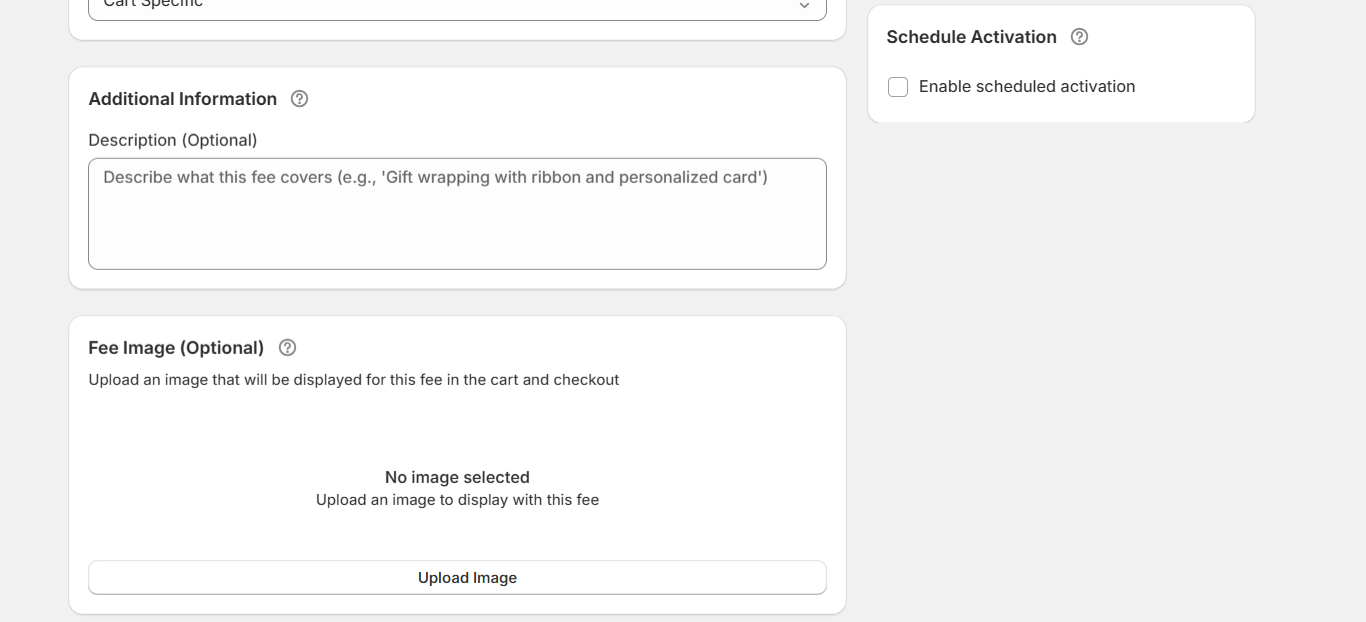
- Image/Icon: Display a small icon next to the surcharge in the cart or checkout.
- Start and end dates: Schedule the surcharge to apply only during specific periods.
- Description: Add a short explanation so customers understand why the credit card fee is being charged.
- For more control, enable advanced conditions so the credit card surcharge applies only when certain criteria are met. Turn on “Enable Conditional Rules”, then add rules based on factors such as:
- Cart total or quantity.
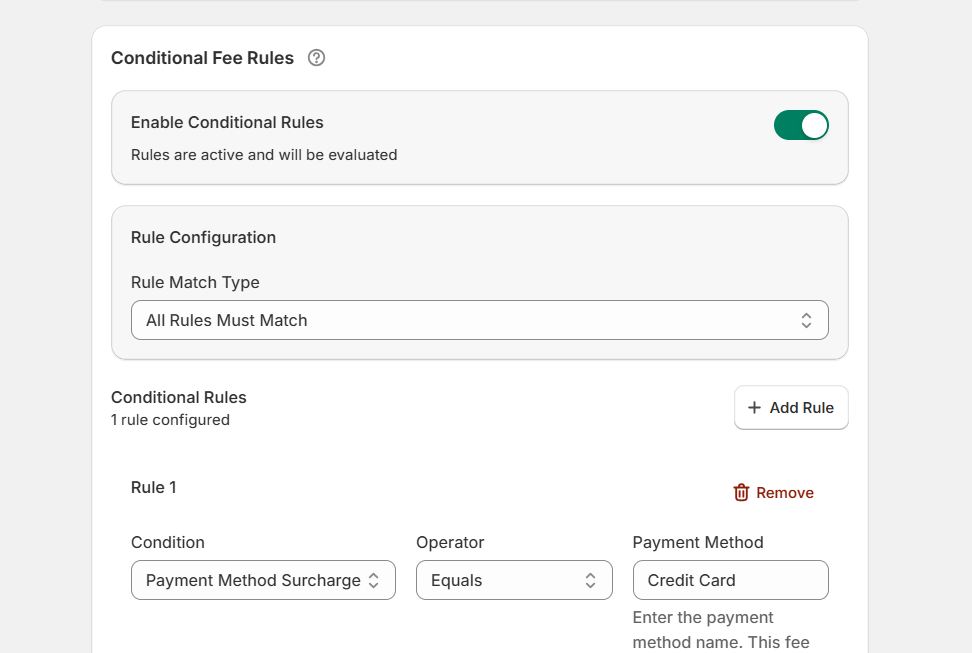
- Specific products or collections.
- Customer location.
- Shipping method.
- Payment method (credit card only).
- Customer tags or customer type.
- Cart total or quantity.
- Finally, press “Save Fee” to activate the credit card surcharge.
Important: Enable the fee calculator in your Shopify cart
To ensure the credit card surcharge appears correctly in the cart, you’ll need to enable the Dotstore fee calculator.
- From your Shopify admin, go to Apps → Extra Fees Manager.
- Open the “Enable App Embed” section and tap “Enable App Embed.”
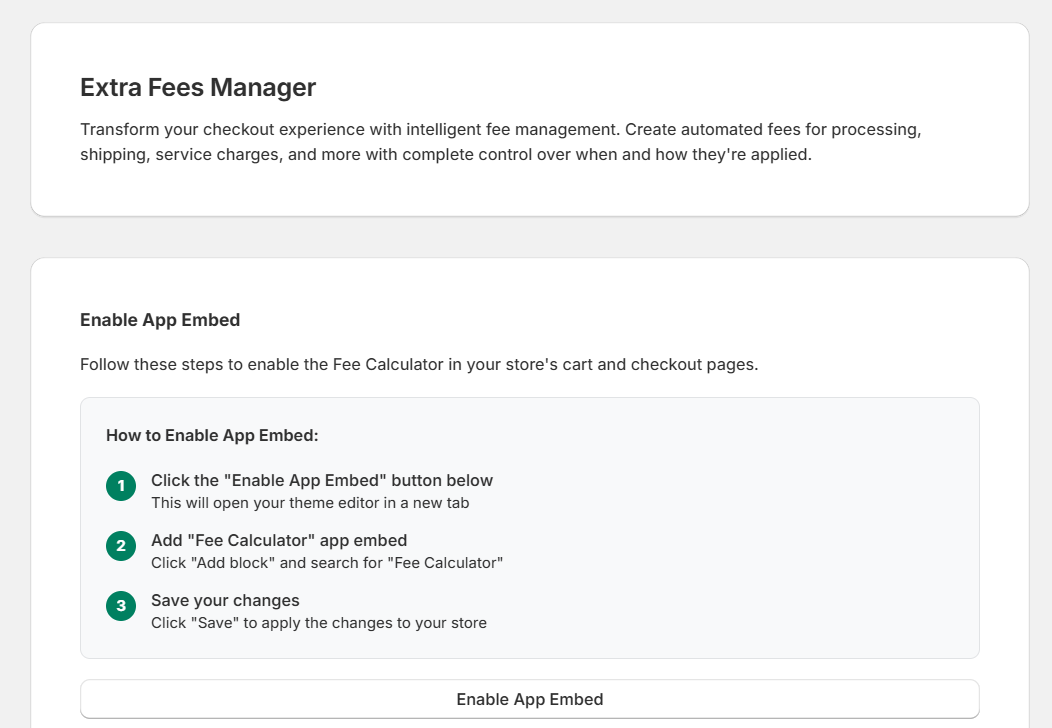
- Next, locate your store’s active theme and tap “Edit.”
- Add the Dotstore Fee Calculator block to the cart page and save your changes.
- Once enabled, customers will see the credit card surcharge clearly reflected in the cart and checkout when they select a credit card payment method.
Guidelines for passing on credit card fees to customers
Here are five guiding principles to follow before you implement credit card surcharges in your Shopify store.
- Confirm whether credit card surcharges are permitted in your state. Credit card surcharge rules vary based on location. Some regions allow them, provided you attach a disclosure, while others restrict or prohibit them entirely. Before enabling a surcharge, confirm applicable state-level or country-level regulations, whether limits apply to the surcharge amount, and whether disclosure requirements exist.
- Comply with all applicable laws and rules. Credit card surcharges are governed by consumer protection laws, payment provider terms, card network requirements, and local regulations. To avoid forced fee removals or account restrictions, you must match the surcharge amount closely to real processing costs and avoid vague or misleading fee labels.
- Inform the relevant card networks in advance. Most credit card networks require your advance notice before you begin applying a surcharge. Typically, this involves notifying the card networks you accept, providing details about the surcharge amount, and confirming how the fee will be disclosed to customers. Skipping this step can result in disputes or compliance issues.
- Clearly show surcharge disclosures on your site. The prevailing rules dictate that customers must see the surcharge before completing their payment. A clear disclosure must include a visible surcharge line item at checkout, a clear label explaining what the fee is for, and an updated total shown immediately.
- Apply surcharges only to credit card transactions. Card surcharges must apply only when a credit card is selected. It shouldn’t affect debit cards or prepaid debit card payments.
Best practices for adding credit card surcharges in Shopify
These five tips will help you implement credit card surcharges in a way that protects your margins as well as customers’ experience in your Shopify store.
- Use clear labels and descriptions, such as “Credit Card Processing Fee” or “Card Payment Fee,”that accurately depict the purpose of the surcharge. Avoid vague or ambiguous wording like “Extra Charge” or “Additional Cost.” This ensures you remain compliant and avoid increased cart abandonment.
- Offer alternative payment methods (including others without payment method-based fees) whenever possible, such as UPI, bank transfer, or cash-based options. This allows customers to choose from multiple options.
- Transparently inform customers about surcharges. For instance, the surcharge should be shown as a separate line item before payment is completed.
- Follow regulations based on customer location. Before enabling a surcharge, confirm whether it’s allowed in the customer’s state or country, as well as whether limits or disclosures are required.
- Review and adjust surcharge rates as appropriate. For instance, when payment provider rates change, order volume increases, or new payment methods are introduced.
FAQs about Shopify credit card surcharges
Can I pass on credit card fees to customers in Shopify?
Yes, you can pass on credit card fees to your customers. Shopify itself doesn’t block credit card surcharges. However, the ability to pass on fees depends on (1) local regulations where the customer is based, (2) payment provider and credit card network rules, and (3) how transparently the fee is presented in the checkout flow.
Important note: You still pay the payment processing fee to your provider. The surcharge helps offset that cost.
In what states is it illegal to charge credit card fees?
At the time of writing, merchants are prohibited from adding credit card surcharges in Connecticut, Maine, and Massachusetts. Several other states — including California, Colorado, Georgia, Kansas, Minnesota, New York, New Jersey, South Dakota, and Texas — do permit surcharges, but only under specific conditions and with certain limitations in place.
Ready to add a credit card surcharge in Shopify?
Credit card surcharges help recover rising payment processing costs and protect profits on low-margin orders, so you can maintain flexibility without changing base product prices.
By default, Shopify doesn’t include the option to add credit card surcharges, but you can implement this feature in your store using the Dotstore Extra Fees Manager app.
Dotstore Extra Fees Manager is a powerful app that lets you add credit card surcharges and other types of payment method–based fees. With it, you can:
- Add fixed or percentage-based credit card surcharges to Shopify, using whole numbers or decimal values.
- Apply surcharges only when a credit card is selected to keep pricing fair for customers who opt for other payment methods.
- Target fees by products, collections, or the entire cart (depending on your margin structure).
- Set smart, dynamic conditions based on shipping methods, order dates, or other checkout factors.
- Showcase surcharges as a clear, separate line item so customers clearly understand the purpose of the fee before completing payment.
- Mark surcharges as taxable or tax-exempt (depending on local requirements and your operations).
Get started with the free or pro version of the Dotstore Extra Fees Manager app now!
Shopify Extra Fees Manager
Add dynamic checkout fees for add-ons, upcharges, surcharges, etc., to your Shopify store — the easy way!
14-day, no-questions-asked money-back guarantee.

🌟 Supercharge Your Shopify Revenue with the Extra Fees!
Try the plugin 100% risk free!