Table of Contents
In this guide, you’ll learn what a Shopify cash on delivery transaction fee is, why merchants add COD charges, and how to set up a cash on delivery extra charge in Shopify step by step using the Dotstore Extra Fees Manager app.
Key Takeaways
- Offering cash on delivery (COD) can help boost conversions. However, its downsides include increased logistics costs, higher return-to-origin (RTO) risk, slower cash flow due to delayed settlements, and added manual work.
- Shopify treats COD as a manual payment method and therefore doesn’t charge transaction fees. This also means that it doesn’t provide a built-in option to add extra charges to COD orders.
- Apps like The Dotstore Extra Fees Manager app let you add COD charges in Shopify as a fixed amount or percentage, apply them only under specific conditions, and display them in a separate section in the checkout flow.
Do you want to add an extra charge for cash on delivery orders in Shopify?
Cash on delivery is a popular payment option across many Shopify stores, especially in regions where customers prefer to pay only after receiving the product. It’s proven to lower purchase friction and help first-time buyers convert. However, the downside of COD orders is added courier fees, higher return-to-origin rates, delayed settlements, and more manual follow-ups.
For example, if your Shopify store processes 1,000 COD orders a month, you’ll likely end up having to pay thousands in additional logistics and handling fees without realizing how much of that is tied specifically to COD. As you can imagine, over time, this quietly eats into your store’s profitability.
However, you aren’t stuck absorbing these costs. You can add a COD charge that applies only when customers choose cash on delivery, which keeps your pricing strategy fair for buyers who use prepaid payment method while protecting your profit margins.
In this in-depth guide, you’ll learn:
- What a cash on delivery transaction fee is in Shopify.
- Why merchants choose to add extra charges to COD orders.
- Step-by-step instructions to add cash on delivery transaction fees using the powerful Dotstore Extra Fees Manager app.
Let’s get started.
A quick note: Hi, we’re The Dotstore, makers of the Extra Fees Manager app! We’ve been creating ecommerce software since 2009, and today, more than 100,000 websites trust us to power their businesses. Available in both free and pro versions, Extra Fees Manager is a simple-to-use app that empowers merchants to add cash on delivery (COD) transaction fees, surcharges, handling fees, and other types of extra custom fees to Shopify with ease. Learn more about it or get it now.
Shopify Extra Fees Manager
Add dynamic checkout fees for add-ons, upcharges, surcharges, etc., to your Shopify store — the easy way!
14-day, no-questions-asked money-back guarantee.
What is a Shopify cash on delivery transaction fee?
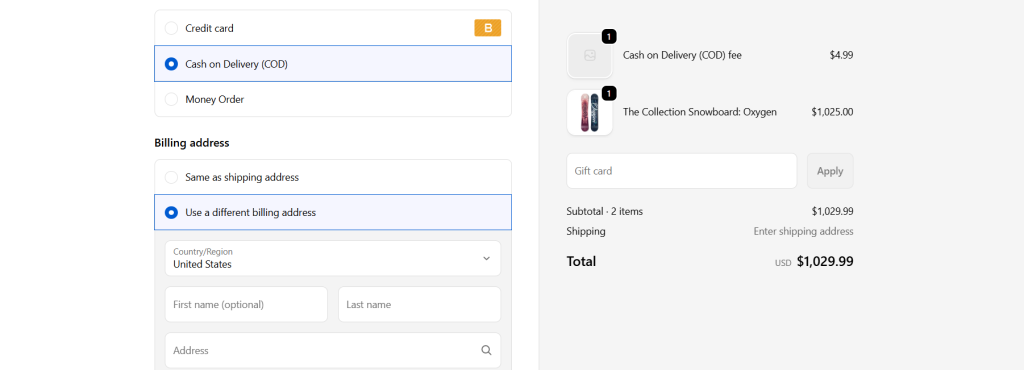
In Shopify, a cash on delivery (COD) transaction fee is an extra charge a merchant adds to orders where the customer chooses to pay at the time of delivery instead of paying upfront online.
Shopify treats COD as a manual payment method, so there are no Shopify payment processing fees attached to it. However, many merchants elect to add COD charges to recover operational costs associated with offering it as a payment option. Think: COD handling fee per order charged by courier companies, higher return-to-origin (RTO) costs due to higher risk of failed deliveries or refusals, cash flow impact due to time required for cash collection and settlement, and added admin overhead due to manual reconciliation.
Note: A Shopify transaction fee for cash on delivery is different from payment gateway fees. Payment gateway fees are applied to online payments like cards, wallets, or UPI, while COD transaction fees are merchant-defined charges used to recover logistics and handling costs.
Why add Shopify COD charges?
Here are the most common reasons merchants choose to add COD charges in Shopify.
- To recover higher logistics and handling costs. COD orders cost more to fulfill than prepaid ones. Most shipping partners charge an additional COD handling fee (around $2–$5 extra) per order. On top of that, settlement times are longer, which impacts your cash flow. Adding a small COD charge can help offset courier charges without raising base product prices.
- To reduce the number of return-to-origin (RTO) orders. Cash on delivery allows customers to place orders without any upfront commitment, which increases the risk of refused deliveries. Adding a small extra charge to this payment method filters out fake orders and delivery refusals from non-serious buyers.
- To protect margins on low-value orders. COD orders below a certain cart value may not make financial sense for some businesses. Between shipping fees, COD charges from couriers, and potential returns, they can sometimes run at a loss. Adding a COD charge for small carts can help maintain profit margins without disabling COD entirely.
- To encourage prepaid payments without forcing them. Removing COD might hurt your conversions. To sidestep that, you can use COD charges as a gentle nudge toward prepaid options. A portion of your customers will prefer to switch to online payment to avoid the charge, while others will happily pay it. This improves cash flow and reduces operational risk, all while keeping COD available for customers who truly prefer it.
- To keep pricing fair for prepaid customers. Depending on your operation’s complexities, COD orders may cost more to fulfill than prepaid orders. This is because, as your store’s order volume grows, COD orders may require more manual follow-up in the form of confirmation calls, delivery tracking, and cash reconciliation. Adding COD charges helps make sure your prepaid customers aren’t indirectly subsidizing the higher cost of COD orders.
Introducing a powerful way to add a Shopify cash on delivery extra charge
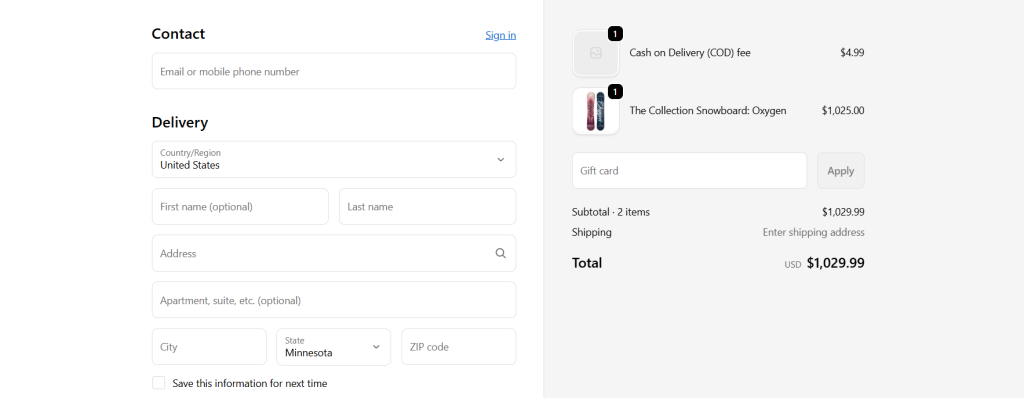
The Dotstore Extra Fees Manager app is a robust Shopify app that allows you to add Shopify cash on delivery transaction fees, together with other payment method–based charges.
You can use it to apply charges based on payment method selection, cart total, products or collections, customer location, quantity limits, and more. For advanced setups, you can combine multiple rules using AND / OR conditions to ensure the COD fee is applied only when the exact criteria are met.
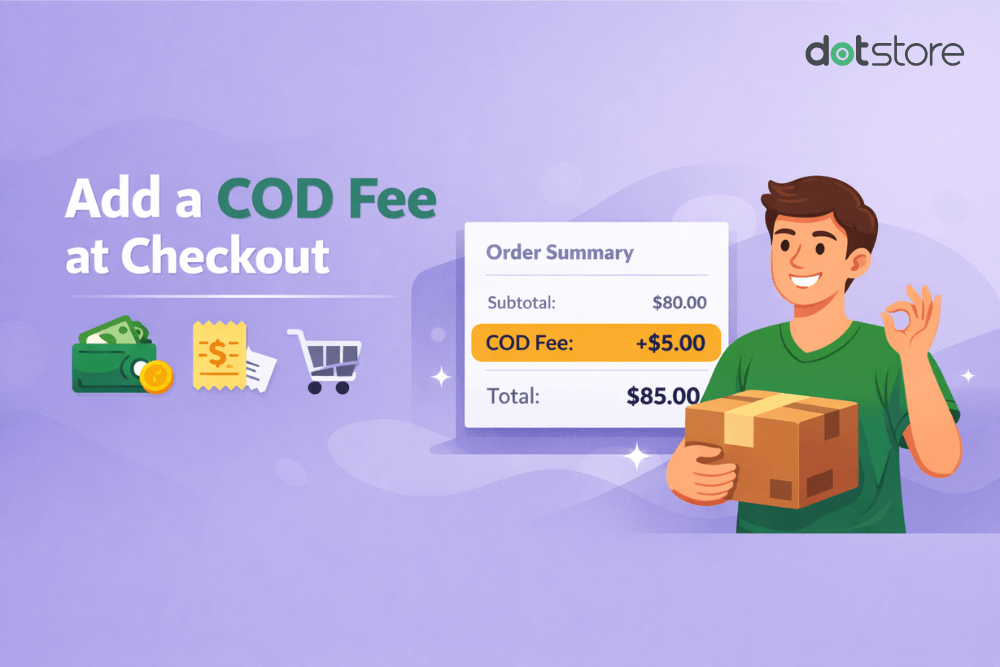
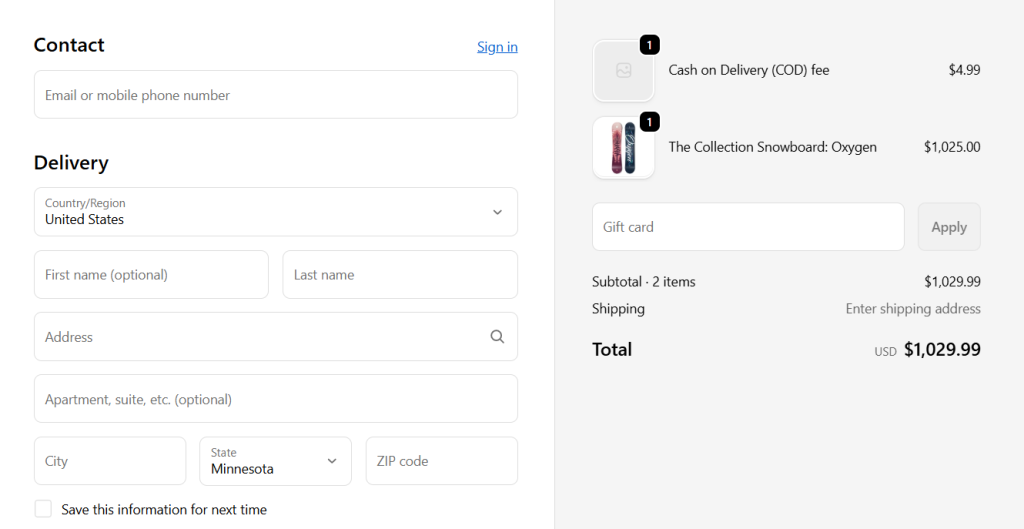
The COD fee is displayed as a separate line item on the checkout screen, which makes it immediately obvious to customers. You can also include a short description that explains why the COD fee applies, so shoppers clearly understand the reason for the additional charge before placing their order.
The Dotstore Extra Fees Manager app lets you configure the COD transaction fee as a fixed amount (for example, $50 or $2.50 per order) or as a percentage of the order value (for example, 2–3% to offset COD handling and return risks).
This COD extra fee app is available in both free and pro plans and is designed to be easy to use from a clean, beginner-friendly dashboard. After installation, its handy setup wizard guides you through creating your first COD transaction fee in just a few minutes.
Top features
- ✔️ Conditional COD fees. Set up cash on delivery fees that trigger only when specific conditions are met. For example, you can apply COD charges based on cart value, customer location, selected products or collections, order quantity, shipping method, or date ranges.
- ✔️ Fixed or percentage-based COD charges. Choose whether your COD fee is a flat amount (such as ₹50 or $3 per order) or a percentage of the order total. You can also decide if the COD fee should be taxable or tax-exempt.
- ✔️ Clear, standalone fee display. COD transaction fees appear as a dedicated line item in the cart and checkout, ensuring customers clearly understand why the extra charge is applied before completing their purchase.
- ✔️ Automatic currency conversion. For global Shopify stores, COD fees are automatically adjusted to the customer’s local currency, keeping checkout totals accurate and consistent.
- ✔️ Product-level and cart-level fees. Apply COD charges only when specific products are purchased, or apply a single COD transaction fee across the entire order.
- ✔️ Scheduled COD fees. Use built-in scheduling to automatically enable or disable COD fees during specific dates, such as sales events, holidays, or high-risk delivery periods.
Shopify Extra Fees Manager
Add dynamic checkout fees for add-ons, upcharges, surcharges, etc., to your Shopify store — the easy way!
14-day, no-questions-asked money-back guarantee.
How to add a cash on delivery transaction fee in Shopify
Follow the steps below to add a cash on delivery (COD) transaction fee in Shopify using The Dotstore Extra Fees Manager app.
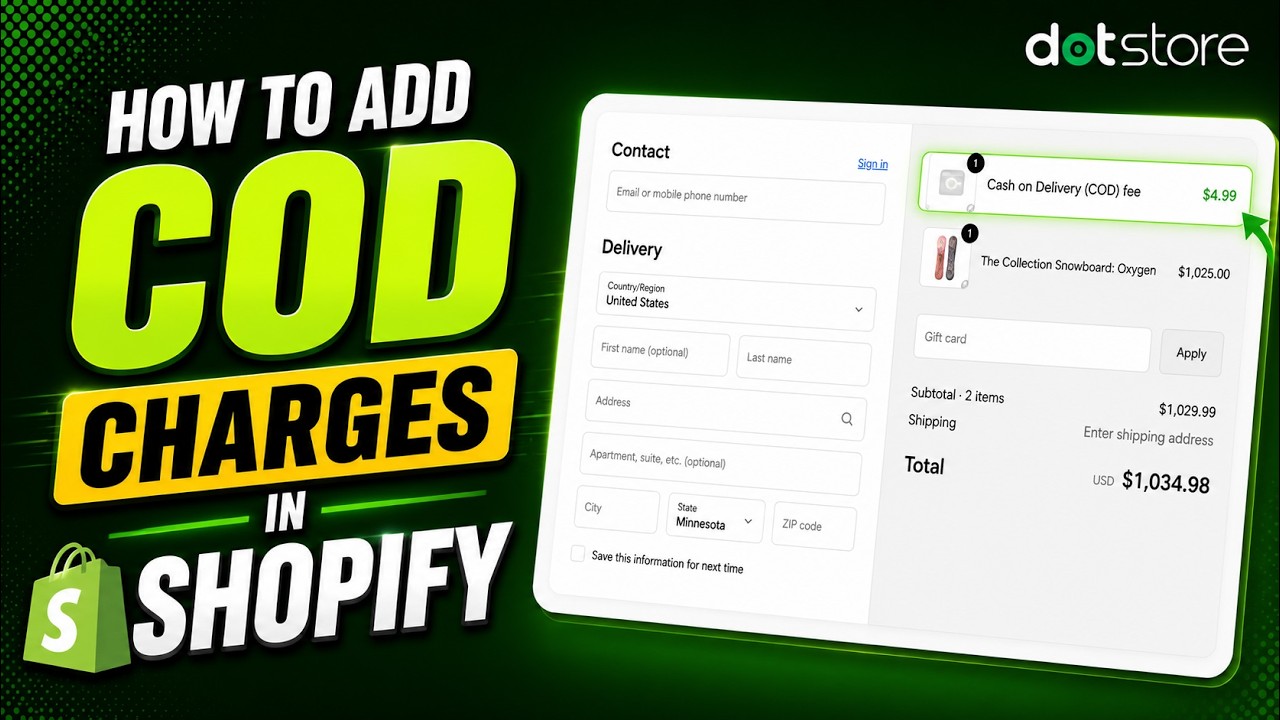
- First things first, log in to your Shopify admin and go to Apps → Shopify App Store.
- Search for “Extra Fees Manager” by The Dotstore and install the app.
- Once the app is installed, navigate to Apps → Extra Fees Manager → Billing. Before you can add a COD fee, you’ll need to activate a plan. Note: The free plan lets you add one fee to your Shopify store.
- Next, go to Apps → Extra Fees Manager → Fees and click “Create Fee” to set up your cash on delivery charge.
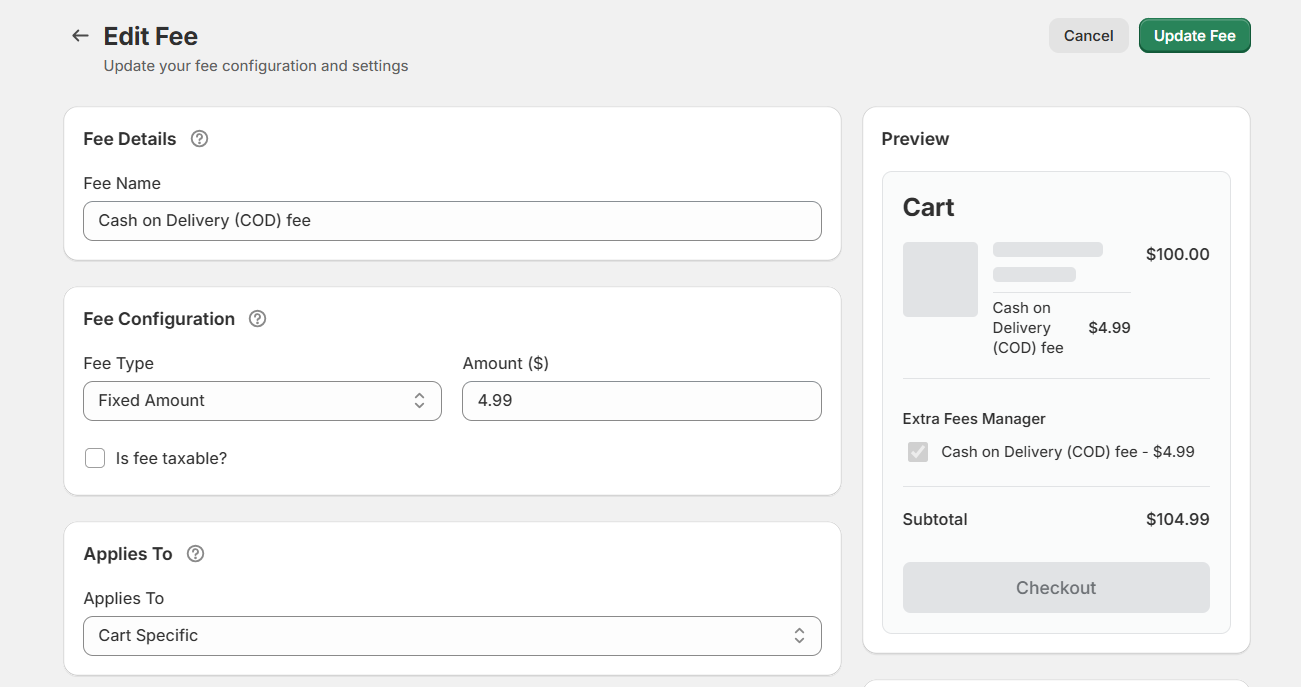
- Now configure the COD fee settings:
- Fee name: Give the fee a clear label that customers will see at checkout, such as “Cash on Delivery Fee” or “COD Handling Charge”.
- Fee type: Choose whether the COD fee should be a fixed amount or a percentage of the order total.
- Fee value: Enter the amount and decide whether the fee should be taxable or non-taxable.
- Apply scope: Select whether the fee should apply to the entire cart or specific products.
- You can also adjust optional settings for better clarity and control:
- Description: Add a short note explaining why the COD fee is applied, so customers know what they’re paying for.
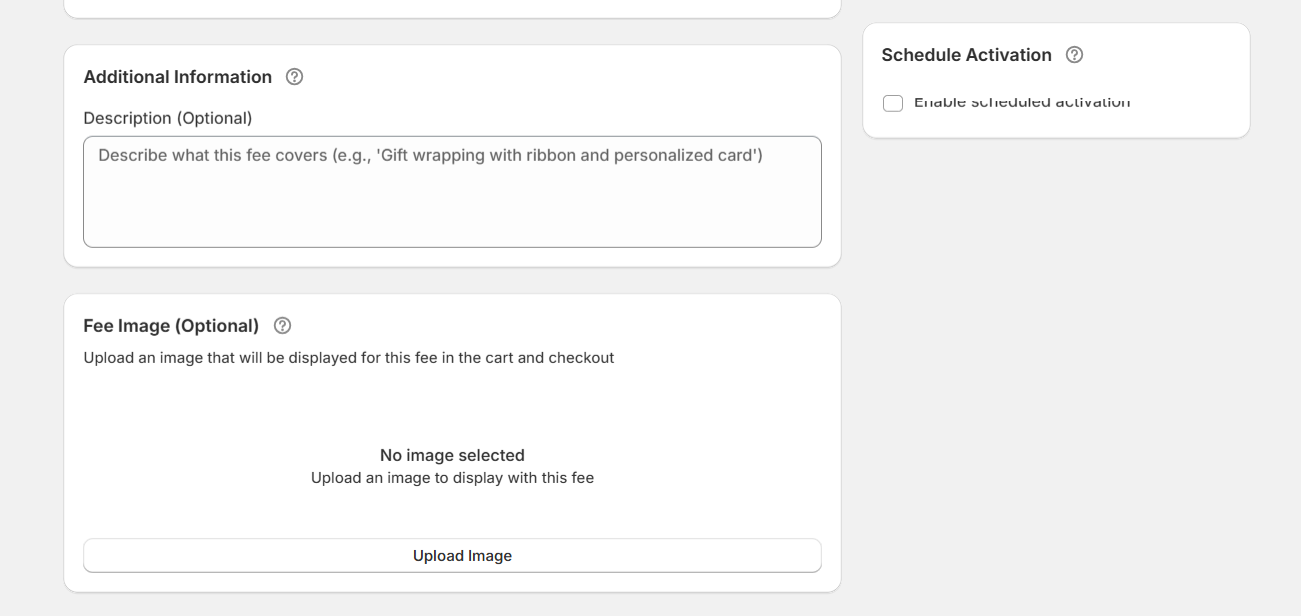
- Icon or image: Show a small visual next to the fee in the cart or checkout, if needed.
- Start and end dates: Schedule the COD fee to run only during specific time periods.
- Description: Add a short note explaining why the COD fee is applied, so customers know what they’re paying for.
- For more precision, enable advanced conditions so the COD fee applies only in certain cases. Turn on “Enable Conditional Rules”, then set conditions based on factors like:
- Cart value or item quantity
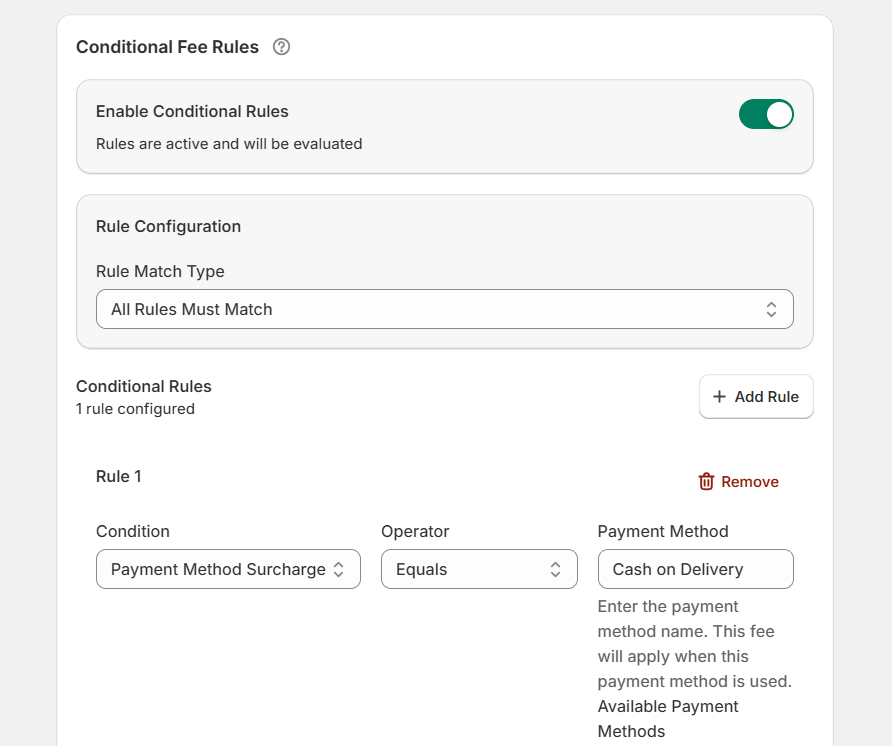
- Specific products or collections
- Customer location
- Shipping method
- Payment method (Cash on Delivery only)
- Customer tags or customer type
- Cart value or item quantity
- Once everything is set, press “Save Fee” to activate the cash on delivery transaction fee.
Important: Enable the fee calculator in your Shopify cart
To make sure the COD fee shows correctly in the cart and checkout, you’ll need to enable the Dotstore fee calculator.
- From your Shopify admin, go to Apps → Extra Fees Manager and open the “Enable App Embed” section. Click “Enable App Embed.”
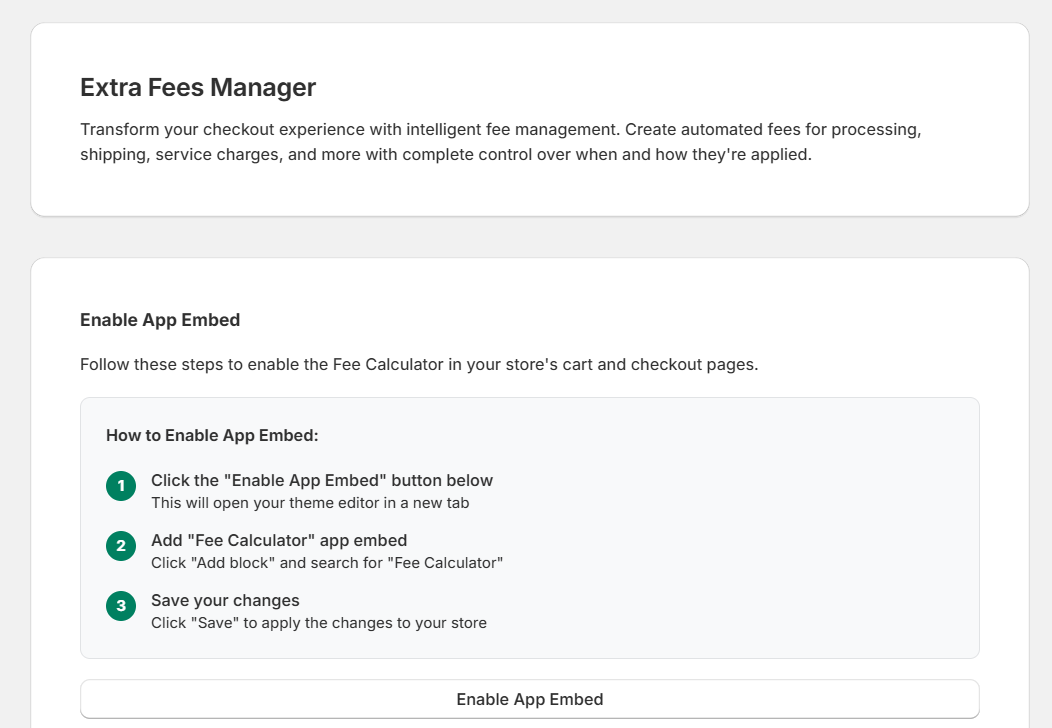
- Next, find your active theme and click “Edit.”
- Add the Dotstore Fee Calculator block to the cart page and save your changes.
- Once this is enabled, customers will clearly see the cash on delivery transaction fee reflected in the cart and checkout when they choose COD as their payment method.
Ready to add a COD charge to your Shopify store?
Adding a transaction fee to COD orders helps you recoup the operational costs of offering a pay-on-delivery option.
As noted in this guide, Shopify does not have a built-in setting to charge extra fees for cash on delivery orders, so you’ll need to add COD transaction fees using an app like The Dotstore Extra Fees Manager.
Dotstore Extra Fees Manager is a powerful Shopify app that lets you add cash on delivery transaction fees, along with other charges linked to specific payment methods.
With it, you can apply fees based on factors such as the selected payment method, cart value, products or collections, customer location, item quantity, and more. For complex setups, you can combine multiple conditions using AND / OR logic, which makes sure the COD fee applies only when your defined criteria are satisfied.
The app shows the COD fee as a separate line item at checkout so that the charge is instantly visible to customers. And you can add a short explanation that clarifies why the COD fee applies, so shoppers know exactly what they’re paying for before completing the order.
Dotstore Extra Fees Manager allows you to configure the COD transaction fee as either a flat amount (such as $50 or $2.50 per order) or a percentage of the order total (like 2–3%), auto-converted to each customer’s local currency.
Learn more about the app or get started with its free or pro plan today!
Shopify Extra Fees Manager
Add dynamic checkout fees for add-ons, upcharges, surcharges, etc., to your Shopify store — the easy way!
14-day, no-questions-asked money-back guarantee.

🌟 Supercharge Your Shopify Revenue with the Extra Fees!
Try the plugin 100% risk free!