Table of Contents
On the block-based checkout (WooCommerce 8.3+), local pickup already skips the shipping address, so you need no code. On the classic checkout, hide the fields conditionally with the woocommerce_cart_needs_shipping_address filter: check the chosen shipping method, and return false when it is local pickup. Do not use “Force shipping to billing address,” since that hides the address for every order, not just pickup, and breaks your delivery orders.
Key Takeaways
- Asking pickup customers for a shipping address adds pointless friction, causes bad order data, and costs conversions, so hiding it the moment they choose pickup keeps checkout short and clean.
- The fix depends on your checkout: block-based Local Pickup (WooCommerce 8.3+) already skips the shipping address natively, so no code is needed.
- On the classic checkout, the woocommerce_cart_needs_shipping_address filter is the clean fix; return false when the chosen method is local pickup, matching both local_pickup and pickup_location ids.
- The filter re-evaluates on WooCommerce’s update_checkout event, so the address toggles automatically as the customer switches between delivery and pickup, with no extra JavaScript.
- Avoid CSS/JS-only hiding unless you re-apply it on the updated_checkout event, since WooCommerce replaces the checkout markup on method switch and wipes the change.
- Never use “Force shipping to billing address” for this, since it hides the address for every order and breaks delivery in a mixed store; it’s only right for pickup-only stores.
- Set pickup itself up first with the Local Pickup for WooCommerce plugin, which provides the locations, time slots, and rules the address logic reacts to.
If your store offers both delivery and local pickup, asking pickup customers for a shipping address is pure friction. They are collecting in person, so there is no address to ship to. The cleaner experience is to hide the shipping address fields the moment they choose pickup, and show them again if they switch back to delivery.
This guide is scoped to that one job: the conditional hiding of the shipping address at checkout. If you still need to set pickup up, see how to add delivery or pickup options first. If you run a pickup-only store and never ship, you want to remove shipping entirely instead, covered in allow only local pickup for orders.
Why hide the shipping address on pickup
Showing a shipping address to someone who is collecting in person causes real problems:
- Friction and confusion. Pickup customers do not know what to put in a delivery address, so they stall or enter the store address.
- Bad data. Half-filled or wrong shipping addresses end up on pickup orders, which muddles fulfilment.
- Abandoned carts. Every extra field at checkout costs conversions, and an irrelevant one costs more.
Hiding the fields on pickup keeps checkout short and the order data clean.
Block checkout or classic checkout?
The fix depends entirely on which checkout your store runs, so confirm that first by opening your Checkout page.
Block-based checkout (no code needed)
If your Checkout page is built from the Checkout block, you are already done. The block-based Local Pickup introduced in WooCommerce 8.3 does not collect or show a shipping address when the customer selects pickup. It handles the conditional behavior natively, so no code or plugin is required.
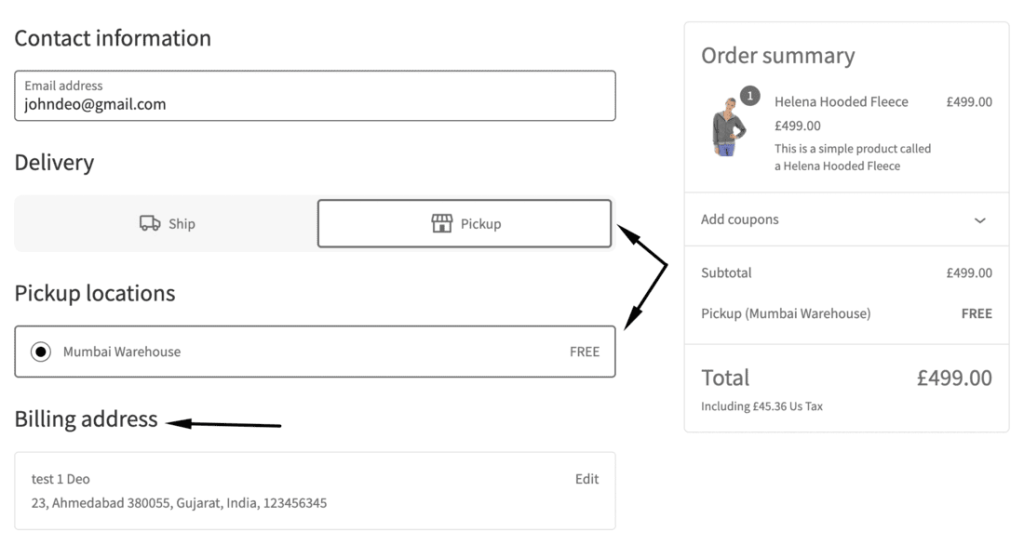
Classic / shortcode checkout (needs code or a plugin)
If your Checkout page uses the [woocommerce_checkout] shortcode, the shipping address still appears even when pickup is chosen. This is where you add the code below, or use a no-code route.
Hide the shipping address with code
On the classic checkout, two patterns work. The filter method is cleaner and the one to reach for first.
1. The filter method (recommended)
WooCommerce decides whether to show the shipping address through the woocommerce_cart_needs_shipping_address filter. Return false when the chosen method is local pickup, and the fields disappear.
add_filter( ‘woocommerce_cart_needs_shipping_address’, ‘ds_hide_shipping_address_for_pickup’ );
function ds_hide_shipping_address_for_pickup( $needs_address ) {
$chosen = WC()->session->get( ‘chosen_shipping_methods’ );
if ( is_array( $chosen ) && isset( $chosen[0] ) ) {
if ( strpos( $chosen[0], ‘local_pickup’ ) === 0 || strpos( $chosen[0], ‘pickup_location’ ) === 0 ) {
return false;
}
}
return $needs_address;
}
Two details make this reliable. Match on both local_pickup and pickup_location, since newer pickup-location methods use the second id. And because switching the shipping method triggers WooCommerce’s update_checkout AJAX event, the checkout fragment re-renders on its own, so the address section toggles as the customer moves between delivery and pickup. No extra JavaScript needed.
2. The CSS or JS method (and its gotcha)
Some themes wrap the address in custom markup, so you may prefer to hide it visually. You can target the shipping fields with CSS or jQuery, but there is a catch: when the customer switches method, WooCommerce replaces the checkout markup, which wipes your change. You must re-apply it on the updated_checkout event.
jQuery( function ( $ ) {
$( document.body ).on( ‘updated_checkout’, function () {
var method = $( ‘input[name^=”shipping_method”]:checked’ ).val() || ”;
if ( method.indexOf( ‘local_pickup’ ) === 0 || method.indexOf( ‘pickup_location’ ) === 0 ) {
$( ‘.woocommerce-shipping-fields’ ).hide();
} else {
$( ‘.woocommerce-shipping-fields’ ).show();
}
} );
} );
Prefer the filter when you can, since it removes the fields server-side rather than just hiding them in the browser.
Common gotchas
A few things to watch when you ship this:
- Theme markup varies. The CSS selectors differ by theme, so test on your live theme, not a default one.
- Fields go stale without the re-bind. A pure CSS or JS hide that does not listen for updated_checkout will show the address again the moment the customer switches method.
- Plugin conflicts. A checkout or shipping plugin can override the behavior. Test with a clean setup if the fields do not respond.
The no-code routes
If you would rather not touch code, you have two honest options.
The first is to move to the block-based checkout, where pickup hides the address for you with no setup. For most stores this is the simplest answer. The second is a checkout field editor plugin that can show or hide fields based on the selected shipping method, which keeps you on the classic checkout without code.
Either way, set pickup up first. The Local Pickup for WooCommerce plugin gives you the pickup locations, time slots, and rules; this guide only handles the address-field behavior on top of that. If pickup itself is not appearing, see WooCommerce local pickup not showing.
Local Pickup For WooCommerce
Let your customers shop online and later pick up their purchased items from your store with Local Pickup Plugin.
14-day, no-questions-asked money-back guarantee.
What not to use: Force shipping to billing address
You will see advice to set WooCommerce > Settings > Shipping > Shipping options > Shipping destination to “Force shipping to the customer billing address.” Avoid it for this use case. That setting hides the shipping address for everyorder, not only when pickup is selected, so in a mixed store that still ships, you never collect a delivery address and your delivery orders break.
It is the right tool only for a pickup-only store. For exactly how that setting behaves, see disable ship to a different address.
Best practices
Keep these in mind so the behavior holds at checkout:
- Confirm whether you are on block or classic checkout before doing anything.
- Prefer the filter method on classic checkout, since it removes the fields rather than hiding them.
- Match both local_pickup and pickup_location method ids so newer pickup locations are covered.
- Test the switch both ways, delivery to pickup and back, to confirm the fields toggle.
- Never use “Force shipping to billing” in a store that still ships.
Conclusion
Hiding the shipping address when local pickup is selected is a small change with a real payoff in checkout clarity. On the block checkout it is automatic. On the classic checkout, the woocommerce_cart_needs_shipping_address filter does it cleanly and refreshes itself when the customer switches method. Skip the “Force shipping to billing” setting, which hides the address for everyone, and set pickup itself up with the Local Pickup for WooCommerce plugin so the address logic has something to react to.
Local Pickup For WooCommerce
Let your customers shop online and later pick up their purchased items from your store with Local Pickup Plugin.
14-day, no-questions-asked money-back guarantee.
Frequently asked questions
How do I hide the shipping address when local pickup is selected?
On the block checkout it is automatic. On the classic checkout, use the woocommerce_cart_needs_shipping_address filter and return false when the chosen method is local pickup.
Why does the shipping address still show on pickup orders?
You are likely on the classic shortcode checkout, which shows the address regardless of method. Add the filter snippet, or move to the block checkout.
Does the address come back when the customer switches to delivery?
Yes. The filter method re-evaluates on each update_checkout event, so the fields reappear when delivery is selected and hide again on pickup.
Can I hide the shipping address without code?
Yes. The block-based checkout does it natively, and a checkout field editor plugin can do it on the classic checkout by the selected shipping method.
Should I use “Force shipping to billing address” for this?
No. That hides the shipping address for every order, not just pickup, so it breaks delivery orders in a mixed store. Use it only for pickup-only stores.
What is the difference between the billing and shipping address here?
Billing stays visible because you still need it for payment. Only the separate shipping (delivery) address is hidden, since pickup needs no delivery destination