Table of Contents
Quick answer: The “this product is currently out of stock” message appears when a product, or the selected variation, has its stock status set to “Out of stock” or a tracked quantity at or below the out-of-stock threshold. Open the product’s Inventory tab, set the stock status to “In stock” or enter a quantity above the threshold, then save. On variable products, check every variation, then clear your cache.
Key Takeaways
- WooCommerce shows the “out of stock” message because of an inventory setting somewhere, not because something is broken, so the fix is finding the right setting.
- For a single product, open the Inventory tab and set stock status to “In stock” or enter a quantity above your threshold.
- For variable products, check every variation, because one out-of-stock combination triggers the message even when the parent product looks fine.
- If lots of products are flagged at once, the cause is usually a store-wide setting, like a high out-of-stock threshold or the “hide out of stock items” option.
- If you’ve fixed the stock but the message still shows, it’s almost always cache, so clear your plugin, server, and CDN cache and reload in incognito.
This message almost always means WooCommerce believes the item has no stock, not that something is broken. The setting controlling it lives in the product’s Inventory data, in your store-wide inventory defaults, or in how a single variation is configured.
Work from the most common cause to the rarest, and you will usually clear it in a few minutes. Below is the native fix first, followed by the store-wide settings, backorders, visibility, caching, and how to reword the message itself.
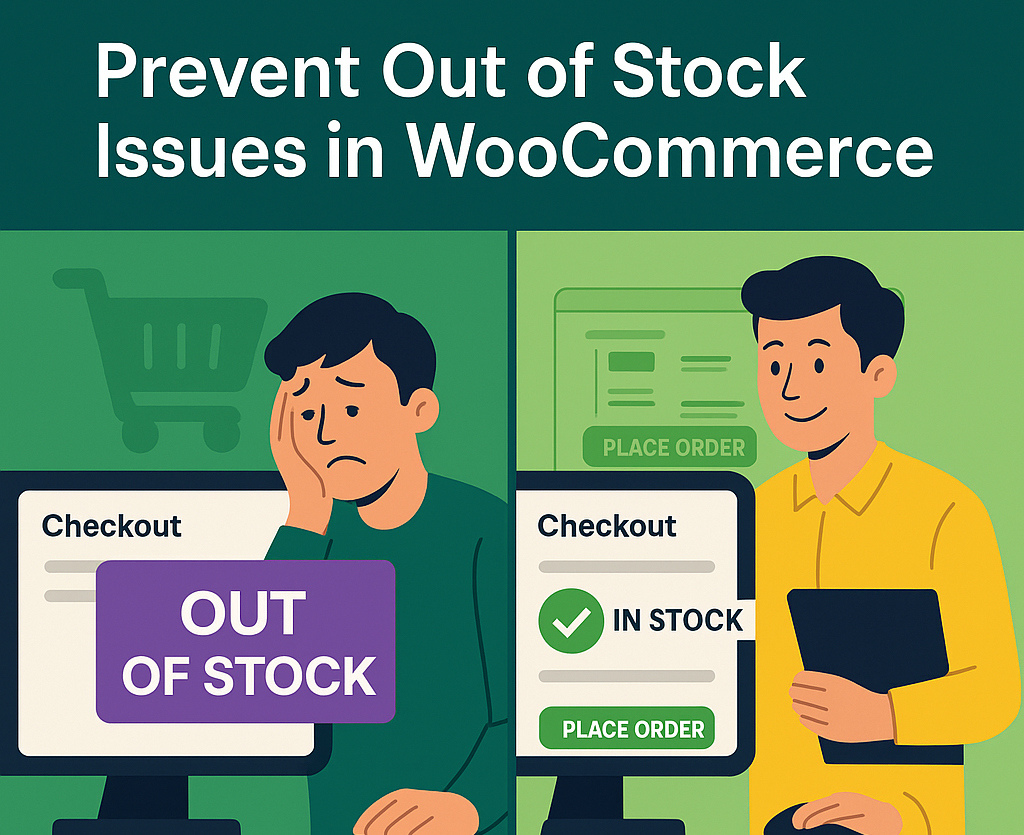
In 2022, over 50% of e-shoppers globally reported being unable to complete transactions due to products being out of stock.
Why the message appears
WooCommerce decides availability from a small number of inventory fields:
- Stock status on a product set to “Out of stock.”
- Manage stock? turned on with a quantity at or below the out-of-stock threshold.
- A variation of a variable product that is out of stock, even when the parent looks fine.
- A store-wide out-of-stock threshold set high enough to flag products that still have units.
- Out of stock visibility hiding items, which can read like the same problem.
- A stale cache showing the old status after you have already corrected it.
Each of these has a direct fix. Identify which one applies and the message clears. A tidy inventory setup also makes day-to-day WooCommerce inventory management faster, since you are not chasing phantom statuses later.
Fix it on a simple product
Most of the time the cause is one product’s stock status.
- Go to Products and open the product showing the message.
- In the Product data box, click the Inventory tab.
- If Manage stock? is unchecked, set Stock status to In stock.
- If Manage stock? is checked, enter a Quantity above zero (and above your out-of-stock threshold, covered below).
- Click Update.
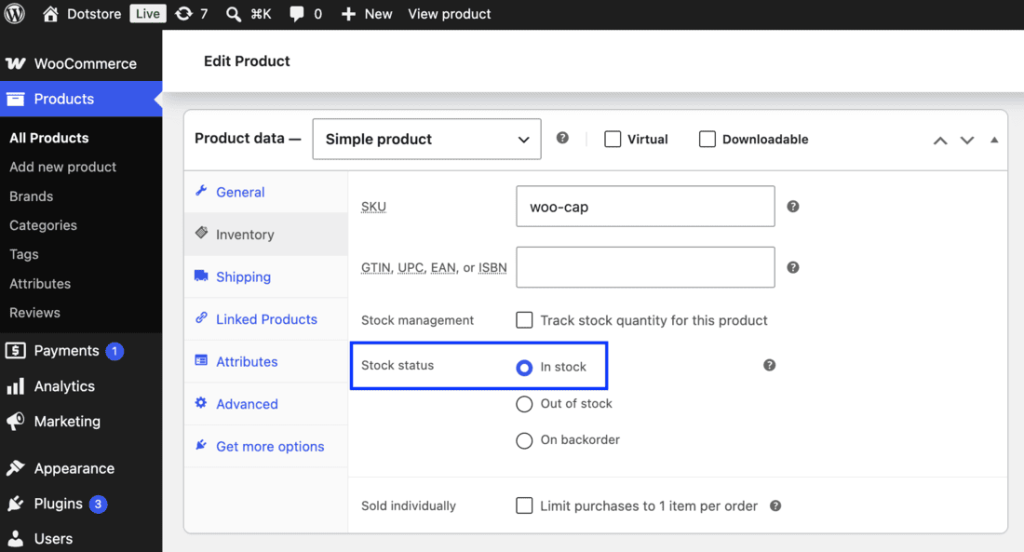
Reload the product page on the front end. If it still shows the message, the cause is a variation, a store-wide setting, or cache. Keep going.
Check every variation on variable products
On variable products (size, color, material, and similar), the parent can look available while one variation is out of stock. WooCommerce shows the message for the variation a customer selects, so a single empty combination is enough to trigger it.
- Open the product and click the Variations tab.
- Expand each variation.
- Set Stock status to In stock, or, if Manage stock? is enabled on that variation, enter a Quantity above zero.
- Click Save changes.
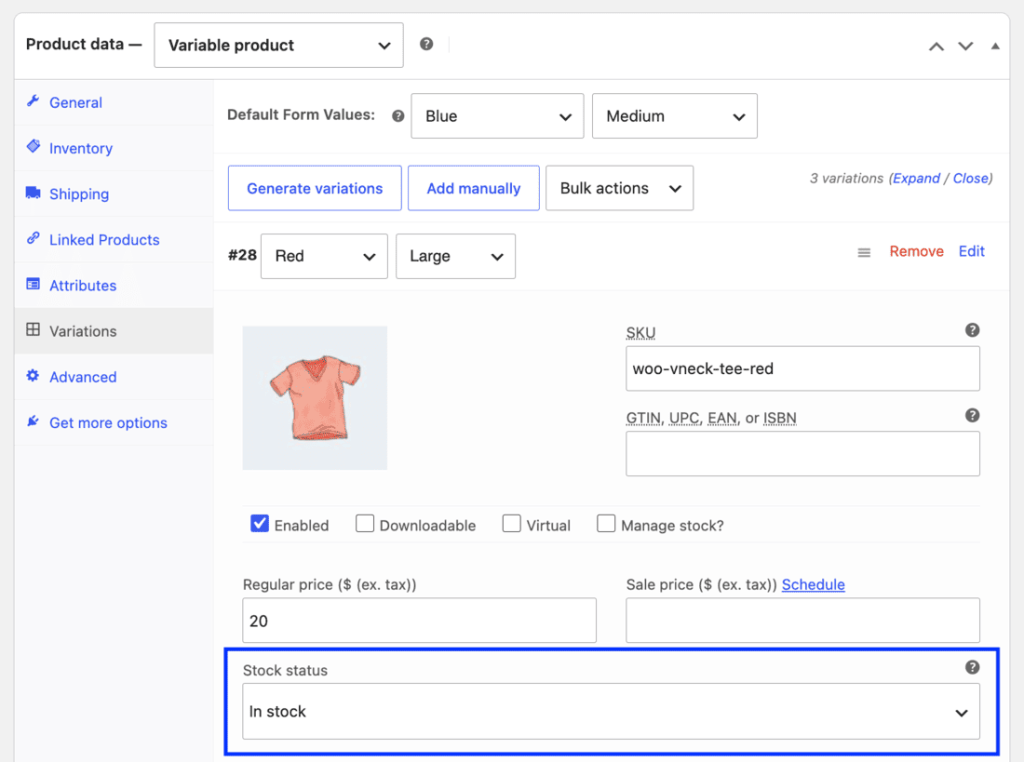
Check every variation, not just the first. It is common to fix the visible one, miss a hidden combination, and assume the change did not work. If the variation has its own Manage stock? enabled, its quantity overrides the parent’s status for that option.
Review store-wide inventory settings
If many products are flagged at once, the cause is usually a global default.
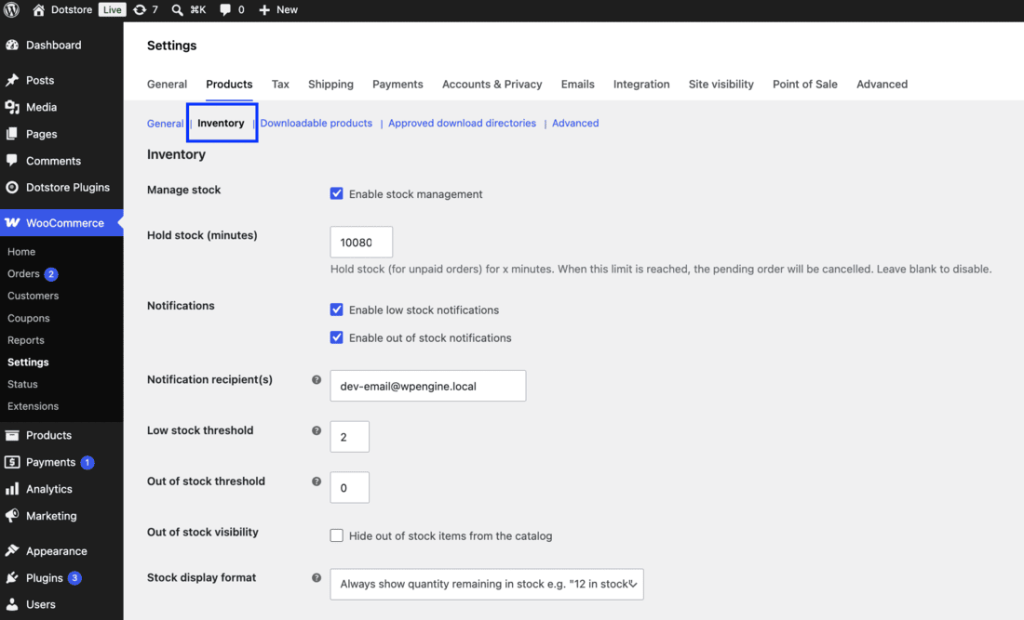
- Go to WooCommerce > Settings > Products > Inventory.
- Confirm Manage stock matches how you actually run the store. If you do not track unit counts, leaving it off lets products stay available without a quantity.
- Check the Out of stock threshold (next section).
- Review Out of stock visibility (further below).
- Save changes.
The out-of-stock threshold
The out-of-stock threshold at WooCommerce > Settings > Products > Inventory sets the quantity at which WooCommerce marks a managed-stock product as out of stock. The default is 0, meaning a product goes out of stock only when it hits zero.
If this is set to a higher number, say 5, every product with 5 or fewer units is flagged as out of stock even though units remain. There is also a separate low stock threshold that only triggers internal email alerts and does not change the customer-facing status.
If products with real stock are showing the message, check this value first. Getting the threshold right is also central to day-to-day WooCommerce attribute stock management once you move beyond single-product counts.
Backorders
If you want customers to keep buying past zero, enable backorders instead of fighting the status. Store-wide, set the Backorders option at WooCommerce > Settings > Products > Inventory to “Allow” or “Allow, but notify customer.”
Per product, open the Inventory tab and set Allow backorders? to the same. With backorders on, the product stays purchasable and shows an “available on backorder” notice rather than the out-of-stock message. If you would rather collect interest while an item is unavailable, you can also set up quote requests for out-of-stock products so demand is not lost.
Out-of-stock visibility (hidden from catalog)
The Out of stock visibility checkbox, “Hide out of stock items from the catalog,” removes depleted products from shop and category listings. This can look identical to the original problem: a product that exists but seemingly vanished or reads as unavailable. If a product should appear but does not, either restock it or uncheck this option. This setting controls catalog listing, not the single product page text.
Clear your cache
If you have corrected the stock and the front end still shows the old message, the cause is almost always caching. Stock status is frequently cached.
- Clear your caching plugin’s cache.
- Clear server-level cache (object cache, page cache) if your host runs one.
- Purge your CDN.
- Reload in a private or incognito window to bypass the browser cache.
Cache is the single most common reason a correct fix appears not to work. Rule it out before assuming a deeper issue.
Customize the out-of-stock message
Once availability is correct, you may still want to reword the default text, for example to “Back in stock soon” or to add a notify-me prompt. WooCommerce exposes the text through the woocommerce_get_availability_text filter, which you can use in a child theme’s functions.php or a code snippets plugin to replace the wording for out-of-stock items. If you would rather avoid code, the message and its placement are part of the broader job of customizing product pages, where layout and template controls let you adjust how availability is shown.
Optional: shared stock across variations with Attribute Stock
The steps above fix the standard out-of-stock message on their own. There is one case they do not address: when several variations or products need to draw from a single shared stock pool.
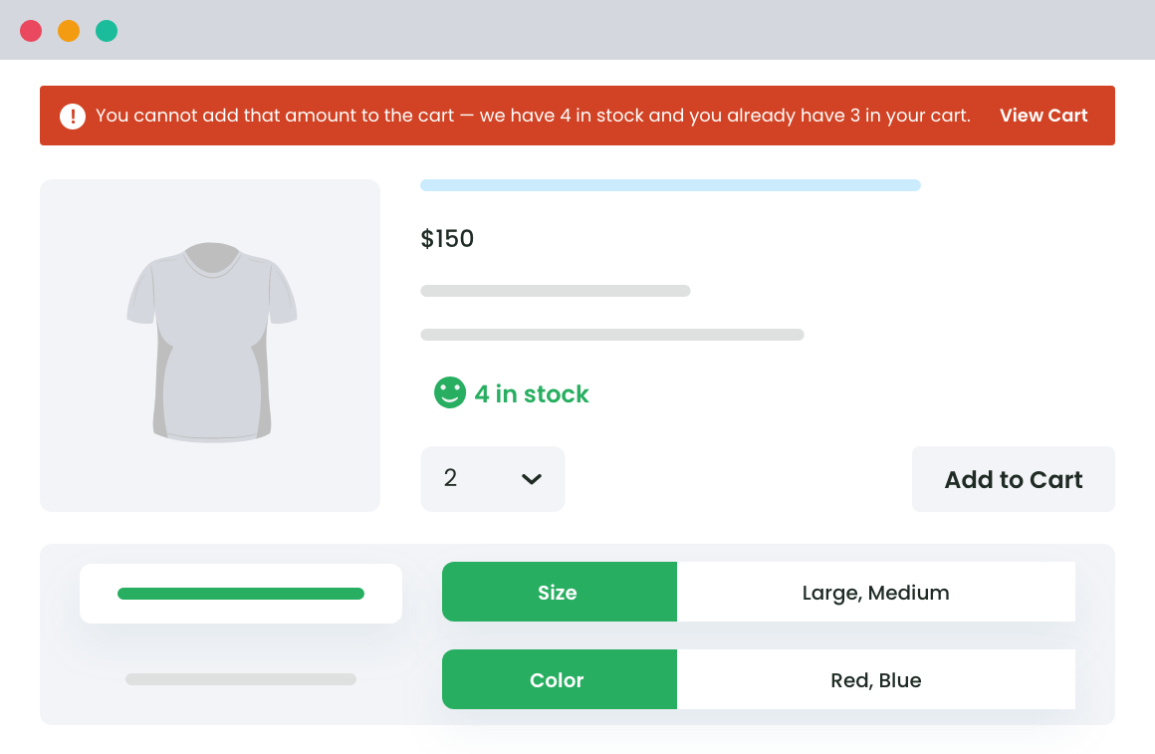
For example, the same blank shirt sold under multiple color labels that all deplete one physical inventory, or stock shared across a size attribute. Native WooCommerce tracks each variation separately and cannot pool one quantity across combinations, which can cause an item to read out of stock while a linked combination still shows units.
Disclosure: Attribute Stock is our plugin. For that specific need, Attribute Stock lets you assign stock to an attribute and share it across the products and variations that use it, with quantity multipliers for packs or bulk units. If you need shared pooling, it does in one setting what native inventory tracks separately.
For an overview of how this approach works in practice, see how it can simplify WooCommerce attribute stock management across a catalog.
Attribute Stock
Unlock Next-Level Stock Management with Attribute Stock Plugin.
14-day, no-questions-asked money-back guarantee.
Native settings vs Attribute Stock
This table compares what native inventory handles against what the plugin adds.
| Capability | Native WooCommerce inventory | Attribute Stock plugin |
| Fix a single out-of-stock product | Yes | Not needed |
| Per-variation stock control | Yes | Yes |
| Out-of-stock threshold and backorders | Yes | Uses native settings |
| Hide out-of-stock items from catalog | Yes | Uses native settings |
| Share one stock pool across variations | No | Yes |
| Share stock across multiple products | No | Yes |
| Quantity multipliers for packs or bulk | No | Yes |
| Extra plugin required | No | Yes |
Conclusion
The “this product is currently out of stock” message is a settings issue, not a bug. Correct the product or variation stock status, check your store-wide defaults (threshold, backorders, visibility), and clear your cache.
Those native steps resolve the standard case without any plugin. If you need to share one stock pool across variations or products, our Attribute Stock plugin covers that specific case. It pairs with tighter inventory control as your catalog grows.
Frequently asked questions
Why does WooCommerce say my product is out of stock when I have stock?
Check whether Manage stock? is on. If it is, the quantity must be above zero and above your out-of-stock threshold at WooCommerce > Settings > Products > Inventory. If a variation is selected, that variation’s own stock controls the message.
I fixed the stock but the message still shows. Why?
It is almost always cache. Clear your caching plugin, server cache, and CDN, then reload in a private window.
Do I need a plugin to fix this error?
No. The native Inventory settings solve the standard out-of-stock message. A plugin is the easier route when you need to share one stock pool across variations or products, which is a separate use case.
How do I let customers buy when an item is out of stock?
Turn on backorders, either store-wide under WooCommerce > Settings > Products > Inventory or per product on the Inventory tab. Set it to “Allow” or “Allow, but notify customer.
Why are all my products suddenly out of stock?
That points to a store-wide setting, usually a high out-of-stock threshold or “Hide out of stock items from the catalog.” Review WooCommerce > Settings > Products > Inventory.
One variation is out of stock but the others are fine. What do I do?
Open the Variations tab, expand that variation, and set its stock status to In stock or enter a positive quantity. Each variation tracks its own stock.
How do I change the wording of the out-of-stock message?
Use the woocommerce_get_availability_text filter in a child theme or code snippets plugin, or adjust it through product page customization if you prefer not to write code.
What is the out-of-stock threshold and where do I find it?
It is the quantity at which a managed-stock product is marked out of stock. It lives at WooCommerce > Settings > Products > Inventory and defaults to 0. A higher value flags products that still have units.
Does hiding out-of-stock items remove them from search too?
The “Hide out of stock items from the catalog” option removes them from shop and category listings. To make a product appear again, restock it or uncheck that setting.
Attribute Stock
Unlock Next-Level Stock Management with Attribute Stock Plugin.
14-day, no-questions-asked money-back guarantee.