Table of Contents
In this tutorial, we’ll show you step-by-step how to add a surcharge in Shopify using the native settings and with the Dotstore Extra Fees Manager Shopify surcharge app.
![How to add a surcharge in Shopify [Step-by-step tutorial] - featured image](https://www.thedotstore.com/wp-content/uploads/sites/1417/2026/03/How-to-add-a-surcharge-in-Shopify-Step-by-step-tutorial-featured-image.png?w=1000)
Key Takeaways
- Surcharges help businesses recoup operational costs (like tariffs, handling charges, payment fees, etc) without raising prices across their entire catalog or absorbing them into profits.
- There are 2 methods to add surcharges in Shopify: with the built-in shipping handling fee setting and with a dedicated app like The Dotstore’s Extra Fees Manager. This tutorial covers both.
- Shopify’s built-in surcharge feature is functional but limited. It lets merchants add just one type of surcharge (shipping handling fees) to one type of shipping rates (3rd party carrier-calculated rates). However, there’s no way to define conditions to which it applies, and it is bundled into the total shipping cost, instead of shown as a separate fee on the cart and checkout.
- The Dotstore’s Extra Fees Manager app lets you add fixed or percentage-based surcharges, apply surcharges to specific products or entire orders, and set conditions such as cart total, cart items, location, and more.
Do you want to add a surcharge in Shopify?
Business operating costs (think: packaging, labor, payment processing, handling fees, etc) are rising across the board and eating into profit margins.
Case in point: In 2025, the U.S. introduced import tariffs that increased prices for a wide range of product categories. Since tariffs vary across products, most businesses needed a way to pass on tariff fees only to affected orders. Also, to avoid scaring off customers with higher prices, merchants needed to transparently show the reason for price increases.
Enter: surcharges in Shopify.
In this tutorial, I’ll show you how to add a surcharge in Shopify using the Dotstore Extra Fees Manager app and with the native settings.
A note before we dive in: Hi, and welcome to The Dotstore’s blog! We’ve been building ecommerce software since 2009, and now more than 100,000 websites trust our tools to run reliable, profitable businesses. Extra Fees Manager (available in both free and pro versions) is our handcrafted app that lets you create various types of fixed or percentage-based surcharges in Shopify with ease. Learn more or download it here.
But first, let’s get abundantly clear on the fundamentals:
What is a surcharge in Shopify?
A surcharge in Shopify is an additional fee that’s added to a customer’s order on top of the product price, shipping fees, and tax to account for the operational overhead of fulfilling the order.
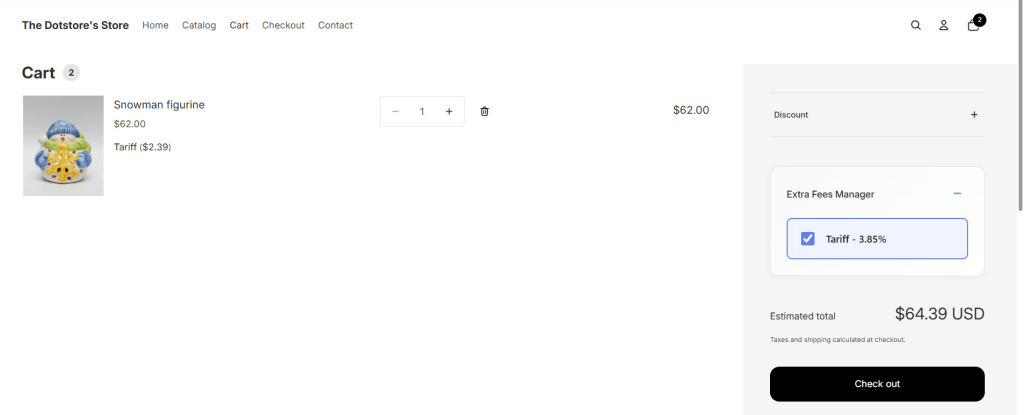
It’s a separate charge (and ideally, should be clearly displayed as a standalone fee) so shoppers can see exactly what the extra cost is for. Like this:
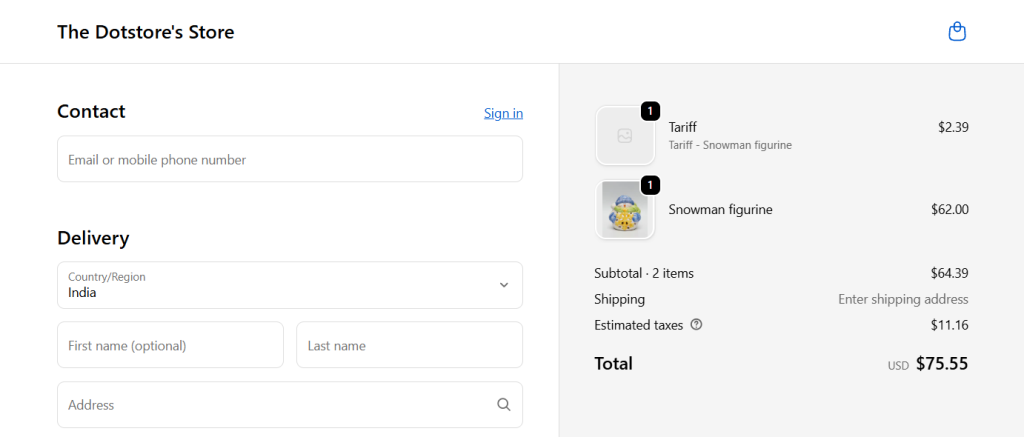
Surcharges don’t change the base price of a product. Instead, they are applied under specific conditions, for example, cart contents, shipping rate, shipping destination, product type, order value, or selected add-on services.
Types of surcharges in Shopify
Here are a few popular example use cases where Shopify merchants are known to rely on surcharges:
- Handling and packaging fees for fragile, bulky, or temperature-sensitive items.
- Tariff or import cost recovery for imported products.
- Payment method fees for using certain payment types, like cash on delivery (COD) or credit cards.
- Location-based surcharges for delivering orders to remote areas where shipping courier fees are high.
- Optional add-ons such as gift wrapping, product personalization, priority services, etc.
Introducing a powerful Shopify surcharge app
The Dotstore’s Extra Fees Manager is a powerful Shopify app that enables merchants to add fixed and percentage-based surcharges. Built specifically for Shopify, it enables you to add:
- Tariffs and import surcharges to offset international sourcing costs.
- Special handling fees for oversized, hazardous, or delicate items.
- Location-specific fees for shipping to regions that cost more to ship to.
- Payment method surcharges to recover high processing costs.
- Small order fees for orders below a certain cart threshold.
- Optional service fees like gift wrapping, order personalization, or insurance.
- Date-based surcharges for higher order fulfillment costs during peak seasons or holidays.
You choose whether surcharges are applied per product or across the entire order, and fees appear as separate fees on the cart and checkout pages. Also, if your business sells across borders, multi-currency support keeps values consistent and accurate no matter where customers shop from.
Dotstore’s Extra Fees Manager app is available in 2 plans: a generous free version that lets you create one type of surcharge, and a paid version that enables you to create as many surcharges as you need.
Top features
- Conditional surcharges. It lets you configure surcharges to be applied only when certain conditions are met. For instance, you can target specific products, customer locations, cart totals, item quantities, dates, etc.
- Fixed or percentage surcharges. Depending on the type of extra fee, you can add surcharges as a fixed amount or percentage. And you can choose whether your surcharge should be taxable or exempt.
- Standalone fee display. Surcharges appear as their own separate fee on the cart and checkout pages, so customers can see exactly what they are paying extra for and why.
- Automatic currency conversion. If your store sells globally, surcharges are automatically adapted to the shopper’s currency to avoid increasing friction during the checkout process.
- Product and cart-level surcharges. It enables you to set up product-based surcharges (that apply only when specific items or collections are in the cart) and cart-level surcharges (that apply to the entire order).
- Auto-scheduled surcharges. Its built-in scheduling feature enables you to set a start and end date that activates or deactivates surcharges automatically.
How do I add a surcharge in Shopify?
Now that you know what surcharges are, let’s cover how to add them to your Shopify store. There are two main methods to add a surcharge in Shopify: with an app like Dotstore Extra Fees Manager and with the native shipping handling fee settings.
Using a dedicated Shopify surcharge app lets you add various kinds of surcharges for different purposes. However, the native Shopify shipping handling fee option only lets you add one type of surcharge (a shipping handling surcharge) to one type of shipping rate (3rd party shipping rates).
Method 1: How to add a surcharge in Shopify with an app
Follow these steps to add a surcharge in Shopify with the powerful Dotstore Extra Fees Manager app.
- Log in to your Shopify admin and go to Apps → Shopify App Store.
- Search for “Dotstore Extra Fees Manager” and install it.
- In your Shopify admin, go to Apps → Extra Fees Manager → Billing. Before you can create any fee, you need to activate a plan. Note: the free plan enables you to add one surcharge to Shopify.
- Next, go to Apps → Extra Fees Manager → Fees, and press “Create Fee” to add a surcharge.

- Name the surcharge (this name will appear as the fee label in the cart/checkout).
- Select the surcharge type: either fixed or percentage.
- Enter the surcharge amount and define whether the surcharge should be taxable or non-taxable.
- Now, choose whether to apply the surcharge on a product or cart level.
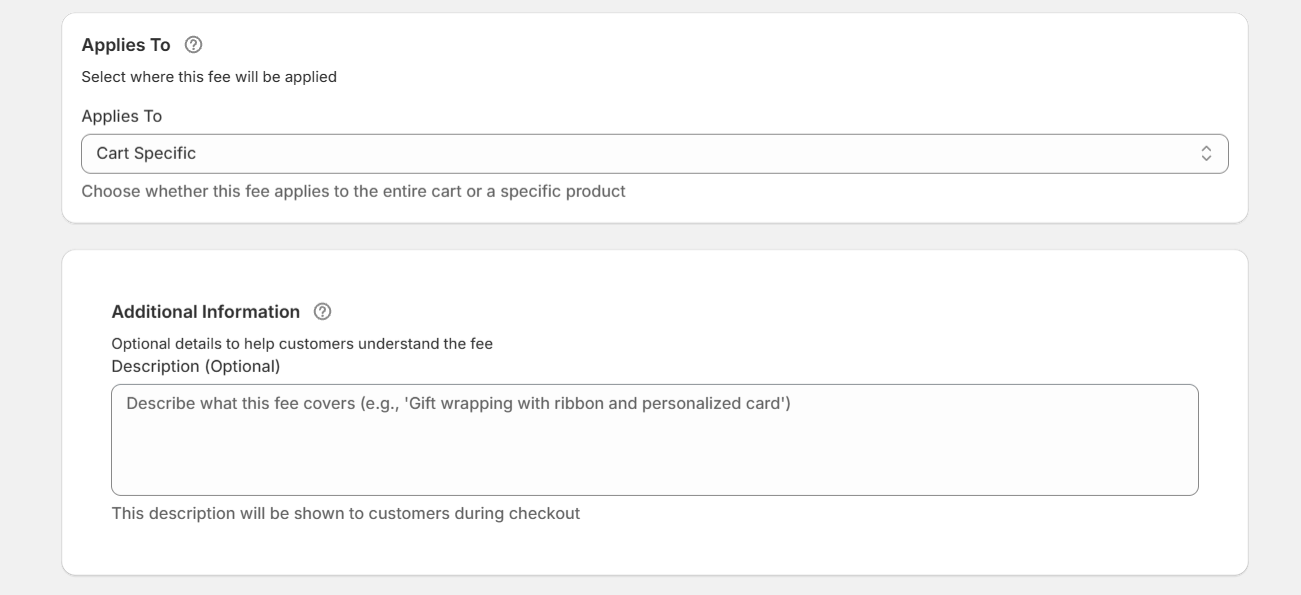
- Additional optional settings:
- Description: A short text explaining why this fee is being charged.
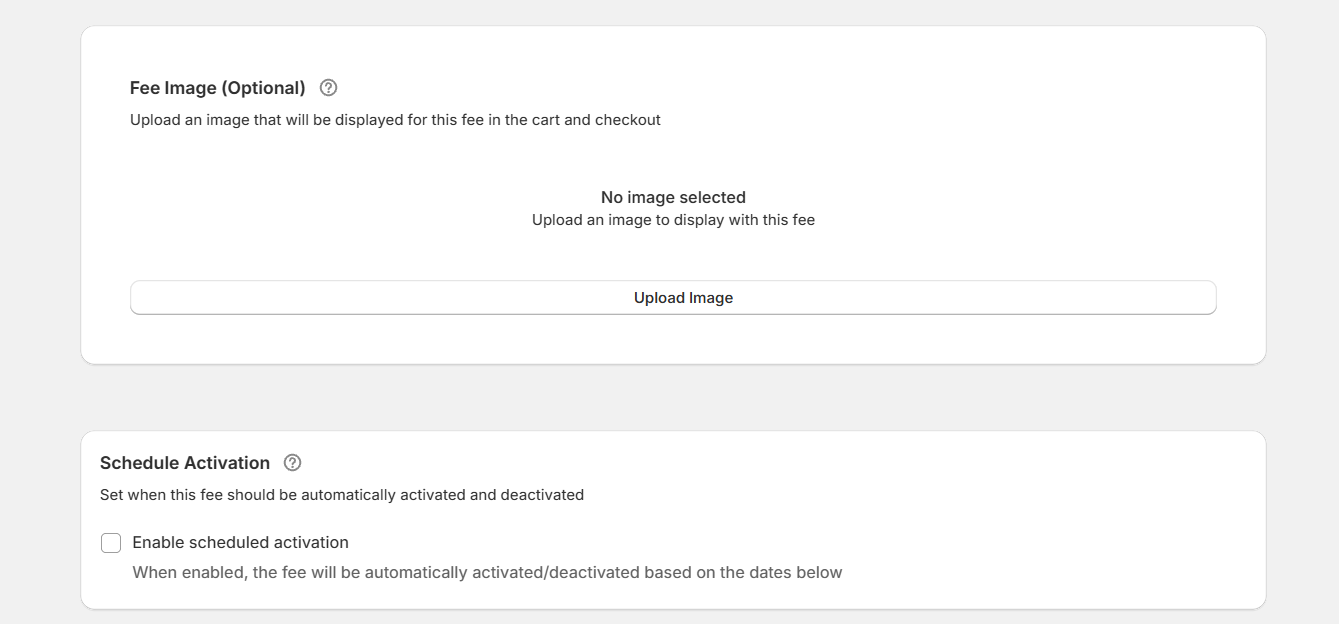
- Image: Add an icon or small image that will appear alongside the fee on the cart/checkout.
- Start date and end date.
- Description: A short text explaining why this fee is being charged.
- In addition, you can add advanced conditions so the surcharge is only applied when specific criteria are met. Turn on the “Enable Conditional Rules” option, then start adding rules like: cart total, cart quantity, specific products or collections, customer location, shipping method, payment method, customer type / tags.
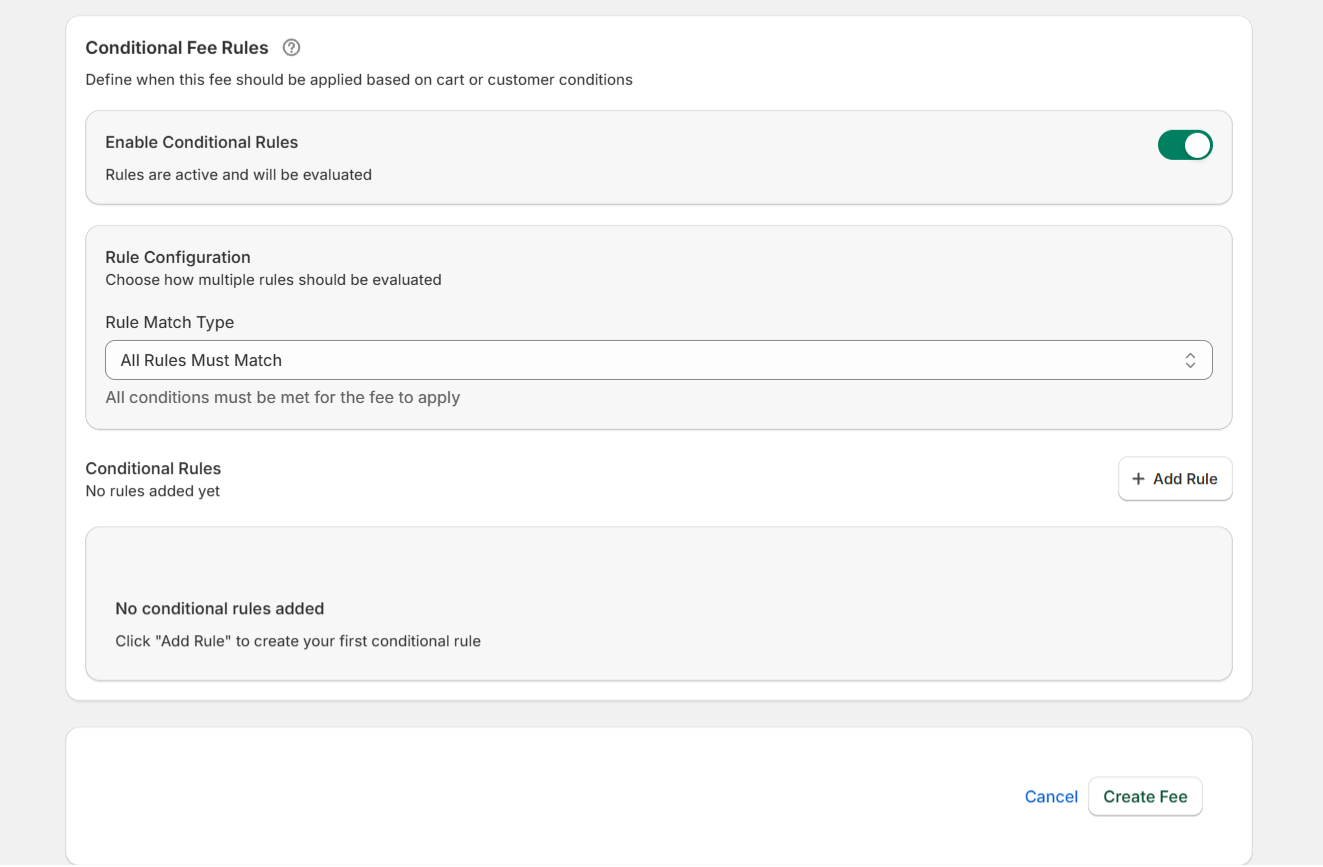
- Tap “Save Fee” to add your surcharge to Shopify.
Important: Add the handling fee calculator to the Shopify cart
Here’s a step by step walkthrough of how to add the handling fee calculator to your Shopify store’s cart page:
- From your store’s main admin menu, head to Apps → Extra Fees Manager.
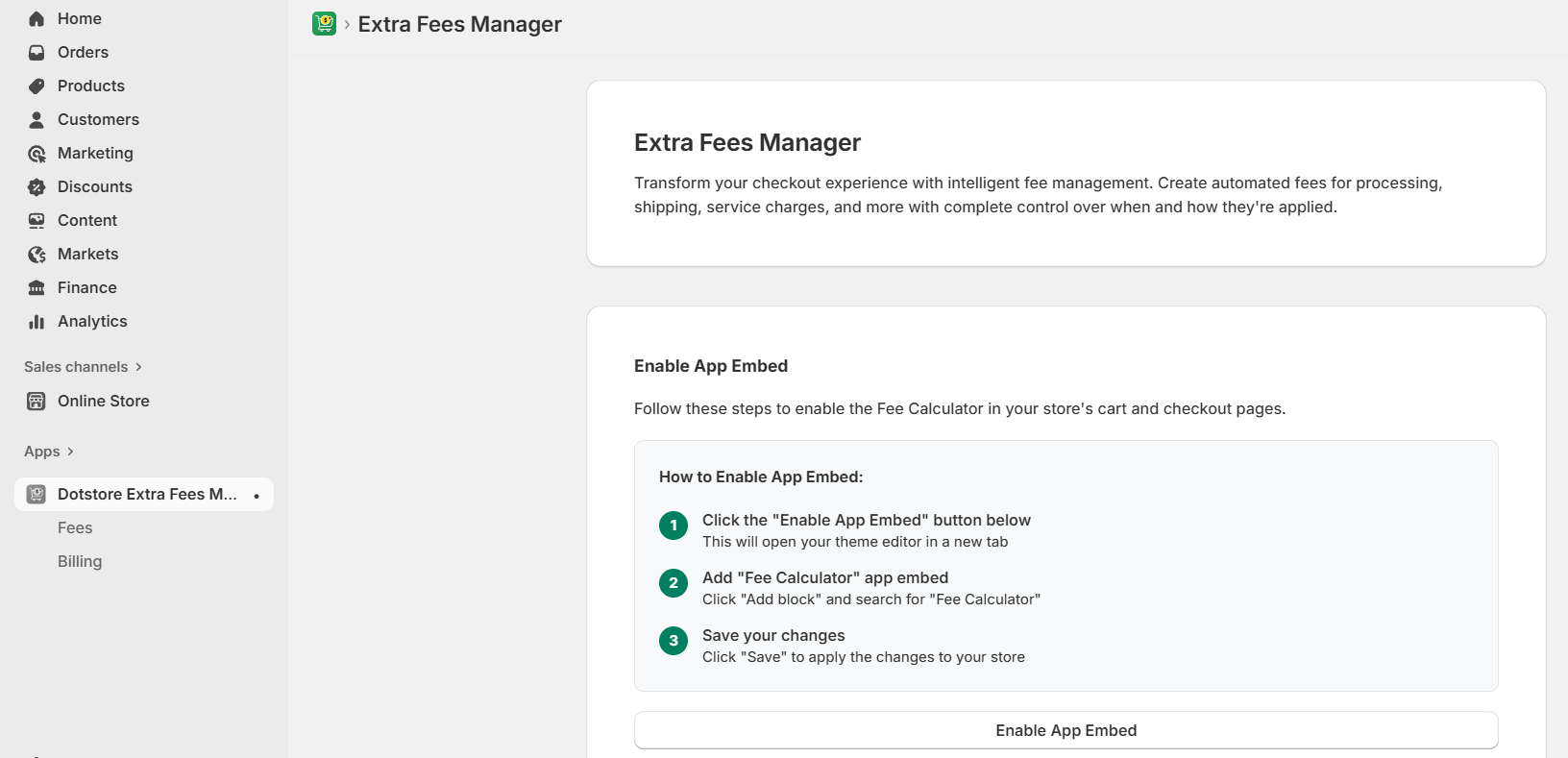
- Go to the “Enable App Embed” area, and press the “Enable App Embed” button.
- Locate your store’s active theme and press the “Edit” button next to it.
- Add the Dotstore Fee Calculator block to the cart page and save your settings.
Method 2: How to add a shipping handling surcharge in Shopify (native settings)
If you don’t want to install a surcharge app, you can use the native settings to add a handling fee to 3rd party shipping carrier-calculated rates.
Limitations of the native method:
- The shipping handling fee is bundled into the total shipping cost, not shown as a separate “surcharge” fee.
- This method only works with 3rd party carrier-calculated rates, not with default flat rates or free shipping.
- You can’t apply this fee only when a specific product is in the cart.
- You can’t define advanced conditions like payment method, customer type, etc.
Tutorial: How to add a shipping handling surcharge in Shopify (native settings)
- In your Shopify admin, go to Settings → Shipping and delivery, and find the Shipping profiles section.
- Tap “Manage rates” for the shipping profile you want to adjust and scroll down to the “Shipping zones” section.
- Tap the ⋯ (three dots) menu on the right side of the carrier rate row and tap “Edit rate”.
- In the rate editor, you’ll see a Handling fee section, where you can add a percentage handling fee, a fixed handling fee, or both together.
- Tap “Done”, then save the shipping profile.
FAQs about Shopify surcharges
Can you add a surcharge in Shopify?
Yes, you can add a surcharge in Shopify using an app like The Dotstore’s Extra Fees Manager, which lets you apply fixed and percentage-based surcharges based on product type, location, payment method, order size, and other conditions.
Fees are added as separate charges in the cart and checkout, and you can decide whether or not fees are taxable.
Shopify’s native settings allow you to create just one type of surcharge: a shipping handling fee inside carrier-calculated shipping rates. However, this handling fee is combined into the total shipping fee, instead of being shown as a separate fee on the cart and checkout pages. There’s no way to apply this fee on a product level, i.e., to specific SKUs or define advanced conditions like payment method, customer type, etc.
Can I add a tariff charge as a separate fee to an order or product in Shopify?
Yes, you can add a tariff charge as a separate fee in Shopify using an app like The Dotstore’s Extra Fees Manager. It allows you to add a fixed or percentage-based tariff fee and show the fee as a standalone fee, separate from the product price, shipping, taxes, etc., during the cart and checkout flow. Plus, you can apply tariffs only to certain products, collections, or regions, schedule tariffs, and define custom conditions that determine how tariffs are applied.
There’s no way to add a tariff charge as a separate charge to an order or product using Shopify’s native settings alone.
How to add a location-based tariff fee in Shopify
Follow these steps to add a location-based tariff fee that applies specific tariffs to orders from specific countries or regions. The tariff will appear as a separate charge on the cart and checkout pages instead of being bundled with the shipping rates.
- Access your Shopify admin and navigate to Apps → Shopify App Store.
- Run a search for the “Dotstore Extra Fees Manager” app and install it on your store.
- Navigate to Apps → Extra Fees Manager → Billing in your Shopify admin and select a free or paid plan to activate the app.
- Navigate to Extra Fees Manager → Fees, and select “Create Fee” to create a tariff in Shopify.
- Name the tariff fee (note: this name will appear as a separate charge in the cart and checkout).
- Choose the tariff type: fixed amount or percentage of the cart subtotal. Then set the tariff amount.
- Decide whether the tariff fee is taxable or non-taxable.
- Applies to: Control whether the tariff is applied to specific products or the entire cart.
- (Optional) Add the following:
- Description: Add a brief description to be shown next to the tariff fee during the checkout flow. For example, “This fee helps cover additional import duties and tariffs to ship products to you.”
- Icon: You can also add a small icon/image that appears near the fee on the cart or checkout page.
- Start and end dates: Automatically enable and disable the tariff.
- Turn on the “Enable Conditional Rules” button, select “Location-based fee” as the condition, and choose the specific countries that should incur the tariff fee.
- Tap “Create Fee“ to create the tariff fee.
It’s time to set up a surcharge in Shopify!
Absorbing tariffs, fragile-item packaging costs, special handling fees, payment processing charges, and other additional expenses can drastically shrink your profit margins. At the same time, inflating product prices across the board risks losing your competitive edge.
Adding specific surcharges helps your business to transparently recover operational expenses when appropriate.
In this post, I’ve shown you two methods to add surcharges in Shopify: the native shipping handling fee settings and the Dotstore Extra Fees Manager surcharge app.
Shopify’s native shipping handling fee settings work fine for stores that want to apply cart-level surcharges and don’t mind the fee being bundled with shipping rates on the cart and checkout pages.
The Dotstore Extra Fees Manager app (available in both free and pro versions) sidesteps those limitations and enables you to add fixed and percentage-based surcharges for tariffs, handling, specialty packaging, remote shipping locations, and other types of custom fees to Shopify. With it, you can:
- Add surcharges to specific products, categories, and the entire cart.
- Define advanced conditions such as specific countries, cart total, cart contents, etc.
- Enable multi-currency adjustments during the checkout process.
- Show surcharges as separate charges on the cart and checkout.
- Schedule surcharges to automatically start and end without manual adjustment.
Add the Dotstore Extra Fees Manager app to your site today!