Table of Contents
WooCommerce drops the shipping step automatically when nothing in the cart needs shipping. For a fully digital store, mark every product Virtual so shipping disappears, or disable shipping under Settings > Shipping. To remove only the shipping address while keeping methods, set Shipping destination to force the billing address. For mixed physical and digital stores, use the woocommerce_cart_needs_shipping filter, and check your tax calculation still works without a shipping address.
Key Takeaways
- WooCommerce drops the shipping step automatically when nothing in the cart needs shipping, so the method depends on whether your store is fully digital or a mix of physical and digital products.
- For a digital-only store, mark every product Virtual (Downloadable only attaches a file; Virtual is what removes shipping), or set Shipping location(s) to “Disable shipping & shipping calculations.”
- To keep shipping methods but drop only the separate address section, set Shipping destination to “Force shipping to the customer billing address.”
- For mixed stores, never disable shipping globally or physical orders break; use the woocommerce_cart_needs_shipping filter wrapped in a condition, or a no-code plugin, so digital-only carts lose shipping while physical carts keep it.
- Removing the shipping address can break tax, so if tax is calculated on the shipping address under Settings > Tax, switch it to the billing or shop base address.
- The Hide Shipping Method for WooCommerce plugin handles the conditional logic from the admin, dropping shipping for digital-only carts while leaving physical orders untouched.
If you sell digital products, services, bookings, or memberships, the shipping step is dead weight. It confuses buyers and adds fields no one needs to fill. WooCommerce can run with no shipping at all, and the right method depends on whether your store is fully digital or a mix of physical and digital products.
When you should remove shipping (and when not to)
Whether you should remove shipping at all depends on your catalog:
- Digital-only store: remove shipping completely. No order needs it.
- Mixed store: do not remove shipping globally, or your physical orders break. Remove it conditionally for digital-only carts instead.
- Service or booking store: treat like digital-only and remove shipping.
Method 1: Mark products Virtual or Downloadable
WooCommerce decides whether to show shipping based on the cart. If no item needs shipping, the whole step disappears, including the shipping address fields.
- Open each product and find the Product data panel.
- Tick Virtual (add Downloadable for files like PDFs or software).
- Update the product.
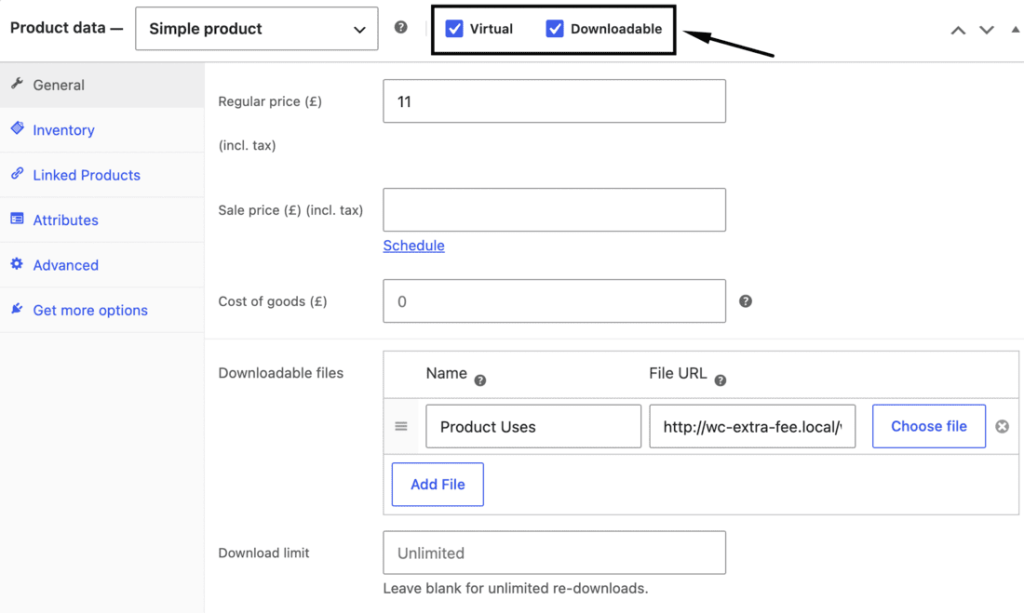
Virtual is what removes shipping; Downloadable only attaches a file. With every product virtual, the cart reports it needs no shipping and the shipping section vanishes automatically.
This works the same on the classic and block checkout: both read whether the cart needs shipping and hide the shipping step and address when it does not. So for a digital-only store, marking products virtual is often all you need, with no setting changes at all.
Method 2: Disable shipping globally (digital-only stores)
For a store that never ships, switch shipping off store-wide. Under WooCommerce > Settings, set the Shipping location(s) option to Disable shipping & shipping calculations. This removes the shipping calculator and section across the store, which is the cleanest option for a fully digital catalog.
Method 3: Force shipping to the billing address
If you want to keep shipping methods but drop the separate shipping address section, go to WooCommerce > Settings > Shipping > Shipping options and set Shipping destination to Force shipping to the customer billing address. Billing then doubles as shipping, and the extra address block disappears.
Method 4: Remove shipping with code
For mixed stores, a code filter lets you drop shipping only when you want to. To treat the cart as not needing shipping:
add_filter( ‘woocommerce_cart_needs_shipping’, ‘__return_false’ );
To remove only the shipping address fields:
add_filter( ‘woocommerce_cart_needs_shipping_address’, ‘__return_false’ );
Returning false unconditionally removes shipping for the whole store, so for a mixed store, wrap the logic in a condition that checks the cart contents and only returns false when every item is virtual. You can also customize the no-shipping message with the woocommerce_no_shipping_available_html filter.
Method 5: Mixed stores, hide shipping conditionally with a plugin
When you sell both physical and digital products and prefer no code, a plugin handles the conditional logic the filters above would otherwise need. The Hide Shipping Method for WooCommerce plugin lets you set the rule from the admin, so a cart with only digital items drops its shipping methods while a cart that includes a physical product keeps them, with nothing to maintain in code. It is the same approach covered in the guide to disabling shipping for certain products, applied to a whole digital cart rather than a single item.
WooCommerce Checkout For Digital Goods
Quick checkout for faster sales and happier customers
14-day, no-questions-asked money-back guarantee.
What each method actually removes
The methods do different things, so pick by what you want gone:
| Method | Removes shipping methods | Removes shipping address | Best for |
| Mark products Virtual | Yes (when all items virtual) | Yes | Digital catalog |
| Disable shipping globally | Yes | Yes | Fully digital store |
| Force shipping to billing | No | Yes | Keep methods, drop address |
| woocommerce_cart_needs_shipping | Yes | Yes | Conditional / mixed stores |
| Conditional plugin | Yes | Yes | Mixed stores, no code |
Check your tax calculation
Removing the shipping address can affect tax. Under WooCommerce > Settings > Tax, Calculate tax based on may be set to the shipping address. If you remove that address, switch this to Customer billing address or Shop base address, or tax may compute on a missing location.
Best practices
Keep these in mind so checkout and tax stay correct:
- Use Virtual for the products themselves; let WooCommerce hide shipping for you.
- Disable shipping globally only on fully digital stores.
- For mixed stores, remove shipping conditionally, never globally.
- Re-check tax settings after removing the shipping address.
- Place a test order to confirm checkout looks and calculates as expected.
Conclusion
Removing shipping from WooCommerce checkout is straightforward once you match the method to your store. Mark products Virtual or disable shipping for a digital-only store, force shipping to billing to drop just the address, and use a conditional filter or plugin for mixed stores. Confirm your tax base afterwards, and the checkout stays clean without breaking calculations. For a mixed store that needs the logic handled without code, the Hide Shipping Method for WooCommerce plugin removes shipping for digital-only carts while leaving physical orders untouched.
WooCommerce Checkout For Digital Goods
Quick checkout for faster sales and happier customers
14-day, no-questions-asked money-back guarantee.
Frequently asked questions
How do I turn off shipping in WooCommerce?
For a digital store, mark products Virtual or set Shipping location(s) to “Disable shipping & shipping calculations.” Shipping then disappears from checkout.
Does marking a product Virtual remove shipping?
Yes. Virtual products are excluded from shipping. When every cart item is virtual, WooCommerce removes the shipping step and address automatically.
How do I remove shipping for digital products only?
In a mixed store, use a conditional woocommerce_cart_needs_shipping callback or a plugin that hides shipping for digital-only carts, rather than disabling shipping globally.
How do I hide just the shipping address field?
Set Shipping destination to “Force shipping to the customer billing address,” or use the woocommerce_cart_needs_shipping_address filter.
Will removing shipping affect tax?
It can. If tax is calculated on the shipping address, switch it to the billing or store base address under Settings > Tax.