Table of Contents
In this tutorial, I’ll show you how to add an upcharge in Shopify using a workaround of the built-in settings and with the powerful Dotstore Extra Fees Manager Shopify upcharge app.
![How to add an upcharge in Shopify [Step-by-step] - featured image](https://www.thedotstore.com/wp-content/uploads/sites/1417/2026/03/How-to-add-an-upcharge-in-Shopify-Step-by-step-featured-image.png?w=1000)
Key Takeaways
- Upcharges help Shopify stores recover costs, increase AOV, and improve users’ shopping experience without raising base product prices for every customer.
- Shopify doesn’t provide a built-in feature for adding upcharges to orders. Some stores work around this by using its 3rd-party carrier-calculated shipping rates feature; however, this approach is pretty limited.
- Dotstore Extra Fees Manager (available in robust free and pro versions) is a powerful Shopify upcharge app that lets you add fixed or percentage-based upcharges at the product, variant, or cart level.
- You can trigger fees based on conditions like cart value, products, location, payment method, or customer type. Fees are shown in a separate section on the cart and checkout.
- Dotstore Extra Fees Manager works great for adding upcharges, fees, addons, surcharges like handling fees, COD fees, gift wrapping, customization, eco fees, small-order fees, priority processing, etc.
Looking for an upcharge app for your Shopify store?
Adding upcharges enables you to recover costs—like handling, payment processing, tariffs, or special services—without raising product prices across your entire catalog. Done right, upcharges protect margins, keep pricing competitive, and lower friction in the checkout process.
There’s no built-in option to add upcharges in Shopify, let alone show them as separate line items on the cart and checkout. So you’ll need a dedicated Shopify upcharge app.
In this guide, we’ll cover:
- What surcharges are and their benefits.
- A workaround of Shopify’s native features for adding extra charges.
- How to add surcharges step by step using the powerful Dotstore Extra Fees Manager Shopify app.
- The estimated ROI of using upcharges.

App used in this guide
- Dotstore Extra Fees Manager. A purpose-built Shopify upcharge app (available in both free and pro versions) that lets you add fixed or percentage-based surcharges, apply conditions, and display fees clearly on the cart and checkout pages.
Shopify Extra Fees Manager
Add dynamic checkout fees for add-ons, upcharges, surcharges, etc., to your Shopify store — the easy way!
14-day, no-questions-asked money-back guarantee.
Firstly, let’s start with the basics.
Can you add upcharges using Shopify’s native features?
Shopify doesn’t include a built-in feature to create a separate upcharge fee that applies conditionally based on products, cart value, location, or payment method to your store’s checkout.
However, a limited workaround is to use Shopify’s native third-party carrier-calculated shipping rates feature to add a handling fee. You can add a flat fee, a percentage, or both, and the fee is applied to the selected shipping rate.
Customers see a single shipping total during checkout, so it isn’t clear what portion of the cost is shipping and what portion is the upcharge, which can hurt conversion rates.
Limitations of the native features
With the native Shopify upcharge workaround, you can’t:
- ❌ Add upcharges to flat-rate or free shipping.
- ❌ Show the fee as a separate line item.
- ❌ Create optional or service-based upcharges.
- ❌ Apply fees only when certain products are in the cart.
- ❌ Charge based on cart total or item quantity.
- ❌ Add payment-method-specific fees.
What is a Shopify upcharge app?
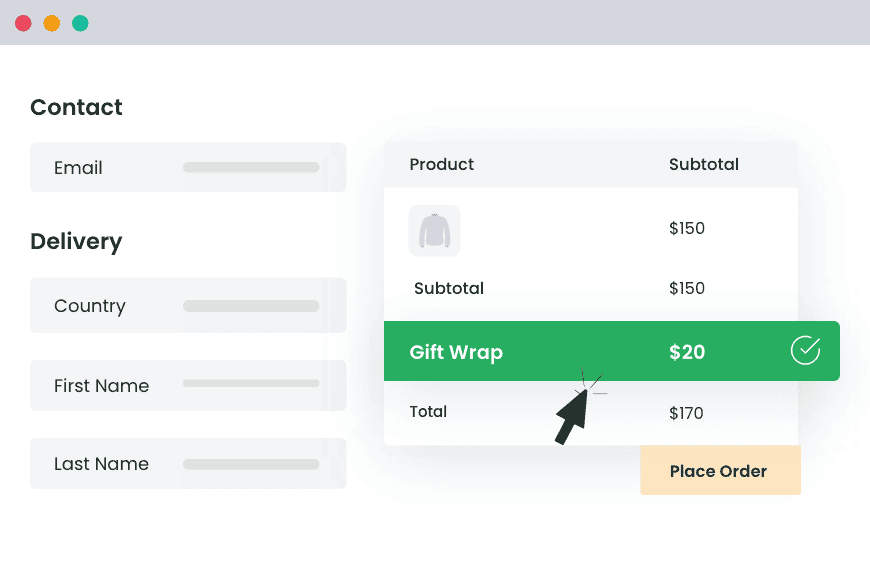
A Shopify upcharge app lets you add an extra fee to an order based on specific conditions, without changing your base product price. This enables you to charge customers more for benefits that cost you more to deliver, process, or customize.
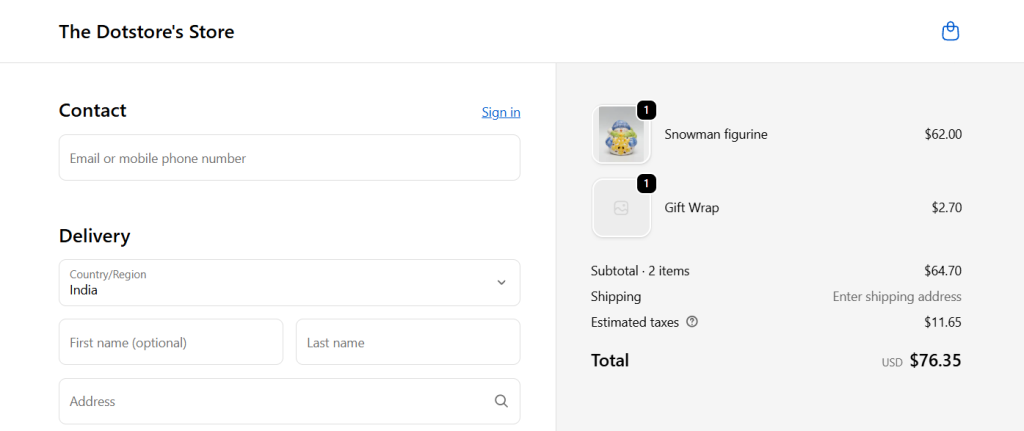
Upcharges can be in various forms, including handling fees, payment gateway fees (COD, manual payments), environmental or regulatory fees, premium packaging, insurance, service-based add-ons, gift wrapping fees, custom printing or engraving charges, etc.
Upcharge vs surcharge vs add-ons
An upcharge is an extra fee applied when a customer selects a specific option or service. Upcharges are usually optional and tied to added value, such as gift wrapping, custom product engraving, or premium packaging.
A surcharge is a mandatory fee added to an order when certain conditions are met. However, unlike upcharges, customers don’t opt into surcharges; they are applied automatically.
An add-on is an extra product or service that can be added to the cart, with or without an additional cost. The chief mission of an add-on is to enhance the product, not to cover costs or adjust pricing logic.
Why do Shopify stores need an upcharge app?
A fixed pricing model isn’t ideal for every ecommerce store. Depending on your business model and target customers, some costs may not neatly fit into product pricing or shipping.
Here are the main reasons why top stores need a Shopify upcharge app:
- Increase revenue. Upcharges enable you to increase the average order value without raising a product’s base price. Since the extra charge is only applied variably, i.e., when a customer selects an additional option or service, it won’t lower your store’s conversion rates. The incremental revenue from upcharges might seem small; however, they add up to meaningful revenue over time.
- Improve user experience. Offering relevant add-ons can make the buying process feel smoother. For example, offering gift wrapping on products usually bought for others helps busy people save time, which delights them and enhances their experience with your brand.
- Cover additional operational costs. Some products require extra care or higher logistics costs. Even if the extra charge doesn’t increase your profits, transparently showing customers detailed price breakdowns builds trust. Plus, it prevents you from absorbing costs that don’t apply to every order.
Introducing a powerful Shopify upcharge app
The Dotstore Extra Fees Manager is a powerful Shopify upcharge app that lets you add flexible, transparent upcharges to your online checkout. It gives you complete control over your store’s pricing options, so you can add extra fees while keeping base product prices the same.
Fees are calculated dynamically and shown as separate, clearly labeled charges on the cart and checkout pages so customers are abundantly clear about what they are paying for.

You can use the Dotstore Extra Fees Manager app to add upcharges for handling and packaging, product customization or personalization, gift wrapping, etc.
Key features
- ✔️ Fixed and percentage-based upcharges. You are not locked into one pricing model. You can add both flat and percentage fees across different products and order values.
- ✔️ Product level, variant level, and cart level upcharges. Some fees may not apply to the entire order. You can choose to apply upcharges only when specific products or variants are in the cart or charge a cart-level fee that applies to the full order as needed.
- ✔️ Advanced conditional rules. This Shopify upcharge app lets you trigger upcharges based on a wide range of advanced conditions, such as cart total or item quantity, specific products, collections, or variants, customer location or country, payment method, customer type, tags, etc.
- ✔️ Scheduling and automation. You can schedule start and end dates for fees to automatically activate and deactivate upcharges as needed. This is particularly useful during holidays, sales periods, or short-term cost spikes.
- ✔️ Multi-currency support. Stores that sell internationally can automatically adjust to the customer’s currency, so fees stay consistent and predictable across various regions your business operates in.
How do I add an upcharge in Shopify?
I’ll show you two ways to add an upcharge fee to your Shopify store. First, with a dedicated upcharge app, followed by a workaround of Shopify’s native settings.
Method 1: Add an upcharge in Shopify using an app (recommended)
Dotstore Extra Fees Manager Shopify app lets you add fixed or percentage-based fees, apply conditions, and show the fee in a separate section on the cart and checkout pages.
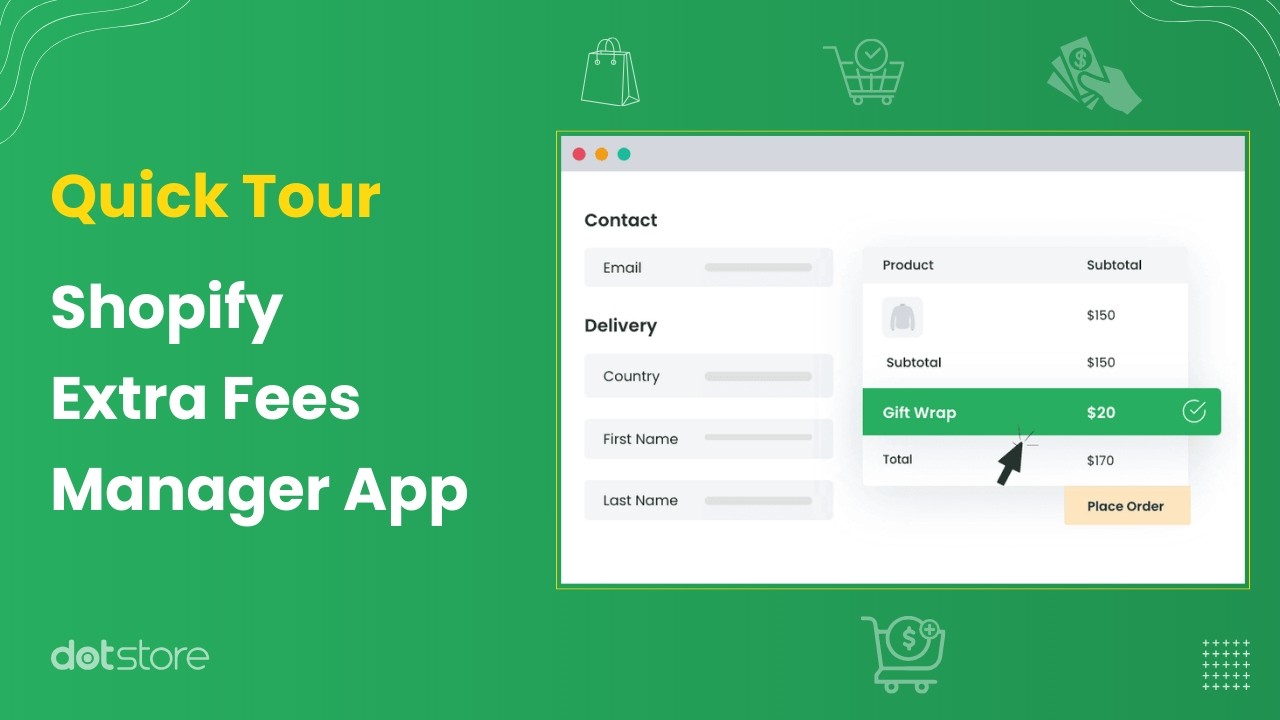
- Log in to your Shopify admin and navigate to Apps → Shopify App Store.
- Search for Dotstore Extra Fees Manager and install the app. Once installed, you’ll see it listed under your Apps menu.
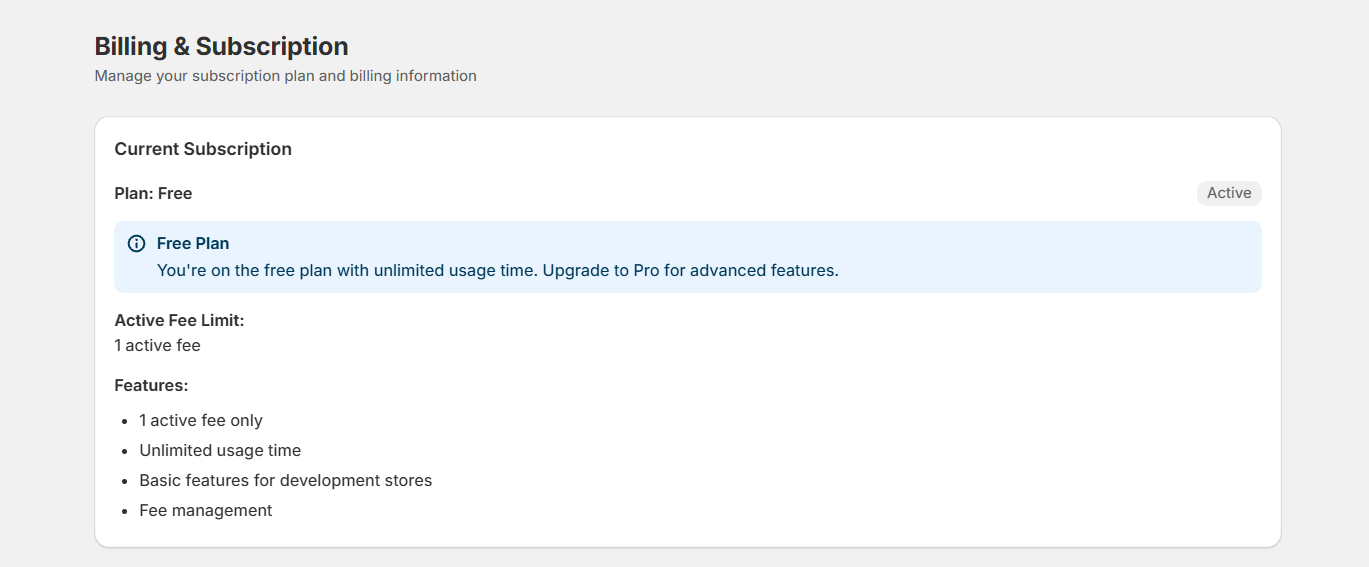
- Go to Apps → Extra Fees Manager → Billing. Choose the free or paid plan to activate the app. (Note: without this step, Shopify won’t apply any upcharges.)
- Navigate to Apps → Extra Fees Manager → Fees, and tap “Create Fee” to open the fee setup screen.
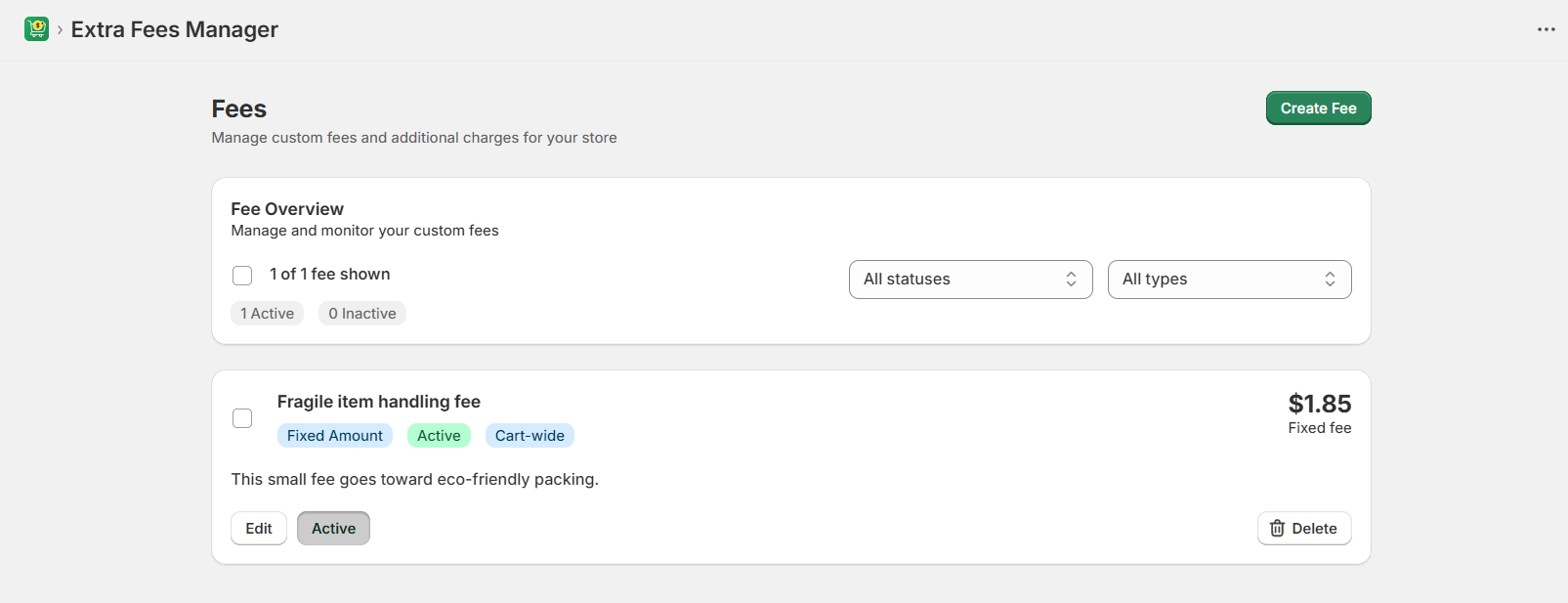
- Configure the details that define how the upcharge works:
- Fee name: This appears on the cart and checkout pages (for example, “Fragile item handling”).
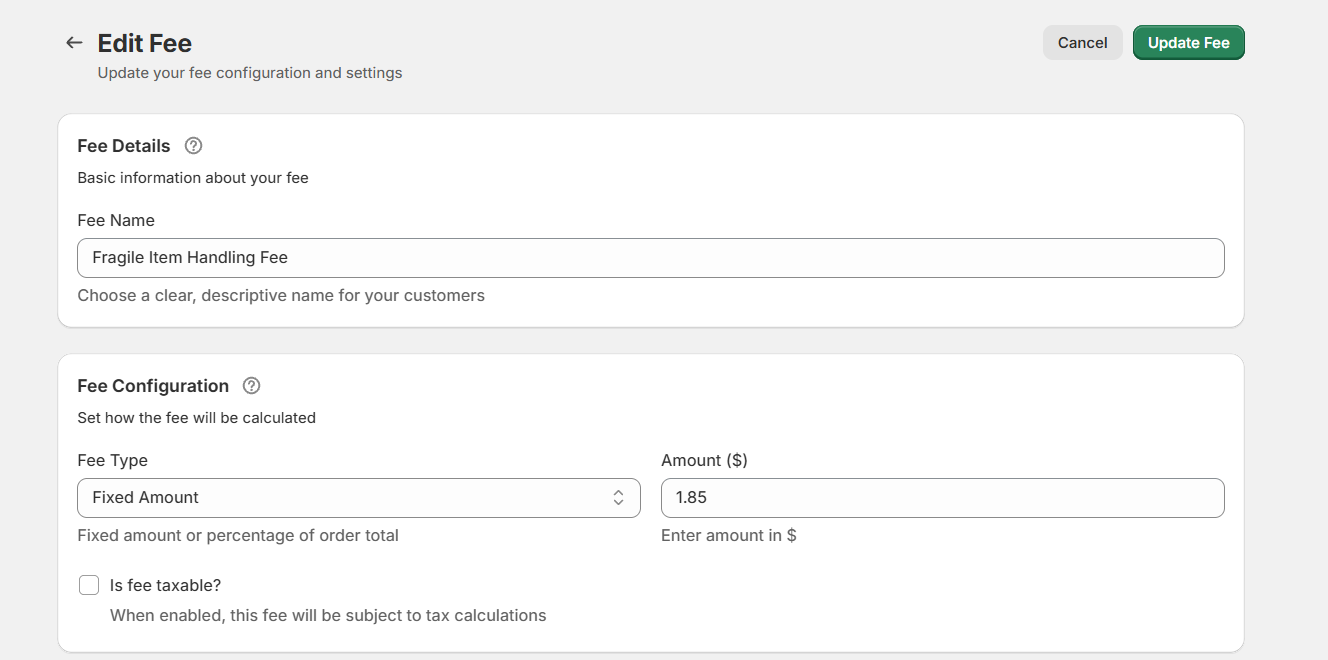
- Fee type: Choose fixed amount or percentage.
- Fee value: Enter the amount or percentage.
- Tax settings: Decide whether the upcharge should be taxable.
- Fee name: This appears on the cart and checkout pages (for example, “Fragile item handling”).
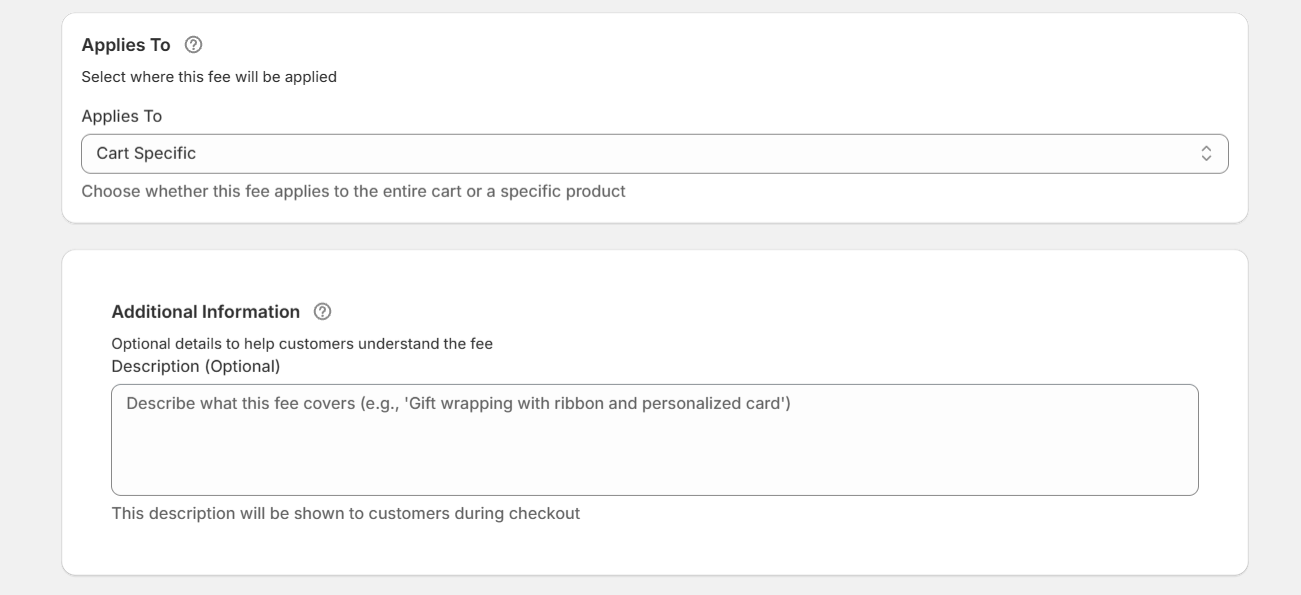
- You can apply the upcharge in two ways: product level or cart level. Applying it on a product level only applies the upcharge when specific products or variants are in the cart. Applying it on a cart level applies to the entire order.
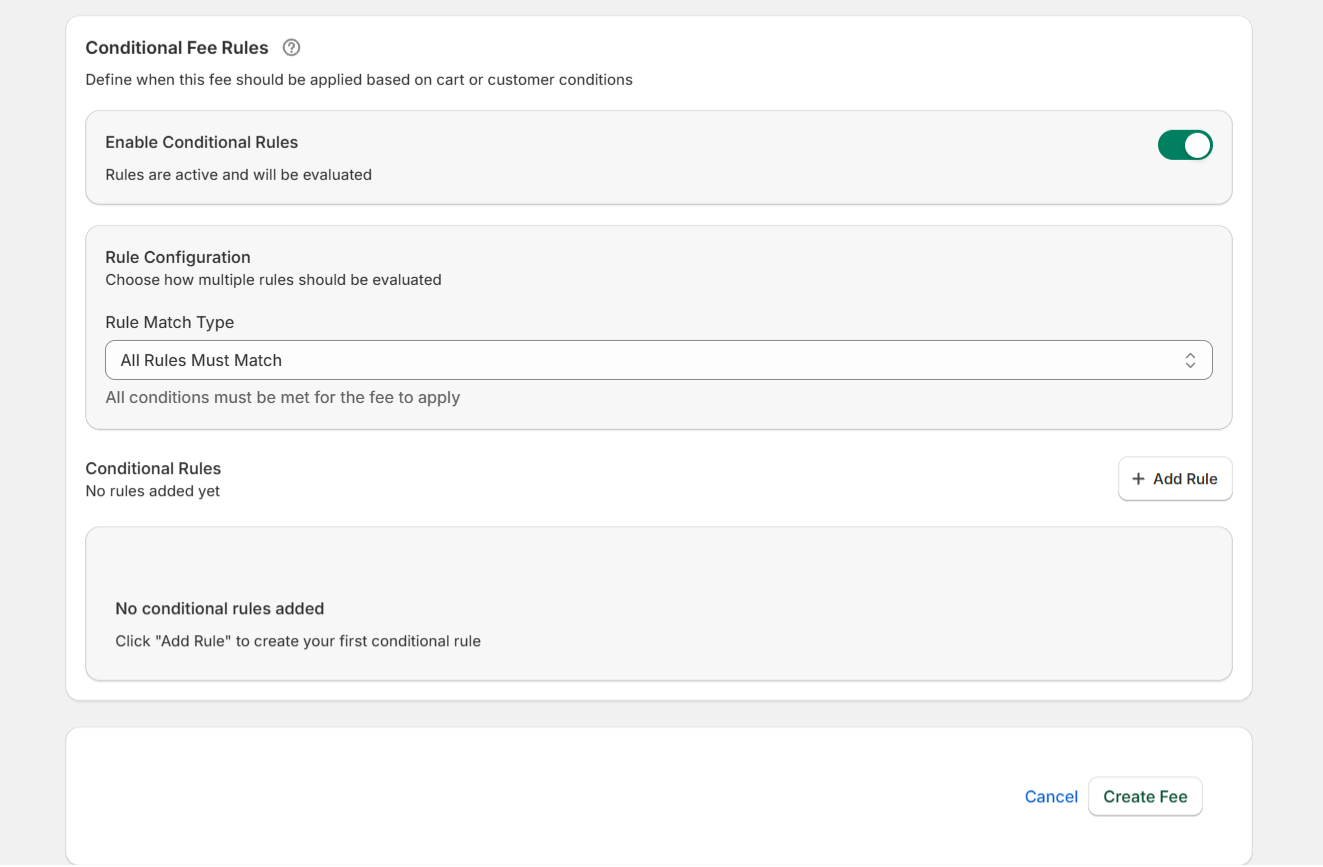
- If needed, add “Conditional Rules” that trigger the upcharge based on cart total or item quantity, specific products, variants, or collections, customer location or country, payment method (like COD), tags, customer type, etc.
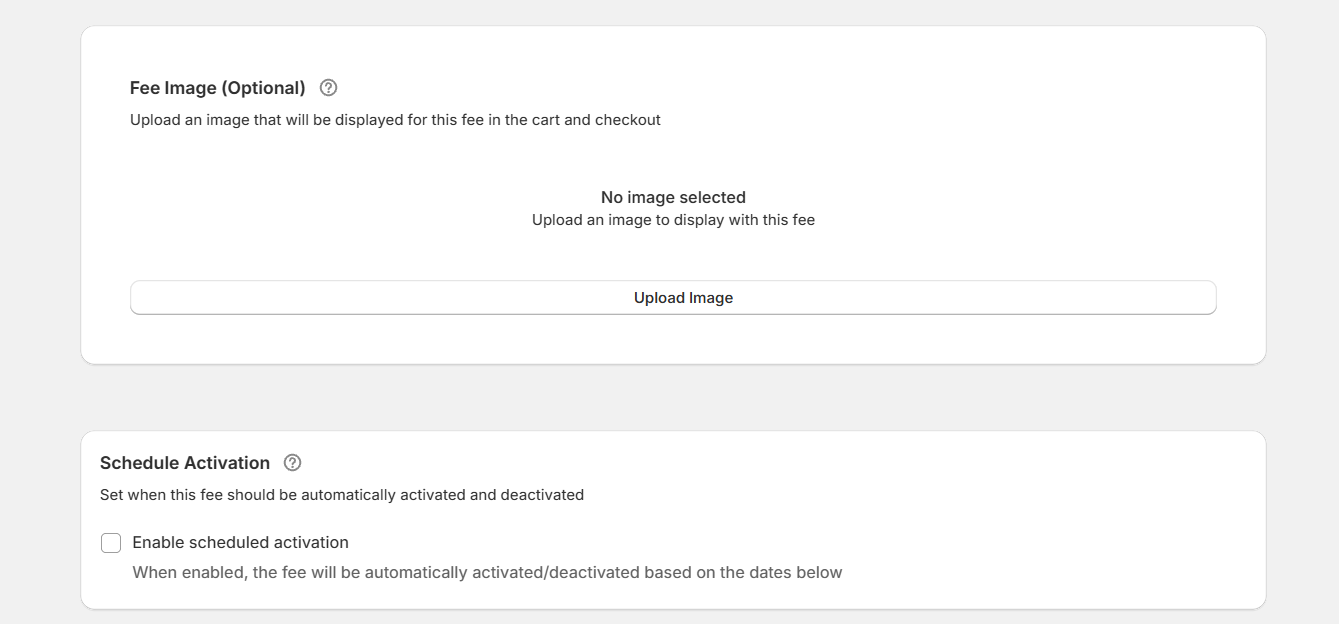
- You can opt to customize how the upcharge appears on the cart/checkout. You can add a short description that explains the fee, upload an icon to visually support the charge, set start and end dates to automate when upcharges are active.
- Tap “Save Fee” to add the upcharge in Shopify.
Important: Add the upcharge section to your Shopify cart page
These steps will help you embed the upcharge section on your Shopify store’s cart page.
- In your Shopify dashboard, navigate to Apps → Extra Fees Manager.
- Go to the “Enable App Embed” panel and tap the “Enable App Embed” button to open your theme editor’s main page.
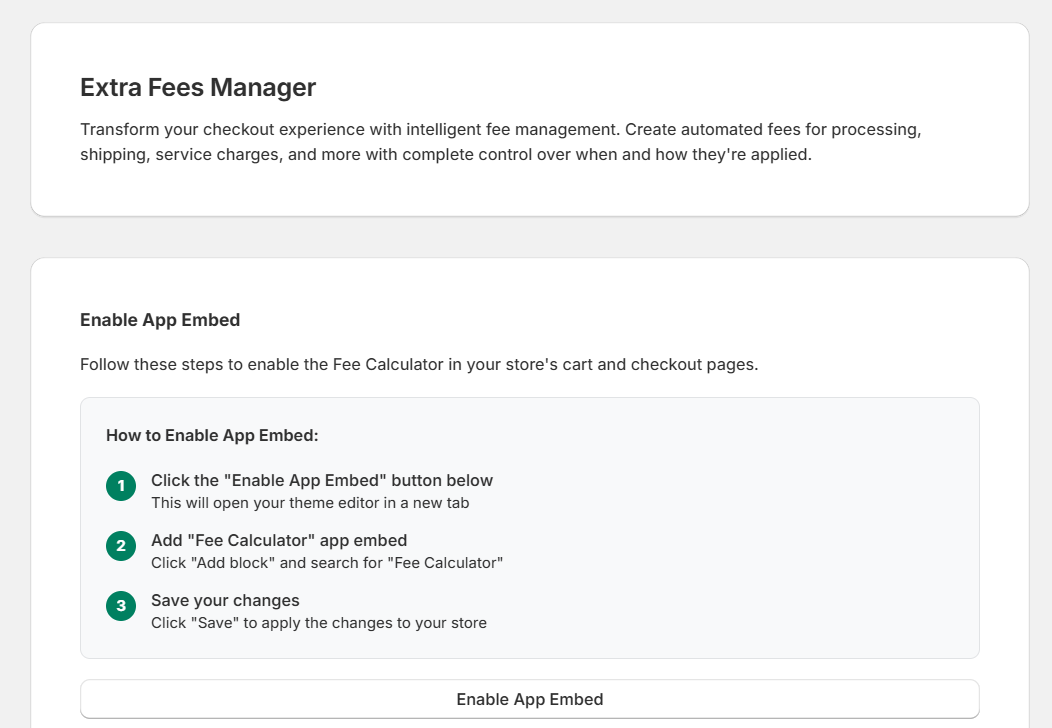
- Open your theme’s “Edit” page and go to the app section.
- Enable the Dotstore Extra Fees Manager app.
- Tap “Save changes”.
Finally, add a qualifying product to your shopping cart and proceed to checkout to view the upcharge on the front end of your Shopify store.
Method 2: Add an upcharge using Shopify’s native settings
As noted above, technically, this does not allow you to add an upcharge, so this isn’t ideal, but it’s the only other option if you don’t want to use an app. However, since the Dotstore’s Extra Fees Manager app offers a generous, free version, most stores would be better off using that instead.
- In your Shopify dashboard, go to Settings → Shipping and delivery.
- Open a shipping profile, tap “Manage rates”, and edit a third-party carrier-calculated rate.
- Enter a handling fee (flat, percentage, or both).
- Tap “Save changes”.
Estimated ROI of adding upcharges to your Shopify store
Where relevant, adding an upcharge can supercharge your revenue. Here’s a rough estimate of how much stores across various niches can improve profits with an upcharge app:
Example 1: A DTC brand’s optional service upcharges
Store type: Apparel, gifts, lifestyle products
Monthly orders: 2,000
Average order value: $45
Upcharges added: Gift wrapping: $4.99; Priority processing: $6.99
If just 18% of customers choose one optional service: 360 orders × $4.99 (average uptake) = $1,796 in extra monthly revenue. This translates to roughly $21,500 in extra annual revenue.
If in-house order fulfillment is already available, packaging and labor costs are minimal, which creates high profit margins.
Example 2: Niche product store using product-based upcharges
Store type: Fragile, bulky, or custom-made goods
Monthly orders: 800
Average order value: $120
Upcharge added: Fragile item handling fee: $7.50
If applied only to specific SKUs (about 40% of orders): 320 qualifying orders × $7.50 = $2,400 recovered per month and approximately $28,800 annually.
Example 3: Stores adding a small-order upcharge
Store type: Consumables, accessories, low-ticket items
Monthly orders: 3,000
Average order value: $22
Upcharge added: Small-order fee: $3.00
The benefits to this type of upcharge are two-fold because some customers pay the fee while others add other item(s) to avoid it, which increases their order value.
If triggered only for carts under $30, and applied to ~25% of orders: 750 orders × $3.00 = $2,250 per month and $27,000 annually.
A few quick notes:
- These examples assume conservative adoption rates, modest fee amounts, and transparent fee labeling on the cart and checkout pages. In practice, many stores see higher uptake once customers understand the value behind the upcharge.
- For best results, match upcharges to your customers’ preferences and only add them if relevant.
- Test and optimize different fee amounts as well as AOV and conversion rate changes. Then adjust conditions based on your store’s performance.
The verdict: The best Shopify upcharge app
Upcharges help price fairly in stores where costs and expectations vary from order to order. Customers who need extra services pay for them, without affecting those who don’t.
Shopify’s native options don’t allow you to add an upcharge, but you can work around this by adding extra fees using its built-in shipping handling fee feature. However, this method only works with third-party carrier rates, bundles the fee into shipping, and doesn’t allow advanced conditions, so it isn’t ideal for most stores.
The Dotstore Extra Fees Manager app is the best Shopify upcharge app. It lets you add upcharges, fees, add-ons, and surcharges for gift wrapping options, small-order fees, handling fees, customization fees, optional add-ons, COD charges, etc., with ease.
With it, you can:
- Add fixed or percentage-based upcharges.
- Apply fees at the product level, variant level, or cart level.
- Use conditional rules based on products, cart total, location, payment method, or customer type.
- Show fees as separate, clearly labeled sections in the cart and checkout.
- Schedule upcharge fees to start and end automatically.
- Support multi-currency stores without manual adjustments.
Get the free or pro version of the Dotstore Extra Fees Manager app and start adding upcharges today!
Shopify Extra Fees Manager
Add dynamic checkout fees for add-ons, upcharges, surcharges, etc., to your Shopify store — the easy way!
14-day, no-questions-asked money-back guarantee.