Table of Contents
This guide covers what product documents are, why they matter for conversions and customer satisfaction, the limitations of default WooCommerce features, and step-by-step instructions for adding WooCommerce product documents using native workarounds and a dedicated plugin.
Key Takeaways
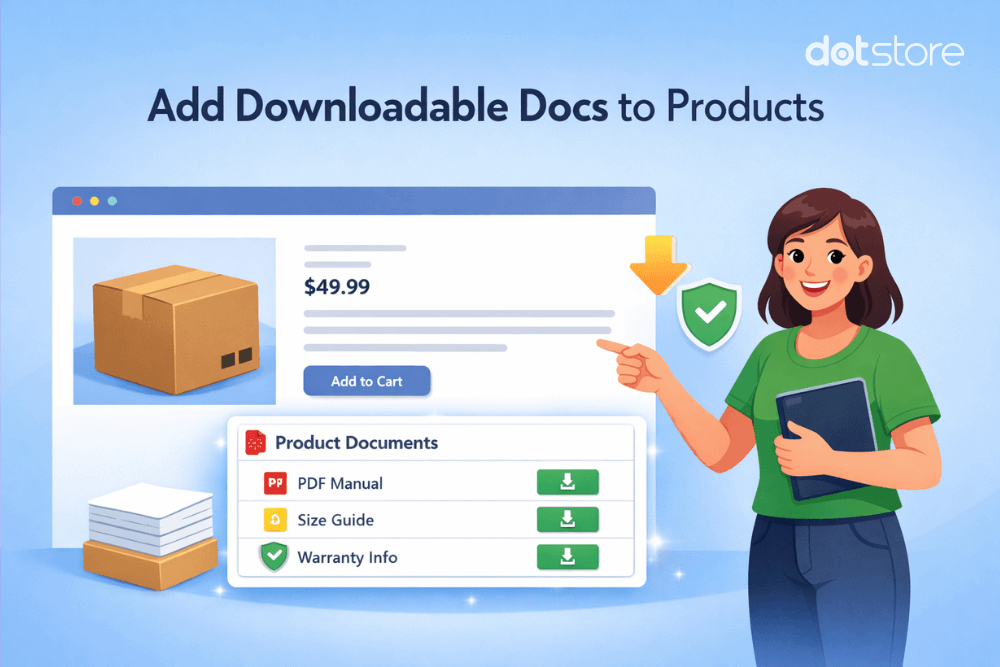
- WooCommerce doesn’t have a built-in feature for adding documents to product pages. You’ll need workarounds or a dedicated plugin to attach manuals, specifications, warranties, and other files customers need.
- Adding product documents to a dedicated tab increases conversion rates (especially for B2B and technical products), reduces returns, cuts support costs, and builds brand trust.
- Default WooCommerce workarounds aren’t ideal due to poor mobile experience, no bulk file management options, files locked behind purchases, and invisible broken links.
- The Dotstore’s WooCommerce Product Attachment plugin eliminates these limitations with unlimited file uploads, conditional access control, centralized document management, bulk file operations, automatic delivery in order emails, and more.
- Best practices for adding WooCommerce product documents include (1) using standardized naming conventions, (2) compressing files to under 8MB, and (3) displaying documents in dedicated tabs with preview options.
Do you want to add documents to products in your WooCommerce store?
WooCommerce’s default product page format prioritizes simplicity and brevity. There’s good reason for this, as research consistently shows that customers typically skim websites rather than reading every detail, and cluttered, text-heavy product pages hurt conversion rates (yikes 😰!).
This streamlined format works great for simple products like t-shirts, hoodies, or coffee mugs, as customers can evaluate these products from images, basic descriptions, and reviews. But not every product is simple.
Some products require extensive documentation (think: product manuals, assembly instructions, size charts, authenticity certificates, etc.) to sell well.
The solution? Use a WooCommerce product documents plugin to attach extensive information to a dedicated tab on product pages.
With this approach, the main product page remains clean and conversion-focused while detailed documentation is presented in a separate, organized section so customers can access it when needed.
In this tutorial, I’ll show you exactly how to add documents to WooCommerce products using default WooCommerce workarounds and a powerful WooCommerce product documents plugin, WooCommerce Product Attachment by The Dotstore.
Plugin featured in this guide
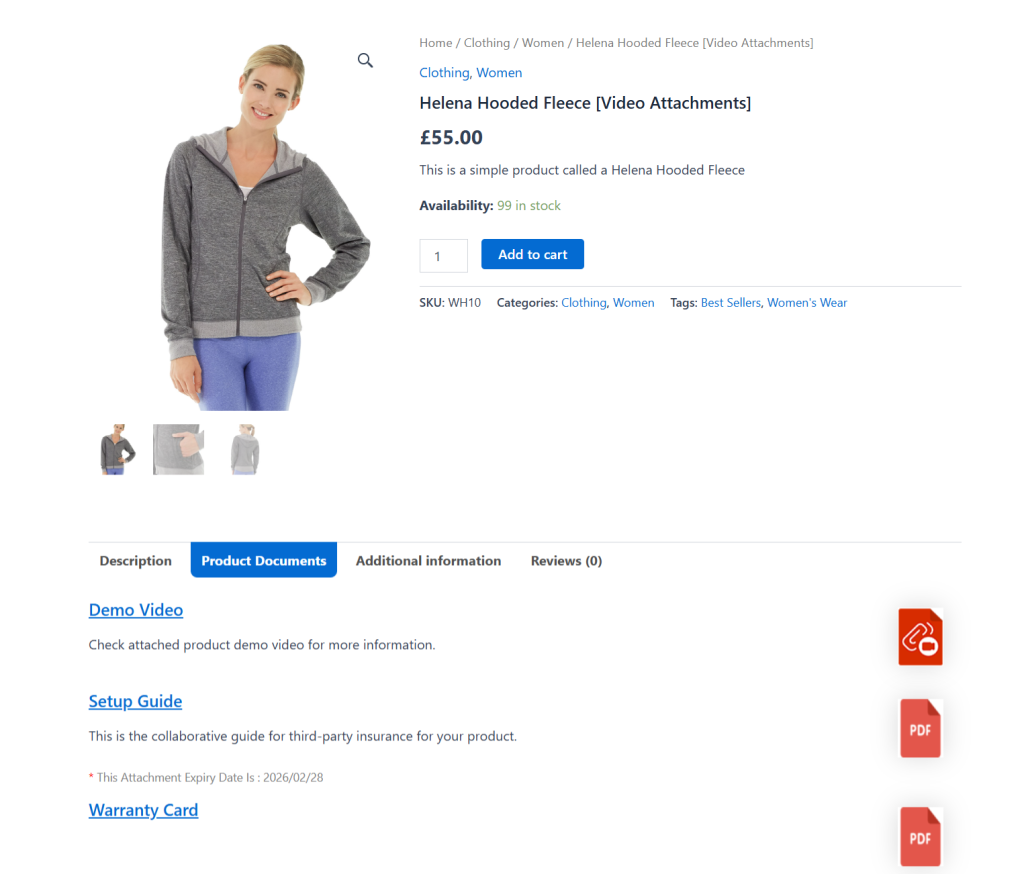
- WooCommerce Product Attachment by The Dotstore: A powerful plugin that lets you attach unlimited files to products and display them in a dedicated tab on the product page. You can bulk-upload multiple documents, control access by user role, login status, or purchase status, manage documents across multiple products from a centralized library, and much more. Free and pro versions available. Try out the demo now.
WooCommerce Product Attachment
Increase conversion rates with detailed information using multiple attachments.
14-day, no-questions-asked money-back guarantee.
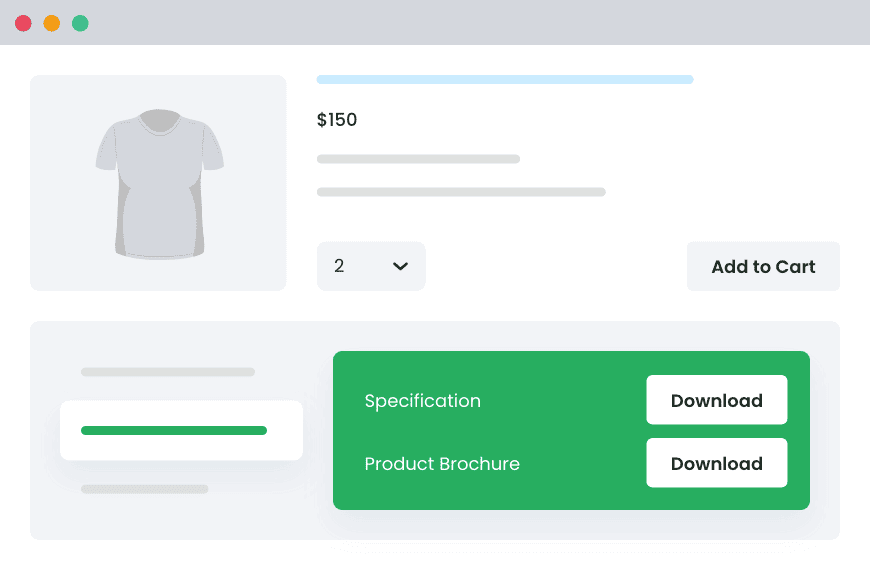
What are WooCommerce product documents?
WooCommerce product documents are viewable and/or downloadable files attached to product pages, the order confirmation page, and/or order transaction emails that provide shoppers with additional information, instructions, or resources about your products, services, or business.
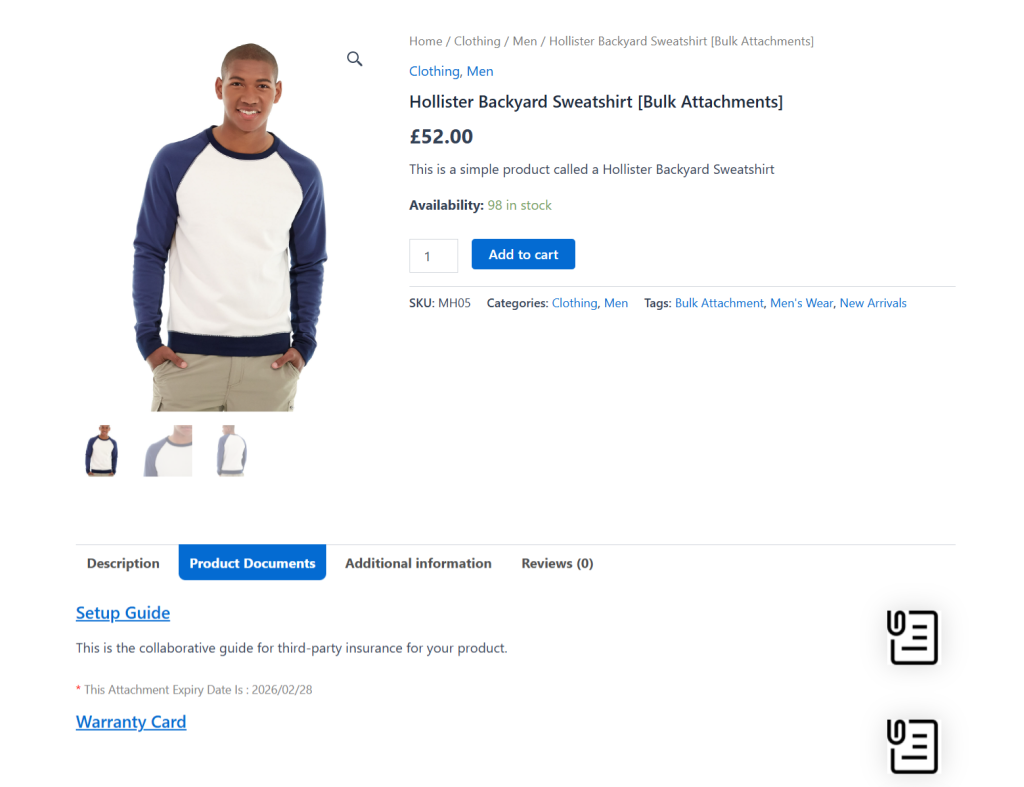
Product documents come in various shapes and sizes. Think: product manuals, user guides, warranty certificates, assembly instructions, compliance documents (safety certificates, test reports), technical specifications sheets, care instructions, etc.
WooCommerce downloadable products vs WooCommerce product documents
WooCommerce downloadable products are digital items customers buy (think: ebooks, software, music files, etc.). Product documents, on the other hand, are supplementary materials attached to product pages of physical or digital items.
Use cases for WooCommerce product documents
Here are popular examples of how WooCommerce stores across different niches use product documents.
- Electronics and appliances: User manuals, warranty cards, and troubleshooting guides.
- Furniture and home goods: Assembly instructions, care guides.
- Industrial/B2B equipment: Technical specs, compliance certificates, safety data sheets.
- Fashion and textiles: Care instructions, authenticity certificates.
- Food and beverages: Nutritional information, allergen warnings, recipe cards.
- Digital products: License keys, setup guides, templates.
Why add documents to WooCommerce products?
Adding documents to a dedicated tab on the WooCommerce product page can help deliver real business results, such as:
- Increased conversion rates. In B2B and high-end consumer products stores, customers need detailed information to make purchase decisions. Making technical documents, certifications, spec sheets, materials breakdowns, care instructions, warranty terms, and other relevant information publicly available on product pages aids shoppers in their due diligence, improves buyer confidence, and can supercharge conversions.
- Reduced returns. A significant driving force behind product returns is that customers didn’t understand what they were buying or how to use it. Adding quick start guides, video tutorials, or detailed setup instructions as downloadable PDFs on the product page, the order confirmation page, and in the transactional order emails can go a long way towards improving customer satisfaction and reducing returns.
- Builds brand trust and professionalism. Providing comprehensive product documentation upfront in an organized and accessible manner can guide customers to perceive your brand as legitimate and trustworthy, especially for new brands and brands that sell higher-priced products.
- Meets legal and regulatory requirements. Companies that operate in regulated industries and markets are legally required to provide certain documentation. Failing to provide these documents when required exposes your brand to legal risk. Common examples include safety data sheets for chemicals, nutritional information for food products, compliance certificates for electronics sold in European markets, allergen warnings, material composition for textiles, etc.
- Reduced customer service costs. Repeat customer questions around product assembly, warranty coverage, care instructions, technical specifications, etc., eat into your Support team’s bandwidth. Answering these questions on product pages, order confirmation pages, and/or order confirmation emails reduces the number of support tickets and overall customer service costs.
Default WooCommerce features for adding product documents
There is no built-in feature for adding documents to a dedicated tab on WooCommerce product pages. However, there are a couple of workarounds that can accomplish similar objectives, namely, adding documents to product descriptions and the WooCommerce downloadable products feature. Although each workaround comes with significant limitations.
Default WooCommerce workaround 1: Adding documents to product descriptions
The simplest workaround for adding product documents to the WooCommerce product page is to embed document links that customers can click to download directly in the product description area.
Limitations of this default WooCommerce workaround
- ❌ Terrible mobile experience. Product descriptions get compressed on mobile devices. Long paragraphs with embedded links become harder to scan. Customers miss documents they need because the formatting doesn’t adapt well to smaller screens.
- ❌ Poor organization and presentation. Links embedded in paragraph text get lost, and files get scattered in the content flow.
- ❌ There is no centralized file management system. You’ll have to manually upload and update each document link one by one. This can be time-consuming.
- ❌ Broken links are invisible. If, in error, you delete a file linked in product descriptions from your media library, you won’t know unless customers complain or you manually check every product.
- ❌ Search engine optimization issues. Loading product descriptions with download links and file names creates cluttered content that doesn’t read naturally.
How to add documents to the WooCommerce product description
- Navigate to Media → Add New and upload the file to the WordPress media library.
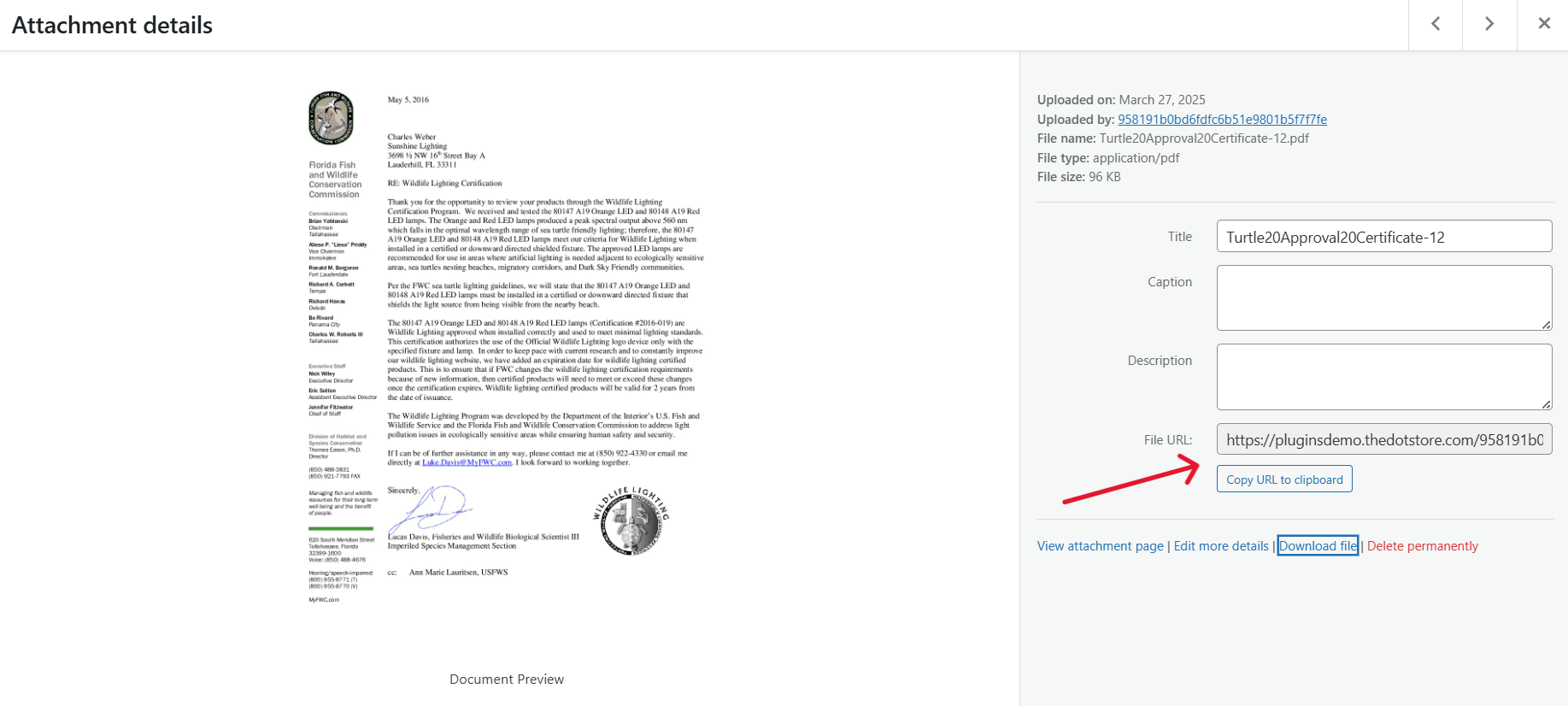
- Click on the uploaded file to open its details, copy the File URL, and head to your product editor.
- If you’re using the WordPress Gutenberg block editor, you can add a button block, type your button text, then link it to your file URL from the media library.
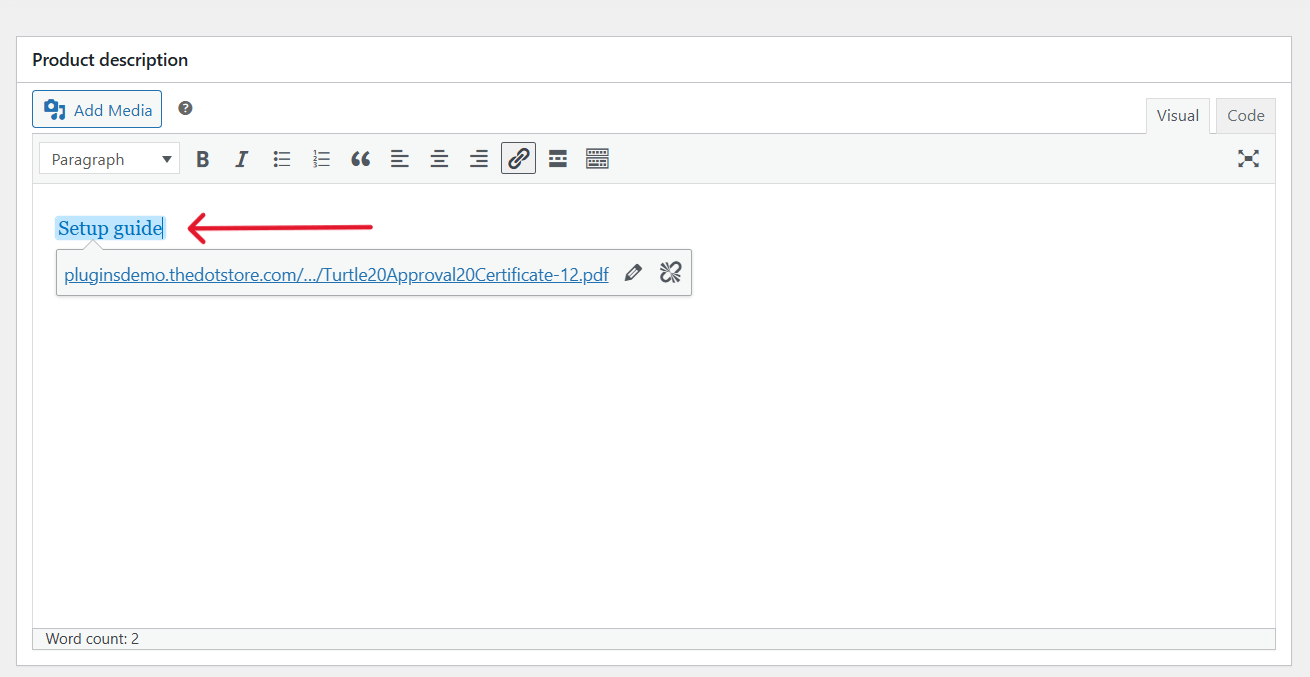
- If you’re using the WordPress classic editor, add the text you want to turn into a link. Then highlight it, click the link icon in the editor toolbar, paste your file URL into the link field, and press “Apply”.
- Press “Update” at the top of the page to save your settings.
Default WooCommerce workaround 2: WooCommerce downloadable products
WooCommerce’s downloadable products feature was originally designed to sell digital products like ebooks, software, music files, etc., but you can repurpose it to attach documents to physical products.
Limitations of this default WooCommerce workaround
- ❌ Files are tied to purchase, meaning that downloadable files only become available after the customer buys the product. This can affect your store’s conversion rate.
- ❌ Customers can’t preview a PDF in their browser or view a document without downloading it first. This can add unnecessary friction to the buyer journey.
- ❌ There’s no bulk attachment feature. For example, if you need to attach or update the same warranty document to 200 products, you’ll have to manually upload it 200 times. This wastes a lot of time.
- ❌ Poor mobile experience, as there’s no responsive document viewer built in. Mobile users often struggle with managing downloaded files, finding them later, or viewing certain file types on their devices.
How to add documents using the WooCommerce downloadable products feature
- In the WordPress admin, go to Products → All Products and open the product Edit page of the appropriate product.
- Scroll down to the “Product Data” section and check the box labeled “Downloadable” from the top left dropdown menu.
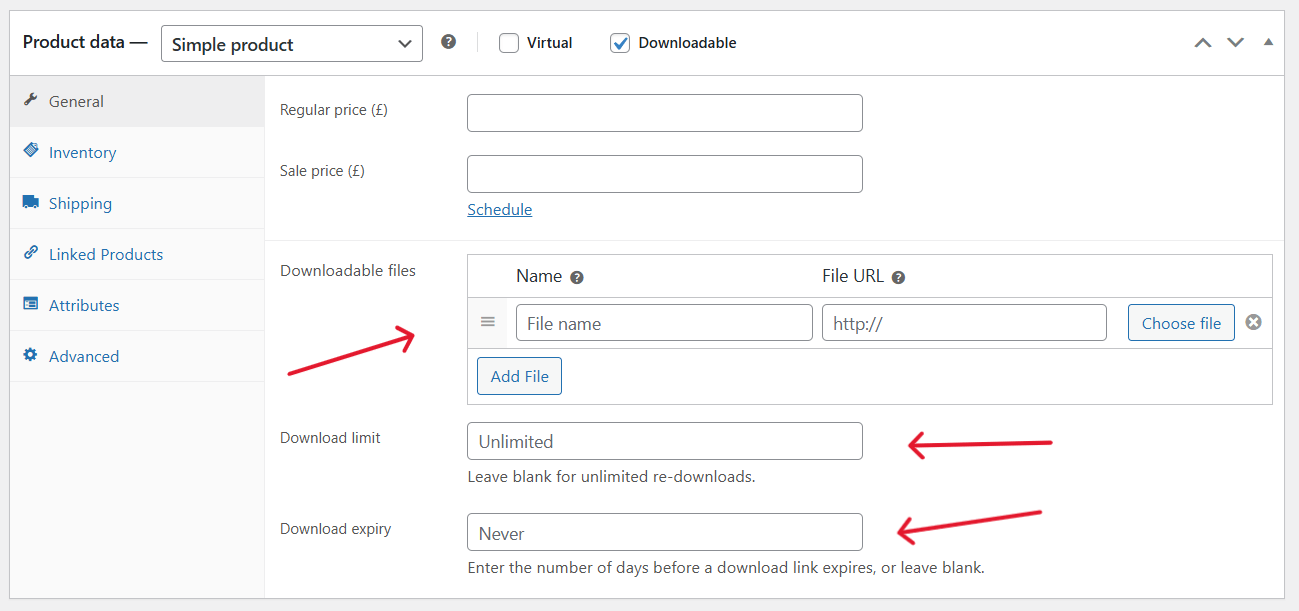
- Press “Add file” in the “Downloadable files” section. Note: You can add multiple files.
- Add the file name that will be shown to customers in the order confirmation and download section.
- Paste a direct URL in the “File URL” field if the file is already hosted somewhere. Alternatively, press “Choose file” to upload from your computer, then upload the appropriate file.
- Leave the download limit field blank for unlimited downloads or set a specific number to control how many times a customer can download the file.
- Leave the download expiry field blank to allow customers to access documents indefinitely, or set an expiry date that controls how many days after purchase the download remains available.
- Press “Save” or “Update” to apply the settings.
Introducing a powerful WooCommerce product documents plugin
Due to the many limitations, i.e., cramming files into the product description or forcing customers to purchase to access important product-related information, working around WooCommerce’s default features for adding documents to products isn’t feasible for most stores.
WooCommerce Product Attachment enables you to share unlimited product materials on the product page for customers to view and/or download.
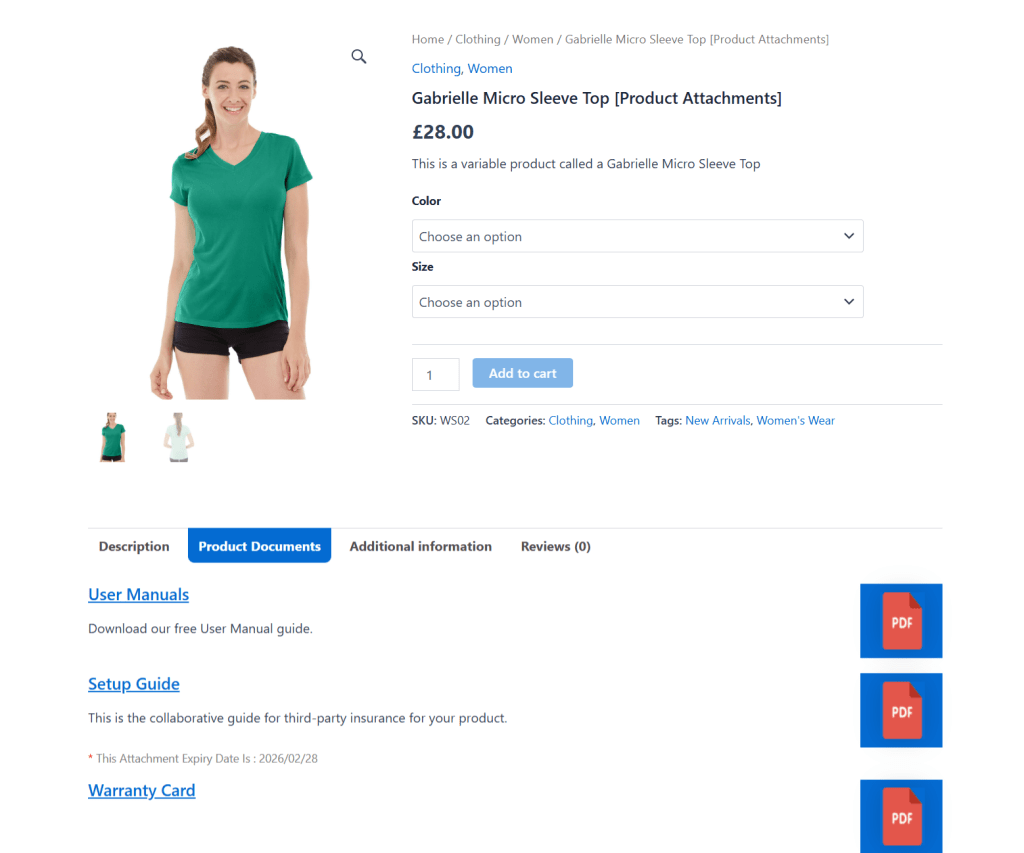
It lets you display documents in a dedicated tab on product detail pages or anywhere on the product page (for example, under the product title or near the “Add to Cart” button) using shortcodes. And you can configure the product documents tab to display by default when shoppers visit the WooCommerce product page.
WooCommerce Product Attachment supports numerous file types, including PDFs, Word docs, YouTube links, Vimeo content, Google Drive files, and others (files hosted externally will launch in new tabs or windows).
Instead of manually adding documents to each product, you can upload files once and then attach them to individual products, entire categories, tags, and product attributes. You can even schedule automatic expiration for time-sensitive product documents.
Beyond managing files attached to the product page, WooCommerce Product Attachment integrates with WooCommerce’s order system, which lets you attach documents that automatically include download links in order confirmation emails. And, you can set documents to appear in customer account dashboards, so customers can re-download files months after purchase from a centralized location if needed.
Here’s a brief overview of its top features.
Top features
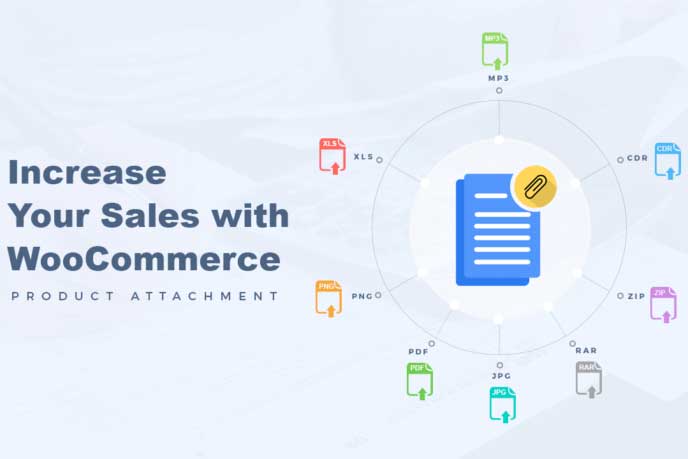
- ✔️ File type flexibility. It supports virtually any file type customers might need. Think: PDFs, Word documents, Excel spreadsheets, ZIP archives, images, videos, CAD files, audio files, etc.
- ✔️ Unlimited document attachments per product. You can attach as many files as you need to each product. Each attachment can be individually labeled with custom names and descriptions that explain its contents.
- ✔️ Conditional access control to WooCommerce product documents. You can control who sees which documents based on purchase status, user role, or login status. This makes sure people only see applicable documents.
- ✔️ Centralized document library. You can upload a document once and assign it to multiple products. When needed, you’ll only have to update one file, and it automatically updates across every product it’s attached to. This can save dozens of hours over time.
- ✔️ Bulk import and export documents. It supports CSV import/export for document attachments. You can prepare your entire document structure in a spreadsheet and then import everything at once, also saving dozens of hours over time.
- ✔️ Custom icons and styling. You can attach custom icons to documents to help customers quickly identify what type of file they’re downloading before they click. For instance, PDFs = PDF icon, Word docs = document icon, videos = play button, ZIP files = archive icon.
How to add documents to WooCommerce products
Follow these steps to add documents to WooCommerce products using the WooCommerce Product Attachment plugin:
- From your WordPress admin panel, install either the free or pro edition of the Product Attachment for WooCommerce plugin from Dotstore.
- Navigate to the new menu: Dotstore Plugins →Product Attachment →Bulk Attachment within your WordPress admin panel.
- Press the “Add New Attachment” button.

- Input a title for this product document. Customers will see this alongside the view/download options on product pages.
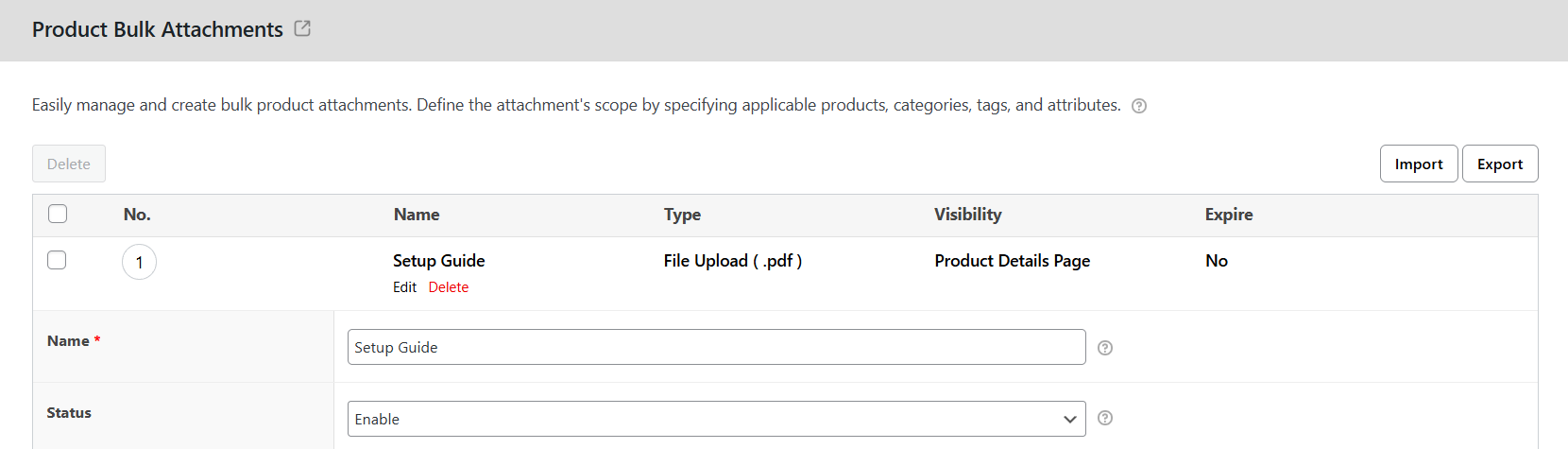
- Toggle the attachment status to “Enable” so it appears on your storefront.
- Optionally, write a short description for the product document. You can skip this if it’s not necessary.
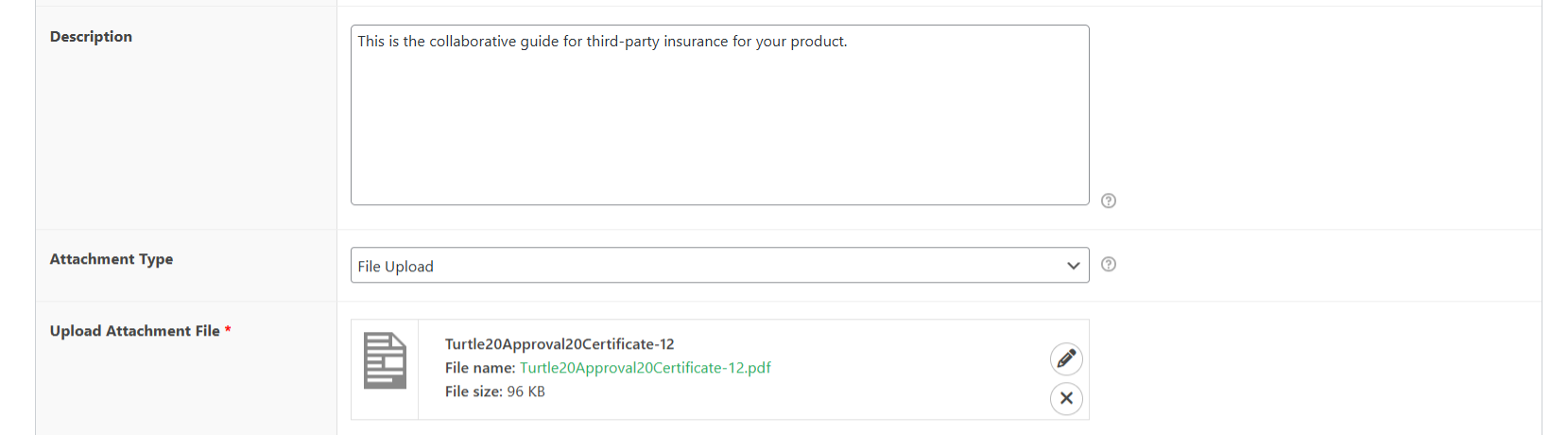
- Select the product document format (uploaded file or external link), then add your document or URL.
- Configure how the file/link opens: in the current browser window or a new tab.

- Determine which products receive this document: sitewide, selected products, specific categories, tags, and/or attributes. Then identify the target products.
- If applicable, exclude the product document from certain parent and child tags, attributes, or categories.
- Choose whether this product document should only display for logged-in customers.
- Select which order statuses should show the product document. Leaving everything unchecked makes the documents available regardless of order status.

- To automatically remove this product document after a set period, configure the expiration date or post-purchase timeframe.
- Press “Save changes” to finalize and publish this product document on your WooCommerce site.
Update the WooCommerce product document tabs
- Head to Dotstore Plugins → Product Attachment → Global Settings in your admin dashboard.
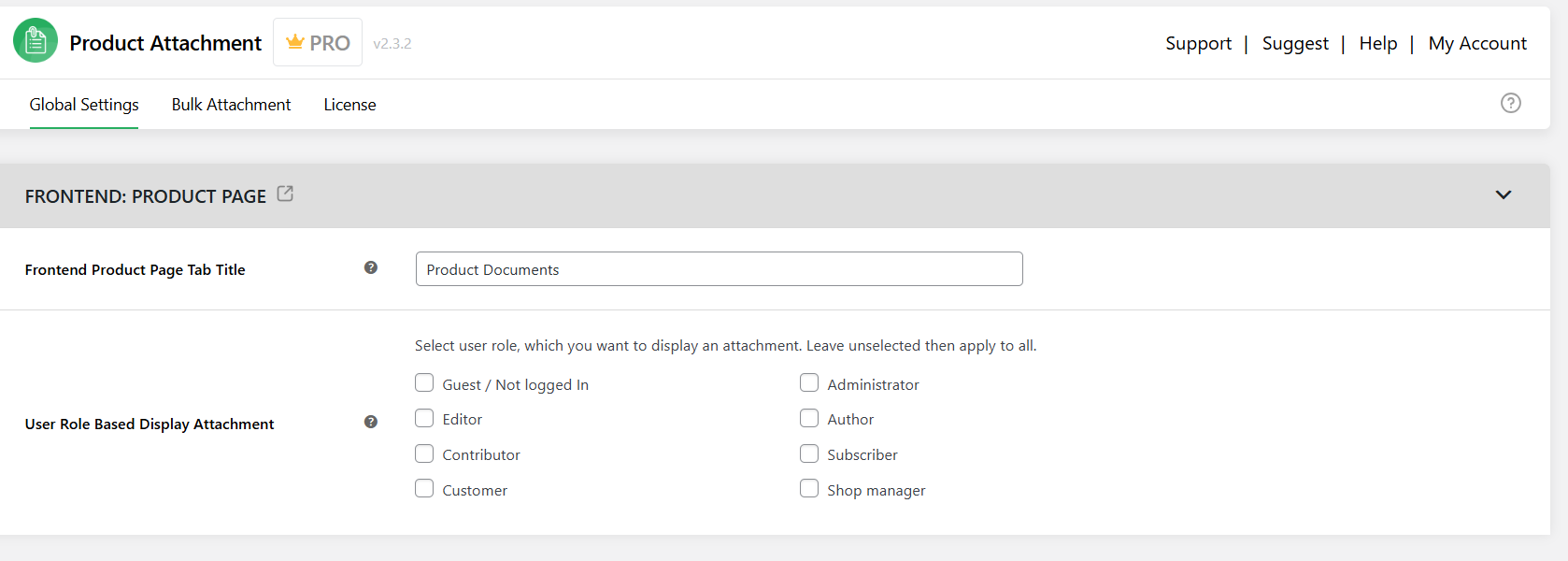
- Locate the following fields and update the text to reflect the titles of the relevant product document tabs: Frontend Product Page Tab Title, Order Details Page Tab Title, Admin Order Details Page Tab Title, Admin Order Attachments Title.
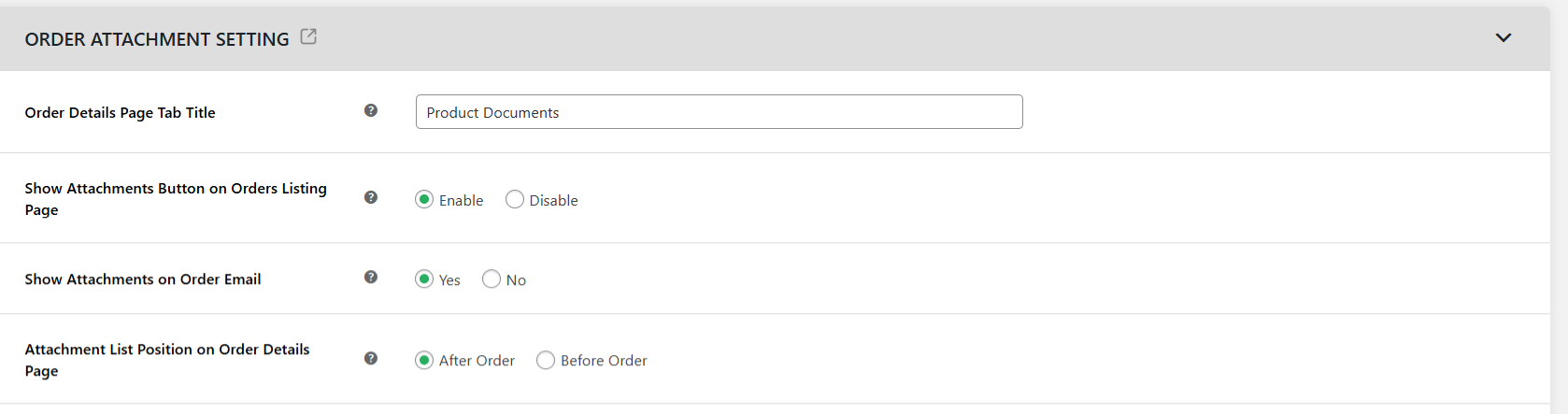
- From here, you can also update the storewide product document settings, such as the name of the attachments tab, user access control, and more.
- Press “Save Changes” once done.
Best practices for adding documents to WooCommerce products
Here are five tips for attaching documents to the WooCommerce product page.
- Use a standardized naming convention that instantly communicates the contents of each document. This makes managing a large number of documents much easier.
- Optimize files by compressing them to reduce file sizes by 60-80% without visible quality loss, reducing image resolution to 150 DPI for screen viewing, and removing embedded fonts and metadata that result in bloat.
- Present documents in a dedicated “Documents” or “Downloads” tab on product pages to maintain a stellar user experience. Enable document preview so customers can confirm that they are selecting the right files without having to download them first.
- Implement user access control measures based on security requirements as appropriate. For example, you can allow shoppers to access documents based on their user role, login status, or position in the customer journey.
- Optimize document metadata with descriptive titles and keyword-rich descriptions to help search engines understand their contents. Also, add structured data that shows document format, file size, and description.
Ready to add documents to WooCommerce products?
The default features for attaching documents to products in WooCommerce aren’t practical for most stores. Stuffing files into the product description or forcing customers to complete the purchase flow (with the downloadable products feature) isn’t ideal.
WooCommerce Product Attachment eliminates those limitations and allows you to present important product documents in a dedicated tab or anywhere on the product page using shortcodes.
It supports a wide range of file types, including Word docs, PDFs, YouTube videos, Vimeo videos, Google Drive files, and more. You can upload multiple files at once and then attach them to individual products, entire categories, tags, and product attributes.
Customers can view and/or download product documents, and you can schedule automatic expiration for time-sensitive files.
In addition to managing files attached to the product page, this WooCommerce product documents plugin enables you to attach documents with download links to order confirmation emails and to customers’ accounts so they can easily access them as needed.
Check out WooCommerce Product Attachment’s demo or get started with its free or pro version now!
WooCommerce Product Attachment
Increase conversion rates with detailed information using multiple attachments.
14-day, no-questions-asked money-back guarantee.