Table of Contents
Do you want to set different prices for different customer roles in WooCommerce? In this tutorial, we’ll show you step-by-step how to customize and display different product prices in your store for specific users, user roles, and other conditions.
A wholesale customer logs in and still sees the retail price. The agreed rate exists, but your store doesn’t show it. That one mistake can cost you a support ticket, a manual quote, or the buyer’s trust.
WooCommerce role based pricing replaces that fragile process with rules tied to customer roles.
Key Takeaways
- WooCommerce role-based pricing shows each customer role, such as wholesale, member, or guest, the price assigned to that role after login.
- WooCommerce core has no role pricing setting, so you need an extension or a pricing plugin with a User Role condition.
- Product-level role prices override category rules, and an empty product field inherits the category rule.
- Use a percentage discount for standard reductions that follow retail prices, and a fixed price for contract-set unit costs.
- Test every role, variation, cart, and checkout before going live, including roles that should see the regular price.
- Caching and competing pricing plugins are the most common reasons a correct role price fails on the storefront.
Wholesalers, members, VIP customers, staff, and guests can each receive the price intended for them, provided the roles, rules, inheritance settings, and frontend behavior are configured correctly.
WooCommerce documentation describes support for role-based pricing through several maintained extensions and settings paths, including product, category, and customer-specific pricing with fixed prices or percentage adjustments (WooCommerce’s role-based pricing documentation).
The setup itself is rarely the dangerous part. The risky part is publishing a rule without checking what an actual customer sees on the product page, in the cart, and at checkout.
Why Role-Based Pricing Matters for Your Store
The wholesale buyer in the opening scenario doesn’t care that the correct price is stored in an admin field. They care that their account displays the agreed price when they shop.
If the storefront shows retail pricing, they may assume the account wasn’t approved, the terms changed, or the store isn’t ready to handle their business.
Coupons can solve an isolated promotion, but they become awkward when pricing follows an ongoing commercial relationship. A buyer may forget the code, share it with the wrong person, or apply it to products outside the agreement. Staff then have to investigate whether the discount was missed, misused, or overridden by another rule.
Role-based pricing works differently. The account’s assigned role becomes part of the pricing decision, so the storefront can present a customer-specific catalog price after login.
WooCommerce Marketplace guidance explicitly positions this model for wholesale users, members, staff, and guest shoppers, with pricing available at product and category level and bulk-edit support for larger catalogs (WooCommerce’s user role pricing documentation).

The operational difference
A structured rule can serve several jobs at once:
- Wholesale access: Approved trade accounts can see their negotiated catalog pricing after signing in.
- Member benefits: A membership role can receive a consistent adjustment without relying on a reusable coupon.
- Staff purchasing: Employees can receive internal prices without exposing those prices to ordinary customers.
- Guest control: Visitors can retain public pricing while logged-in roles receive different values.
The important distinction is that role-based pricing changes the catalog experience, not just the final order total. That matters for product comparisons, quantity decisions, merchandising, and customer confidence. If a buyer sees a public price until the last checkout step, they may make the wrong purchasing decision or abandon the order before the discount appears.
Practical rule: Treat every role price as customer-facing catalog data. If it isn’t visible and correct where the customer shops, the rule isn’t finished.
The model also protects against catalog duplication. Instead of maintaining separate wholesale and retail product copies, one product can carry role-specific pricing while the base catalog remains centralized. That reduces the chance that descriptions, stock settings, or product updates drift apart across duplicate listings.
Configuring Customer-Specific Pricing Rules
A wholesale customer can be logged in and still see the retail catalog price if the account has the wrong role.
Start by defining the customer structure, then build pricing rules around it.
Roles such as wholesale, vip, or staff should represent clear commercial groups, and the assignment process should be tested before any price field is edited.
WooCommerce supports several configuration approaches, including Role Based Pricing, Roles & Pricing, and Dynamic Pricing, depending on the extension installed. The available menu labels and settings paths vary, so confirm the workflow for your specific tool in WooCommerce’s custom roles and pricing documentation.
A rule that looks correct in the editor still needs frontend verification.
Build the rule in the right order
Create or confirm the customer role. Use your role-management system to define the group receiving different prices. Sign in with a real test account and confirm its assigned role, including the exact spelling and permissions.
Open the product editor. In WordPress, go to Products, open the relevant product, and locate the pricing tab or role-pricing panel added by your extension. For variable products, check whether each variation has its own role-price fields.
Choose the pricing scope. Use product-level pricing for an exception or a negotiated value on one product. Use category-level pricing when the same rule should cover a wider range. The documented workflow also supports bulk editing and CSV import or export for larger catalogs (the documented role-based price workflow).
Select the pricing type. A fixed price replaces the ordinary value for the selected role. A percentage adjustment calculates a role price from the applicable base value. Choose one method deliberately. Filling multiple fields without knowing which one takes priority can produce a value that appears correct in the admin but fails on the storefront.
Assign the role explicitly. Select only the roles covered by the agreement. Leave unrelated role fields empty when those customers should retain the standard price. An empty field can mean that no role-specific price applies, rather than that the configuration is incomplete. Discounts by user role in WooCommerce provides another implementation perspective when deciding between catalog pricing and cart-level discounts.
Save and inspect the frontend. Check the product while signed in as the target role, then repeat the visit as a guest and as an unrelated logged-in role. Review the product page, shop archive, cart, and checkout. Record the expected value for each test account before expanding the rule.
If you are comparing extensions, CartBoss’s discount app comparison guide can help assess how different tools handle automated discounts and customer eligibility. The right choice depends on whether customers need to see adjusted catalog prices, receive a cart discount, or use both methods.
Keep the administration method aligned with the catalog. Product-level editing works for a small group of negotiated items. A broad wholesale range is easier to maintain through bulk editing or CSV import, with manual product rules reserved for exceptions.
Test a small batch after every import because a bulk update can overwrite carefully negotiated values.
A visual walkthrough can clarify how an extension’s pricing panel relates to the product editor. Use it alongside a test account, not as a substitute for checking the actual storefront.
Understanding Price Precedence and Hierarchy
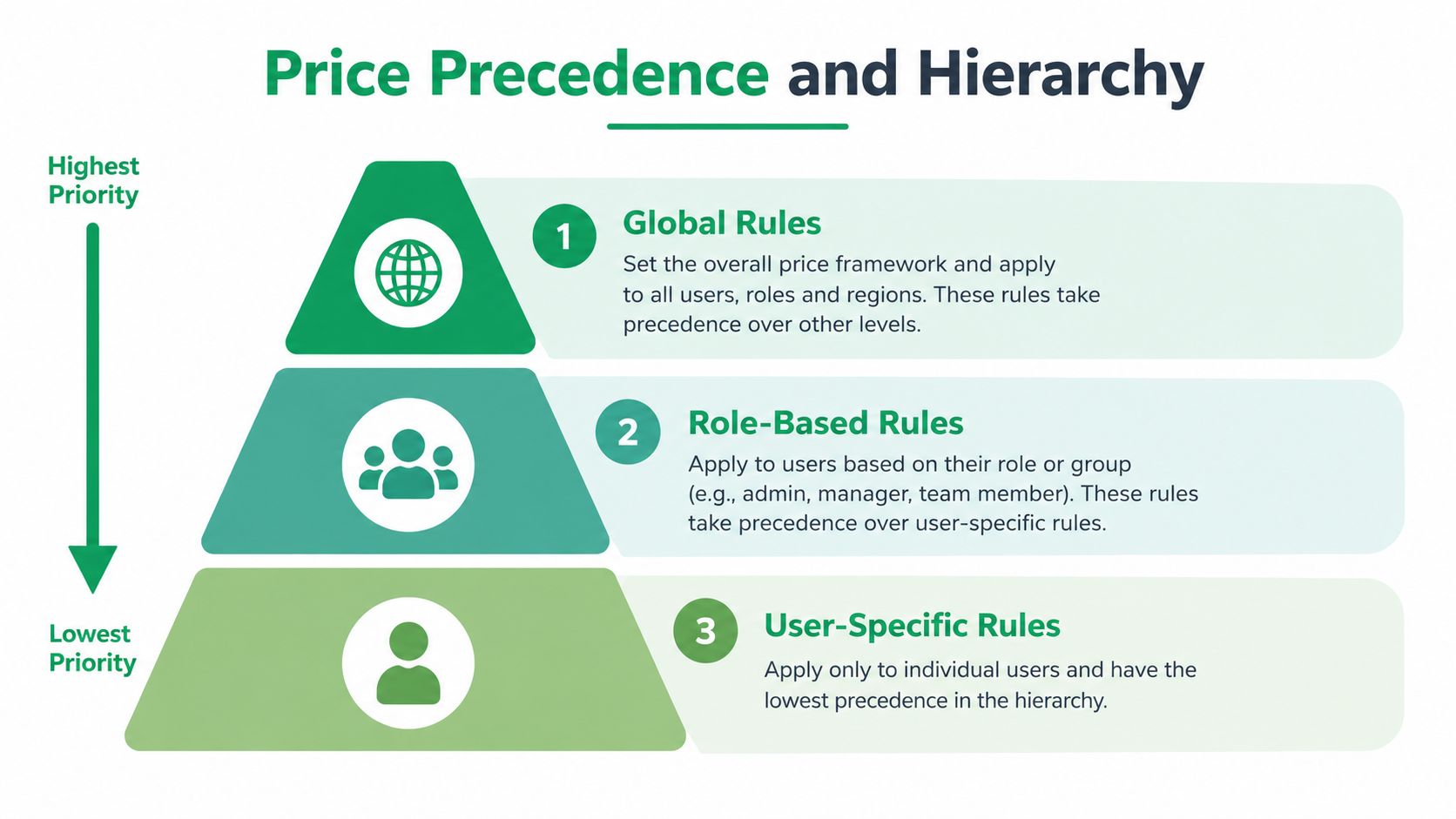
A wholesale customer sees the wrong amount even though the rule is saved. In practice, the cause is often precedence: a more specific rule overrides a broader one. A category rule can cover many products, while a product-level role price applies to one item and takes priority. Treat that order as part of your testing plan.
Read the inheritance path
Check each layer in order when diagnosing a product:
| Pricing layer | What it does | What to inspect |
|---|---|---|
| Base catalog price | Sets the ordinary product value | Regular and sale price fields |
| Category role rule | Adjusts prices across a category for a role | Category settings and product membership |
| Product role rule | Sets an exception for one product | Role fields in the product editor |
| Variation role rule | Sets a value for one variation | Pricing controls for each variation |
The category rule is the fallback when no product-specific role value exists. Adding a product-level value changes that path, so later category updates will not affect that item for the selected role. That arrangement works when most products share one wholesale rate but a particular product has a separate agreement.
Why empty fields matter
An empty role field can preserve the ordinary price or allow the product to inherit the category rule. Copying a value into that field creates an override, even if the copied amount looks identical today. A later category update will then leave the product behind.
Build a short pricing matrix for every role before publishing:
- Role: Which account type is being tested?
- Scope: Is the rule attached to a product, category, or variation?
- Expected behavior: Should the role inherit, receive a percentage adjustment, or use a fixed value?
- Exception: Does a product-level override exist?
- Guest result: What should an unauthenticated visitor see?
For a broader comparison of account-specific pricing structures, review different prices for different customers in WooCommerce.
Record the expected result beside each account and product combination, then verify the storefront before expanding the rule. Undocumented exceptions are easy to miss during catalog imports and harder to diagnose after customers report inconsistent prices.
Choosing Between Percentage Discounts and Fixed Prices
A percentage rule and a fixed price create different responsibilities for the store team. A percentage adjustment follows the current catalog price, while a fixed price tells a customer role exactly what to pay.
Both approaches are supported in WooCommerce’s role pricing settings.
| Approach | Works well when | Main trade-off |
|---|---|---|
| Percentage adjustment | A customer group should keep the same relationship to the base price across a broad catalog | Retail price changes also change the role price |
| Fixed price | A contract or negotiated list sets an exact amount for each product | Updates require more product-level maintenance |
Percentage pricing is usually faster to apply across a category. If one commercial relationship covers many products, a single rule can preserve that relationship as the catalog changes. It also suits stores that manage pricing through margins or standard trade reductions rather than separate unit prices.
Fixed pricing gives buyers a clear amount to expect. That clarity helps when sales staff have already agreed to a customer-specific list. The cost is ongoing maintenance. If the retail catalog changes, the fixed role price stays unchanged until an administrator reviews and updates it.
Choose based on who owns the risk
- Choose a percentage adjustment when the store team controls pricing centrally and wants role prices to follow catalog changes.
- Choose fixed values when customer agreements determine the amount and someone has time to review those values during product updates.
The safer option depends on how your team maintains the catalog.
Keep variation products in the decision. A parent product can look correctly configured while one variation still carries an unintended role price. Role pricing may apply separately at variation level, so include every relevant variation in the validation plan. The role-based pricing variation guidance provides further technical context.
A practical rule is to document the reason behind each choice. For example, use a percentage when a role receives a standard reduction, and use a fixed price when a buyer has an agreed unit cost. A guide to implementing wholesale pricing in WooCommerce offers additional context for organizing trade pricing.
Before publishing, compare the intended result with the storefront price for each role and variation. This check catches a rule that is logically correct in the settings but wrong for the customer view. Keep the explanation simple enough for another administrator to maintain without guessing.
Testing Pricing Rules Before Going Live
A saved rule isn’t proof that the customer will see the intended price. Dynamic pricing can behave differently across the product page, cart, checkout, account state, and product variation. Test the storefront as a customer, not only the settings screen.
Use isolated test sessions
Create a test account for each relevant role, or use separate browser profiles so that login state doesn’t leak between scenarios. Use a private browser window for guest testing. Never rely on logging out in the same tab without checking that the session and cached page have changed.
Run the following sequence for each role:
- Open the product page. Confirm the visible price, sale presentation, quantity controls, and variation selectors.
- Select every relevant variation. Check that each variation shows the intended role price, not only the default selection.
- Add the product to the cart. Compare the cart unit price with the product-page price.
- Change quantity. Check whether the price remains consistent or follows an intended quantity rule.
- Proceed to checkout. Verify the line item, subtotal, fees, tax display, and order total.
- Switch identity. Repeat the same product test as a guest, ordinary customer, and privileged role.
Test the boundaries, not only the happy path
A good validation pass includes products with category rules, products with direct overrides, products without role pricing, and products with several variations. Test a role that should receive a price and a role that should not. The second test is just as important because accidental discounts create margin leakage.
A price test should answer two questions: Does the intended customer receive the intended value, and does everyone else avoid it?
Record the expected result before testing. A simple worksheet can include the product SKU, role, expected display price, cart result, checkout result, and pass or fail status. For fixed pricing, compare the displayed amount directly. For percentage pricing, verify the calculation against the configured base value and check how rounding appears in the storefront.
Also test the account transition. View the product while logged out, sign in as the target role, refresh the page, and revisit the cart. If the visible price changes only after a hard refresh, customers may encounter confusing mixed states during normal shopping.
Don’t publish a large catalog rule until a representative set of products has passed. Bulk workflows are valuable, but they can distribute an incorrect assumption just as efficiently as a correct one.
Troubleshooting Common Role-Based Pricing Issues
When a role price fails, identify the first place where the incorrect amount appears. If the product page is wrong, check the customer’s role assignment, product and category rules, and variation settings. If the product page is correct but the cart changes the price, inspect other discount or pricing logic running later in the session.
Caching can make a working rule look broken. A cached product page may be shown to the wrong visitor, exposing a price intended for another role. Exclude role-sensitive pages from shared caching where necessary, purge the relevant caches, and repeat the same tests while logged out and under each affected account role.
Check the rule owners
Keep one system responsible for catalog pricing. Multiple plugins that alter prices can conflict, with one changing the product display and another recalculating the cart. On staging, disable competing pricing logic and test again before changing rules that may already be correct.
Variable products require a separate audit. Test every purchasable variation because a correct parent configuration does not ensure that each variation receives the intended role price. Apply the same care to CSV imports and bulk editors. Confirm that imports update only the intended fields and do not overwrite manual product-level exceptions.
Work from the most specific setting outward
Start with the product-level role price, then check the category rule, customer role, base catalog price, and sale settings. This sequence helps expose an unintended override or a missing inheritance path, as noted earlier.
Dotstore’s WooCommerce Dynamic Pricing and Discount Rules plugin supports discount rules with a User Role condition, alongside other extensions that control role-based catalog pricing. Whichever tool you use, keep rules readable, record exceptions, and repeat the frontend checklist after major catalog or plugin changes.
Before publishing a wholesale or member catalog, test each account state on the product page, cart, and checkout.
Use Dotstore to review its WooCommerce Dynamic Pricing and Discount Rules option for user-role-based discounts, then explore its documentation and support resources for your store.
WooCommerce Dynamic Pricing and Discount
Apply advanced discount conditions to drive more revenue with our intuitive and easy-to-use plugin.
14-day, no-questions-asked money-back guarantee.
Frequently Asked Questions
What is role-based pricing in WooCommerce?
WooCommerce role-based pricing shows different product prices based on the customer’s user role, such as wholesale, member, staff, or guest. After the customer logs in, the role price replaces or adjusts the regular price on the product page, cart, and checkout.
Can you set different prices for different user roles in WooCommerce without a plugin?
No. WooCommerce core has no built-in role-based pricing setting. To show different prices to different customer roles, you need a role pricing extension or a dynamic pricing plugin that supports a User Role condition.
How do I show wholesale prices only to wholesale customers in WooCommerce?
Assign wholesale buyers a dedicated user role, such as “wholesale,” and set role prices for that role only. Leave the other role fields empty so guests and retail customers keep the regular price. Then view the product as a guest and as a wholesale account to confirm both prices.
Is role-based pricing better than coupons for wholesale customers?
Yes, for ongoing pricing agreements. Role-based pricing applies the negotiated price automatically after login and shows it while the buyer browses. Coupons depend on the buyer entering a code, can be shared with others, and only change the order total at checkout.
Does role-based pricing work with variable products in WooCommerce?
Yes, but each variation may need its own role price. A correctly configured parent product does not guarantee correct variation prices. Check every variation while logged in as each role, especially after a CSV import or bulk edit.
Can caching break WooCommerce role-based pricing?
Yes. A cached product page can show one role’s price to another visitor, including guests. Exclude role-sensitive pages from shared caching, purge caches after pricing changes, and test as a guest and as each affected role.