Table of Contents
Quick answer: WooCommerce has no built-in setting to limit purchase quantity beyond available stock. You can set a global minimum, maximum, and step increment for free with a few lines of PHP using the woocommerce_quantity_input_args filter plus a cart validation hook. A plugin is worth it when you need per-customer limits, per-attribute rules, or no-code management across many products and categories.
Key Takeaways
- WooCommerce has no built-in way to set quantity limits, so you need a plugin to enforce minimum, maximum, or step rules.
- Limits can be applied many ways: per product, per attribute, per category, per customer, per user role, or across the whole cart or order.
- Common uses include enforcing wholesale minimums, capping promo purchases, selling in fixed packs, and ensuring fair distribution of high-demand items.
- The Min/Max Quantity plugin sets all these rule types and adds dynamic conditions, role-based restrictions, scheduling, and custom error messages.
- Rules are built under Dotstore Plugins > Min/Max Quantity, where you define conditions (product, category, user role) and then set the quantity actions.
- The plugin also validates the cart at checkout and can change the quantity selector style to dropdowns, radio buttons, or input fields.
Shoppers can add as many units of a product as they want by default, limited only by stock. That breaks workflows where you sell in case packs of 6, cap a promo at 2 per customer, or set a minimum order of 5 for wholesale.
WooCommerce does not expose any of this in the admin. Below is what the platform does and does not do natively, the full set of limit types people ask for, a working free code method, and a clear read on where a plugin is the easier call.
What “limit quantity” means in WooCommerce
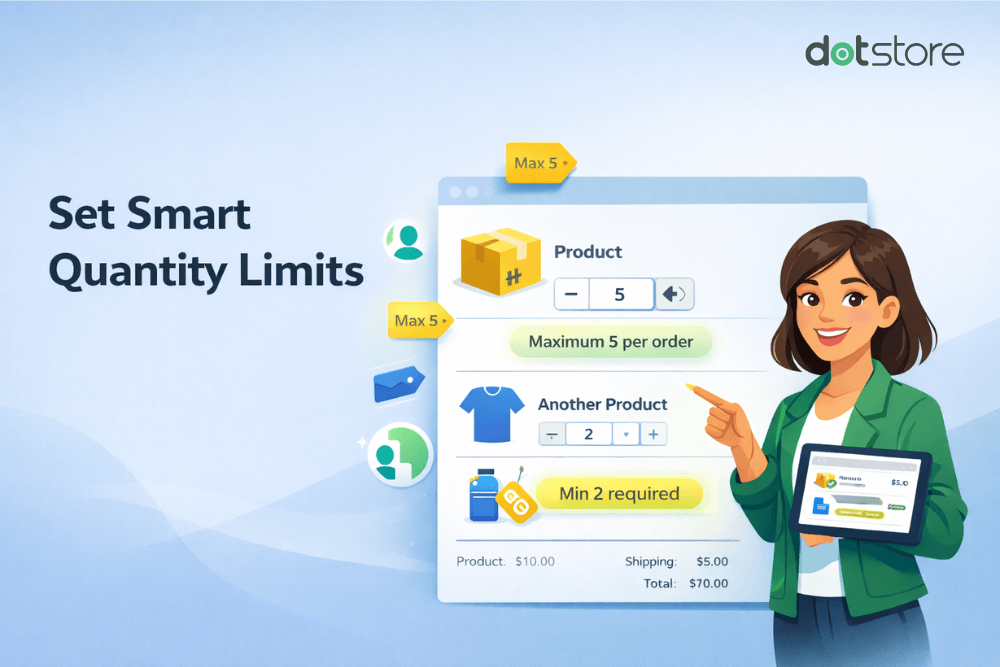
A quantity limit is any rule that controls how many units a buyer can put in the cart or checkout with. WooCommerce ships with exactly one native control: when stock management is on, the quantity field caps at the units you have in stock.
There is no field for a minimum, no field for a maximum below stock, no step increment, and no per-customer or per-order rule. Everything past stock has to be added with code or a plugin.
People searching for this typically want one or more of these limit types:
- Global minimum and maximum across the whole store.
- Per-product min, max, or step.
- Per-category rules (for example, all items in “Sample” capped at 3).
- Per-customer limits that hold across multiple orders.
- Per-order / cart-level total item caps, including limiting the cart to a single unit.
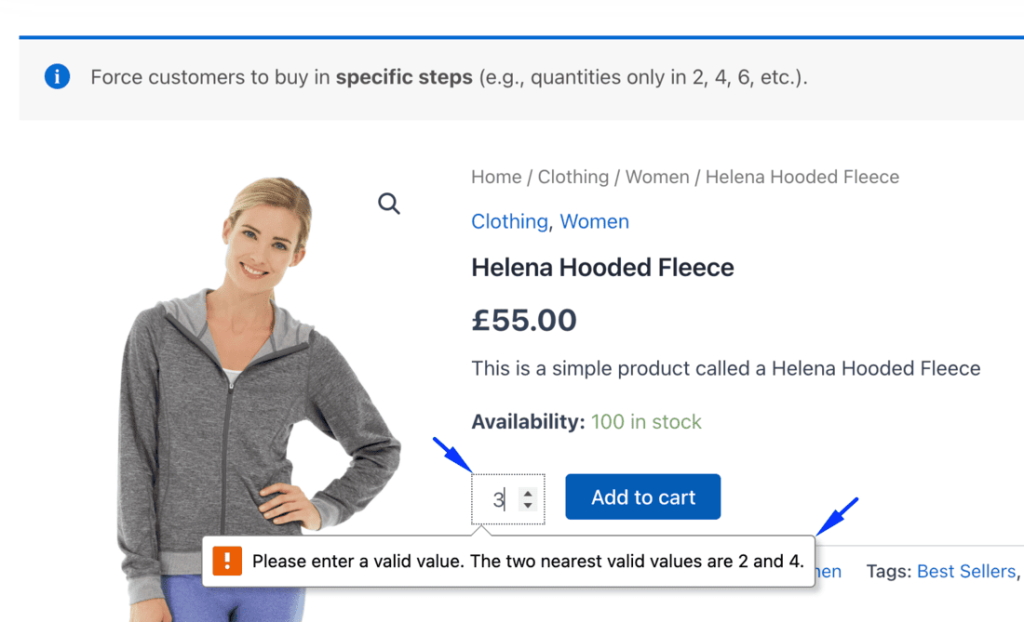
- Step or increment buying, so quantity moves in multiples like 6, 12, 18 (see our WooCommerce quantity increment guide).
- Per-attribute rules for variable products (a size or color variant limited separately).
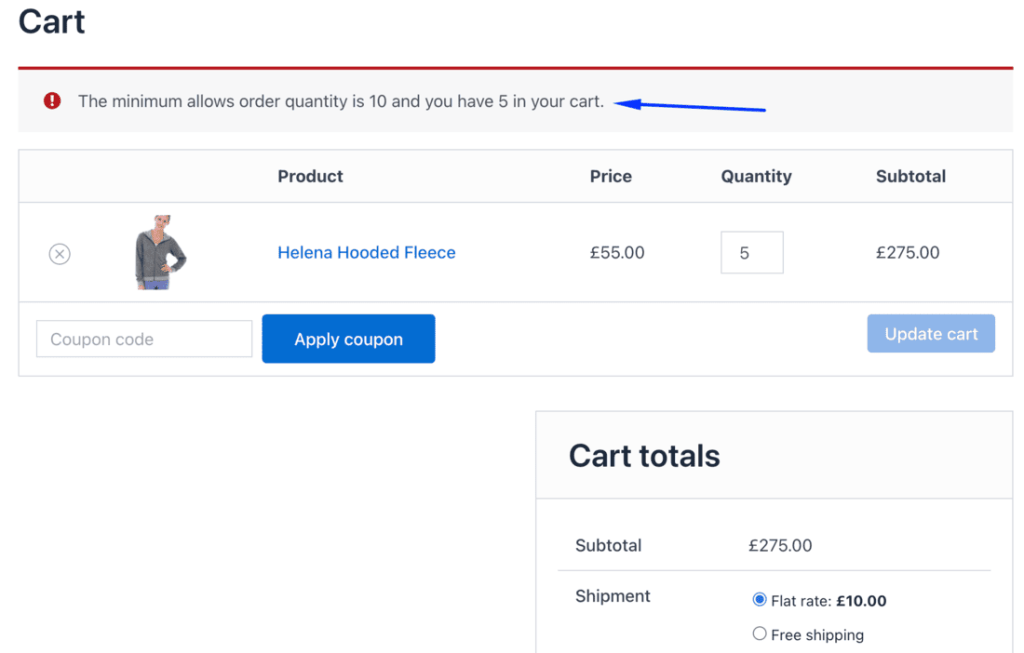
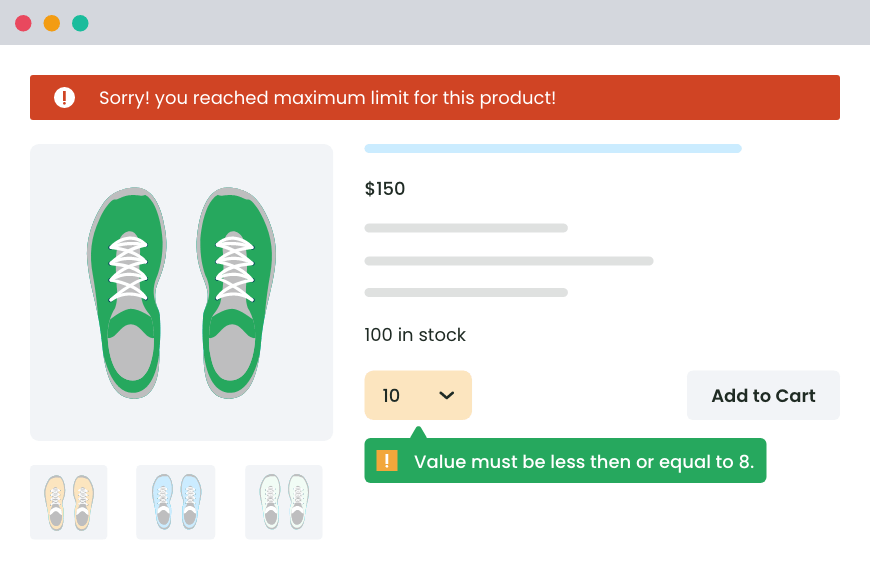
- Custom error messages when a shopper breaks a rule.
The free code method below handles the global cases well. Some of the others realistically need a plugin, and I will be clear about which.
The free code method: global min, max, and step
You can set a storewide minimum, maximum, and step increment with two pieces of code: one filter that controls the quantity input on the product and cart pages, and one validation hook that blocks the cart if someone bypasses the input (for example by editing the URL or using a quick-add link).
Where this goes
Add the snippet to your child theme’s functions.php, or better, to a small custom plugin or a code snippets manager so it survives theme updates. Never edit a parent theme directly. Test on staging first.
/**
* 1. Set the min, max, and step for the quantity input.
* Affects the single product page and the cart quantity field.
*/
add_filter( ‘woocommerce_quantity_input_args’, ‘dotstore_set_quantity_args’, 10, 2 );
function dotstore_set_quantity_args( $args, $product ) {
$args[‘min_value’] = 2; // global minimum per line item
$args[‘max_value’] = 10; // global maximum per line item
$args[‘step’] = 2; // force multiples of 2
return $args;
}
/**
* 2. Validate on add-to-cart so the rules hold even if the
* input is bypassed. Stops the item and shows a notice.
*/
add_filter( ‘woocommerce_add_to_cart_validation’, ‘dotstore_validate_quantity’, 10, 4 );
function dotstore_validate_quantity( $passed, $product_id, $quantity, $variation_id = 0 ) {
$min = 2;
$max = 10;
$step = 2;
if ( $quantity < $min ) {
wc_add_notice( sprintf( ‘You must buy at least %d of this item.’, $min ), ‘error’ );
return false;
}
if ( $quantity > $max ) {
wc_add_notice( sprintf( ‘You can buy at most %d of this item.’, $max ), ‘error’ );
return false;
}
if ( 0 !== $quantity % $step ) {
wc_add_notice( sprintf( ‘Please buy this item in multiples of %d.’, $step ), ‘error’ );
return false;
}
return $passed;
}
The filter sets the values shoppers see and step through. The validation hook is the safety net, because the input args alone do not stop a quantity that arrives from outside the normal field. Keep the numbers in both functions in sync, or pull them from a single variable so they cannot drift.
To make this per-product or per-category instead of global, you would read the product’s ID or its categories inside each function and branch your min, max, and step accordingly. That is workable for a handful of products. It gets brittle fast once you have dozens of rules, different values per category, and non-developers who need to change them. For a focused look at just the upper bound, see our walkthrough on setting a WooCommerce maximum quantity.
Where the free code stops being enough
The snippet above covers global and, with extra work, per-product and per-category rules. Two cases are hard to do well in code, and one is more of a maintenance problem than a coding one.
- Per-customer limits. Capping a product at 2 per customer across multiple orders means querying that customer’s past orders, deciding whether to count pending and completed states, and handling guest checkouts that have no account. This is real work to build and keep correct.
- Per-attribute limits. Limiting a specific variation attribute (say, a single size in a variable product) separately from the rest needs logic tied to variation data and is fiddly to maintain by hand.
- Managing many rules. Even when each rule is simple, editing PHP every time you launch a promo or change a case-pack size does not scale, and it puts code changes in the hands of people who should not be touching functions.php.
If all you need is a global or per-product min, max, and step, the code is a solid fit. If you are in the cases above, a plugin saves you from reinventing and re-testing order-history logic.
The plugin method
For no-code rule management, our Min/Max Quantity for WooCommerce plugin sets minimum, maximum, and step values from the admin at the global, per-product, and per-category level, plus order-total rules, without editing files. It is a good fit when you want non-developers to manage rules, when you need per-customer caps, or when you are juggling many overlapping rules at once.
Setup is straightforward: install and activate, then set defaults under the plugin settings, and override per product or per category where needed. If you want to brush up on the building blocks first, our guides on WooCommerce minimum quantity and WooCommerce default quantity cover the individual rule types in detail.
[SCREENSHOT: Min/Max Quantity for WooCommerce settings screen with min, max, and step fields | Alt: “Min Max Quantity for WooCommerce plugin settings page”]
Both methods have their place. For a single global rule or a couple of products, the code above is lighter and has no dependency.
The plugin is the easier option on the cases code handles poorly: per-customer limits, per-attribute limits, and rule management at scale. It also gives non-developers a safe way to manage rules without going near functions.php. If your goal is also to restyle the quantity field itself rather than restrict it, that is a separate job covered in our WooCommerce quantity selector guide.
Code vs plugin by limit type
Here is how each limit type breaks down across the free code method and the plugin.
| Limit type | Free code | Plugin |
| Global min / max | Yes, with the snippet above | Yes |
| Per product | Yes, with branching logic | Yes, no-code |
| Per category | Yes, with branching logic | Yes, no-code |
| Per customer | Hard; needs order-history queries | Yes |
| Per attribute (variations) | Hard; fiddly to maintain | Yes |
| Step / increment | Yes, with the snippet above | Yes |
| Per order / cart total | Possible with a cart validation hook | Yes, no-code |
| Custom error message | Yes, via wc_add_notice | Yes |
Conclusion
WooCommerce gives you nothing for quantity limits beyond stock, so the practical question is code or plugin. For a global or per-product min, max, and step, the free snippet above does the job with no dependency, and you should start there.
The cases that justify a plugin are real: per-customer limits that span orders, per-attribute rules on variations, and managing many rules without touching code. Match the method to the rule you actually need.
If those cases are where you have landed, the Min/Max Quantity for WooCommerce plugin handles all of them from the admin. For a wider look at the options in this space, our roundup of the best WooCommerce quantity management plugins is a good next read.
Min/Max Quantity for WooCommerce
Set min/max/step quantities to manage product quantities effectively and enhance the customer experience in your WooCommerce store.
14-day, no-questions-asked money-back guarantee.
Frequently asked questions
Does WooCommerce have a built-in option to limit quantity?
No. WooCommerce only caps the quantity field at available stock when stock management is enabled. There is no native setting for a minimum, a maximum below stock, a step increment, or per-customer and per-order limits. You add those with code or a plugin.
How do I set a minimum order quantity in WooCommerce?
Use the woocommerce_quantity_input_args filter to set min_value, and back it with a woocommerce_add_to_cart_validation hook that blocks anything below your minimum. Both are shown in the code section above.
How do I force customers to buy in multiples (step increments)?
Set the step value in the woocommerce_quantity_input_args filter, then validate with $quantity % $step in the add-to-cart hook so a bypassed value still gets rejected.
Can I limit quantity per customer with free code?
It is possible but not simple. You have to query the customer’s previous orders, decide which order statuses count, and handle guest checkouts with no account. This is the clearest case where a plugin is worth it.
How do I limit quantity for a specific product attribute or variation?
This needs logic tied to the variation’s attribute data and is hard to maintain by hand. A plugin that supports per-attribute rules handles it without custom code.
Will these limits apply on the cart and checkout, not just the product page?
The input args control the field on the product and cart pages. The validation hook enforces the rule whenever an item is added, so a quantity that skips the field (from a URL or a quick-add link) is still caught.
Can I show a custom error message when a limit is broken?
Yes. Pass your own text to wc_add_notice( ‘your message’, ‘error’ ) inside the validation function, as shown in the snippet.
Does WooCommerce limit quantity by stock automatically?
Yes, but only that. With stock management on, the quantity field will not let a shopper exceed units in stock. Every other type of limit is not native.
Min/Max Quantity for WooCommerce
Set min/max/step quantities to manage product quantities effectively and enhance the customer experience in your WooCommerce store.
14-day, no-questions-asked money-back guarantee.
Min/Max Quantity for WooCommerce
Set min/max/step quantities to manage product quantities effectively and enhance the customer experience in your WooCommerce store.
14-day, no-questions-asked money-back guarantee.