Table of Contents
Quick answer: Most WooCommerce spam orders come from bots or card-testing scripts hitting your checkout. You can block the majority for free by adding a CAPTCHA to checkout, restricting billing and shipping to the countries you actually sell to, requiring accounts, and rate-limiting checkout at the edge with Cloudflare. Add a fraud-screening plugin only if free settings still leave gaps.
Key Takeaways
- Spam orders can drain your team’s bandwidth, distort analytics, slow down your site, trigger payment gateway issues, and more; stopping them early is abundantly important.
- Fake orders are placed by humans and bot card testers, COD spammers, or users probing your checkout flow for weaknesses.
- The most common tell-tale patterns of spam orders are nonsense customer info, rapid-fire orders, disposable emails, and mismatched IP/country data.
- WooCommerce’s built-in spam order prevention settings include disabling guest checkout, restricting shipping, and purchases from high-risk countries. While these settings can cut down basic spam, they are pretty limited.
- The Dotstore’s WooCommerce Fraud Prevention plugin (available in both free and pro versions) uses custom rules and/or AI (powered by Google or OpenAI) to screen every order attempt, score its risk level, then block or hold suspicious activity automatically.
- In addition to stopping spam orders, the WooCommerce Fraud Prevention plugin blocks known bad actors by blacklisting emails, domains, browsers, IPs, domains, high-risk regions, phone prefixes, and more.
Spam orders fall into two buckets. The first is bot junk: automated garbage orders, fake signups, and throwaway email addresses that flood your order list. The second is card testing, where attackers run stolen card numbers through your checkout in small amounts to find which ones still work.
Both waste your time, burn payment gateway fees, and can get your merchant account flagged for high decline rates.
The good news is that you can stop most of it without buying anything. Start with the free fixes below. They work on any WooCommerce store and handle the bulk of the problem. Only move to a paid tool if fraud still slips through after you’ve layered the free defenses.
How to identify spam and fake orders
Before you block anything, learn what the attack looks like on your store so you tune the right setting. Common signals:
- Gibberish or test names like “asdf asdf” or “John Test” in the billing fields.
- Disposable email addresses from domains such as mailinator.com or temp-mail style providers.
- Address and IP mismatch, where the billing country and the visitor’s IP geolocation don’t line up.
- Bursts of orders placed seconds apart from the same IP, often for the same low-priced product.
- A wave of failed payments across many different card numbers in a short window. This is the clearest sign of card testing.
- Lots of small or zero-value orders, sometimes on cash-on-delivery, with no real buying intent.
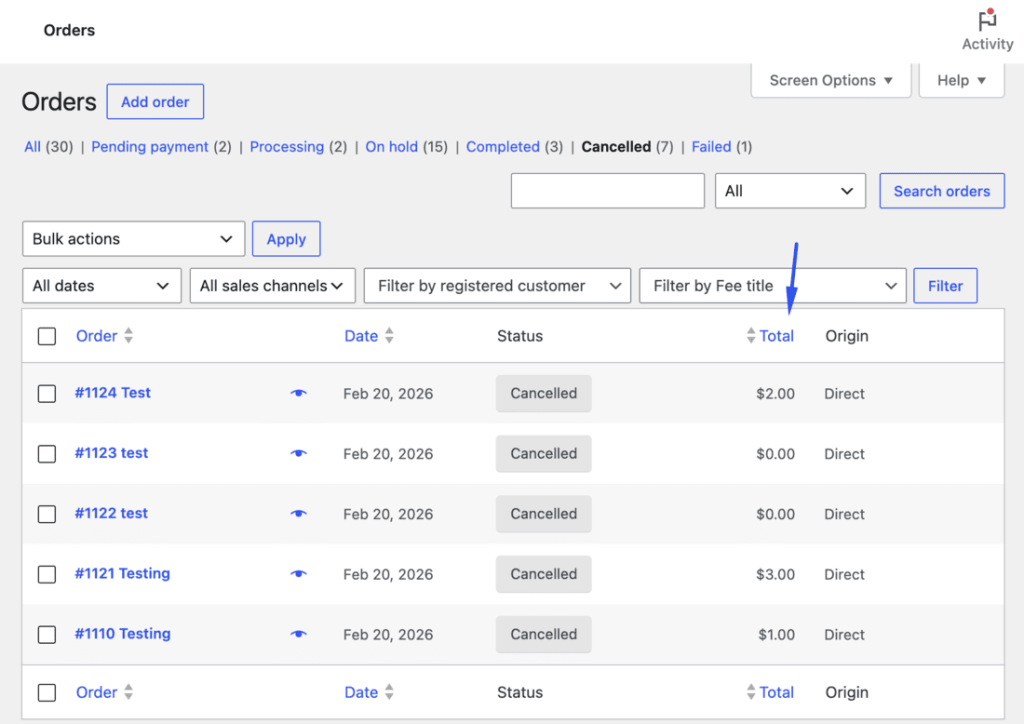
Pull up WooCommerce > Orders and filter for failed and cancelled orders. If you see clusters of failed payments on tiny amounts, you’re looking at card testing, not random bots, and the fixes that matter most are the CAPTCHA and the rate limit below.
For a deeper walkthrough of spotting bad orders before they land, see our guide on how to avoid fake orders in WooCommerce. If most of what you’re seeing is a stream of failed-payment notifications, our breakdown of WooCommerce failed order spam covers that pattern in detail.
Free fix 1: Add a CAPTCHA to your checkout
A CAPTCHA is the single highest-impact free fix because it stops automated bots before they can submit an order. It’s the first thing to add against both bot spam and card testing.
Two solid free options:
- Google reCAPTCHA v3 runs invisibly and scores each request, so real customers usually see nothing.
- Cloudflare Turnstile is a free, privacy-friendly alternative that does the same job without Google’s tracking.
Steps:
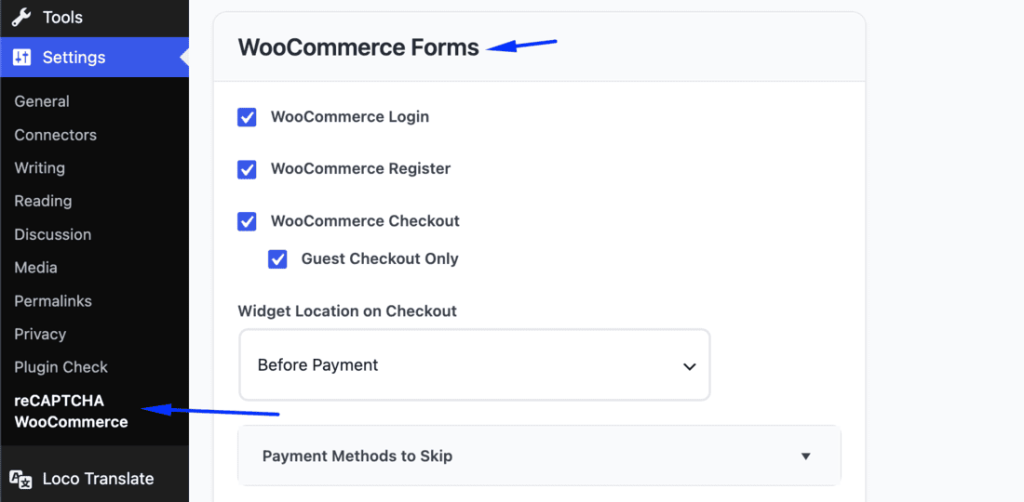
- Install a free plugin that integrates CAPTCHA with WooCommerce forms. Search the WordPress.org plugin directory for “reCAPTCHA WooCommerce” or “Turnstile.”
- Get your free site key and secret key from the Google reCAPTCHA admin console or the Cloudflare dashboard.
- Paste the keys into the plugin settings.
- Enable protection on the Checkout, Registration, and Login forms.
For a step-by-step setup with the exact fields, follow our guide on how to add reCAPTCHA to WooCommerce checkout.
Free fix 2: Restrict billing and shipping countries
If you only sell to a few countries, there’s no reason to accept orders from anywhere else. Limiting the country list shrinks your attack surface and kills a large share of card-testing traffic that originates abroad. This is built into WooCommerce, so it costs nothing.
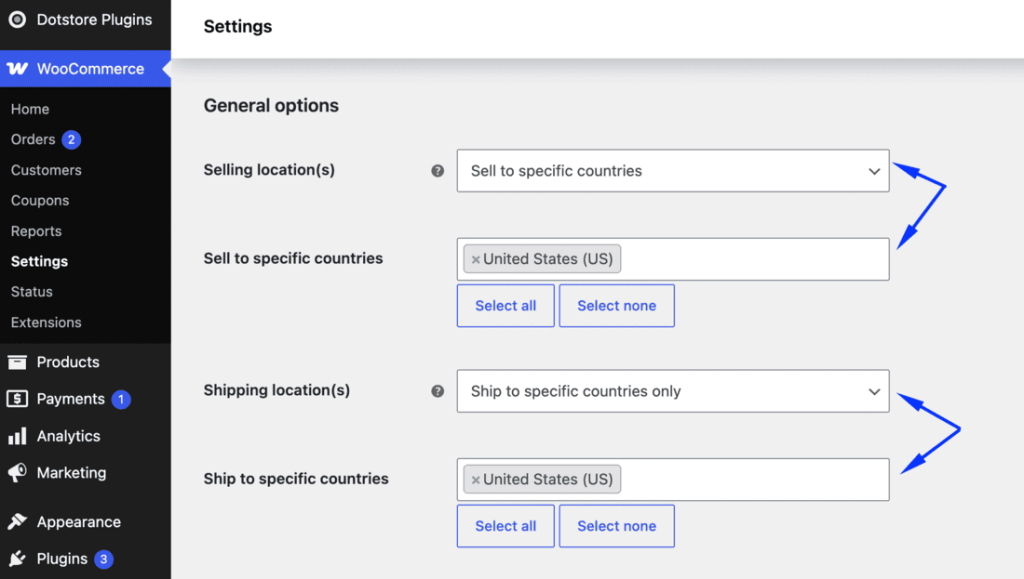
- Go to WooCommerce > Settings > General.
- Under Selling location(s), switch from “Sell to all countries” to Sell to specific countries and pick only the ones you serve.
- Do the same under Shipping location(s).
- Save changes.
Free fix 3: Require accounts and disable guest checkout
Bots love guest checkout because it’s frictionless. Forcing account creation adds a step that most automated scripts won’t complete.
- Go to WooCommerce > Settings > Accounts & Privacy.
- Under Guest checkout, uncheck Allow customers to place orders without an account.
- Check Allow customers to create an account during checkout.
- Save changes.
This adds friction for legitimate buyers too, so weigh it against your conversion rate. On low-margin or impulse-purchase stores you may prefer to keep guest checkout and lean harder on the CAPTCHA and rate limit instead.
Free fix 4: Turn on email verification
Requiring users to confirm their email before the account is active blocks throwaway and disposable addresses, which are a staple of fake-order scripts. Some themes and account plugins include this; otherwise a free email-verification plugin from WordPress.org handles it. Pair it with the account requirement above for the most effect.
Free fix 5: Rate-limit checkout at the edge with Cloudflare
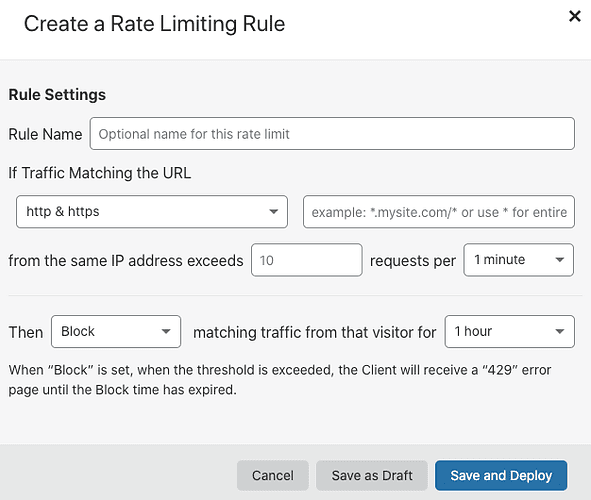
Card-testing scripts fire dozens of checkout attempts per minute. Rate limiting stops that burst before it ever reaches WordPress, which also protects your server from the load.
If your site runs through Cloudflare (the free plan is enough for this):
- In the Cloudflare dashboard, open Security > WAF > Rate limiting rules.
- Create a rule targeting your checkout path, for example URI containing /checkout or the /?wc-ajax=checkout endpoint.
- Set a sane threshold, such as more than 5 to 10 requests per minute from one IP.
- Set the action to Block or Managed Challenge and deploy.
You can also use Cloudflare to block specific IPs and whole regions under Security > WAF > Tools, which is handy when an attack clearly comes from one network.
Free fix 6: Turn on AVS and CVV checks in your gateway
This is the most important free defense against card testing specifically, and it lives in your payment gateway, not WooCommerce. Address Verification Service (AVS) checks that the billing address matches the card on file, and CVV verification requires the 3 or 4 digit security code.
In Stripe, open the dashboard under Settings > Payments > Fraud prevention (Radar rules) and enable the checks that decline payments failing CVC and postal-code verification. In PayPal, Authorize.Net, and most other gateways there’s an equivalent AVS/CVV filter in the fraud or security settings.
Turning these on means a stolen card number alone, without the matching address and code, gets declined before the order completes.
Free fix 7: Block by IP, email, and domain
When you’ve identified the source of an attack, block it. WooCommerce doesn’t ship a native blocklist, but free anti-spam plugins do, and you can block IP ranges at the Cloudflare or server level for free. Maintain a small blocklist of:
- IP addresses that have placed repeated junk orders.
- Specific email addresses tied to fraud.
- Disposable email domains, so any address ending in those domains is rejected.
If the pattern you’re fighting is mostly throwaway addresses, our guide on blocking fraud customers by suspicious email addresses walks through that specific approach.
For the wider set of comment, registration, and order spam controls, our overview of WooCommerce anti-spam covers the free options worth layering in.
How the free methods compare
Here’s how each free fix stacks up against bot spam and card testing.
| Method | Stops bot spam | Stops card testing | Cost | Setup effort |
| CAPTCHA on checkout (reCAPTCHA v3 / Turnstile) | Yes | Partly | Free | Low |
| Restrict billing/shipping countries | Partly | Yes | Free | Very low |
| Require accounts / disable guest checkout | Yes | Partly | Free | Very low |
| Email verification | Yes | No | Free | Low |
| Cloudflare rate limiting | Partly | Yes | Free | Medium |
| AVS / CVV in gateway | No | Yes | Free | Low |
| Block by IP / email / domain | Partly | Partly | Free | Medium (ongoing) |
No single row stops everything. The reliable setup is to stack a CAPTCHA, country restriction, AVS/CVV, and a rate limit. That combination handles the large majority of stores without spending a rupee.
When to add an automated fraud tool
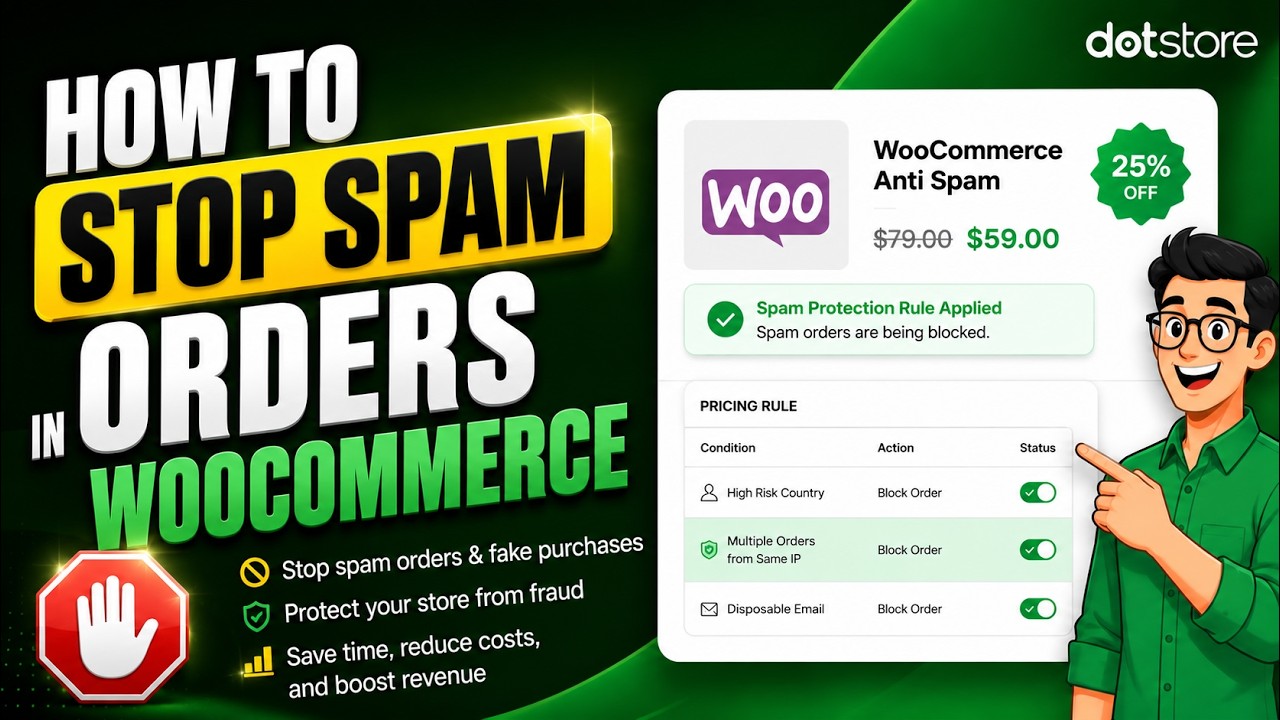
Layer the free fixes first. If you still see fraud after that, usually because you sell worldwide, can’t require accounts, or get targeted repeatedly, an automated tool that scores orders in real time saves you from babysitting a blocklist.
A dedicated tool is the right call when you want risk scoring, automatic hold or cancel actions, and a single place to manage rules instead of juggling gateway settings, Cloudflare, and plugins.
Here are a few options:
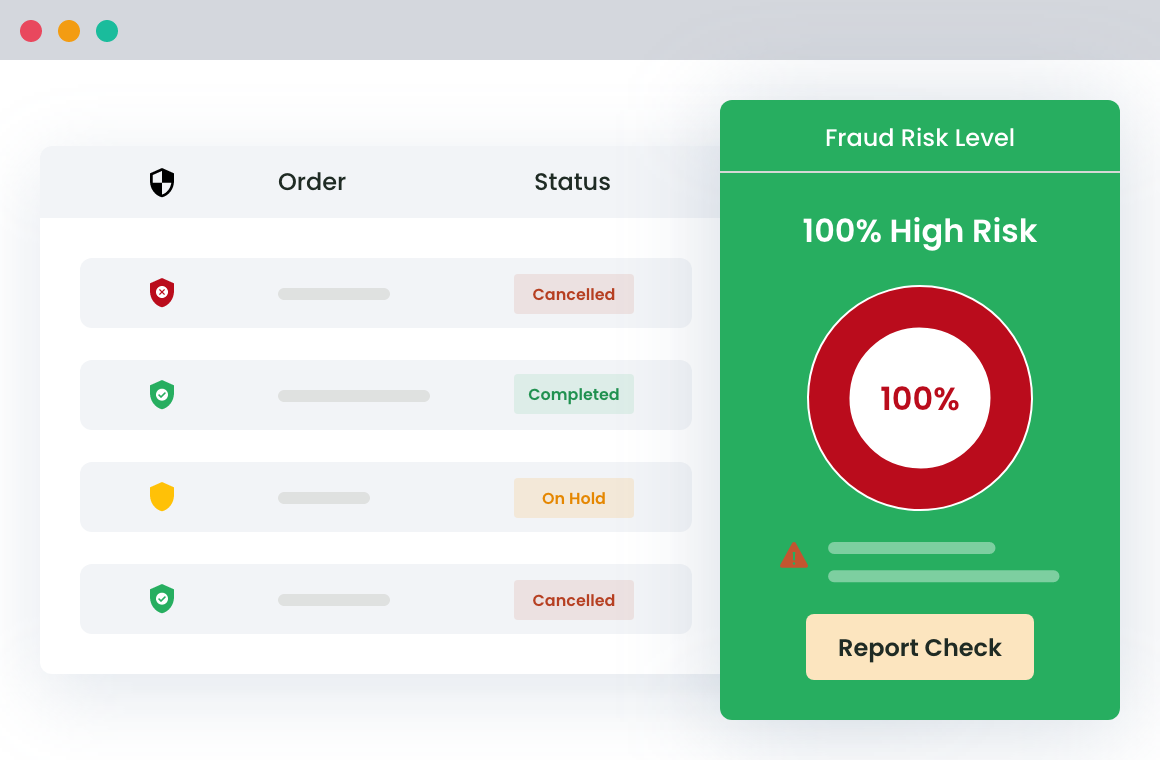
- WooCommerce Fraud Prevention is our WooCommerce Fraud Prevention plugin. It runs reCAPTCHA, geolocation checks, time-based order limits, email and domain blocklists, IP blocking, risk scoring, and automatic order status changes from one WooCommerce settings panel, and it screens orders before payment.
If you’d rather keep those controls inside WordPress instead of spread across separate services, it’s a solid fit. It pairs especially well with the workflows in our guides on holding fraud orders for review and blocking fraud customer orders. - Stripe Radar is built into Stripe. Its machine-learning rules and risk scoring are included on the standard pay-as-you-go pricing, with an advanced tier available. If you already process payments through Stripe, enable Radar before buying anything else.
- FraudLabs Pro is a third-party screening service with a free tier for low order volumes and paid plans above that. It works across gateways and scores orders on IP geolocation, email, and other signals.
Whichever you pick, keep the free fixes underneath it. A paid tool is a top layer, not a replacement for the basics.
Conclusion
You don’t need to spend anything to stop the bulk of WooCommerce spam and fake orders. Stack the free fixes first: a CAPTCHA on checkout, country restrictions, required accounts with email verification, AVS and CVV in your gateway, and a Cloudflare rate limit.
That layered setup stops most bot spam and card testing on its own.
If fraud still gets through, an automated tool that scores orders in real time is the next step. Stripe Radar is the obvious choice if you’re already on Stripe, FraudLabs Pro works across gateways, and our own WooCommerce Fraud Prevention plugin keeps those controls inside WordPress.
WooCommerce Fraud Prevention
Equip your store with our feature-rich fraud prevention plugin to reduce risk and safeguard your profits.
14-day, no-questions-asked money-back guarantee.
Pick whichever fits your stack, and keep the free defenses running underneath it.
Frequently asked questions about WooCommerce spam order prevention
Do I need a paid plugin to stop spam orders?
No. A CAPTCHA on checkout, country restrictions, required accounts, AVS/CVV checks in your gateway, and Cloudflare rate limiting are all free and stop the majority of spam and card testing. Reach for a paid tool only when fraud still gets through after those are in place.
What’s the difference between spam orders and card testing?
Spam orders are usually bot-generated junk with fake names and throwaway emails that clutter your store. Card testing is attackers running stolen card numbers through your checkout in small amounts to find live ones.
Card testing shows up as a wave of failed payments across many cards, and AVS/CVV plus rate limiting are the fixes that matter most for it.
How do I block a customer in WooCommerce?
WooCommerce has no native one-click block, but you can block their IP at the Cloudflare or server level, reject their email or its whole domain with a free anti-spam plugin, or use a fraud plugin that maintains a blocklist by email, IP, and domain.
Will requiring account creation hurt my conversion rate?
It can, because it adds friction for genuine buyers. On stores with impulse or low-cost purchases, keep guest checkout and rely on the CAPTCHA, AVS/CVV, and rate limit instead. On higher-value stores the trade-off usually favors requiring accounts.
Can bots really place fake orders automatically?
Yes. Scripts can fill and submit your checkout form thousands of times. That’s exactly why a CAPTCHA and edge rate limiting are the highest-value defenses, since they stop automated submissions before an order is created.
Does reCAPTCHA slow down or annoy real customers?
reCAPTCHA v3 and Cloudflare Turnstile run invisibly in the background and score requests, so most real customers never see a challenge. Only suspicious sessions get an extra check, so the impact on legitimate buyers is minimal.
How do I stop the flood of failed-payment order emails?
Those emails are the symptom of card testing. Enable AVS/CVV in your gateway and add a Cloudflare rate limit on the checkout endpoint so the attempts are blocked before they create orders. That cuts the failed orders, and the notifications, at the source.
How do I test whether my anti-spam settings are working?
Place a real test order to confirm the CAPTCHA loads and a legitimate purchase still goes through. Then try a checkout from a country you’ve excluded, or with a known disposable email domain, and confirm it’s rejected. Watch your failed-order count over the following week, it should drop.