Table of Contents
In this guide, I’ll show you how to make the most of the default WooCommerce Additional Information tab. I’ll also share how to create custom tabs with additional product information to boost your product pages’ UX and conversion rates.
Key Takeaways
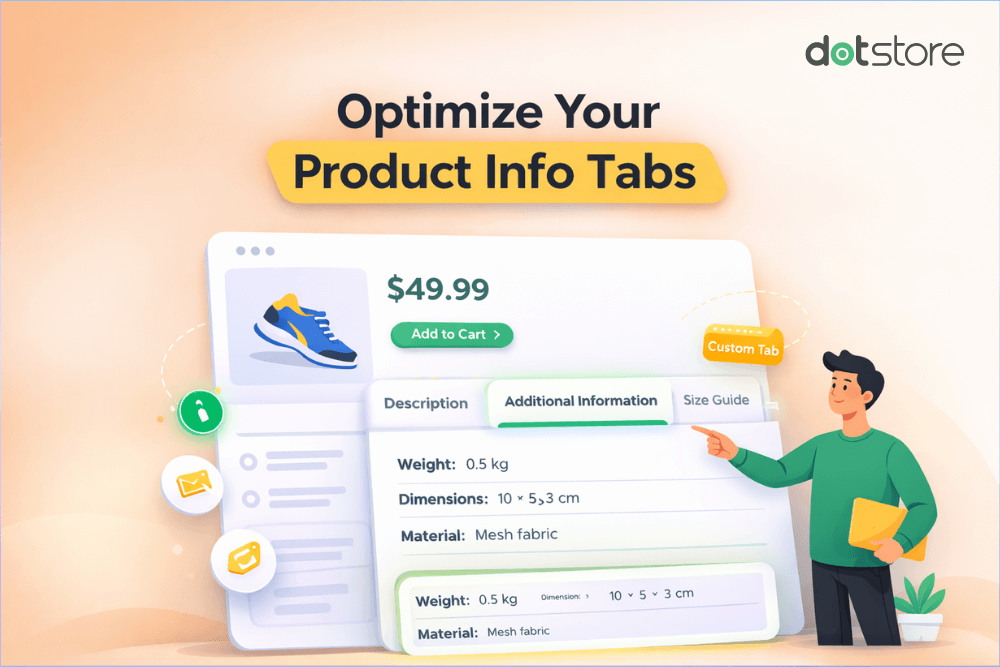
- The WooCommerce Additional Information tab displays structured product data like attributes, weight, dimensions, and variation data on the WooCommerce product page.
- The default WooCommerce Additional Information tab can be restrictive: it is limited to a static, table-based layout and doesn’t support custom content.
- This tutorial walks you through the step-by-step process to add, edit, and hide/disable the Additional Information tab in WooCommerce.
- Also, we’ll show you how to use plugins like The Dotstore’s WooCommerce Product Attachment and WooCommerce Product Size Charts to upgrade the WooCommerce product page with additional conversion-boosting product information.
The WooCommerce Additional Information tab is designed to showcase product data in a structured layout on the product page. At first glance, this sounds great: it enables you to display important product information like weight, dimensions, materials, technical attributes, etc., without overcrowding the product description.
The downside? This feature doesn’t enable you to add custom types of product data like size guides, setup manuals, certificates of authenticity, etc., which significantly affect conversion rates for certain types of products. You also can’t control how the product data is presented on the product page, which can impact your users’ shopping experience.
The good news is that there are ways to enhance the WooCommerce additional information feature to boost your site’s user experience and conversion rates. In this post, I’ll show you how to:
- Effectively use the default WooCommerce Additional Information tab.
- Address common limitations of the native WooCommerce Additional Information tab feature.
- Use plugins that enhance WooCommerce’s default Additional Information tab feature and empower you to add conversion-boosting product information to product pages.
- Add, edit, and hide the Additional Information tab in WooCommerce (complete with step-by-step instructions and screenshots).
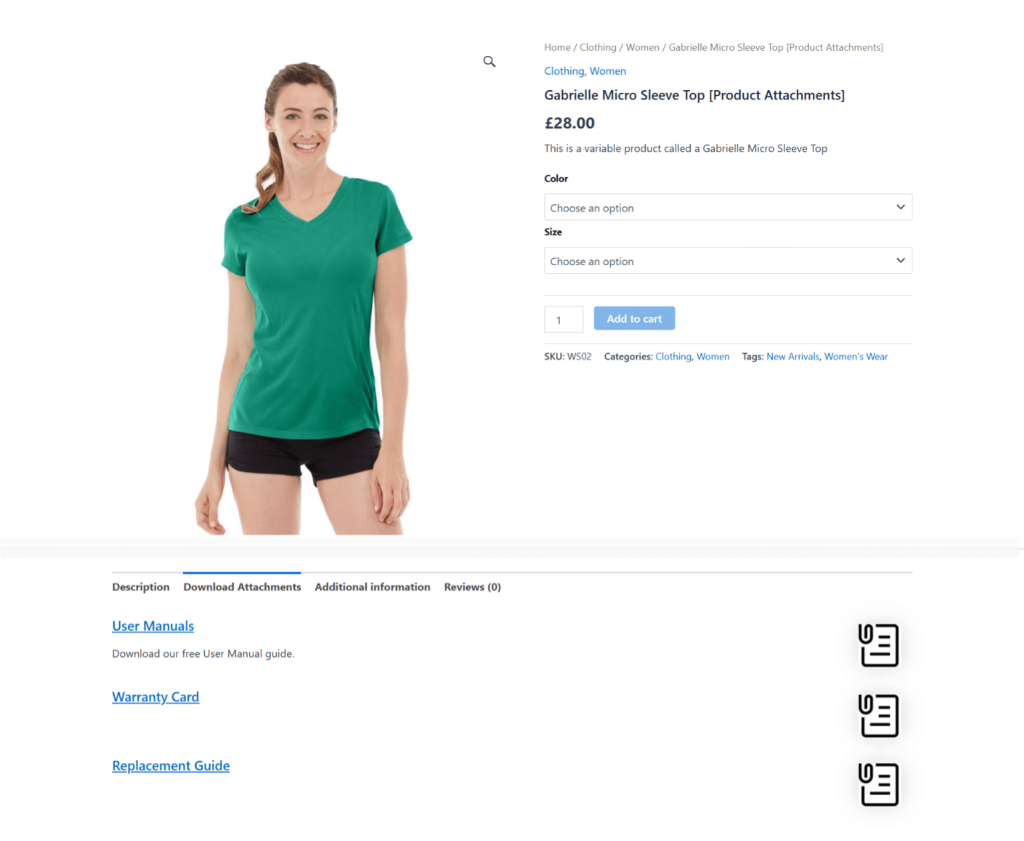
Plugins mentioned in this guide
- The Dotstore’s WooCommerce Product Attachment plugin: It adds an “attachment” tab to your product pages where you can add files or external links (think: user manuals, specification sheets, installation guides, warranties, compliance documents, etc.) so shoppers can view and download important product information. You can assign attachments to specific products, restrict access based on user role, login status, or order status, set expiration rules, and much more. Free and pro versions available.
- The Dotstore’s WooCommerce Product Size Charts plugin: It lets you create detailed size charts and display them as popups, inline sections, or dedicated tabs on product detail pages. You can assign size charts to specific products, categories, tags, or attributes and include custom measurement instructions or visuals. For apparel, accessories, footwear, or any other product where fit matters, this plugin provides a far superior user experience (UX) than the default WooCommerce Additional Information tab. Free and pro versions available.
Let’s get right into it.
What is the WooCommerce Additional Information tab?
The WooCommerce Additional Information tab is one of the three default tabs that appear on a WooCommerce product page, alongside “Description” and “Reviews”.
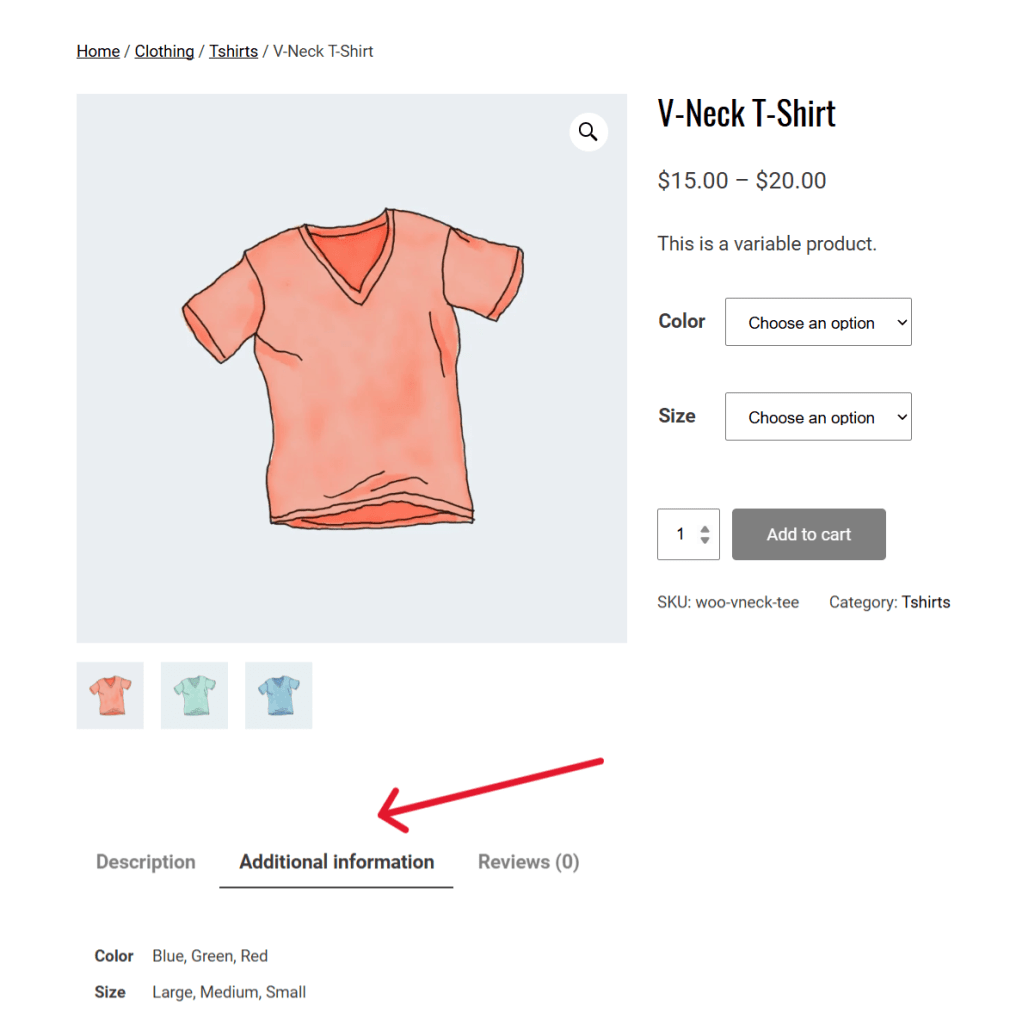
WooCommerce uses this tab to display:
- Product attributes (like size, material, color, etc) marked as “Visible on the product page”.
- Shipping data (product weight and dimensions).
- Variation attributes (for variable products) marked as “Visible on the product page”.
WooCommerce automatically populates this tab based on the structured product data you enter while editing a product. So, if you don’t add any product attributes, weight, or dimensions, the Additional Information tab won’t appear on your WooCommerce store’s front-end.
Limitations of the default WooCommerce Additional Information tab
WooCommerce stores with diverse product catalogs, complex shipping rules, strict compliance requirements, etc., often find the default Additional Information tab WooCommerce provides restrictive. Here’s why:
- ❌ It doesn’t allow you to add unstructured content. You can only display product attributes, variation attributes, and basic shipping data. There is no option to add free form content like technical specs, FAQs, delivery timelines, care instructions, regional restrictions, etc.
- ❌ It only displays static product data values. You can’t show information conditionally, e.g., based on user roles, shipping destination, etc.
- ❌ Limited control over layout and presentation. The tab’s entire contents are rendered as a simple table. You can’t group related attributes, change the order of attributes per product, or spotlight important shipping-related information.
- ❌ It can’t be selectively enhanced on a per-product basis. With the default feature alone, you can’t customize the tab per product type, show different information for different categories, and more.
Introducing plugins that upgrade the WooCommerce additional information feature
Here are 2 powerful, purpose-built plugins that enable you to upgrade the default features for adding additional information in WooCommerce.
While these plugins don’t replace the default Additional Information tab, they allow you to add new tabs with important conversion-boosting product information to your store’s product pages. Think: sizing guides, technical specifications, authenticity certificates, etc., that you can’t add with the built-in features alone.
Here’s a more in-depth overview of their capabilities.
Plugin #1: The Dotstore’s WooCommerce Product Attachment plugin
The default WooCommerce Additional Information tab presents all product data in a “table” layout. Unfortunately, this doesn’t allow you to showcase some types of conversion-boosting product information — think: YouTube videos that show product installation steps, size guides, setup manuals, compliance documents, warranty PDFs, etc.
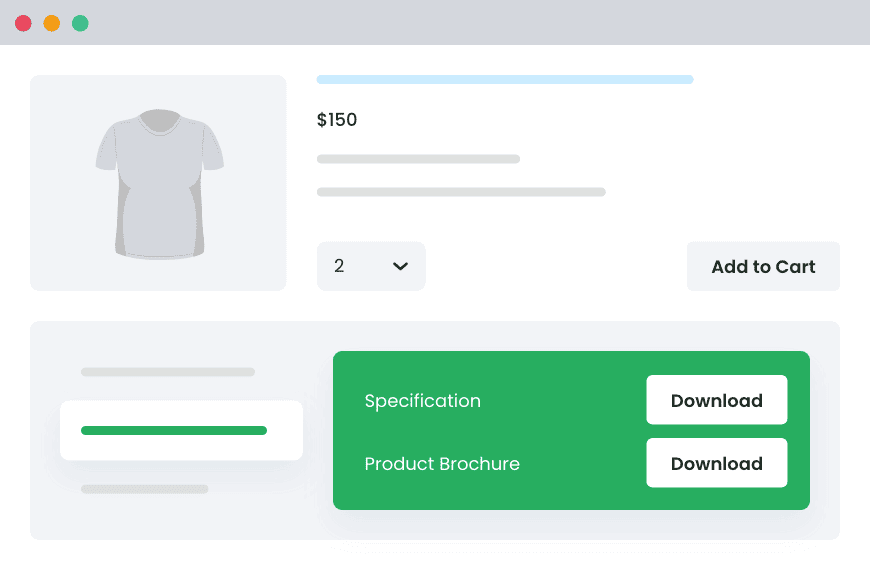
WooCommerce Product Attachment lets you add various types of documents to a dedicated tab on product pages for customers to view and/or download.
Instead of cluttering the product description or forcing links into attributes, this plugin lets you present important product information in an organized and accessible manner.
It works with various kinds of file formats, including PDFs, Word documents, YouTube videos, Vimeo videos, Google Drive, and more. (Note: Content saved on external sites will open in separate links).
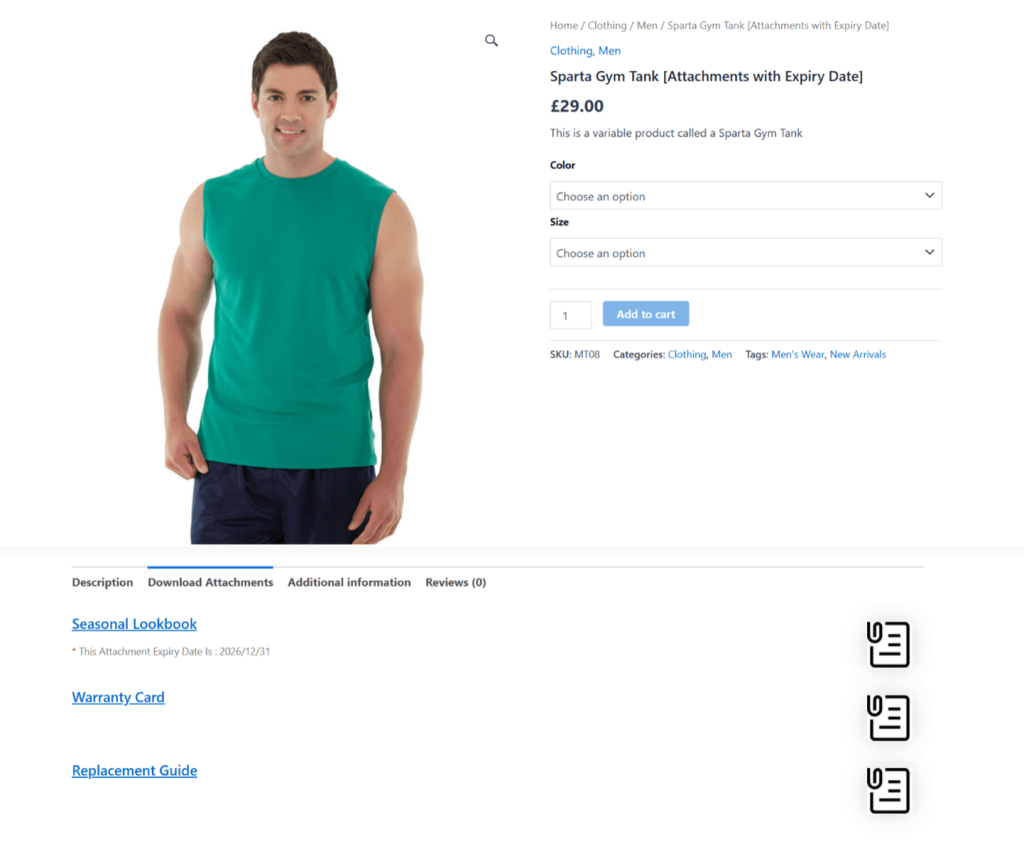
With the WooCommerce Product Attachment plugin, you can:
- Attach files directly to specific products, categories, tags, and attributes.
- Display viewable and/or downloadable documents on product detail pages.
- Add multiple attachments per product.
- Control visibility based on user role, login status, and order status, so customers only see what’s relevant.
- Set auto-expiration dates for each product document.
- Default-select the product attachment tab so it opens as soon as users land on the product page.
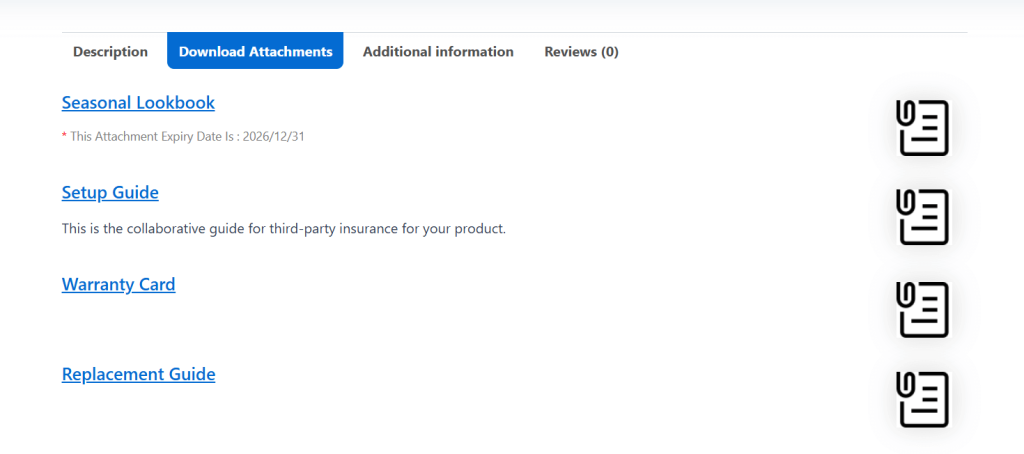
As a bonus, you can even attach product documents to the orders listing page, order email, order details page, as well as in customer accounts to make them available throughout the buyer’s journey.
Examples of how different stores across various niches use the WooCommerce Product Attachment plugin
- An electronics store that attaches user manuals and safety certificates.
- A B2B store that adds spec sheets and technical drawings.
- A regulated product that requires compliance or legal documents.
WooCommerce Product Attachment
Increase conversion rates with detailed information using multiple attachments.
14-day, no-questions-asked money-back guarantee.
Plugin #2: The Dotstore’s WooCommerce Product Size Charts plugin
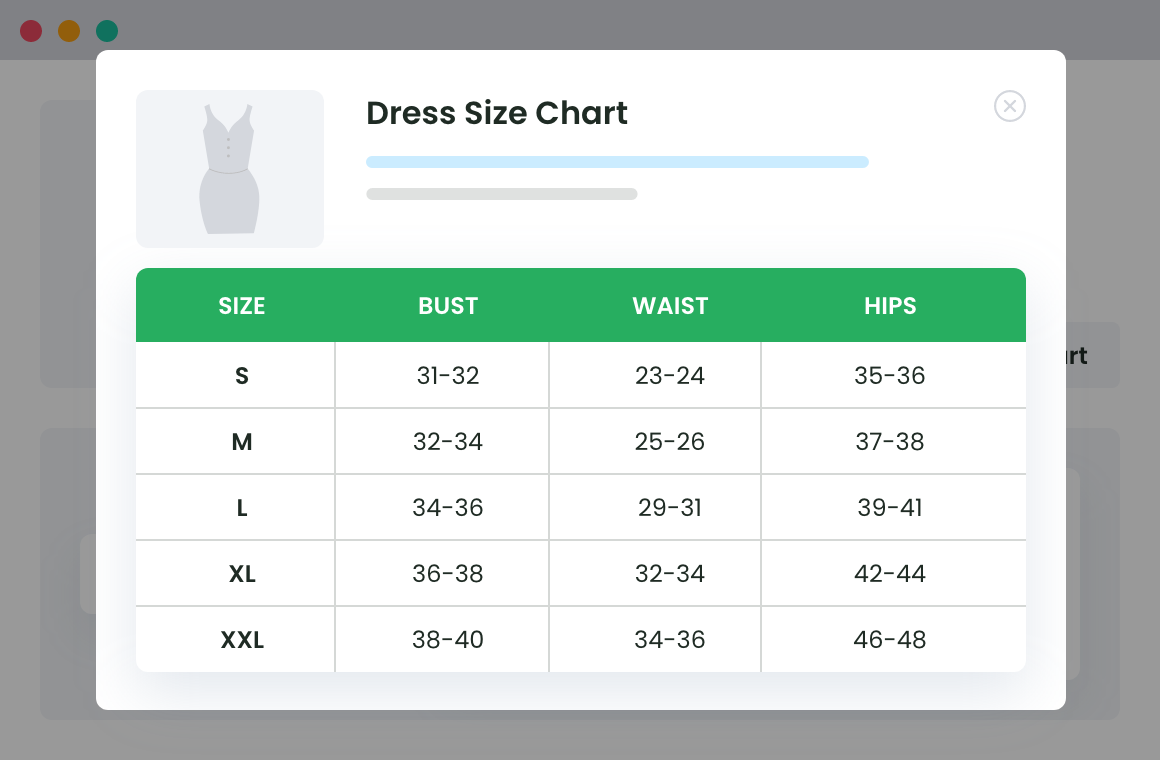
Small, Medium, and Large can mean different sizes to different brands. Unfortunately, WooCommerce’s default attribute system doesn’t let you add measurement guidelines to properly illustrate to customers what those sizes mean.
The WooCommerce Product Size Charts plugin enables you to create structured, reusable size charts, assign them to specific products, categories, tags, or attributes, and showcase them directly on product pages. This empowers you to manage complex sizing requirements with ease, even in stores with large product catalogs.
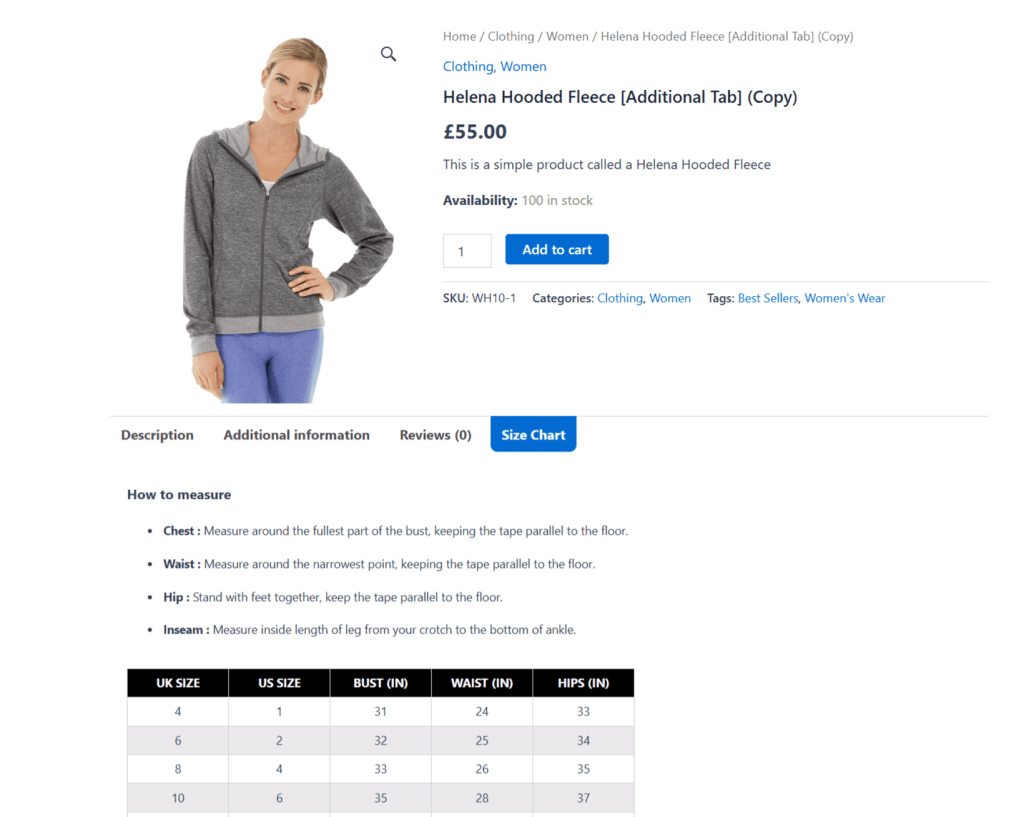
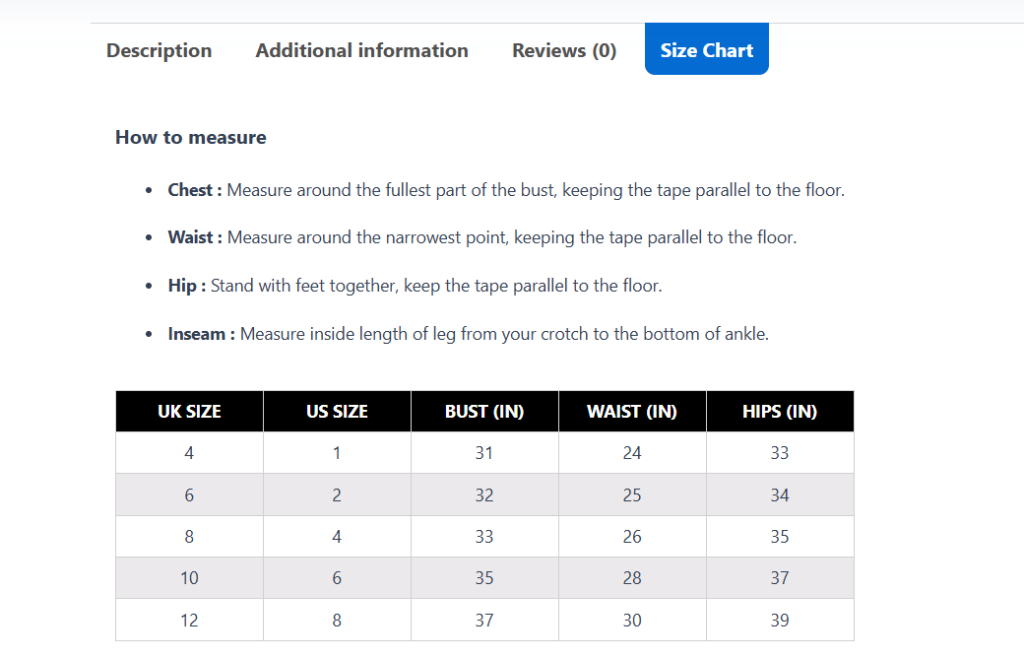
Instead of listing measurements line by line in attributes, shoppers see a clear, easy-to-read sizing chart that automatically adjusts to their screen size. And you can include additional content like measurement instructions, fit notes, FAQs about sizing, etc, alongside the chart.
With WooCommerce Product Size Charts, you can display the size chart in three different ways: as an additional product tab, inside a modal pop-up, or anywhere on your site using a shortcode.
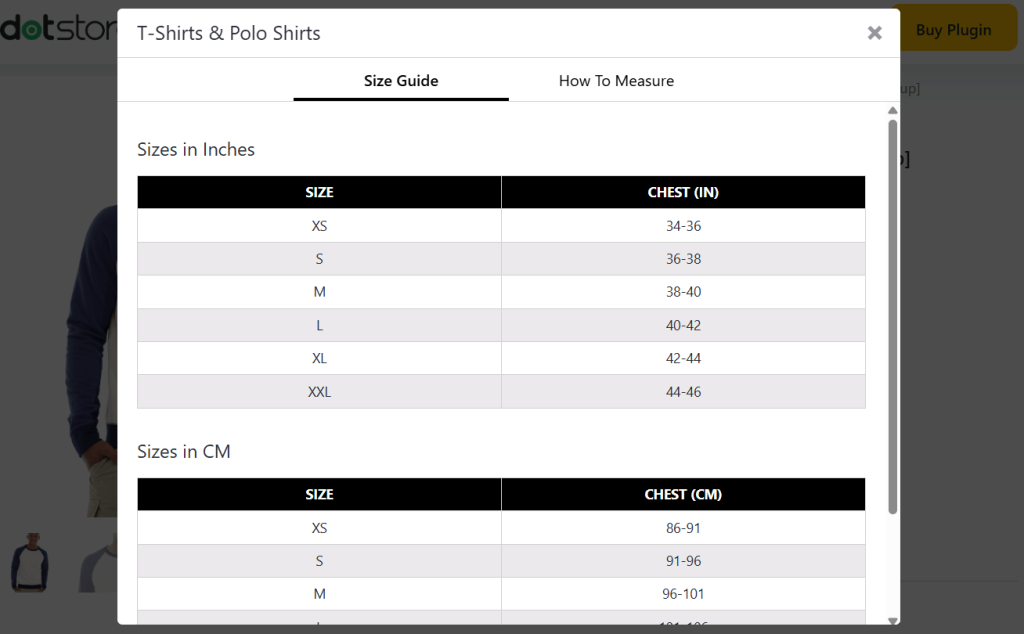
If you choose the modal option, the plugin adds a size chart link or button to the product page. And you can control where the pop-up appears (centered, left-aligned, or right-aligned) depending on your product page’s layout.
To make sure that the size charts match your site’s design and desired user experience, you can pick between standard or tabbed chart formats, select from 6 beautiful table styles, and customize font sizes, table colors, borders, hover states, and pop-up icons.
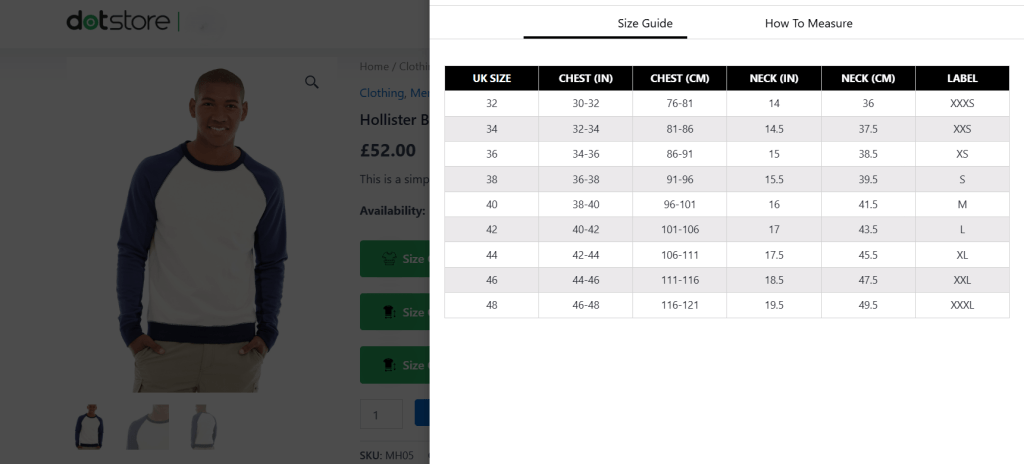
Plus, there’s no need to update attributes for every product one by one. The WooCommerce Product Size Charts plugin allows you to update the chart once and apply it everywhere it’s needed with a few clicks.
Examples of how different stores across various niches use the WooCommerce Product Size Charts plugin
- Apparel stores that show different charts for men’s, women’s, and kids’ products.
- Shoe stores that need to display region-specific sizing to match the locals’ preferences.
- Furniture stores that need to explain placement dimensions or how their product fits in a specific space.
Product Size Charts For WooCommerce
Simplify your store experience with customizable size charts that reduce returns and maximize sales.
14-day, no-questions-asked money-back guarantee.
How to add additional information in WooCommerce products
You can add additional information to WooCommerce products with the default settings and by using the WooCommerce Product Attachment and WooCommerce Product Size Charts plugins by The Dotstore.
Below, I’ll walk you through each approach step by step.
Method 1: Using WooCommerce’s default product settings
Follow these steps if you want to add text and structured data to the Additional Information tab in WooCommerce.
- From your WordPress dashboard, navigate to Products → All Products and open the product you want to edit (or create a new one).
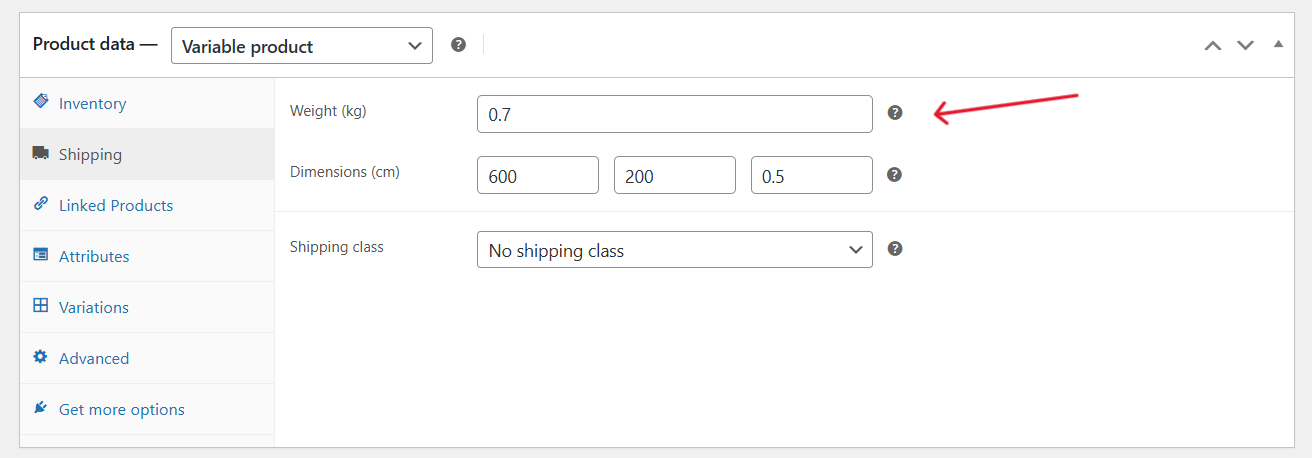
- Scroll down to the “Product data” modal. Open the “Shipping” tab and enter the product weight, length, width, and height.
- From the same “Product data” modal, open the “Attributes” tab. Choose a global attribute or create a custom one and add the appropriate attribute value.
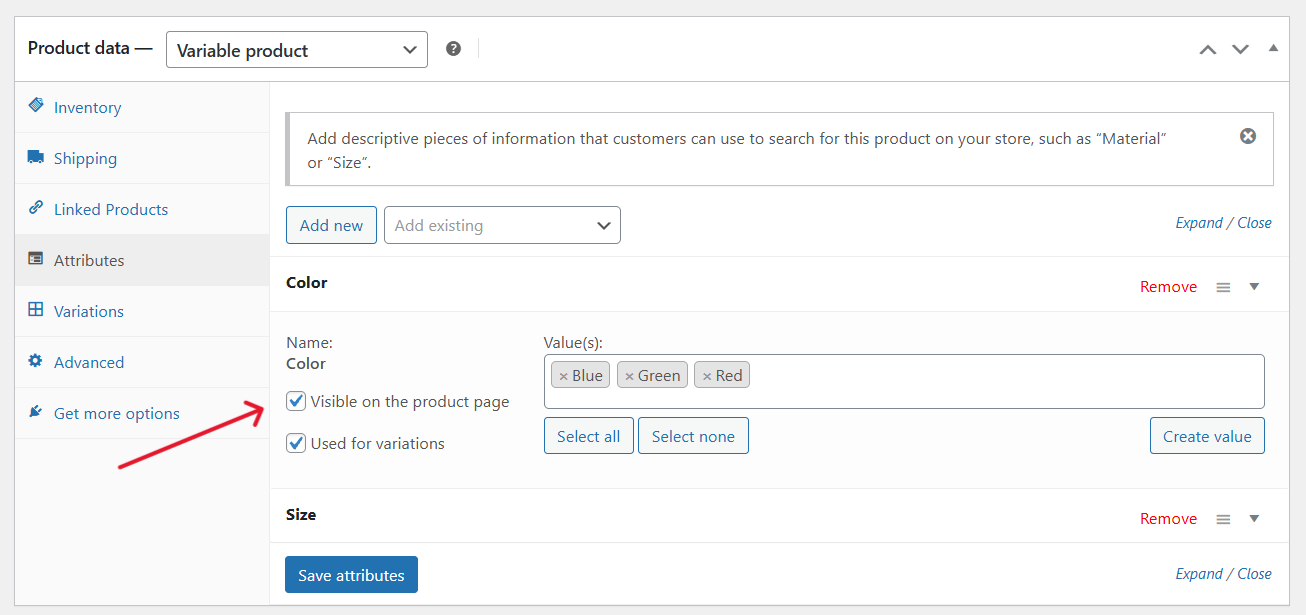
- Press the “Visible on the product page” checkbox to enable each attribute to be shown to customers in the Additional Information tab.
- Finally, press “Update” or “Publish” to save the settings.
Head to your site’s frontend and view the product. WooCommerce will automatically display the Additional Information tab if at least one attribute or shipping information field is filled in.
Method 2: Using dedicated plugins
Plugin #1: The Dotstore’s WooCommerce Product Attachment plugin
Follow these steps to add extra product information, such as downloadable files or links to a dedicated tab on your product pages using The Dotstore’s WooCommerce Product Attachment plugin. For this tutorial, I’ll add technical specs to an electronic item.
- Sign in to your WordPress admin and install either the free or pro version of Product Attachment for WooCommerce by The Dotstore.
- Navigate to Dotstore Plugins → Product Attachment → Bulk Attachment. Press the “Add New Attachment” button to create a new attachment.

- Enter a title for the attachment. This label will appear next to the “view” or “download” buttons on the product page.
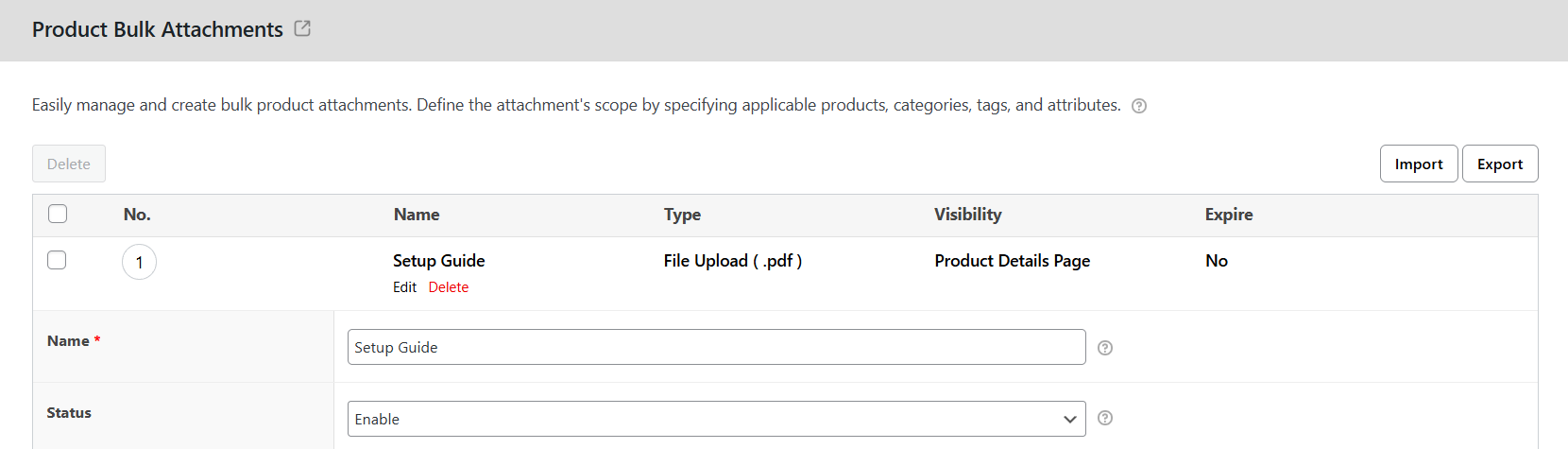
- Set the attachment status to “Enable” so it will be visible on the frontend of your WooCommerce store.
- Add a short description if needed. If the attachment is self-explanatory, you can leave this field empty.
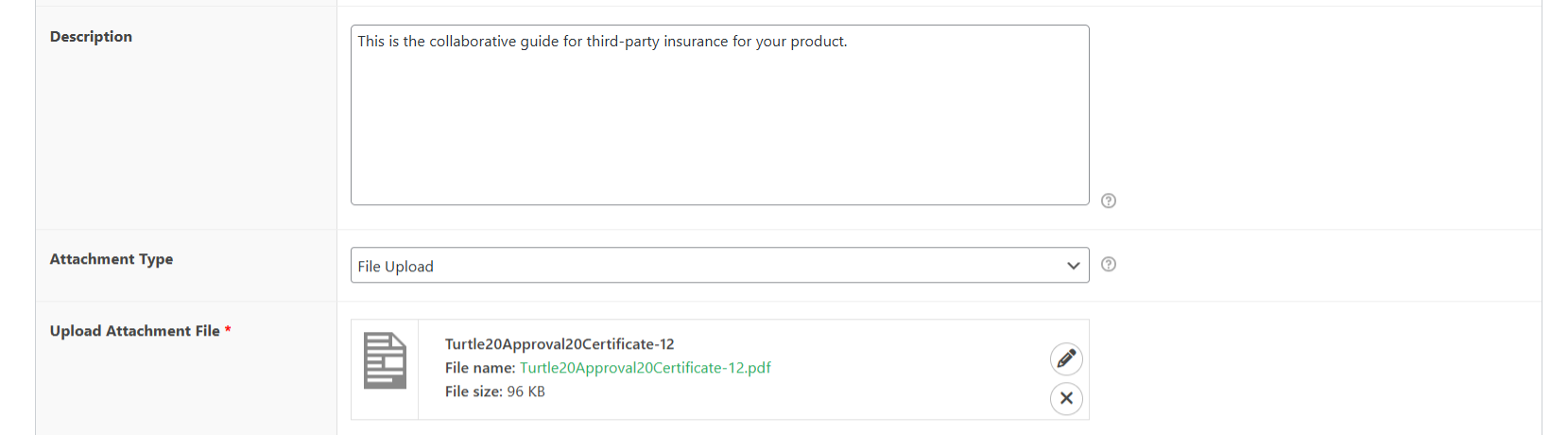
- Select how you want to add the attachment. You can either upload a file or provide an external URL, then upload the document or paste the link.
- Choose how the attachment should open: either in the same browser tab or a new one.

- Specify where the attachment should appear from the appropriate panels on the right. You can apply it to all products, selected products, or specific categories, tags, or attributes, then define the included items.
- If required, you can also exclude certain parent or child products, categories, tags, or attributes from showing this attachment.
- Choose whether the attachment should be visible only to logged-in users.
- Select the order statuses during which the attachment should be accessible. If you leave all statuses unchecked, the attachment will be available regardless of order status.
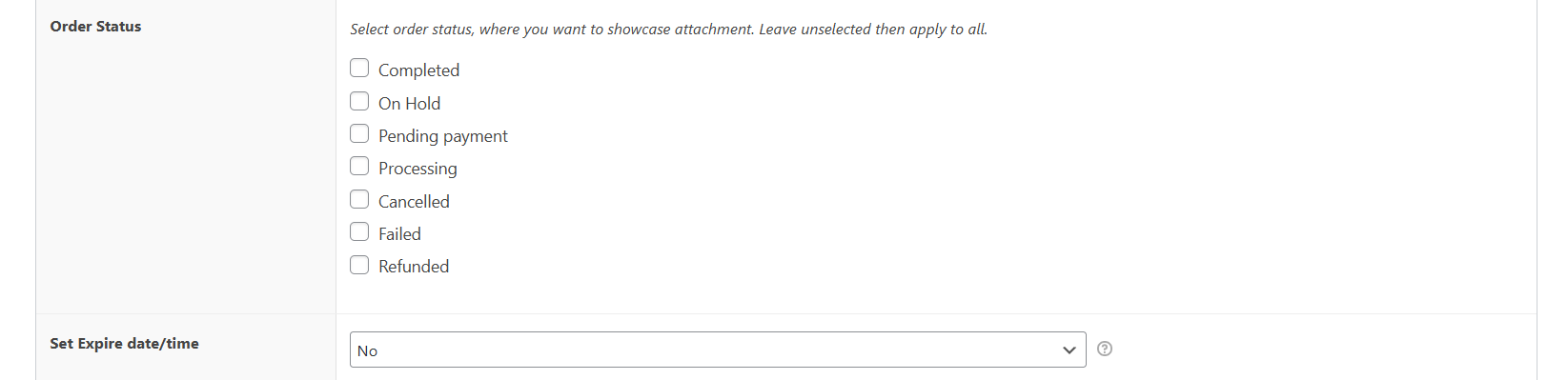
- If the attachment should expire, set an automatic expiration date or a time period after purchase.
- Press “Save changes” to publish the attachment and make it available on your WooCommerce store.
Head to your WooCommerce site’s product page to view and/or download the additional product information you’ve just added.
Plugin #2: The Dotstore’s WooCommerce Product Size Charts plugin
Follow these steps to add a size chart with additional product information using The Dotstore’s WooCommerce Product Size Charts plugin. For this tutorial, I’ll add a size chart to a hoodie.
- Sign in to your WordPress admin and install either the free or pro version of WooCommerce Product Size Charts by The Dotstore.
- Navigate to Dotstore → Product Size Chart → Size chart in your site’s dashboard. Press the “Add new button” to start building a new chart.
- In the “Chart Title” field, add a name (like “Men’s T-Shirt Sizes”).
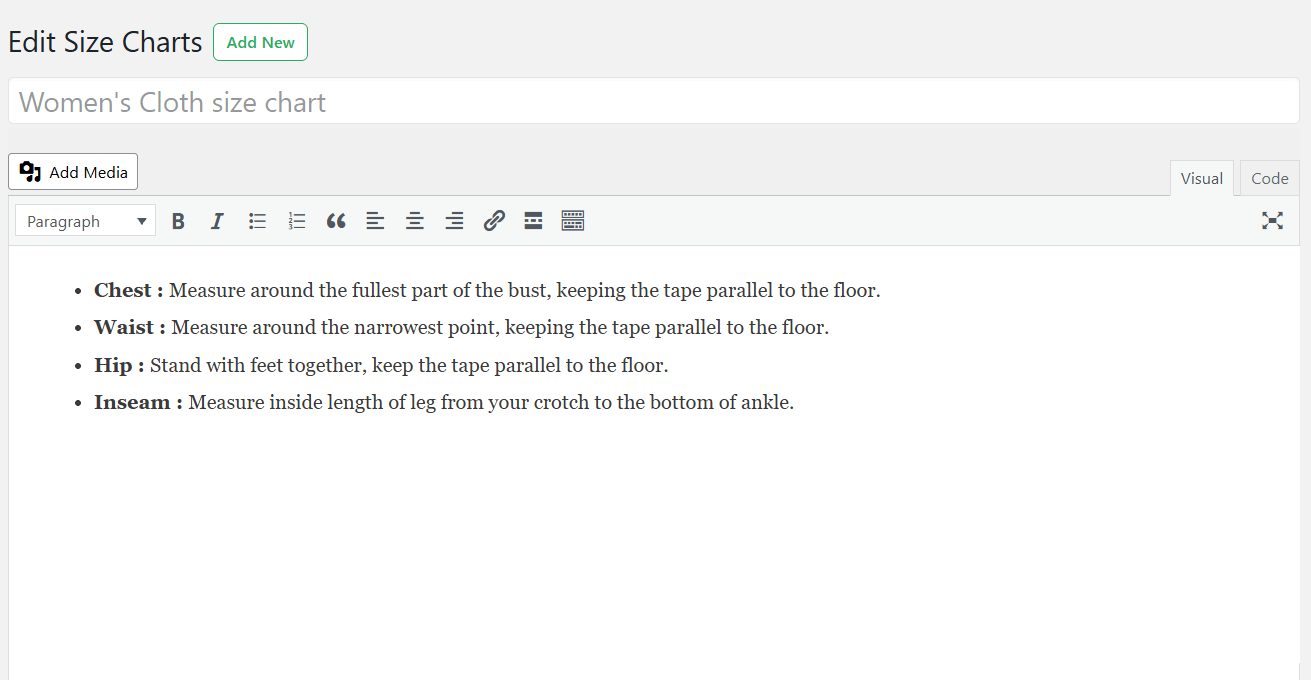
- Scroll down to the “Chart Table” section and create your size chart table by adding rows and columns for measurements like chest, waist, hip, or shoe size. Then add values to each cell so customers can easily compare size ranges.
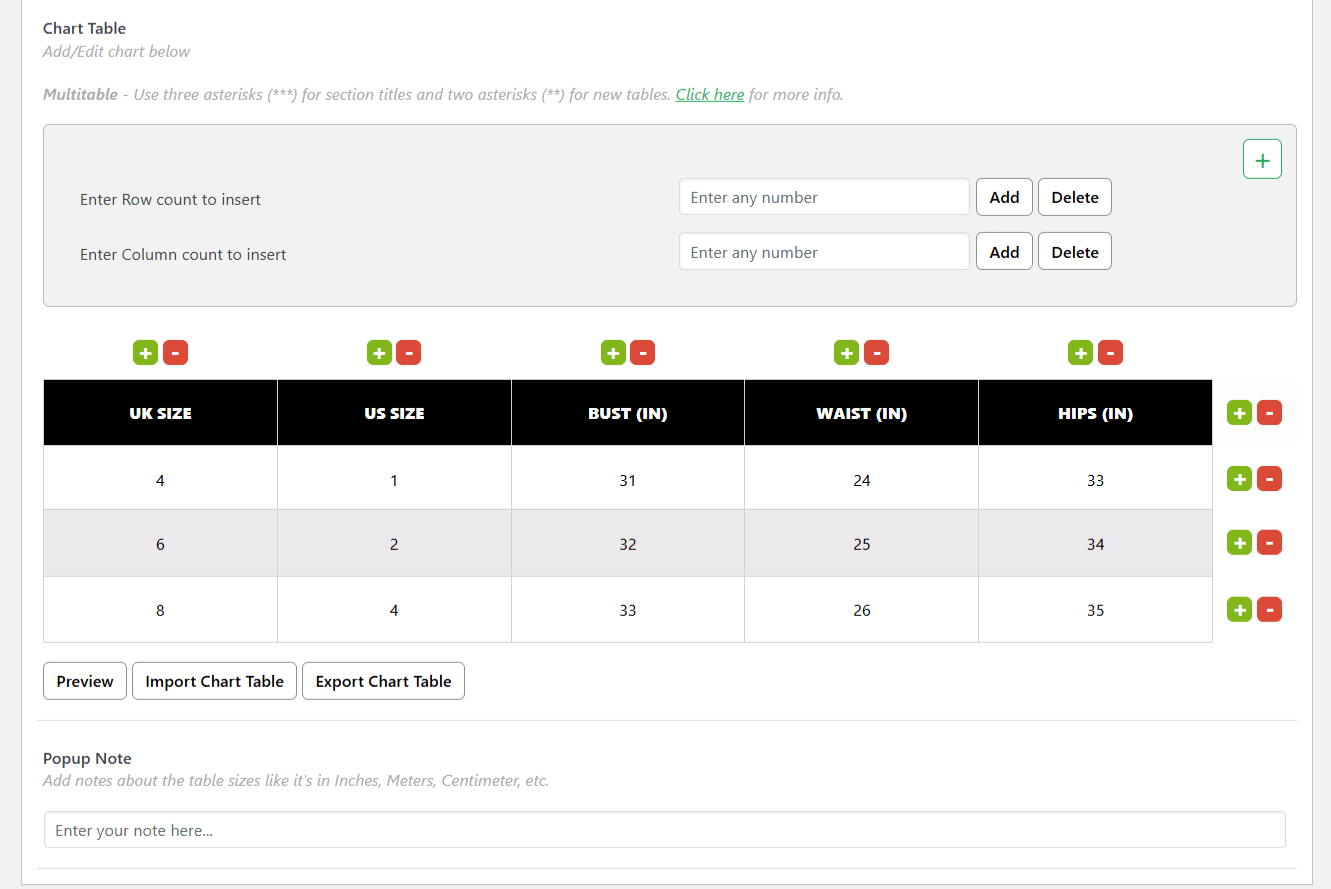
- Choose where the chart should appear on the product page: “Popup“ (customer clicks a “Size Guide” button), “Tab“, or “Inline“.
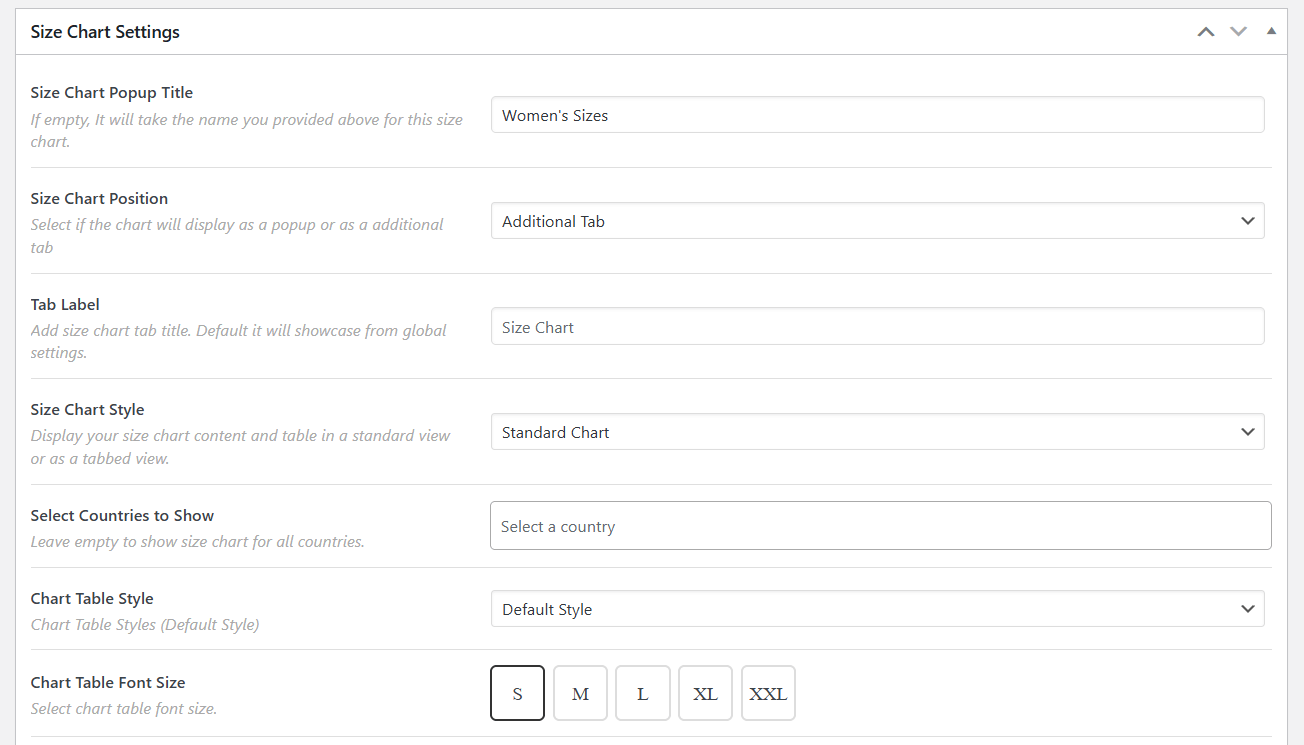
- Enter text for the size chart button (e.g., “Size Guide”).
- Add a description, measurement tips, or a chart image to help shoppers understand how to measure themselves. Set any fit or regional notes that help clarify sizing differences.
- Use the “Product selection“ widget on the right side of the size chart editor to choose which products or categories should display this chart.
- Press “Publish” to activate the chart on your store.
Head to your WooCommerce site’s product page to view and/or download the additional product information you’ve just added.
How to edit additional information in WooCommerce
Here’s a step-by-step walkthrough of how to use WooCommerce’s default product settings to edit the contents of the default Additional Information tab.
- Go to Products → All Products and open the product you want to edit.
- Scroll down to the “Product data” panel and press the Attributes tab.
- Select an existing attribute (like Material, Size, or Color) and edit the attribute value directly in the text field. You’ll need to use a pipe (|) to separate multiple values if needed. For example, Size: Small | Medium | Large.
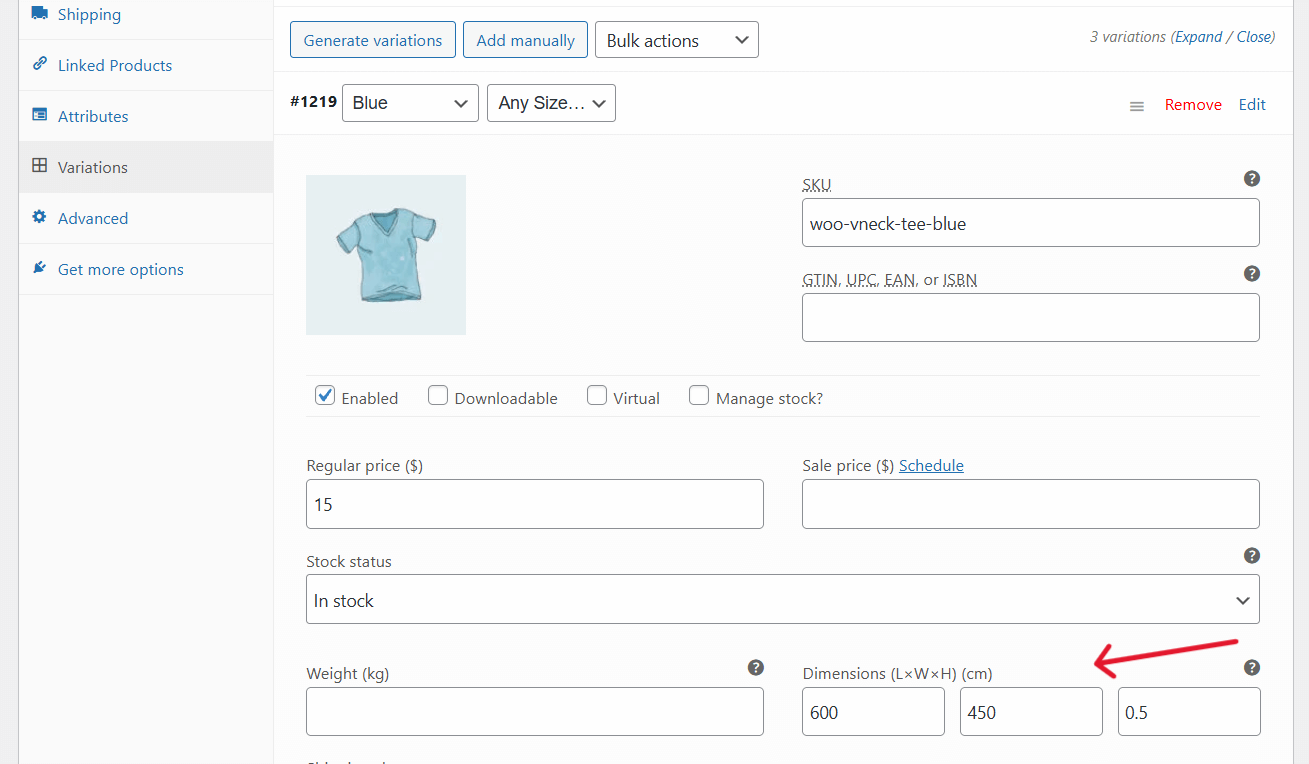
- Press the Shipping tab inside the “Product data” panel and update the “Weight” and “Dimensions” fields.
- If the product has variations, navigate to the “Variations” tab and edit the attributes tied to each variation. Note: Only variation attributes marked as visible at the attribute level will show in the Additional Information tab.
- Press “Update” to save your changes.
How to hide or disable the Additional Information tab in WooCommerce
As noted, WooCommerce will automatically hide (disable) the Additional Information tab from your product pages if you remove all relevant product and shipping-related data.
- In your WordPress admin, navigate to Products → All Products.
- Press “Edit” under the WooCommerce product for which you want to hide the Additional Information tab.
- Scroll down to the “Product data“ modal and open the “Attributes“ tab.
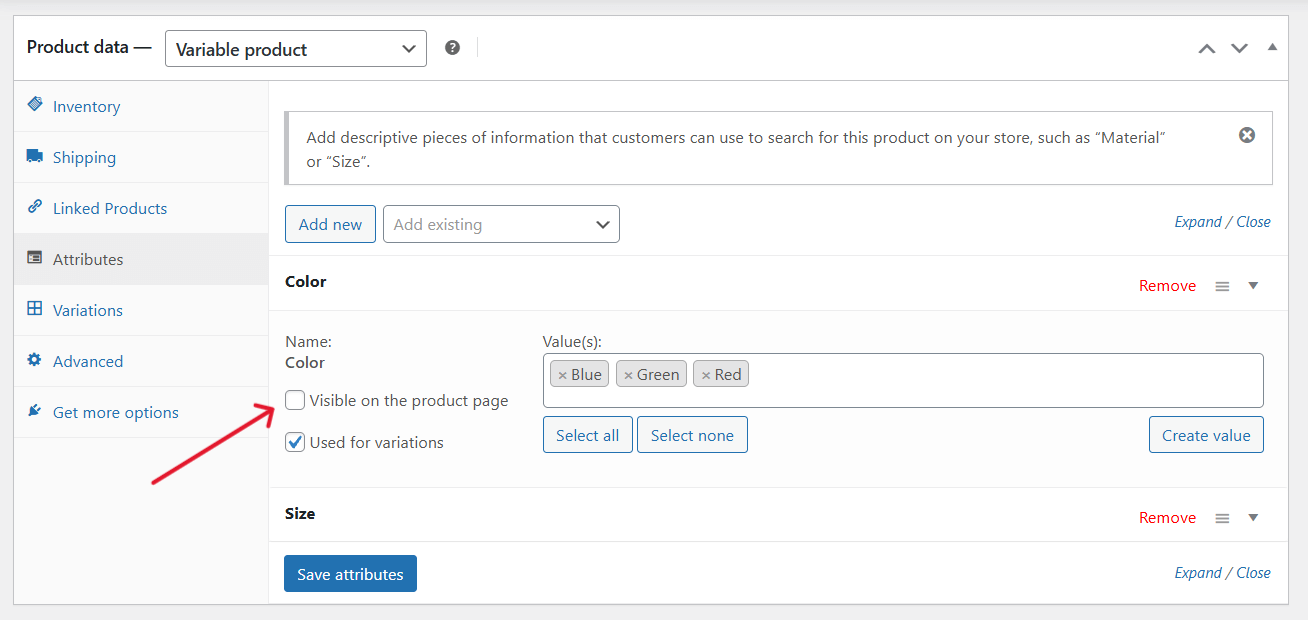
- Uncheck the “Visible on the product page“ box for all attributes, then press the “Save attributes” button.
- In the same “Product data“ modal, press the “Shipping“ tab and remove values from the “weight“, “length“, “width“, and “height“ fields.
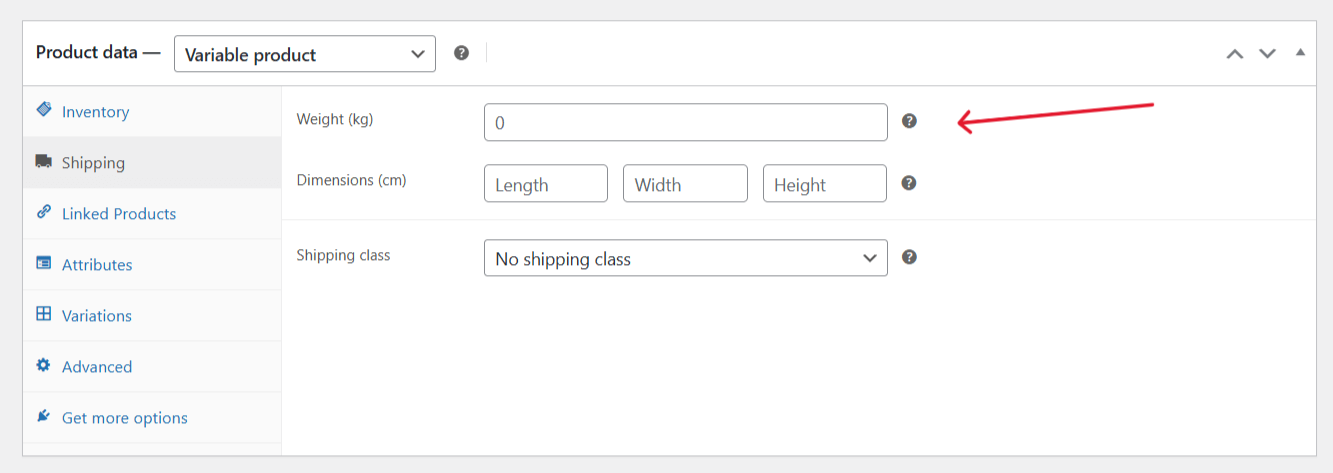
- Press “Update” in the top-right of the page to save your changes.
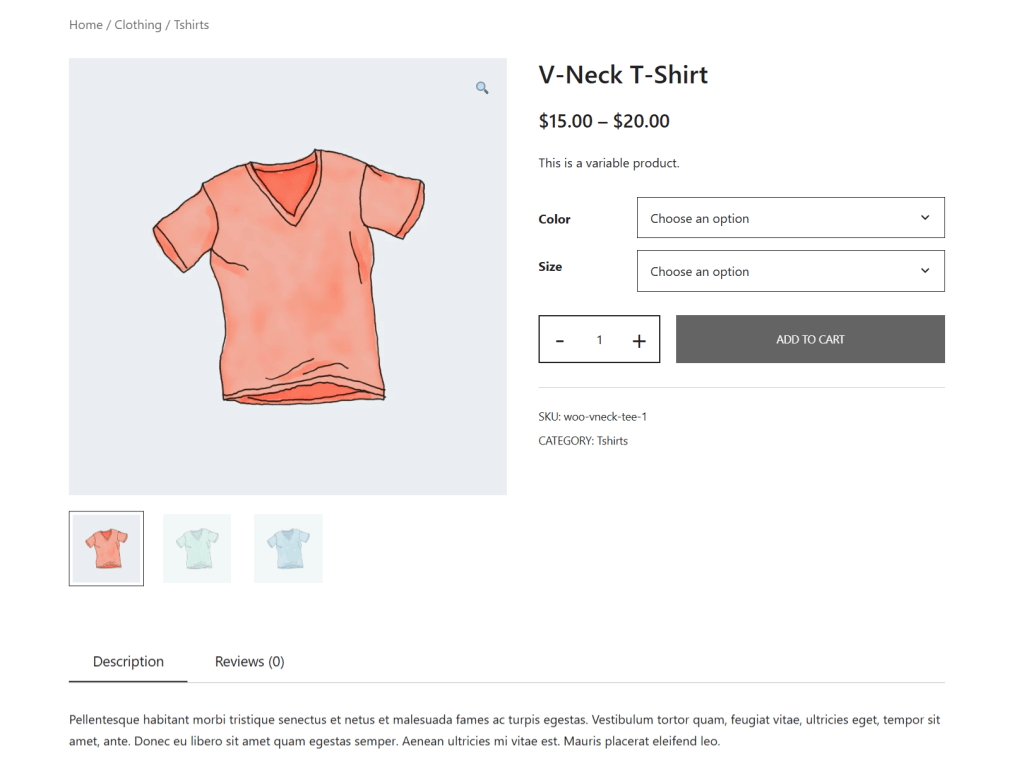
Head to that WooCommerce product page’s frontend view and refresh it to confirm that the “Additional information” tab is gone.
FAQs about the WooCommerce Additional Information tab
What is the WooCommerce Additional Information tab used for?
The WooCommerce Additional Information tab is used to display structured product data such as attributes, weight, dimensions, and variation attributes on the product page. WooCommerce automatically populates this tab based on the product data you enter in the admin area.
How do I add additional information in WooCommerce products?
You can add additional information in WooCommerce products by entering attributes and shipping data in the Product data section and marking attributes as “Visible on the product page.” This information then appears in the WooCommerce Additional Information tab.
How do I add an additional information tab in WooCommerce?
By default, WooCommerce automatically adds the Additional Information tab when a product has visible attributes or shipping data. To add richer content, you can use plugins like The Dotstore’s WooCommerce Product Attachment or The Dotstore’s WooCommerce Product Size Charts to create additional product tabs alongside the default Additional Information tab.
Can I add text to the Additional Information tab in WooCommerce?
WooCommerce does not allow free-form text in the Additional Information tab by default. You can only display structured data like attributes and dimensions. To add text, documents, or guides, you need to use plugins like The Dotstore’s WooCommerce Product Attachment or The Dotstore’s WooCommerce Product Size Charts that adds custom product tabs.
How do I hide or disable the Additional Information tab in WooCommerce?
You can hide or disable the Additional Information tab in WooCommerce by removing all visible attributes and clearing the product’s weight and dimensions. Once no relevant data exists, WooCommerce automatically removes the tab from the product page.
Why is the Additional Information tab not showing in WooCommerce?
The Additional Information tab won’t appear if a product has no visible attributes and no shipping data. This is expected WooCommerce behavior and effectively disables the tab for that product.
Ready to enhance the WooCommerce Additional Information tab?
The default WooCommerce Additional Information tab is great at showcasing basic structured product data like attributes, weight, and dimensions in a simple format on the WooCommerce product page.
However, this feature alone isn’t enough for stores that need to add important custom product data or those that need to present product information in a user-friendly way.
These plugins will help you upgrade WooCommerce’s default Additional Information tab so you can add conversion-boosting product information (the kind that answers important pre-sale questions) to product pages.
- The Dotstore’s WooCommerce Product Attachment plugin: It adds an “attachment” tab to your product pages where you can add files or external links (think: user manuals, specification sheets, installation guides, warranties, compliance documents, etc.) so shoppers can view and download important product information. You can assign attachments to specific products, restrict access based on user role, login status, or order status, set expiration rules, and much more. Free and pro versions available.
- The Dotstore’s WooCommerce Product Size Charts plugin: It lets you create detailed size charts and display them as popups, inline sections, or dedicated tabs on product detail pages. You can assign size charts to specific products, categories, tags, or attributes and include custom measurement instructions or visuals. For apparel, accessories, footwear, or any other product where fit matters, this plugin provides a far superior user experience (UX) than the default WooCommerce Additional Information tab. Free and pro versions available.
Get these plugins and upgrade WooCommerce’s default Additional Information tab today!
WooCommerce Product Attachment
Increase conversion rates with detailed information using multiple attachments.
14-day, no-questions-asked money-back guarantee.
Product Size Charts For WooCommerce
Simplify your store experience with customizable size charts that reduce returns and maximize sales.
14-day, no-questions-asked money-back guarantee.