Table of Contents
You can create a quote for a customer in WooCommerce from your admin in two ways. Without a plugin, you build a Pending payment order under WooCommerce > Orders > Add order, set the agreed price on each line, and email the customer a payment link. With the Request Quote for WooCommerce plugin, you go to Request a Quote > Quote Requests > Add quote, enter the customer’s details, add products, click Create, and then click Send Quote.
The first method suits a sale that’s already agreed.
The second method suits B2B and wholesale buyers who need to review a price, get approval, or say no. They get a formal quote with Accept and Reject options, and an accepted quote turns into an order.
This guide walks through both methods, shows where the free method stops working for quotes, and covers how to add an expiry date, a file, and a personal note to a single quote.
Disclosure: Dotstore makes Request Quote for WooCommerce, one of the two methods in this guide. The guide covers the free WooCommerce method first so you can judge whether you need a plugin at all.
Quick answer: WooCommerce has no built-in quote feature. For a buyer who reached you by phone, email, or in person, you can create a Pending payment order and email a payment link, which is free but only lets the customer pay. A quote plugin such as Request Quote for WooCommerce lets you build the quote in your admin and email it with Accept and Reject options, a PDF, and an optional expiry date.
Why would you create a quote on a customer’s behalf?
Not every pricing request comes through your quote form. B2B buyers often call, email, or ask in person, and they still expect a formal quote back. When you create a quote for a customer in WooCommerce yourself, you answer them on their channel and keep the record in your store.
Common situations include:
- Phone inquiries: A buyer calls about bulk pricing on 200 units. You build the quote while they’re on the line or right after the call.
- Email requests: A purchasing manager emails a product list. You turn it into a quote without asking them to fill in your form.
- Trade shows and in-person meetings: You note what a buyer wants at your booth and send the quote once you’re back at your desk.
- Incomplete online requests: A customer’s submitted request is missing an item. You create a fresh quote with the full order instead of asking them to start over.
- Repeat wholesale buyers: A regular customer reorders by email every month. A manual quote gets them pricing without another form.
Can you create a quote in WooCommerce without a plugin?
Yes, with a workaround. WooCommerce lets you create orders from the admin and set any price on each line before the customer pays. You then email a link that takes the customer to a payment page.
To create a quote for a customer in WooCommerce without a plugin:
- Go to WooCommerce > Orders and select Add order.
- Select the customer in the Customer field, or leave it empty to create a guest order. Fill in the billing details, including the email address.
- Select Add item(s) > Add product(s), search for each product, set the quantity, and add it.
- To apply the negotiated price, select the pencil icon on a product line and change its Total. You can also apply a coupon or add a fee.
- Set the order status to Pending payment and save the order.
- From the Order actions dropdown, choose Send order details to customer. WooCommerce emails the customer a link to the order payment page.
One detail matters here. If you assign the order to a registered customer, that customer must log in before they can pay.
A guest order lets the customer pay from the link without logging in, though WooCommerce may ask them to confirm the billing email first. WooCommerce covers both cases in its guide to manually adding an order.
This method is enough when:
- The price is agreed and the customer is ready to pay.
- You send only a handful of these each month.
- You don’t need a formal quote document or a deadline.
What are the limits of using a WooCommerce order as a quote?
A manual order is a sale from the moment you save it, so the customer’s only option is to pay. That works for a confirmed deal. It breaks down when the buyer needs time to review, compare, or negotiate.
The gaps show up quickly with B2B buyers:
- No accept or reject step: The customer can pay or ignore the email. You can’t tell a declined price from a missed email.
- No expiry date: A discounted price stays payable until you cancel the order by hand.
- No quote document: Buyers who need a PDF for internal approval have nothing formal to forward.
- Quotes mix with real orders: Every open offer sits in your Orders list next to paid orders, so you track them yourself.
- Short edit window: WooCommerce lets you edit line items only while an order is Pending payment or On hold.
The table below compares the two approaches side by side:
| WooCommerce manual order | Request Quote manual quote | |
| Where you create it | WooCommerce > Orders > Add order | Request a Quote > Quote Requests > Add quote |
| What the customer receives | Order details email with a payment link | Quote email with Accept and Reject options |
| Customer can decline | No | Yes |
| Expiry date | No | Yes, global or per quote |
| PDF quote | No | Yes, with your site logo |
| Attach a file to one quote | No built-in option | Yes |
| Status tracking | Order statuses only | Quote statuses such as Accepted, Rejected, and Converted to Order |
| Reminder emails | No | Reminders for pending and expiring quotes |
| Cost | Free with WooCommerce | Premium plugin (see current plans) |
Takeaway: Use the free method for agreed sales. Use a quote workflow when the buyer still has to decide.
How do you create a quote for a customer in WooCommerce with Request Quote?
Request Quote for WooCommerce by Dotstore added manual quote creation in version 1.1.2, released in September 2026. You build the quote in the same admin area you use for quotes customers submit online, so every request lives in one list. The whole process takes four steps.
If the plugin isn’t set up on your store yet, start with Dotstore’s guide on how to add a WooCommerce Request a Quote button, then come back here to create quotes manually.
Step 1: Start a new quote request
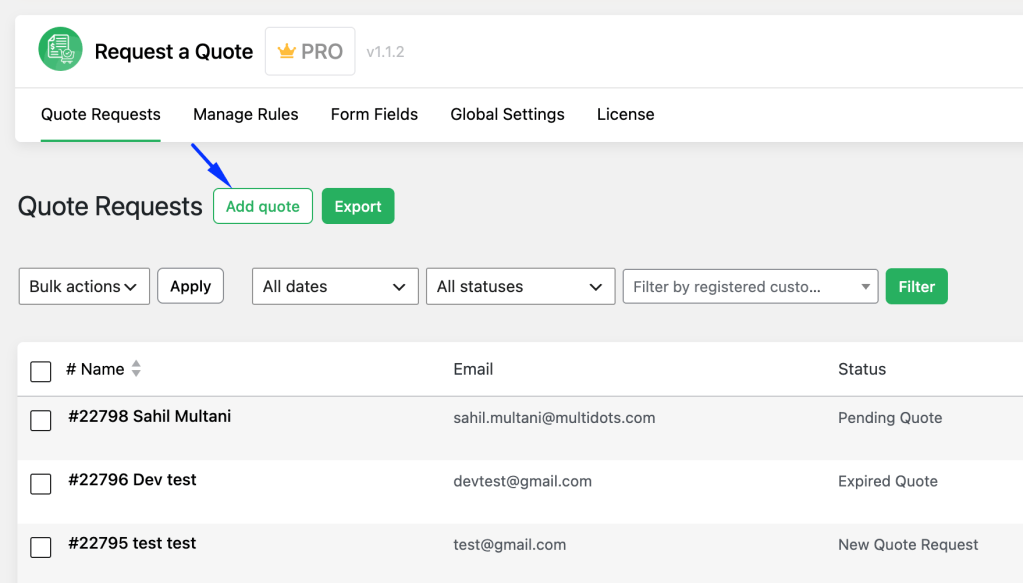
Go to Request a Quote > Quote Requests in your WordPress admin. Click Add quote next to the page heading. If you don’t see the button, update the plugin to version 1.1.2 or later.
Step 2: Add the customer’s details
On the Add New Quote Request screen, give the quote a title for your own reference. Then fill in the fields under Customer’s Details, such as name, email, and message.
If you’ve added custom fields under the plugin’s Form Fields settings, they appear here too. That means your screen may look slightly different from the screenshots.
Tip: Use a consistent title format, such as “Customer name, channel, date.” It makes manual quotes easy to find later.
Step 3: Add products to the quote
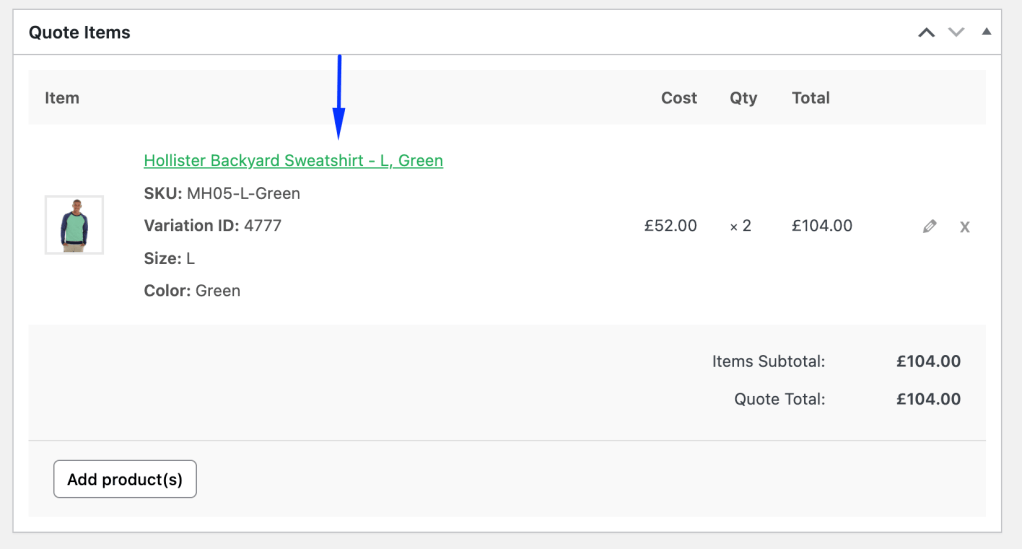
Scroll to the Quote Items box and click Add product(s). In the popup, search for the product by name or SKU, set the Quantity, and click Add. Repeat for each product the customer wants priced.
Each product appears in the Quote Items table with its cost, quantity, and total. The Items Subtotal and Quote Total update on their own.
Step 4: Create and send the quote
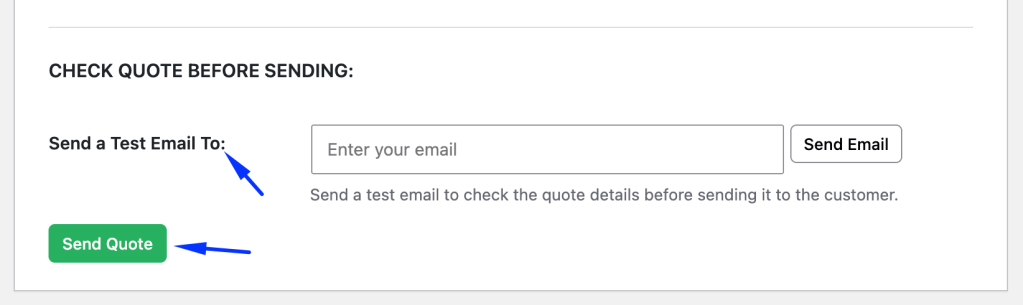
In the Quote Actions box, click Create to save the quote request. Before the customer sees anything, enter your own address in Send a Test Email To and check the email. When it looks right, click Send Quote.
Clicking Create alone sends nothing. The customer receives the quote only after you click Send Quote. Afterward, go back to the Quote Requests list to confirm the new quote shows the right status.
Can you change the price before you send the quote?
Yes. Request Quote lets you edit quantities and prices on a quote request before you send it, which is how you apply bulk or negotiated pricing. Open the quote from the Quote Requests list, adjust the line items, and then send it.
How do you add an expiry date, a file, or a note to one quote?
Open the quote and scroll to Quote General Options, below the Quote Information section. You can set three things for that quote only:
- Attachment: Pick a file from your media library, such as a spec sheet or price breakdown. It goes out with the quote PDF in the email and appears on the customer’s account page.
- Expiry date: Turn on the specific expiry date toggle and choose a date. This overrides your global expiry setting for this one quote.
- Message to the customer: Add a note, such as an explanation of a negotiated discount. It shows under Admin reply on the customer’s My Account > Quote detail page, next to the Accept and Reject buttons.
Dotstore’s help center covers this screen in detail in How to set quote general options.
What does the customer see after you send it?
The customer receives the quote by email, with Accept and Reject options and a quote number for easy reference. If quote PDFs are enabled, the PDF is attached. Customers can also review quotes from their My Account page.
When the customer accepts, the quote converts into an order. If they don’t respond, the plugin can send reminder emails for quotes that are pending or about to expire.
Takeaway: A manual quote in Request Quote gets the same PDF, expiry, reminders, and quote-to-order flow as a quote submitted on your site.
What should you check before you send a manual quote?
Check the customer, the email address, and the pricing deadline before you click Send Quote. Run through this list each time:
- Search for an existing request first: Filter Quote Requests by customer so you don’t send two quotes for the same order.
- Confirm the email address: The quote goes only to the address you enter. Spell-check any address you took down over the phone.
- Send a test email: Use Send a Test Email To and open the PDF before the customer does.
- Set a deadline for special pricing: Add a per-quote expiry date when a discount should end on a set day.
- Log where the request came from: Add an internal note such as “Phone call with buyer, needs approval from finance.” Your team gets the context without asking.
- Keep titles consistent: A standard title format makes manual quotes easy to spot when you filter the list or export quotes to CSV.
Which method should you use for your store?
Use a WooCommerce manual order when the buyer has already agreed to the price and will pay now. Use Request Quote when the buyer still needs to review, approve, or decline the price. Match your situation to the table below.
| Your situation | Best fit |
| A one-off phone sale where the customer will pay today | WooCommerce manual order |
| You quote once in a while and don’t need a PDF or deadline | WooCommerce manual order |
| A buyer needs a formal quote to get internal approval | Request Quote manual quote |
| Special pricing should end on a set date | Request Quote, with a per-quote expiry |
| You want to know which quotes were declined | Request Quote, with Accept and Reject |
| You already take quote requests online and want offline ones in the same list | Request Quote manual quote |
If phone quotes are rare and always close on the call, WooCommerce’s order screen covers you. Once quotes need approval, deadlines, or tracking, a dedicated quote workflow saves the follow-up you’d otherwise do by hand.
You can see everything Request Quote for WooCommerce includes on the product page, along with a live demo. For full setup details, read Dotstore’s guide on how to manually create a quote request.
Request Quote For WooCommerce
Sell products and services without a fixed price to your catalog and allow customers to request custom quotes.
14-day, no-questions-asked money-back guarantee.
Frequently asked questions
Does WooCommerce have a built-in quote feature?
No, WooCommerce core has no quote form, quote status, or accept and reject step. The closest native option is a Pending payment order with a payment link, which works for agreed sales but only lets the customer pay. For quotes buyers need to review, approve, or decline, you need a quote plugin such as Request Quote for WooCommerce.
How do I send a quote to a customer who called or emailed me?
You create a quote for a customer in WooCommerce from your WordPress admin. With Request Quote, go to Request a Quote > Quote Requests > Add quote, enter their details, add products, click Create, then Send Quote. Without a plugin, create a Pending payment order under WooCommerce > Orders and send the payment link instead.
Can customers accept or reject a quote by email?
Yes, with a quote plugin. Request Quote for WooCommerce includes Accept and Reject options in the quote email and on the customer’s account page, and accepted quotes convert into orders. A native WooCommerce manual order has no reject option, so you can’t tell a declined price from a missed email.
What happens if I click Create but not Send Quote?
The quote is saved, but the customer receives nothing. Create stores the quote in your Quote Requests list, and the email goes out only when you click Send Quote. Use that gap to adjust prices, add an expiry date or attachment, and send yourself a test copy with Send a Test Email To.
Can I edit a manual quote after I create it?
Yes. Open the quote from the Quote Requests list and edit the customer details, line items, quantities, prices, or notes before you send it. If a customer’s own online request is missing items, Dotstore’s documentation suggests creating a fresh manual quote with the full order instead of asking the customer to submit again.
Can I set an expiry date on a single quote?
Yes. In Request Quote for WooCommerce, open the quote and turn on the specific expiry date toggle under Quote General Options, then pick a date. That date overrides your global expiry setting for this quote only, and the plugin can email reminders for quotes that are pending or about to expire.
Do manual quotes appear with online quote requests?
Yes, manual quotes go into the same Quote Requests list as quotes customers submit from your store. You can filter the list by date, status, or customer and export quote requests to CSV. A consistent title, such as customer name, channel, and date, makes manual quotes easy to spot later.
Is a WooCommerce manual order the same as a quote?
No, a manual order is a sale waiting for payment, so the customer’s only option is to pay. A quote is a price offer the buyer can review, forward for approval, accept, or reject, and it becomes an order only after acceptance. Use a manual order when the price is settled and a quote when the buyer still has to decide.