Table of Contents
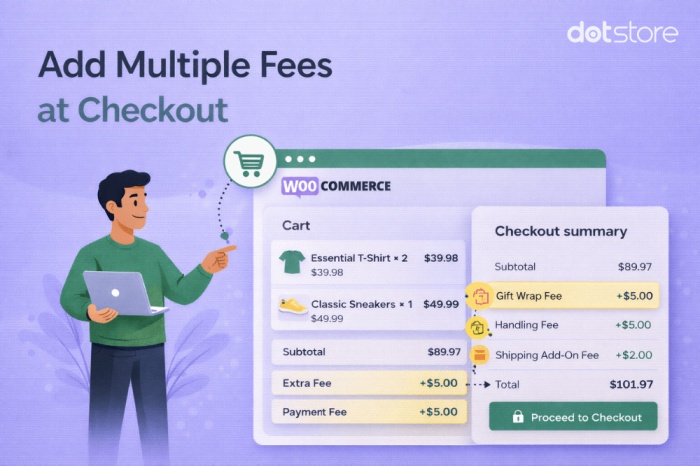
Add a custom fee in WooCommerce with the woocommerce_cart_calculate_fees hook and $cart->add_fee( $name, $amount, $taxable, $tax_class ). The fee shows as its own line in the cart and checkout totals and applies to the whole cart, not a single product. Use code for a fixed or percentage fee, guard it so it does not run in the admin, and keep the fee name unique so it is not added twice. For conditional, no-code fees, the Extra Fees plugin handles it from the admin.
Key Takeaways
- A custom fee is a cart-level surcharge added on top of product price and shipping (handling, rush, payment surcharge, gift-wrap, or eco fee), and it applies to the whole order rather than a single product.
- Add one through the woocommerce_cart_calculate_fees hook with $cart->add_fee( $name, $amount, $taxable, $tax_class ), placed in your child theme’s functions.php or a code snippets plugin.
- WooCommerce has no built-in percentage option, so calculate the amount from the cart subtotal yourself before passing it to add_fee().
- Guard every snippet with an is_admin() check so it doesn’t fire in the dashboard, and keep each fee name unique since duplicate names conflict.
- Avoid negative fees as discounts; WooCommerce doesn’t support them reliably and can still apply tax, so use a coupon for discounts instead.
- Once fees vary by condition or multiply, the Extra Fees Plugin for WooCommerce builds them from the admin by city, role, payment method, cart total, or quantity, with no code to maintain.
A custom fee is any charge you add on top of product price and shipping: a handling fee, a rush charge, a payment surcharge, a gift-wrap fee, or an eco fee. WooCommerce shows it as a separate line in the cart and checkout totals.
This guide takes the code-first route, because that gives you precise control over a single fee in functions.php. If you would rather set conditional fees by city, user role, payment method, or cart total without writing code, our companion guide on how to add extra fees in WooCommerce covers the no-code path, and we link the plugin near the end here too.
What is a custom fee in WooCommerce
A custom fee is a cart-level surcharge, not a change to any product’s price. WooCommerce calculates it during cart totals and lists it under the subtotal and shipping. Because it sits at the cart level, one fee covers the whole order rather than attaching to a specific item.
Common examples:
- Handling or packaging fees on every order.
- Rush or express processing charges.
- Payment surcharges, such as a fee for Cash on Delivery.
- Eco or recycling fees required in some regions.
Add a custom fee with code
All custom fees run through one hook. You attach a function to woocommerce_cart_calculate_fees, receive the cart object, and call add_fee() on it. The snippets below go in your child theme’s functions.php or a code snippets plugin.
The add_fee() method and its parameters
The method signature is $cart->add_fee( $name, $amount, $taxable, $tax_class ). Here is what each parameter does:
| Parameter | Type | What it does |
| $name | string | The label shown in cart and checkout totals. Must be unique. |
| $amount | float | The fee value. Use positive amounts only. |
| $taxable | bool | Whether tax applies to the fee. Defaults to false. |
| $tax_class | string | The tax class to use when taxable. Blank means the standard class. |
1. Add a simple fixed fee
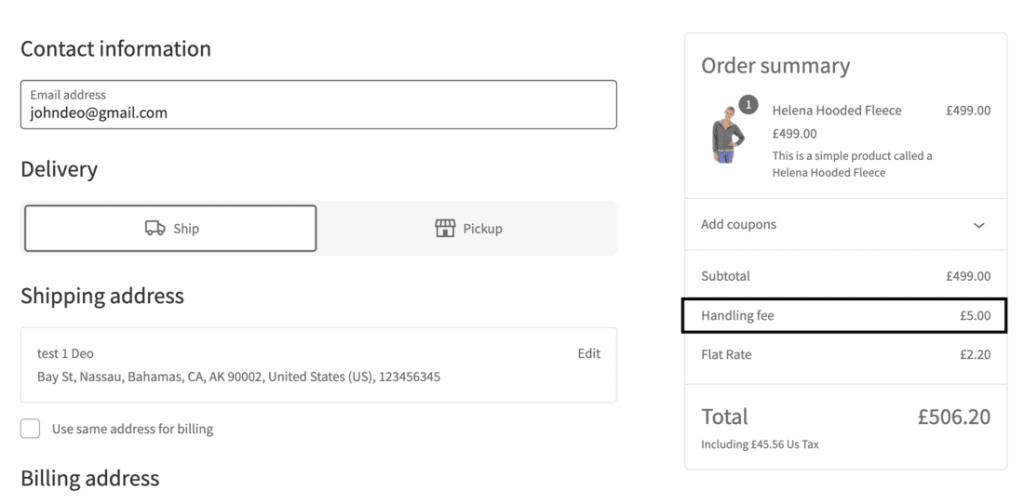
This adds a flat handling fee to every cart.
add_action( ‘woocommerce_cart_calculate_fees’, ‘ds_add_custom_fee’ );
function ds_add_custom_fee( $cart ) {
if ( is_admin() && ! defined( ‘DOING_AJAX’ ) ) {
return;
}
$cart->add_fee( ‘Handling fee’, 5, false, ” );
}
2. Add a percentage-based fee
WooCommerce has no built-in percentage option, so you calculate the amount from the cart subtotal yourself. This adds a 3 percent service fee.
add_action( ‘woocommerce_cart_calculate_fees’, ‘ds_add_percentage_fee’ );
function ds_add_percentage_fee( $cart ) {
if ( is_admin() && ! defined( ‘DOING_AJAX’ ) ) {
return;
}
$percentage = 0.03; // 3 percent
$fee = ( $cart->get_cart_contents_total() + $cart->get_shipping_total() ) * $percentage;
$cart->add_fee( ‘Service fee (3%)’, $fee, true, ” );
}
3. Add a conditional fee
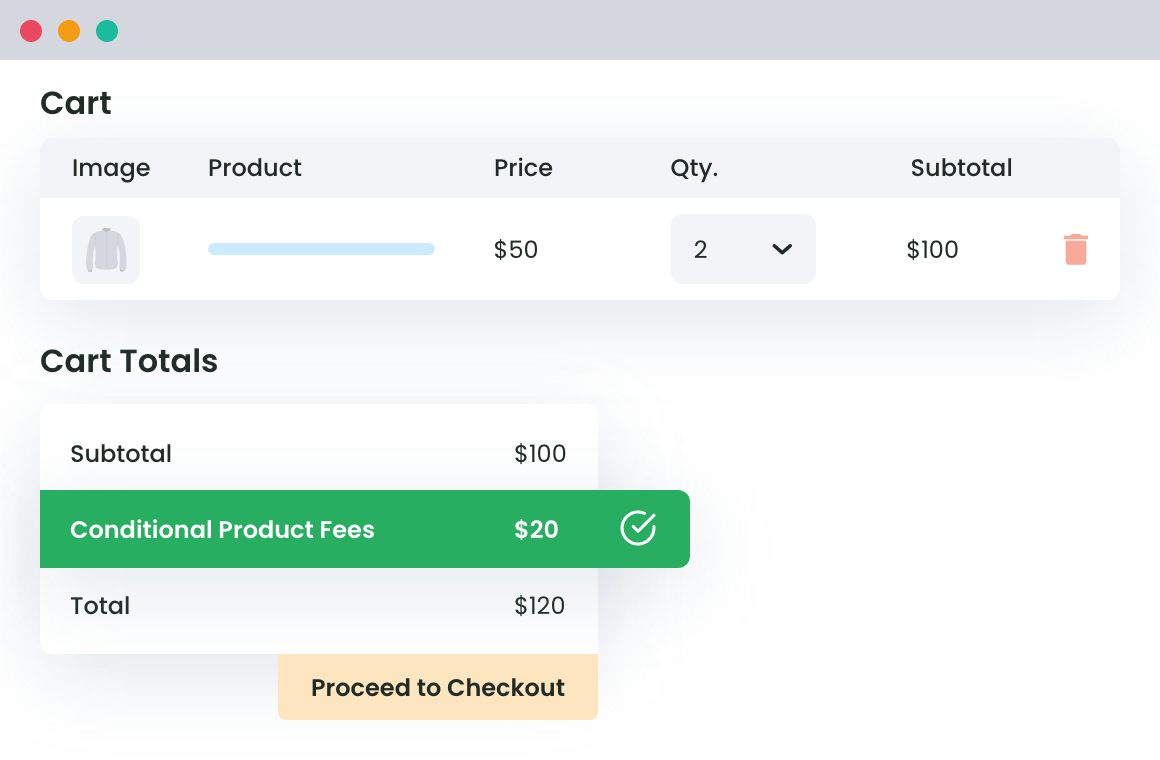
You can add a fee only when a condition is met. This adds a small-order fee when the cart total is under 50.
add_action( ‘woocommerce_cart_calculate_fees’, ‘ds_add_small_order_fee’ );
function ds_add_small_order_fee( $cart ) {
if ( is_admin() && ! defined( ‘DOING_AJAX’ ) ) {
return;
}
if ( $cart->get_cart_contents_total() < 50 ) {
$cart->add_fee( ‘Small order fee’, 4, false, ” );
}
}
The same pattern works for other conditions: read the cart, the customer, or the chosen method, and only call add_fee()when your rule matches. For a fee tied to the payment method, see how to add a fee to a payment method.
Important gotchas before you ship this
A few things trip people up with custom fees. Check these before you go live:
- Guard against the admin. The is_admin() check at the top of each snippet stops the fee from firing in wp-admin while still allowing it during AJAX cart updates.
- The callback runs on every recalculation. It fires on cart load, every AJAX update, and each checkout refresh. Keep it idempotent and never add the same fee twice in one pass.
- Fee names must be unique. Two fees with the same name conflict, so give each one a distinct label.
- Fees are cart-level, not per-product. A custom fee applies to the whole order. To charge by item or quantity, calculate the amount from the cart contents, as in the quantity-based fee approach.
- Payment-method fees need a refresh. A fee that depends on the selected gateway needs JavaScript to trigger update_checkout so totals recalculate when the customer switches methods.
- Avoid negative amounts. WooCommerce does not properly support negative fees as discounts, and a known quirk applies tax to a negative fee even when you set it as non-taxable. Use a coupon for discounts instead.
No-code alternative: the Extra Fees plugin
Code is the right tool for one or two fixed rules you are comfortable maintaining. Once the conditions multiply, hand-coded fees get hard to manage and easy to break.
The Extra Fees Plugin for WooCommerce does the same job from the admin, with no code to maintain. You build fee rules based on the city, country, user role, payment method, cart total, quantity, or shipping method, set fixed or percentage amounts, and stack multiple rules in the order you want. It is the better route when fees vary by condition or you would rather not touch functions.php. For the full no-code walkthrough and conditional use cases, see the guide to adding extra fees in WooCommerce and how to set conditional fees at checkout.

Best practices
Keep these in mind so your custom fee behaves at checkout:
- Always include the admin guard so the fee does not fire in the dashboard.
- Use unique, customer-friendly fee labels, since buyers see them in the totals.
- Decide tax treatment deliberately by setting the $taxable parameter, and confirm it on a test order.
- Test a full checkout, including an AJAX cart update, to confirm the fee shows once and recalculates correctly.
- Move to the plugin once you need conditional rules across many products, roles, or payment methods.
Conclusion
Adding a custom fee in WooCommerce comes down to one hook and one method: attach a function to woocommerce_cart_calculate_fees and call add_fee() with a name, an amount, and your tax choice. Guard it against the admin, keep names unique, and compute percentages from the subtotal. That covers fixed, percentage, and simple conditional fees in a few lines.
When the rules grow conditional or you would rather skip the code, the Extra Fees Plugin for WooCommerce sets the same fees from the admin without maintaining a snippet.
WooCommerce Extra Fees
Make profits from every confirmed sale through smart, conditional fees.
14-day, no-questions-asked money-back guarantee.
Frequently asked questions
How do I add a custom fee in WooCommerce?
Hook a function to woocommerce_cart_calculate_fees and call $cart->add_fee( $name, $amount, $taxable, $tax_class ). The fee then shows as a line in the cart and checkout totals.
How do I add a percentage fee at checkout?
WooCommerce has no percentage option, so calculate the amount from the subtotal yourself, for example multiply get_cart_contents_total() by 0.03 for 3 percent, then pass that to add_fee().
Can I add a fee based on the payment method?
Yes. Check the chosen gateway inside the fee function and add the fee only when it matches, but include JavaScript to refresh checkout totals when the customer changes method.
Can a WooCommerce custom fee be a discount (negative)?
It is not reliable. WooCommerce does not properly support negative fees, and tax can still apply to them. Use a coupon for discounts instead.
Are custom fees taxable?
Only if you set the $taxable parameter to true. Leave it false for a non-taxed fee, and confirm the result on a test order.
How do I add a custom fee without code?
Use the Extra Fees Plugin for WooCommerce to build fixed or percentage fees by condition from the admin, with no code to write or maintain.