Table of Contents
To remove the “Ship to a different address?” option, go to WooCommerce > Settings > Shipping > Shipping options and set Shipping destination to “Force shipping to the customer billing address.” That hides the separate shipping section on both classic and block checkout. To only hide the checkbox on classic checkout, use CSS, and to control its default state or remove fields entirely, use code filters.
Key Takeaways
- The “Ship to a different address?” checkbox lets buyers enter a separate delivery address, and stores remove it to cut checkout friction, reduce fraud from mismatched addresses, and keep cleaner fulfilment data.
- The cleanest method works on both checkouts: go to WooCommerce > Settings > Shipping > Shipping options and set Shipping destination to “Force shipping to the customer billing address.”
- Classic and block checkouts differ: the classic checkout has a “Ship to a different address?” checkbox, while the block checkout instead shows a “Use same address for billing” checkbox, so CSS built for classic won’t work on the block.
- On the classic checkout, CSS targeting #ship-to-different-address hides the checkbox cosmetically, while the woocommerce_cart_needs_shipping_address filter removes the fields entirely.
- To keep the checkbox but set it unchecked by default, use the woocommerce_ship_to_different_address_checked filter returning false.
- Weigh the trade-off first: forcing billing as shipping blocks customers who legitimately ship elsewhere (gifts, offices, drop-shipping), so defaulting the checkbox off may be the better middle ground.
Why disable “Ship to a Different Address” in WooCommerce, and the trade-off
Reasons stores remove the option:
- Local-only sellers who never ship to a second address.
- Fraud reduction, since mismatched billing and shipping addresses are a common fraud signal. For more, see how to avoid fake orders on WooCommerce.
- Faster checkout, with one address to fill instead of two.
- Cleaner data, with no conflicting addresses to reconcile in fulfilment.
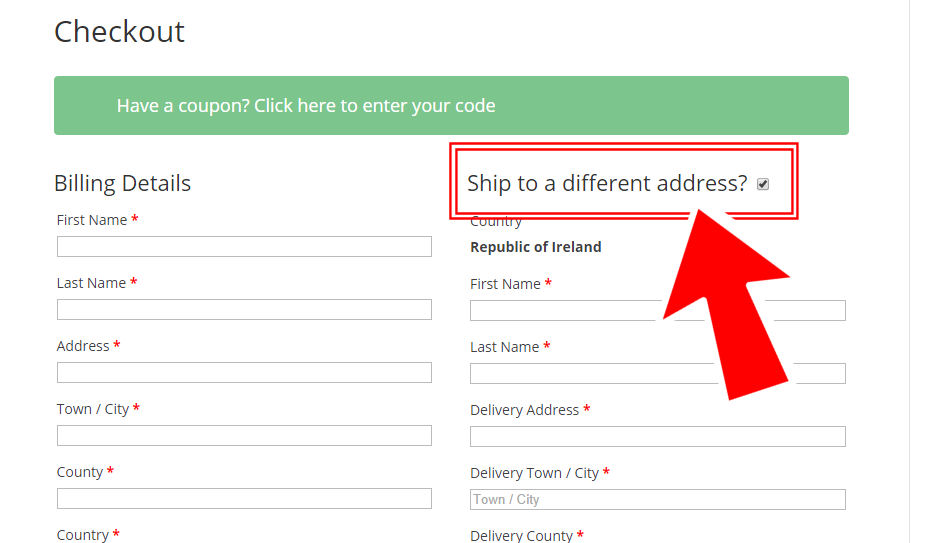
The trade-off is real: customers who legitimately ship to a different address, such as gifts, office deliveries, or drop-shipping to a recipient, can no longer do so. If that is a meaningful share of your orders, consider defaulting the checkbox off instead of forcing billing, so the option is there but not in the way.
Classic checkout vs block checkout
The classic shortcode checkout has a “Ship to a different address?” checkbox. The newer block checkout has no such checkbox; instead it shows a “Use same address for billing” checkbox. The CSS selector that works on classic checkout does not apply to the block, so identify which you use before picking a method. The native setting below works on both.
Method 1: The native setting (recommended)
WooCommerce has a built-in option for this.
- Go to WooCommerce > Settings > Shipping > Shipping options.
- Find Shipping destination.
- Choose Force shipping to the customer billing address.
- Save changes.
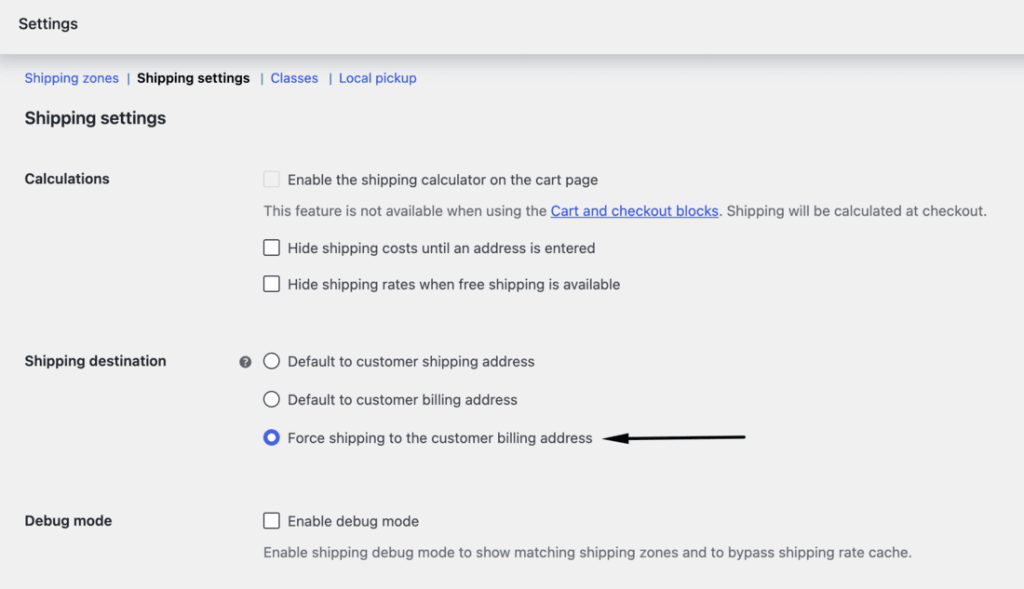
The three options are:
- Default to customer shipping address: asks for both, checkbox shown.
- Default to customer billing address: defaults to billing, but the customer can still tick the box to add a separate shipping address.
- Force shipping to the customer billing address: removes the separate shipping fields and the checkbox entirely. On the front end, the heading becomes “Billing & Shipping.”
Pick the force option to remove the choice completely. This is the cleanest method and the only one that works the same on classic and block checkout.
Method 2: Hide just the checkbox with CSS (classic only)
If you want to keep billing-default behavior but hide the checkbox visually on the classic checkout:
#ship-to-different-address label { display: none; }
Add it under Appearance > Customize > Additional CSS. This hides the checkbox label only; it does not stop the fields from being collected if toggled by other means, and it does not work on the block checkout, which uses different markup.
Method 3: Code filters for developers
To remove the shipping address section outright on the classic checkout:
add_filter( ‘woocommerce_cart_needs_shipping_address’, ‘__return_false’ );
This forces billing-only by removing the shipping fields and checkbox together. To instead control whether the checkbox is checked by default (without hiding it), use:
add_filter( ‘woocommerce_ship_to_different_address_checked’, ‘__return_false’ );
Use the first to remove fields, the second to set the default state.
Method 4: The block checkout
On the block checkout, there is no “Ship to a different address” checkbox to disable. Instead the block shows a “Use same address for billing” checkbox, which works the opposite way: it controls whether billing matches shipping, not whether shipping matches billing. The native Force shipping to the customer billing address setting is the reliable way to remove the separate shipping address here too.
If you edit the Checkout block directly, test the front end, since the in-editor “Use same address for billing” toggle does not always reflect on the live checkout. Because the classic #ship-to-different-address markup does not exist on the block, do not rely on that CSS for a block store.
Best practices
Keep these in mind before you switch it off:
- Prefer the native Force setting; it is version-safe and works on both checkout types.
- Use CSS only as a cosmetic classic-checkout tweak, not as your sole method.
- After any change, place a test order to confirm the order captures the address you expect.
- Remember the trade-off: customers who genuinely ship to a different address (gifts, offices) can no longer do so.
Conclusion
The fastest, most reliable way to disable “ship to a different address” is the native Shipping destination setting set to force the billing address, which removes the option on both classic and block checkout. CSS and code filters give finer control on the classic checkout, but the native setting is what most stores should use.
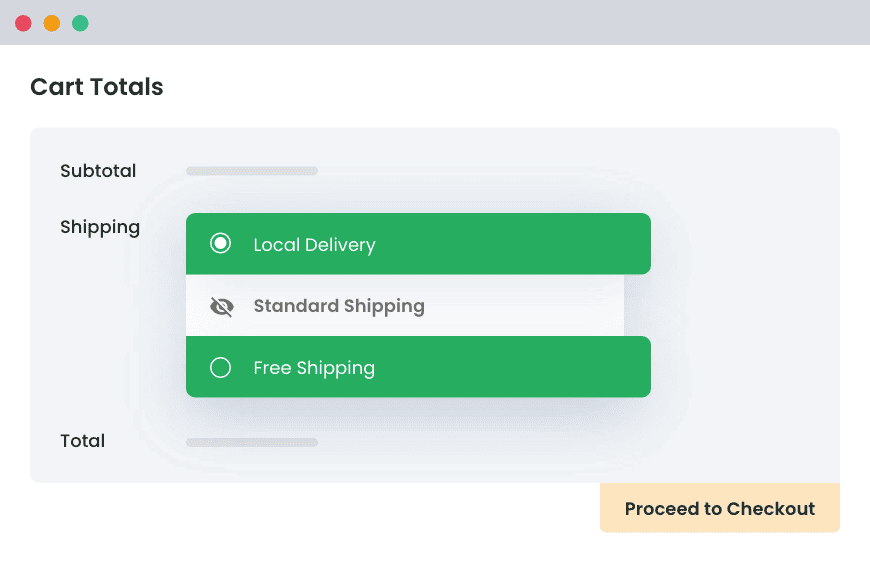
Hide Shipping for WooCommerce
Hide all other shipping methods when free shipping and/or local pickup are available in two minutes or less.
14-day, no-questions-asked money-back guarantee.
Frequently asked questions
How do I remove the shipping address from WooCommerce checkout?
Set Shipping destination to “Force shipping to the customer billing address” under Settings > Shipping > Shipping options.
How do I hide just the “ship to a different address” checkbox?
On the classic checkout, hide it with CSS targeting #ship-to-different-address. The native Force setting removes it entirely.
How do I disable it on the new block checkout?
The block has no such checkbox, only “Use same address for billing.” Use the native Force shipping to billing setting to remove the separate shipping address.
Can I set the checkbox unchecked by default instead of hiding it?
Yes, with the woocommerce_ship_to_different_address_checked filter returning false.
Will this stop customers shipping to a different address entirely?
Yes. Forcing billing as shipping means every order ships to the billing address, so allow for gift and office orders before enabling it.

Quickly hide all other shipping methods when free shipping or local pickup is available.
Try the plugin 100% risk free!