
Table of Contents
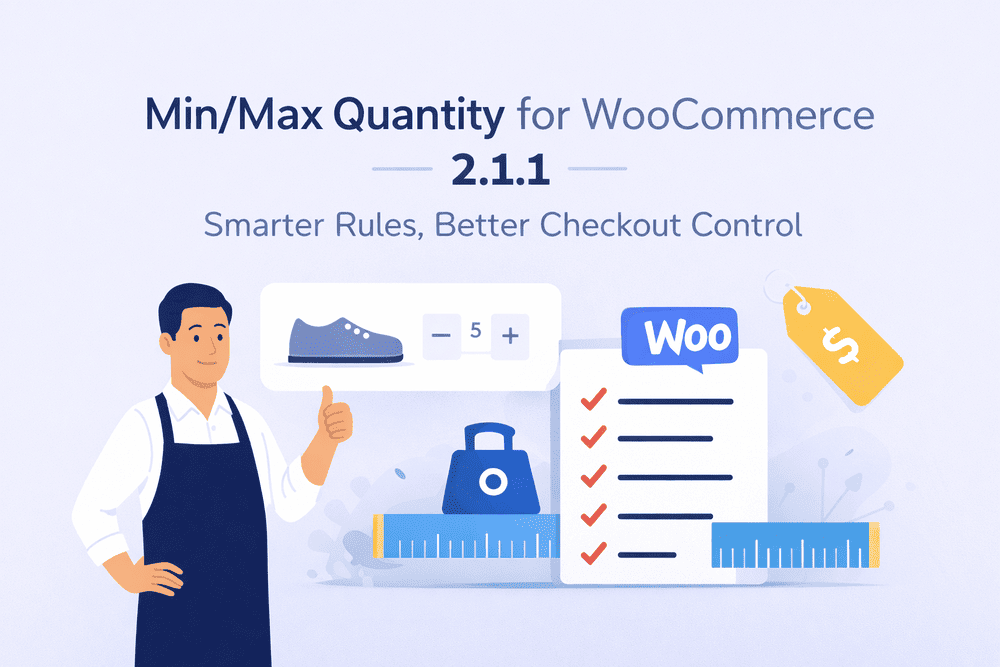
🎉 Min/Max Quantity for WooCommerce 2.1.1 Is Here. Managing order limits in WooCommerce should feel flexible, not restrictive.
With version 2.1.1, Min/Max Quantity for WooCommerce introduces smarter rule conditions, clearer customer messaging, and better control over how quantity rules behave across your store.
This update focuses on one goal:
helping store owners enforce quantity rules without hurting the buying experience.
Let’s walk through what’s new and why it matters.
🚀 What’s New in Min/Max Quantity for WooCommerce 2.1.1
1. Exclude Specific Categories from Checkout Restrictions
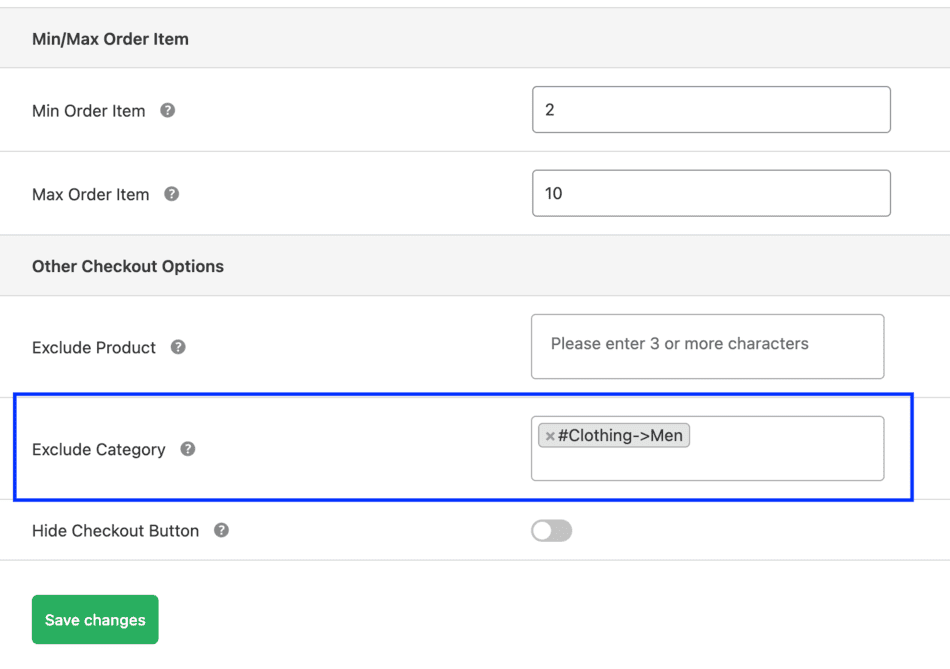
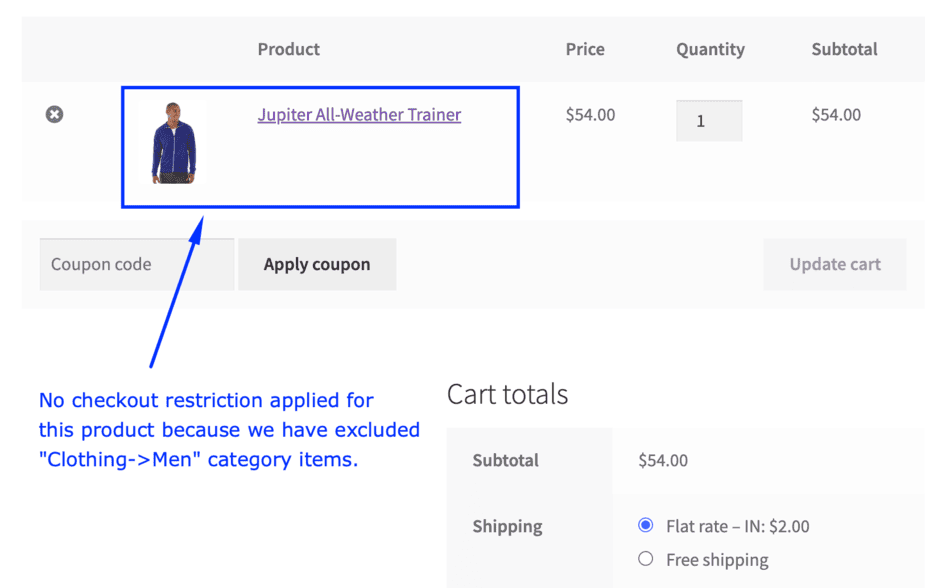
Until now, global checkout rules applied to every product in the cart.
With this update, you can exclude specific product categories from checkout-level restrictions, such as:
- Minimum or maximum quantity
- Minimum or maximum order value
- Minimum or maximum cart items
This is especially useful if you sell:
- Add-on products
- Promotional or special items
Now, those products can bypass global cart validation while the rest of your store follows strict rules.
Why this matters:
You get more control without creating complicated workarounds.
2. Show Checkout Restriction Messages on Product Pages
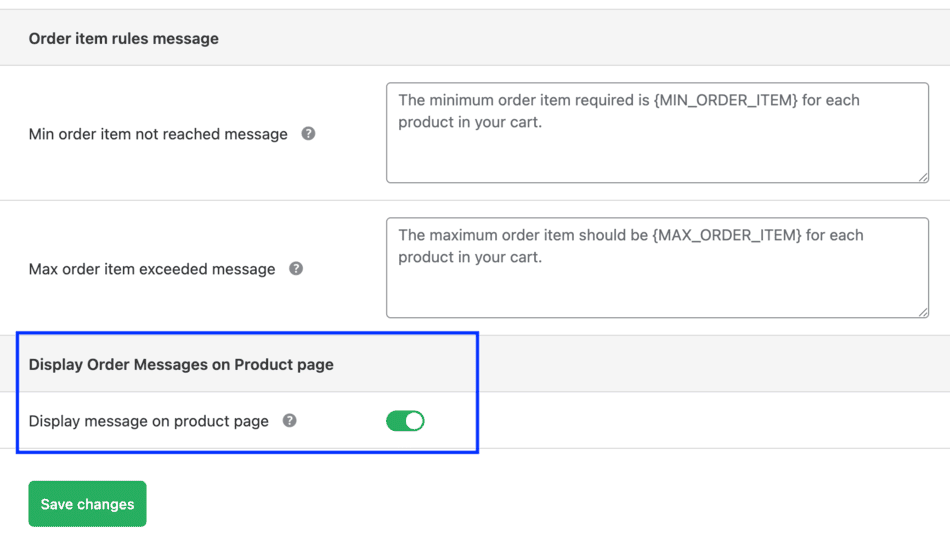
Earlier, checkout restriction messages appeared only on the cart page.
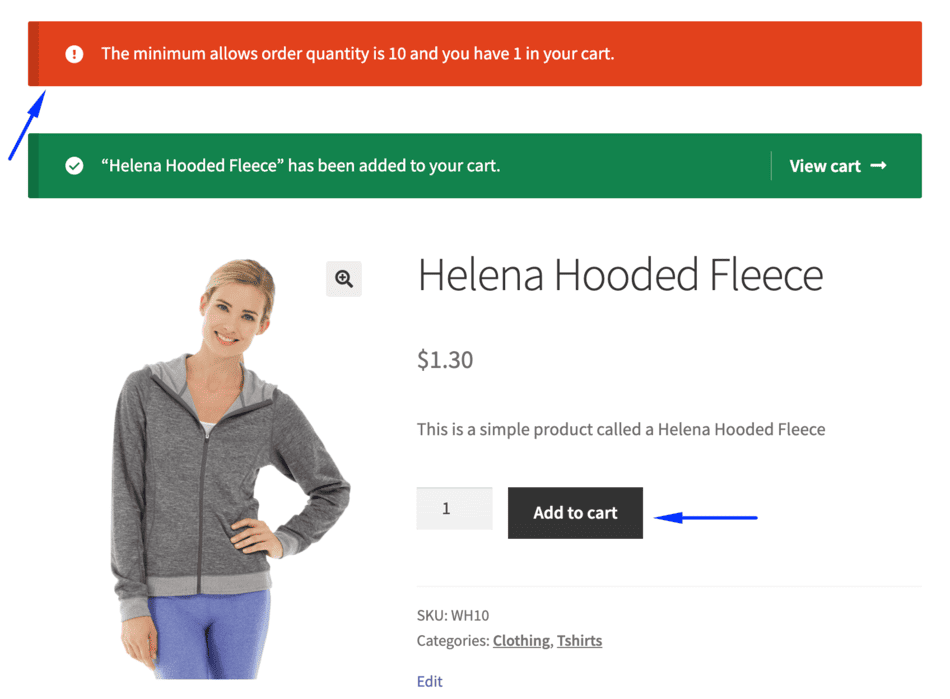
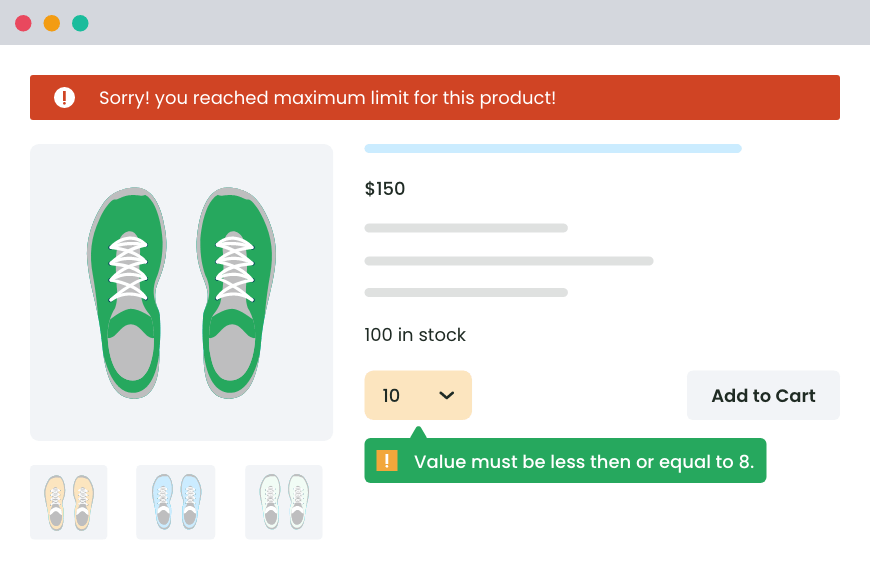
Now, you can display those messages directly on the single product page, right when a customer clicks Add to Cart.
This helps customers understand limits earlier, such as:
- Minimum quantity required
- Maximum quantity allowed
- Cart-level purchase conditions
Why this matters:
No surprises at checkout. Fewer abandoned carts. Better customer experience.
3. Enable Quantity Selector on Shop & Category Pages

WooCommerce shows quantity selectors only on single product pages by default.
With version 2.1.1, you can now enable quantity selectors on shop and category listing pages for simple products.
Customers can select quantities and add products to the cart faster, without visiting the product page.
Note: Quantity selectors do not appear for variable products, since variations must be selected first.
Why this matters:
Faster shopping experience, especially for bulk buyers and repeat customers.

4. Customize Min/Max Rule Display on Product Pages
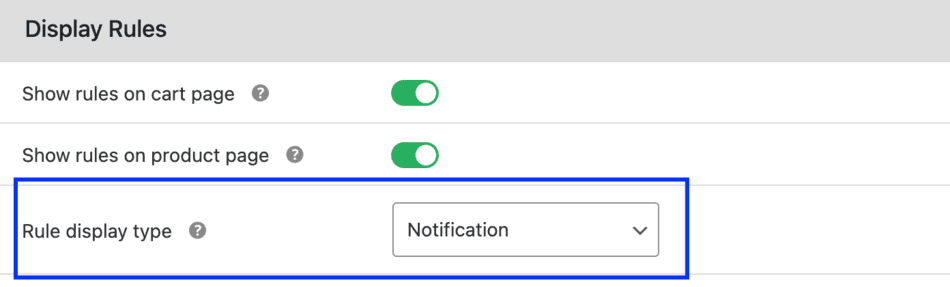
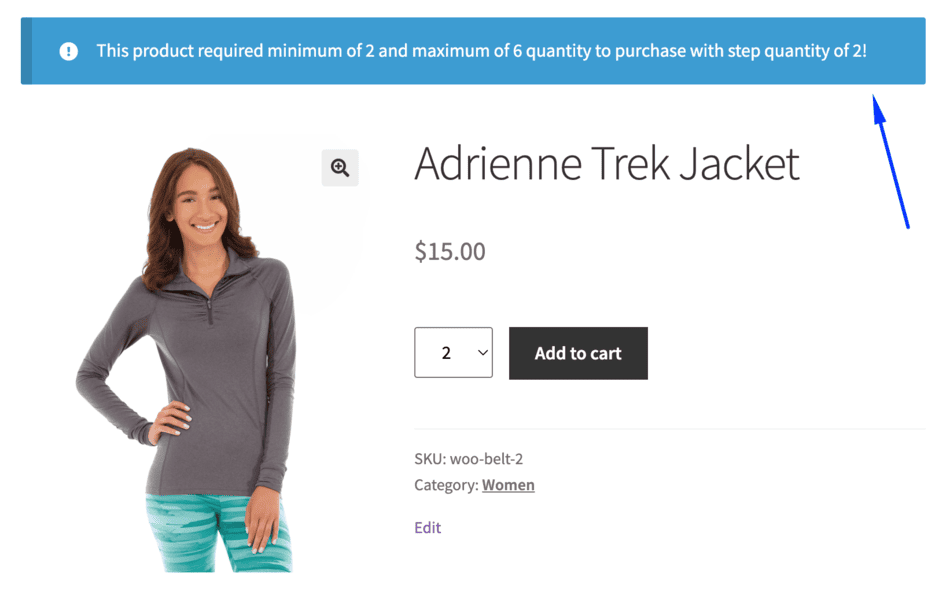
Previously, min/max rules were displayed in a table format on product pages.
Now, you can switch the display to a WooCommerce notice-style format, making the rule message more visible and consistent with the store’s design.
Why this matters:
Cleaner UI and better visibility of important purchase rules.
5. Set Min/Max Quantity Rules by Product Regular Price
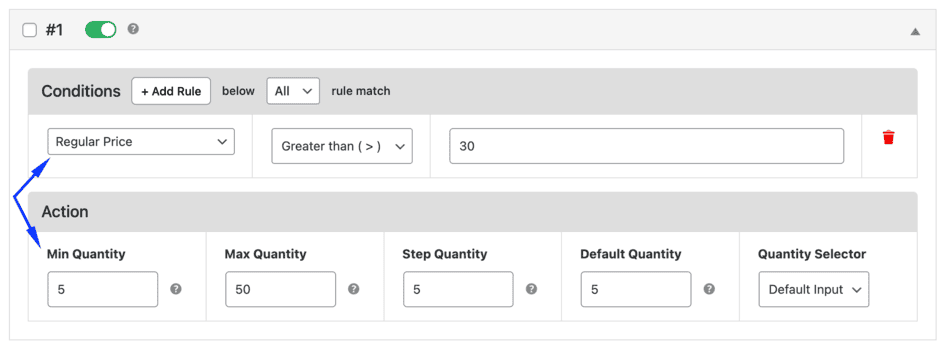
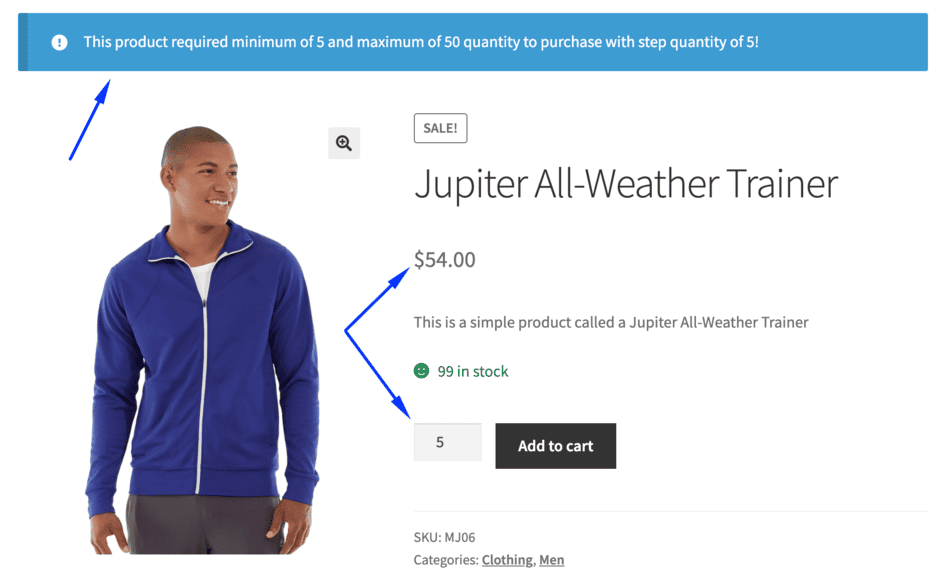
You can now apply quantity rules based on the product’s regular price.
Example:
Set a minimum quantity of 5 and a maximum of 50 (step of 5) for products priced above $30.
This works well for:
- Wholesale pricing strategies
- Premium product limits
- Tier-based selling rules
Why this matters:
Quantity rules can now align directly with your pricing strategy.
6. Set Min/Max Quantity Rules Based on Product Weight
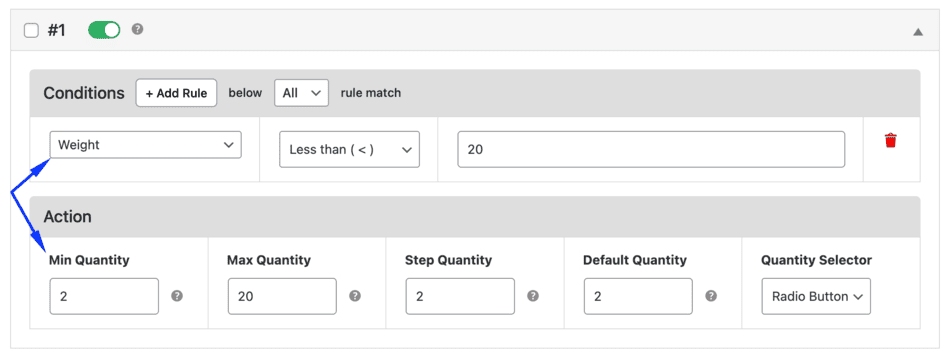
This update introduces weight-based quantity rules.
Rules can now apply when the total cart weight matches your defined condition.
Example:
If the total cart weight is less than 20kg, apply a specific quantity rule.
This is ideal for:
- Shipping optimization
- Logistics-heavy stores
- Weight-sensitive products
Why this matters:
You can prevent underweight or overweight orders without manual checks.
7. Set Min/Max Rules Using Product Height, Length & Width
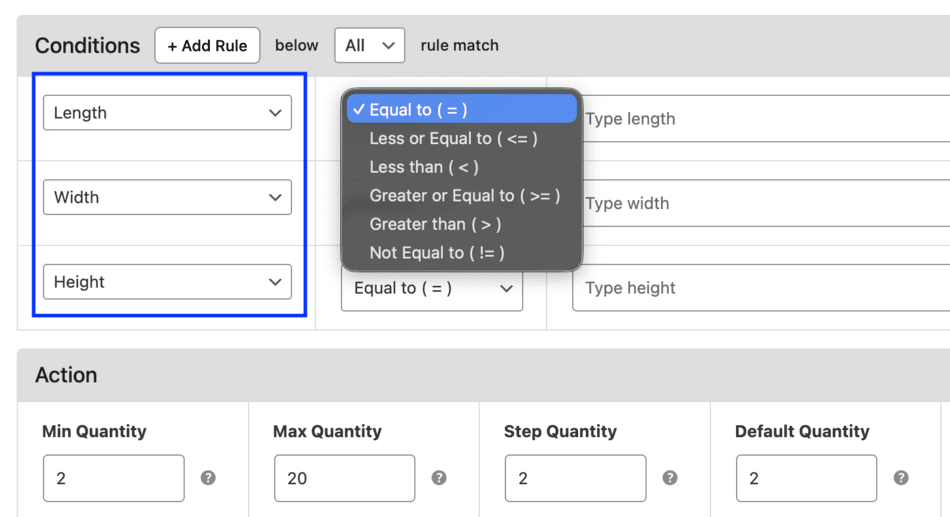
You can now create quantity rules based on cart dimensions, including:
- Height
- Length
- Width
The plugin calculates the combined cart dimensions and applies rules accordingly.
This works similarly to weight-based rules but focuses on physical size, which is crucial for:
- Bulky items
- Custom packaging
- Freight-based shipping
Why this matters:
More accurate control for stores selling large or dimension-sensitive products.
🛠 Bug Fixes & Improvements
This release also includes important stability updates:
- Fixed minor compatibility issues with the Dotstore Product Sample plugin
- Resolved minor issues with default block-based WordPress themes
- Fully compatible with WooCommerce 10.3.x
- Fully compatible with WordPress 6.9.x
These improvements ensure smoother performance across modern WooCommerce setups.
✅ Why This Update Matters
Min/Max Quantity for WooCommerce 2.1.1 gives you:
- More flexible rule conditions
- Better customer communication
- Faster shopping experience
- Smarter cart validation
- Improved compatibility with the latest WordPress and WooCommerce versions
All without adding complexity to your store setup.
🔄 Ready to Upgrade?
If you’re already using the plugin, update to version 2.1.1 to start using these new features.
If you’re looking for a powerful way to control order quantities, cart rules, and purchase limits in WooCommerce, Min/Max Quantity for WooCommerce is built exactly for that.
👉 Explore the plugin:
https://www.thedotstore.com/min-and-max-quantity-for-woocommerce/
Frequently Asked Questions (FAQs)
1. What is Min/Max Quantity for WooCommerce?
Min/Max Quantity for WooCommerce is a plugin that lets you control how many products customers can purchase in a single order. You can set minimum and maximum quantity limits at the product, category, cart, or checkout level to better manage sales, inventory, and order value.
2. What’s new in Min/Max Quantity for WooCommerce version 2.1.1?
Version 2.1.1 introduces several powerful improvements, including:
- Excluding specific categories from checkout restrictions
- Showing checkout restriction messages on product pages
- Enabling quantity selectors on shop and category pages
- Creating quantity rules based on product price, weight, and dimensions
- Improved compatibility with WooCommerce 10.3.x and WordPress 6.9.x
3. Can I exclude certain products from global checkout rules?
Yes. In version 2.1.1, you can exclude specific product categories from global checkout or cart restrictions. This allows special items like promotional products or add-ons to bypass min/max rules applied to the rest of the cart.
4. Does the plugin support quantity selection on shop and category pages?
Yes, for simple products. When enabled, customers can choose quantities directly from the shop and category listing pages. This feature does not apply to variable products, since variations must be selected on the product page.
5. Can I set quantity rules based on product price?
Yes. You can create min/max quantity rules based on a product’s regular price. For example, you can require customers to buy in bulk only if the product price exceeds a specific amount.
6. Can I create quantity rules using product dimensions?
Yes. You can now apply min/max quantity rules based on product height, length, and width. The plugin calculates the combined cart dimensions and applies rules accordingly, which is ideal for bulky or oversized products.
7. Who should use the Min/Max Quantity for WooCommerce plugin?
This plugin is ideal for:
- Store owners selling in bulk or wholesale
- Stores with minimum order value or quantity requirements
- Businesses managing shipping, weight, or size limitations
- WooCommerce sites that need strict cart validation rules
Min/Max Quantity for WooCommerce
Set min/max/step quantities to manage product quantities effectively and enhance the customer experience in your WooCommerce store.
14-day, no-questions-asked money-back guarantee.




![How to add an upcharge in Shopify [Step-by-step] - featured image](https://www.thedotstore.com/wp-content/uploads/sites/1417/2026/03/How-to-add-an-upcharge-in-Shopify-Step-by-step-featured-image.png)