Table of Contents
Discover Linked Variations for WooCommerce version 1.1.0. It’s packed with new Premium swatch features that make linked products easier to browse, plus a refreshed settings layout and compatibility updates.
The latest update to our Linked Variations for WooCommerce plugin, version 1.1.0, is here! Packed with exciting new features and enhancements, this release gives you more control over how linked product swatches look and behave on the product page.
The new features include custom colors for swatch borders and text, attribute images or colors on each term, and display options such as circle or square swatches, an image popup, and an out-of-stock cross. These improvements make it easier for you to match the swatches to your store, and for customers to compare linked products.
Here’s a summary of what’s new in version 1.1.0:
🆕 New
Here’s a roundup of all the new features included in this version.
Customize Swatch Colors with Custom Styling
You can now set store-wide colors for your linked variation swatches from Global Settings. Custom Styling controls the border around the current and inactive swatches, the color of the gap inside the border, and the background and text colors used on text swatches.
Here’s how it works:
1. Set the current and inactive borders
Border color for current attribute is the border around the swatch for the product the customer is viewing. Hovering a swatch uses this color too. Border color for inactive attributes is the border around the other swatches they can switch to.
2. Style the gap and the text swatches
Padding color is the color of the gap between the swatch border and the image or text inside it. It’s a color, not a padding size. Background color (text attributes) and Text color (text attributes) apply only to text swatches, such as S, M, and L. Leave the text color empty if you want to use your theme text color.
Click Preview to open Preview Custom Styling, then click Save Changes. The colors apply to every linked variation group, on the product page and in the [dsalv] shortcode.
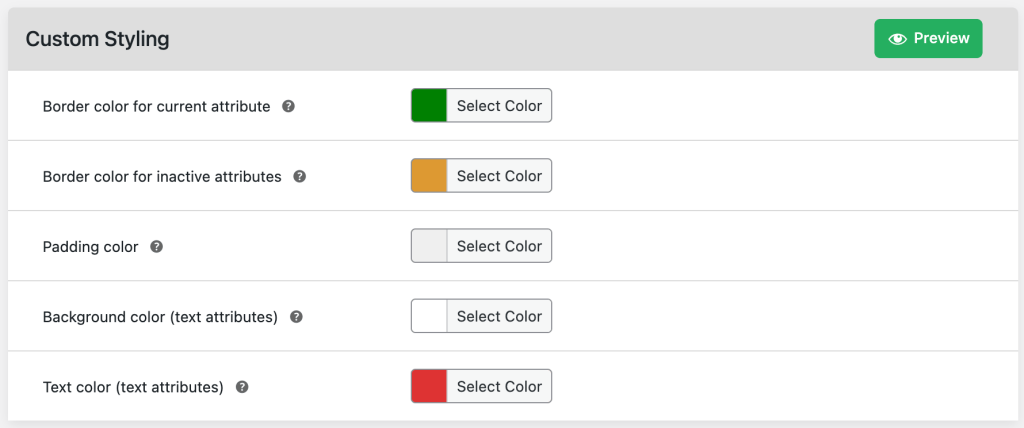
Example of the Custom Styling color fields on Global Settings –
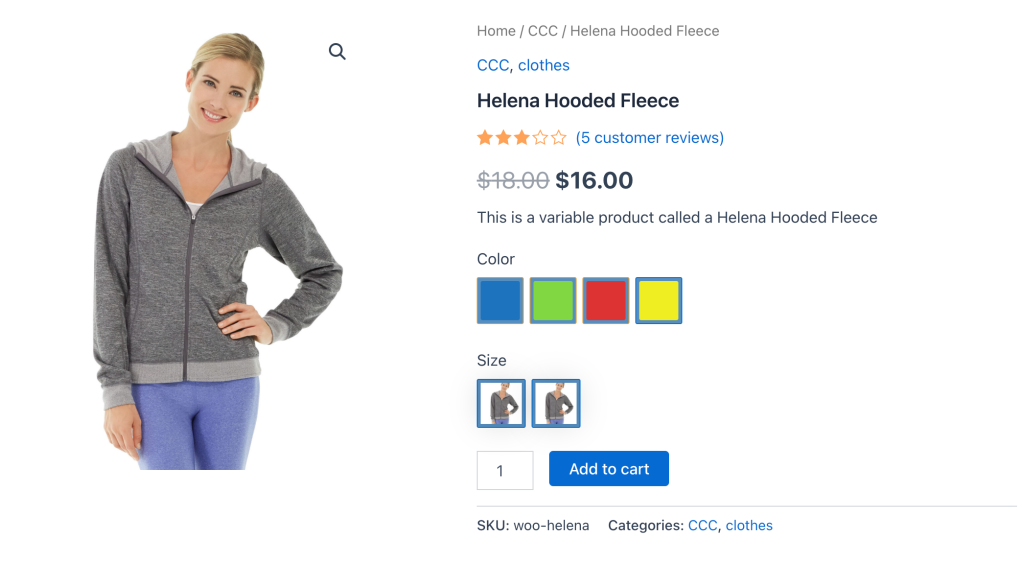
To walk through each setting, see How to Customize Linked Variation Swatch Colors in WooCommerce?
Show Attribute Images or Colors on Linked Swatches
Version 1.1.0 lets you display a swatch as the product photo, as an image or color saved on the attribute term, or as the term name. Show attribute images and Show colors are Premium options. Show product images still works on the free version and in Premium.
Here’s how it works:
1. Add an image or a color to the attribute term
Go to Products → Attributes, then add or edit a term. In the Swatch field, choose Image or Color. You can save only one of these on a term. For an image, click Upload image and then Use this image. For a color, pick the color in the color field. The Swatch field appears only with a Premium license, and only on global product attributes.
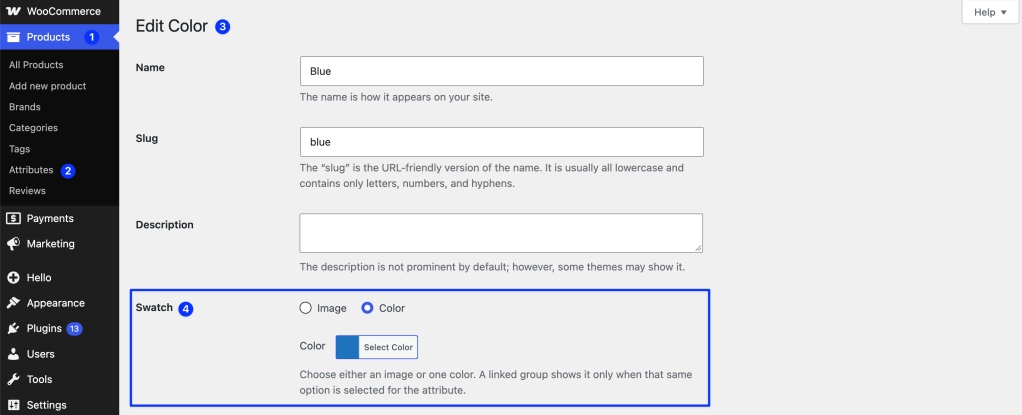
2. Choose the display option in the linked group
Open the group from Linked Variations Group. In Linked by (attributes), click Expand+. Next to each attribute you can select Show product images, Show attribute images, or Show colors.
The storefront shows the image or color only when that same option is selected in the group and on the term. If they don’t match, or the image or color is missing, the swatch falls back to the term name. On a new group, none of the radios is selected, so the swatches show the term name.
For example, upload a fabric photo to each Color term, select Show attribute images for Color, and leave Size with no display option selected. Shoppers see fabric swatches for color and S, M, and L as text for size.
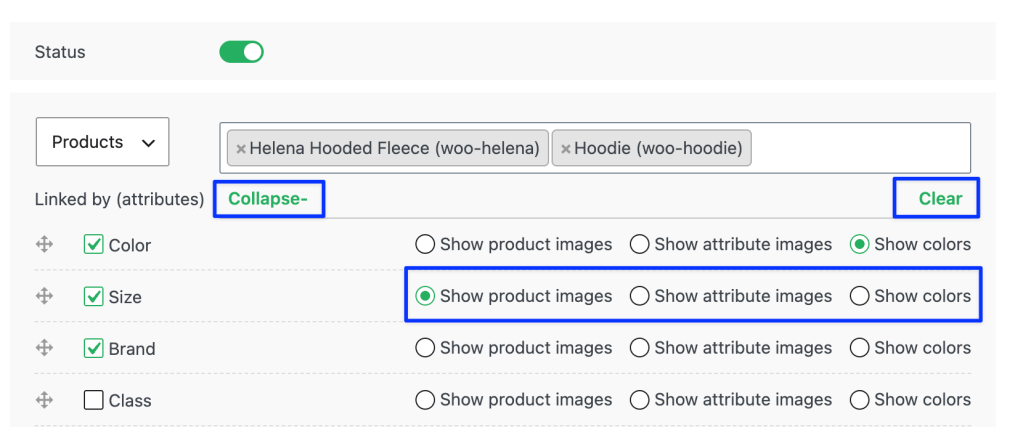
3. Clear the display choice when you need the term name again
If you want to go back to the term name, expand the row and click Clear to the right of Expand+ / Collapse-. Clear appears only while the row is expanded. It clears the display radios and leaves the attribute checkboxes selected. Save the group after you change or clear a display option.
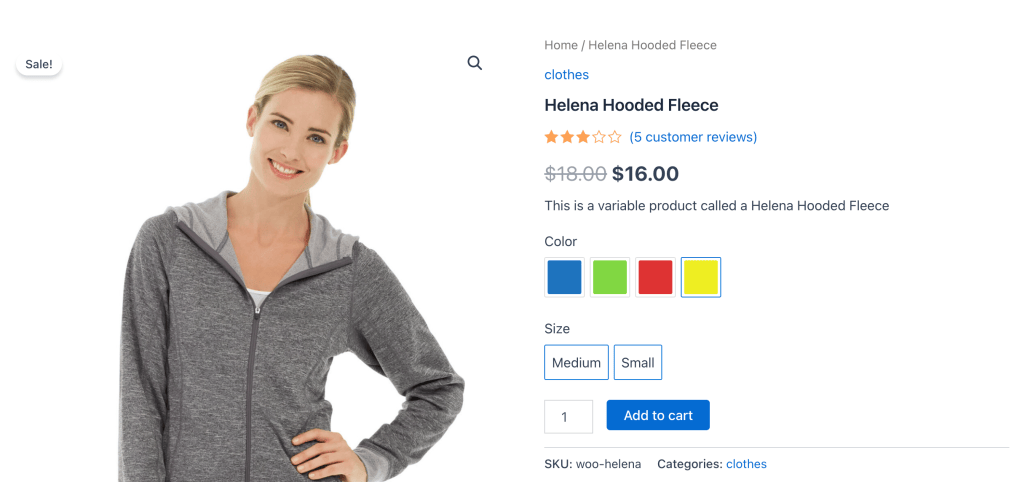
For the full steps, see How to Show Attribute Images or Colors in Linked Variations in WooCommerce?
Choose Swatch Display Options: Shape, Image Popup, and Out-of-Stock Cross
Swatch Display Options changes how swatches look on every linked variation group. You can switch between square and circle swatches, show a larger image card on hover or first tap, and mark a swatch with a cross when that product is out of stock.
Here’s how it works:
- Swatch shape: Square keeps the default look. Circle rounds image, color, and text swatches. If the group uses Show product images, the photo is still the product image. This is one store-wide setting, not a separate “circle with image” or “square with text” option.
- Popup the attribute image: Tick Show a card above image swatches to show a larger card on hover, and on the first tap on a phone or tablet. This applies to product images and attribute images, not to color or text swatches. A second tap follows the existing link.
- Cross for an out-of-stock attribute: Tick Show a cross on out-of-stock swatches to draw a cross on a swatch when that linked product is out of stock. The swatch still links the same way it does today.
Click Preview to open Preview Swatch Display Options, then click Save Changes.

Example of circle swatches and an out-of-stock cross on the product page
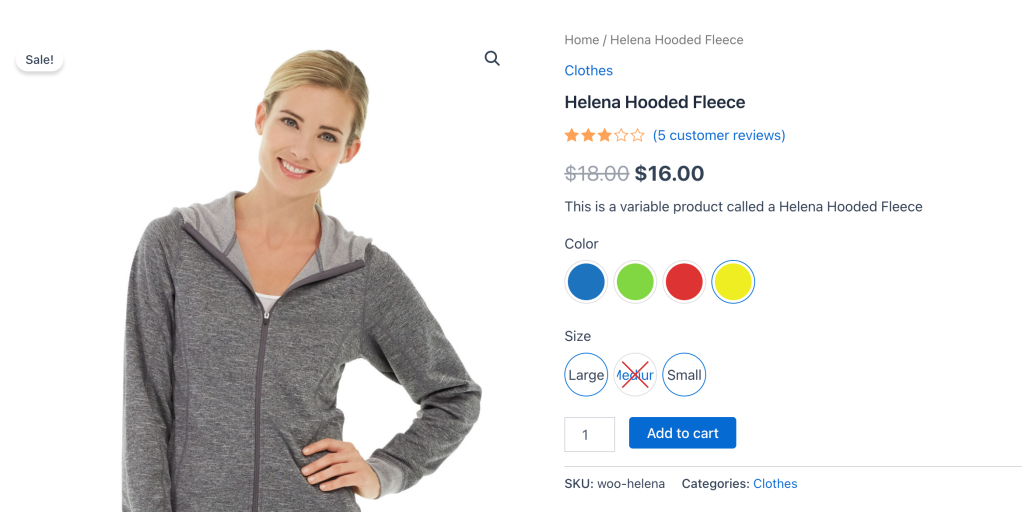
To configure each option, see How to Change Swatch Display Options for Linked Variations in WooCommerce?
✨ Enhancements
This version includes several enhancements designed to improve both the admin experience and compatibility with the latest WordPress and WooCommerce releases. Here’s a summary of the key updates:
1. Updated Linked Variation Group and Settings Layout
The linked variation group editor and the settings screens have been updated, so the new options sit cleanly alongside Basic Configuration. This layout update is included in both the free version and Premium.
2. Compatible with WooCommerce 11.3.x
Version 1.1.0 is compatible with WooCommerce 11.3.x, so you can keep the plugin in use as you update WooCommerce.
3. Improved Plugin UI and Bug Fixes
This update also includes UI enhancements for a smoother interface and the resolution of several bugs, ensuring a more stable and user-friendly experience for both store owners and customers.
Install Linked Variations for WooCommerce 1.1.0 Today!
We’re excited for you to try out these new features in Linked Variations for WooCommerce version 1.1.0. This update gives you more control over swatch colors, images, and layout, and keeps the plugin current with WooCommerce and WordPress.
- Existing Customers: Update your plugin now to access all the latest features, enhancements, and compatibility updates.
- New to Linked Variations for WooCommerce? There’s no better time to get started and show separate products as swatches of each other in your WooCommerce store!
With Custom Styling, attribute images and colors, and Swatch Display Options, this release makes linked products easier to browse and easier to match to your store’s look.
💡 Need Help Getting Started?
Here are some resources to guide you through installation and setup:
- How to Install the Advanced Linked Variations for WooCommerce Plugin – A step-by-step guide for installing the plugin.
- Introduction of WooCommerce Linked Variations Plugin – Learn how to configure and use the plugin.
- Watch the Video Tutorial – A quick visual guide to getting started with the plugin.
🛠️ Have Questions or Need Support?
We’re here to help! If you have any questions or need assistance, reach out to us via our Support Portal.
With these resources and the latest features in version 1.1.0, you’re ready to refresh how linked variation swatches appear in your store. Don’t wait. Install Linked Variations for WooCommerce today and try the new styling and display options!
🗣️👂Your feedback is priority number one! ❤️
Your feedback is our priority! We’d love to hear your thoughts, suggestions for new features, or ideas for improvements.
- Please suggest new features or improvements.
- Give us a shout on X (formerly Twitter), Linkedin, Facebook, and YouTube.
- Let us know what you love about the Linked Variations for WooCommerce plugin.
Curious about how Linked Variations for WooCommerce 1.1.0 can improve the way shoppers browse linked products? Stay tuned for more updates and insights!