Table of Contents
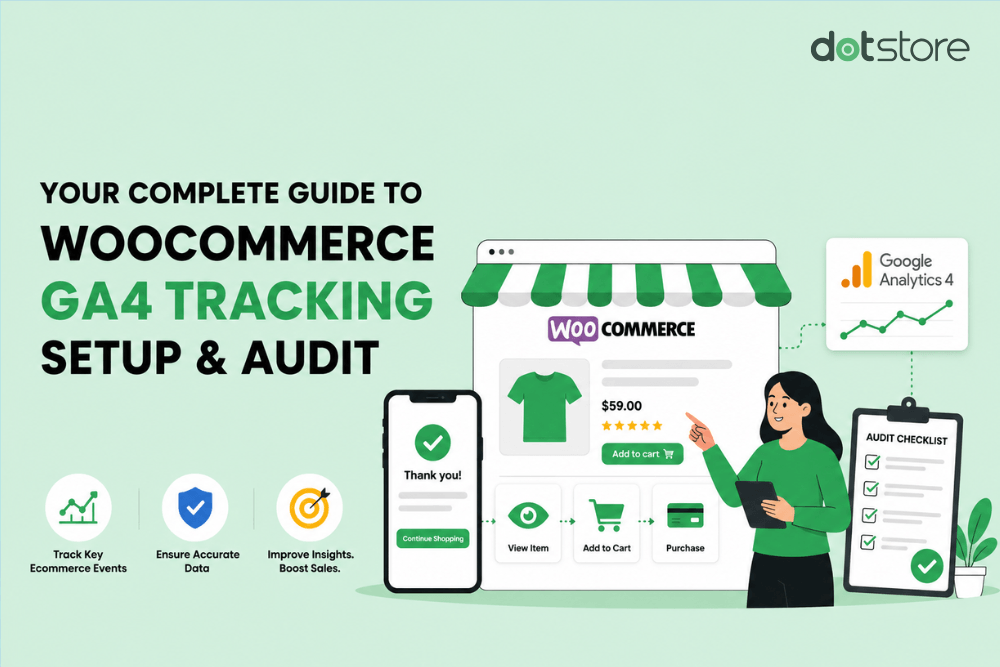
This step-by-step guide shows you how to audit your WooCommerce GA4 ecommerce tracking implementation to make sure that it covers all required events (beyond pageviews and session counts), as well as how to set it up properly from scratch.
Key Takeaways
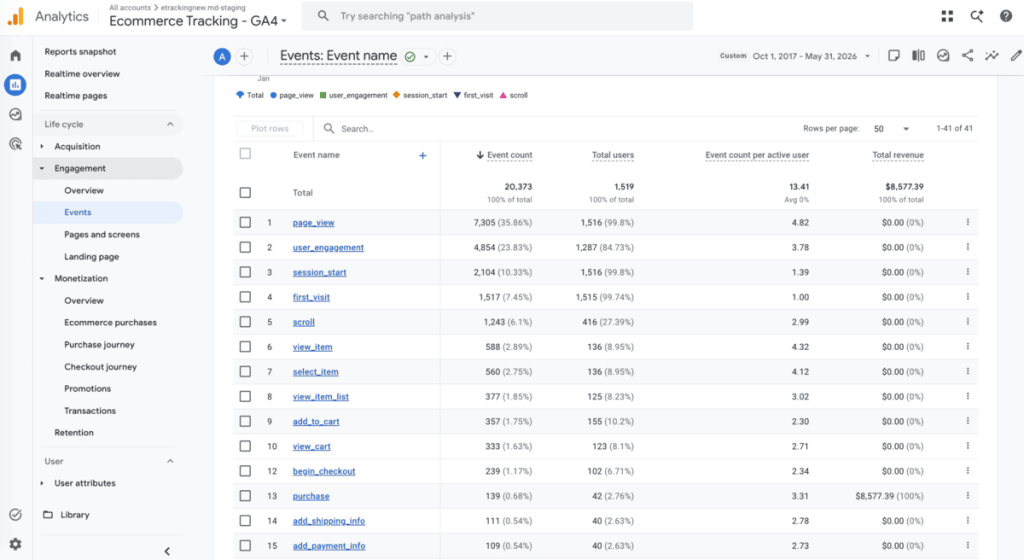
- Many WooCommerce GA4 ecommerce tracking setups miss important events and interactions like add_to_cart, begin_checkout, add_shipping_info, and add_payment_info in the customer journey.
- Common culprits include basic analytics plugins that only track pageviews and purchases, page builder compatibility issues, AJAX add-to-cart, and custom checkout flows.
- Dotstore Enhanced Ecommerce Google Analytics for WooCommerce plugin tracks all essential GA4 ecommerce events and supports custom events and dimensions. It is purpose-built for WooCommerce, takes minutes to set up, and is completely code-free.
Want to set up your WooCommerce site and Google Analytics 4 account to track customers’ activity on your ecommerce store?
Many WooCommerce admins think that they have, but later find out that their integration doesn’t capture the complete customer journey.
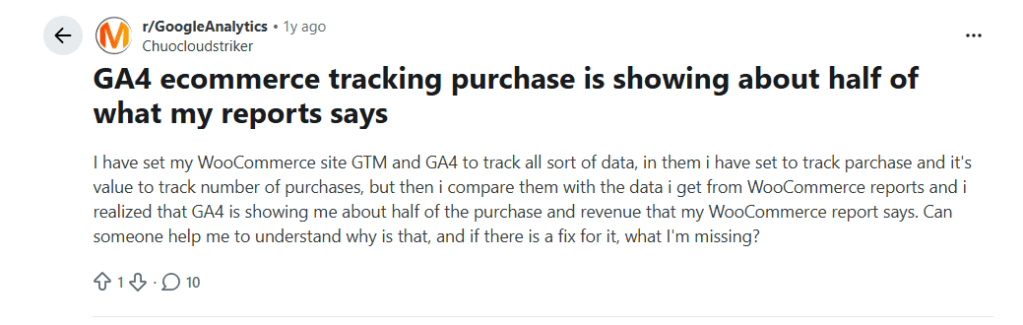
Case in point: in the screenshot below, the store owner mentions that while they connected GA4 to WooCommerce, the data doesn’t match. As a result, they are unable to gain useful insights about their customers and can’t make data-driven marketing decisions for their business.
This tutorial fixes that. Here, I’ll show you step-by-step how to audit your WooCommerce GA4 ecommerce tracking setup to verify that your implementation is working as expected.
If it isn’t working as expected or you haven’t yet configured it, I’ll walk you through the steps to set up WooCommerce and GA4 to automatically capture all relevant ecommerce events, product data, and customer interactions.
We’ll need the powerful Dotstore Enhanced Ecommerce Google Analytics for WooCommerce plugin.
A quick note: Hello and welcome to The Dotstore’s blog! We’ve been building WordPress and WooCommerce solutions since 2009, and now more than 100,000 websites use our plugins to improve revenue, user experience, and simplify store management. Our Dotstore Enhanced Ecommerce Google Analytics for WooCommerce plugin helps WooCommerce admins collect accurate GA4 ecommerce data without writing code or manually configuring events. Try out its live demo or install the plugin’s free or pro version now.
Enhanced Ecommerce Tracking
Leverage the power of analytics to boost your store’s performance and maximize profits.
14-day, no-questions-asked money-back guarantee.
Why is WooCommerce GA4 ecommerce tracking not showing in reports?
If your WooCommerce store and Google Analytics account are not properly connected, your reports will likely miss important ecommerce events or show incorrect revenue figures. Below, we’ll outline the top 4 reasons why WooCommerce GA4 ecommerce tracking may not be working as expected.
Note: If you just set up your tracking, check back after 24 to 48 hours, as GA4 takes time to process some incoming events. Standard GA4 reports can take 24 to 48 hours to fully populate, although DebugView and Realtime reports update much sooner.
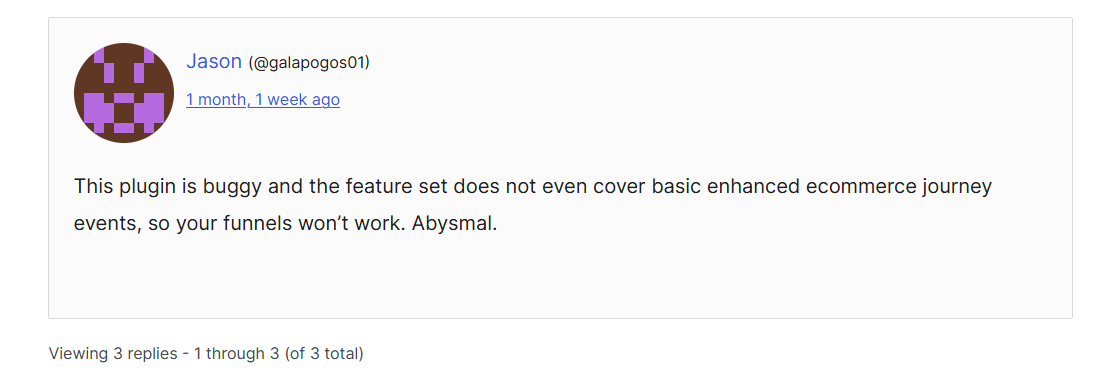
- Your GA WooCommerce plugin only tracks basic analytics, not ecommerce events. Many WordPress analytics plugins can connect your website to GA4 and record page views, outbound clicks, and other general events. However, WooCommerce stores require detailed ecommerce events that reveal how customers browse products, interact with their carts, or complete purchases, including view_item, add_to_cart, begin_checkout, and purchase, along with product-specific information like item IDs, quantities, prices, coupon codes, and transaction values. If your Google Analytics plugin is not purpose-built for WooCommerce, it may only send basic data about website events, which makes your GA4 reports incomplete.
- Duplicate tracking is inflating your reports. A rule of thumb when it comes to installing plugins on your site is to never use more than one plugin for one purpose. The same rule applies to analytics plugins: if you’ve installed multiple WooCommerce GA tracking plugins, e.g., as a plugin combined with Google Tag Manager or manually added tracking scripts, WooCommerce will send the same event to GA4 multiple times. This can result in duplicate purchases, inflated revenue, and conversion rates recorded.
- Custom WooCommerce features change the shopping journey. Using AJAX add-to-cart, quick view popups, side carts, product bundles, one-page checkout, and custom checkout flows improves UX. But they can also change when and how customer actions occur. For example, if you enable product add-to-cart without page reloads, and your analytics plugin fires based on standard page loads, it won’t trigger the add_to_cart event. This creates gaps in your customer funnel reports and makes it difficult to identify the exact customer drop-off point.
- Privacy settings can limit data collection. Privacy regulations such as GDPR require websites to obtain consent before collecting certain types of analytics data. At the same time, many visitors use browser privacy features, ad blockers, or tracking protection software that prevents analytics requests from being sent altogether.
Unlike plugin feature depth and compatibility issues, there’s no workaround that guarantees you’ll capture data from website visitors who decline consent or actively block tracking. Some level of data loss is expected. The important thing is to eliminate the tracking issues you can control.
Using a robust GA4 analytics plugin that’s purpose-built for WooCommerce helps reduce these issues. Below, we’ll introduce Dotstore’s Enhanced Ecommerce Google Analytics for WooCommerce plugin and show how it addresses these common tracking challenges.
WooCommerce GA4 ecommerce tracking audit: checklist
Use the checklist below to audit your WooCommerce Google Analytics ecommerce tracking implementation and verify that every required GA4 ecommerce event is firing correctly.
If it isn’t set up properly, use the tutorial in the next section to properly set it up using the Dotstore Enhanced Ecommerce Google Analytics for WooCommerce plugin.
Step 1: Confirm your WooCommerce and GA4 connection
In your WooCommerce admin, navigate to your Google Analytics plugin settings, and check that a valid GA4 Measurement ID (starting with G-) is connected. Also, make sure that the connected property matches the GA4 account that you are reviewing.
Step 2: Enable ecommerce tracking in Google Analytics 4
In your Google Analytics admin, navigate to Admin → Data display → Ecommerce. Confirm that the “Enable ecommerce” button is toggled on.
Step 3: Watch events fire live in GA4 DebugView
- Install the Google Analytics Debugger Chrome extension and turn it on.
- Open your store in a new tab.
- Visit a product page, add it to your cart, and walk through checkout.
- Navigate to Admin → DebugView and verify that the below ecommerce events are firing in this order:
- view_item on the product page.
- add_to_cart when you click “Add to cart”.
- view_cart when you open the cart.
- begin_checkout when you click “Proceed to checkout”.
- add_shipping_info at the shipping step.
- add_payment_info at the payment step.
- purchase on the order confirmation page.
Step 4: Identify duplicate transactions in GA4
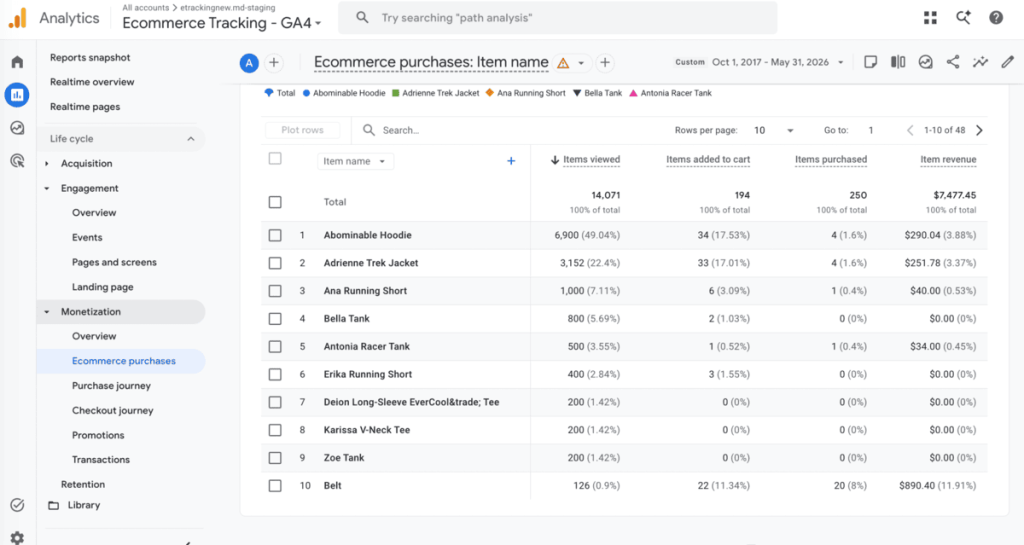
Navigate to Reports → Monetization → Ecommerce purchases in Google Analytics. Review the report to identify if the same transaction ID appears twice.
For instance, if your purchase event fires more than once for the same order, it will inflate your revenue and transaction counts.
Step 5: Identify revenue discrepancies in WooCommerce and Google Analytics
Compare your order totals in WooCommerce against the reported revenue in GA4 for the same period. Note that a 2–5% gap is normal due to GDPR opt-outs, ad blockers, browser privacy, consent mode, network failures, and other tracking limitations.
Step 6: Test the AJAX add-to-cart (if applicable)
If you’ve enabled AJAX add-to-cart in your store (WooCommerce → Settings → Products for “Enable AJAX add to cart buttons on archives”), confirm in DebugView that the add_to_cart event fires when you press the button from a Shop or Category page, without page reload. If the event isn’t recorded, your current WooCommerce GA plugin doesn’t handle it.
Step 7: Filter out internal site visits
In your Google Analytics panel, navigate to Admin → Data streams → [your stream] → Configure tag settings → Define internal traffic and add your office IPs and any team VPNs.
Then navigate to Admin → Data filters and switch on the internal traffic filter to keep your actions on your website from polluting your store’s data.
Dotstore Enhanced Ecommerce Google Analytics for WooCommerce plugin
Dotstore Enhanced Ecommerce Google Analytics for WooCommerce is an advanced WooCommerce GA4 ecommerce tracking plugin. Nearly 5,000 WooCommerce stores across various niches trust it, and users have rated it as the best, giving it a solid 5/5.
Its guided setup wizard makes it super simple to configure and takes less than 5 minutes, even if you don’t have a technical background. And there’s no need to configure Google Tag Manager, manually create ecommerce events, or edit your theme files. Everything is 100% code-free.
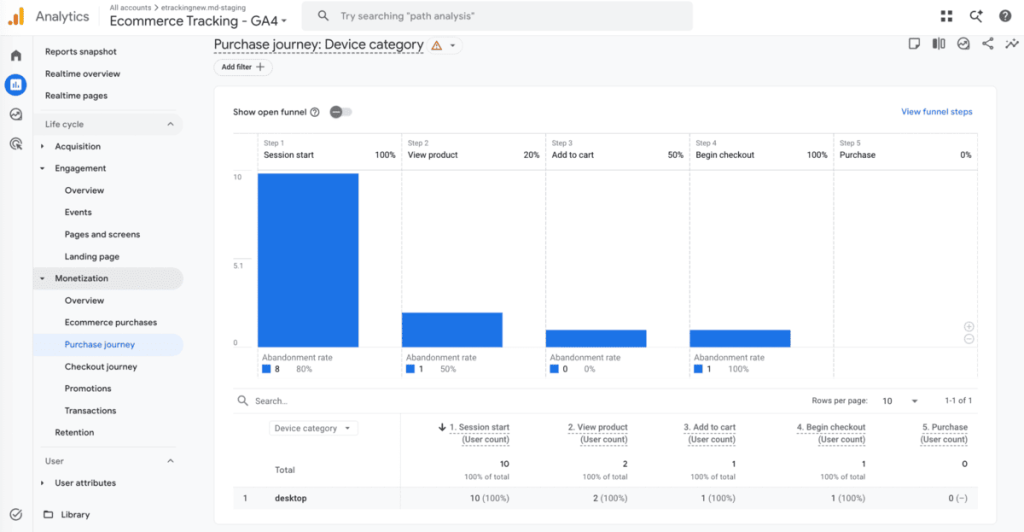
Enabling enhanced ecommerce tracking in WooCommerce and GA4 takes a single click. Once enabled, it automatically tracks all recommended GA4 ecommerce events, namely view_item, add_to_cart, remove_from_cart, begin_checkout, add_shipping_info, add_payment_info, and purchase. This captures complete funnel data inside Google Analytics.
Because it is purpose-built for WooCommerce stores, it works reliably with WooCommerce functionality and reduces many of the tracking problems that lead to missing ecommerce events or incomplete reports.
Dotstore Enhanced Ecommerce Google Analytics for WooCommerce is available in both free and pro versions.
Standout features
- ✔️ It tracks all critical ecommerce-specific events, dimensions, and metrics. As noted above, once you enable enhanced ecommerce, it auto-captures the full GA4 schema:
view_item,add_to_cart,remove_from_cart,begin_checkout,add_shipping_info,add_payment_info, andpurchase. Capturing all this data ensures that GA4’s funnel reports, checkout analysis, and audience segmentation work as intended. - ✔️ You can track custom events, dimensions, and metrics. In addition to tracking Google’s standard ecommerce events, you may want to measure other noteworthy customer interactions. For instance, product enquiry form submissions, interactions with the product configurator before purchasing, or clicking a Request a Quote button. Tracking these actions as custom events alongside your standard ecommerce data enables you to analyze customer behavior to guide business decisions.
- ✔️ It supports dynamic remarketing campaigns. It lets you send product and ecommerce event data to other Google platforms (Google Ads and Google Merchant Center) that can be used to build highly targeted remarketing audiences. Reconnecting with shoppers using products they’ve already viewed or added to their carts (instead of showing generic ads) means they are more likely to purchase from your store.
How to set up WooCommerce GA4 ecommerce tracking correctly
Here’s a step-by-step walkthrough (with screenshots) on how to set up WooCommerce GA4 ecommerce tracking on your website.
- Install and activate the Dotstore Enhanced Ecommerce Google Analytics for WooCommerce plugin’s free or pro version on your website.
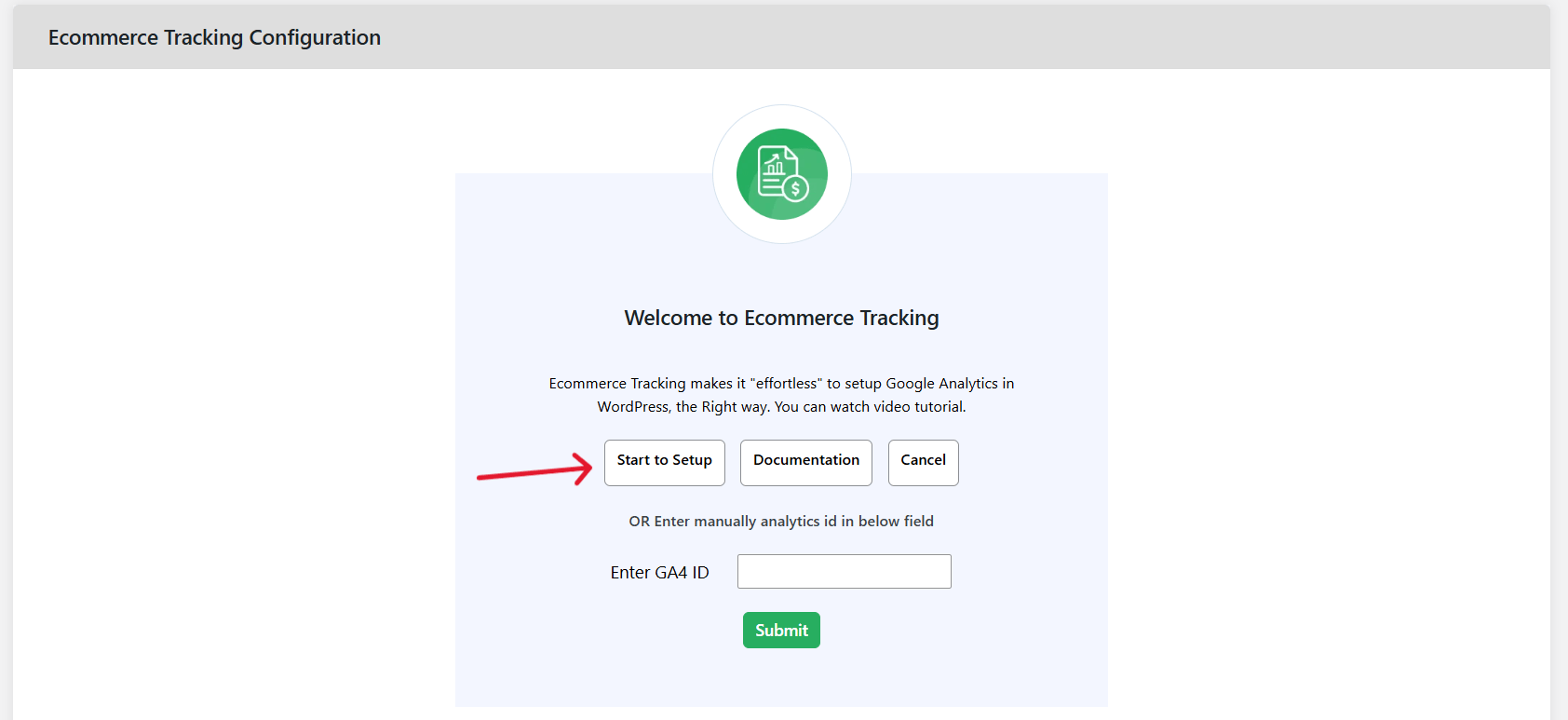
- In your admin panel, navigate to Dotstore Plugins → Ecommerce Tracking.
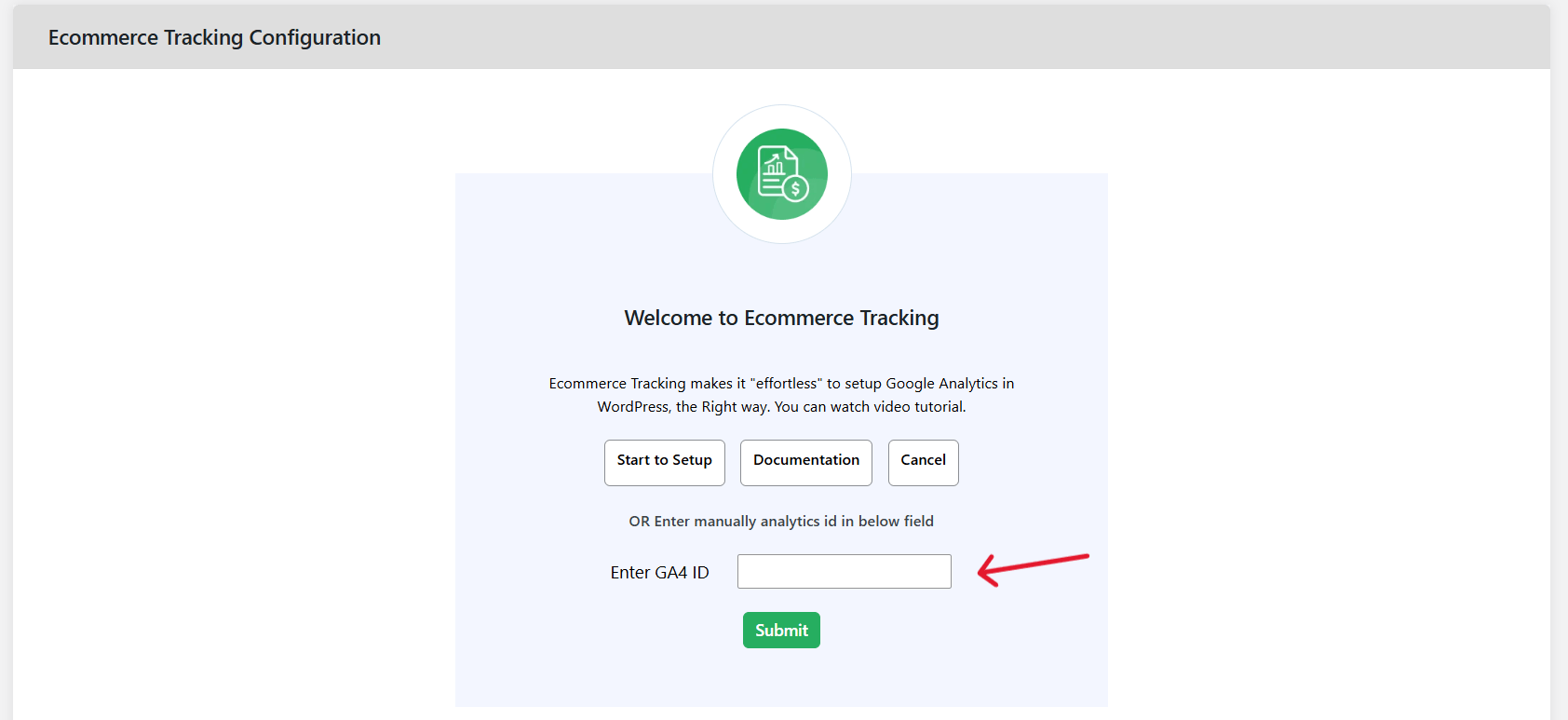
- The first step is to connect WooCommerce to your GA4 account. There are 2 methods:
- Connect WooCommerce to GA4 using the setup wizard: Click on the Start to Setup button to launch the guided setup wizard. Select Sign in with Google and log in with the Google account connected to your GA4 property. The plugin will automatically display all Google Analytics properties linked to that account. Choose the correct GA4 property for your WooCommerce store, then click Complete Connection.
- Connect WooCommerce to GA4 by manually entering your Measurement ID:
- Sign in to your Google Analytics account and navigate to the “Admin” page.
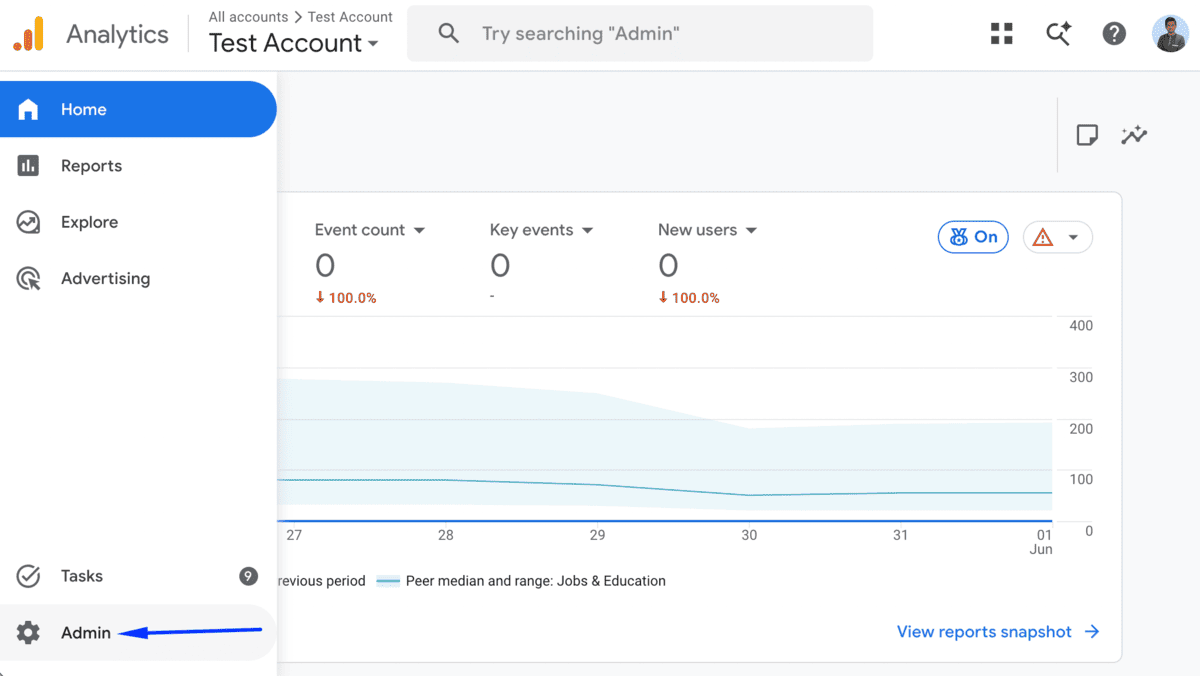
- Select “Data streams” from the “Data collection and modification” section.
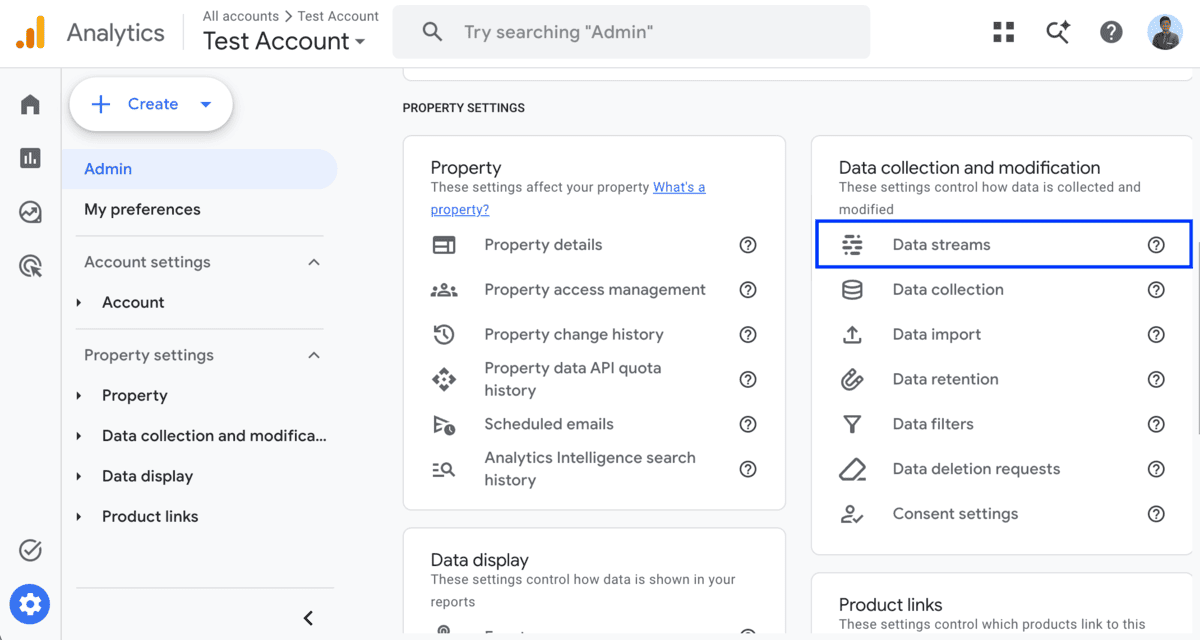
- Open your website’s data stream and copy its Measurement ID.
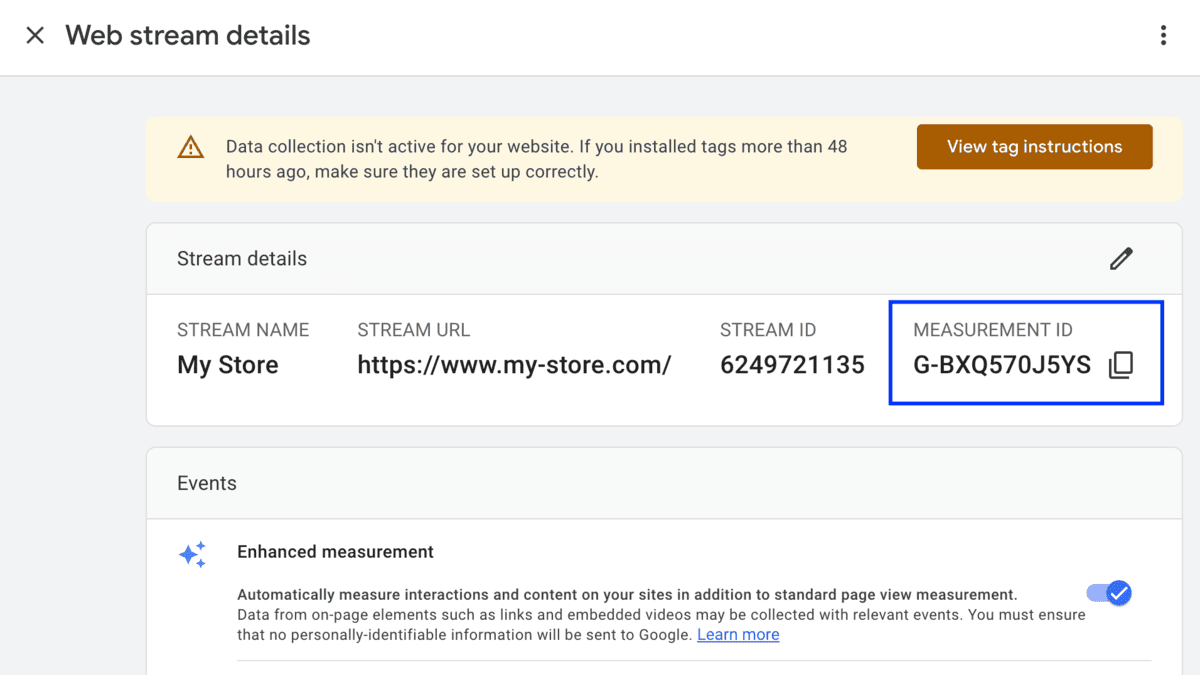
- Return to your WordPress admin, paste the Measurement ID into the Enter GA4 ID field, and press the “Submit” button.
- Sign in to your Google Analytics account and navigate to the “Admin” page.
- Connect WooCommerce to GA4 using the setup wizard: Click on the Start to Setup button to launch the guided setup wizard. Select Sign in with Google and log in with the Google account connected to your GA4 property. The plugin will automatically display all Google Analytics properties linked to that account. Choose the correct GA4 property for your WooCommerce store, then click Complete Connection.
- Once the WooCommerce Google Analytics integration is complete, enable the “Enable Enhanced Ecommerce” option. This will send detailed WooCommerce events to GA4, including product views, add to cart, remove from cart, checkout activity, completed purchases, revenue, coupon usage, cart quantity updates, and other ecommerce interactions.
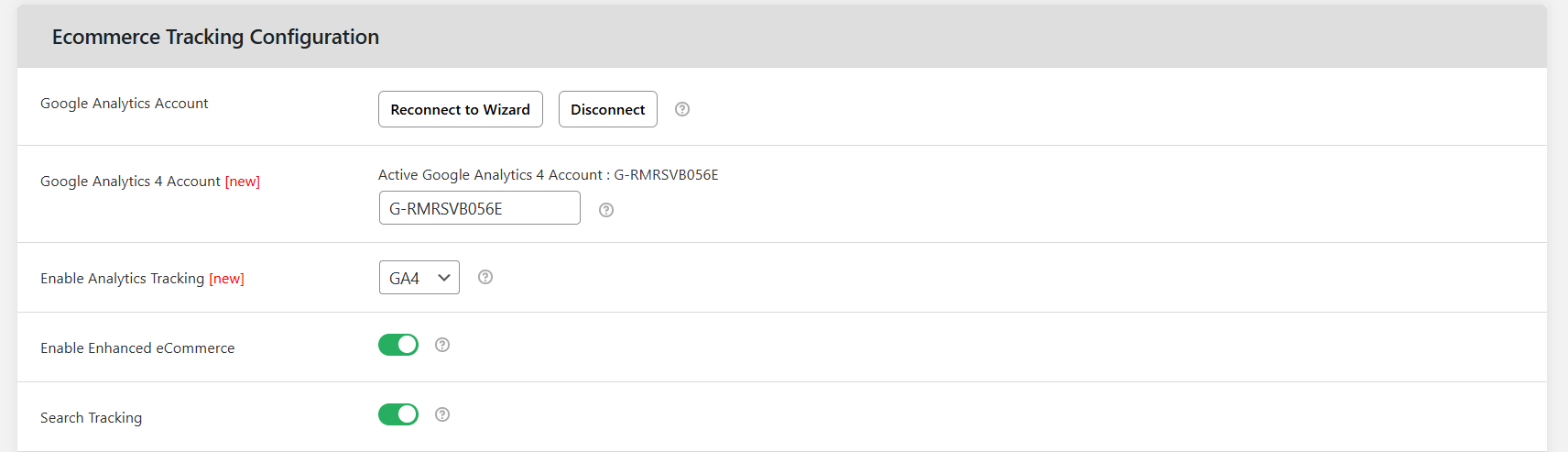
- Important additional ecommerce-specific tracking options to enable are:
- Search Tracking: This records the search terms visitors use on your WooCommerce store.
- Sign-up Tracking: This fires the sign_up event whenever a new customer creates an account on your store.
- Demographics and Interests: You can collect audience data for remarketing campaigns.
- You can also enable custom event tracking to monitor specific user actions on your store.
- Finally, scroll to the bottom of the page and press the “Save Changes” button to apply your settings.
Which WooCommerce GA4 ecommerce tracking plugin should you use?
If your current WooCommerce Google Analytics plugin passes the GA4 ecommerce tracking audit checklist, you’re all set.
But if you’re missing ecommerce events, seeing gaps or duplicated transactions, or if you haven’t yet set up ecommerce tracking on your WooCommerce store, the Dotstore Enhanced Ecommerce Google Analytics for WooCommerce plugin is your best bet.
It is specifically built for WooCommerce, and its guided setup wizard walks you through each step to connect to GA4 and enable enhanced ecommerce.
Dotstore Enhanced Ecommerce Google Analytics for WooCommerce captures every required GA4 ecommerce event automatically, so your funnel reports show the full customer journey. And you can track custom events, dimensions, and metrics to monitor important product, customer, and transaction details.
Ready to set up WooCommerce GA4 ecommerce tracking? Try out the Dotstore Enhanced Ecommerce Google Analytics for WooCommerce plugin’s live demo or install the free or pro version on your site now.
Enhanced Ecommerce Tracking
Leverage the power of analytics to boost your store’s performance and maximize profits.
14-day, no-questions-asked money-back guarantee.