Table of Contents
Here’s how to set up WooCommerce Google Analytics conversion tracking to properly capture ecommerce events in your online store (100% no code).
Key Takeaways
- Most WooCommerce Google Analytics conversion tracking setups only record completed purchases, leaving important mid-funnel events untracked.
- Missing GA4 events produce inaccurate funnel reports, distorted attribution data, weaker ad platform signals, and make it harder to identify revenue growth opportunities.
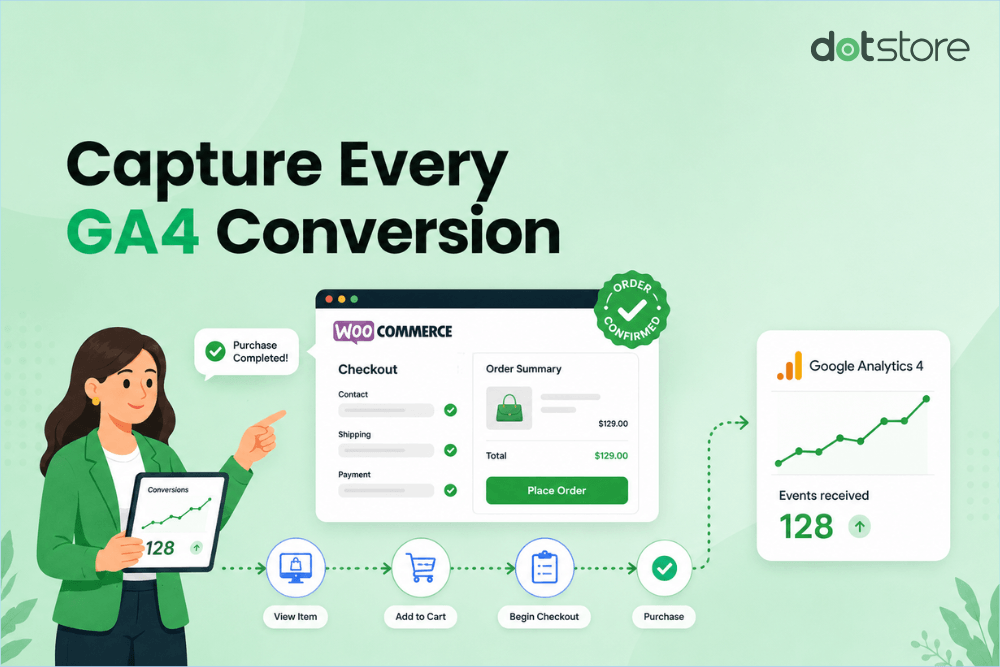
- The Dotstore Enhanced Ecommerce Google Analytics for WooCommerce plugin tracks the complete customer journey on your site, including product interactions, cart activity, checkout steps, completed orders, and more.
Want to know whether your WooCommerce Google Analytics conversion tracking is set up to properly capture conversions and ecommerce events?
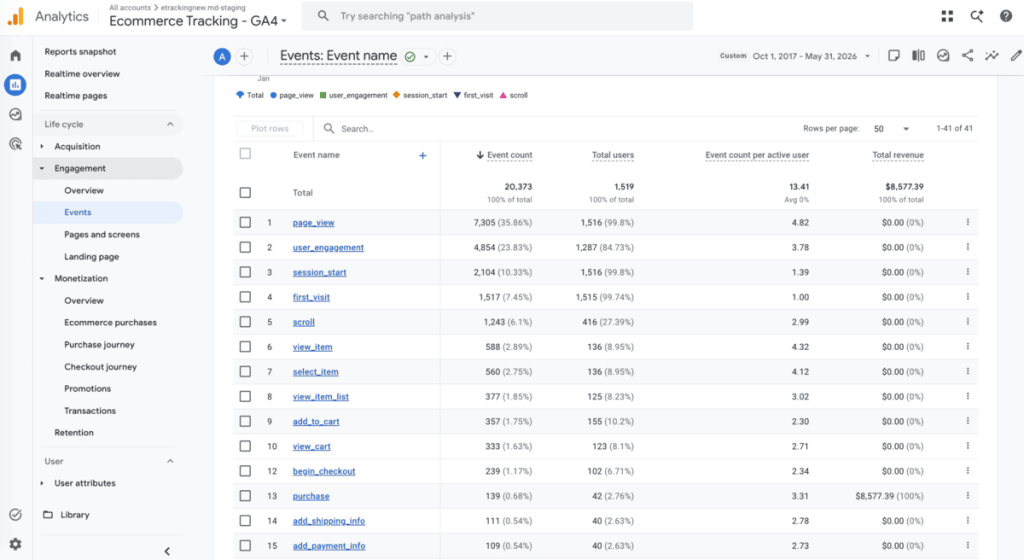
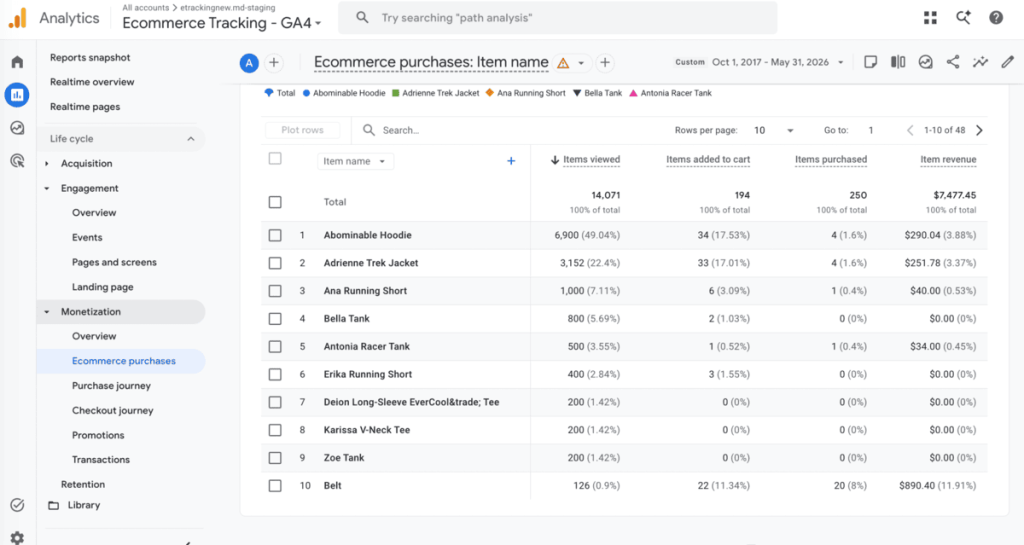
Here’s how to check: Open your GA4 dashboard and look at your ecommerce reports. In addition to the basic purchase, revenue, and traffic attribution data, you should be able to pull up data on product views, add-to-cart actions, checkout drop-offs, and other events that occur before the sale.
If you can’t access reports about these pre-sale events, your WooCommerce Google Analytics conversion tracking isn’t properly set up.
In this tutorial, I’ll walk through the GA4 events every WooCommerce store should track and show you how to set up complete WooCommerce Google Analytics conversion tracking.
Plugin used in this guide
- Dotstore Enhanced Ecommerce Google Analytics for WooCommerce: A powerful plugin that implements accurate GA4 conversion tracking for the complete customer journey, including product views, add-to-cart actions, checkout activity, purchases, and other ecommerce events. Try out the live demo or install the free and pro plugin version now.
Enhanced Ecommerce Tracking
Leverage the power of analytics to boost your store’s performance and maximize profits.
14-day, no-questions-asked money-back guarantee.
What GA4 events should WooCommerce track?
GA4 uses streams of structured ecommerce events to accurately capture how customers behave at multiple touchpoints in an online store. To avoid gaps that distort a WooCommerce store’s reporting, important events must fire.
Here are the most crucial ecommerce metrics every WooCommerce Google Analytics conversion tracking setup should capture (at a minimum) and their uses.
Product view rate
- Why it matters: It measures how effectively your store turns visitors into engaged product browsers.
- What it reveals: A low product view rate often signals product discovery issues like weak navigation, poor category structure, or bland landing pages that fail to entice shoppers to explore your product catalog.
Add-to-cart rate
- Why it matters: It shows whether product detail pages are generating buying intent, rather than traffic alone.
- What it reveals: If your product views are healthy but add-to-cart rates are low, it usually signals pricing concerns, ineffective product descriptions, missing product documentation, or missing trust signals like reviews and return policies.
Cart-to-checkout rate
- Why it matters: It tracks the number of shoppers who add something to their cart and follow through to the checkout page.
- What it reveals: Unexpected shipping costs, a complicated cart interface, or a lack of guest checkout options are the most common triggers for cart abandonment at this stage of the customer journey.
Checkout completion rate
- Why it matters: It measures how many shoppers start the checkout process and successfully finish it. The checkout completion rate is one of the highest-value conversion metrics to monitor, as small improvements here quickly translate into improved revenue.
- What it reveals: Checkout drop-offs often point to friction in the payment flow, limited payment options, or mobile usability problems.
Purchase conversion rate
- Why it matters: Probably the most popular ecommerce metric, the purchase conversion rate tracks the percentage of visitors who become paying customers.
- What it reveals: Overall efficiency of your ecommerce store and customer funnels. Note that unless upstream events are in place, this number exists in a vacuum, as you won’t be able to understand the factors that directly impact the conversion rate.
Revenue by traffic source
- Why it matters: It identifies which marketing channels generate revenue, instead of traffic alone.
- What it reveals: Campaign effectiveness so you can better allocate marketing budget. Some channels drive high-traffic but low-conversion visitors while others may bring fewer people but close more sales.
Revenue by product
- Why it matters: It reveals which products specifically drive the most sales and profit.
- What it reveals: Your top performers, your underperforming inventory, along with merchandising opportunities you may be leaving on the table, such as product bundles that pair slow-moving products with bestsellers.
Why does accurate WooCommerce Google Analytics conversion tracking matter?
The path customers take from the moment they land on your WooCommerce store to when they successfully complete a purchase isn’t linear. This means that capturing purchase data alone doesn’t necessarily mean your Google Analytics tracking setup is accurate.
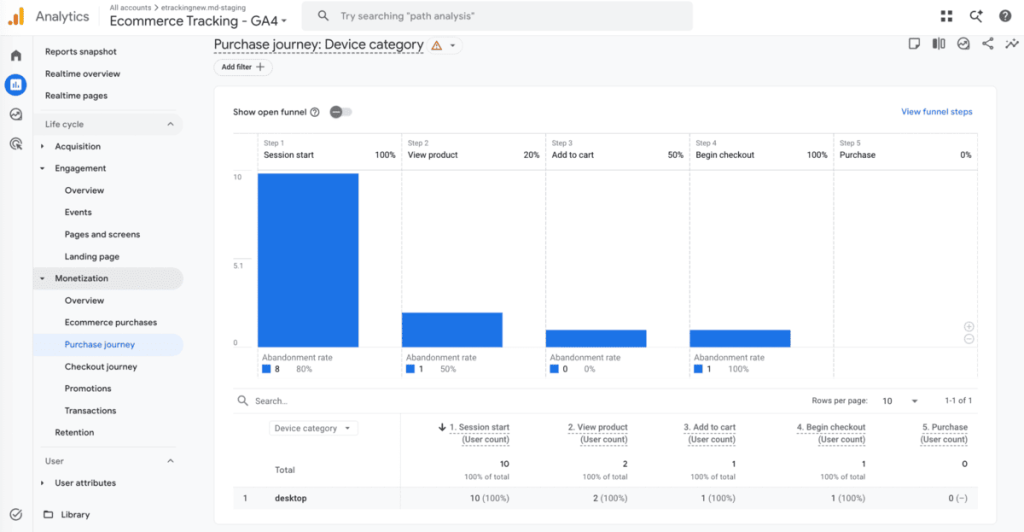
GA4’s funnel-based reporting heavily depends on event continuity. Each step or touchpoint in the customer journey must fire a structured event for the data to be meaningful and usable. As a result, missing even a single important event can warp the whole picture.
An incomplete Google Analytics WooCommerce conversion tracking setup can affect your WooCommerce store in the following ways.
- Weaker conversion signals sent for remarketing purposes. Google Ads and Google Merchant Center use conversion events to improve audience targeting, automated bidding, remarketing campaigns, and return-on-ad-spend (ROAS) reporting. If your WooCommerce conversion tracking setup only captures purchases while missing important pre-purchase interactions, these platforms naturally receive less information about customer intent. This makes remarketing audiences, lookalike audience generation, campaign optimization, and overall marketing efforts less effective.
- Distorted marketing attribution. Attribution data shows which marketing channels influence revenue. But attribution only works when GA4 can connect customer interactions across the entire buying journey. If important events are missing, GA4 may incorrectly assign revenue to the wrong channel or fail to connect related sessions altogether. It’s common for a customer to first discover your store through organic search, sign up to your newsletter, return through a targeted email campaign, and make their first successful purchase after clicking on a paid Instagram ad. Incomplete event data makes it difficult to understand which specific touchpoints contributed to the sale. This makes it harder to make marketing decisions with confidence.
- Unreliable conversion funnels. Some of the most valuable ecommerce insights come from understanding what happens before a sale occurs. You need conversion funnels to understand how shoppers progress from product discovery to purchase. Unless you track key ecommerce events such as view_item, add_to_cart, begin_checkout, add_payment_info, and others, you’ll be unable to identify the exact point where customers drop off. For example, imagine hundreds of shoppers land on a specific product page every week, but it only generates a handful of sales. Without clear visibility into cart activity and checkout behavior, it’s next to impossible to know whether the problem lies with the product page, the cart experience, shipping costs, the checkout process, or something else entirely.
- Hidden revenue growth opportunities. Accurate WooCommerce Google Analytics conversion tracking maps customers’ paths to purchase so you can identify improvements that convert more visitors into customers. Visibility into product views, cart interactions, checkout progression, and other customer actions uncovers opportunities for massive revenue growth. Without complete ecommerce tracking, these revenue growth opportunities often remain hidden inside incomplete reports. For example:
- A product page that receives significant traffic but generates very few add-to-cart actions may indicate pricing concerns, weak product descriptions, or missing trust signals.
- A large number of abandoned carts could point to shipping costs, payment issues, or unnecessary friction in the checkout flow.
The problem with most WooCommerce Google Analytics conversion tracking plugins
Most WooCommerce analytics plugins do exactly what they promise: they connect your store to Google Analytics. Install the plugin, enter your GA4 Measurement ID, and purchases start appearing in your store’s reports.
But connecting WooCommerce to GA4 and implementing complete Google Analytics conversion tracking for WooCommerce are two very different things.
Here are the limitations of using basic WooCommerce GA4 conversion tracking plugins:
- ❌ Missing enhanced ecommerce events. Some plugins only track page views, sessions, and completed purchases. Product impressions, add-to-cart actions, cart updates, checkout initiation, shipping information submission, payment method selection, and other mid-funnel events are unrecorded.
- ❌ Inconsistent event tracking. AJAX add-to-cart, custom themes, page builders, express checkout solutions, third-party plugins, and other types of store customizations can disrupt how events fire or prevent events from firing.
- ❌ Limited reporting depth. Without custom dimensions, product-level breakdowns, or audience segmentation built into the reporting layer, it’s hard to turn raw conversion data collected into insights useful for business decisions.
The best plugin for WooCommerce Google Analytics conversion tracking
The Dotstore Enhanced Ecommerce Google Analytics for WooCommerce plugin tracks ecommerce interactions across the entire customer journey. It is available in both free and pro versions.
Since its launch in 2015, thousands of small, mid-sized, and large WooCommerce websites across various niches have used it to collect insights into customer behavior and make data-driven business decisions.
Once you enable enhanced ecommerce event tracking, it captures the full spectrum of GA4 ecommerce events: product impressions, product views, add-to-cart actions, cart updates (including quantity changes and removals), every step of the checkout process, and completed purchases.
Instead of organizing your store’s data based on GA4’s defaults, you can set up custom dimensions and metrics to track additional information about your products, customers, and transactions. This lets you segment your data to match your business’s operations.
Standout features
- ✔️ Custom event tracking. Alongside tracking standard ecommerce events, you can set up tracking for specific actions that are unique to your business model or customer journey and aren’t captured by the generic WooCommerce GA4 integration.
- ✔️ Dynamic remarketing support. It lets you serve personalized ads to visitors who don’t buy on their first session based on the specific products they viewed or added to their carts. So you can build campaigns with precise audience data.
- ✔️ Role-based exclusions. Internal traffic from store admins, developers, and employees can quietly skew your conversion data in ways that are hard to detect. Its role-based exclusions feature lets you filter those users out so your reports reflect customers’ behavior on your site.
- ✔️ Real-time tracking. Running a sale or a marketing campaign? You can monitor customer behavior in real time and schedule automatic reports to constantly stay updated on store performance.
How to set up WooCommerce Google Analytics conversion tracking
With Dotstore Enhanced Ecommerce Google Analytics for WooCommerce, tracking each WooCommerce conversion event in Google Analytics is pretty straightforward. The best part? Setting this up only takes a few minutes. Here’s how to do it step by step.
- Download the Dotstore Enhanced Ecommerce Google Analytics for WooCommerce plugin’s free or pro version on your website.
- Upon activation, go to Dotstore Plugins → Ecommerce Tracking in your site’s dashboard.
- Connect your GA4 property to WooCommerce using any of the two methods below:
- Sign in with Google (recommended): Click “Start to Setup” to open the setup wizard, then click “Sign in with Google.” The plugin pulls all GA4 properties associated with your account. Select the correct GA4 ID and press the “Complete Connection” button.
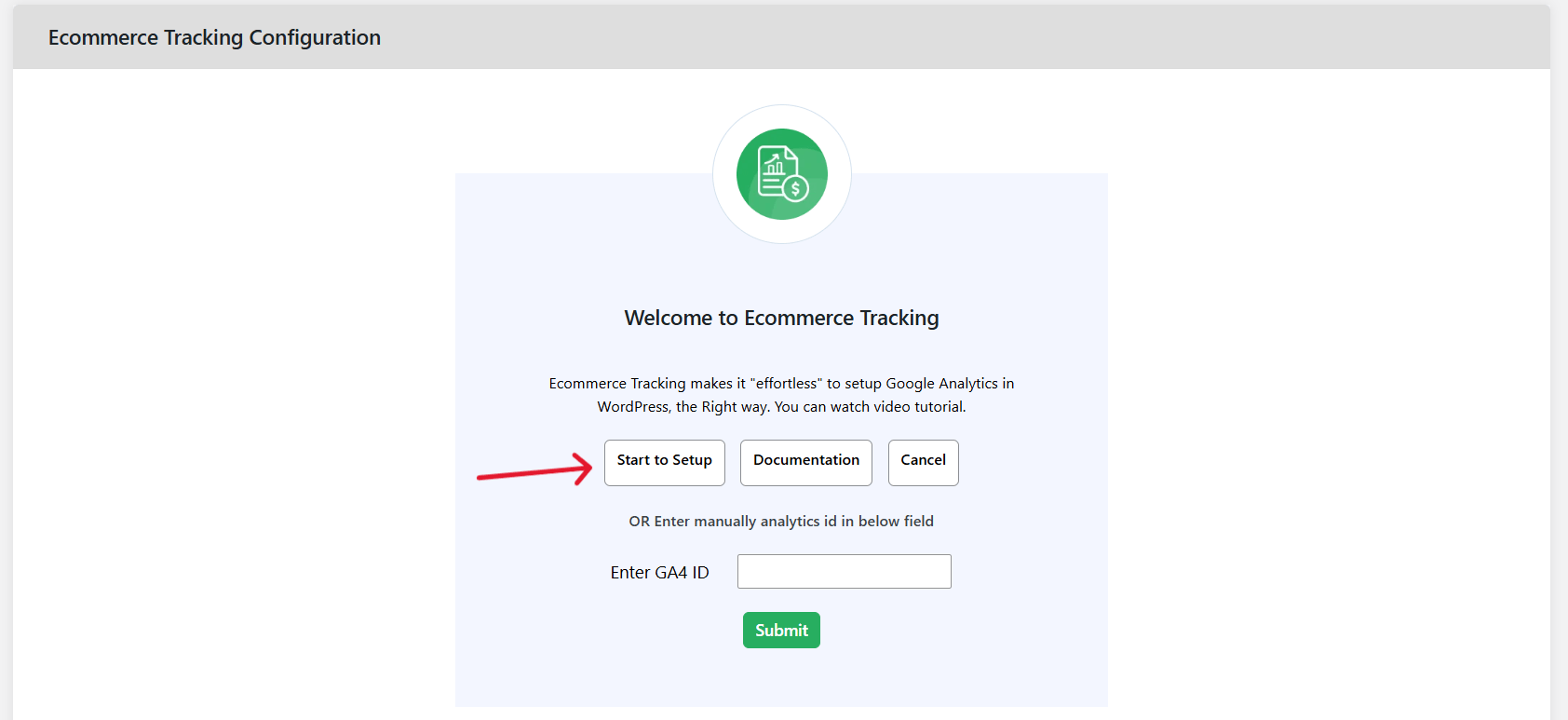
- Enter your Measurement ID manually: Log into Google Analytics and press the Admin button. Under “Data collection and modification,” select Data streams, click on your store’s stream, and copy the Measurement ID. Paste it into the “Enter GA4 ID” field in the plugin settings and click “Submit”.
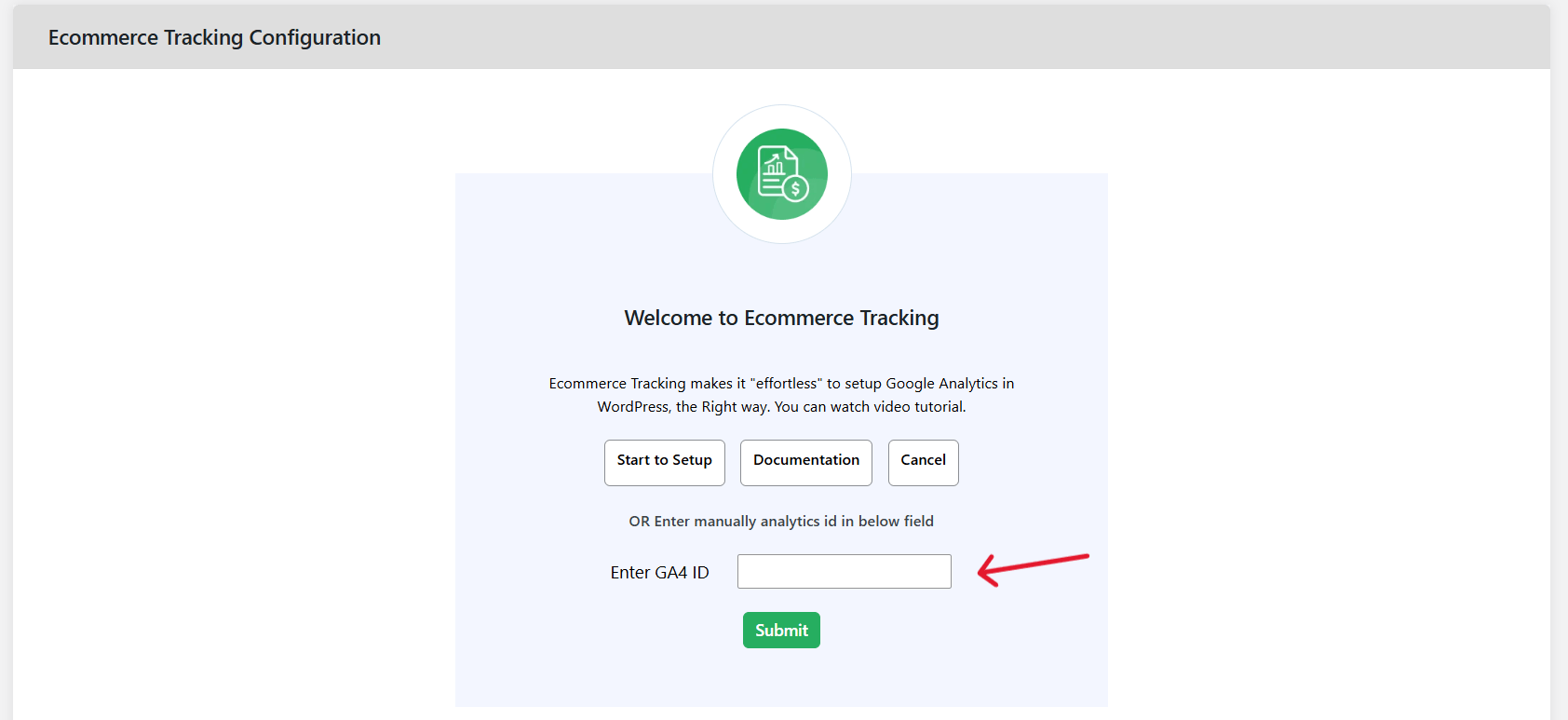
- Sign in with Google (recommended): Click “Start to Setup” to open the setup wizard, then click “Sign in with Google.” The plugin pulls all GA4 properties associated with your account. Select the correct GA4 ID and press the “Complete Connection” button.
- Enable Enhanced eCommerce to start sending the full range of ecommerce events (transactions, revenue, product views, add-to-cart actions, cart quantity changes, coupon applications, etc.) from WooCommerce to GA4.
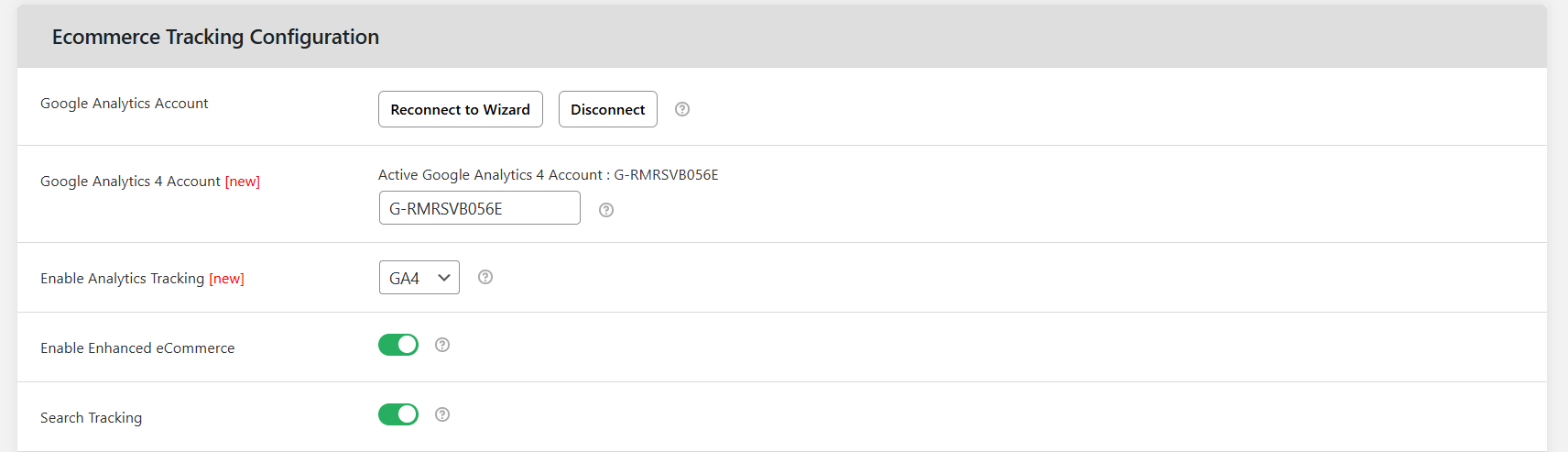
- Configure additional tracking options that apply to your store:
- Search Tracking — This sends on-site search terms to GA4, useful for spotting demand gaps in your catalog.
- Sign Up Tracking — This fires a sign_up event when visitors register on your site, so you can map customer account creation to future purchase behavior.
- Custom Events — Set up tracking for specific actions that matter to your business.
- Demographics and Interests — This enables audience data for remarketing and ad campaigns.
- Press the “Save changes” button.
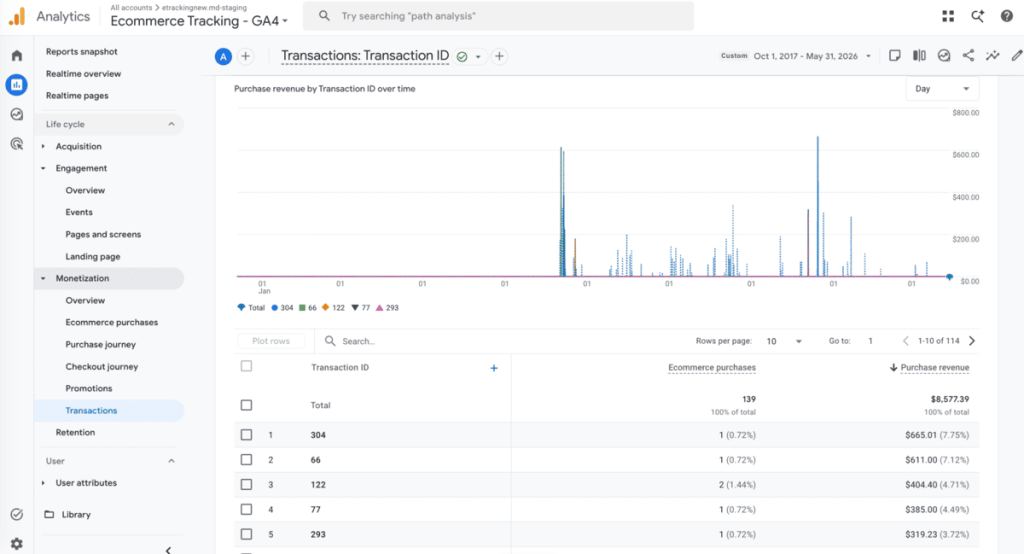
To make sure your WooCommerce and Google Analytics conversion tracking system works as intended, open any product page on your website and add an item to the cart. Finally, check GA4’s Realtime report to confirm that ecommerce events are recorded.
Enable complete WooCommerce Google Analytics conversion tracking
Accurate WooCommerce Google Analytics conversion tracking requires more than simply recording purchases. Most of your store’s conversion insights come from the events that occur before a purchase, i.e., product impressions, add-to-cart actions, checkout step completions, etc.
If your WooCommerce Google Analytics conversion tracking setup only records the final transaction, you’re seeing the end result without valuable context. You’ll be unable to identify exactly where customers are dropping off, which campaigns are driving purchase intent versus just clicks, and other useful data points.
With the Dotstore Enhanced Ecommerce Google Analytics for WooCommerce plugin, you can track the complete ecommerce journey, from a shopper’s first product impression to their completed order.
Collecting more robust data means you can optimize marketing campaigns faster, spend your ad budget more effectively, and make data-driven business decisions with ease.
Ready to set up complete WooCommerce Google Analytics conversion tracking to capture important GA4 events on your site? Try the Dotstore Enhanced Ecommerce Google Analytics for WooCommerce plugin’s live demo or install the free or pro plugin version on your site today.
Enhanced Ecommerce Tracking
Leverage the power of analytics to boost your store’s performance and maximize profits.
14-day, no-questions-asked money-back guarantee.