Table of Contents
In this guide, we’ll walk through what quoting looks like inside WooCommerce and how to set it up properly. Explore the best WooCommerce request a quote plugin to handle products that don’t have a fixed price.
Key Takeaways
- WooCommerce does not have a built-in request a quote feature. You need a dedicated plugin to add quoting functionality to your store.
- A request a quote setup is essential for B2B and wholesale stores, custom or made-to-order products, variable bulk pricing, out-of-stock items, regulated products, and service-based stores.
- Dotstore’s Request Quote for WooCommerce lets you show the quote button only where it makes sense, by product, category, tag, or user role, with no coding required.
- You can hide prices entirely, show both Add to Cart and Request a Quote on the same page, or restrict quoting to specific customer types like wholesalers.
- Accepted quotes convert directly into WooCommerce orders with one click, closing the loop from inquiry to sale entirely inside your dashboard.
Sometimes a product just can’t be sold at a flat price.
Maybe it’s a bulk order. Maybe it’s made to order. Maybe it depends on where the customer is or what they need.
If you’ve ever had a customer ask, “Can I get a quote for this?”, you already know WooCommerce doesn’t make that easy. There’s no built-in way for someone to request a custom price without jumping through hoops.
So what usually happens? They leave.
You miss out on a sale that might’ve been big, just because there was no clear path to ask for what they needed.
And if you try to handle it manually, with contact forms or email threads, you end up chasing requests across inboxes. It gets messy fast.
This is where WooCommerce request a quote functionality makes a real difference.
| The fastest way to add it is a dedicated plugin. Dotstore’s Request Quote for WooCommerce puts a quote button exactly where you want it, by product, category, tag, or user role, hides prices when you need to, and turns accepted quotes into orders with one click. No code, no inbox chaos. We’ll cover setup below. |
Why WooCommerce Request a Quote Beats Fixed Pricing in 2026
Not everything should be added to cart with a click.
Some products need a conversation first. Maybe the price changes based on quantity. Maybe the item’s custom-built. Or maybe you’re selling to businesses that always negotiate terms.
This kind of flexibility is common in B2B, wholesale, and service-based stores. And it’s growing.
More customers now expect to ask before they buy, especially when:
- They’re placing a large order
- They want something tailored
- They’re comparing options and looking for the best deal
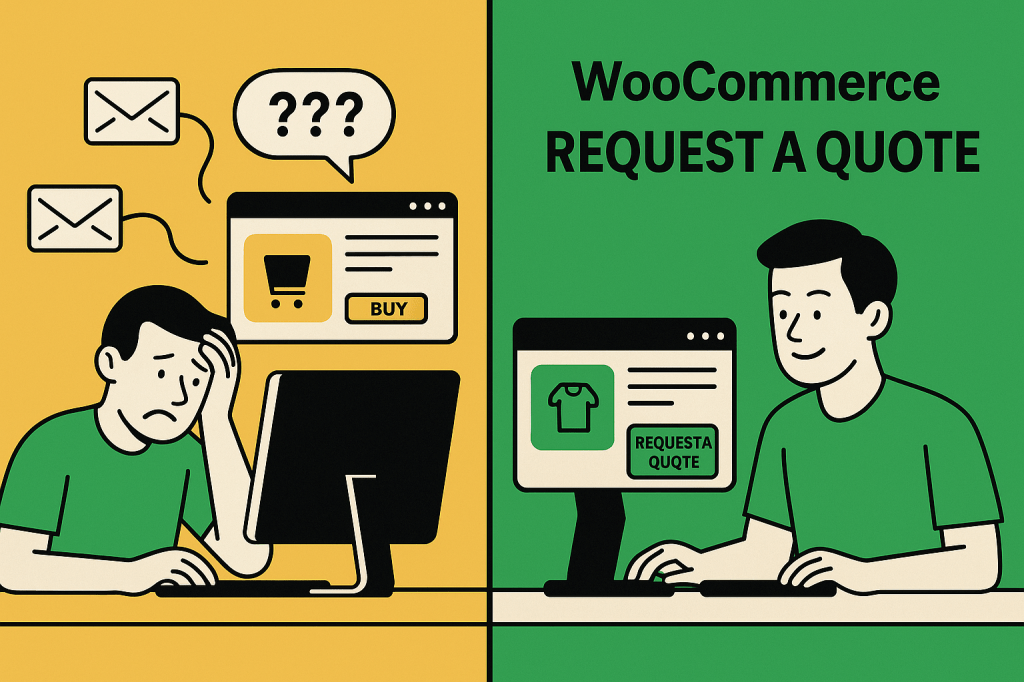
WooCommerce Request a Quote Use Case: Custom Furniture Store
A WooCommerce request a quote setup makes sense if you run a B2B or wholesale store, sell custom or made-to-order products, need variable pricing based on order quantity, want to capture leads on out-of-stock items, sell regulated or trade-only products, or offer services that require scoping before a price can be set.
If your store only shows a fixed price and a buy button, you could be losing potential buyers. Not because they’re not interested, but because they need more clarity first.
A simple WooCommerce Request a Quote option fills that gap. It gives people a way to raise their hand, share what they need, and get a price that makes sense.
You stay in control of pricing. They get a path forward. Everyone wins.
What is the Problem with WooCommerce Out of the Box
WooCommerce is great for straightforward products. You set a price, add a cart button, and let customers check out.
But what if the product doesn’t have a fixed price? What if you want to give buyers the option to request one?
That’s where WooCommerce falls short.
There’s no built-in way to handle WooCommerce request a quote requests. No quote form. No way to collect cart data. No dashboard to manage incoming quotes. Just a blank space where the process should be.
You could try patching things together:
- A contact form on the product page
- An email address in the description
- A phone number buried in the footer
But none of those feel smooth. Customers have to stop what they’re doing and switch to a different channel. They lose context. You lose momentum.
And if they do reach out, it’s often missing key info. Now you’re emailing back and forth just to get the basics.
It’s a clunky process. One that doesn’t scale. And it’s easy to mess up.
That’s why more store owners are turning to WooCommerce request a quote plugins.
How to Add WooCommerce Request A Quote
If you have ever wanted to let customers in WooCommerce request a quote, you are probably aware that WooCommerce doesn’t do it out of the box. But, there are a few ways to make it happen. Let’s look at what most store owners try, and what actually works long-term.
1. Using a Contact Form on the Product Page
This is the quickest fix. You can dd a basic contact form to each product page and let customers fill in their request manually. It might work for a few orders but then you’ll end up with vague messages.
No product link. No quantity. No variation. Just guesswork.
You’ll spend more time replying than selling.
2. Using Free Code Snippets
If you’re comfortable editing theme files or using functions.php, there are community snippets that add a “Request a Quote” button.
But they break with theme changes, don’t support all product types, and usually have no backend for managing quotes.
This route is fine for developers who might be managing a store but not ideal for business owners who need something reliable.
3. Using a WooCommerce Request a Quote Plugin
This is the cleanest option if you want to enable WooCommerce request a quote functionality.
Plugins like Dotstore’s Request Quote for WooCommerce give you everything:
- A proper quote button with flexible rules
- A quote list (like a second cart)
- Admin tools to manage, respond, and convert quotes
- Automatic email notifications and even PDF downloads
No patching. No code. And you don’t have to chase WooCommerce request a quote requests in your inbox with best WooCommerce request a quote plugins.
Request Quote For WooCommerce
Sell products and services without a fixed price to your catalog and allow customers to request custom quotes.
14-day, no-questions-asked money-back guarantee.
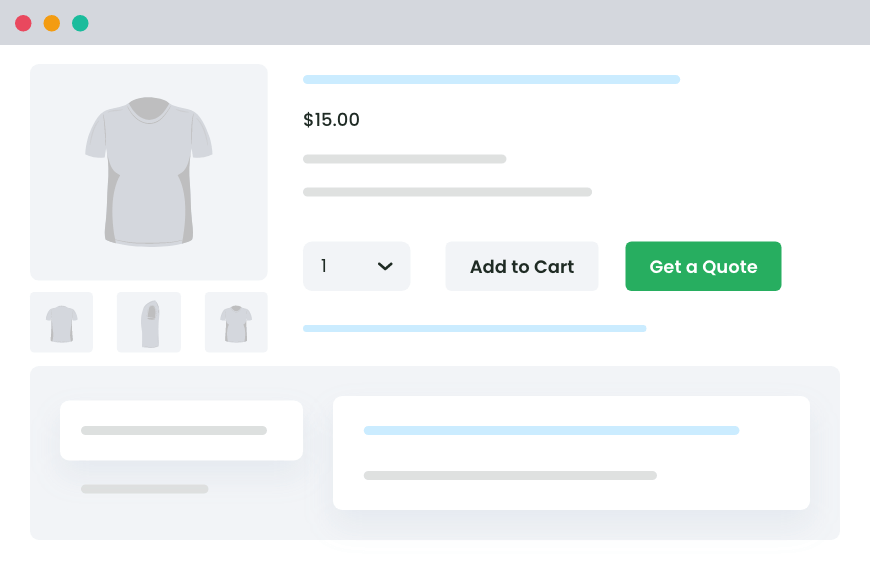
If quoting is part of your business model, a dedicated plugin is the way to go. It’s faster, cleaner, and gives your customers a better experience.
What Can You Do With Dotstore’s Request Quote for WooCommerce Plugin?
#1 You want guests to become customers automatically
Not every person requesting a quote has a WooCommerce account. Forcing them to register first adds friction and kills conversions.
What you can do:
- Automatically create a WooCommerce account when a guest submits a quote request
- Give them instant access to view and track their quote from the My Account page
- Convert anonymous visitors into registered customers with zero extra steps
#2 You need control over who sees the “Request a Quote” button
Some products should show it. Others shouldn’t.
What you can do:
- Show or hide the button by product, category, or tag
- Limit it to logged-in users or specific user roles (like wholesalers)
- Keep it hidden on regular items and only show it on custom or bulk ones
#3 You don’t want to show prices for everything
Sometimes pricing depends on the customer, the order size, or a custom build.
What you can do:
- Hide prices entirely for certain products
- Replace them with custom messages like “Request a quote to see pricing”
- Still show prices on standard products if you want to mix and match
#4 You want quoting to feel like shopping
Customers should be able to add items to a quote just like they add them to a cart.
What you can do:
- Let them build a quote list across your store
- Show a Mini Quote Basket in the header so they don’t lose track
- Place the full quote list on any page, with quantity controls and a clear form
#5 You want to collect specific information upfront
Some quotes need more context than just a product and quantity. A print shop needs to know file format. A manufacturer needs material specs. A B2B buyer may need to state their company name or VAT number.
What you can do:
- Add custom fields to the quote request form to collect exactly what you need
- Make fields mandatory or optional depending on the product or use case
- Receive all relevant information with the quote submission so you can respond accurately without back-and-forth emails
#6 You need to respond fast, without email chaos
Manual quoting is slow. Following up by email gets messy.
What you can do:
- Manage all quote requests from your dashboard
- Edit quantities or offer custom prices
- Send quotes that the customer can accept, reject, or convert into an order
#7 You need to manage quotes as a team
When multiple people handle quote requests, sales reps, account managers, support staff, context gets lost between handovers.
What you can do:
- Add internal notes to any quote request visible only to your team
- Track the full conversation history and negotiation context in one place
- Hand off quotes between team members without losing any background information
#8 You want things to look and feel professional
Sloppy quote pages and plain emails don’t inspire trust.
What you can do:
- Customize the quote list layout
- Let customers download their quote as a branded PDF
- Automatically attach quotes to emails
#9 You want to move things along
Sometimes buyers need a little push to decide.
What you can do:
- Set expiry times for each quote
- Send automatic reminder emails before quotes expire
- Add urgency to limited-time offers or bulk discounts
The best part? You don’t need to write any code. Just install the Dotstore plugin, set your rules, and quoting becomes part of your store, without breaking what’s already working.
How to Set Up WooCommerce Request a Quote: Step-by-Step
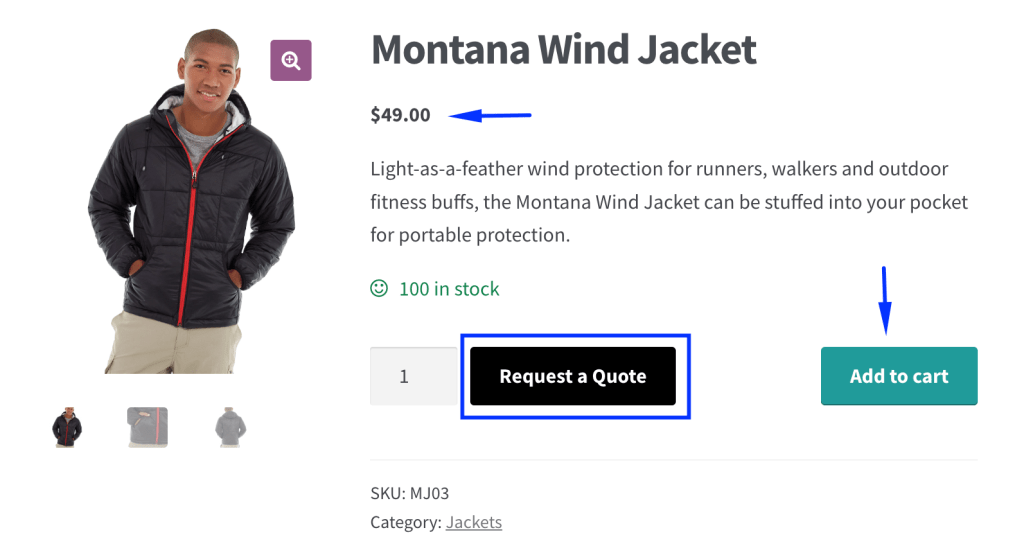
You don’t need to rebuild your store to add WooCommerce request a quote functionality. With the Dotstore plugin, setup takes just a few minutes with no coding.
1. Once the plugin is installed, go to the settings and enable the “Request a Quote” feature. That’s your starting point.
You’ll see options to choose where the quote button should appear; on all products, specific categories, or just a few hand-picked items.
2. Set the Rules: Want the quote button to show only for items above $500? Or just for a “Wholesale” category? You can set rules based on:
- Product
- Category
- Price range
- Tags
- User roles
3. Customize the Button: The quote button doesn’t have to say “Request a Quote.” Change the label to fit your voice. Try “Ask for Pricing” or “Get a Custom Offer.”
You can also adjust how the button looks to match it to your theme colors or use a subtle text link if you prefer a cleaner layout.
4. Choose the Quote Page: When a customer clicks “Request a Quote,” they need a place to land.
Pick or create a dedicated quote request page, where they can review selected items, update quantities, and submit their request.
The plugin lets you tweak this page layout too with fields, columns, messages in your hands.
5. Test the Flow Like a Customer: Go to a product page with the quote option turned on. Click the button. Add a few items. Submit a request.
This helps you see what your customer will experience and you can adjust anything that feels off before launch.
6. Review & Reply from the Dashboard: Each quote request lands in your WooCommerce admin area. From here, you can:
- Edit quantities or prices
- Remove items if needed
- Add notes or discounts
- Send the final quote to the customer
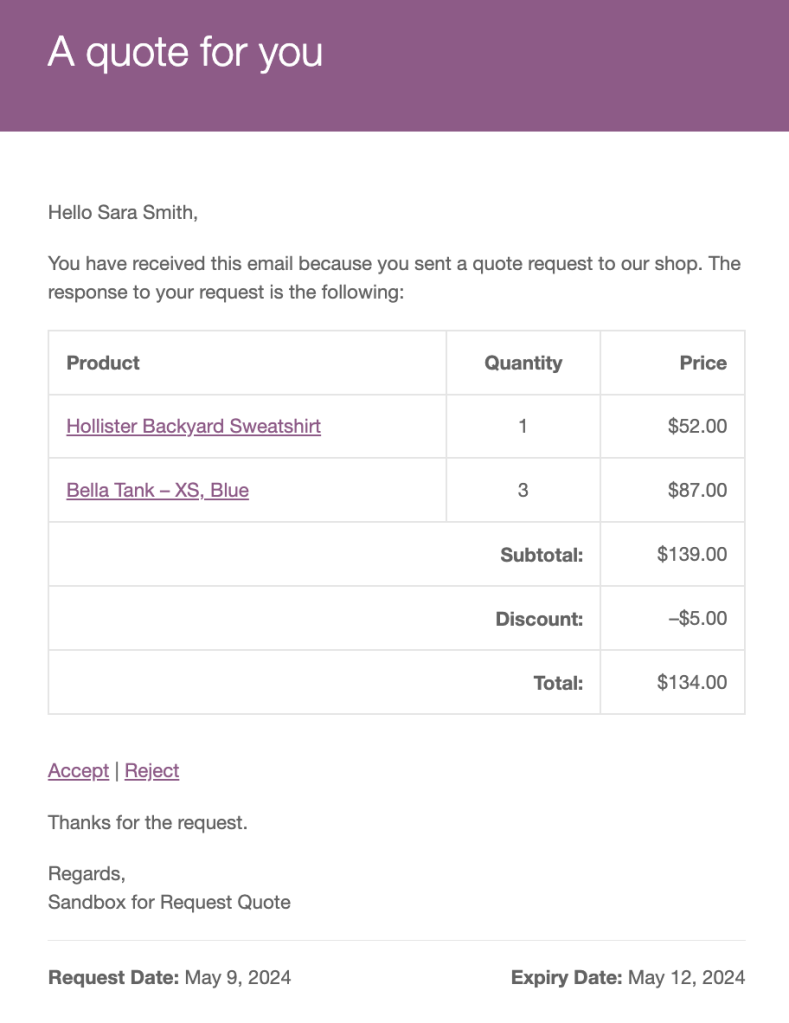
The customer will get it by email and can also view it in their account. You can even attach a downloadable PDF or set an expiry time if you want to create a sense of urgency.
Advanced WooCommerce Request a Quote Settings and Configurations
Once the basics are set up, you can fine-tune the WooCommerce request a quote experience to match your store’s needs.
1. How to Manage Incoming Quote Requests in WooCommerce
Handle quote submissions from a single dashboard.
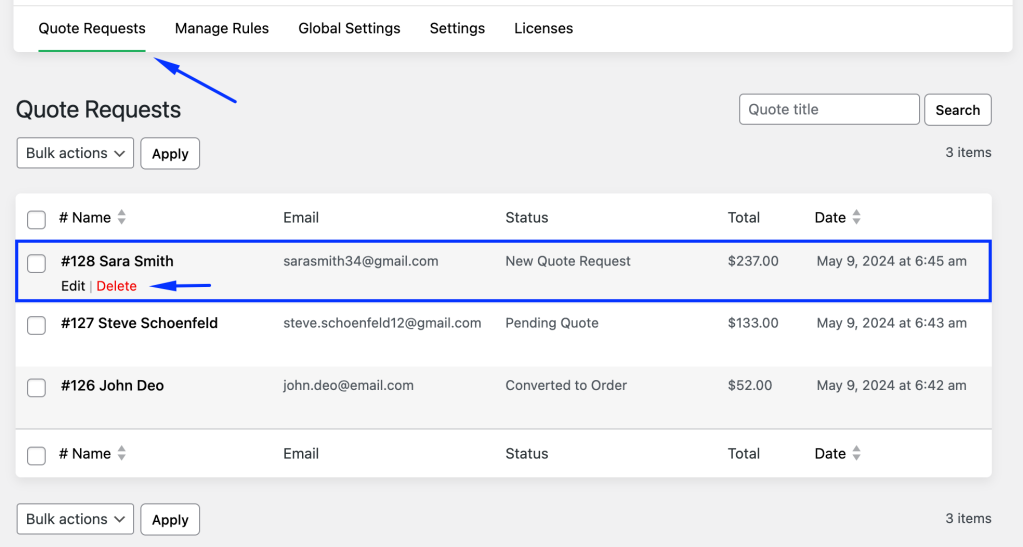
Steps:
- Go to the Quote Requests page in your admin panel
- Find entries marked “New Quote Request”
- Click Edit to open and review details
- Update customer info if needed
- Adjust item quantity, remove products, or offer custom pricing
- Use the Send Quote button to email the quote
- (Optional) Send a test email before the actual quote goes out
- The quote status will automatically change to Pending Quote
Customers will see the quote in their email and inside their “My Account” area.
2. How to Customize the WooCommerce Quote Request Page
Control how the customer-facing quote page looks and behaves.
Steps:
- Open Global Settings → Quote Page
- Choose a layout: stacked (table above form) or side-by-side
- Decide which fields show (product name, quantity, SKU, etc.)
- Enable optional buttons:
- Return to Shop (if no items are selected)
- Allow Update Quote (let customers adjust quantities)
Post-submission behavior:
- Show a thank-you message
- Redirect to a custom thank-you page
- Or send them to the quote details page
3. How to Automate WooCommerce Quote Emails
If you hide product prices, you can schedule quotes to be sent automatically.
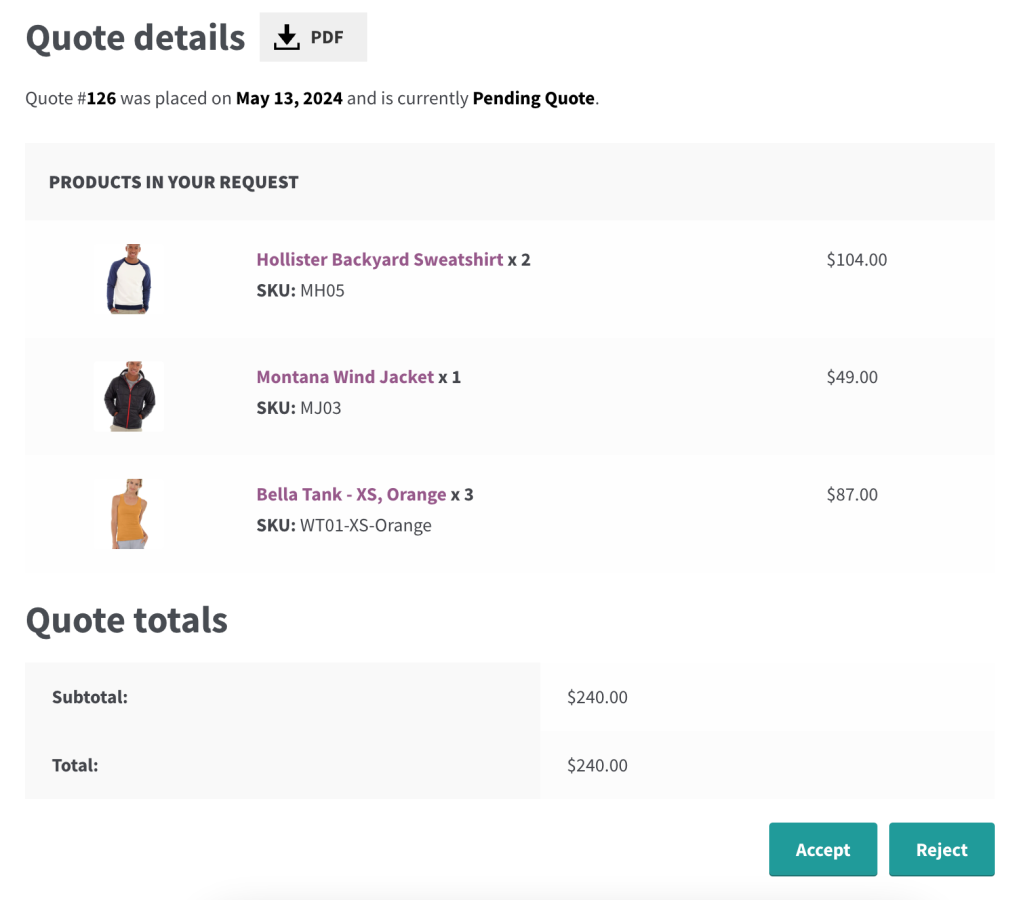
Steps:
- Go to Global Settings → Quote Settings
- Enable Auto Send Quote
- Set timing (e.g. “2 days” after submission)
- Save changes
Once enabled, quotes are sent on autopilot with no manual action needed.
4. How to Set Up WooCommerce Quote Rules
Control how and where the quote button appears using flexible rules.
Steps:
- Navigate to the Manage Rule section
- Edit an existing rule or create a new one
- Choose whether to:
- Show the quote button alongside price and Add to Cart
- Or show only the quote button (and hide price/Add to Cart)
- Save your rule
You can set up multiple rules for different products, categories, or customer types.
WooCommerce Request a Quote Best Practices That Increase Conversions
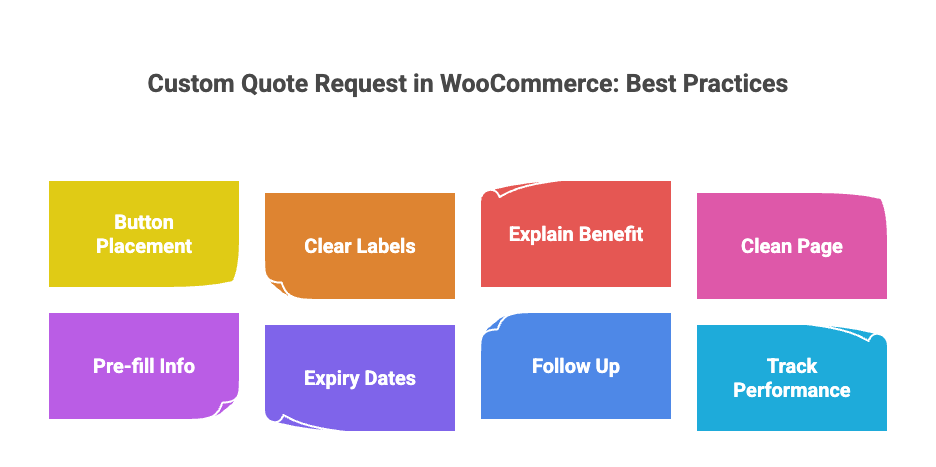
Want more quote requests that actually convert? Focus on the small things that shape the user experience.
- Place the button where it’s easy to find: Near the price or Add to Cart. Don’t tuck it away.
- Use clear, direct labels: “Request a Quote” or “Get Custom Pricing” works better than vague links.
- Explain the benefit: Add a short line like: “Bulk orders? Request a quote for better pricing.”
- Keep the quote page clean: Show the essentials. No clutter. No extra fields unless needed.
- Pre-fill info for logged-in users: Make it quick to submit.
- Set expiry dates on quotes: A soft deadline helps people decide faster.
- Follow up before the quote expires: One reminder email can turn hesitation into a sale.
- Track performance: Use heatmaps or analytics to see where users drop off.
FAQs about Dotstore WooCommerce Request a Quote Plugin
Does WooCommerce have a built-in request a quote feature?
No. WooCommerce does not include any native quote functionality and you need a dedicated plugin to add it. Dotstore’s Request Quote for WooCommerce adds a complete quoting system including a quote button, admin dashboard, PDF generation, and automated email notifications.
How do I hide the price and show a request a quote button in WooCommerce?
Use a quote plugin like Dotstore’s Request Quote for WooCommerce to hide product prices and replace the Add to Cart button with a Request a Quote button. You can apply this to your entire store, specific products or categories, or restrict it to certain user roles like wholesalers.
Can I show both Add to Cart and Request a Quote on the same product?
Yes. Dotstore’s plugin lets you show both buttons simultaneously on the same product page. This is useful for stores serving both retail customers who buy directly and B2B buyers who need custom pricing.
Can WooCommerce automatically send quotes by email?
Yes, with a plugin. Dotstore’s Request Quote plugin includes an auto-send feature that delivers quotes to customers at a scheduled time after submission, with no manual action needed from the store admin.
How do I set an expiry date on a WooCommerce quote?
From the admin quote dashboard, set an expiry date before sending the quote to the customer. The plugin automatically sends a reminder email before the quote expires, creating urgency and prompting faster decisions.
Can guests submit a quote request in WooCommerce without an account?
Yes. Guests can submit quote requests without a WooCommerce account. Dotstore’s plugin also auto-creates a WooCommerce account for them on submission, giving them access to track their quote from the My Account page.
How is a WooCommerce request a quote different from a contact form?
A contact form just collects a message and sends it to your inbox. A request a quote plugin captures specific products and quantities, stores requests in your WooCommerce dashboard, lets you edit prices before responding, generates a branded PDF, and converts accepted quotes directly into orders.
Conclusion & Next Steps
Fixed prices work for straightforward stores. But if you sell custom products, serve B2B buyers, handle bulk orders, or manage regulated items, giving customers a way to request a quote is not optional. It is how your store should be built.
The right quote setup means shoppers are never stuck at a price they cannot act on. They have a clear path to ask, you have a clean system to respond, and every quote becomes a trackable sales opportunity inside WooCommerce.
Dotstore Request Quote for WooCommerce gives you everything you need to make that happen:
- Show the quote button only where it makes sense, by product, category, or user role
- Hide prices entirely or offer both quote and checkout on the same page
- Collect the right information upfront with custom fields on the quote form
- Manage all incoming requests from a single admin dashboard
- Collaborate with your team using internal notes on every quote
- Send branded PDF quotes with expiry dates and automatic reminders
- Convert accepted quotes into orders with one click
- Turn guest visitors into registered customers automatically
No complex setup. No code. Just a smarter way to sell to the customers who need more than a buy button.
Ready to add WooCommerce request a quote functionality to your store? Get started with Dotstore’s Request Quote for WooCommerce today.
Request Quote For WooCommerce
Sell products and services without a fixed price to your catalog and allow customers to request custom quotes.
14-day, no-questions-asked money-back guarantee.