Table of Contents
Quick answer: Set your units first under WooCommerce > Settings > Products > General, then add dimensions to a product under Product data > Shipping by entering Weight and the Length, Width, and Height. Dimensions are required for weight-based and live carrier shipping to calculate a rate, and once set they appear in the product’s Additional information tab. Use Quick Edit, CSV import, or code to add them in bulk.
Key Takeaways
- Product dimensions in WooCommerce are the physical weight and size (length, width, height) used to calculate shipping, distinct from apparel sizes like S/M/L.
- Set weight and dimension units first under WooCommerce > Settings > Products > General, because switching units later relabels values rather than converting them.
- Add dimensions under Product data > Shipping by entering weight plus length, width, and height; a single blank field can stop a shipping rate from calculating.
- Variable products hold dimensions per variation, and any blank variation field inherits the parent product’s values.
- Native fields handle most stores; the Product Size Charts plugin is the right tool when you need customer-facing apparel size guides rather than shipping dimensions.
Product dimensions are the weight and size values WooCommerce uses to price shipping and to inform buyers. Without them, weight-based rates and live carrier quotes from USPS, UPS, or FedEx cannot calculate, and customers often hit a no shipping options available dead end at checkout.
There is a common point of confusion worth clearing up first. Product dimensions in the shipping sense mean physical size and weight, length, width, height, and weight. They are not the same as apparel sizes like S, M, and L, which are product attributes or a size chart. This guide is about the physical shipping values.

This post covers where the fields live, how to set units, how variations handle dimensions, how to add them in bulk, where they display, and when a plugin earns its place.
Set your dimension and weight units first
Before entering any numbers, set the units so the values are unambiguous.
Go to WooCommerce > Settings > Products > General and find the Measurements section. Choose a Weight unit (kg, g, lb, oz) and a Dimensions unit (m, cm, mm, in, yd). WooCommerce stores raw numbers, so a weight of “2” only means two kilograms or two pounds based on this setting.
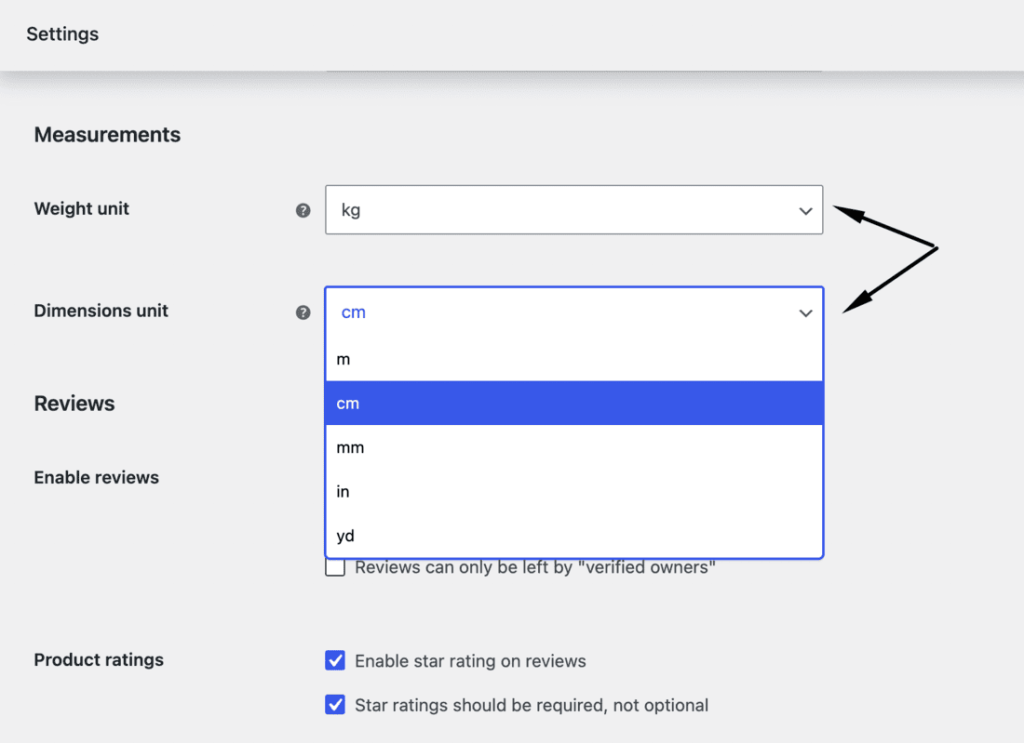
Set this once for the whole store and keep it consistent. Changing units later does not convert existing values, it only relabels them, so a product set to 2 kg becomes 2 lb if you switch the unit.
How to add dimensions to a single product
Adding dimensions to one product takes only a few seconds in the editor.
- Open the product and find the Product data panel.
- Click the Shipping tab.
- Enter the Weight in your chosen unit.
- Enter Length, Width, and Height in the three dimension fields.
- Click Update.
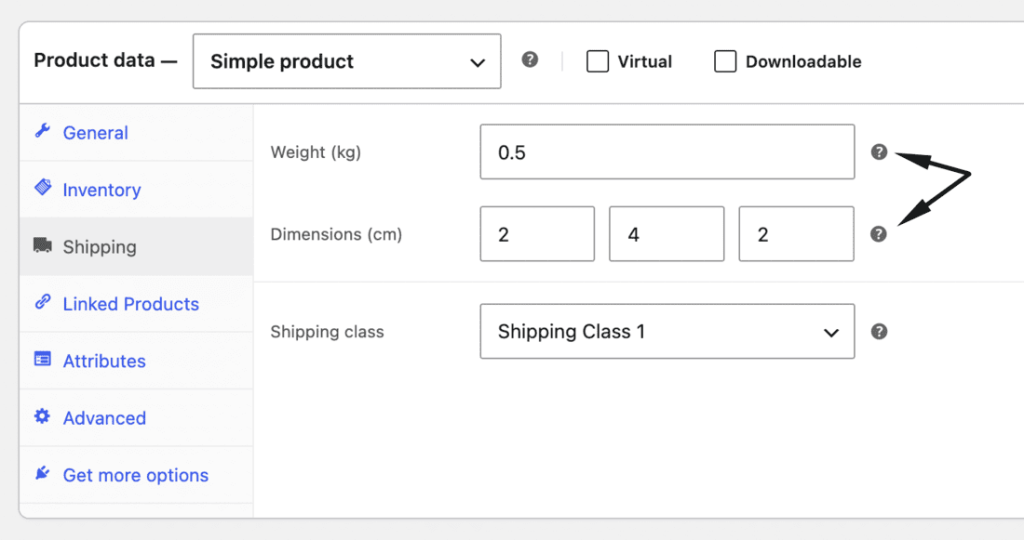
Enter values in plain decimal form, such as 12 or 12.5, with no special characters. Fill every field a method needs: weight-based rules need weight, while dimensional and live carrier rules need all three sizes too. One blank field can stop a rate from calculating.
If the Shipping tab is missing, the product is marked Virtual. A virtual product has nothing to ship, so WooCommerce hides its shipping data. Untick Virtual to bring the tab back.
Adding dimensions to variable products
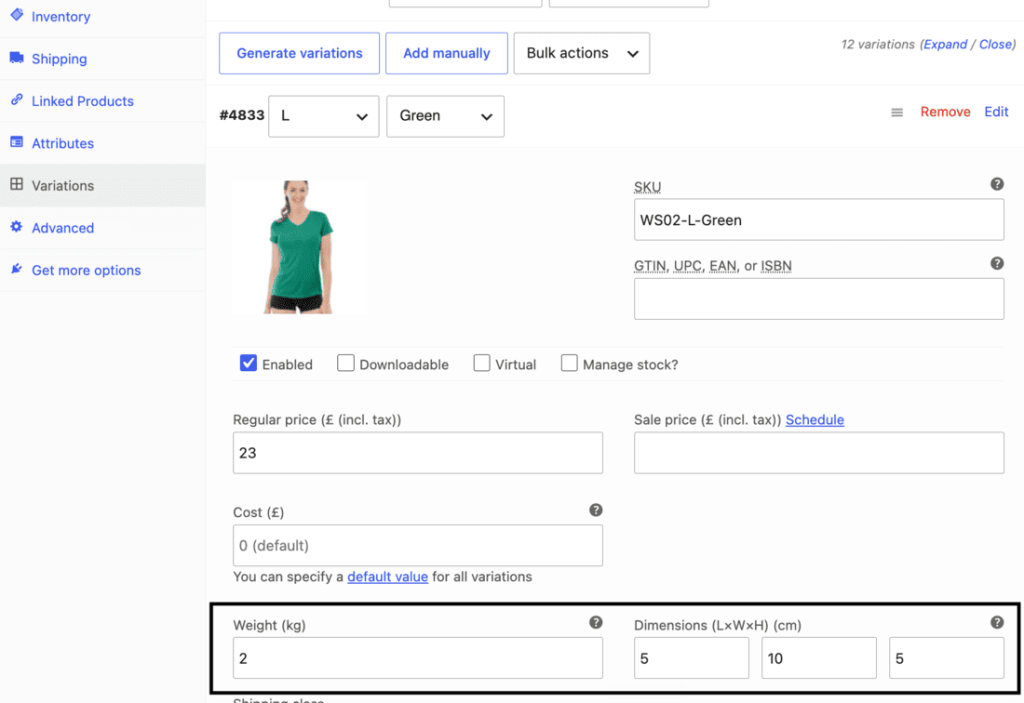
Variable products are different. Each variation can carry its own weight and dimensions, because a small and a large size of the same item ship differently.
Open the product, go to the Variations tab, and expand a variation. Each one has its own Shipping fields. Leave a variation’s fields blank and it falls back to the parent product’s dimensions. So set the parent as a sensible default and override per variation only where sizes actually differ.
Faster ways to add dimensions in bulk
Setting dimensions one product at a time is slow for a large catalog. Faster options:
- Quick Edit: On the Products list, hover a product and click Quick Edit. It exposes Weight and Dimensions inline.
- Bulk Edit: Select multiple products, choose Bulk actions > Edit > Apply, and set weight or dimensions across all of them at once.
- CSV import: Export your catalog under Products > Export, fill the Weight, Length, Width, and Height columns in a spreadsheet, then re-import under Products > Import. This is the fastest route for hundreds of products.
- Code: For programmatic control, use the product CRUD setters.
$product = wc_get_product( $product_id );
$product->set_weight( 0.5 );
$product->set_length( 50 );
$product->set_width( 50 );
$product->set_height( 30 );
$product->save();
The same setters work on variation objects, so you can script dimensions across a variable catalog.
Where product dimensions appear on the storefront
Once set, weight and dimensions show in the product’s Additional information tab on the single product page, alongside any attributes. This helps buyers judge fit and shipping before they order.
If you would rather hide them from shoppers while keeping them for shipping math, remove them from that tab with a snippet or a display plugin. The values still drive shipping even when hidden from view.
When default dimensions are not enough
The native fields cover most stores. Reach for an add-on when you need more:
- Per-category default dimensions or rules applied across many products at once.
- Size-driven shipping costs. For pricing that scales by size, see how to assign shipping by dimensions in WooCommerce.
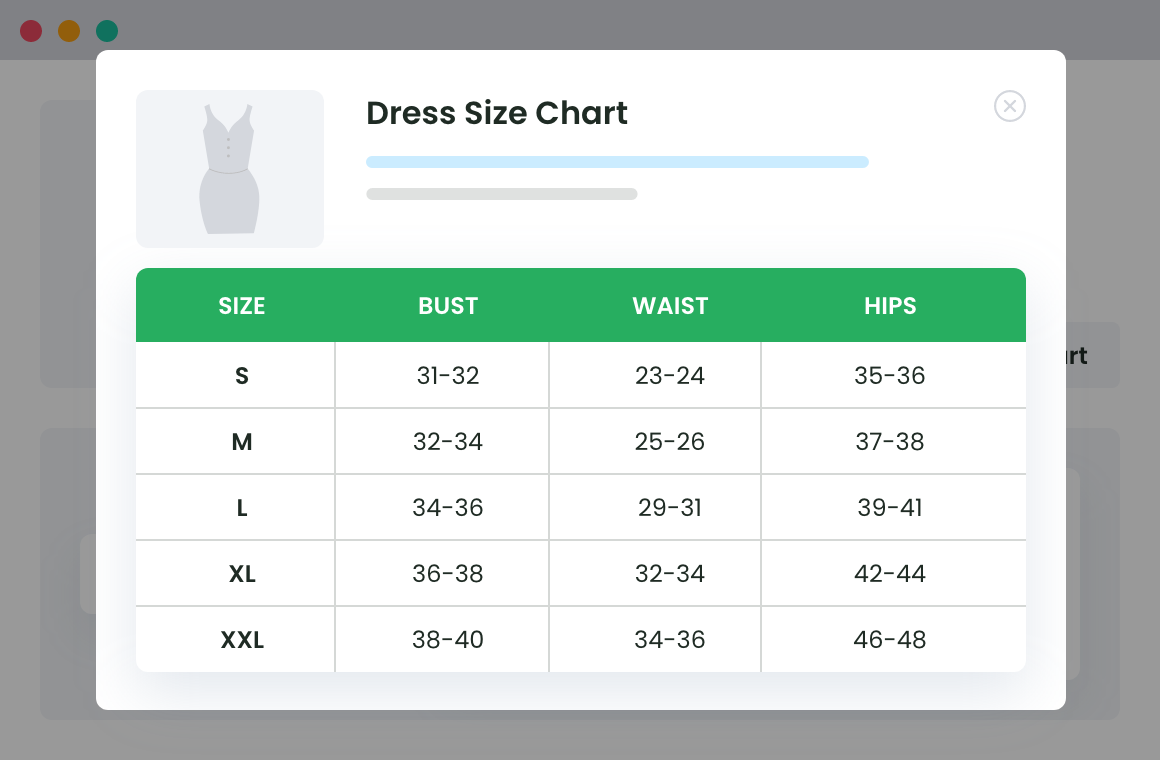
- Apparel size charts. For S/M/L fit guidance rather than shipping size, a product size charts plugin is the right tool, not the Shipping tab.
Product Size Charts For WooCommerce
Simplify your store experience with customizable size charts that reduce returns and maximize sales.
14-day, no-questions-asked money-back guarantee.
Best practices
Keep these habits to avoid shipping-rate surprises later:
- Set units once and keep them consistent store-wide.
- Add weight and all three dimensions to every physical product, including each variation that ships differently.
- Use CSV import for the initial bulk load, then Quick Edit for one-off changes.
- Confirm the Additional information tab shows what you intend, and hide values there if you do not want them public.
- Re-test a checkout rate after a bulk dimension change to confirm carriers still return quotes.
Conclusion
Adding product dimensions in WooCommerce is a native, no-plugin job: set your units, fill the Shipping tab on each product, and handle variations and bulk loads with Quick Edit, CSV, or code. Accurate dimensions keep shipping rates correct and stop the missing-rate errors that lose you sales. Move to a plugin only when you outgrow the native fields.
For apparel fit rather than shipping size, the Product Size Charts plugin adds customer-facing size guides without code.
Product Size Charts For WooCommerce
Simplify your store experience with customizable size charts that reduce returns and maximize sales.
14-day, no-questions-asked money-back guarantee.
Frequently Asked Questions about WooCommerce Product Dimensions
Where do I add product dimensions in WooCommerce?
Open the product, go to the Product data panel, click the Shipping tab, and enter Weight plus Length, Width, and Height.
Why is there no Shipping tab on my product?
The product is marked Virtual. Virtual products have nothing to ship, so WooCommerce hides the Shipping tab. Untick Virtual to show it.
How do I change the dimension units?
Go to WooCommerce > Settings > Products > General and set the Weight unit and Dimensions unit under Measurements.
Do product dimensions show to customers?
Yes. Once set, they appear in the Additional information tab on the product page. You can hide them with a snippet or plugin while keeping them for shipping.
How do I set dimensions for variable products?
Each variation has its own Shipping fields under the Variations tab. Leave them blank to inherit the parent product’s dimensions, or fill them to override.
How do I add dimensions to many products at once?
Use Quick Edit or Bulk Edit on the Products list, or import a CSV with Weight, Length, Width, and Height columns.
Do dimensions affect shipping cost?
Yes. Weight-based methods and live carrier rates use them to calculate, and a product with missing dimensions can break rate calculation for the whole cart.
Conclusion
Product Size Charts For WooCommerce
Simplify your store experience with customizable size charts that reduce returns and maximize sales.
14-day, no-questions-asked money-back guarantee.

📏 Offer Clear Size Guides to Improve Customer Satisfaction
Try the plugin 100% risk free!