Table of Contents
Want to add handling fees, surcharges, or paid add-ons like gift wrapping, insurance, or service fees to your WooCommerce store? In this step-by-step guide, we’ll show you how to add product page and cart fees in WooCommerce.
Key Takeaways
- The right WooCommerce fee plugin depends on where the fee belongs in the customer journey: on the product page or in the cart.
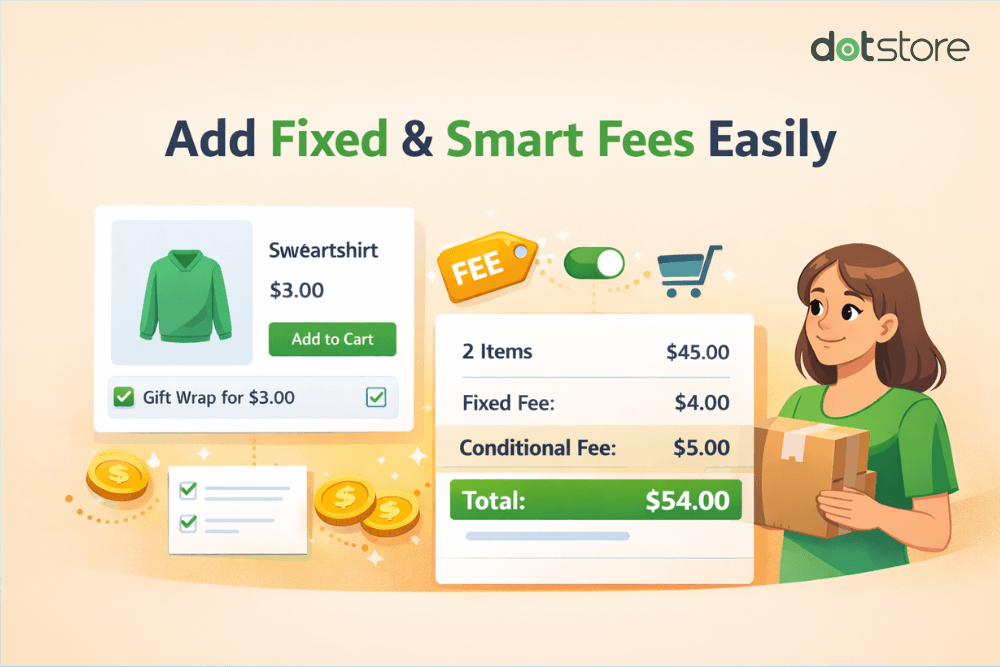
- Dotstore WooCommerce Extra Fees plugin is best for adding cart-level fees in WooCommerce. It lets you create fixed, percentage, or combined fees with advanced conditions (cart total, location, payment method, etc.), and display them as separate line items during the cart flow.
- Advanced Product Fields by Studio Wombat is best for product page fees. It allows you to add custom product options such as text inputs, dropdowns, checkboxes, and more, with dynamic pricing that updates in real time as customers select and deselect options.
- You don’t have to choose just one approach; combine both plugins to apply fees at different customer touchpoints.
Confused about which plugin to use or where and how to add fees in your WooCommerce store? You’re not alone.
Adding extra fees helps recoup costs for specialized packaging, handling, specific payment methods, and other additional operating costs of running an ecommerce business. Plus, if you offer gift wrapping, priority processing, and other optional add-ons, you’ll need a way to charge customers for these value-added services.
Instead of increasing each product’s base price or your general shipping rates, applying extra charges enables you to recover these costs only when applicable.
WooCommerce’s default features for adding extra fees are pretty limited. So for most real-world use cases, your best bet is to use dedicated plugins. But choosing an extra fee WooCommerce plugin is about more than features. It also depends on where the specific fee should appear in the customer journey.
In this tutorial, I’ll outline the difference between product page fees and cart-level fees, so you know where each fee type belongs.
Then, I’ll show you how to use two simple plugins to implement them at the two most appropriate customer touchpoints:
- Dotstore WooCommerce Extra Fees. For adding order-level fees to WooCommerce. You can create fixed or percentage-based charges, apply conditions based on cart total, products, customer location, payment method, and others. Added fees are shown as separate line items during the checkout flow. Download the free or pro version, or explore the live demo to see how it works.
- Advanced Product Fields by Studio Wombat. For adding product page fees to WooCommerce. It lets you create custom fields like text inputs, dropdowns, and checkboxes, and attach pricing to each option. Available in both free and pro versions.
The best part? Both plugins are 100% no code and pretty simple to set up—you can add your first fee in 10 minutes or less.
If you prefer working with code and are comfortable with the added complexity and maintenance, I’ll also show you how to add fees programmatically using WooCommerce hooks.
As noted earlier, not all WooCommerce fees work the same way. So before we get into the tutorial, let’s understand the differences between the various types of fees you can add to your WooCommerce store.
Product page vs. cart fees
There are 2 types of fees you can add at various stages of the customer journey in your WooCommerce store: product page and cart fees. Note that you can combine multiple approaches as needed for a comprehensive strategy.
Understanding the differences between each type of fee is important because showing fees at the wrong customer touchpoint can make them ineffective (i.e., no meaningful revenue uplift) or worse, increase cart abandonment rates.
Product page fees
Product page fees are charges triggered by customer selections on the product page. These fees are tied directly to the item and update dynamically as the customer selects from available options.
Here’s an example of a WooCommerce product page fee.

Cart fees
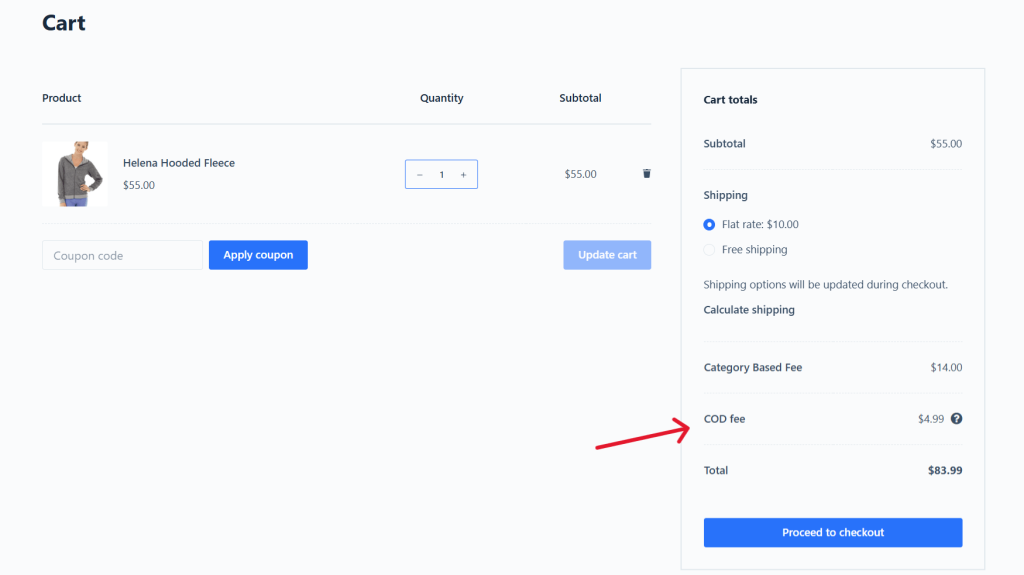
Cart fees are applied at the order level, not tied to a specific product. They appear as a separate line item during the checkout flow and are typically based on payment methods, shipping options, or cart conditions.
Here’s an example of a WooCommerce cart fee.
Product page vs. cart fees: When to use & examples
| Fee type | When to use | Popular examples |
|---|---|---|
| Product page fees | Use product page fees to offer add-ons or upgrades where the fee depends on the customer’s selection, and the price needs to be updated before the product is added to the cart. | 1.) Engraving (+$0.35 per character). 2.) Per-product gift wrapping (+$5 per product). 3.) Premium materials upgrade (+20% per item). 4.) Environmental fee for electronics. 5.) Fragile item handling for fee (+$3 per item). 6.) Packaging fee for specific product categories. |
| Cart fees | Use cart fees to apply operational or conditional charges that apply to the entire order, i.e., the fee isn’t tied to a specific product. | 1.) Small order fee (e.g., $5 under $50). 2.) Payment method surcharge (e.g., 2% for credit cards). 3.) Shipping or handling fees. 4.) Location-based surcharges. |
How to add fees to orders in WooCommerce (cart-level fees)
Dotstore WooCommerce Extra Fees is a powerful plugin that lets you add fees to the WooCommerce cart, including fixed, percentage-based, and combined fixed-plus-percentage fees applied to the order total.
It gives you complete control over when fees should apply, how they’re calculated, and under what conditions they are applied. You can set conditions that apply fees based on cart totals, products, categories, shipping and payment methods, customer location, user roles, etc., making it easy to add a fee to the WooCommerce cart total dynamically.

Instead of forcing a one-size-fits-all rule, this enables you to tailor added fees to match your business operations. Thousands of stores across different industries use Dotstore WooCommerce Extra Fees to set up fees for a wide range of use cases, such as:
- Small order fees (e.g., $5 for orders under $50).
- Payment method surcharges (e.g., 2% for credit cards).
- Location-based delivery fees (e.g., remote area surcharge).
- Product-specific handling charges (e.g., fragile item packaging)
- Weight-based or quantity-based fees.
- Rush processing or priority handling fees.
- Optional add-ons like gift wrapping or insurance.
You can create mandatory fees that apply automatically (think: handling or payment method-based charges) as well as optional fees that customers can choose (think: gift wrap or express processing fees).
Dotstore WooCommerce Extra Fees enables you to display fees at various points in the customer journey, which helps avoid surprises and reduces cart abandonment rates.
It also lets you show extra fees in a dedicated section on the WooCommerce product page near pricing and add-ons, for example:
On the checkout page (to be verified), extra fees are shown separately, as clearly labeled line items from product fees, shipping rates, and taxes. You can present them individually, for example:
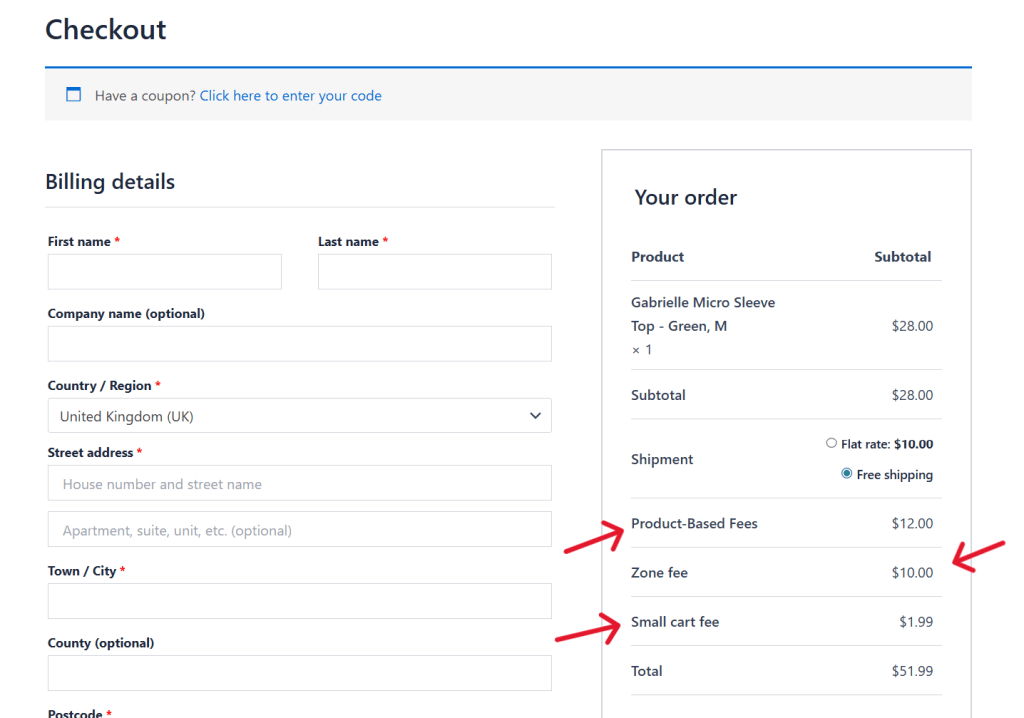
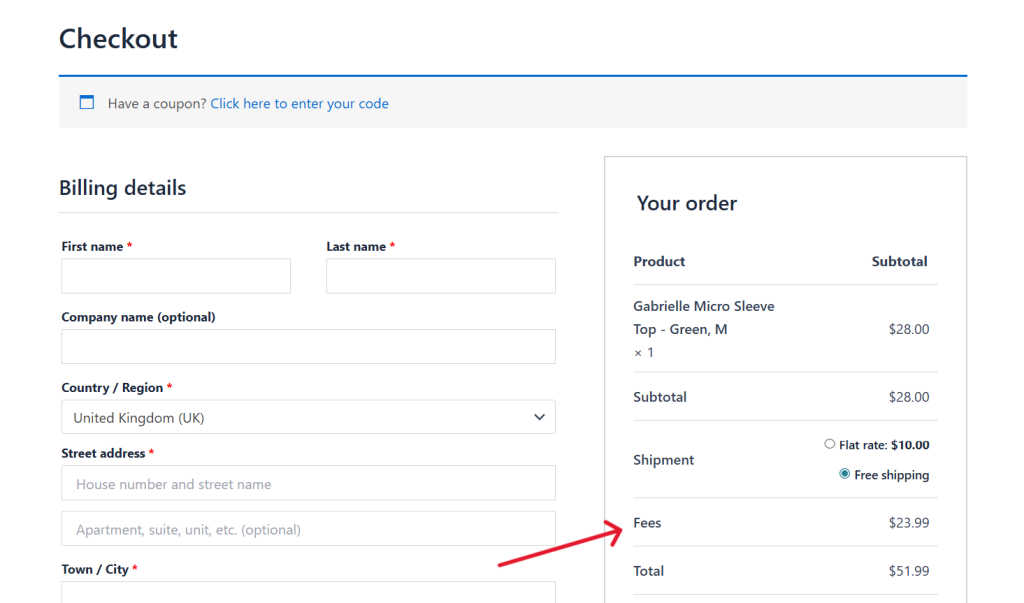
Or merge all fees under one label on the cart and checkout pages, as clearly labeled line items, for example:
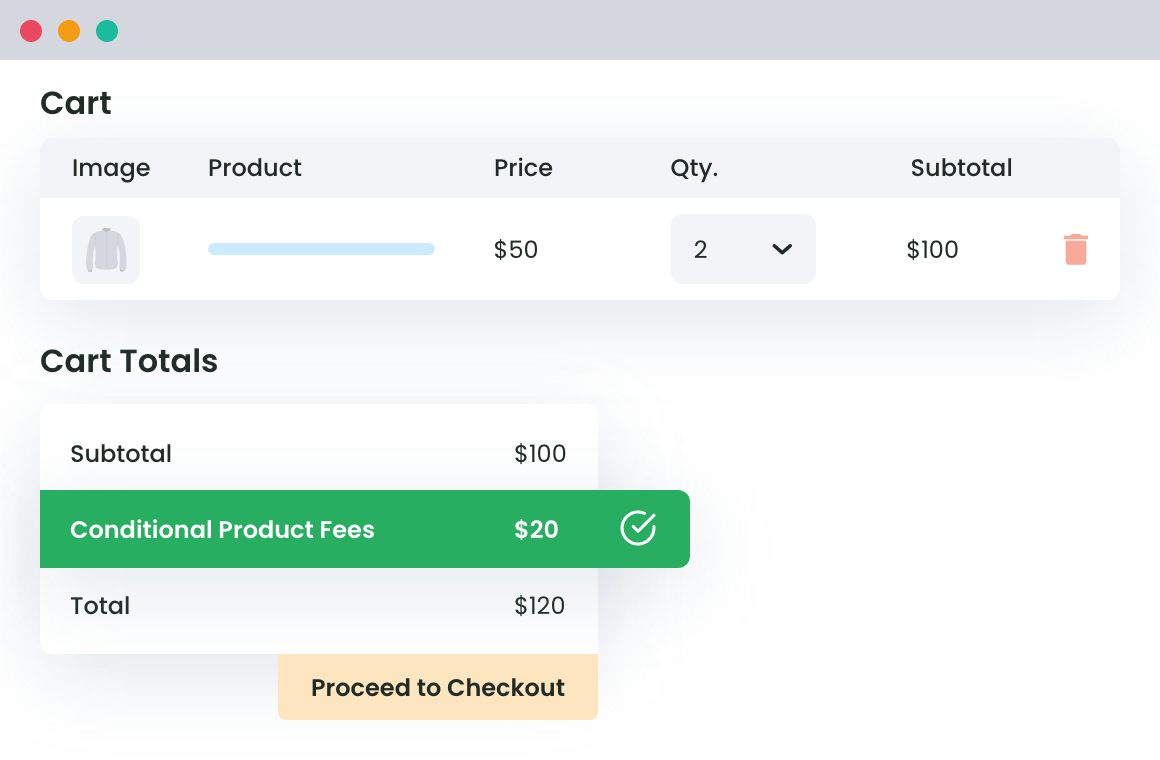
WooCommerce Extra Fees
Make profits from every confirmed sale through smart, conditional fees.
14-day, no-questions-asked money-back guarantee.
Dotstore WooCommerce Extra Fees’ top features
- Multiple fee types. You can create 3 different types of fees: fixed fees (e.g., $5 handling charge), percentage-based fees (e.g., 2% processing fee), and combined fees (e.g., $2 + 1.5% of cart total).
- Required and optional fees. It lets you specify whether each fee is mandatory (auto-applied when customers match preset conditions) or optional (customers can select them).
- Advanced conditional logic. You can apply fees based on multiple conditions, including: location (country, state, zip code), product details (category, weight, attributes), cart data (subtotal, quantity, total value), shipping or payment method, user role (guest, subscriber, wholesale customer), etc. This empowers you to adapt fees to your business operations.
- Display fees on the product page. Instead of only showing fees in the checkout flow, you can also show them on the product page so customers know what to expect before adding items to their shopping carts.
- Flexible fee display during checkout. In the cart, fees are displayed separately from product prices, shipping costs, and taxes. You can show each fee as its own line item or combine multiple fees under a single label.
- Schedule fees. With scheduling, you can apply fees only during specific time periods like peak seasons, holidays, weekends, etc.
Step-by-step instructions to add fees to orders in WooCommerce
- Download WooCommerce Extra Fees’ free or pro version on your store.
- Navigate to Dotstore Plugins → WooCommerce Extra Fees, and press the “Add New” button.
- Turn on the “Status” button.
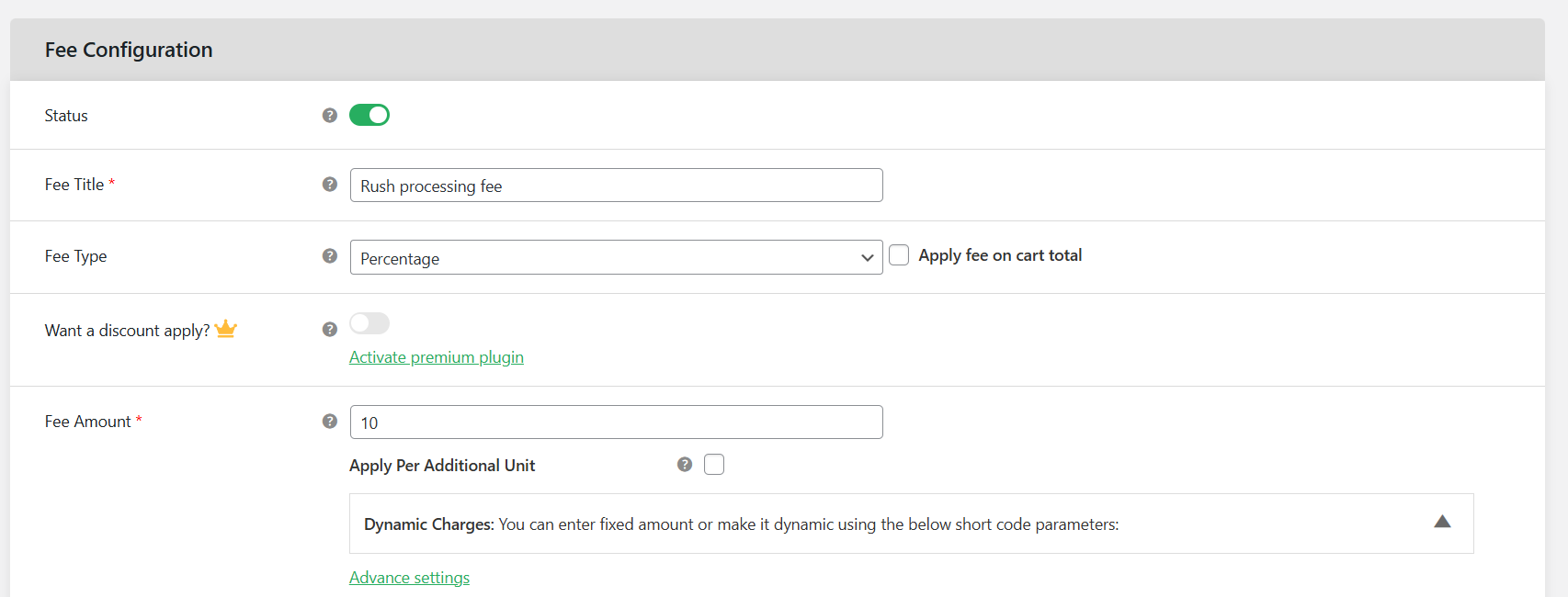
- Enter a name for this fee in the “Fee Title” field. Note that this will be visible on the cart page.
- Choose the fee type, whether fixed, percentage, or a combination of both.
- Specify the “Fee Amount”.
- Specify whether it is taxable or not, and whether it is optional or not.
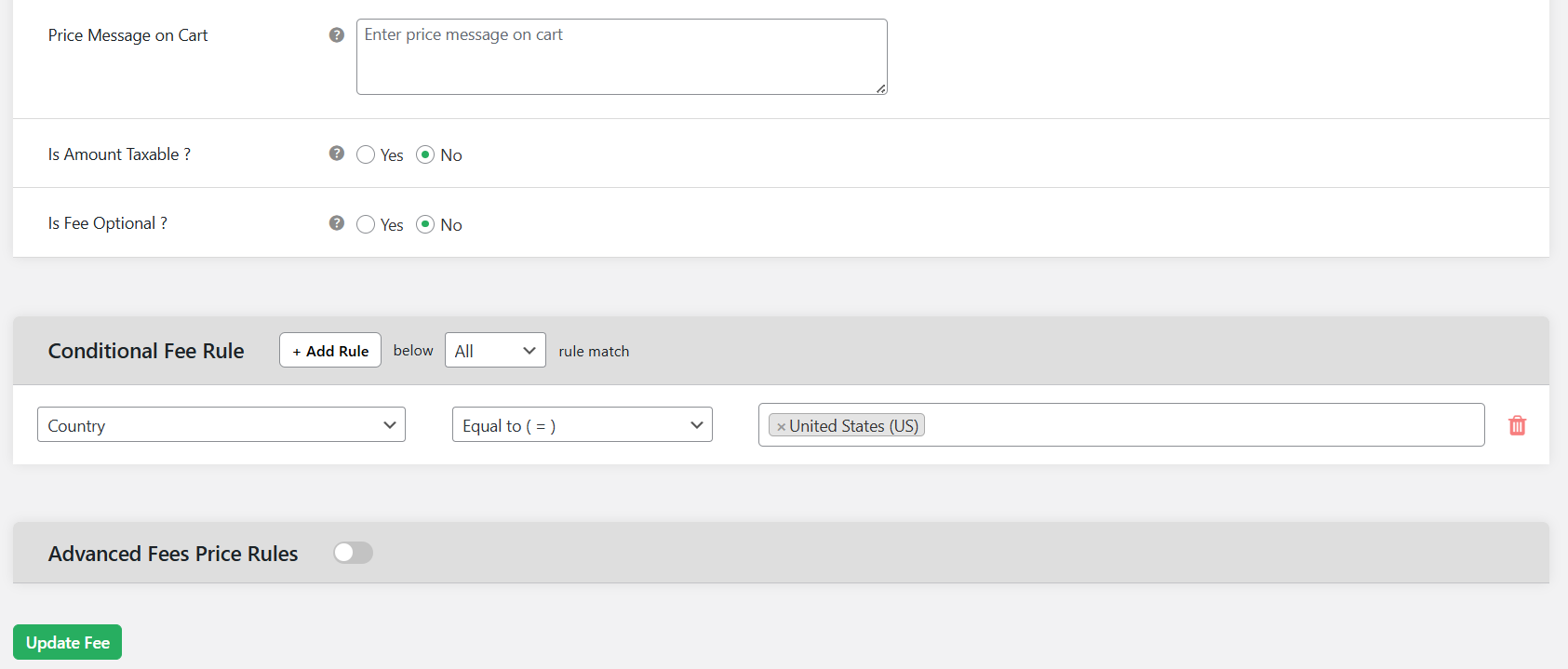
- In the “Conditional Fee Rule” section, add relevant rules that control how this added cart fee operates.
- Press the “Save Fee” button at the bottom of the page.
How to add fees to products in WooCommerce
When fees depend on product-level customer choices, you need to apply them to product pages, not the cart.
Advanced Product Fields by Studio Wombat lets you create custom input fields (think: text boxes, dropdowns, checkboxes, swatches, etc.) and attach pricing logic to them. The custom input fields are treated as extra product options, and the product price updates in real time as customers select and deselect options.
All selected product options and associated fees appear on the cart and checkout pages, ensuring consistency across the customer journey.
Advanced Product Fields’ top features
- A wide range of field types, including dropdowns, text fields, text areas, checkboxes, radio buttons, number inputs, email fields, image swatches, color swatches, file uploads, date pickers, and more.
- Dynamic price adjustments, namely fixed, percentage-based, and quantity-based fees, as well as advanced pricing formulas, that modify product prices automatically.
- Conditional logic that shows or hides fields based on previous selections to keep product pages clutter-free and relevant.
- Precise targeting to apply fields to multiple simple and variable products, and specific variations at once.
Step-by-step instructions to add fees to product pages in WooCommerce
- Add the free or pro version of the Advanced Product Fields (Product Options) for WooCommerce plugin to your store.
- Navigate to WooCommerce → Settings → Product Fields.
- Tick the “Show in cart” and “Show in checkout” checkboxes. If suitable, change the “Add to cart” button text for products with custom fields. Then press “Save changes”.
- Navigate to WooCommerce → Product Input Fields.
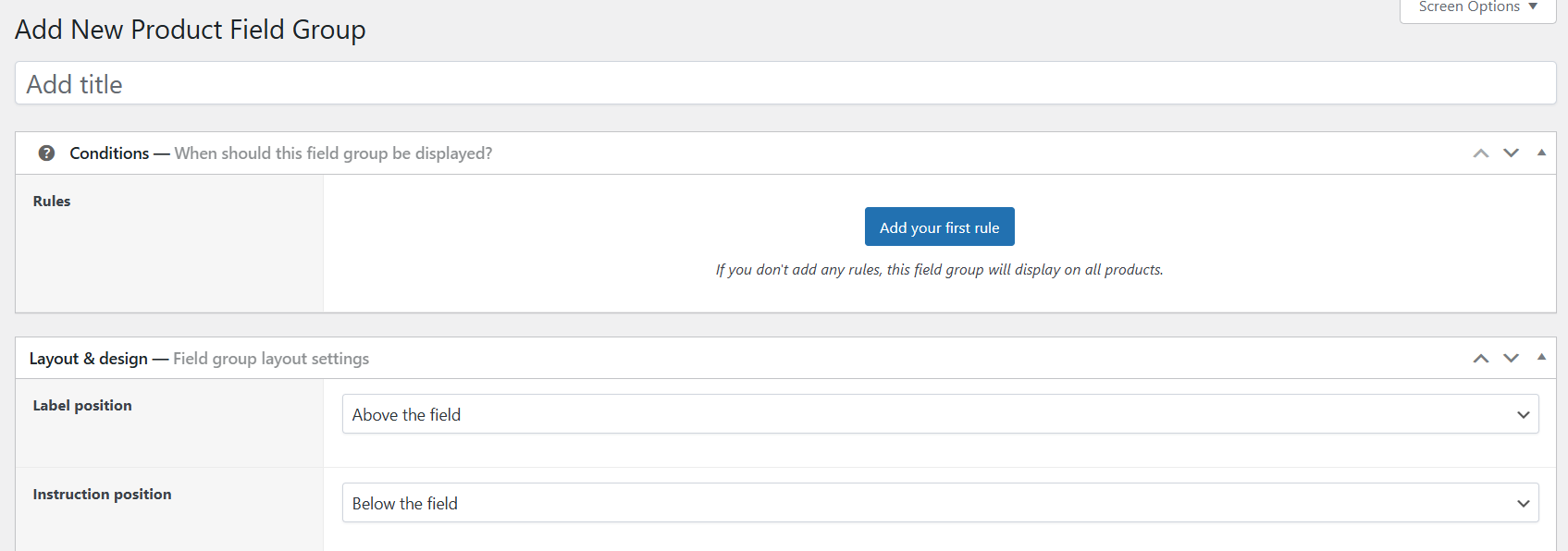
- Press “Add New”. Then add a name for this extra fee in the “Add title” field.
- Navigate to the “Inputs” panel and press the “+ add an input field”.
- Select the applicable input field, e.g., checkbox (for optional add-ons), dropdown (for multiple pricing options), text field, etc.
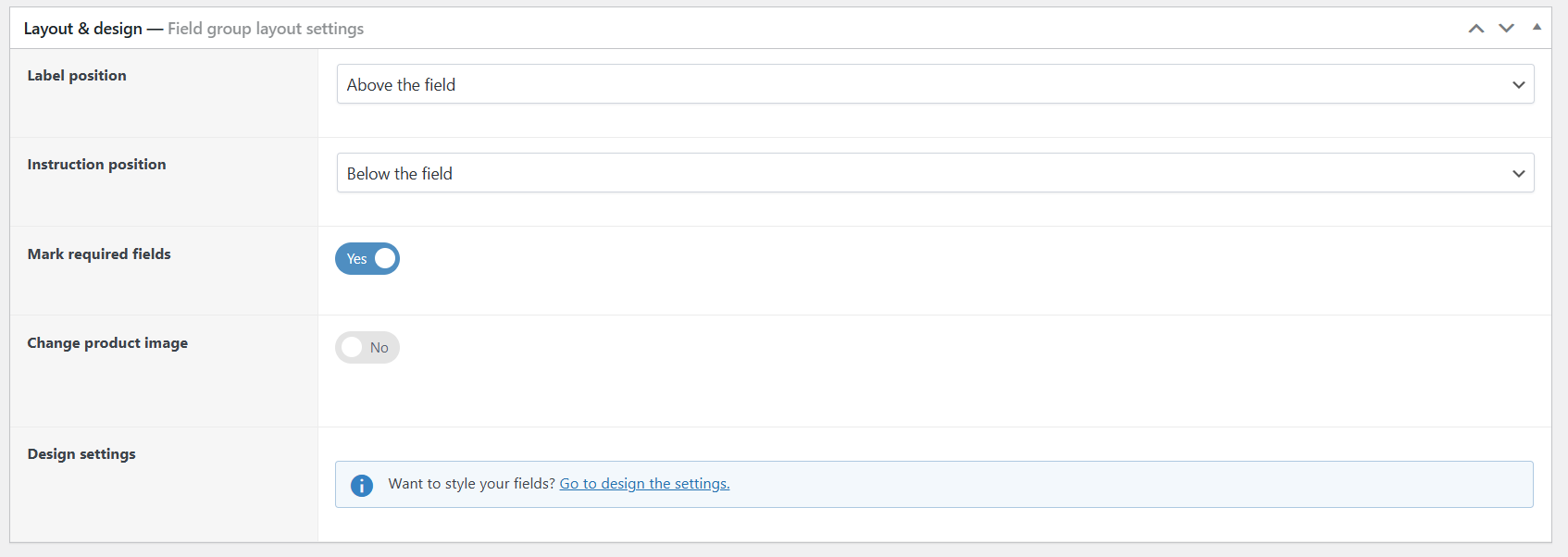
- Customize the input field by adding a label, instructions, price adjustment options, i.e., whether flat, quantity-based, percentage-based, field value, character count, or formula/calculation, and others.
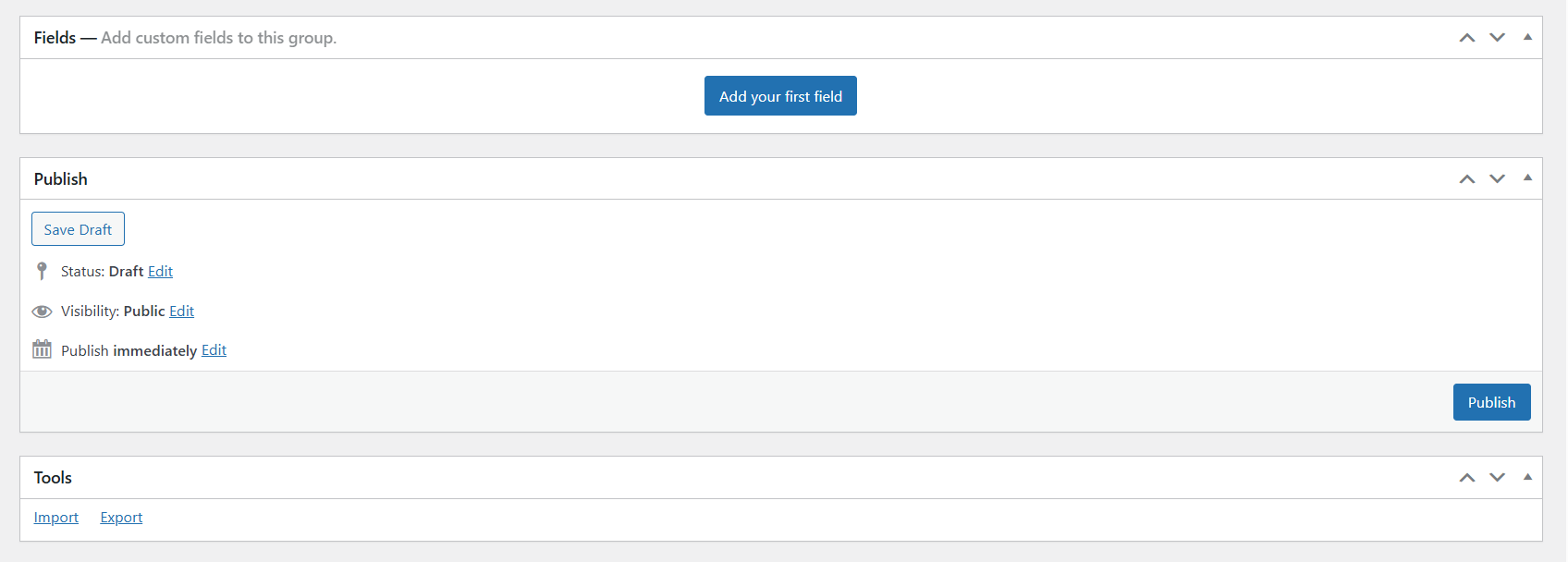
- If appropriate, make this added fee required.
- Next, add visibility conditions that control when these input fields should be displayed on product pages. You can also modify the layout settings as desired.
- Finally, scroll to the top-right and press the “Publish” button.
How to add fees to the WooCommerce cart programmatically
WooCommerce lets you hook into the cart calculation process to add fees to WooCommerce programmatically using the add_fee method.
You can add a function hooked to woocommerce_cart_calculate_fees, define your conditions (cart total, products, user role, etc.), and dynamically add a custom fee to the WooCommerce cart every time cart totals are calculated.
add_action('woocommerce_cart_calculate_fees', 'add_custom_fee');function add_custom_fee() { if (is_admin() && !defined('DOING_AJAX')) return; $fee = 5; // Example fee amount WC()->cart->add_fee('Handling Fee', $fee);}Important: Adding fees to WooCommerce orders programmatically requires WooCommerce development experience. Unless you have expert technical skills, this isn’t ideal as there’s no built-in interface to manage fees, meaning that even small changes require you to edit code.
There’s also the risk of checkout-level issues; incorrect logic can apply duplicate fees, miss conditions, and break cart calculations.
What is the best plugin to add WooCommerce fees?
The best plugin to add extra charges depends on the right customer touchpoint for the specific fee you want to add. Use:
- Dotstore WooCommerce Extra Fees for adding fees at the cart and order level. It lets you create fixed or percentage-based fees and apply them based on conditions like cart total, products, user roles, shipping methods, payment gateways, etc. Fees are clearly displayed in a separate line during the checkout flow. Download the free or pro version, or try out the live demo now.
- Advanced Product Fields (Studio Wombat) to add custom options like text fields, dropdowns, checkboxes, etc, with custom fees to the product page. It is available in both free and pro versions.
Of course, you don’t have to use one or the other. You can combine both plugins to add different fees to both the product and the order level, as needed.
Get started with the right WooCommerce fee plugin for your use case today!
WooCommerce Extra Fees
Make profits from every confirmed sale through smart, conditional fees.
14-day, no-questions-asked money-back guarantee.