Table of Contents
In this guide, we’ll discuss how reCAPTCHA works, the different types available, and show you, step by step, how to add reCAPTCHA to the WooCommerce checkout using the free version of the Dotstore WooCommerce Fraud Prevention plugin.
Key Takeaways
- By default, WooCommerce doesn’t provide built-in support for adding reCAPTCHA to the checkout page, so you’ll need a spam prevention plugin to add it.
- Adding reCAPTCHA to your WooCommerce checkout helps block automated bots from placing fake orders, which reduces spam, failed transactions, and unnecessary admin work.
- Dotstore WooCommerce Fraud Prevention is the best plugin for adding reCAPTCHA to the WooCommerce checkout. It lets you add V2 checkbox, V2 invisible, and V3 score-based reCAPTCHA, along with other useful spam prevention features to your store.
Want to add reCAPTCHA to your WooCommerce store’s checkout page?
reCAPTCHA is a powerful tool for filtering out automated traffic. It checks whether a user is likely human or a bot and blocks suspicious order submissions in real time. For most ecommerce stores, this is a quick, low-effort way to reduce spam in the checkout flow without introducing too much friction for legitimate customers.
However, reCAPTCHA isn’t built into WooCommerce by default, so you’ll need to use a plugin to add it to your store’s checkout page.
In this in-depth tutorial, I’ll walk you through step-by-step instructions (with screenshots!) to add reCAPTCHA to your WooCommerce checkout using the free version of the powerful Dotstore WooCommerce Fraud Prevention plugin.
A quick note: Hello and welcome to the Dotstore’s blog! Dotstore WooCommerce Fraud Prevention plugin is our very own handcrafted plugin. Available in robust free and pro versions, we believe it is the best plugin for adding V2 and V3 reCAPTCHA to the WooCommerce checkout. In addition, it uses AI, custom fraud protection scoring, rate limiting, and other advanced features to detect and stop fake users and orders. Install it on your site or check out its live demo now.
WooCommerce Fraud Prevention
Equip your store with our feature-rich fraud prevention plugin to reduce risk and safeguard your profits.
14-day, no-questions-asked money-back guarantee.
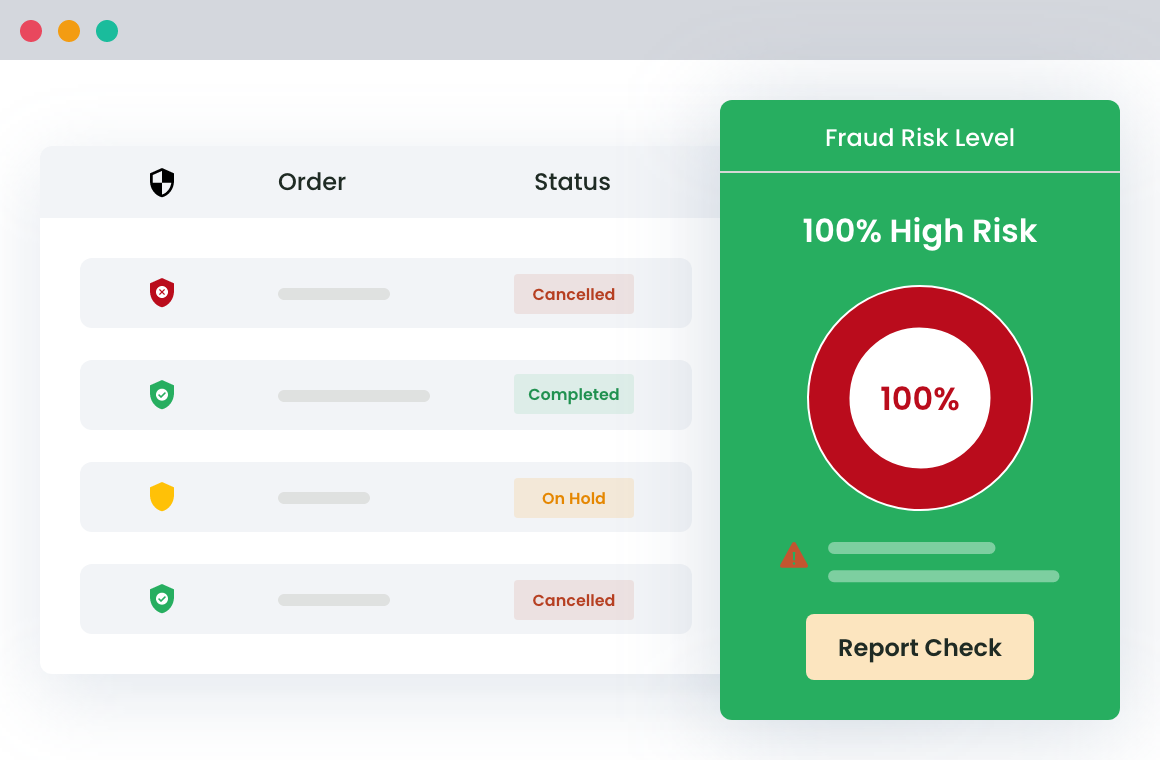
How does reCAPTCHA in the WooCommerce checkout work?
reCAPTCHA is a behavior-driven, bot detection system developed by Google that helps distinguish real users from automated scripts.
It evaluates each website visitor using a combination of signals, namely IP address, device reputation, mouse movements, click patterns, typing behavior, interaction speed, browsing context, session behavior, and others, to decide whether a user is likely human or a bot.
Depending on the reCAPTCHA version you use, it will either allow the action silently, ask the user to complete a challenge, or block or flag the request.
Types of reCAPTCHA for the WooCommerce checkout
Currently, Google offers three main versions of reCAPTCHA. Each one balances security and user experience a bit differently.
- reCAPTCHA V2 (Checkbox): This adds an “I’m not a robot” checkbox that users must click before submitting the checkout form. If it deems the interaction safe, the user passes instantly. If it deems the interaction suspicious, it shows the user an image challenge that they must successfully pass in order to place their order.
- reCAPTCHA V2 (Invisible). This adds a hidden version of reCAPTCHA V2 that runs when the user submits a form. There’s no checkbox upfront, and it only triggers a challenge if the system flags the interaction as a possible risk.
- reCAPTCHA V3 (Score-based). This runs a fully invisible system that assigns a risk score between 0.0 and 1.0 to each interaction. There’s no user interaction required, and admins define what score triggers a subsequent action, i.e., block, review, or allow.
V2 checkbox vs. V2 invisible vs. V3 score-based reCAPTCHA: Which is better for the WooCommerce checkout?
All three reCAPTCHA versions are proven to be effective at protecting ecommerce stores from spam. Here’s a brief overview of their benefits and drawbacks so you can determine which is better for your WooCommerce store’s checkout flow.
| reCAPTCHA version | Best for | Top benefits | Drawbacks |
| reCAPTCHA V2 (Checkbox) | Explicit user verification during checkout. | 1.) Simple to implement. 2.) Provides a clearly visible security layer. 3.) Hyper-effective against basic bots. | 1.) Can add a little extra friction to the checkout process. |
| reCAPTCHA V2 (Invisible) | Strong protection with minimal friction. | 1.) Less disruption for legitimate users. 2.) Still blocks most automated spam. | 1.) Occasional unexpected challenges. 2.) Less transparency for users. |
| reCAPTCHA V3 (Score-based) | Frictionless checkout protection. | 1.) No impact on checkout UX. 2.) Continuous background monitoring. | 1.) Requires configuration and testing. 2.) May flag legitimate users if thresholds aren’t tuned properly. |
The best plugin to add reCAPTCHA to the WooCommerce checkout
Dotstore WooCommerce Fraud Prevention is the best plugin for adding reCAPTCHA to the WooCommerce checkout and providing all-around protection from advanced spam and fraud.
It supports all types of reCAPTCHA: V2 (checkbox and invisible), and reCAPTCHA V3 (score-based), which empowers you to balance site security with a solid user experience.
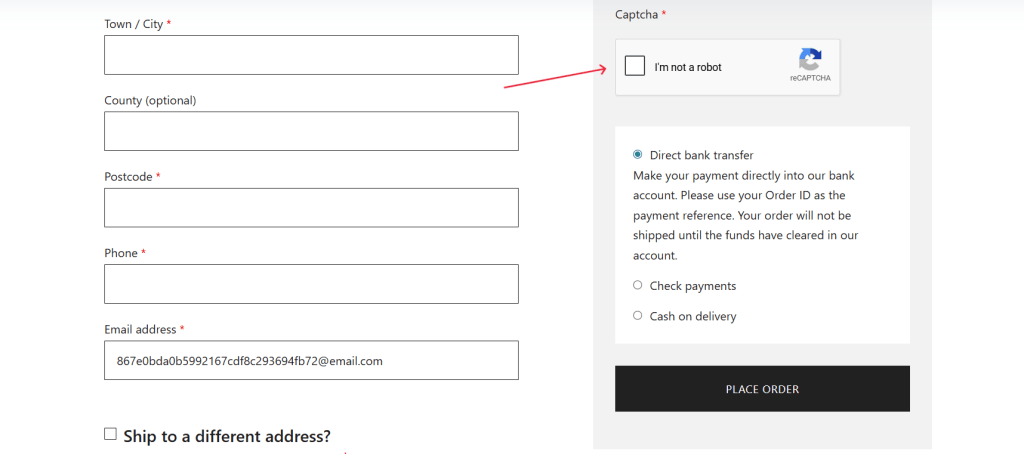
The plugin is available in free and pro versions, and the reCAPTCHA in the WooCommerce checkout feature is available in both versions.
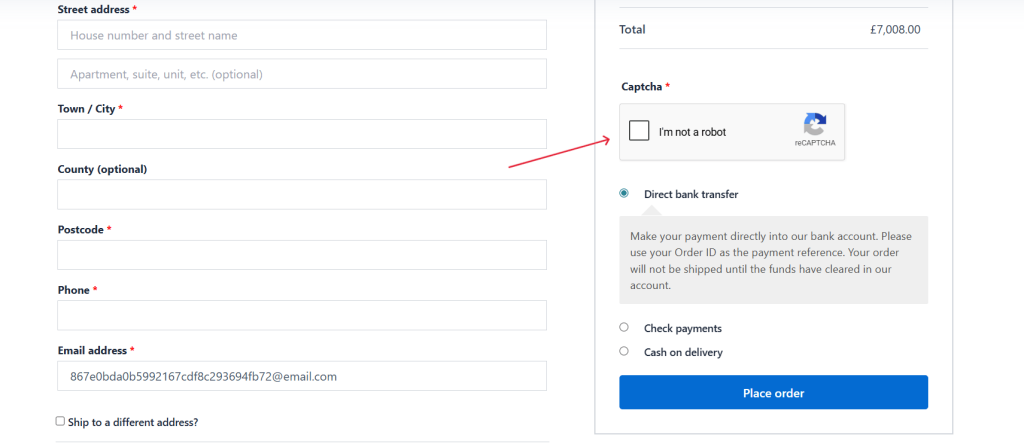
Once activated, you can enable reCAPTCHA directly from the Dotstore WooCommerce Fraud Prevention plugin’s settings and connect your site using Google’s API keys. After that, (in stores that use reCAPTCHA V2 checkbox), reCAPTCHA is typically added above the “Place Order” button on your WooCommerce checkout form.
During checkout, customers fill out their details and attempt to place an order. reCAPTCHA evaluates the interaction in real time, and if the request looks legitimate, the order proceeds normally.
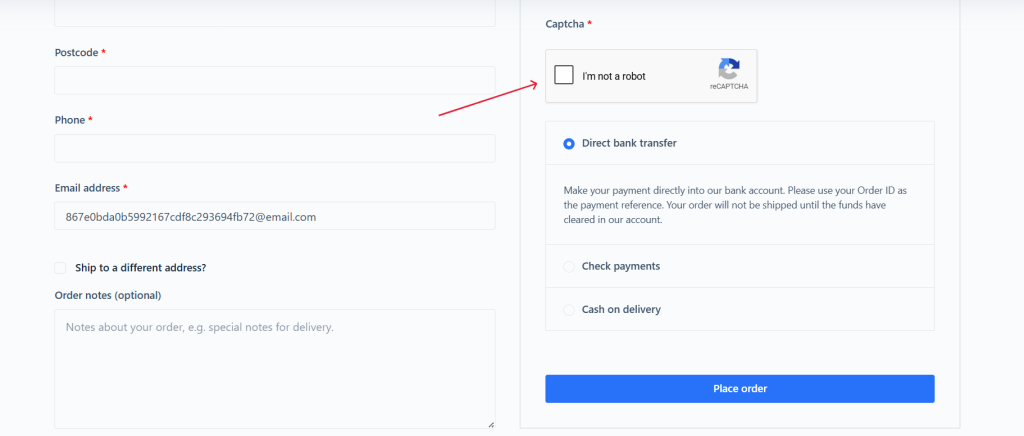
If the interaction appears suspicious, the user is automatically challenged or blocked from submitting the order. Customers who are incorrectly flagged can retry the checkout or contact support, so legitimate users aren’t permanently locked out.
Why use Dotstore WooCommerce Fraud Prevention instead of a standalone reCAPTCHA plugin? Standalone reCAPTCHA plugins only add a basic verification layer; they don’t deeply evaluate intent, detect patterns, or respond to more advanced threats.
Unlike standalone reCAPTCHA plugins, the Dotstore WooCommerce Fraud Prevention plugin combines reCAPTCHA with multiple layers of protection to safeguard your store at multiple checkpoints. This is invaluable, considering that bots are getting better at bypassing reCAPTCHA challenges.
Ultimately, this makes sure that bots don’t make it past your store’s checkout page, which reduces spam orders and failed credit card testing attempts.
Top features
- ✔️ reCAPTCHA integration in the WooCommerce checkout. It lets you add reCAPTCHA V2 or V3 directly to your WooCommerce checkout to combat automated scripts and bots.
- ✔️ Support for multiple reCAPTCHA versions. It supports reCAPTCHA V2 (checkbox), reCAPTCHA V2 (invisible reCAPTCHA), and reCAPTCHA V3 (score-based). This empowers you to choose the reCAPTCHA version that best suits your store’s requirements.
- ✔️ Easy setup with no code required. It provides an intuitive interface to connect your site with Google’s reCAPTCHA platform. Enabling reCAPTCHA on your WooCommerce site is as simple as selecting your preferred reCAPTCHA type from a dropdown menu, generating and adding your API keys, and pressing the “Save” button.
- ✔️ Comprehensive advanced spam and fraud protection. Along with enabling you to add reCAPTCHA to the WooCommerce checkout, this plugin uses AI, custom fraud protection scoring, rate limiting, blacklisting, whitelisting, and various additional spam prevention methods.
How to add reCAPTCHA to WooCommerce checkout
Follow these steps to add reCAPTCHA to your WooCommerce store’s checkout page.
- Add Dotstore WooCommerce Fraud Prevention plugin’s free or pro version to your website.
- Go to the Google reCAPTCHA admin console page, register your site, and choose your preferred reCAPTCHA version: V2 checkbox, V2 invisible, or V3 score-based.
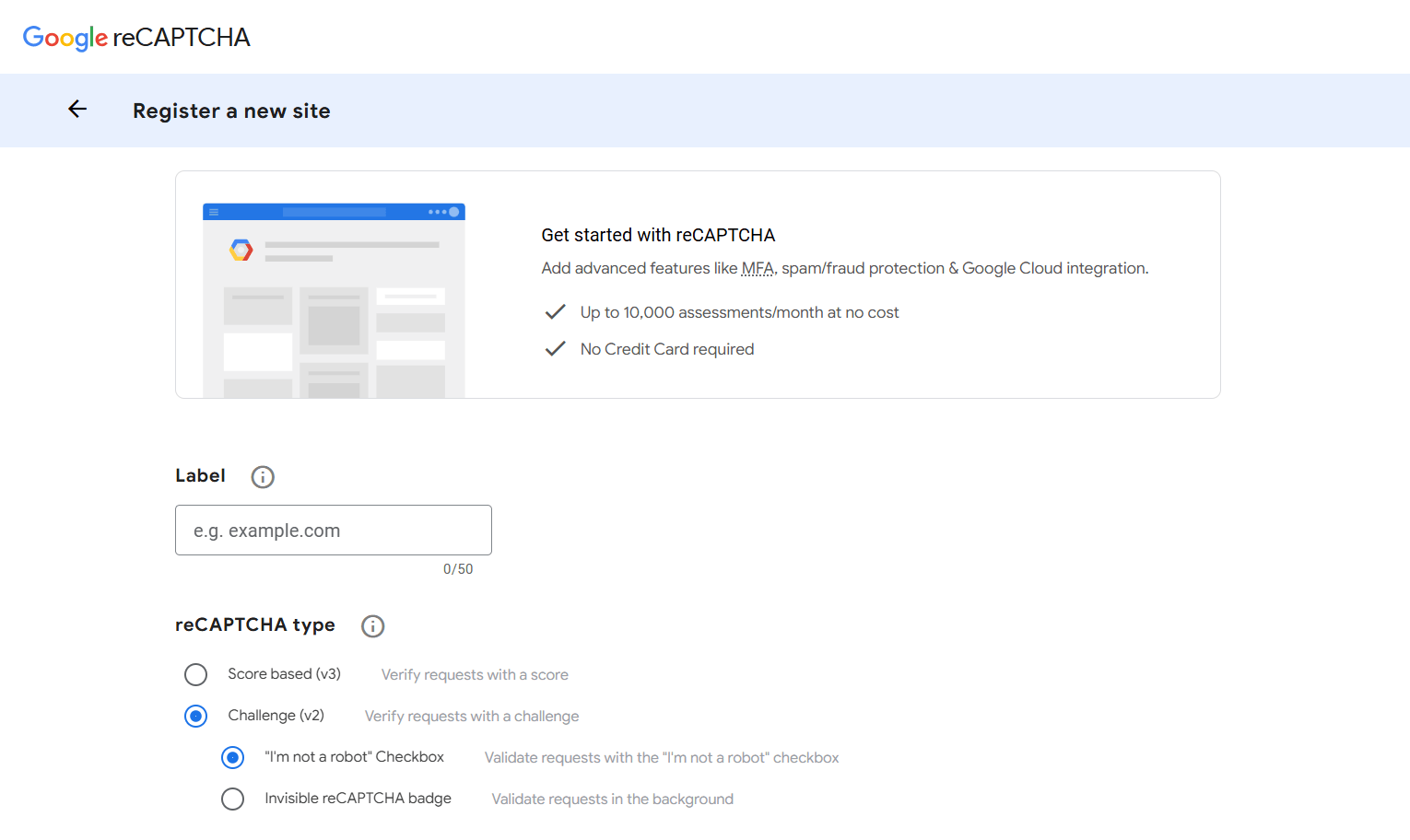
- Navigate to Dotstore Plugins → Fraud Prevention → General Settings in your site’s admin panel.
- Scroll down to the “Google reCAPTCHA Settings” section.
- Turn on the “Enable reCAPTCHA” option.
- Choose your preferred reCAPTCHA version, i.e., V2 or V3, from the dropdown.
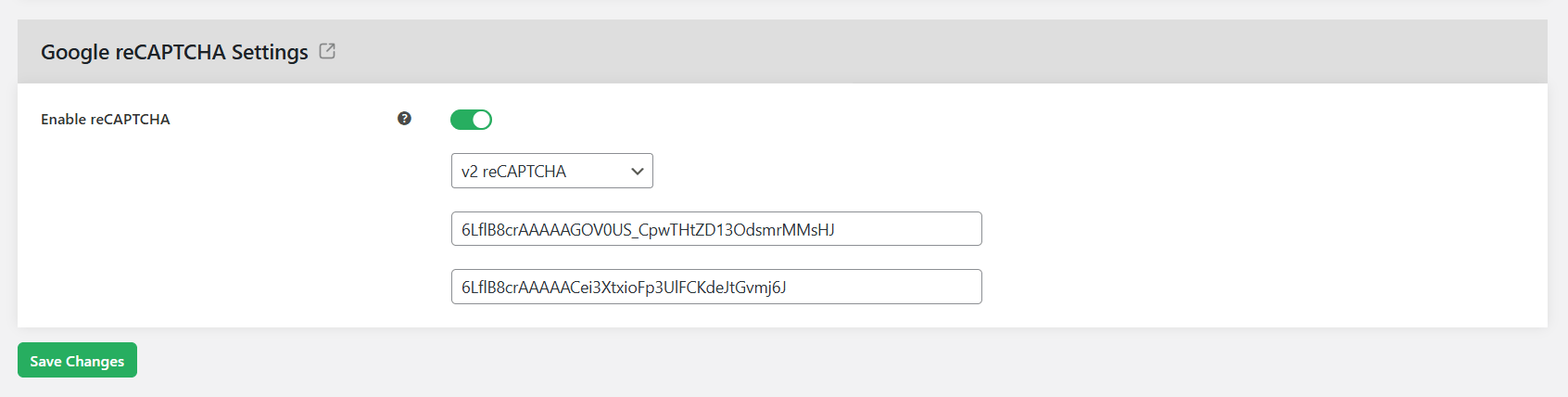
- Copy the reCAPTCHA site key and secret key from the Google reCAPTCHA admin console page and enter them on this page.
- Press the “Save Changes” button.
Add reCAPTCHA to the WooCommerce checkout
Adding reCAPTCHA to your WooCommerce checkout is one of the simplest, minimal-effort ways to reduce spam attacks by automated scripts. It filters out bot-driven submissions to prevent them from placing orders from your store.
For stores dealing with random or suspicious orders, enabling reCAPTCHA in the WooCommerce checkout is a quick win.
That said, reCAPTCHA is the first layer of protection, not the only one. It is highly effective against automated traffic, but it won’t catch every type of suspicious activity on its own. For example, someone using stolen payment details or manually placing fake orders can still pass reCAPTCHA checks.
Dotstore WooCommerce Fraud Prevention is the best plugin for adding reCAPTCHA to the WooCommerce checkout page. Alongside V2 and V3 reCAPTCHA integration, this spam prevention plugin lets you use AI, custom fraud protection scoring, rate limiting, blacklisting, whitelisting, and various additional spam prevention methods to automatically flag or block high-risk users and orders.
Ready to add reCAPTCHA to the WooCommerce checkout? Download its free or pro version or try its live demo now.
WooCommerce Fraud Prevention
Equip your store with our feature-rich fraud prevention plugin to reduce risk and safeguard your profits.
14-day, no-questions-asked money-back guarantee.