Table of Contents
Learn how to create a WooCommerce tiered pricing table with quantity-based discounts, product and category rules using the Dotstore WooCommerce Dynamic Pricing and Discount Rules plugin. The best part? The entire process takes less than 10 minutes from start to finish.
Key Takeaways
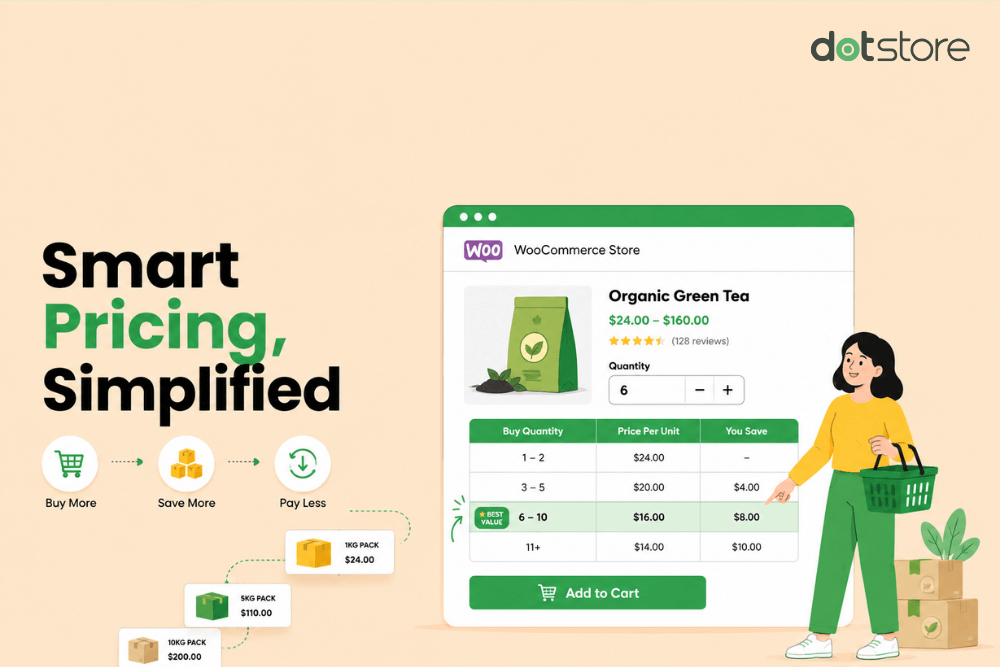
- WooCommerce doesn’t include a built-in tiered pricing table feature. You’ll need a plugin to offer quantity-based tiered discounts and display them on product pages.
- There are two main plugin options: dedicated tiered pricing table plugins or dynamic pricing plugins that support tiered pricing tables and other types of discounts.
- This tutorial shows how to use the Dotstore WooCommerce Dynamic Pricing and Discount Rules plugin to create quantity-based pricing tiers and display them in beautiful, functional tables on the product page.
In this tutorial, I’ll walk you through the step-by-step process to create quantity-based tiered pricing tables in WooCommerce.
We’ll set different pricing tiers, apply them to relevant products, and view the applicable lower per-unit prices based on quantity purchased on product pages.
Note: This feature is also called a tiered discount table, bulk discount table, dynamic pricing table, or a quantity discount table.
By default, the option to add tiered pricing tables isn’t available in WooCommerce. So, I’ll set them up using the Dotstore WooCommerce Dynamic Pricing and Discount Rules plugin. The best part? The entire setup takes less than 10 minutes.
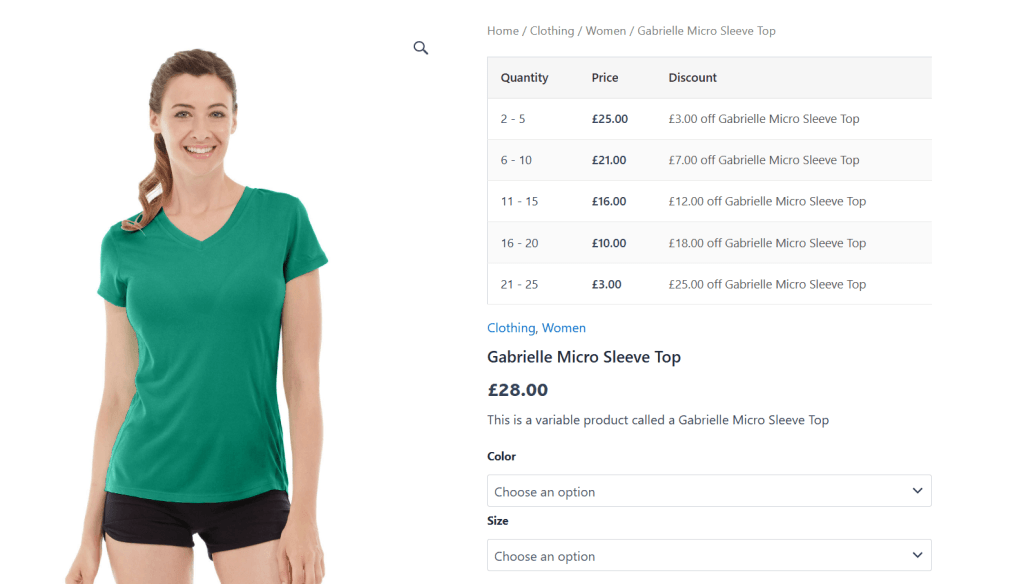
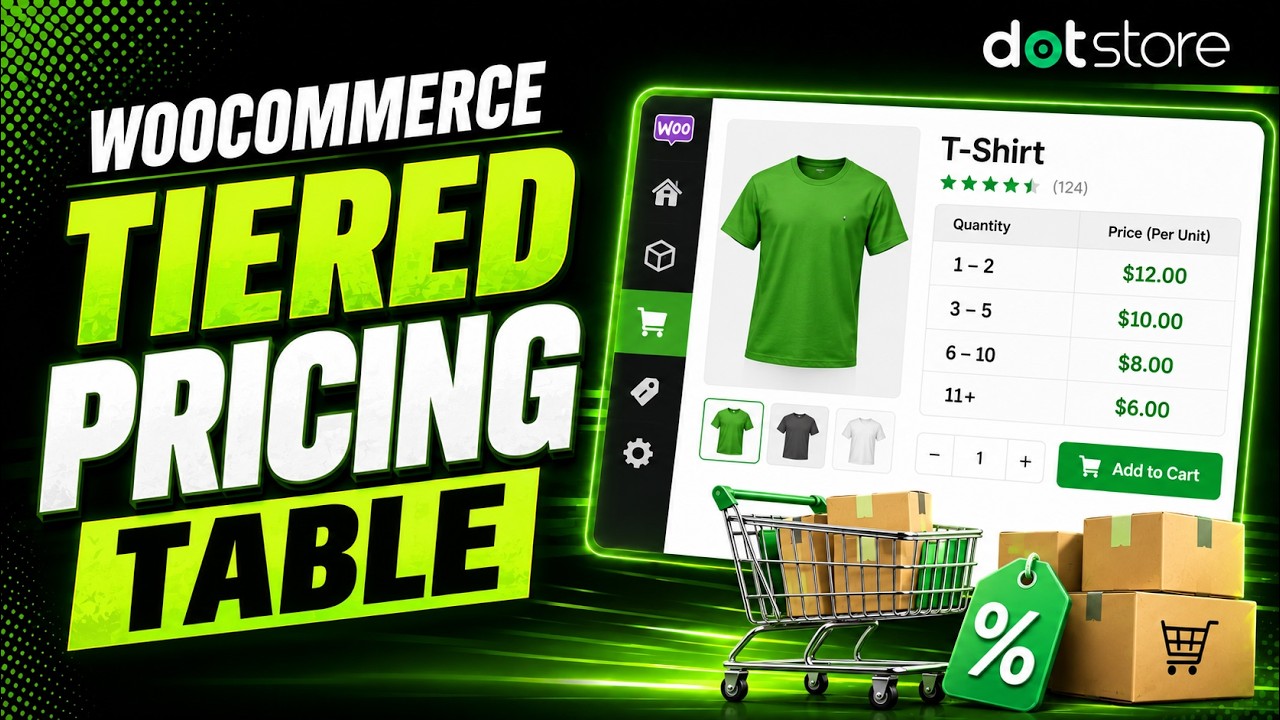
Here’s the front-end view of how the tiered discount plugin looks on the product page:
A quick note: Hello, and welcome to The Dotstore’s blog! We’ve been creating ecommerce software since 2009. Today, our tools are used by over 100K websites across various niches. We built the Dotstore WooCommerce Dynamic Pricing and Discount Rules plugin to help admins add tiered pricing tables and implement other dynamic pricing strategies. Want to check if it works for your specific use case? Learn more about it or install the free or pro version here.
Comparing WooCommerce tiered pricing table plugins
Tiered pricing is a pricing strategy that lets you set different prices (or discounts) for different quantity ranges of the same product. By default, WooCommerce doesn’t include tiered pricing. There are two types of plugins that you can use to add tiered pricing tables to your WooCommerce store:
- A single-purpose tiered pricing table for WooCommerce plugin. As the name suggests, these plugins perform one main function: adding and displaying a quantity-based price table on the product detail page. For example, the aptly named Tiered Pricing Table for WooCommerce plugin. Use plugins like this if you only need the pricing table feature.
- A dynamic pricing plugin. This type of plugin enables you to build and display tiered pricing tables on product pages. In addition, you can also add other types of discounts, including BXGY, fixed and percentage discounts, and more. The Dotstore WooCommerce Dynamic Pricing and Discount Rules plugin is perfect for this. Most WooCommerce stores eventually offer various types of discounts, so using a dynamic pricing plugin saves you from having to install and pay for a second discount management plugin.
Create WooCommerce tiered pricing tables with the Dotstore WooCommerce Dynamic Pricing and Discount Rules plugin
The Dotstore WooCommerce Dynamic Pricing and Discount Rules plugin lets you configure tiered discounts for different quantity ranges and display them in a user-friendly table on the product page. It even ships with ready-made templates to make it easier for you to create tiered pricing rules.
As the name implies, it is a dynamic pricing plugin. Since 2019, more than 5,000 WooCommerce stores use it to run conditional discounts, storewide sales, BOGO deals, seasonal promotions, and more.
The Dotstore WooCommerce Dynamic Pricing and Discount Rules plugin is available in both Free and Pro versions. You can add tiered pricing with the free version using this workaround; this will calculate and correctly apply the discount during the checkout flow. But the option to display the tiered pricing table on the product page is only available on the Pro version.
Front-end view of WooCommerce tiered pricing table plugin
Here’s what a WooCommerce tiered pricing table created with the Dotstore WooCommerce Dynamic Pricing and Discount Rules plugin looks like on a product page
Product page — specific product
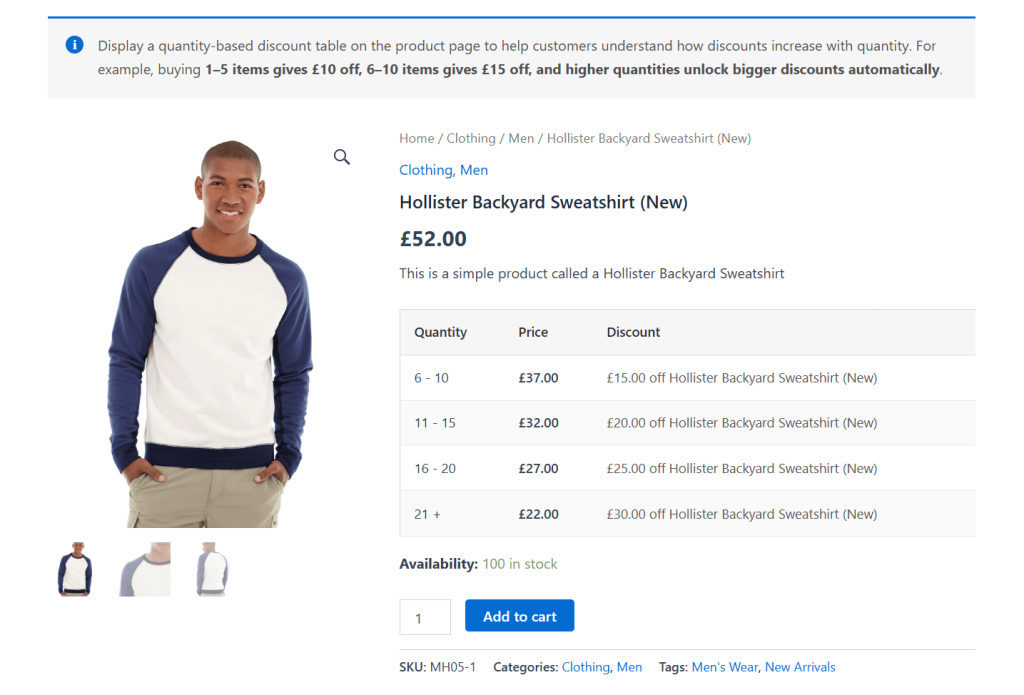
Here, the WooCommerce tiered pricing table with the quantity ranges and price breaks for each range is displayed under the product’s regular price.
Product page — product category
Here, the WooCommerce tiered pricing table rule is applied to the entire product category instead of a single product (unless you set specific exclusions). Every product in that specific category displays the same tiered pricing table automatically.
Cart page
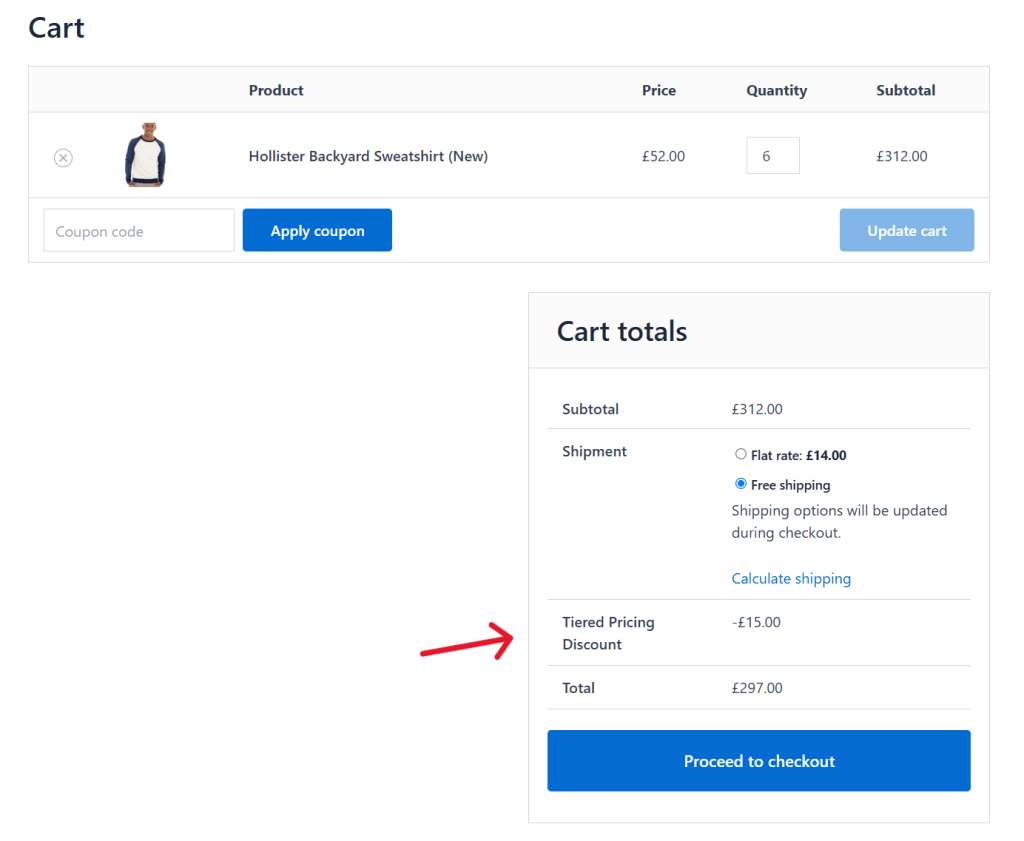
The tiered discount is displayed as a separate line item on the cart page in WooCommerce. The discount is only applied for customers who add enough units to qualify for the lower per-unit price.
Top features
- Product and category targeting. It lets you apply the same tiered pricing rule to specific products and product categories.
- User role conditions. To avoid sharing reduced pricing with everyone, you can add a user role condition that ensures the tiered pricing is only applied for the specified customers. Note: Customers must be logged in to your store to view the tiered pricing based on user role.
- Pre-made tiered discount template. The Dotstore WooCommerce Dynamic Pricing and Discount Rules plugin ships with various pre-made templates, including one for setting up tiered pricing discounts. This makes the process even easier as most of the details are pre-filled for you.
- Scheduling. You can set start and end dates to make sure the tiered pricing promotion is only active during the desired time window.
- Custom discount messaging. It lets you show a custom promotional message along with the tiered pricing table on the WooCommerce product page. Use this to give customers more relevant context on your pricing strategy.
- Multiple built-in discount types. As noted, you can use this plugin to enable BXGY, conditional discounts, storewide sales, and more. This saves you from having to use multiple plugins to enact other pricing strategies.
WooCommerce Dynamic Pricing and Discount
Apply advanced discount conditions to drive more revenue with our intuitive and easy-to-use plugin.
14-day, no-questions-asked money-back guarantee.
Tutorial: How to create a WooCommerce tiered pricing table
In this section, I’ll walk you through the steps to build quantity-based tiered pricing rules and display tiered prices in a user-friendly table on your WooCommerce store’s product and cart pages.
With the Dotstore WooCommerce Dynamic Pricing and Discount Rules plugin, you can apply pricing rules to specific products, categories, product variations, storewide, selected user roles, etc. Follow these steps.
1. Add the Dotstore WooCommerce Dynamic Pricing and Discount Rules plugin to your website
Get the Dotstore WooCommerce Dynamic Pricing and Discount Rules plugin. Then log in to Plugins → Add New in your WordPress admin to install and activate it.
2. Create the WooCommerce tiered pricing rule
Head to the newly added Dotstore Plugins → Dynamic Pricing and Discount Rules → Manage Rules section in your site’s admin.
You can create a brand new tiered pricing rule from scratch by pressing the “Add New” button.
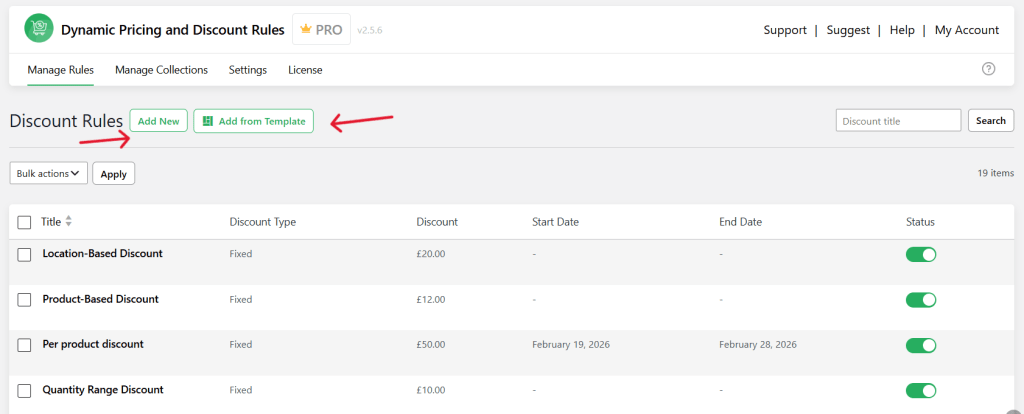
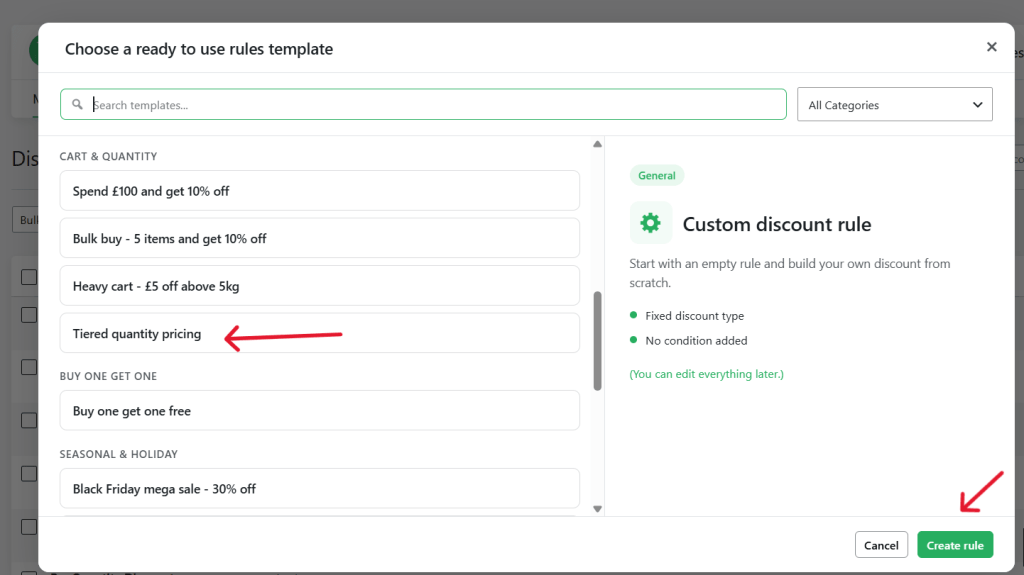
To make things easier, I’ll use the ready-made tiered discount template to create this rule. I’ll click on the “Add from Template” button, scroll down until I find the “Tiered quantity pricing” option, then press the “Create rule” button at the bottom-left of the pop-up panel. This pre-fills some of the information for the rule so I can edit the fields, as needed.
3. Configure the WooCommerce tiered pricing rule
Now, it’s time to configure how the tiered pricing rule functions in WooCommerce.
- Turn on the “Status” button.
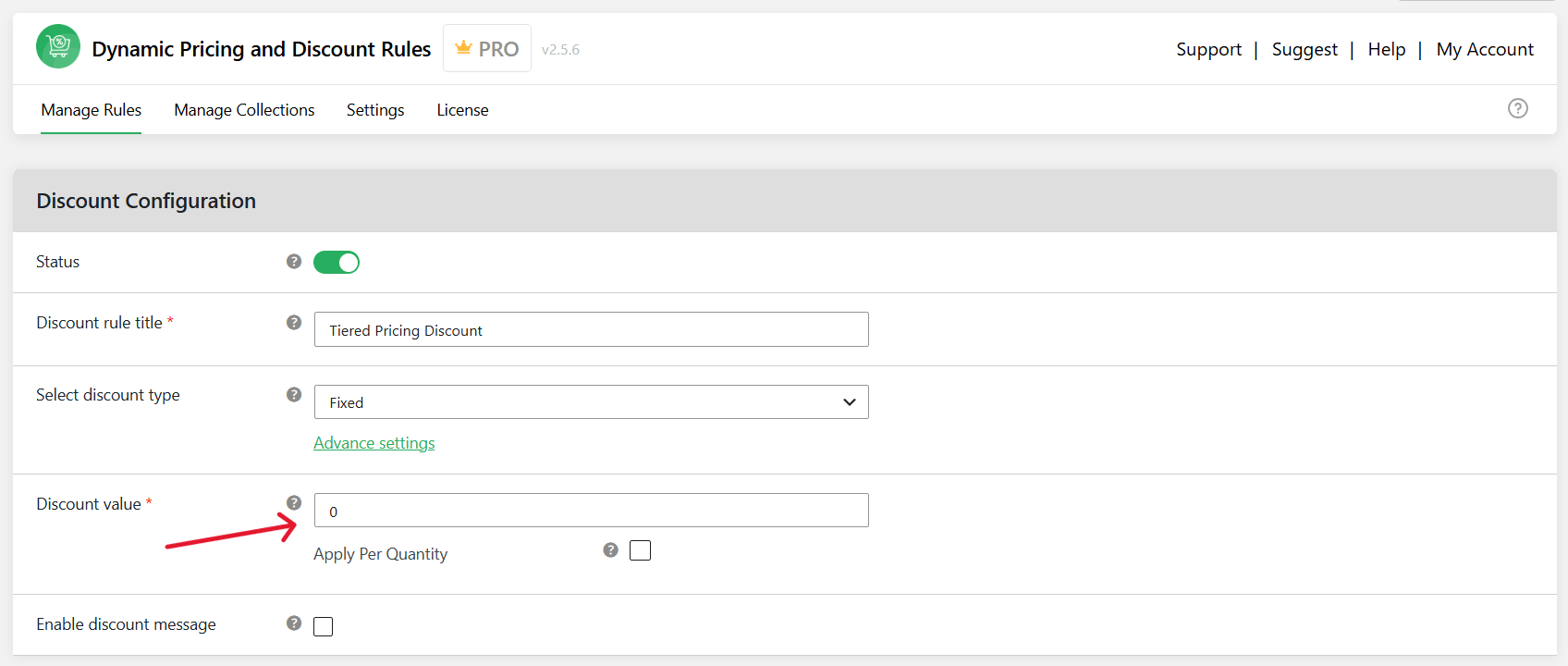
- Add a name for this tiered pricing rule. Note that this is visible on the admin and cart pages, so use a clear, descriptive name like “Tiered Pricing – Candles” for easy understanding.
- In the “Select discount type” field, decide whether to offer a fixed or percentage-based discount. Set the “Discount value” to “0”.
- Scroll down to the “Advanced Discount Price Rules” section and enable it. To add the tiered pricing table to:
- Specific products: Open the “Cost on Product” tab and press the “Add Rule” button to add each price tier. Turn on the button next to it to activate this rule. Also turn on the “Show Discount Table on Product Page” button to make sure the tiered pricing table is displayed on the product page. Then update the details (minimum quantity, maximum quantity, and discount amount) in the relevant fields.
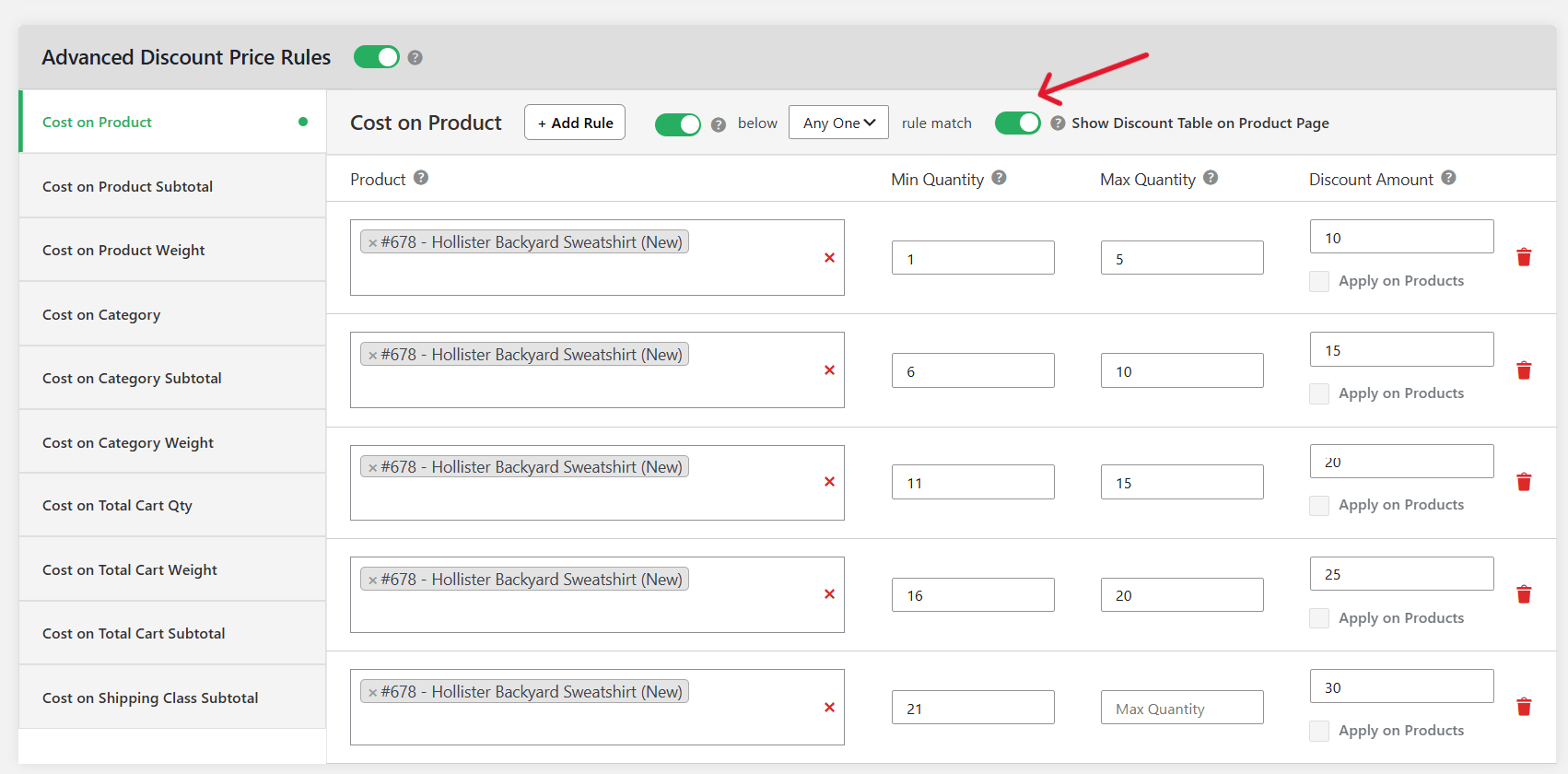
- Product categories: Open the “Cost on Category” tab and press the “Add Rule” button to add each price tier. Turn on the button next to it to activate this rule. Also turn on the “Show Discount Table on Product Page” button to make sure the tiered pricing table is displayed on the product page. Then update the details (minimum quantity, maximum quantity, and discount amount) in the relevant fields.
- Specific products: Open the “Cost on Product” tab and press the “Add Rule” button to add each price tier. Turn on the button next to it to activate this rule. Also turn on the “Show Discount Table on Product Page” button to make sure the tiered pricing table is displayed on the product page. Then update the details (minimum quantity, maximum quantity, and discount amount) in the relevant fields.
4. Add extra conditions, e.g., user role, customer location, etc.
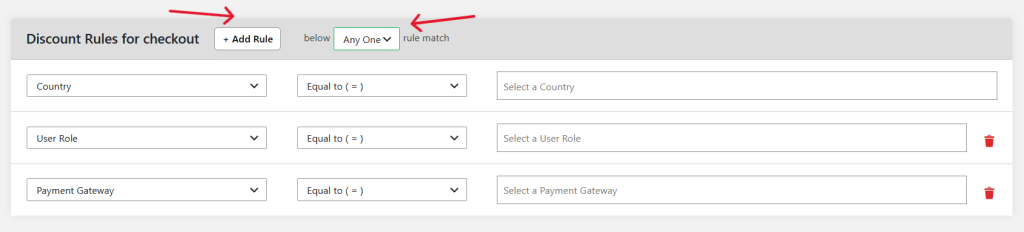
Scroll back up to the “Discount Rules for checkout” field to add extra conditions like user role, customer location (city, state, postcode), and others.
To schedule this tiered pricing rule to be active during a specific time period, scroll up to the “Advanced settings” under the “Select discount type” field. Then configure the start and end dates and times.
Finally, scroll to the bottom of the page and press the “Update” button.
5. WooCommerce tiered pricing table front-end view
Finally, head to the relevant product pages on your WooCommerce site’s front end to review the tiered pricing table.
How are price tiers applied across quantity ranges?
Each row in your WooCommerce tiered pricing table has a minimum quantity, a maximum quantity, and the discount that applies within that range. Whenever customers add products to their carts, the total quantity of that product or category is cross-checked against the quantity ranges you defined to work out which row applies.
The Dotstore WooCommerce Dynamic Pricing and Discount Rules plugin then applies the matching row’s rate to the whole quantity, not just the units within that specific range.
What happens if a customer doesn’t meet a specific price tier?
- Scenario 1: Tier 1’s minimum is 10 units, and the customer buys 7. The customer pays the regular, undiscounted price on all 7 units. No tier applies until the cart hits the 10-unit minimum.
- Scenario 2: Tier 1 starts at 10 units, tier 2 starts at 20, and the customer buys 15. They qualify for Tier 1’s rate, which will be applied to all 15 units.
Bonus: Pair tiered pricing with quantity management
Tiered pricing tables control per-unit product prices. If you want to provide a more friction-free user experience, you can use a quantity management plugin like Dotstore Min/Max Quantity for WooCommerce (available in free and pro versions) to control how a customer selects quantity on the product page.
Pairing your WooCommerce tiered pricing table with a quantity management plugin enables you to:
- Set a minimum and maximum order quantity per product.
- Set a step value, so customers can only add stock in fixed increments (e.g., in multiples of 5).
- Change the layout of the quantity selector on the product page.
Create your WooCommerce tiered pricing table today
Offering tiered discounts and displaying them in a pricing table on your WooCommerce store’s front end gives customers a visual incentive to buy more to qualify for the lower per-unit price.
WooCommerce’s core platform doesn’t include built-in tiered pricing tables but you can use a plugin like Dotstore WooCommerce Dynamic Pricing and Discount Rules to set it up. The entire process is pretty straightforward and takes less than ten minutes from start to finish.
Learn more about the plugin or download it now.
WooCommerce Dynamic Pricing and Discount
Apply advanced discount conditions to drive more revenue with our intuitive and easy-to-use plugin.
14-day, no-questions-asked money-back guarantee.