Table of Contents
Your holiday shipping rules can look right in your settings and still fail at checkout on Black Friday. A coupon pushes a cart below your free shipping threshold. Local pickup sits at the top of the list and gets preselected. A live carrier rate times out, and checkout shows no shipping options at all.
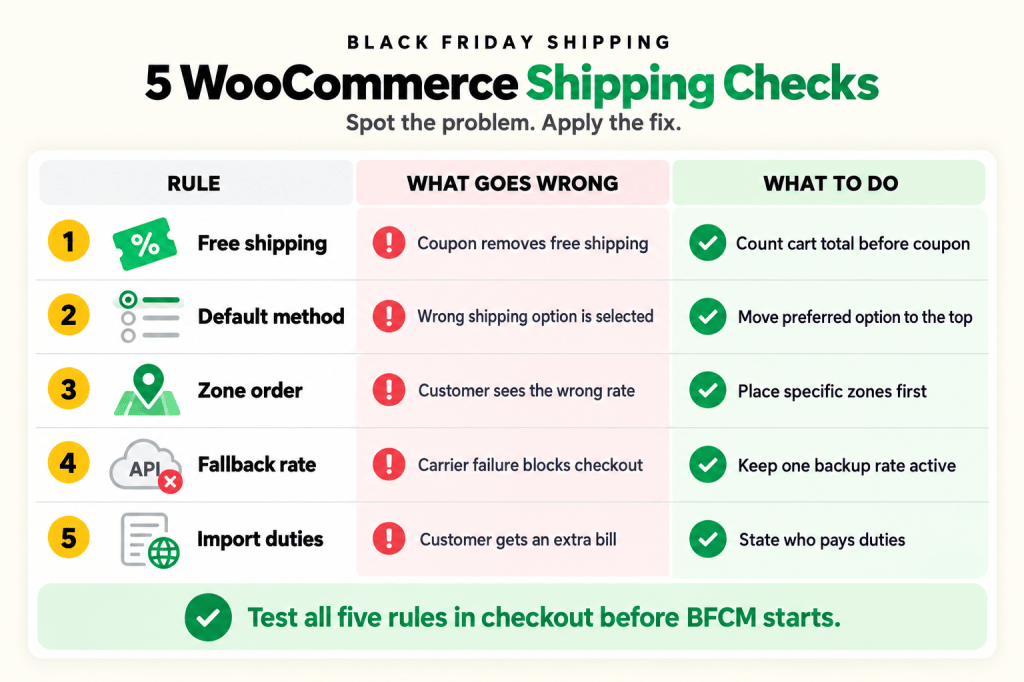
These five WooCommerce shipping settings are the ones standard BFCM checklists skip:
- Free shipping thresholds that stop working once BFCM coupons lower the cart total.
- The default shipping method WooCommerce preselects at checkout.
- Shipping zone order that sends some addresses to the wrong rate.
- A fallback rate for when live carrier rates fail under heavy traffic.
- Import duties and taxes on orders you ship to other countries.
Check all five before Black Friday on November 27, 2026, so you have time to test them before traffic peaks.
Each rule below starts with the free WooCommerce fix, shows where it stops, and then covers the Dotstore plugin option. Once these five are in place, the bonus section covers the standard holiday settings, such as free shipping offers and carrier cutoffs.
Which holiday shipping rules does your store need?
Your holiday shipping setup decides which of the five rules affect you. A small store with one zone may only need two of them. A store with live rates and international customers needs all five.
| Your shipping setup | Check first |
| You offer free shipping over a minimum spend | Rule 1 |
| You’re running BFCM coupons | Rule 1 |
| You offer express, pickup, or several methods per zone | Rule 2 |
| You ship to several regions, states, or postcodes | Rule 3 |
| You show live carrier rates at checkout | Rule 4 |
| You ship orders to other countries | Rule 5 |
| Solo or small store with one zone | Rules 1 and 2 (both fixable in native settings) |
Start with the rules that match your setup. Every store running BFCM coupons should check Rule 1.
1. Why does free shipping disappear after a coupon in WooCommerce?
By default, WooCommerce checks your free shipping threshold against the cart total after coupon discounts. A $60 cart with a 20% coupon drops to $48, which no longer qualifies for $50 free shipping. The shopper sees a shipping charge they didn’t expect.
Why it gets missed: thresholds are usually set long before the BFCM coupons are created.
The free WooCommerce way
WooCommerce’s free shipping settings include an Apply minimum order rule before coupon discount checkbox, which makes the threshold count the cart total before coupons.
- Go to WooCommerce > Settings > Shipping > Shipping zones and edit your zone.
- Edit the Free shipping method.
- Tick Apply minimum order rule before coupon discount.
- Save, then add an item and a coupon to your cart to confirm free shipping stays.
- Repeat for every zone with a free shipping method.
Sale prices work differently. The checkbox only covers coupons. If your BFCM discounts are sale prices, the cart subtotal already reflects the lower prices. Check your threshold against your typical discounted order, and decide whether to keep it or lower it for the sale.
This is enough when: your discounts are coupons and one threshold works for the whole season.
Where it stops: each zone has one threshold with no dates. A lower threshold for BFCM weekend means two manual edits per zone.
The automated way with Flat Rate Shipping
Create a $0 shipping method in Flat Rate Shipping with a cart subtotal condition and a Start Date and End Date for the sale. The method appears only during those dates, so your normal threshold returns by itself afterwards.
Say which total counts in your banner, for example “Free shipping on orders over $50 before discounts.” Shoppers who do the math themselves will trust the offer.
Test free shipping with a coupon applied. If the shipping charge reappears, your threshold is checking the discounted total.
2. How do I change the default shipping method in WooCommerce?
WooCommerce preselects the top enabled method in each shipping zone. To change the default, edit the zone and drag the method you want to the top of the list.
Why it gets missed: method order is set once and forgotten. If local pickup or paid express sits at the top, shoppers who don’t read the list get it by default, then complain or abandon when they notice.
The free WooCommerce way
- Go to WooCommerce > Settings > Shipping > Shipping zones and edit a zone.
- Drag the method you want preselected, usually your standard or free option, to the top.
- Save and repeat for every zone.
- Test in a private browser window. WooCommerce remembers a shopper’s previous choice during a session, so your own browser may not show the new default.
This is enough when: one default suits every shopper in a zone.
One default applies to everyone. You can’t preselect free shipping for logged-in customers and standard shipping for guests.
The automated way with Flat Rate Shipping
Flat Rate Shipping adds a Default Selected Shipping? option to each method.
- Edit the method you want preselected.
- Set Default Selected Shipping? to Yes.
- Add a User Role condition if different customer groups need different defaults, for example wholesale buyers.
- Test as a guest and as a logged-in customer.
Don’t preselect a paid express option to raise order values. Shoppers notice the charge at payment, and the trust cost outlasts the extra revenue.
Every time you add a holiday method, check which one sits at the top of the zone.
3. Why does WooCommerce charge the wrong shipping rate for some addresses?
WooCommerce checks shipping zones from top to bottom and uses the first zone that matches the address. If a wide zone, such as a whole country, sits above a narrower one, such as a city’s postcodes (ZIP codes in the US), the narrow zone never applies. Addresses that match no zone fall into Locations not covered by your other zones, which has no shipping methods unless you add them.
Why it gets missed: zones are set up once and rarely reordered. Orders from regions you rarely ship to are the ones that expose the gaps.
The free WooCommerce way
- Go to WooCommerce > Settings > Shipping > Shipping zones.
- Drag zones into order: narrowest at the top (postcodes, then states), widest at the bottom (countries, then regions).
- Decide what happens to addresses outside all your zones. Add a method to Locations not covered by your other zones, or leave it empty on purpose if you don’t ship there.
- Go to WooCommerce > Settings > Shipping > Shipping settings and tick Hide shipping costs until an address is entered, so shoppers don’t see a cart estimate for the wrong zone.
- Turn on Debug mode in the same screen, test one address from each zone to see which zone it matches, then switch debug mode off.
This is enough when: your zones don’t overlap and every region you ship to has its own zone.
Where it stops: each zone carries one set of methods. To charge a different rate for a few postcodes inside a country, you need another zone, and the zone list grows with every exception.
The rule-based way with Flat Rate Shipping
Flat Rate Shipping adds country, state, and postcode conditions inside a shipping method. A different rate for a handful of postcodes no longer needs its own WooCommerce zone.
- Add or edit a method in Flat Rate Shipping.
- Add a postcode or state condition for the area that needs a different rate.
- Choose whether the rule uses WooCommerce zones or the plugin’s own zones.
- Test addresses inside and outside the area.
To remove a method for destinations you can’t reach in time, the Hide Shipping Method plugin can hide it by country or state.
Plugin location rules still run inside WooCommerce’s zone matching. If your zone order is wrong, fix that first.
Keep your narrowest zones at the top, and test one address from every region before the sale starts.
4. Why does WooCommerce show “no shipping options available” during Black Friday?
The message appears when WooCommerce has no shipping rate to show for the shopper’s address. During peak traffic, a common cause is a live carrier rate request that times out or fails, which leaves checkout with nothing to select. Cached rates after a mid-sale rule change are a second cause.
Why it gets missed: live rates work fine in testing. Failures appear under load, which is exactly when you can’t afford them.
Core WooCommerce doesn’t include live carrier rates. They come from carrier plugins, so the fallback settings depend on which plugin you use.
The free WooCommerce way
- Open your live-rate plugin’s settings and look for a fallback rate or timeout option. Set a fallback amount if one exists.
- If the plugin has no fallback, add a Flat rate method to each zone as a backup and give it a clear name, such as “Standard shipping”.
- After any rule change, go to WooCommerce > Status > Tools and clear transients. Then clear your server, CDN, and page cache.
- Make sure your cart and checkout pages are excluded from page caching.
- To test which zone an address matches, enable Debug mode under WooCommerce > Settings > Shipping > Shipping settings. Switch it off afterwards, because shoppers can see the debug messages.
This is enough when: your products are similar in weight and size, so one backup price fits most orders.
Where it stops: a single backup rate charges every order the same. Heavy carts get undercharged and light carts get overcharged.
The automated way with Flat Rate Shipping
Build the backup method in Flat Rate Shipping with cart weight and shipping zone conditions. If the live rate fails, the backup price still tracks your real costs.
No plugin can fix a carrier outage. A backup rate keeps checkout open while the carrier recovers.
Every zone needs at least one rate that doesn’t depend on an outside service.
5. Who pays import duties on your international orders?
If you ship across borders, the customer’s country decides whether duties and taxes apply, and your shipping service decides who pays them. Two of the largest markets, the United States and the European Union, changed their rules in the past year. International rates set before then may no longer match what happens at delivery, wherever your store is based.
What changed?
- United States: the US suspended duty-free de minimis treatment for all countries from August 29, 2025, and made the suspension indefinite in rules published in the Federal Register in June 2026. Parcels from abroad can now carry duties whatever their value.
- European Union: the EU ended its customs duty exemption for low-value parcels sent from outside the EU on July 1, 2026, with a small flat duty per item as an interim measure. EU import VAT already applied to parcels of any value.
- Other countries: every country sets its own import rules. Check the current rules for each country you ship to.
Why it gets missed: international rates are usually set once, and both changes came after many stores set theirs. A duty bill the customer didn’t expect can lead to a refused parcel, a return you pay for, or a chargeback.
The free WooCommerce way
- Check which countries you ship to under WooCommerce > Settings > General, in Selling location(s) and Shipping location(s).
- For each international service, ask your carrier whether it’s DDP (you pay duties and taxes, so the customer pays nothing at delivery) or DDU (the customer pays at delivery). Postal services can handle duties differently from couriers, so check each one.
- Rename each international method to say who pays, for example “International Standard (duties and taxes paid at delivery)”.
- Add the same information to your shipping policy and checkout notes.
- If you can’t support a country this season, remove it from your shipping locations.
This is enough when: you only need to tell customers what to expect, not change what they pay.
Where it stops: a method title reads the same for every country in a zone. It can’t add a charge for one destination or hide a method for another.
The rule-based way with Hide Shipping Method and Extra Fees
- Hide Shipping Method: the Hide Shipping Method plugin can hide a method by destination country, so a DDU service doesn’t show where you’d rather ship DDP.
- Extra Fees: if you ship DDP, the Extra Fees plugin can add a country-based fee to cover duty and brokerage costs. Geo-targeted fees are part of the Pro version. Duties depend on product type and value, so treat the fee as an estimate and compare it with your carrier invoices.
This isn’t customs advice, and the rules are still changing. Confirm duty handling with your carrier or customs broker before the sale.
Customers in every country you ship to should know at checkout whether duties and taxes are included.
Bonus: 5 standard holiday shipping rules to set up too
These are the holiday WooCommerce shipping rules that standard BFCM guides cover. Each one still needs to be in place.
- Scheduled free shipping: native WooCommerce can end a free shipping offer with a coupon expiry date. For threshold-based free shipping that starts and stops by date, use the Start Date and End Date settings in Flat Rate Shipping.
- Carrier cutoffs: check the holiday deadlines for every carrier and postal service you use. In the US, for example, USPS publishes its holiday shipping dates. Hide Shipping Method can hide slow methods from a start date and time, and the methods come back on their own after the end date.
- Holiday express shipping: add the delivery estimate to the method title natively. Flat Rate Shipping adds day-of-week and time-range controls, so express only shows before your daily dispatch cutoff.
- Peak fees and rush options: native WooCommerce has no checkout fee setting. Extra Fees can add scheduled fees and optional checkbox fees, such as paid rush processing. See how to add holiday extra fees in WooCommerce.
- Local pickup: native Local pickup works for one location with steady staffing. Local Pickup for WooCommerce adds pickup appointments, holiday closures, lead times, and a pickup deadline.
Set the standard rules with start and end dates, so they switch off by themselves after the sale.
What should you check before Black Friday?
Test your holiday shipping rules in a real checkout before your sale emails go out.
- Coupons: apply a BFCM coupon to a cart near your threshold and confirm free shipping stays.
- Sale prices: check your threshold against a typical discounted order.
- Default method: open checkout in a private window and confirm the right method is preselected in each zone.
- Zone order: test one address from each region with debug mode on, then switch it off.
- Fallback rate: confirm every zone has a rate that doesn’t depend on a carrier API.
- Cache: clear transients and page cache after every rule change.
- Debug mode: make sure it’s switched off.
- International orders: confirm every international method states whether duties and taxes are included.
- End dates: confirm every seasonal rule switches off when it should.
- Other peaks: repeat these checks for the holidays your customers shop for, such as Diwali, Eid, Singles’ Day, Christmas, Boxing Day, or Lunar New Year.
The costliest holiday shipping rules are the defaults nobody rechecks before BFCM: coupon math, preselected methods, zone order, missing fallbacks, and duty surprises. Fix those first, then set up the standard rules.
Also Read: Fix Your WooCommerce GA4 Tracking Before Black Friday
Frequently asked questions
What are holiday shipping rules in WooCommerce?
Holiday shipping rules are the shipping settings you change for peak seasons like Black Friday. They include free shipping offers, carrier cutoffs, coupon thresholds, default methods, zone order, fallback rates, and import duties.
Does WooCommerce apply free shipping before or after coupons?
After, by default. To count the total before coupons, tick Apply minimum order rule before coupon discount in each zone’s Free shipping settings. Sale prices aren’t covered, so check your threshold against discounted orders.
How do I set a default shipping method in WooCommerce?
WooCommerce preselects the top enabled method in each shipping zone. Edit the zone under WooCommerce > Settings > Shipping > Shipping zones and drag your preferred method to the top.
Why does WooCommerce show the wrong shipping rate for an address?
WooCommerce uses the first matching zone, reading top to bottom. If a country zone sits above a postcode zone, the postcode zone never applies. Move your narrowest zones to the top.
What causes “no shipping options available” in WooCommerce?
WooCommerce has no rate for the shopper’s address. Check for unmatched zones, zones without methods, failed live carrier rates, or cached rates, and keep a fallback rate in every zone.
Who pays import duties on international WooCommerce orders?
It depends on your shipping service. With DDP, you pay duties up front. With DDU, the customer pays at delivery. Label every international method so customers know which applies.