Table of Contents
If you sell during Black Friday, your GA4 tracking has to be working before the traffic arrives, not after. This checklist walks you through everything to verify now, so every sale is measured when it counts.
Key Takeaways
- GA4 does not collect data after the fact. Whatever you fail to track during Black Friday and Cyber Monday is lost for good, so your tracking has to be ready before the traffic arrives.
- Setup and readiness are two different jobs. Installing tracking is quick; confirming it fires correctly under real conditions is what protects your peak-season data.
- Test now, not in November. Problems like double-counted purchases, missing events, or the wrong GA4 property are common and take time to find and fix.
- Peak season is a long run of sales, not one day. BFCM, Cyber Monday, and the Christmas shopping stretch all land within weeks, with Diwali adding an earlier peak for stores selling into India, so your deadline is your earliest sale, not Black Friday.
- Server-side tracking through the GA4 Measurement Protocol keeps purchase and refund data reliable when ad blockers and early exits would otherwise cause gaps.
- Check tracking after every theme or plugin change, weekly in normal periods, and daily during the sale. A store-to-GA4 gap under 15 percent is normal; above 20 percent signals a real problem.
Readiness, not setup, is the real task before your busy season. Installing tracking is the easy part; the harder part is proving it fires correctly when traffic is several times higher than normal. This guide is a pre-season checklist for exactly that.
If you have not set up tracking yet, start with our full walkthrough: How to implement enhanced ecommerce tracking in WooCommerce. This post picks up where that one leaves off.
In a rush? The 7 checks at a glance
Here is the whole readiness checklist in one place. In WordPress, link each item to its section below so readers can jump straight to it.
- Confirm you are connected to the correct live GA4 property.
- Verify every funnel event is firing, not just purchase.
- Place a full test order and check for duplicate purchases.
- Check the known WooCommerce tracking breakers.
- Confirm server-side tracking is protecting revenue data.
- Set up custom events for your campaign elements.
- Learn your reports before the sale, not during it.
If you use Enhanced Ecommerce Google Analytics for WooCommerce, most of these checks are a matter of confirming a setting rather than building anything from scratch.
Why does WooCommerce GA4 tracking readiness matter more before peak season?
Because GA4 data cannot be recovered later. If tracking is not firing while shoppers move through your store during a sale, that behaviour is gone. And at peak volume, any gap is multiplied: a tracking problem that loses a little data on a normal Tuesday can wipe out your entire Black Friday picture.
Here is what that looks like in practice.
Say your store does 2,000 orders on Black Friday, five times a normal Friday. If your purchase event silently stops firing at midday because a caching plugin served an old script, you could lose tracking on 1,000 of those orders.
GA4 would show roughly half your real revenue, your best sellers would look average, and your ad platforms would optimise against half the conversions. None of it is recoverable after the day ends. A two-minute check the week before would have caught it.
The tool that makes this checklist quick to run
Enhanced Ecommerce Google Analytics for WooCommerce is a Dotstore plugin that connects your store to GA4 and sends the full set of ecommerce events, without code. It matters for peak-season readiness because most of the checks below become a matter of confirming a setting rather than building tracking from scratch, which is what makes it realistic to get fully ready before your first sale.
Configure your GA tracking ID in the plugin settings to track sessions, page visits, visitors (IP, location, etc.), duration of sessions, session paths, and other details that help you understand the behavior and demographic of the users visiting your WooCommerce store.
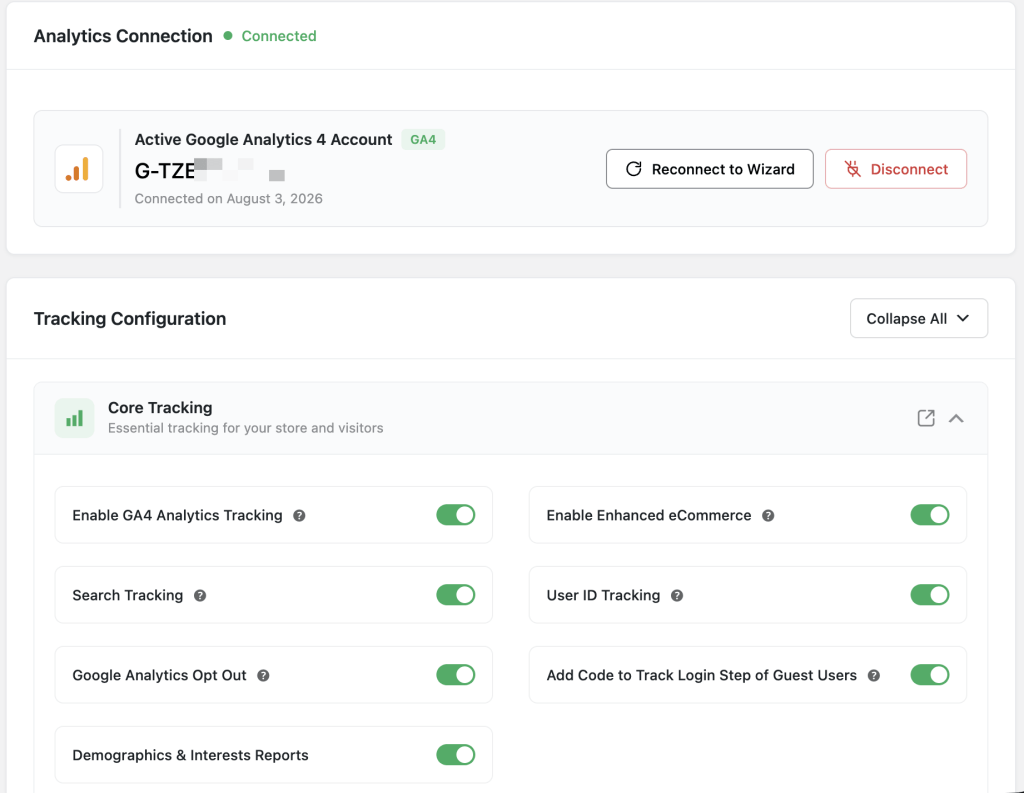
Here is how the plugin lines up with the readiness checks in this guide:
- Correct GA4 connection: connect through the setup wizard (sign in with Google and pick your property) or paste your Measurement ID manually, so confirming you are on the right live property takes seconds.
- Full-funnel events: it sends product views, add-to-cart, cart removals, checkout steps, purchases, and refunds as structured GA4 events, so your funnel is complete rather than purchase-only.
- Manual and phone orders counted too: opening a manually created order in WooCommerce admin (while it is Processing or Completed) fires a one-time purchase event, so off-site sales still show up in your peak-season revenue.
- Server-side reliability: Measurement Protocol support (added in the latest version) sends purchase and refund data from the server, which protects those events from ad blockers and early exits during heavy traffic.
- Campaign-specific tracking: custom events and custom dimensions let you measure your Black Friday banners, timers, and featured deals alongside the standard events.
- Live monitoring: real-time stat updates and a built-in conversion dashboard let you watch the sale as it happens and act on problems in time.
- Clean data: role-based exclusion keeps your own admin and staff activity out of the reports, so your peak-season numbers reflect real customers.
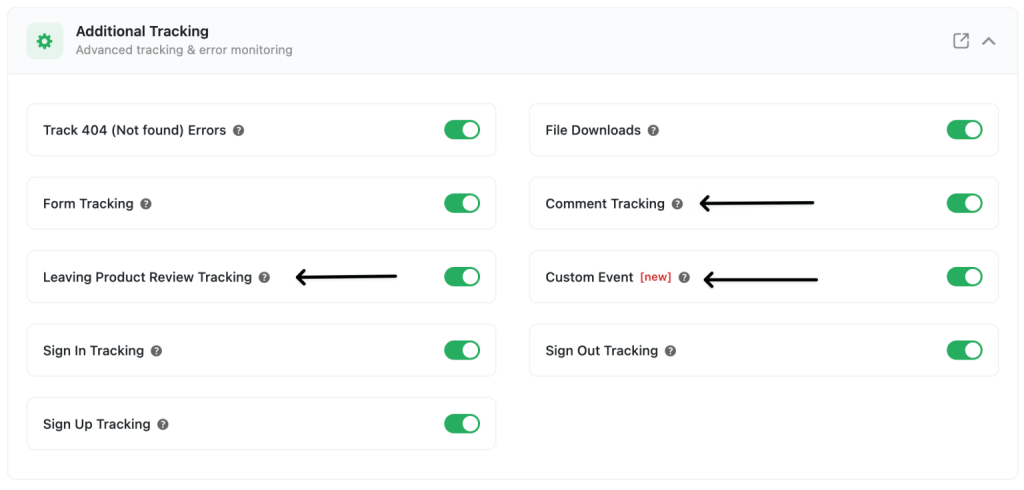
There is a free version on WordPress.org and a paid version with more features; check the plugin page for the current breakdown. You can try the live demo for full details.
Your pre-season GA4 readiness checklist
Work through these seven checks in a quiet week before your first major sale. Each one targets a specific way peak-season tracking commonly fails. Done early, they leave you free during the sale to read your data and act on it, instead of debugging it.
1. Confirm you are connected to the correct live GA4 property
Check that events are flowing into your live property and not a test or staging property. This mistake is common and quietly costs you the whole season’s data. In Enhanced Ecommerce Google Analytics for WooCommerce, open the plugin settings and confirm the connected Measurement ID matches your live store’s data stream.
2. Verify every funnel event is firing, not just purchase
Open GA4 DebugView (Admin, then DebugView) with the GA4 Debugger extension on, then walk your store in another tab. Confirm product-view, add-to-cart, begin-checkout, add-payment-info, and purchase each appear as you go; if one is missing, it is not firing.
Tag Assistant and the browser Network tab are useful second checks. A funnel that only records purchases cannot tell you where shoppers dropped off, which is the whole point during a sale.
3. Place a full test order and check for duplicates
Complete a real test purchase and confirm it appears once in GA4, with the correct revenue and currency. The detail that matters most is transaction_id: GA4 uses it to recognise a repeated order, so if it is missing, every reload of the confirmation page counts as another purchase and your revenue inflates.
Check each order sends a unique transaction_id (your WooCommerce order ID works). The other common cause of double-counting is a second GA4 tag from your theme, another plugin, or Google Tag Manager.
Worth knowing: when you enable this plugin’s Measurement Protocol backend tracking, it stops the front-end purchase and refund events and sends them server-side instead, so they are not counted twice.
4. Check the known WooCommerce tracking breakers
A handful of common setups can stop events from firing correctly: aggressive caching plugins serving old scripts, an AJAX-based or one-page checkout firing events out of order, cookie-consent tools blocking analytics until a shopper opts in, and theme or page-builder conflicts on the checkout page.
Test your actual checkout flow in GA4 DebugView after any recent theme or plugin update.
5. Confirm server-side tracking is protecting revenue data
Browser-based tracking can miss events when shoppers use ad blockers or leave before the tracking runs. Measurement Protocol support sends purchase and refund data from your server instead, which keeps those key events reliable under heavy traffic.
This is a recent addition to the plugin, so confirm the Measurement Protocol setting is enabled and that your GA4 API Secret is in place before the sale, when every order counts.
6. Set up custom events for your campaign elements
Your seasonal campaign probably has moments worth tracking on their own: clicks on a Black Friday banner, use of a countdown timer, or engagement with a featured deal block. Add these as custom events now so you can tell which promotions actually led to sales, rather than guessing after the fact.
7. Learn your reports before the sale, not during it
By the time your peak arrives, you want to already know where to look. Spend time now in the Purchase journey, Checkout journey, and Realtime reports so you can spot a weak product or a checkout problem during the sale while there is still time to act.
The plugin’s built-in dashboard and real-time updates let you watch performance live without digging through GA4 during the rush.
When should tracking be ready if you sell internationally?
Copy this into your pre-season planning doc. Every item should be checked off before your earliest major sale.
- Confirmed connection to the correct live GA4 property.
- Verified product-view, add-to-cart, begin-checkout, add-payment-info, and purchase events all fire.
- Placed a full test order and confirmed one clean purchase with correct revenue and currency.
- Tested checkout in DebugView against caching, AJAX checkout, consent tools, and theme conflicts.
- Confirmed server-side tracking (Measurement Protocol) is enabled.
- Added custom events for campaign-specific elements.
- Spent time in the key GA4 reports so you know where to look during the sale.
How often should you check tracking during the season?
Check your tracking after every theme update, plugin install, or checkout change, since any of these can break it. In normal weeks, a weekly check is enough.
During peak sale days like Black Friday and Cyber Monday, check daily. As a rule of thumb, a 5 to 15 percent gap between your store orders and your GA4 purchases is normal for browser-based tracking, but a gap above 20 percent points to a real tracking problem worth fixing before it distorts the rest of the sale.
The reason for daily checks during the sale is simple: at peak volume, a tracking problem that goes unnoticed for a day can cost you a large share of the season’s data, and unlike most fixes, you cannot recover it afterward. A two-minute DebugView check each morning of the sale is cheap insurance.
When should tracking be ready if you sell internationally?
Have tracking finished and verified before your earliest peak, not just before BFCM. The Q4 sales calendar is a crowded run, not a single day: Black Friday and Cyber Monday in late November, then the Christmas shopping stretch through December.
If you sell into India, Diwali brings an earlier peak in late October or November, and stores in the UK, Canada, and Australia see a Boxing Day tail after Christmas. Work backward from whichever sale hits your store first, and keep tracking reliable all the way through, not just for the Black Friday weekend.
The practical takeaway: work backward from whichever sale hits your store first. For many global stores that is Singles’ Day or a regional Diwali campaign in early-to-mid November, which means your readiness checklist should be finished in October, not the week of Black Friday.
Frequently asked questions
Can I recover BFCM data if I set up tracking late?
No. GA4 does not add data later for a time when tracking was off. Any behaviour that happened before tracking was working correctly is permanently missing for that period. This is why readiness has to be confirmed before the sale, not during it.
I already set up tracking months ago. Do I still need this checklist?
Yes. Tracking that worked when you installed it can break after a theme update, a new caching or consent plugin, or a checkout change. The point of a pre-season check is to confirm it still fires correctly under the conditions your store will actually face during peak traffic.
How far before Black Friday should I run these checks?
Aim to finish them several weeks before your earliest major sale, so you have time to fix anything you find. For most stores the first big peak is Black Friday, but if you sell into India, Diwali can move that deadline into October. Either way, keep your tracking reliable through Cyber Monday and Christmas.
What is the single most common peak-season tracking mistake?
Connecting to the wrong GA4 property, or leaving duplicate tags in place so purchases get counted twice. Both are easy to miss and both distort your entire view of the sale. A single verified test order before the season catches both.
Do manual or phone orders get tracked during a sale?
With Enhanced Ecommerce Google Analytics for WooCommerce, yes. When enhanced ecommerce is enabled, opening a manually created order in WooCommerce admin while it is Processing or Completed fires a one-time purchase event. That means orders you take by phone or enter by hand during a busy period still appear in your GA4 revenue, rather than leaving a gap between your store totals and your analytics.
Enhanced Ecommerce Tracking
Leverage the power of analytics to boost your store’s performance and maximize profits.
14-day, no-questions-asked money-back guarantee.