Table of Contents
Do you want to set different prices for different customers in WooCommerce? In this tutorial, I’ll show you step-by-step how to customize and display different product prices in your store for specific users, user roles, and other conditions.
Key Takeaways
- By default, WooCommerce doesn’t include the features to set different prices for different customers. It shows the same product price to every shopper by default, so you’ll need a dedicated pricing plugin to personalize what each customer sees.
- There are multiple ways to set different prices for different users in WooCommerce: role-based pricing, customer-specific pricing, membership pricing, location-based pricing, quantity-based pricing, and more.
- Role-based pricing is best suited when you want broad customer groups (like wholesalers, VIPs, or subscribers) to see different prices. User-specific pricing is ideal when you want truly personalized pricing for certain clients or high-value accounts.
- Quantity-based pricing remains one of the most effective ways to raise average order value. With tiered pricing, customers instantly see how buying more reduces their per-unit cost; no need for coupons or manual quotes.
- Location-based pricing helps stores that sell internationally adapt prices to taxes, fees, or regional market expectations. This is especially useful when shipping or VAT rules differ across countries.
- The Dotstore’s WooCommerce Dynamic Pricing and Discount Rules plugin lets you set different prices for different customers in WooCommerce. You can use it to set user-specific pricing, role-based pricing, membership pricing, quantity-based pricing, location-based pricing, and more. Plus, it lets you mix and match conditions so only the right customers get the right prices at the right time.
- Multiple types of stores use The Dotstore’s WooCommerce Dynamic Pricing and Discount Rules plugin. For instance, some stores use it to offer special pricing for wholesale buyers, exclusive discounts for logged-in members, personalized rates for loyal clients, or region-specific prices etc.
In this tutorial, I’ll show you step-by-step:
- How do I set different prices for different customers in WooCommerce?
- How do I set different prices for different users in WooCommerce?
- How can I set different prices by user in WooCommerce?
They all refer to setting up price variations based on who the customer is rather than what the product is; and yes, you can implement this in your store.
WooCommerce doesn’t support this out-of-the-box, so you’ll need to set it up with the help of the powerful WooCommerce Dynamic Pricing and Discount Rules plugin.
In this tutorial, I’ll cover the following:
- What it means to set different prices for different customers in WooCommerce.
- Popular example scenarios for setting different prices for different customers in WooCommerce stores.
- Why set different prices for different users differently based on various conditions.
- A step-by-step walkthrough of how to set different prices for different customers in WooCommerce.
- Frequently asked questions about setting different prices for different users in WooCommerce.
Plugin used in this tutorial
- WooCommerce Dynamic Pricing and Discount Rules: An advanced WooCommerce plugin that lets you set different prices for different customers based on user roles, location, cart contents, specific customers, purchase history, and more. Free and Pro versions available.
Let’s kick off with the most fundamental question:
Why set different prices for different customers in WooCommerce?
A one-size-fits-all pricing isn’t ideal for every ecommerce business. Here are 5 ways B2B and B2C ecommerce stores alike can benefit from setting different customers different prices.
- It maximizes revenue from different customer segments. Not all customer cohorts have the same needs and budgets. Customizing pricing based on customer type enables you to capture more sales without undercutting your margins, and without duplicating the effort to service those customers.
- It encourages larger orders. Whether the objective is to get rid of surplus stock or improve the AOV, quantity-based pricing nudges customers to buy more per transaction in order to be eligible for lower per-unit product prices.
- It rewards customer loyalty. Rewarding members, subscribers, or long-time customers with lower prices gives them a reason to keep buying from your online store.
- It adapts pricing to local markets. If you sell to buyers located in a different country, adjusting prices based on location lets you account for local taxes, extra fees, shipping, and purchasing power. For instance, a store that sells to customers in the US and the EU can show customers in Europe VAT-inclusive prices while those in the U.S. see tax-exclusive prices.
- It reduces admin work and support tickets. Implementing rules that automate price adjustments for different customers eliminates unnecessary back-and-forth of providing manual quotes or one-off coupon codes. Customers see the correct price from the start, without having to expend the effort to get in contact with your team.
A powerful plugin to set different prices for different customers in WooCommerce
WooCommerce Dynamic Pricing and Discount Rules is a powerful, simple-to-use plugin that enables you to set different prices for different customers in a few minutes.
Thousands of businesses — including stores that sell to wholesale and retail buyers, those that offer special pricing for loyal customers, those that need to comply with specific pricing agreements for B2B clients, and others — use it to adapt product prices to their business strategy.
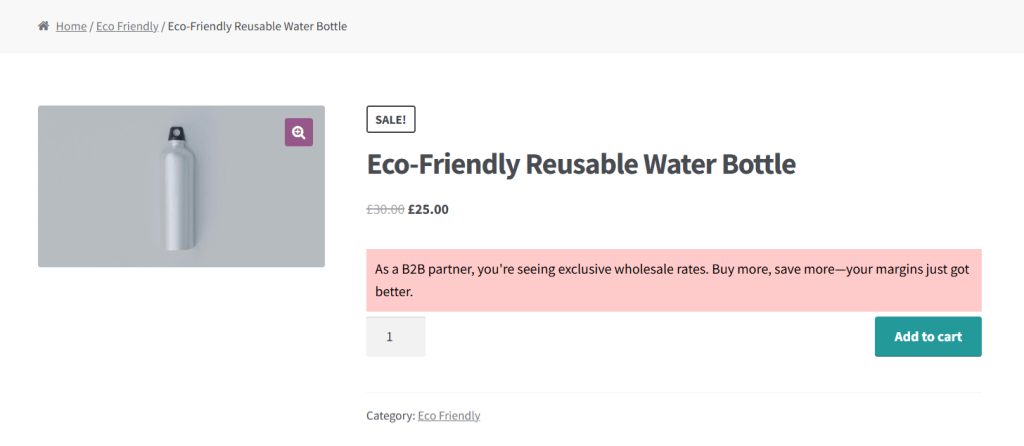
There are many reasons why businesses use the WooCommerce Dynamic Pricing and Discount Rules plugin to set different prices for different customers. Here are some of the most common examples used by B2B and B2C WooCommerce stores alike.
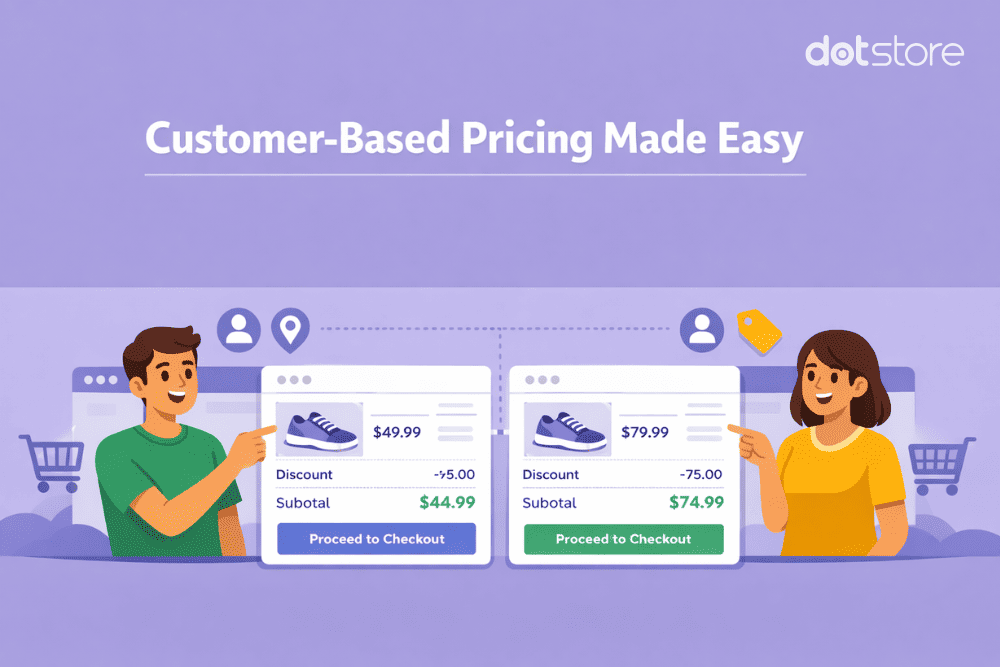
- Role-based pricing. This means assigning different prices to different user roles. A popular example is a hybrid B2B and B2C ecommerce store that shows wholesale buyers bulk rates while retail customers pay full price.
- User-specific pricing. If a particular customer or set of customers meets specific criteria, it might be appropriate to set a custom price for them. For example, businesses might want to reward individual customers who make high-volume purchases to ensure their continued patronage.
- Membership-based pricing. Businesses that operate on a membership or subscription model can reward members with exclusive pricing while non-members see the full price. This encourages people to subscribe and stay subscribed to access member prices.
- Quantity-based pricing. Also called volume pricing, this model lets stores price products based on how many units a customer buys. You can define quantity-based price tiers globally, per category, or on a per-product basis.
- Location-based pricing. Stores that sell internationally or across tax zones may need to adjust pricing based on customer location, sometimes due to currency, taxes, regulatory fees, or shipping costs.
For instance, with WooCommerce Dynamic Pricing and Discount Rules, you can, assign different prices to different user roles, e.g. wholesale versus retail customers, create quantity-based tiered discounts where the price per unit decreases as customers buy more, tailor product prices based on customers’ location, and lots more.
This dynamic pricing plugin’s interface is intuitive to use to define, manage, and disable discount rules as needed. Plus, it lets you set up separate pricing rules for individual simple products, product variations, categories and sub-categories, and the entire product catalog with ease.
Here’s an overview of some of its top features.
Top features
- Multiple use cases. In addition to setting different prices for different customers, it lets you offer buy one get one free deals, product bundles, category-specific combos, and more — no need for an additional plugin.
- Advanced discount conditions. You can choose from a wide range of advanced conditions — cart size, cart contents, user role, location, customer type, payment method, product category, etc — to tailor how the price adjustments work. Plus you can combine them as needed, for example, a store that sells eco-friendly kitchenware can offer buyers with the “Wholesale Customer” role 40% off across the entire catalog while retail customers pay full price, an apparel dropship store can price t-shirts as follows: 1–9 units at $50 each, 10–49 units at $45 each, and 50+ units at $40 each, and a global footwear brand based in the U.S. can set more for customers in Australia due to shipping or regulatory fees.
- Schedule pricing rules. Sometimes, you may want to change prices for a specific timeframe. This plugin enables you to set start and end dates in advance to schedule pricing rules right down to the minute.
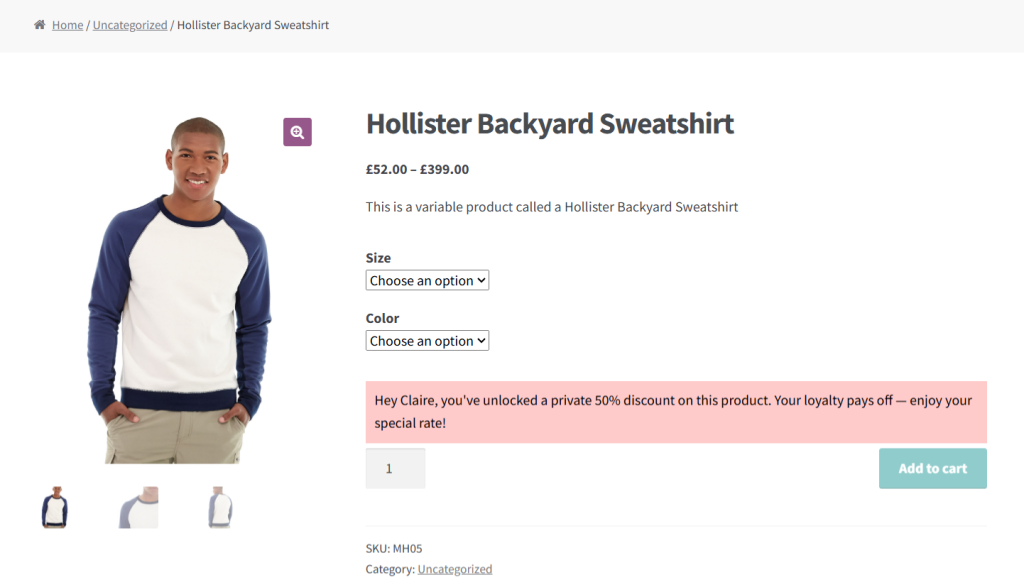
- Banners with custom messages on product pages. You can add custom messaging to be shown to each customer cohort based directly on product detail pages on the rules you set to “sell” the benefit of the preferred pricing deal you’ve provided.
How to set different prices for different customers in WooCommerce
Now that we’ve walked through the fundamentals of setting varied pricing for different customers in an ecommerce store, it’s time to apply them.
Below, I’ll guide you through the steps to implement customer-specific pricing in your WooCommerce store.
Step 1: Create a new rule to set different prices for different customers in WooCommerce
- Access your site’s admin and install the WooCommerce Dynamic Pricing and Discount Rules plugin.
- Navigate to the newly added Dynamic Pricing and Discount Rules section in your dashboard, and click on “Add New”.
- Turn on the “Status” button to activate this price rule.
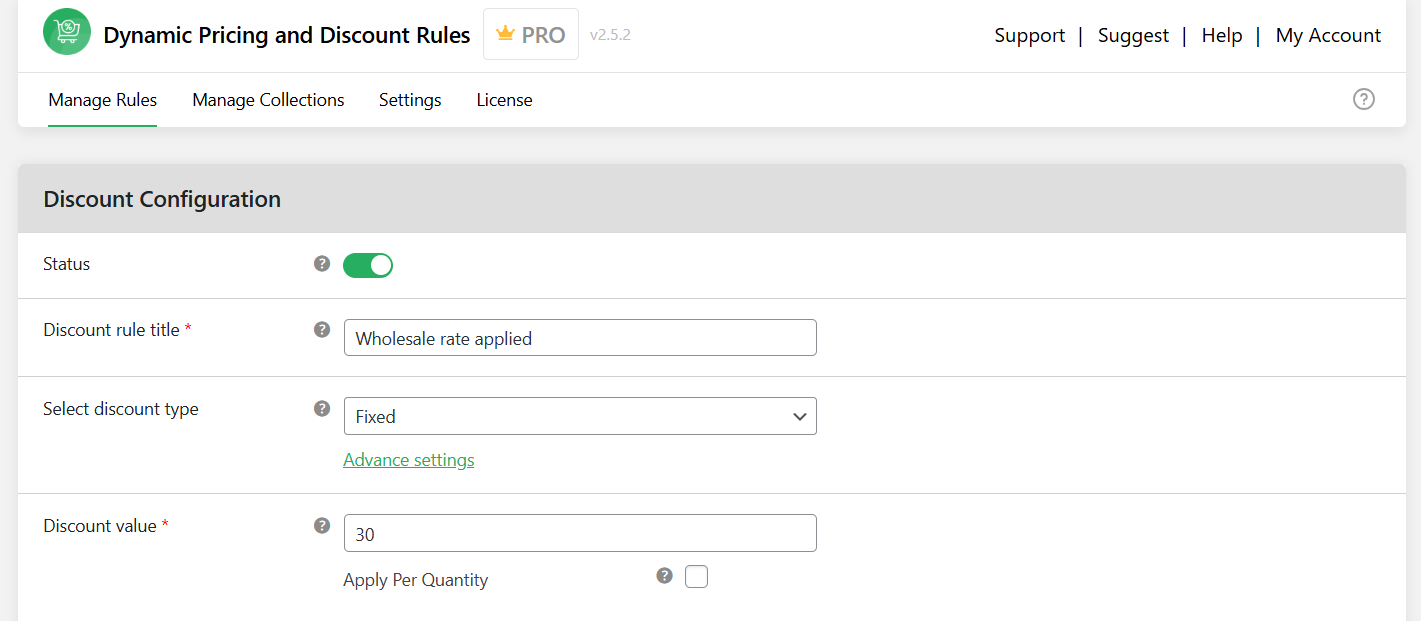
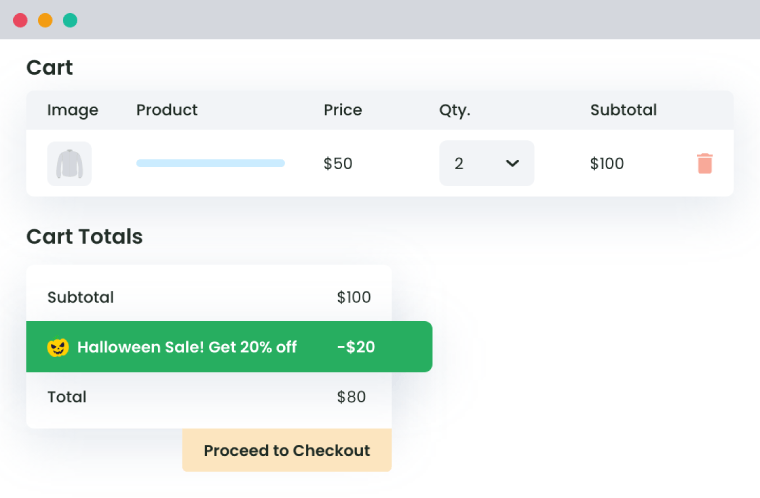
- Enter an appropriate name for this pricing rule in the “Title” field. Note that this will be visible on the cart and checkout pages on your store’s front end.
- Specify how you’d like to adjust the regular product prices: fixed amount, percentage, or price adjustment.
- In the Discount Value field, input the appropriate amount to be discounted from the product’s regular price. For instance, if you’d like to reduce the regular price by 20%, enter “20” here.
- Check the “Apply Per Quantity” box to apply the price reduction to each unit purchased.
Step 2: Add criteria to set different prices for different customers in WooCommerce
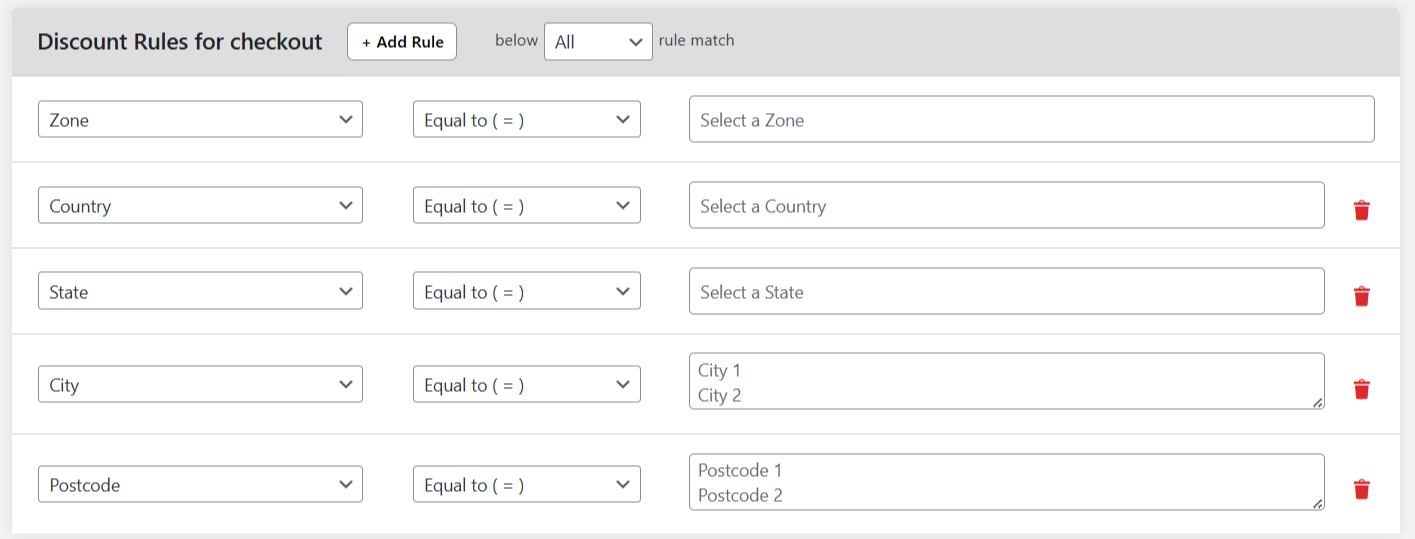
- Navigate to the “Discount Rules for checkout” section to add conditions for the pricing rule to apply.
- Set the following values to add role-based or member-based pricing:
- Condition Type: User Role

- Operator: Is Equal To
- Value: Wholesaler or Member (or whatever the appropriate role is)
- Condition Type: User Role
- Set the following values to add user-specific pricing:
- Condition Type: “User” or “User Email”
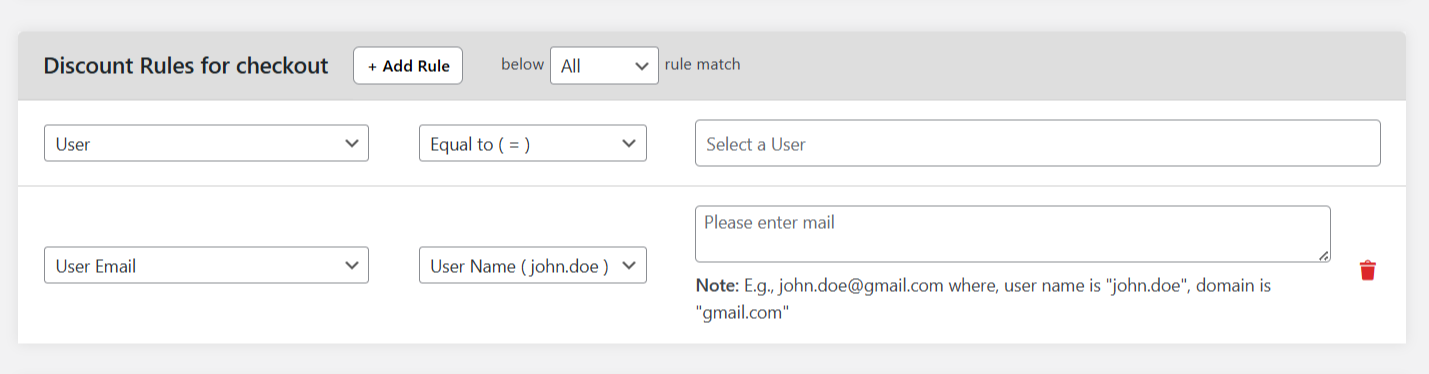
- Operator: Is Equal To
- Value: User or user’s email address
- Condition Type: “User” or “User Email”
- Set the following values to add quantity-based pricing:
- Condition Type: “Product”, “Variable Product”, or “Category”.
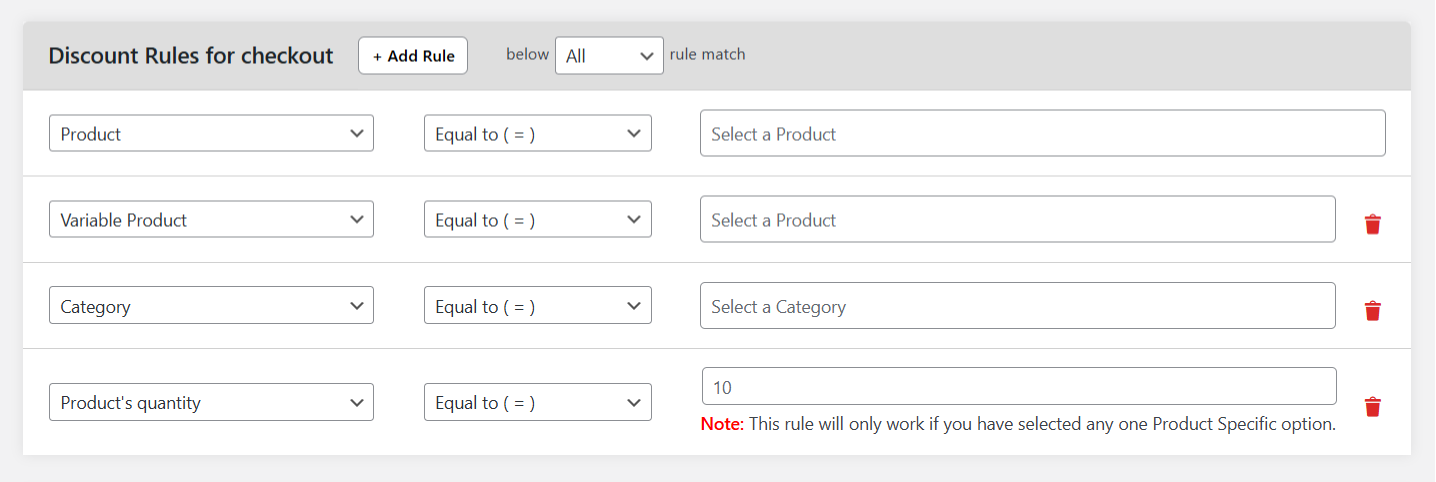
- Operator: Is Equal To
- Value: Specific simple or variable product or product category
- Condition Type: “Product’s quantity”
- Operator: Is Equal To
- Value: Number of products for this rule to apply to
- Condition Type: “Product”, “Variable Product”, or “Category”.
- Set the following values to add location-based pricing:
- Condition Type: Enter the appropriate value from the “Location Specific” set of options.
- Operator: Is Equal To
- Value: Enter the specific location
- Condition Type: Enter the appropriate value from the “Location Specific” set of options.
- Add as many criteria as relevant then hit” Submit” at the bottom of the page.
Step 3: Additional options to set different prices for different customers in WooCommerce
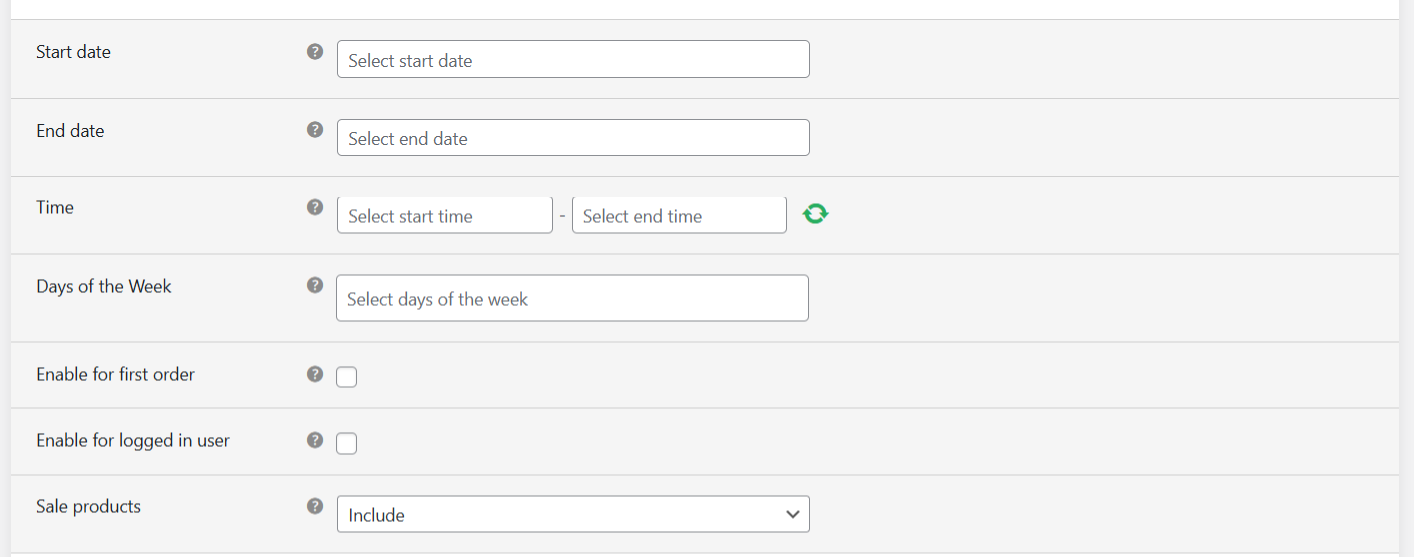
- If you’d like to schedule this specific pricing rule to apply during a predetermined period, click on the “Advanced Settings” button under the “Select discount type” option near the top of the page. This will reveal settings to add start and end dates and times and days of the week for which this pricing rule applies.
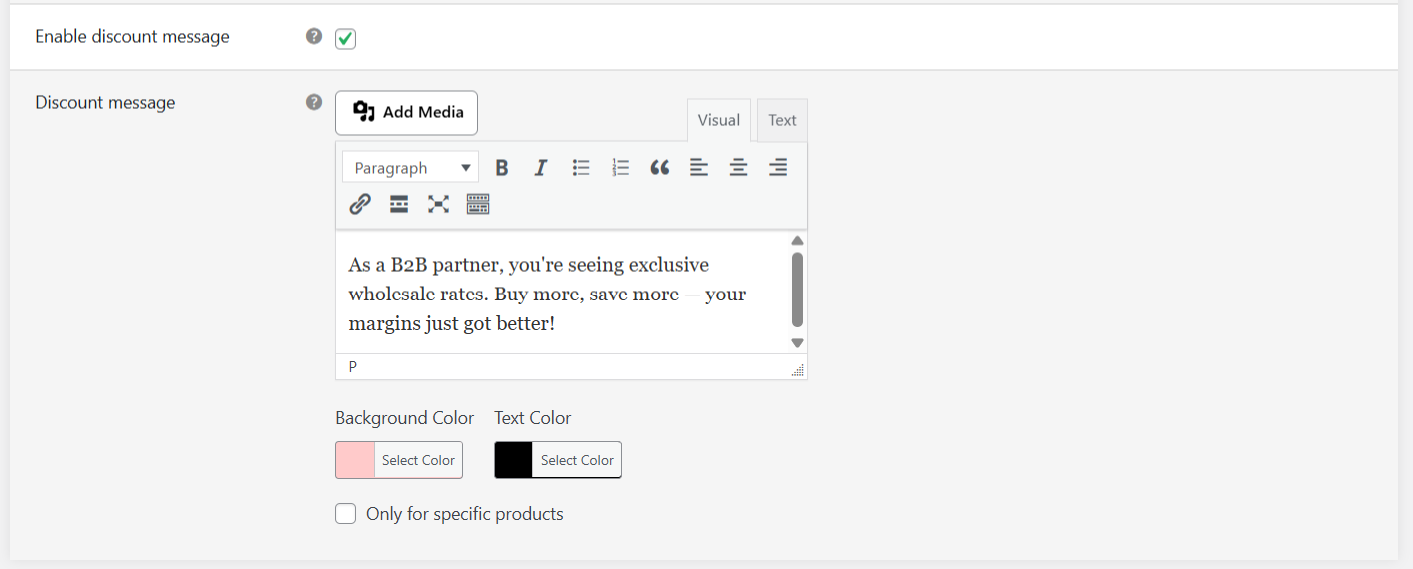
- You can also check the “Enable discount message” box to add a banner to product detail pages this pricing rule applies to. Add your custom messaging to the “Discount message” box.
That’s it, your pricing rule is now live. Different customers will see different prices based on the rules you set.
6 best dynamic pricing plugins for WooCommerce
- WooCommerce Dynamic Pricing and Discount Rules by The Dotstore
- YITH WooCommerce Dynamic Pricing & Discounts
- Dynamic Pricing for WooCommerce by Element Stark
- ELEX WooCommerce Dynamic Pricing and Discounts Plugin
- WooCommerce Dynamic Pricing & Discounts by YayPricing
- Discount Rules for WooCommerce by Flycart
WooCommerce Dynamic Pricing and Discount Rules by The Dotstore

Best suited for: Stores that need flexible, condition-based pricing across their product catalog.
WooCommerce Dynamic Pricing and Discount Rules by The Dotstore is a powerful dynamic pricing plugin that lets you charge different prices to different customers. It can handle a wide range of pricing models, including user role-based pricing, user-specific pricing, membership pricing, volume-based tiers, location-based pricing, etc.
Thousands of WooCommerce stores across various niches rely on it to align their pricing with how their business operates so they can serve different customer segments from the same storefront. For instance:
- A hybrid B2B and B2C store can use it to set up user role-based pricing and show wholesale buyers bulk pricing while showing regular shoppers retail prices.
- A subscription-based store can show members-only prices to subscribers while non-members see the standard rates.
- An affordable luxury brand can reward high-value buyers with special pricing for a limited period.
WooCommerce Dynamic Pricing and Discount Rules’ flexible conditions system enables you to filter by cart value, cart contents, user role, customer type, payment method, product category, geographic location, and more. It also lets you set up different prices for logged-in users, which shows registered customers personalized rates the moment they sign into your WooCommerce store.
It lets you stack conditions together to build custom rules and schedule start and end dates for each rule in advance. And you can display custom promotional messaging on your store’s product pages to share relevant price-related information with shoppers and publicize available deals.
Ready to get started? Check out WooCommerce Dynamic Pricing and Discount Rules’ live demo or download its free or pro version now!
YITH WooCommerce Dynamic Pricing & Discounts
Best suited for: Stores that run frequent seasonal campaigns and are already embedded in the YITH ecosystem.
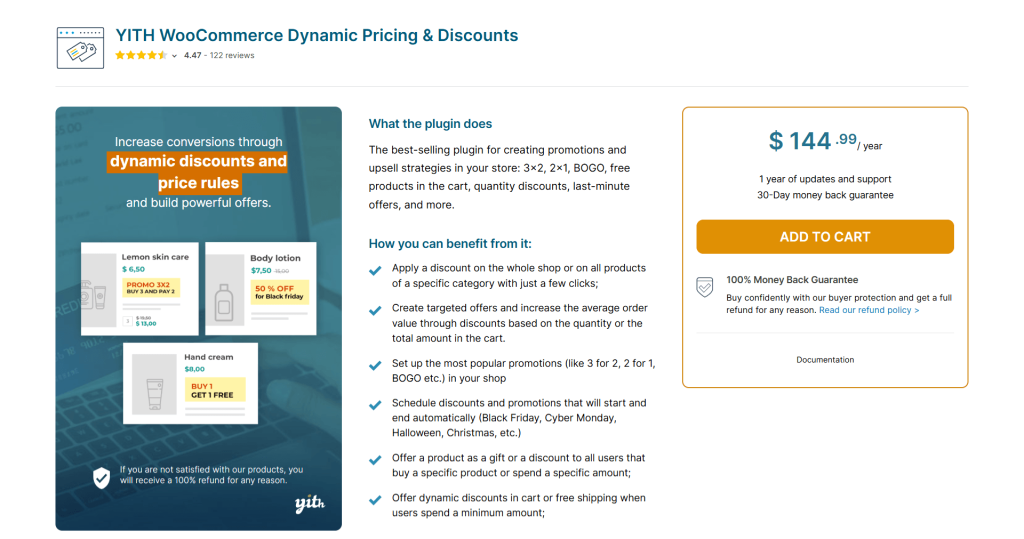
YITH WooCommerce Dynamic Pricing & Discounts is a popular dynamic pricing plugin. It’s built to handle virtually every type of promotion a store might need: quantity discounts, BOGO deals, cart-based offers, gift products, last-minute upsells, scheduled sales, user-specific pricing, etc.
To make it easy for you to get started, the plugin comes pre-installed with useful price rule templates for popular use cases like Black Friday sitewide discounts, holiday gift promotions with countdown timers, or back-to-school category sales. Rather than building rules from scratch, you can choose from a set of pre-built campaign structures, fill in the details, and quickly spin up promotional offers.
YITH WooCommerce Dynamic Pricing & Discounts’ standout feature is its cart-based discounts. It lets you reward customers who hit a spending threshold with a percentage discount, free shipping, or even a free product.
A gift product modal pops up automatically when customers meet the qualifying conditions, which encourages customers to complete their purchase. And you can add dynamic cart notices to nudge shoppers to add more to their cart to unlock the next discount tier.
Dynamic Pricing for WooCommerce by Element Stark
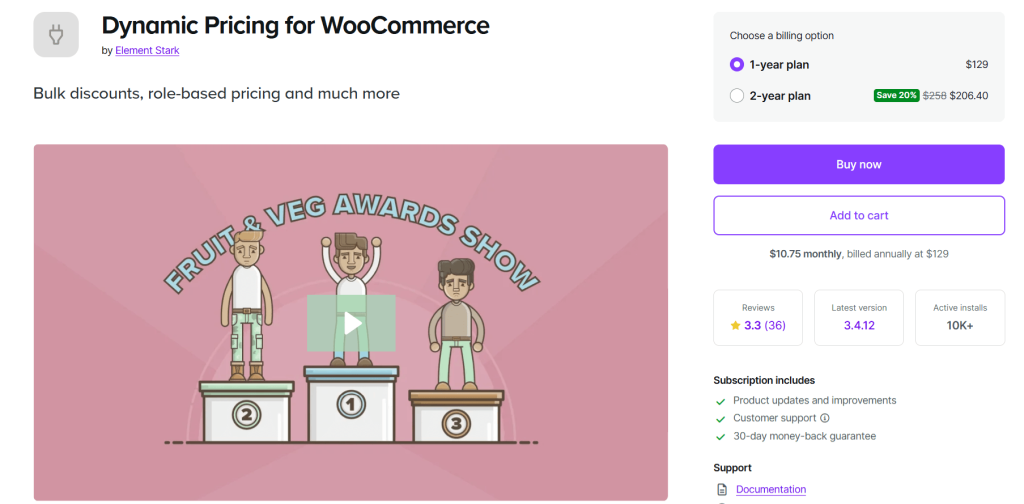
Best suited for: Stores that need quantity-based bulk discounts and role-based pricing at the product and category level.
Dynamic Pricing for WooCommerce focuses on 3 core dynamic pricing use cases most WooCommerce stores actually need: bulk discounts, category-level pricing adjustments, and role-based rates.
At the product level, you can build quantity-based pricing tables that apply fixed discounts, percentage discounts, or a set price per unit. Quantities are then tallied flexibly; you can count by total cart quantity of a product, by individual variation, by line item, or by the number of items in a given category. For example, an electronics accessories store can offer a 10% discount on a laptop carrying case that is triggered whenever a customer has one or more laptops in their cart.
Category pricing works the same way but applies across an entire product group. For instance, a footwear store can set a flat discount on everything in the “Heels” category when a shopper buys two or more. Both advanced product and category pricing rules can also be scoped to specific user roles, so certain customers can get deeper discounts than standard shoppers.
For stores with simpler needs, there’s also a straightforward category discount option that displays adjusted prices to customers as they browse, and a site-wide role-based pricing tool that applies a flat discount to all products for users in a given role, no quantity triggers required.
ELEX WooCommerce Dynamic Pricing and Discounts Plugin
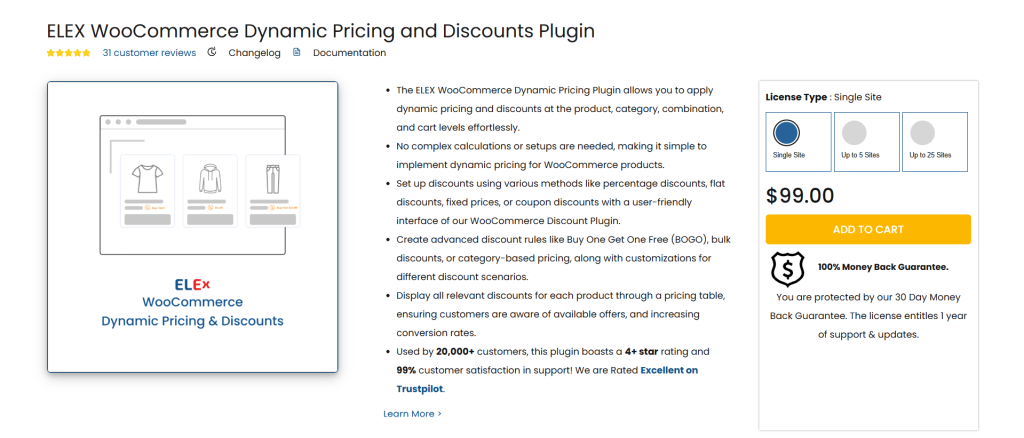
Best suited for: Setting comprehensive discount rules across products, categories, combinations, and tags, along with built-in discount caps.
ELEX WooCommerce Dynamic Pricing and Discounts is a well-established plugin that lets you apply dynamic pricing at the product, category, product combination, and cart levels. With it, you can configure discounts as percentages, flat amounts, fixed prices, or coupon-based rules and layer in additional conditions like user role, validity dates, specific users, customer email, number of previous orders, and more.
You can cross-target discounts to certain products, categories, and tags. For instance, to set rules that only trigger when specific products are bought together in specific quantities.
Buy X Get Y offers are fully supported, too. You can configure standard buy-one-get-one deals, multi-unit free product offers, or set the cheapest item in the cart as the free product.
ELEX WooCommerce Dynamic Pricing and Discounts enables you to cap discounts at a maximum dollar amount per rule to protect your profit margins. It also lets you showcase all active pricing rules in a dynamic pricing table on product pages to promote them.
WooCommerce Dynamic Pricing & Discounts by YayPricing
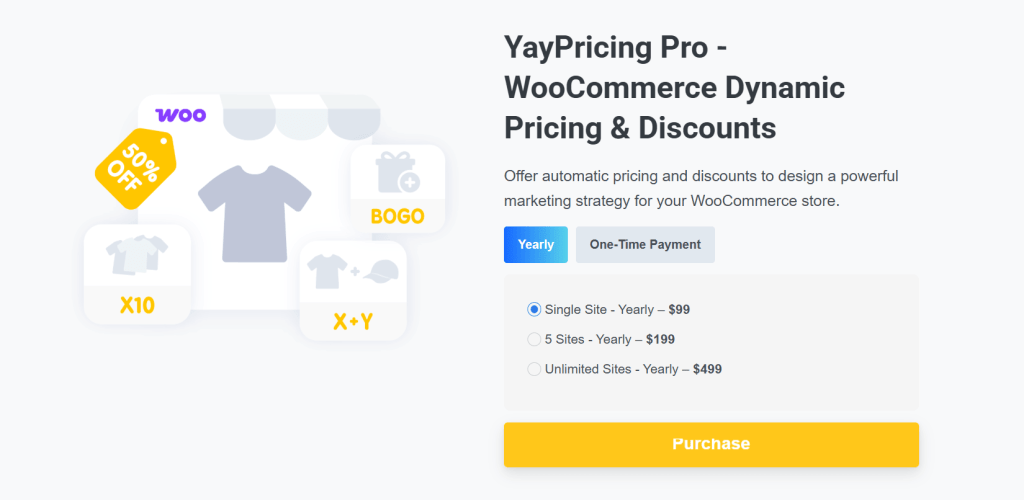
Best suited for: Running automated, personalized discount campaigns with built-in upsell tools and performance reporting.
WooCommerce Dynamic Pricing & Discounts is a WooCommerce dynamic pricing plugin that helps you convert more customers through smart, automated discount rules. It supports unlimited pricing rules, such as Buy X Get Y, percentage-off, fixed amount off, and more. Pricing rules are auto-applied for orders where the customer meets the conditions you’ve defined.
WooCommerce Dynamic Pricing & Discounts’ personalization features enable you to direct incentives to reward the right customers at the right time. For instance, you can trigger rules by user role, purchase history, order count, and more.
It also provides an upsell functionality built into the checkout flow to nudge customers toward a higher order value. So you can present order bumps on the cart page, checkout page, single product pages, or a custom location of your choice to show customers the closest available discount in real time.
WooCommerce Dynamic Pricing & Discounts provides built-in reporting in the form of charts and analytics to show you which discount rules are driving results. And you can enable dynamic cart notices to guide shoppers to unlock rewards, and send customers smart coupons by email or auto-apply them at checkout.
Discount Rules for WooCommerce by flycart
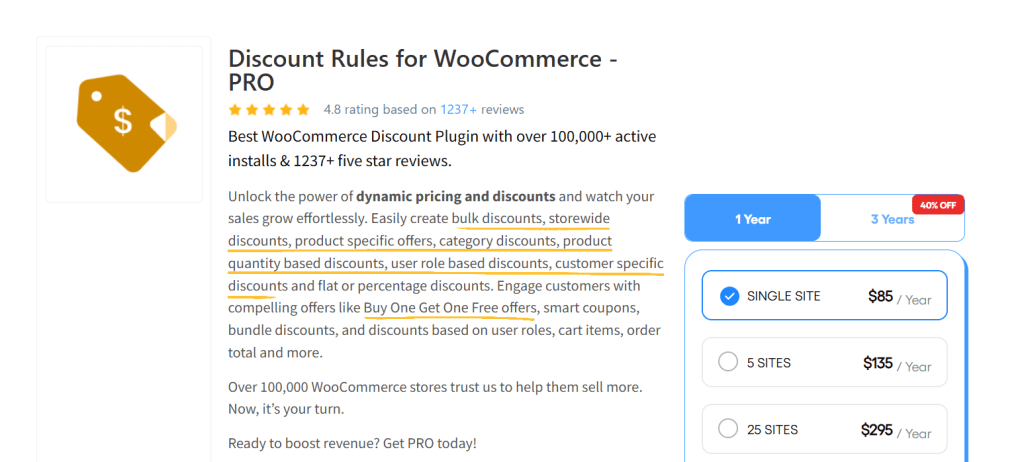
Best suited for: Stores that need a comprehensive, flexible discount engine for various pricing scenarios.
Discount Rules for WooCommerce is another popular WooCommerce dynamic pricing plugin. It covers tons of useful discount types, including bulk pricing, BOGO deals, tiered quantity discounts, user role pricing, cart-based offers, customer-specific pricing, coupon-activated rules, and shipping address discounts.
It lets you show price-level discounts directly on the product page, so customers see the adjusted price alongside the original crossed-out price before they add items to their shopping carts. Cart-level discounts, on the other hand, are applied in the checkout flow and can be triggered based on order total, cart quantity, purchase history, user role, or shipping destination.
Discount Rules for WooCommerce lets you set up coupon-activated rules that tie multiple discount rules to a single coupon code. Once applied, a coupon can simultaneously unlock a percentage discount on select categories, free shipping, and a free gift product, without you having to build separate campaigns for each.
A few smaller features round things out nicely and upgrade customers’ checkout experience: a “You Saved” message at the cart and checkout, customizable discount table layouts on product pages, and cart alerts that confirm when a discount has been applied.
FAQs about setting different prices for different customers in WooCommerce
What does it mean to set different prices for different customers in WooCommerce?
Setting different prices for different customers in WooCommerce means setting up your store so that various users — based on their role, identity, or behavior — see and pay different amounts for the same product.
This pricing strategy is commonly used by various kinds of ecommerce stores. For instance, those that want to offer:
- Wholesale discounts for B2B clients.
- Special pricing for logged-in users.
- Different rates based on customer roles (e.g., VIPs, resellers, partners).
- Region-based pricing for customers in multiple countries.
- Quantity-based discounts that apply differently depending on who’s buying.
Can you have different prices for different customers?
Yes, you can set different prices for different customers in WooCommerce. This feature isn’t built into WooCommerce core, but with a plugin like WooCommerce Dynamic Pricing and Discount Rules, it’s entirely possible to create pricing rules based on user roles, specific customers, location, cart contents, purchase history, and more.
Setting different prices for different customers is an important strategy for B2B and B2C stores that sell wholesale buyers, VIP customers, loyalty programs, or region-specific pricing.
What is role based pricing for WooCommerce?
Role-based pricing in WooCommerce means setting different prices for the same product depending on the user role of the customer. With this model, you assign a role to each user, like: customer (default WooCommerce role), subscriber, wholesale_customer, vip_client, or any custom role you create. Then, based on their role, you apply different pricing rules to your products.
Role-based pricing empowers you to customize pricing to customer cohorts — think: wholesalers, VIPs, or members — without needing to manage separate stores.
WooCommerce doesn’t support role-based pricing out of the box. But with a plugin like WooCommerce Dynamic Pricing and Discount Rules by The Dotstore, you can easily create pricing rules based on user roles and apply them globally (to all products), by category, per product, and per variation, as needed.
For example, an apparel store might use it to set prices for a hoodie for different customers as follows: guests (regular price: $60), wholesale customers (30% off: $42), and VIP clients ($50 flat).
Ready to set different prices for different customers in WooCommerce?
WooCommerce, by default, treats all customers alike — everyone sees the same product price. But if you run a store that sells to B2B clients, if you offer memberships, if you want to reward loyal customers with reduced pricing, or if you are interested in increasing your average order value through quantity-based discounts, that’s not enough.
WooCommerce Dynamic Pricing and Discount Rules is a powerful plugin that empowers you to easily set different prices for different customers based on user roles, location, cart contents, specific customers, purchase history, and more. It lets you schedule pricing rules in advance and use banners to add custom messaging to product and cart pages.
Plus, you can use it to offer category-specific combos, buy one get one free deals, product bundles, and more.