Table of Contents
WooCommerce has no built-in banner manager. For a site-wide announcement, use the native Store Notice under Appearance > Customize > WooCommerce > Store Notice. For category pages, set a category image and show it with the woocommerce_archive_description hook. For the shop and product pages, add a banner block in the block editor or your Full Site Editing templates. For per-category banners with scheduling and positioning at scale, a banner management plugin is the practical route.
Key Takeaways
- WooCommerce has no built-in banner manager: no banner block and no per-category banner screen, so banners come from native WordPress pieces, a page builder, or a plugin.
- For a site-wide announcement, use the native Store Notice under Appearance > Customize > WooCommerce > Store Notice, which is dismissable and can be scheduled for a sale window.
- For category pages, WooCommerce shows the category description but not the image, so display it as a banner with the woocommerce_archive_description hook.
- For shop, product, and homepage banners, insert a Cover or Image block via the Site Editor or page builder, since core WooCommerce has no banner widget of its own.
- Native methods hit limits fast: no central management, no per-category UI, no scheduling, and no rotation, which is why frequent-promotion stores outgrow them.
- The Category Banner Management for WooCommerce plugin handles per-category and per-page banners with start/end scheduling, positioning, and slider rotation from one screen.
- For design, use a consistent wide size (around 1800×600 matched to your theme width), keep it to one message and one CTA, ensure mobile legibility, and set end dates on sale banners.
Banners are how a store talks to shoppers at a glance: a seasonal sale, a free-shipping threshold, a new arrival, or a category promotion. Used well, they guide attention and lift conversions. Used badly, or left to a developer every time, they slow your team down.
The catch is that WooCommerce has no banner feature of its own. There is no banner block and no per-category banner screen, so you either use the native WordPress pieces, a page builder, or a plugin. This guide covers all three, where each banner type belongs, and how to manage them without code where possible.
Why banners matter for a WooCommerce store
Banners do specific merchandising jobs:
- Promote sales and offers, like a seasonal discount or a coupon code.
- Announce free shipping or thresholds to nudge larger carts.
- Highlight new arrivals or featured collections.
- Set expectations, such as shipping delays or holiday cut-off dates.
For the strategy side of category banners specifically, see the deeper guide on why WooCommerce category banners work.
Where banners go in WooCommerce
Before choosing a method, know the spots a banner can live:
- Site-wide bar, shown on every page (announcements).
- Shop and archive pages, above the product grid.
- Category and tag pages, targeted to that collection.
- Product pages, near the title or add-to-cart.
- Homepage and landing pages, as hero or promo blocks.
- Cart and checkout, for shipping or offer messages.
Native ways to add banners (no plugin)
WordPress and WooCommerce give you a few banner options out of the box. They are free and fine for simple needs.
A site-wide banner with the Store Notice
WooCommerce includes a native announcement bar called the Store Notice.
- Go to Appearance > Customize > WooCommerce > Store Notice.
- Enter your message and tick Enable store notice.
- Publish.
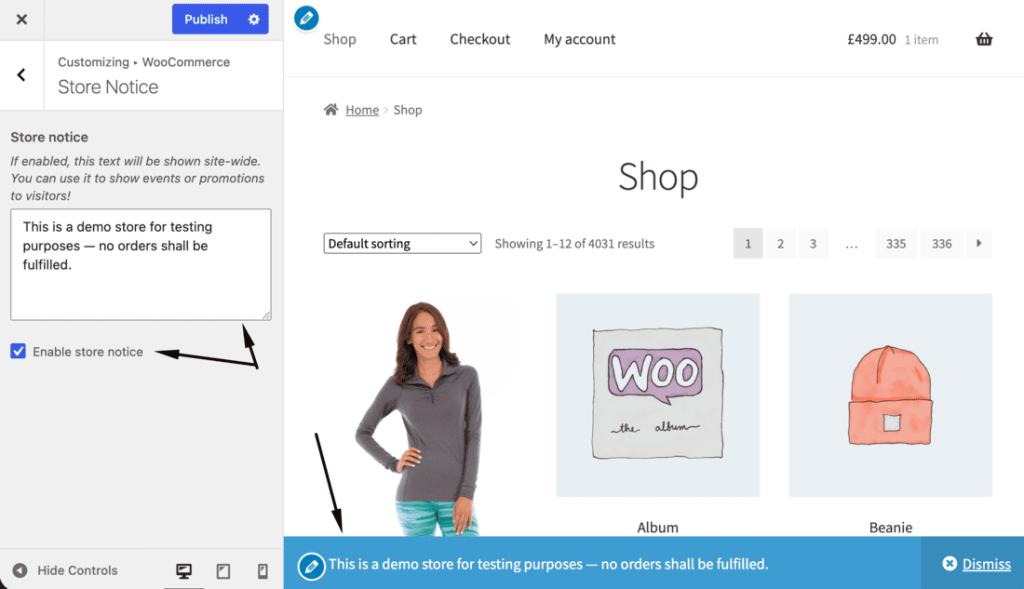
It shows site-wide, visitors can dismiss it, and you can schedule it for a sale window. One caveat: on block themes with Full Site Editing, the Customizer is hidden in the menus, so reach it directly at /wp-admin/customize.php.
Category page banners with the category description
Each product category has a description and an image, set under Products > Categories. WooCommerce shows the description on the category archive by default, but it does not show the category image there. To turn that image into a banner on the archive, add a small snippet:
add_action( ‘woocommerce_archive_description’, ‘ds_category_banner’, 5 );
function ds_category_banner() {
if ( is_product_category() ) {
$image_id = get_term_meta( get_queried_object_id(), ‘thumbnail_id’, true );
if ( $image_id ) {
echo ‘<div class=”category-banner”>’ . wp_get_attachment_image( $image_id, ‘full’ ) . ‘</div>’;
}
}
}
This displays the category’s own image at the top of its archive page. It is per-category, but you manage it one category at a time and it offers no scheduling.
Shop and product banners with the block editor
On block themes, open the Site Editor and edit the Product Catalog template for the shop and archive pages, or a single product template, and insert a Cover or Image block as your banner. For the homepage and landing pages, build the banner directly in the block editor as a hero section. This is native and visual, with no code.
Why most stores use a banner plugin
The native methods work, but they hit limits fast. There is no central place to manage banners, no per-category UI, no scheduling, and no rotation. If you run frequent promotions or want banners on many categories, editing templates and snippets by hand does not scale.
A plugin fills the gap that core leaves: assign banners per category and per page, schedule them with start and end dates, position them where you want, and rotate multiple banners, all from one admin screen.
Add per-category banners with a banner plugin
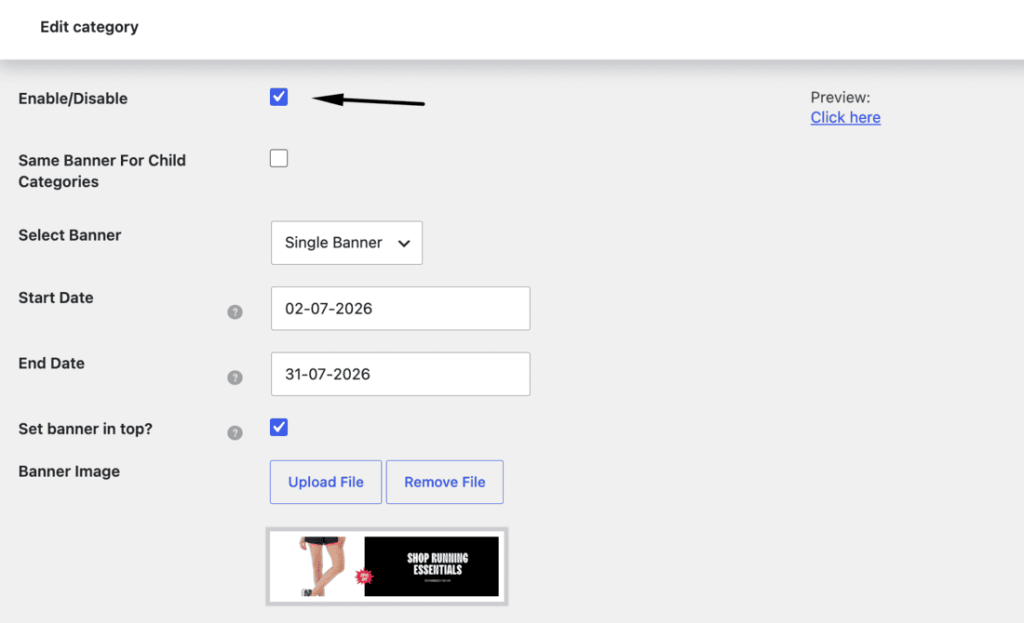
The Category Banner Management for WooCommerce plugin handles exactly this. From a single screen you can:
- Assign a banner to a specific category, the shop page, product pages, checkout, or any page.
- Schedule banners with start and end dates so seasonal promotions switch on and off automatically.
- Choose the position, such as above the header or after the page title.
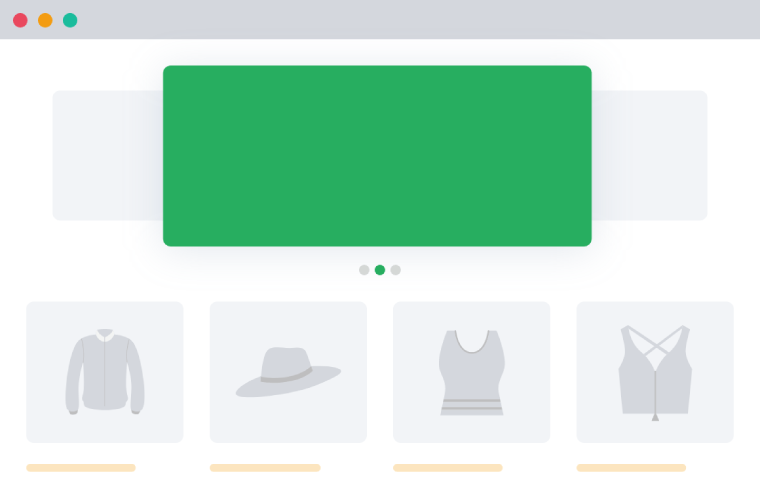
- Show a single banner or rotate several as a slider.
- Add a call-to-action button and preview before publishing.
For the focused walkthrough on category banners, see the guide to WooCommerce category banner management.
WooCommerce Banner Management Plugin
Gain full control over banner displays across your store. Boost conversions and sales today!
14-day, no-questions-asked money-back guarantee.
Banner size and design best practices
A banner only works if it is clear and loads fast. Keep these in mind:
- Use a consistent, wide size. A common guideline is around 1800 by 600 pixels for a full-width banner, but match it to your theme’s content width rather than treating it as a fixed rule.
- One message, one call to action. A banner that says three things says nothing.
- Keep text legible on mobile, since most traffic is mobile and a busy banner becomes unreadable.
- Compress the image so the banner does not slow the page.
- Schedule, do not forget. Set an end date on sale banners so a finished promotion does not linger.
Conclusion
WooCommerce has no banner manager built in, but you have a full ladder of options. Use the native Store Notice for a site-wide announcement, the category description and a small snippet for category pages, and the block editor or Full Site Editing for the shop, product, and home pages.
When you outgrow hand-editing, the Category Banner Management for WooCommerce plugin gives you per-category and per-page banners with scheduling and rotation from one screen. Match the method to how often you run promotions, and your banners stay easy to manage.
WooCommerce Banner Management Plugin
Gain full control over banner displays across your store. Boost conversions and sales today!
14-day, no-questions-asked money-back guarantee.
Frequently asked questions
Does WooCommerce have a built-in banner feature?
Only the Store Notice, a site-wide announcement bar. There is no banner block and no per-category banner manager in core, so other banners use WordPress templates or a plugin.
How do I add a banner to my WooCommerce shop page?
On a block theme, edit the Product Catalog template in the Site Editor and insert a Cover or Image block above the product grid, or use a plugin to place one.
How do I add a banner to a WooCommerce category page?
Set a category image under Products > Categories and show it on the archive with the woocommerce_archive_descriptionhook, or assign one with a category banner plugin.
What is the WooCommerce Store Notice?
A native, dismissable announcement bar shown site-wide. Enable it under Appearance > Customize > WooCommerce > Store Notice, and reach the Customizer at /wp-admin/customize.php on block themes.
What is the best banner size for WooCommerce?
There is no fixed standard. Around 1800 by 600 pixels works for a full-width banner, but match it to your theme’s content width and test on mobile.
Can I schedule banners for sales or seasonal promotions?
Not natively. The Store Notice can be scheduled, but for scheduled banners per category or page you need a banner management plugin.

🖼️ Create Stunning Banners for Products and Categories
Try the plugin 100% risk free!