Table of Contents
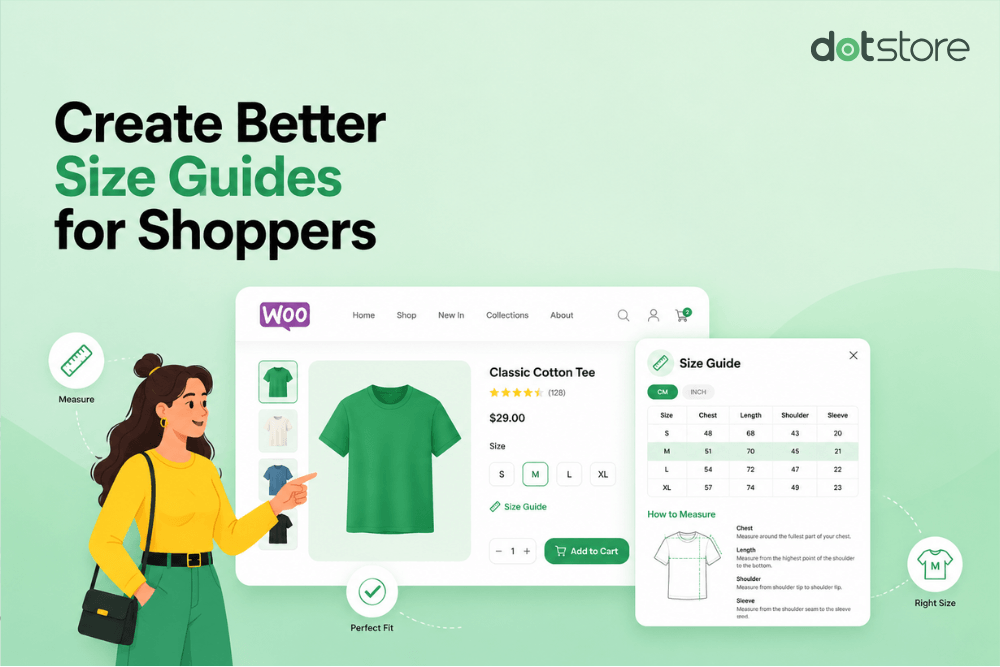
This step-by-step tutorial shows you how to add modern, user-friendly size guides to your WooCommerce store for free using the Dotstore WooCommerce Advanced Product Size Charts plugin.
Key Takeaways
- There’s no default feature to add responsive, user-friendly size guides to the WooCommerce product page.
- The Dotstore WooCommerce Advanced Product Size Charts plugin lets you create reusable custom size guides and assign them to products using categories, tags, attributes, or individual product rules.
- With the Dotstore WooCommerce Advanced Product Size Charts plugin, you can add measurement units (inches, cm, etc.), along with measuring instructions, conversion information, and supporting visuals to your size charts to help customers better understand product sizing information.
Want to add size guides to your WooCommerce store?
One of the biggest challenges with online shopping is that customers can’t physically inspect products before buying them to judge whether the item will fit correctly.
And because sizing standards vary between countries, brands, suppliers, and even individual product collections, customers frequently struggle to choose the right option.
These uncertainties often lead to hesitation during checkout.
Adding accurate size charts to your product pages helps make customers more confident about whether or not a product is the right fit for them. This increases conversions, lowers return and exchange requests, minimizes sizing-related support tickets, and helps avoid negative product reviews from dissatisfied customers.
WooCommerce doesn’t include a dedicated size chart feature by default. So you’re better off adding this feature to your site with the help of a plugin.
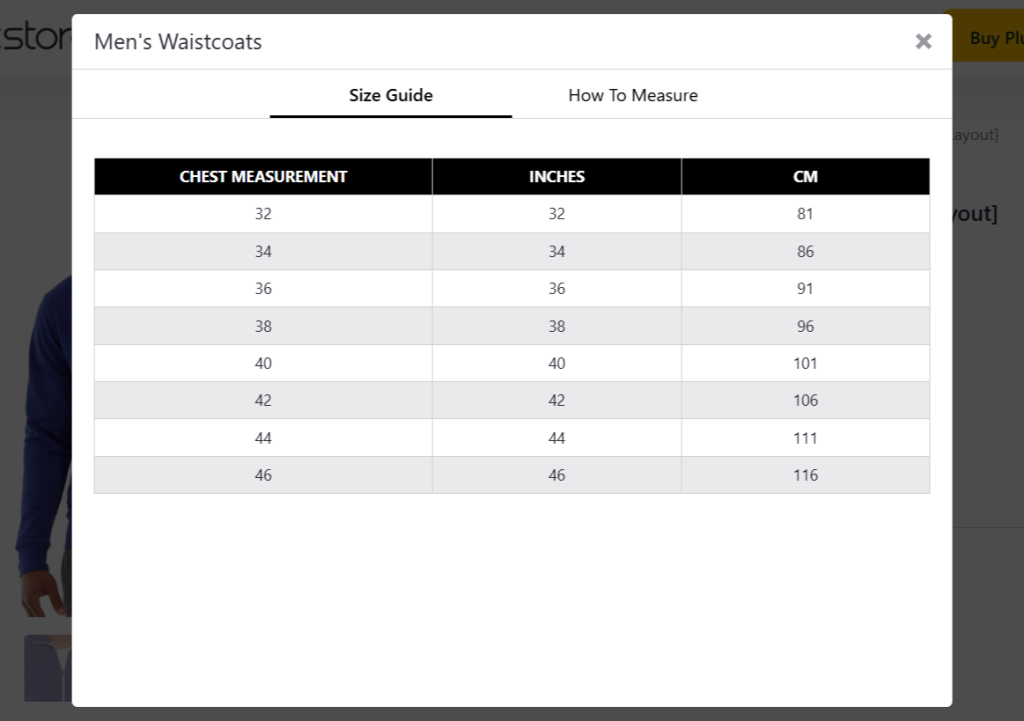
In this tutorial, I’ll walk you through the steps to add size charts to your WooCommerce store using the Dotstore WooCommerce Advanced Product Size Charts plugin. The best part? The setup process is straightforward and takes less than ten minutes.
Plugin used in this tutorial
- Dotstore WooCommerce Advanced Product Size Charts. A powerful plugin that lets you create custom size guides for different products, categories, tags, or attributes. You can display charts in pop-ups, dedicated product tabs, or anywhere else on the product page, assign multiple charts to a single product, customize the size guide’s styling to match your store design, and more. Try out the live demo or check out the robust free and pro versions to get started.
Product Size Charts For WooCommerce
Simplify your store experience with customizable size charts that reduce returns and maximize sales.
14-day, no-questions-asked money-back guarantee.
Why you need a WooCommerce size guide plugin
By default, WooCommerce gives you a variety of options to showcase product sizing information. You can add product attributes, insert tables into the product description area, or use the “additional information” tab.
So why is it better to use a WooCommerce size guide plugin for this specific feature?
- Better user experience across different screen sizes. Manual size charts usually aren’t optimized for responsive layouts. For instance, if you paste a large HTML table into the product description area, it may look fine on desktops but be difficult to read on mobile devices. Customers will be forced to zoom in, scroll sideways, or struggle to view the size guide and compare measurements.
- Limited placement options on the product page. Without a plugin, you’ll have to add product sizing details inside the product description, in the additional information product tab, or as an image in the product gallery. None of these size chart placement options is ideal and can make it difficult for customers to find the information when needed.
- Difficult to manage large product catalogs. Adding sizing information by copying and pasting tables into individual products can quickly become tedious. Let’s say your supplier updates measurements for an entire product line. Without a plugin, you’d need to edit every affected product individually. This can be time-consuming and has a high likelihood of errors. Good WooCommerce size guide plugins let you update one centralized chart and apply the changes storewide.
Considering how important size guides are for increasing buyers’ confidence during the ordering process, a WooCommerce size guide plugin is invaluable for stores that sell size-dependent products.
The best WooCommerce size guide plugin
The Dotstore WooCommerce Advanced Product Size Charts plugin lets you create custom size guides for different product types and easily assign them to products based on specific products, categories, tags, or attributes.
It lets you flexibly decide how size guides appear on the product page. You can display charts using pop-ups, in a dedicated tab, or elsewhere on the product page, complete with detailed dimensions and measurement instructions.
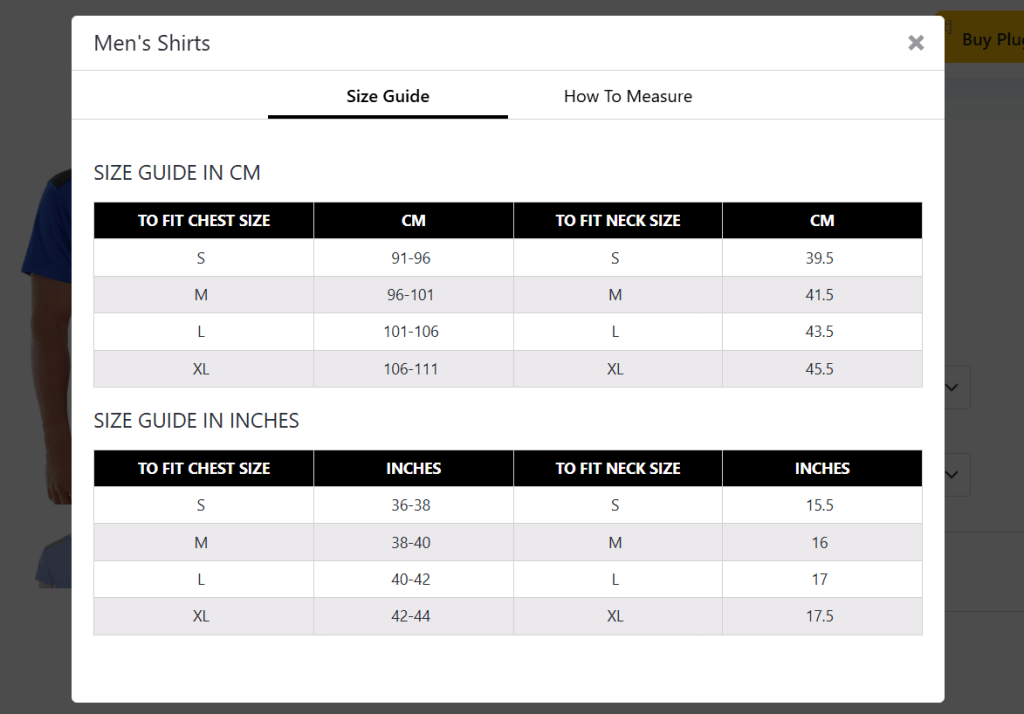
Since 2017, thousands of WooCommerce businesses have used it to create size charts, fit guides, measurement tables, product dimension references, and more.
There are various options to position the size chart on the product page: before the product summary, before or after the add-to-cart button, or after the product meta section.
Dotstore WooCommerce Advanced Product Size Charts is compatible with Elementor, Divi, WPBakery, Flatsome, and other popular WooCommerce themes and page builders.
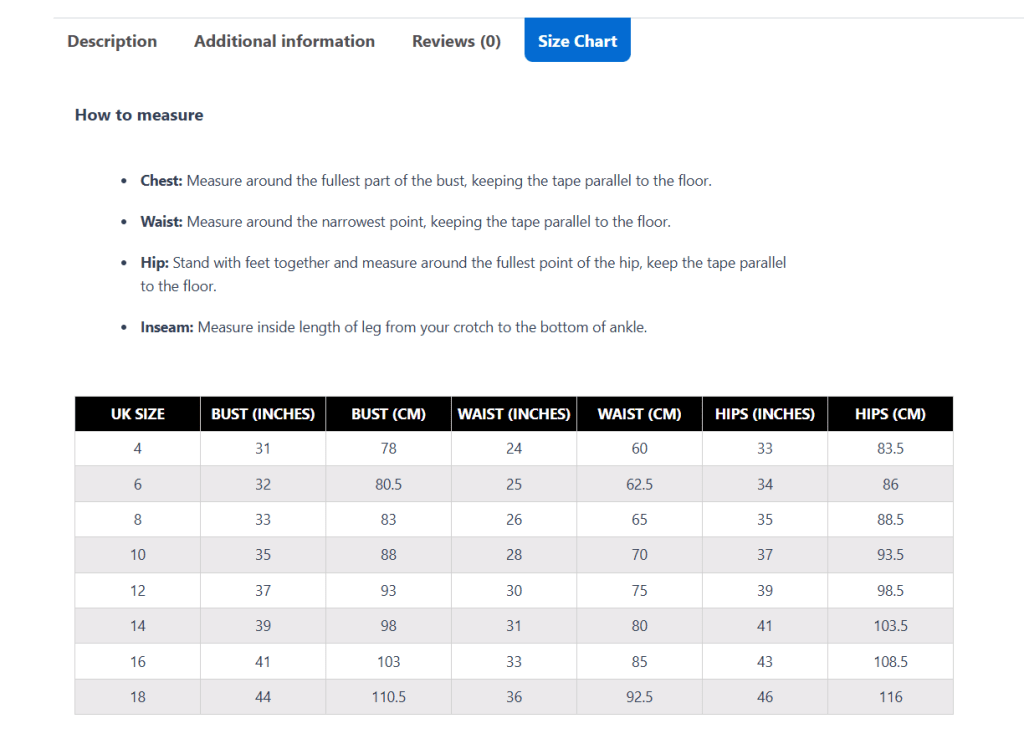
Stores that sell internationally will greatly benefit from the ability to create separate sizing references for each country, e.g., US, UK, EU, and Asian measurements, so customers can choose their preferred sizes with ease.
You can even enable country-based size chart display. So if someone visits your store from the UK, it will show UK sizing information automatically, while US visitors are shown US measurements instead.
Dotstore WooCommerce Advanced Product Size Charts is invaluable for stores that sell clothing, fashion accessories, sportswear, baby products, jewelry, furniture, footwear, and other products where sizing accuracy strongly impacts the purchase decision.
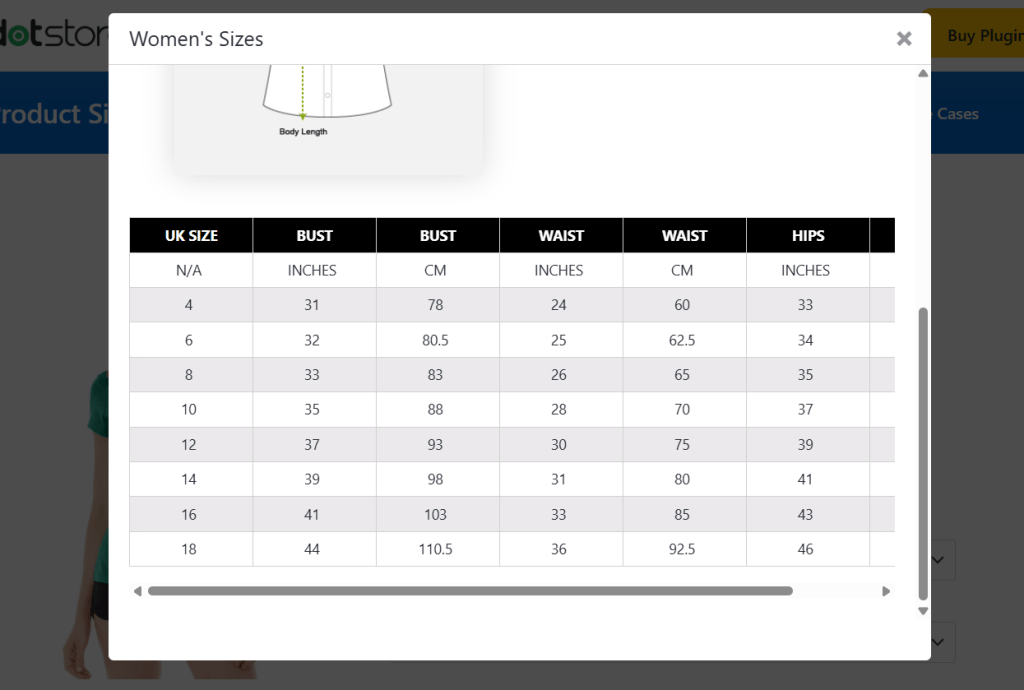
Standout features
- ✔️ Custom size charts. You can create detailed size guides with unlimited rows and columns, and sizing instructions.
- ✔️ Multiple size guides per product. It lets you assign more than one size chart to the same product. This is useful if you want to set US sizing for one product variation and UK sizing for another, or add measurements in inches and centimeters.
- ✔️ Centralized size chart management. Instead of recreating size charts for each product, you can reuse the same size guide across multiple products and categories. This preserves your bandwidth and ensures product size information remains consistent throughout your store.
- ✔️ Flexible layout options. Depending on your product page layout and user experience goals, you can choose between displaying size guides in pop-ups, a dedicated tab, or anywhere on the product page using shortcodes.
- ✔️ Advanced styling controls. It provides a simple-to-use, no-code interface where you can adjust colors, table header colors, row colors, hover effect, borders, typography, table effects, and other layout styling to match your product page design and store’s brand.
How to add a size guide in WooCommerce
Here are step-by-step instructions to set a size chart in your WooCommerce store.
- Add the Dotstore WooCommerce Advanced Product Size Charts free or pro plugin to your website.
- Navigate to Dotstore Plugins → Product Size Charts → Size Charts in your WordPress admin.
- Press “Add New” to create a new size guide.
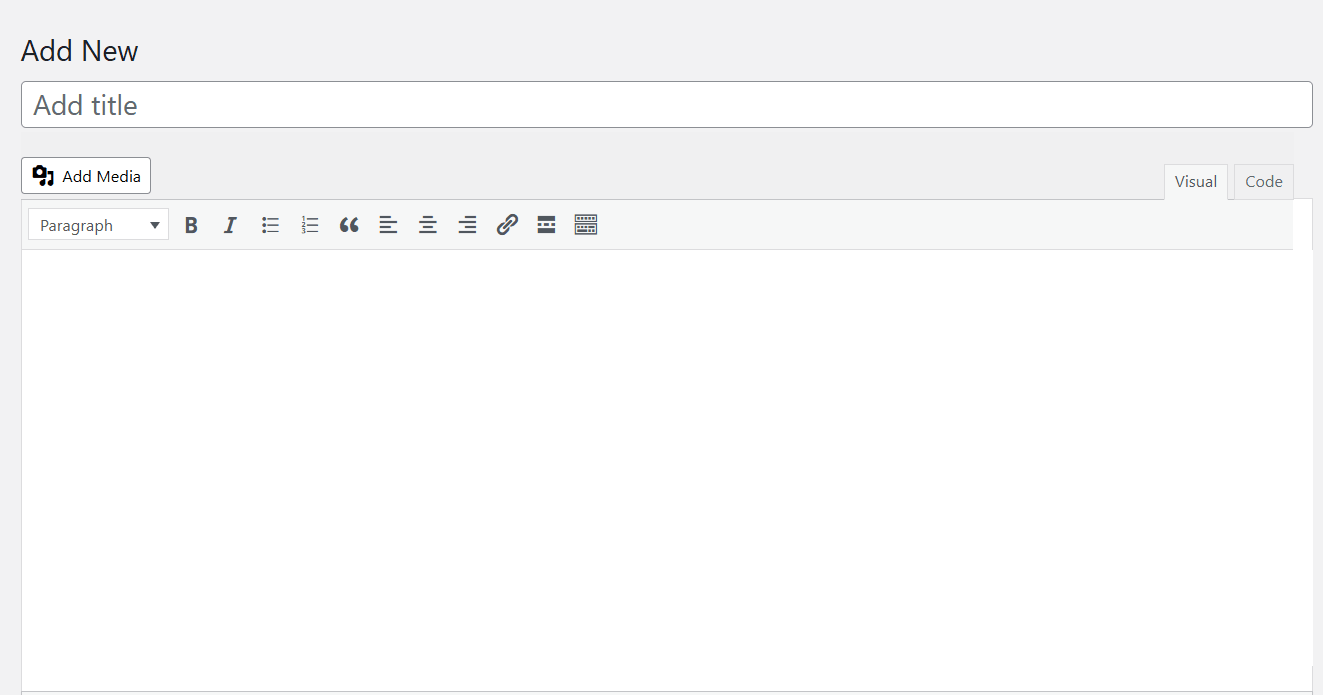
- Name this size guide in the “Add title” field.
- Go to the “Size Chart Settings” section and configure the following settings:
- Size Chart Position: Whether the size guide should appear as a pop-up or as an additional tab on the WooCommerce product page.
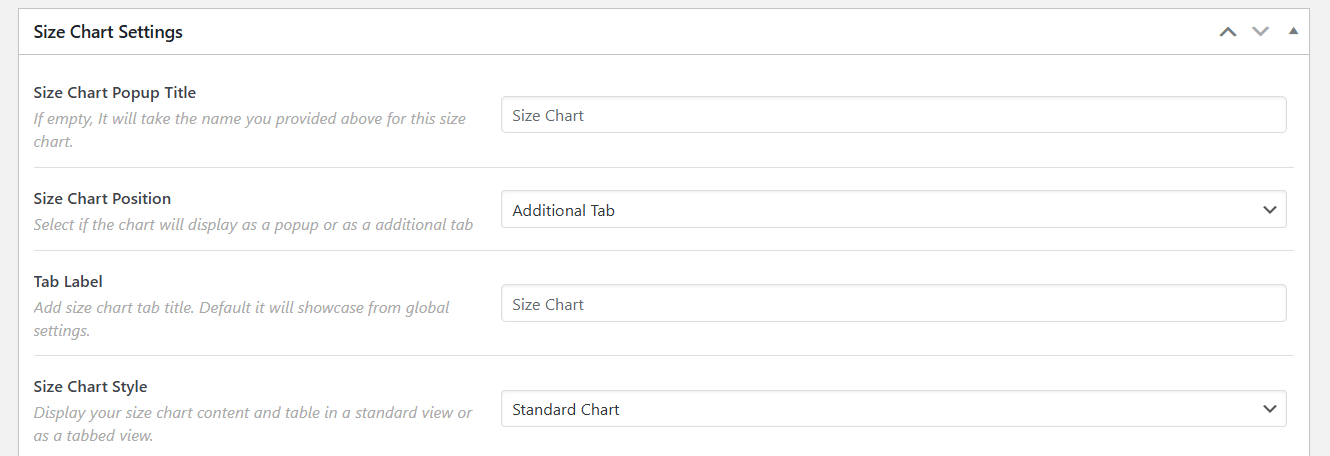
- Size Chart Style: Whether the size guide should be displayed as a standard or tabbed chart.
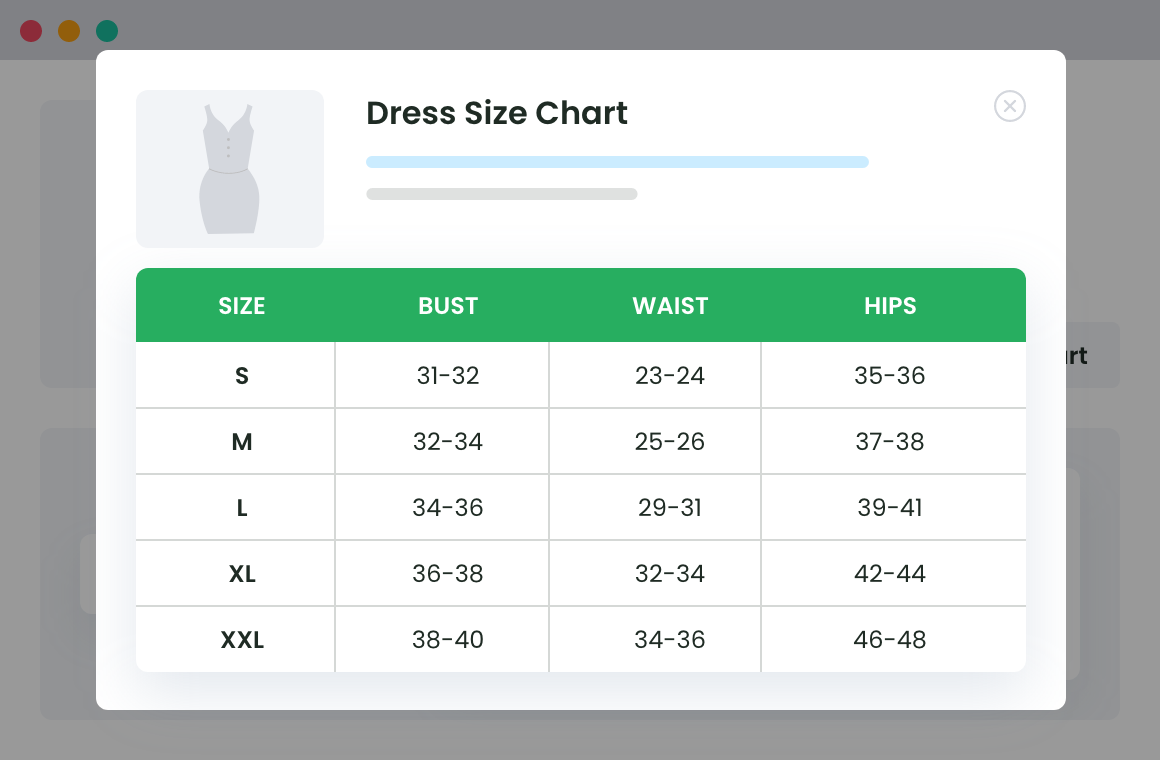
- Chart Table Style: Choose from one of the preset templates (classic, minimalistic, modern, etc.) or a custom style.
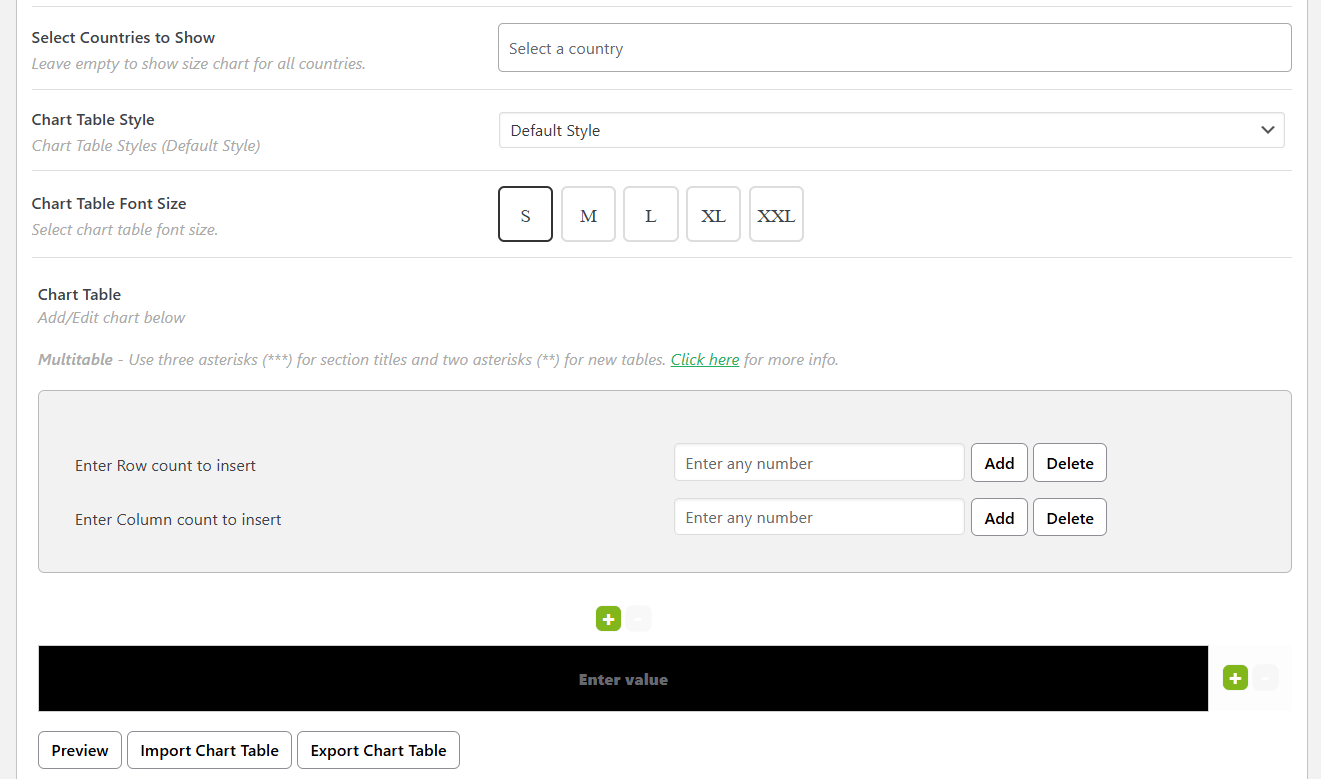
- Chart Table: Add rows and columns as appropriate.
- Size Chart Position: Whether the size guide should appear as a pop-up or as an additional tab on the WooCommerce product page.
- Add the size guides to the relevant products by selecting the appropriate products, categories, tags, or attributes.
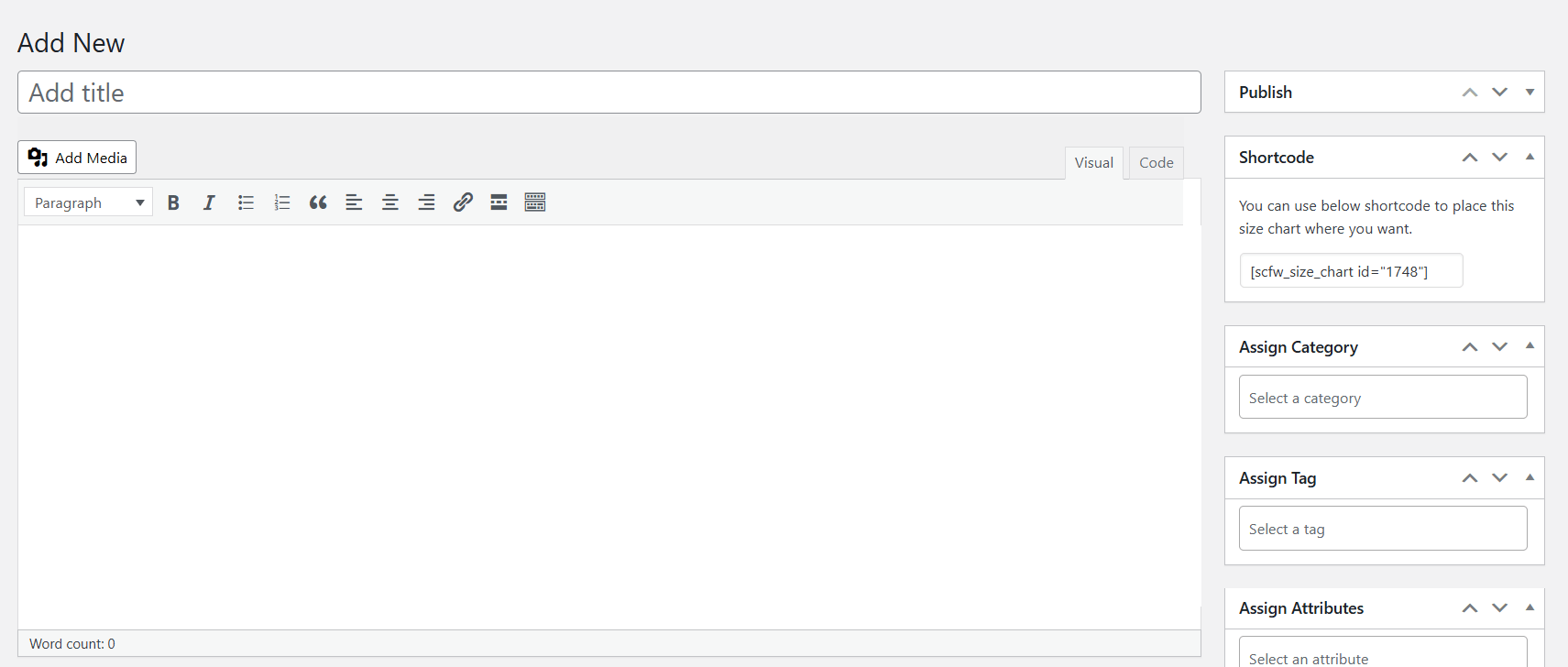
- Customize any other relevant setting as desired.
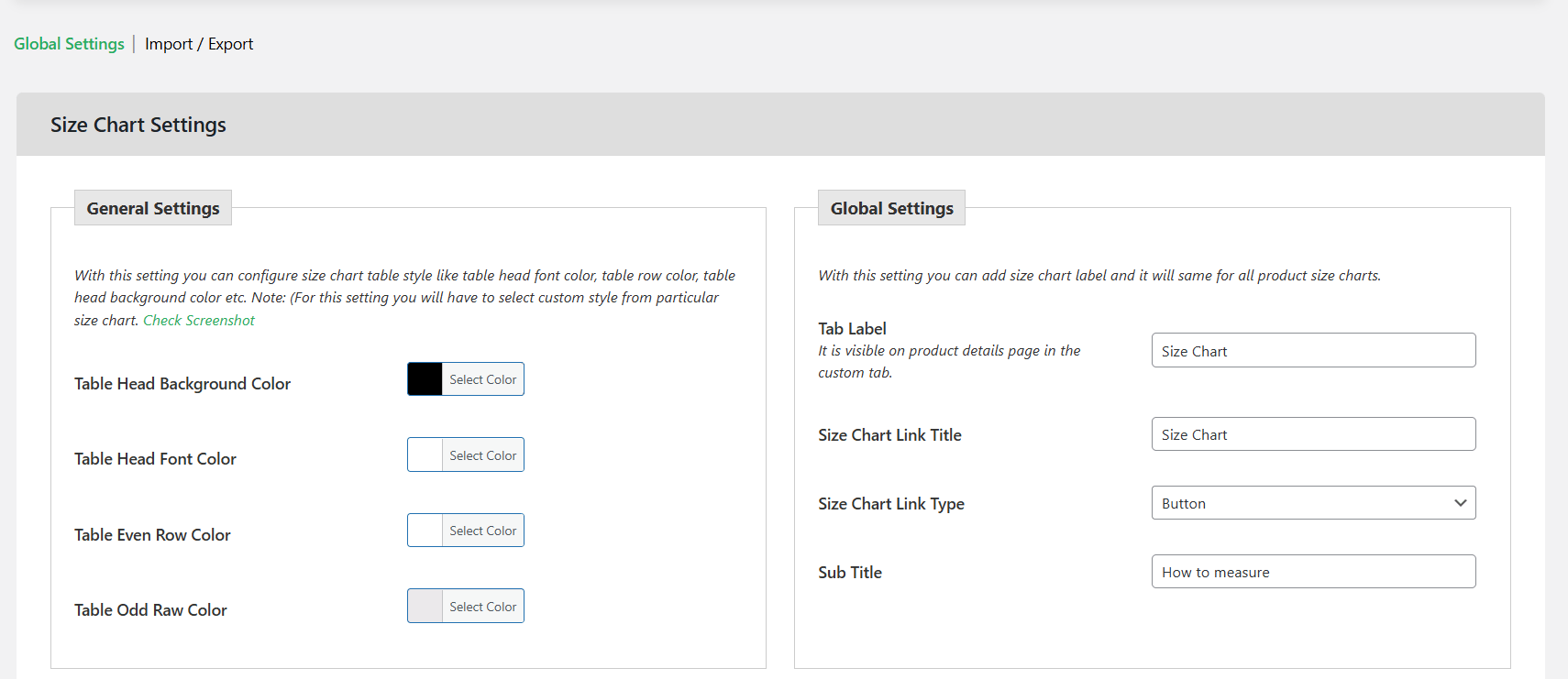
- Navigate to Dotstore Plugins → Product Size Charts → Settings → Global Settings, and customize the size guide’s style and appearance, as desired.
- Press the “Publish” button to add this size guide to your WooCommerce storefront. Note: If relevant, copy the shortcode from under the “Publish” modal and paste it where you’d like it to be on the product page.
Best practices for setting size guides in WooCommerce
Adding a custom size guide to WooCommerce only helps if it is accurate, simple to understand, and can be easily accessed by customers on your store’s product page.
Use these tips to create custom size charts that help avoid high returns and exchange requests, bad product reviews, and a high number of complaints from unsatisfied customers.
- Ensure accurate product measurements. Avoid generic manufacturer size charts, as sizing can vary between suppliers, product lines, and specific materials.
- Use a consistent measurement unit format across your product catalog. If you sell to customers in different countries, include conversion information where necessary and show sizes according to each region’s preferred system.
- Include measuring instructions. Add simple instructions alongside your size guide using short instructional text or a separate “How to Measure” section within the size guide pop-up or tab.
- Add supporting visuals when appropriate. Instead of relying only on tables with unit measurements, add body measurement diagrams, product fit illustrations, and measurement reference images. This increases buyers’ confidence and helps customers more quickly interpret product sizing information.
- Make sure size guides are obviously visible and easy to access on your store’s product page.
Add accurate product size guides to your WooCommerce store
If you sell clothing, footwear, jewelry, furniture, pet products, or any other product for which size is a relevant decision-making factor, you can’t skip adding a size chart to your store.
Accurate product size guides can reduce the number of return and exchange requests, sizing-related support tickets, and negative reviews from unhappy customers.
WooCommerce’s default features aren’t sufficient for adding user-friendly size charts to your store, so your best bet is to use a plugin like Dotstore WooCommerce Advanced Product Size Charts.
With the lightweight Dotstore WooCommerce Advanced Product Size Charts plugin, you can create custom size guides and add them to products based on products, categories, tags, or attributes.
Alongside setting measurement units like inches and centimeters, you can add measuring instructions and supporting visuals like body measurement diagrams, measurement reference images, and product fit illustrations. This helps customers better understand product sizing information.
Each size guide is displayed in a dedicated tab, a pop-up, or anywhere on the WooCommerce product page using shortcodes.
Size charts are responsive and adapt to each customer’s screen size, whether it’s a desktop, tablet, or mobile device. Plus, you can customize their style to match your store’s brand aesthetic.
Ready to add accurate product sizes to your WooCommerce store? Try out the Dotstore WooCommerce Advanced Product Size Charts plugin’s live demo or check out the robust free and pro versions to get started.
Product Size Charts For WooCommerce
Simplify your store experience with customizable size charts that reduce returns and maximize sales.
14-day, no-questions-asked money-back guarantee.