Table of Contents
Quick answer: WooCommerce’s built-in Local Pickup is store-wide. It applies to the whole cart and cannot be limited to specific products on its own. The free workaround is to give pickup-only items a shipping class with a zero or no rate so they skip paid shipping, then offer Local Pickup at checkout. For true per-product pickup, multiple pickup locations, and hiding the shipping address for those items, you need a dedicated plugin.
Key Takeaways
You want some products available for pickup at your store and others shipped as normal. WooCommerce can do part of this, but not the way most store owners expect.
The native Local Pickup method is set per shipping zone, not per product, so once it is on, customers see it for any order in that zone. There is no checkbox that says “pickup only for this product.” If you are new to the feature, our explainer on what local pickup is in WooCommerce covers the basics.
This post starts with what WooCommerce can do for free, including a workaround using WooCommerce shipping classes, then covers the plugin method when you need real per-product control. Use the free path if your needs are simple. Use the plugin once you need multiple locations or per-item pickup rules.
Why offer pickup on only some products
Not every product fits in a shipping box, and not every order should pay for shipping. Limiting pickup to a subset of your catalog solves a few real problems:
- Cost savings on both sides. Heavy or bulky items cost a lot to ship. Letting customers collect them in person removes that cost for you and the shipping fee for them.
- Items that ship badly. Fragile goods, perishables, and made-to-order products often arrive damaged or spoiled. Pickup avoids the carrier handling them at all.
- Legal and compliance reasons. Some products, such as alcohol, may require in-person handover and age verification that shipping cannot provide.
- Store traffic. A customer collecting an order in person is in your store, which creates upsell and repeat-visit opportunities.
The goal is a catalog where some items are shipped, some are pickup-only, and the checkout reflects that per product rather than forcing one method on the whole order.
The native limitation you need to know first
WooCommerce includes a Local Pickup shipping method, but it has a hard limit: it is store-wide, set at the shipping-zone level, and cannot be restricted to specific products on its own.
You add Local Pickup under WooCommerce > Settings > Shipping > Shipping zones, inside a zone. Once it is added, it shows as a delivery choice for any cart that falls in that zone, regardless of what is in the cart.
WooCommerce has no native setting to say “this product can only be picked up” or “this product cannot be picked up.” It also supports only a single pickup configuration through that method, not multiple named store locations with their own addresses and hours.
So if you simply turn on Local Pickup hoping to attach it to one product, every order in that zone gets the option. That is the gap the rest of this post closes.
Free workaround: shipping classes plus conditional logic
You can get close to per-product pickup using shipping classes, with no plugin. The idea is to separate your pickup-only items into their own class that carries no shipping rate, so paid shipping does not apply to them and Local Pickup becomes the practical choice.
This works best when your pickup-only items are normally bought on their own, not mixed in a cart with shippable products. WooCommerce calculates one shipping total for the whole cart, so mixed carts are where this workaround gets messy. Keep that in mind before you build it.
Step 1: Create a “Local Pickup Only” shipping class
- Go to WooCommerce > Settings > Shipping > Shipping classes.
- Click Add shipping class.
- Name it something clear like Local Pickup Only, set the slug, and save.
Step 2: Assign your pickup-only products to that class
- Open a product you want to be pickup-only.
- In the product data panel, go to the Shipping tab.
- Set Shipping class to Local Pickup Only and update the product.
- Repeat for each pickup-only item.
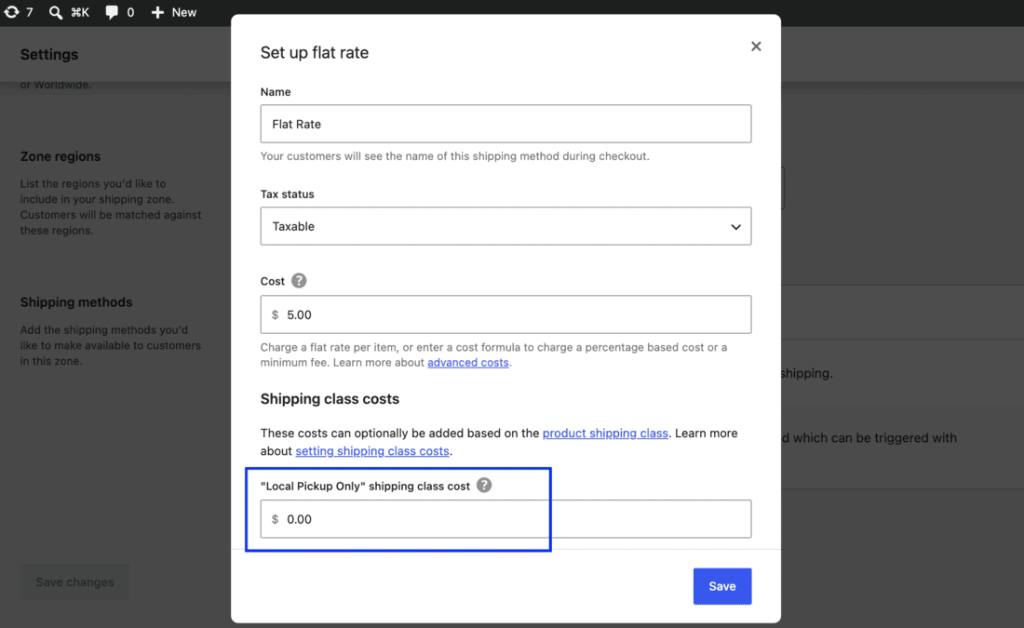
Step 3: Give that class a zero or no shipping rate
- Go to WooCommerce > Settings > Shipping > Shipping zones and open your zone.
- Open your Flat rate method, or add one.
- In the flat rate settings, find the cost field for the Local Pickup Only class and set it to 0, or leave the class without a paid rate so it does not add shipping cost.
- Save.
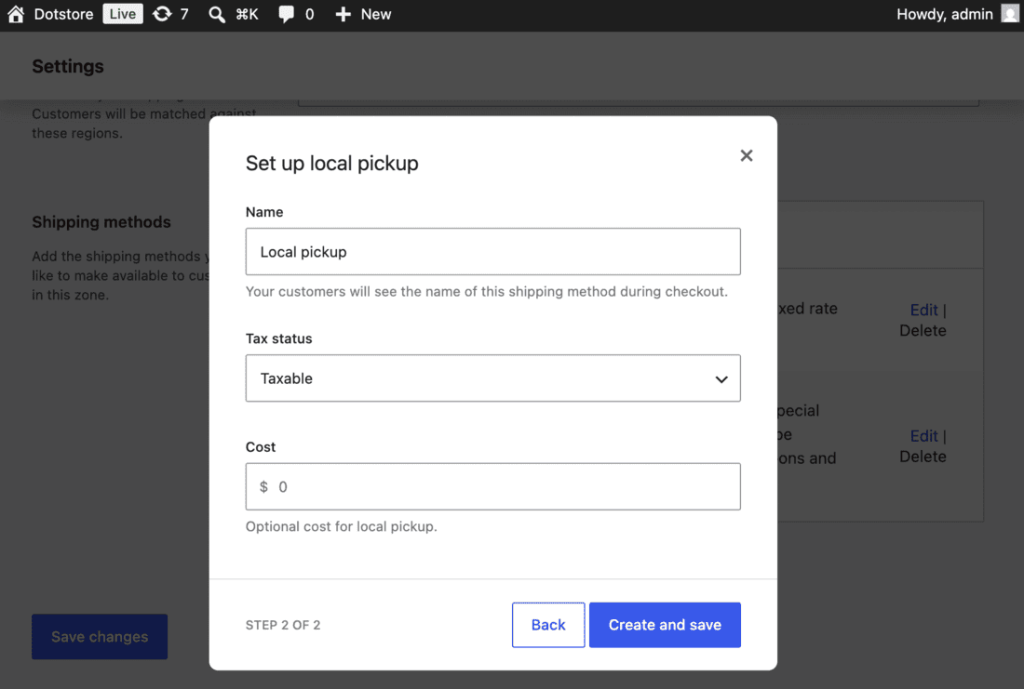
Step 4: Add Local Pickup to the zone
In the same zone, click Add shipping method, choose Local pickup, and save. Now a cart with a pickup-only item shows Local Pickup, and that item adds no paid shipping cost. The customer collects it in store rather than paying to ship something that should not ship.
This is free and uses only built-in WooCommerce features. Its limits are the ones above: it does not truly restrict a product to pickup (a determined customer in a mixed cart can still hit shipping), it does not support multiple named pickup locations, and it does not hide the shipping address fields for pickup-only orders.
If any of those matter to your store, a plugin handles them directly.
If Local Pickup does not appear after this, the cause is usually a zone or address mismatch. See our notes on local pickup not showing.
Plugin method: true per-product pickup and multiple locations
When you need real control, a dedicated plugin handles what the native method cannot. Our Local Pickup for WooCommerce plugin sets pickup at the product level, supports multiple pickup locations with their own addresses, and can hide the shipping address for pickup-only items.
With the plugin you can:
- Mark individual products as available for local pickup, or as pickup-only.
- Create multiple pickup locations and assign products to the ones that stock them.
- Restrict chosen products so pickup is the only option, removing shipping for them.
- Hide the shipping address fields when an order contains only pickup items.
- Let customers choose a location, and in supported setups, a pickup date or time slot.
Local Pickup For WooCommerce
Let your customers shop online and later pick up their purchased items from your store with Local Pickup Plugin.
14-day, no-questions-asked money-back guarantee.
This is the cleaner fit when you want some products on local pickup and others on delivery within the same catalog. It also handles stores that run multiple local pickup locations with their own addresses.
Step 1: Install and set up the plugin
- Install and activate the plugin.
- Open its settings and create your pickup locations, each with its name, address, and any hours.
- Choose whether customers pick a location per product or per order, depending on how your store works.
Step 2: Assign products to pickup and to locations
For each product you want available for pickup, enable pickup in the product settings and assign it to the location or locations that hold it. A product stocked in two stores can be picked up from either.
Step 3: Make a product pickup-only
For items that must not ship, set them as required for pickup. The customer then sees pickup as the only fulfillment option for that product, and shipping is removed for it.
Step 4: Hide the shipping address for pickup-only orders
Turn on the option to hide the shipping address when the order is pickup-only. There is no address to ship to, so the checkout drops those fields and avoids confusing the customer. The walkthrough on how to hide the shipping address if local pickup is selected shows this in detail.
Native vs plugin: Capability comparison
| Capability | Native Local Pickup | Local Pickup plugin |
| Per-product pickup | No (store/zone-wide) | Yes |
| Multiple pickup locations | No (single config) | Yes |
| Pickup-only restriction | No | Yes |
| Hide shipping address | No | Yes |
| Location-based assignment | No | Yes |
| Time slots | No | Yes (in supported setups) |
| Setup difficulty | Low, but limited | Moderate, more control |
The native method is fine when one store-wide pickup option is all you need. The plugin is the answer when pickup has to vary by product or by location.
Which products suit pickup-only
Pickup-only is the right call for items that ship poorly or cost too much to ship:
- Heavy or bulky items. Furniture, appliances, and large equipment where shipping cost rivals the product price.
- Fragile goods. Glassware, ceramics, and anything likely to break in transit.
- Perishables and groceries. Items that spoil or need temperature control during delivery.
- Electronics. High-value items where in-person handover reduces loss and damage claims.
- Alcohol and age-restricted goods. Products that may need in-person verification at handover.
Products that ship cheaply and safely should stay on normal shipping. Reserve pickup-only for the items where collection genuinely beats delivery.
Conclusion
WooCommerce cannot limit local pickup to specific products on its own. Its built-in Local Pickup is store-wide. If your needs are simple and pickup-only items are usually bought on their own, the free shipping-class workaround gets you most of the way with no plugin.
Once you need multiple locations, true per-product pickup, or a hidden shipping address for pickup orders, a plugin is the practical option. Start with the workaround, or directly move to our Local Pickup for WooCommerce plugin when the native limits get in your way.
Local Pickup For WooCommerce
Let your customers shop online and later pick up their purchased items from your store with Local Pickup Plugin.
14-day, no-questions-asked money-back guarantee.
Frequently asked questions
Can WooCommerce limit local pickup to specific products?
Not natively. WooCommerce’s built-in Local Pickup is set per shipping zone and applies to the whole cart, so it cannot be restricted to specific products on its own. You either use a shipping-class workaround or a plugin built for per-product pickup.
How do I set up the free shipping-class workaround?
Create a shipping class for pickup-only items under WooCommerce > Settings > Shipping > Shipping classes, assign those products to it on the product Shipping tab, give the class a zero or no rate in your flat rate method, then add Local Pickup to the zone. The pickup-only items then add no paid shipping.
Will the workaround stop a product from ever being shipped?
Not fully. It removes paid shipping cost for those items, but in a mixed cart WooCommerce still calculates one shipping total, so it does not hard-restrict a product to pickup. For a true pickup-only restriction, use the plugin.
Can I have more than one pickup location?
Not with the native method, which supports a single pickup configuration. The plugin lets you create multiple named locations, each with its own address, and assign products to the ones that stock them.
How do I hide the shipping address for pickup-only orders?
The native checkout has no setting for this. The plugin can hide the shipping address fields when an order contains only pickup items, since there is nothing to ship.
Why is Local Pickup not showing at checkout?
Usually the customer’s address falls outside the zone where you added Local Pickup, or the method was not saved to that zone. Check the zone region and the method order. See our guide on local pickup not showing.
Can customers choose a pickup date or time?
Not with the native method. The plugin supports letting customers pick a location and, in supported setups, a pickup date or time slot.
Which products should be pickup-only?
Heavy or bulky items, fragile goods, perishables and groceries, high-value electronics, and age-restricted goods like alcohol. Items that ship cheaply and safely should stay on normal shipping.