Table of Contents
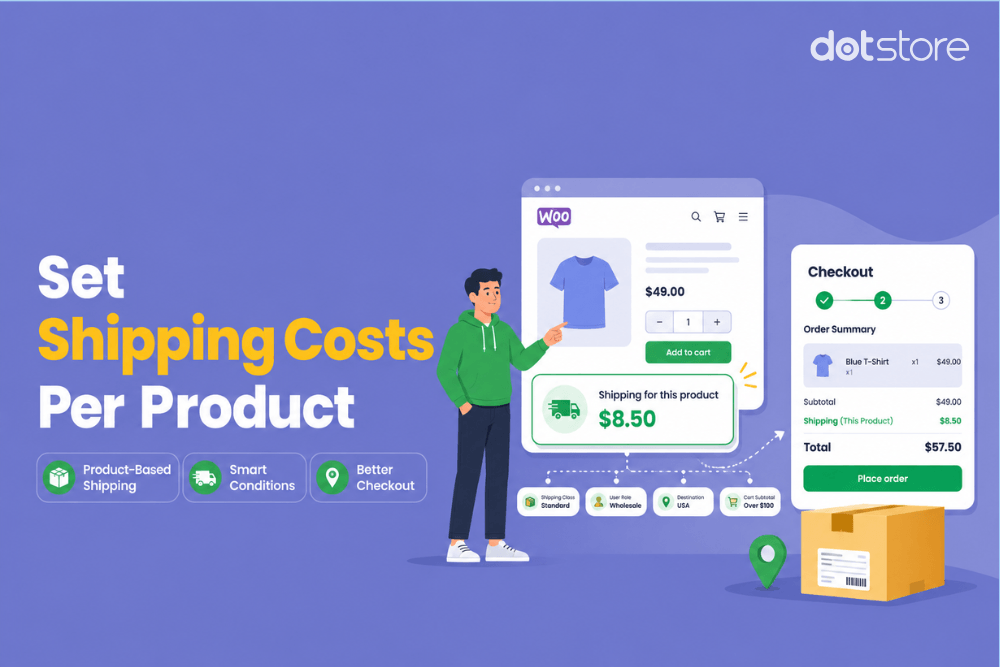
In this step-by-step guide, I’ll show you how to set WooCommerce shipping costs per product, combine product-specific shipping with advanced conditions like shipping class, cart subtotal, destination, user role, etc.
Key Takeaways
- There is no built-in WooCommerce feature for setting per-product shipping costs.
- The Dotstore Flat Rate Shipping Plugin for WooCommerce lets you create shipping costs per product, SKU, or product variation.
- With the Dotstore Flat Rate Shipping Plugin for WooCommerce, you can combine product-specific shipping rules with shipping classes, cart subtotal, weight, destination, user role, product quantity, and various conditions.
- The Dotstore Flat Rate Shipping Plugin for WooCommerce also supports free shipping, weight-based shipping, location-based shipping, quantity-based shipping, category-based shipping, and various other types of shipping rules.
If you sell different types of products or products with different variants, sizes, weights, and other attributes that affect shipping rates, setting per-product shipping costs might be the best way to charge accurate shipping costs for individual products.
Case in point: This WooCommerce admin who’s asking about how to set custom shipping costs per item.
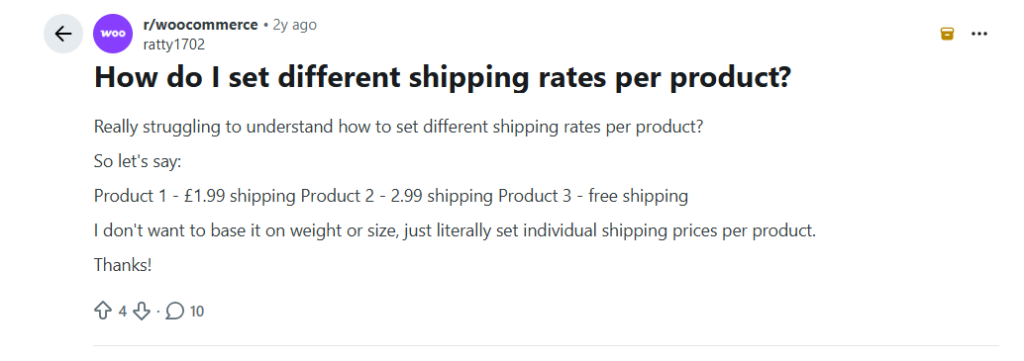
In this tutorial, I’ll show you how to configure different shipping costs for individual products. There are no built-in features for setting the shipping costs per product in WooCommerce, so we’ll use the Dotstore Flat Rate Shipping Plugin for WooCommerce.
I’ll also cover how to manage various real-world scenarios, including managing mixed-product carts, combining product-specific shipping costs with conditions like shipping destination, cart subtotal, shipping classes, user roles, and more.
In a rush? Here’s an overview of the steps to set up WooCommerce shipping costs per product:
- Create a new per-product shipping rule with the Dotstore Flat Rate Shipping Plugin for WooCommerce’s free or pro version.
- Set the shipping cost you want to charge for that product.
- Select the product that should trigger the shipping rule.
- Optionally add extra conditions like cart subtotal, user role, shipping class, product quantity, etc.
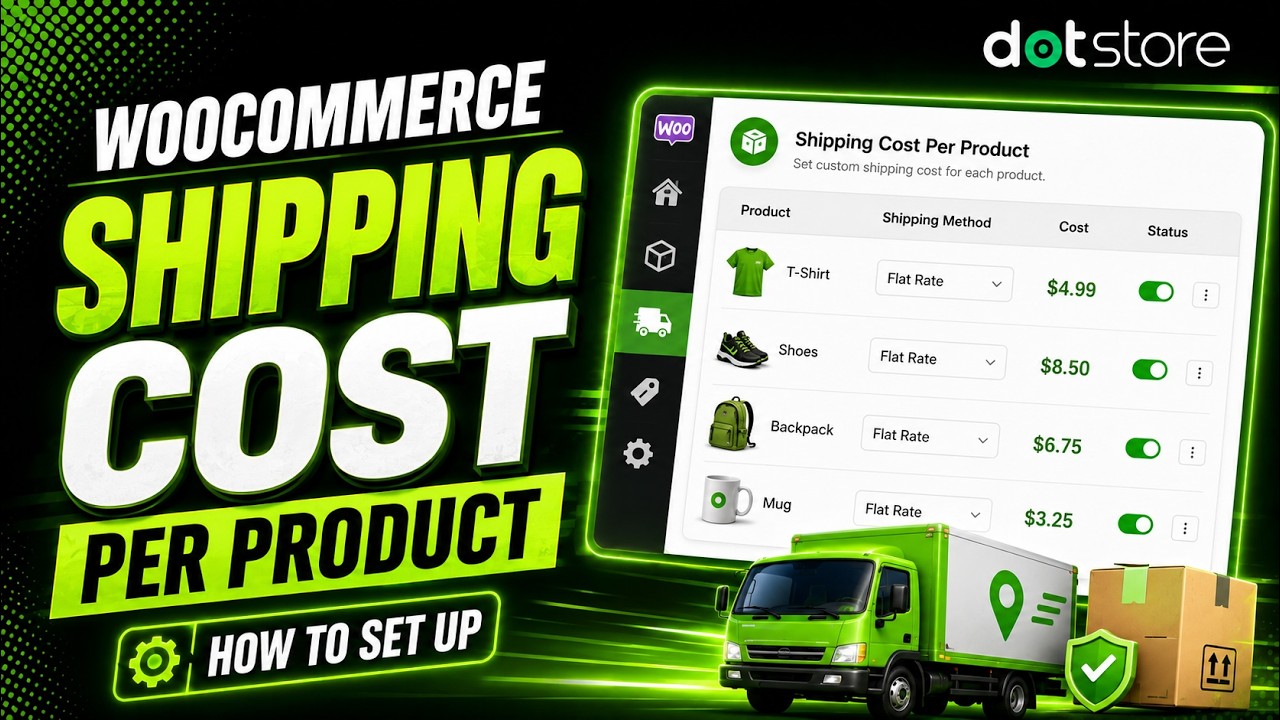
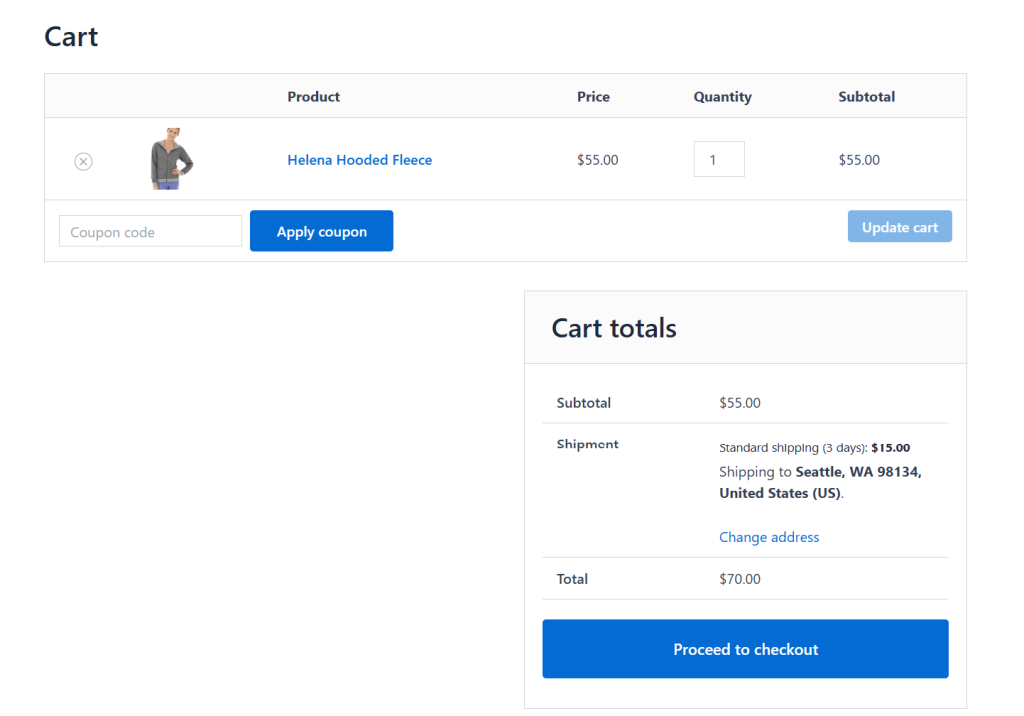
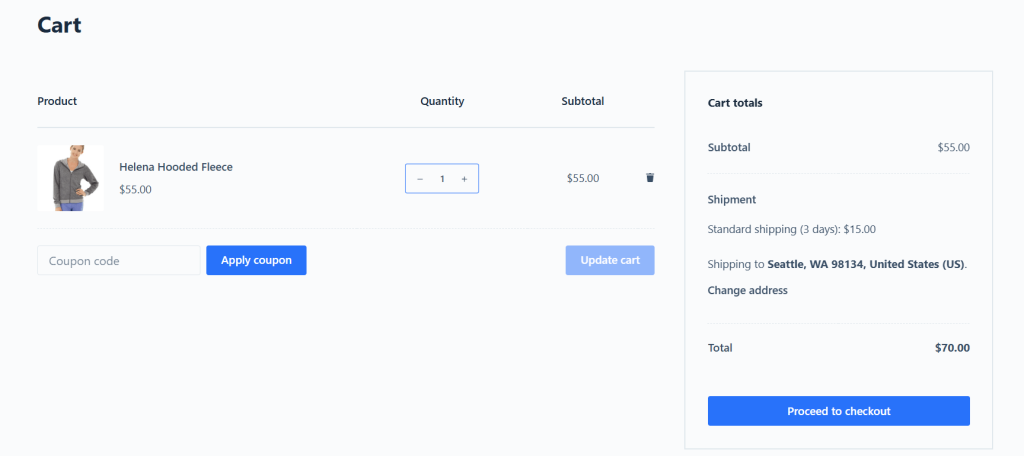
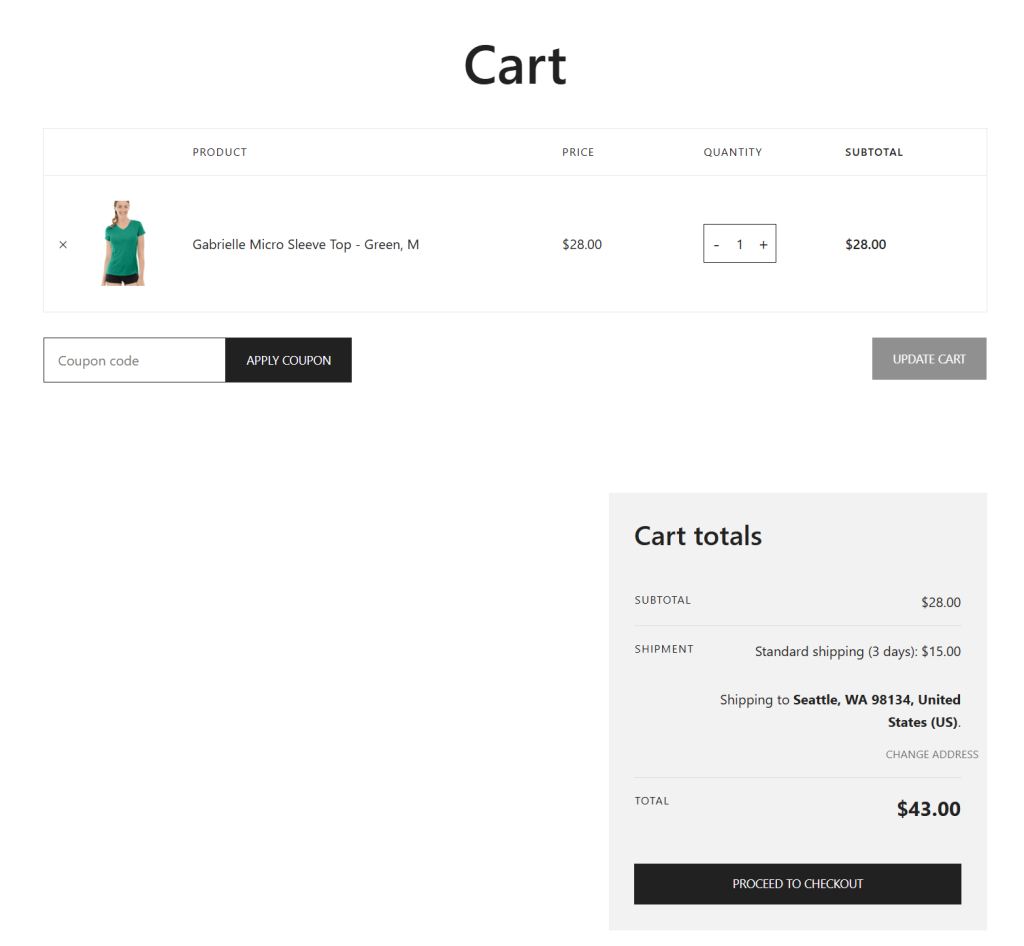
Here’s how the per-product shipping cost shows up on the front end:
Advanced Flat Rate Shipping Methods
Boost your WooCommerce store’s revenue with flexible shipping options. Your business deserves the best!
14-day, no-questions-asked money-back guarantee.
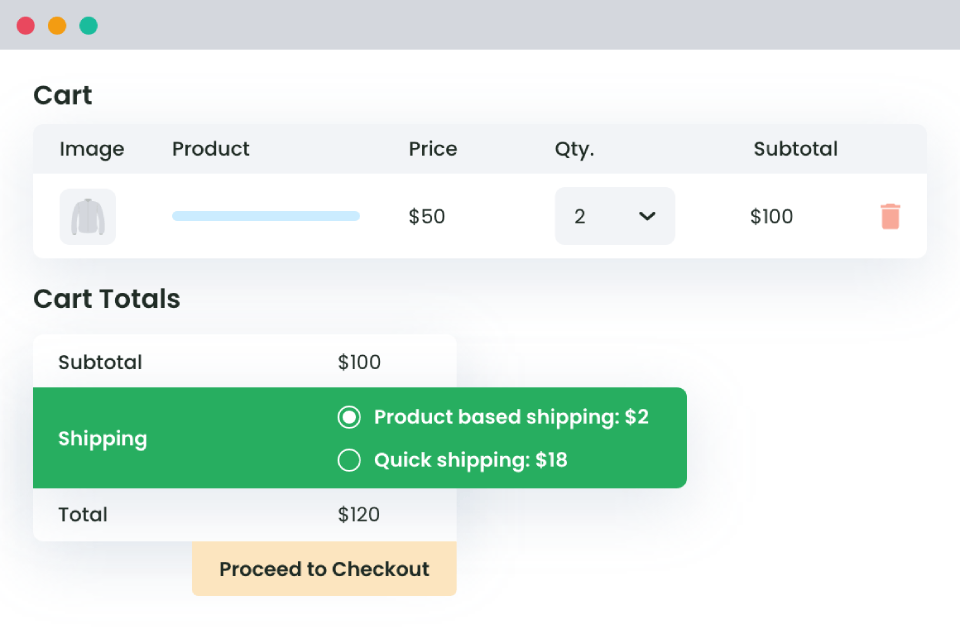
Add per-product shipping costs with the Dotstore Flat Rate Shipping Plugin for WooCommerce
Dotstore Flat Rate Shipping Plugin for WooCommerce is an advanced plugin that replaces WooCommerce’s basic flat rate method with rule-based shipping, and one of the conditions you can build shipping rules around is the specific product, SKU, or product variation in the cart.
Available in both free and pro versions, it is used by more than 15,000 WooCommerce stores worldwide.
Why use Dotstore Flat Rate Shipping Plugin for WooCommerce instead of a purpose-built per-product shipping plugin?
In addition to adding shipping costs per product and variation, it lets you create advanced shipping rules using more than 20 conditions, including product categories, shipping classes, cart subtotal, cart weight, product quantity, user roles, shipping zones, countries, states, and ZIP codes, payment methods, coupon usage, etc.
Dotstore Flat Rate Shipping Plugin for WooCommerce empowers you to offer multiple shipping options, such as free shipping, weight-based shipping, location-based shipping, quantity-based shipping, and more, without having to use separate plugins. It gives you much more flexibility than a basic per-product shipping setup.
The rule priority feature avoids conflicts during the checkout flow. If a customer’s cart triggers more than one rule, the higher priority rule (as configured by you) will be applied during checkout.
How to set WooCommerce shipping cost per product
Here, I’ll walk you through step-by-step how to add shipping cost per product using the Dotstore Flat Rate Shipping Plugin for WooCommerce.
Step 1: Create a new per-product shipping rule in WooCommerce
- Install and activate the free or pro version of the Dotstore Flat Rate Shipping Plugin for WooCommerce.
- In your site’s admin panel, navigate to Flat Rate Shipping → Manage Rules, then press “Add New.”
- Toggle on the “Status” option to enable the rule.
- Shipping Title: Add an internal name for this per-product shipping rule (e.g., “Large Coffee Table Shipping”).
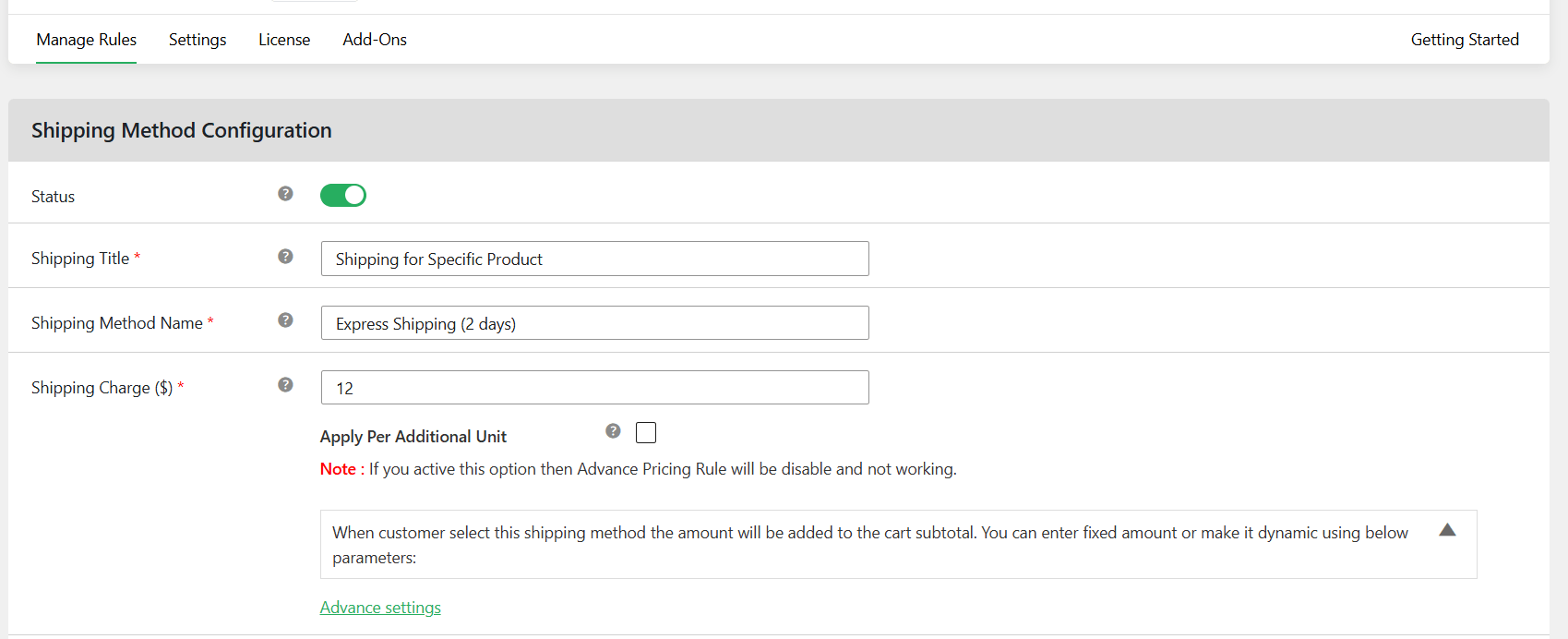
- Shipping Method Name: Give the rule a label visible to customers in the checkout flow (e.g., “Standard Shipping – Large Items”).
- Shipping Title: Add an internal name for this per-product shipping rule (e.g., “Large Coffee Table Shipping”).
Step 2: Set the WooCommerce per-product shipping cost
- Under “Shipping Charge”, add the shipping cost for this specific product (e.g., $35).
- If you want the shipping cost to increase based on product quantity, tick the “Apply Per Additional Quantity” checkbox. Specify that the shipping cost be calculated based on “Product Quantity,” then add the exact amount for each additional product unit in the Fee Per Additional Unit ($) field.
- Next, decide whether the shipping method should be taxable and whether it should be the default shipping method.

Step 3: Set the product as this per-product shipping rule’s condition
- Scroll down to the “Shipping Method Rules” panel.
- Press the “+ Add Rule” button, and select whether the rule should be applied when all or any one matches.
- Configure the per-product shipping cost rule as follows:
- Condition: Select “Cart contains product” for simple products, “Cart contains variable product” for product variations, or “Cart contains SKU’s product”, as appropriate.
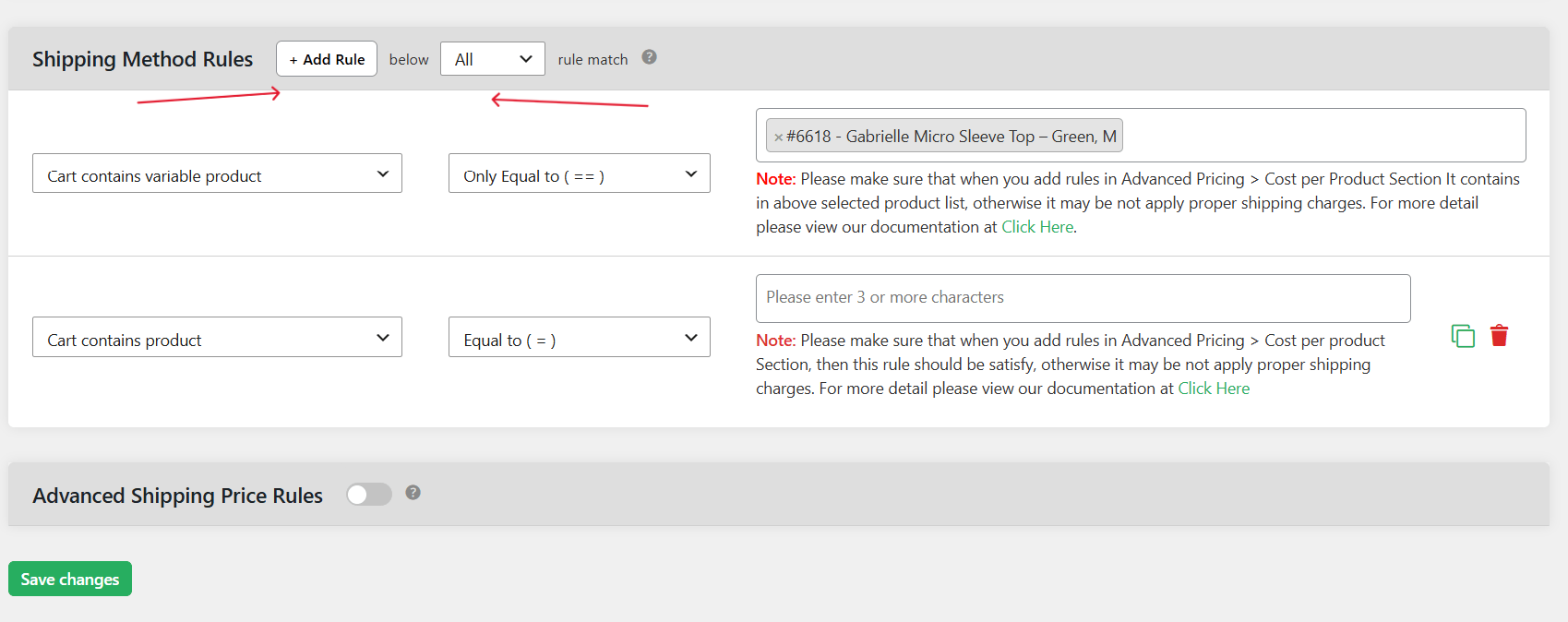
- Operator: Choose “Equals to”.
- Value: Type the product name and select the specific product (or products) this shipping cost should apply to.
- Condition: Select “Cart contains product” for simple products, “Cart contains variable product” for product variations, or “Cart contains SKU’s product”, as appropriate.
- Press “Save changes.”
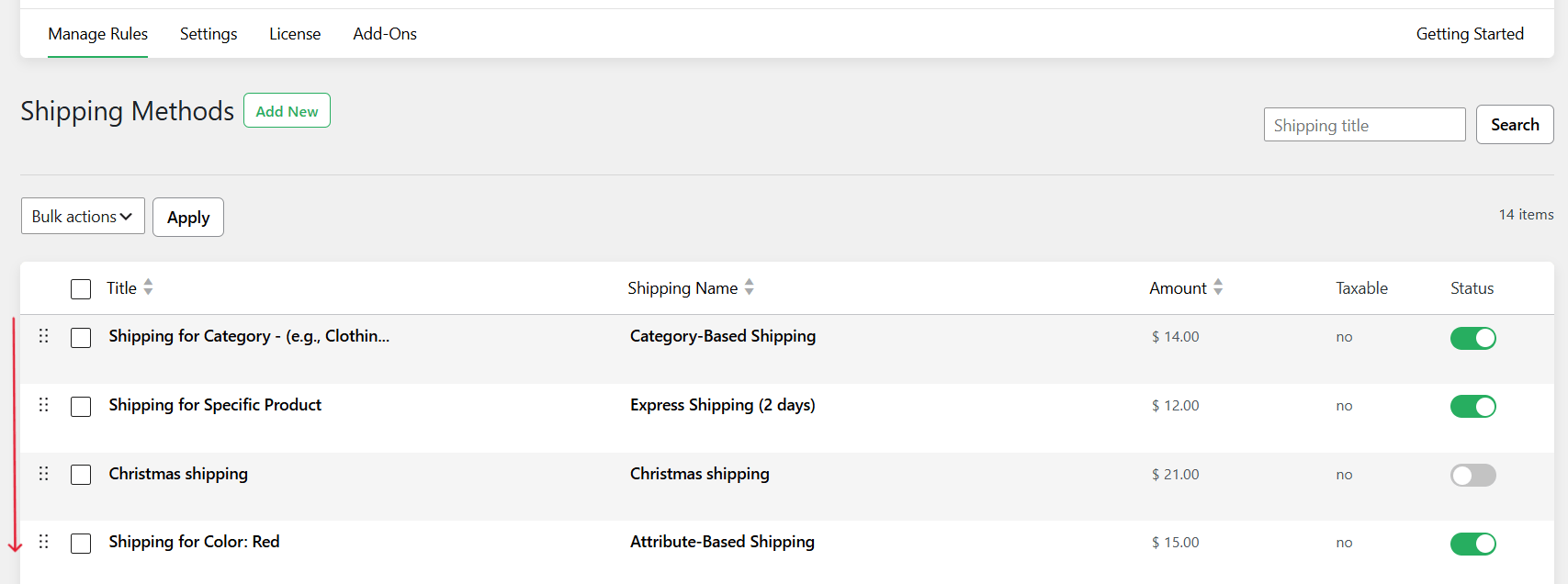
- Important: Head to Flat Rate Shipping → Manage Rules and drag and drop rules to reorder them as needed. Rules higher on the list take priority in situations where a cart matches more than one.
Step 4: Add extra conditions to this WooCommerce per-product shipping rule (optional)
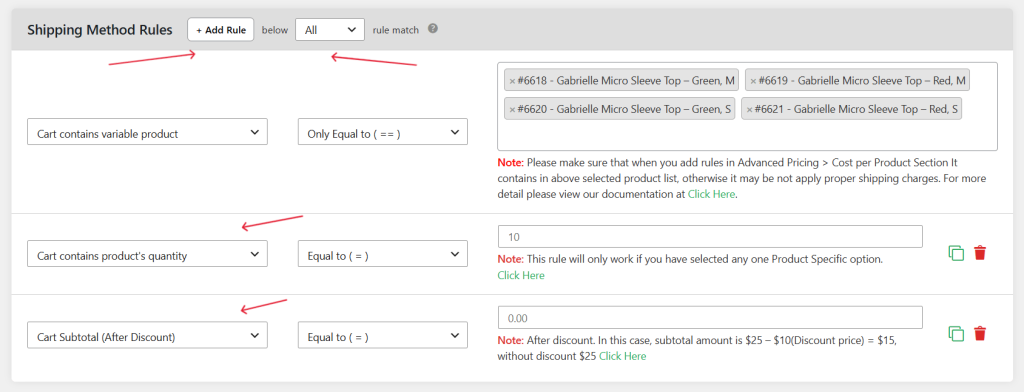
You can add extra conditions that control when this shipping cost per product rule is applied in the “Shipping Method Rules” panel.
Add new conditions such as user role, cart subtotal, product weight, etc., then choose the shipping logic, i.e., whether the rule set should apply on an AND or OR basis.
That’s about it! Add the specific product to your shopping cart and walk through your WooCommerce store’s checkout flow to make sure your per-product shipping rule works as intended.
Should your WooCommerce store use per-product shipping?
Wondering if setting per-product shipping is the right approach for your WooCommerce store? Here’s how to decide.
When to use WooCommerce shipping cost per product
Setting different shipping costs per product in WooCommerce works best when there’s a huge difference between shipping-related fees for each product. Here are some examples:
- Stores that sell a variety of products with unique shipping rates. For example, it may cost a furniture store $75 to ship a dining table, $35 for a coffee table, and $15 for a bedside cabinet because each item has different packaging and delivery charges.
- Stores where only a handful of products require special shipping charges.
- Stores whose products have similar weights but different handling costs, due to packaging or insurance charges.
- Store admins who want to combine product-specific shipping with other conditions, e.g., charging $30 shipping for shipping specific items to customers outside your local delivery area or in situations where the order total is below a certain amount.
When not to use WooCommerce shipping cost per product
Per-product shipping may not be ideal for your WooCommerce store if:
- Multiple products share the same shipping cost. Instead of creating identical rules for dozens of products, you can set shipping based on product categories.
- Shipping costs depend primarily on weight or dimensions. Set up weight-based or dimension-based shipping rules instead.
- Your shipping fees vary mainly based on the customer’s country, state, or ZIP code. Location-based shipping rules are the better option.
- Most of your products qualify for the same shipping fee. A simple flat rate shipping setup may be ideal.
- Your product catalog changes frequently. In stores that regularly add or remove products, maintaining individual shipping rules for every SKU can become an unnecessary admin task.
With the Dotstore Flat Rate Shipping Plugin for WooCommerce, you can configure your shipping setup however you need. It supports product-specific shipping costs alongside product categories, shipping classes, cart subtotal, product quantity, customer roles, shipping destinations, and many other conditions.
FAQs about setting WooCommerce shipping cost per product
How do I charge shipping for individual products in WooCommerce?
The easiest way to add shipping costs per product in WooCommerce is with the Dotstore Flat Rate Shipping Plugin for WooCommerce.
It lets you create product-specific shipping rules, set the shipping cost, and apply it to one or more products. You can also combine product-specific shipping with other conditions like customer location, cart subtotal, shipping class, user role, etc.
How do I charge extra shipping for heavy or bulky products in WooCommerce?
Many shipping carriers factor in product weight when calculating shipping costs, so it makes sense to set shipping costs accordingly.
With the Dotstore Flat Rate Shipping Plugin for WooCommerce, you can charge extra for shipping heavy products in two ways. First, you can add a “weight” condition that adds an additional cost based on product weight to an existing shipping rule. The second option is to create separate per-product shipping rules for heavy or bulky products.
How is WooCommerce shipping cost per product calculated when customers buy multiple products?
The Dotstore Flat Rate Shipping Plugin for WooCommerce calculates the shipping cost for each order based on shipping rule priority and conditions. Here are some examples of how you can configure your store:
- Apply the highest-priority shipping rule whenever a specific product is present in the cart.
- Charge different shipping costs depending on the specific products in the cart.
- Combine product-specific rules with cart subtotal, shipping class, user role, etc.
Can I charge different per-product shipping costs by country?
Yes, with the Dotstore Flat Rate Shipping Plugin for WooCommerce, you can combine product-specific shipping rules with location-based conditions such as country, state, ZIP/postcode, and shipping zone.
Can I set per-product shipping alongside other shipping options?
Yes, the Dotstore Flat Rate Shipping Plugin for WooCommerce lets you combine product-specific shipping with other shipping methods and options, such as flat rate shipping, free shipping thresholds, shipping classes, category-based shipping, cart subtotal, cart quantity, user roles, etc.
This enables you to create custom shipping methods based on your business operations.
Can I set per-product shipping on a variation level in WooCommerce?
Yes, you can set product variation-level shipping rules by selecting the “Cart contains variable product” condition using the Dotstore Flat Rate Shipping Plugin for WooCommerce.
Can I set WooCommerce shipping cost per product using shipping classes?
While you can’t directly set shipping costs per product using shipping classes, you can assign individual products to a shipping class and then configure shipping costs for that class.
Shipping classes are designed to group products with similar shipping requirements, so this approach works well when multiple products share the same shipping cost. But it’s less suitable when every product requires a unique shipping rate.
WooCommerce per-product shipping vs. shipping classes: Which to use?
Create per-product shipping rules for:
- Individual products with unique shipping costs.
- Only a small number of products require special shipping charges.
- You need precise control over shipping costs for specific products.
Create shipping classes for:
- Multiple products with the same shipping requirements.
- Products grouped as bulky, lightweight, fragile, oversized, or in similar categories.
Ready to set WooCommerce shipping costs per product?
Instead of applying the same shipping fee to every order, you can assign different shipping costs to products with unique handling, packaging, or delivery requirements to charge customers accurately for shipping.
The Dotstore’s Flat Rate Shipping Plugin for WooCommerce enables you to set shipping costs per product, per SKU, or per variation, and combine those rules with product category, cart subtotal, weight, quantity, location, user role, and other conditions.
Try out its live demo or install the free or pro version on your WooCommerce site today!
Advanced Flat Rate Shipping Methods
Boost your WooCommerce store’s revenue with flexible shipping options. Your business deserves the best!
14-day, no-questions-asked money-back guarantee.