Table of Contents
Follow this step-by-step guide to configure WooCommerce shipping based on product category, including different shipping rates, category-specific shipping methods, and advanced conditional rules.
Key Takeaways
- There is no built-in WooCommerce feature that supports category-based shipping.
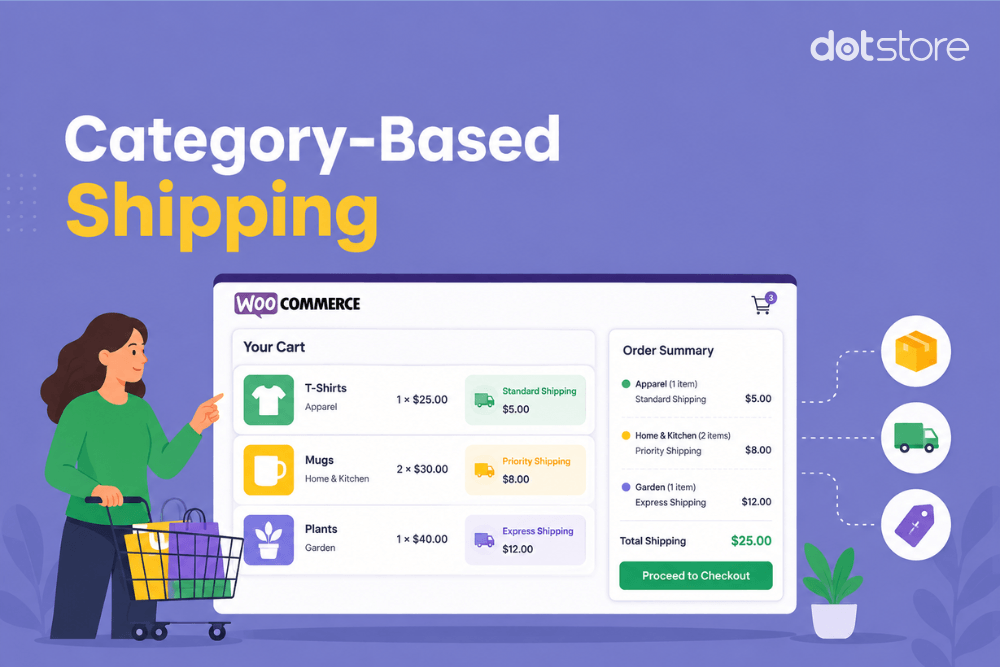
- A category-based shipping strategy enables you to set different shipping rates per product category.
- With the Dotstore Flat Rate Shipping Plugin for WooCommerce, you can combine category-based shipping rules with cart subtotal, weight, user role, shipping classes, and other conditions.
Wondering how to charge shipping by product category in WooCommerce?
If you sell products that belong to different categories, you’ll quickly run into the same problem: different categories have different shipping needs, and WooCommerce’s default setup treats them all the same. For instance:
- Heavy products like furniture may cost more to ship compared to clothing.
- Frozen products may require express delivery to avoid spoilage.
- Hazardous products may need special shipping.
- Oversized items shouldn’t qualify for free shipping.
- Digital products shouldn’t incur shipping costs.
In this tutorial, I’ll walk you through exactly how to set up WooCommerce shipping methods based on product category, plus how to restrict shipping methods per category for specific products.
Also, I’ll answer the most common questions store admins ask about configuring WooCommerce shipping based on product category, like what happens with mixed carts, whether categories can override free shipping, and how this plays with shipping zones and shipping classes.
There are no built-in settings within WooCommerce to create conditional shipping rules based on product categories, so we’ll use the powerful Dotstore Flat Rate Shipping Plugin for WooCommerce to configure this.
Advanced Flat Rate Shipping Methods
Boost your WooCommerce store’s revenue with flexible shipping options. Your business deserves the best!
14-day, no-questions-asked money-back guarantee.
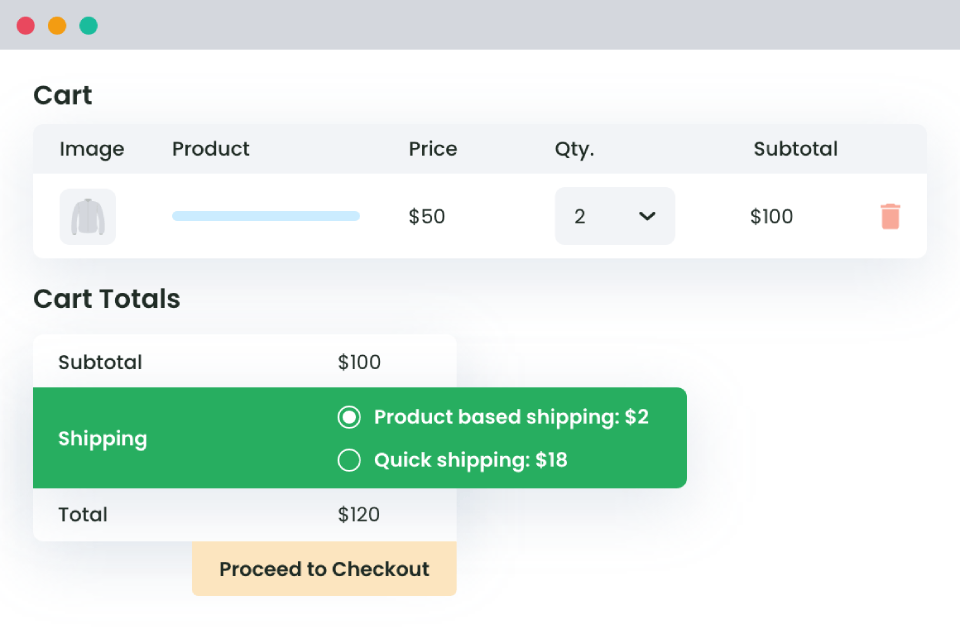
Why use the Dotstore Flat Rate Shipping Plugin for WooCommerce?
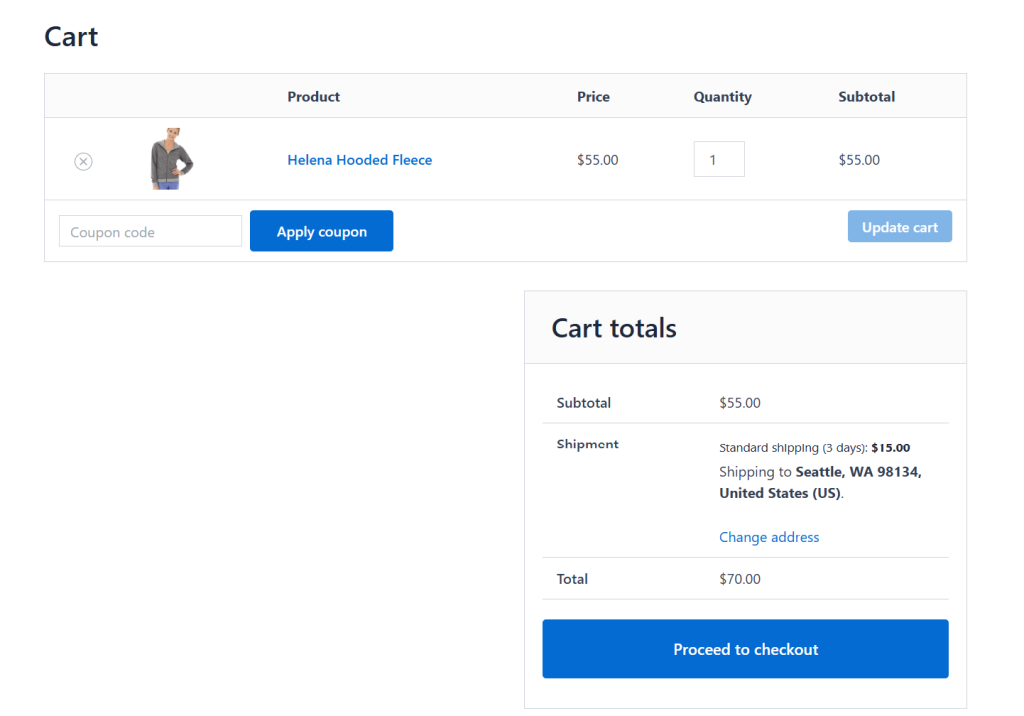
As your business scales, your shipping requirements will likely become more complex.
The Dotstore Flat Rate Shipping Plugin for WooCommerce is an advanced shipping plugin that lets you configure WooCommerce shipping rules based on product categories alongside dozens of other shipping conditions. For instance, you can set up shipping options based on:
- Product categories to charge different shipping rates for different types of products.
- Shipping classes for bulky, fragile, or oversized items.
- Cart weight and subtotal to offer conditional free shipping or tiered shipping rates.
- Product quantity to encourage larger-sized purchases using discounted shipping.
- Customer roles to create separate shipping rules for different customer segments, e.g., wholesale and retail buyers.
- Shipping zones and destinations to apply location-specific shipping methods.
- Coupon usage to offer promotional shipping rates.
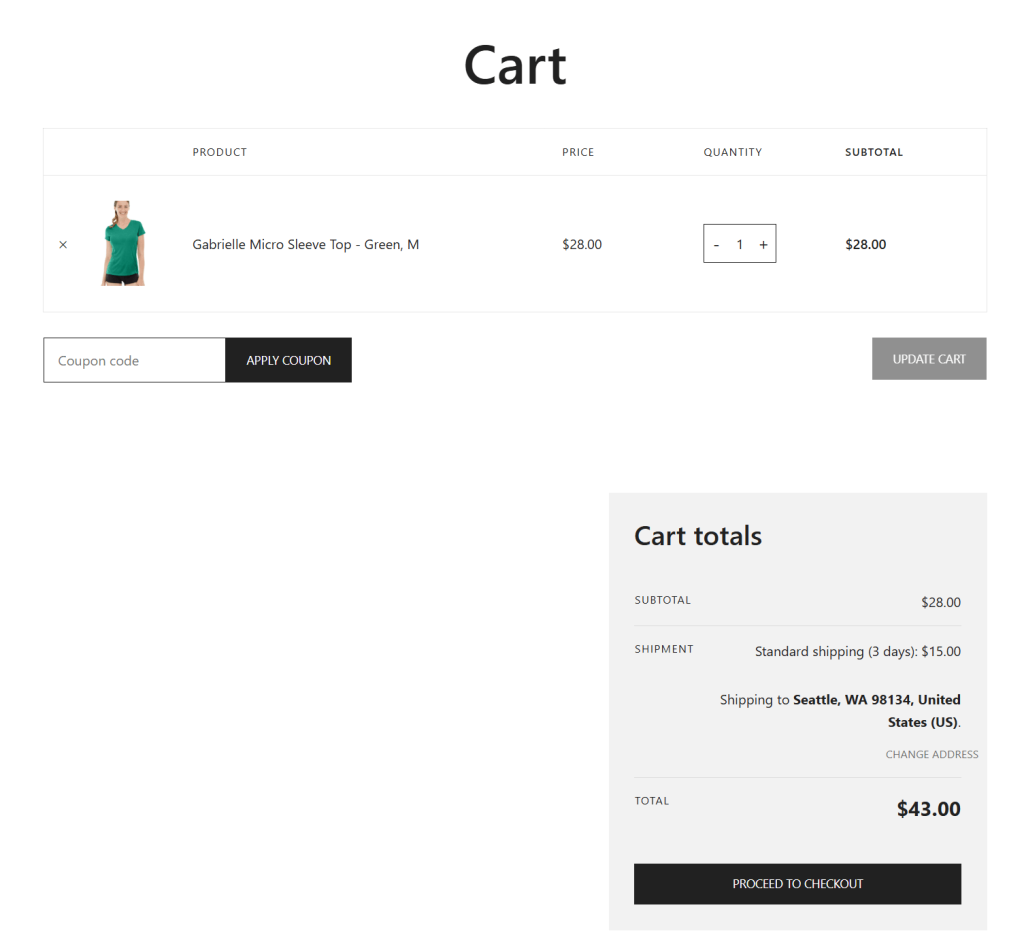
Instead of using shipping plugins that only support category-based shipping, the Dotstore Flat Rate Shipping Plugin for WooCommerce gives you the flexibility to customize your shipping options as needed.
How to set up a WooCommerce shipping method based on product category
In this section, I’ll show you step-by-step how to configure a shipping rate that only applies to a specific product category. We’ll use the Dotstore Flat Rate Shipping Plugin for WooCommerce.
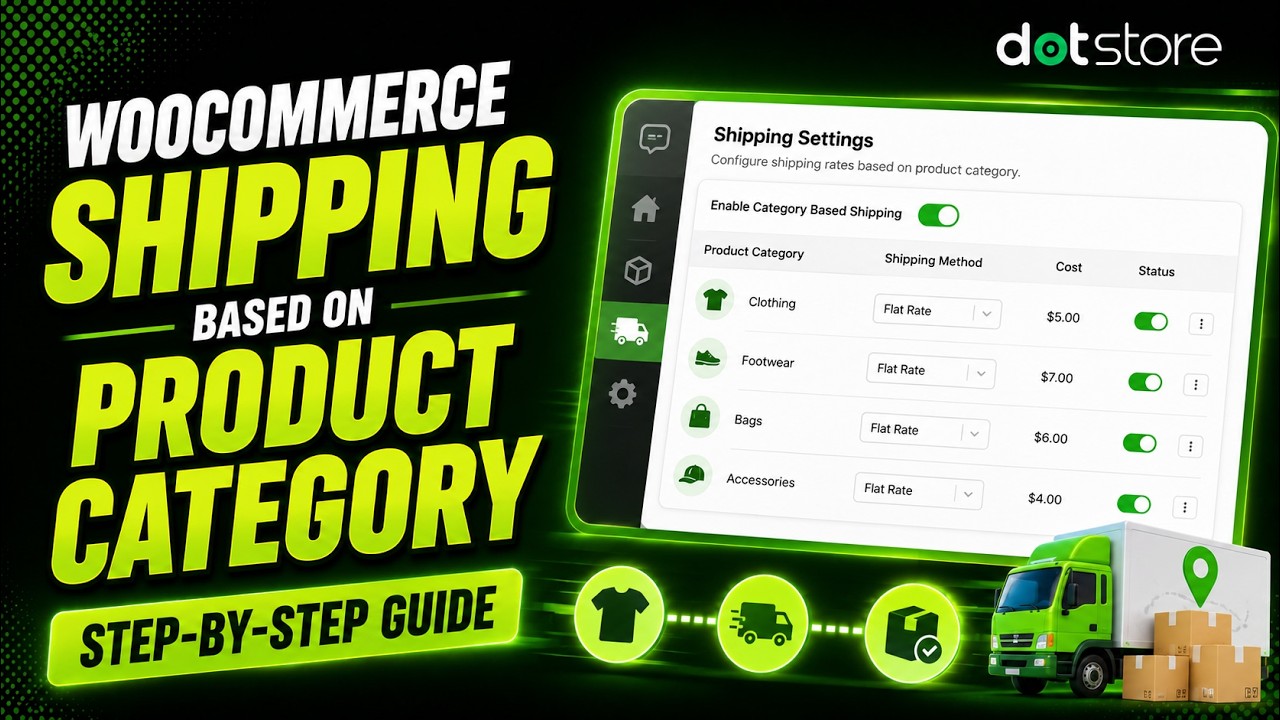
Step 1: Create a category-based shipping rule
- Install and activate the free or pro version of the Dotstore Flat Rate Shipping Plugin for WooCommerce on your site.
- In your site’s admin menu, go to Dotstore Plugins → Flat Rate Shipping → Settings → Manage Zones and add the shipping zones you deliver to.
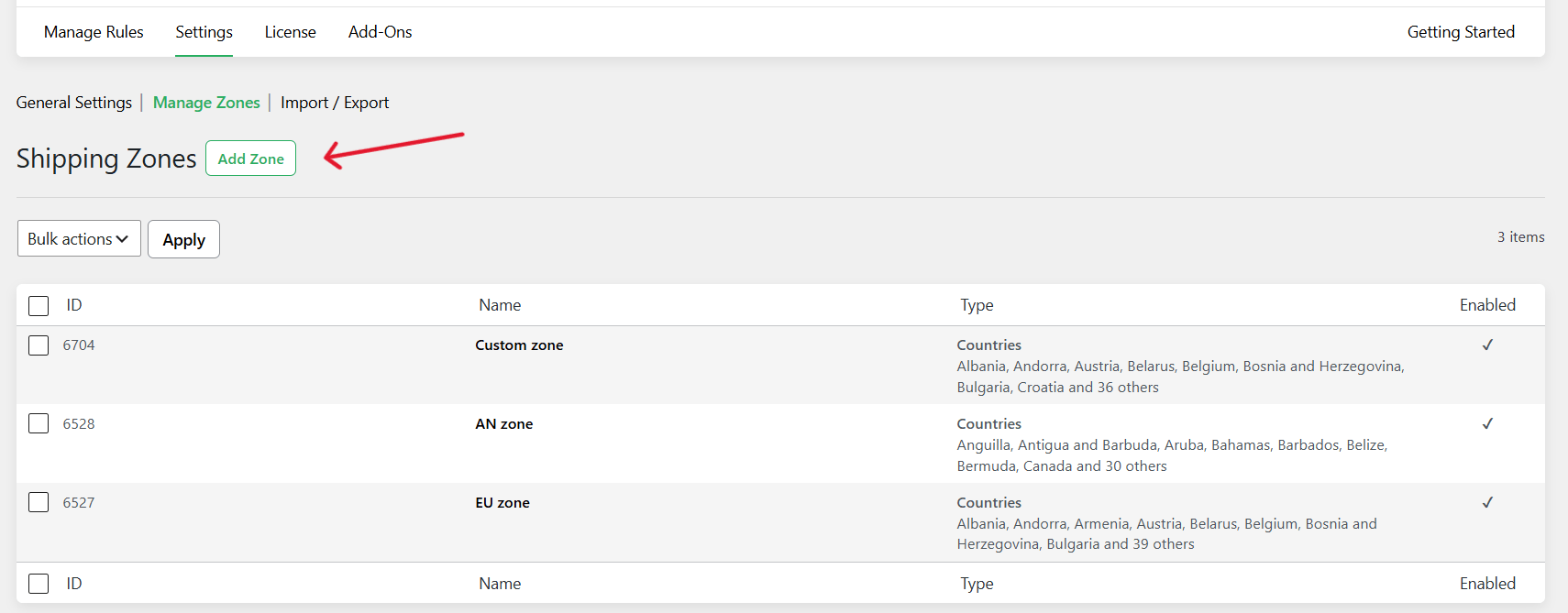
- Next, navigate to Dotstore Plugins → Flat Rate Shipping → Manage Rules, and press the “Add New” button.
- Toggle on the “Status” option, then configure the WooCommerce shipping method based on product category.
- Shipping Title: Add an internal label for admin-only view, e.g., “Frozen Food — Express Only.”
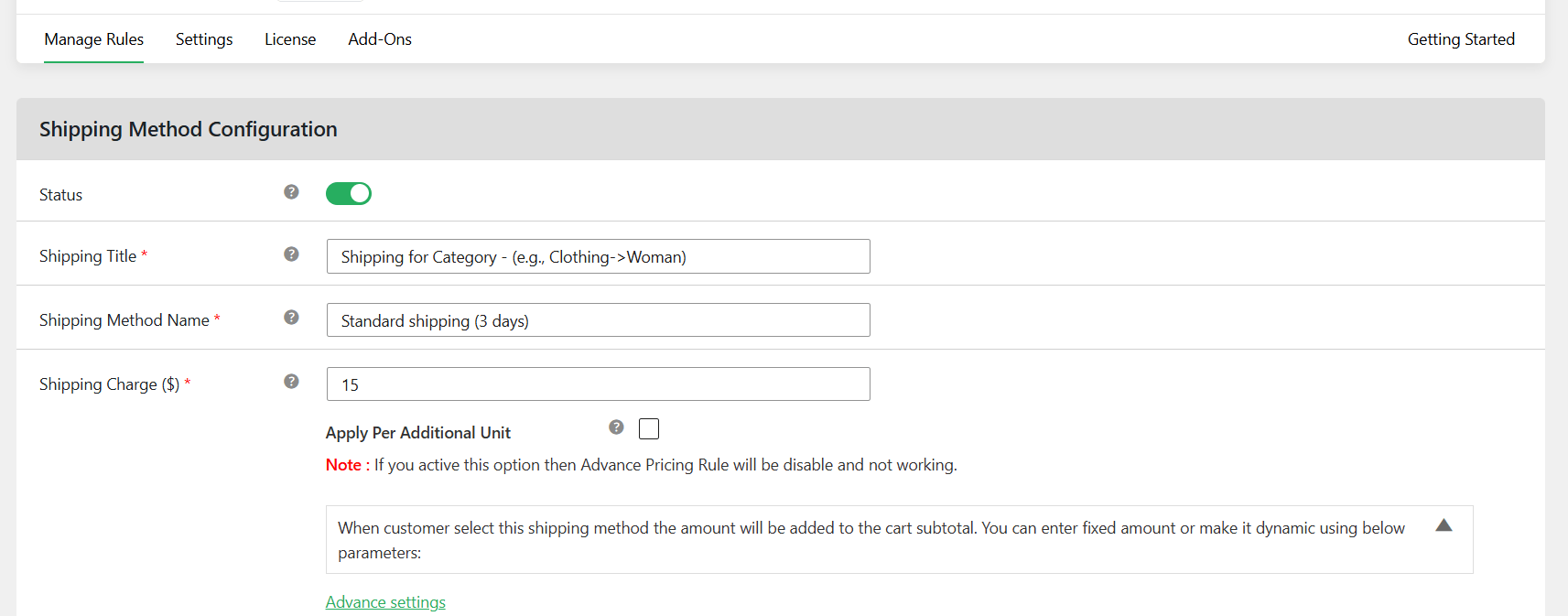
- Shipping Method Name: Add the label customers will see during the checkout flow, e.g., “Express Delivery (Frozen Items).”
- Shipping Title: Add an internal label for admin-only view, e.g., “Frozen Food — Express Only.”
- Choose your primary shipping parameter:
- Shipping Charge: Enter the required amount.
- Allow Free Shipping: Set the cost to zero for this category.
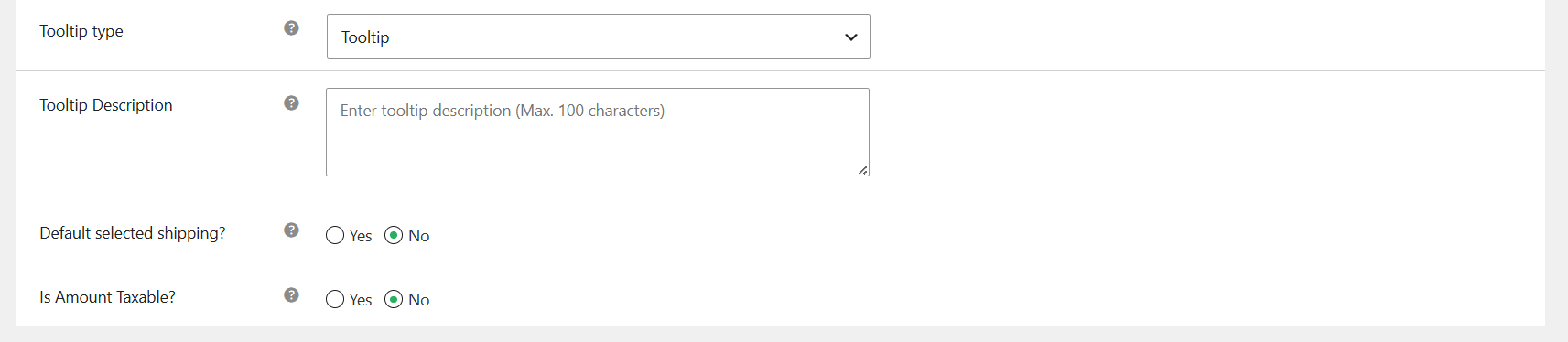
- Decide whether this should be the default shipping method and whether it’s taxable or not.
Step 2: Set the product category conditions
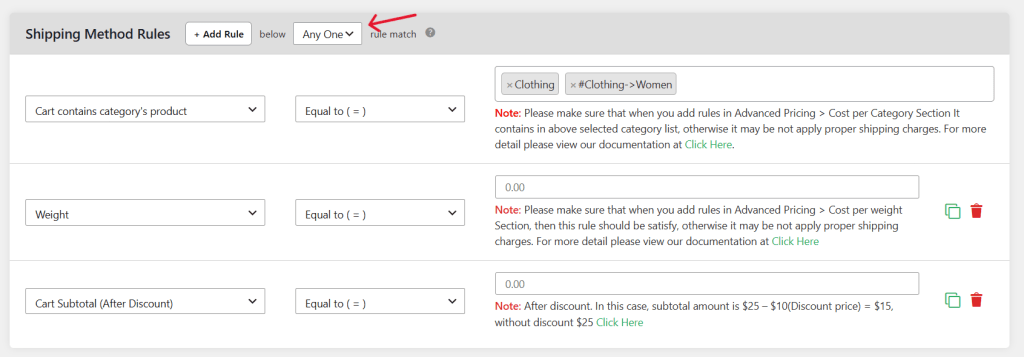
- Scroll down to the “Shipping Method Rules” section and press “Add Rule.”
- Set the “Rule Match” to “Any One” if the rule should trigger when the cart contains items from any of the listed categories, or “All” if every condition must be met.
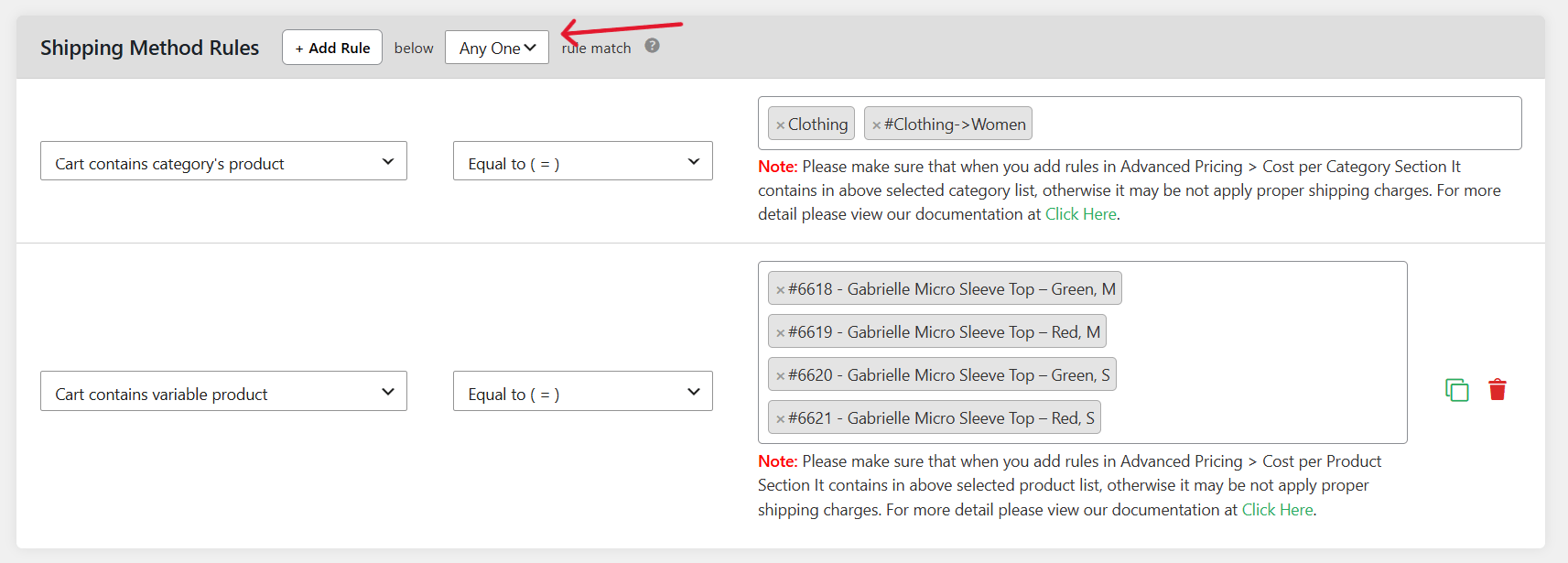
- Select the following parameters:
- “Cart contains category’s product” as the condition type.
- Set the operator to “Equals to”.
- Add the product categories this shipping rule should apply to, e.g., “Frozen Foods” or “Hazardous Materials.”
- Add as many rules as needed if this shipping method should apply to more than one category.
- Scroll to the bottom of the page and press the “Save changes” button.
Step 3: Add extra conditions (optional)
If needed, you can combine additional conditions like weight, dimensions, cart subtotal, shipping destination, user role, etc., with the category-based shipping rule. This lets you build rules like “Frozen Foods AND cart weight under 10kg AND US destination = $15 express shipping.”
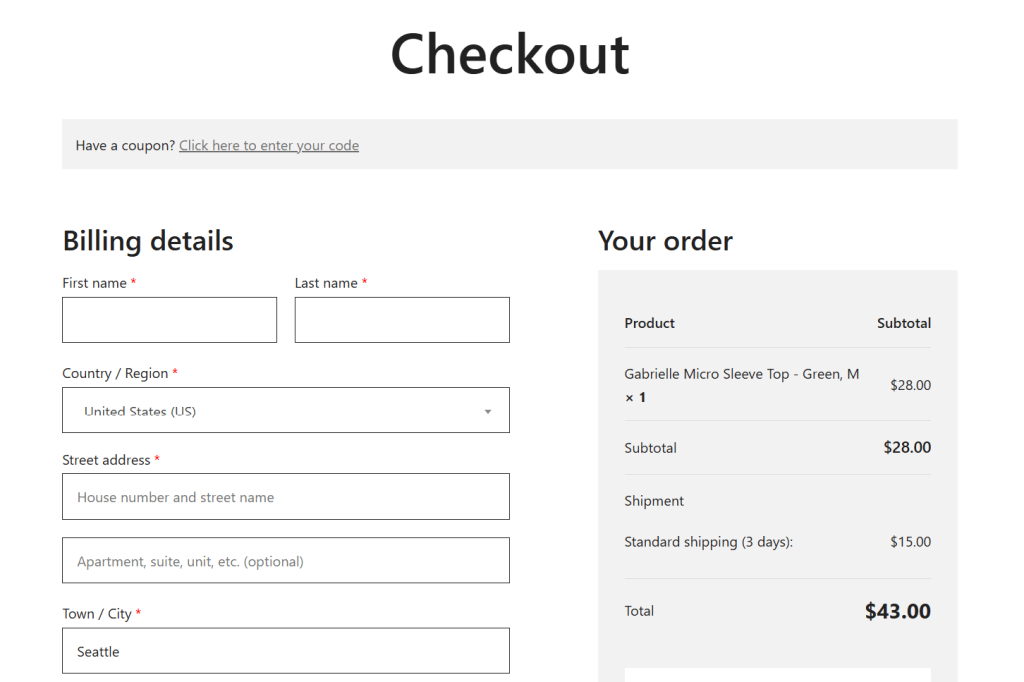
Once you’ve configured the settings as desired, head to your store’s front end, add a product from the target category to the cart, and complete the checkout flow. Make sure to repeat this process for each product category to make sure that it works as intended.
Bonus: How to restrict WooCommerce shipping methods based on product category
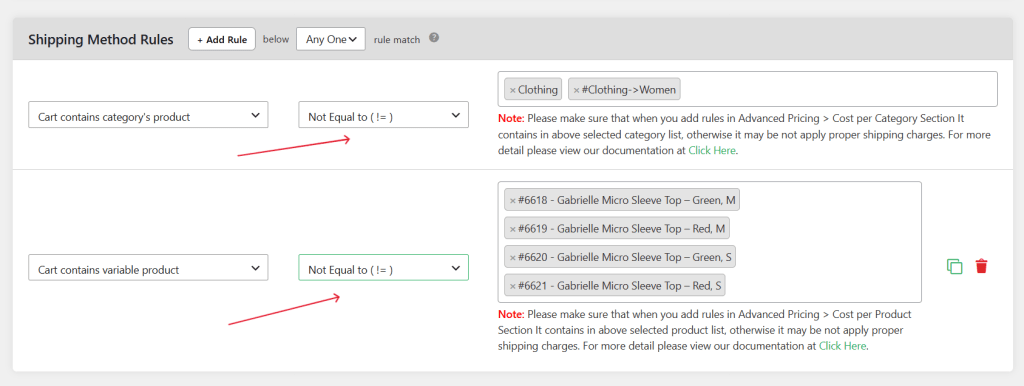
You can restrict specific shipping methods for certain products based on their category. For example, if you provide storewide free shipping over a certain amount but want to exclude certain items, create a shipping rule with a “Product Category — Not equals to” condition. Take a look at the example below.
Note: If you want to hide specific WooCommerce shipping methods for selected product categories, such as local pickup or free shipping, use the Dotstore Hide Shipping Method For WooCommerce for full control over both shipping cost and visibility in the checkout flow.
FAQs about setting WooCommerce shipping based on product category
Most stores have unique shipping requirements. Below, we’ll run through some of the most common questions admins have about configuring shipping logic based on product categories in WooCommerce.
How are WooCommerce shipping rules prioritized across product categories?
Dotstore Flat Rate Shipping Plugin for WooCommerce executes shipping rules in the order you arrange them. A general principle is to place the most specific, highest-stakes rules above the general, catch-all rules.
If a customer’s cart is eligible for multiple category-based shipping rules at the same time, the rules higher on the list will take priority. You can drag and drop rules under Dotstore Plugins → Flat Rate Shipping → Manage Rules to reorder them as needed.
How does product category-based shipping affect WooCommerce shipping zones?
The Dotstore Flat Rate Shipping Plugin for WooCommerce checks each customer’s shipping zone to determine available shipping methods before it assigns relevant category-based shipping rules.
This means you can configure WooCommerce shipping methods based on product categories independently for each shipping zone.
What if a WooCommerce cart contains products from different categories?
Dotstore Flat Rate Shipping Plugin for WooCommerce handles mixed-category carts with the help of rule priority and AND/OR logic.
For example, if a cart has one item from the “Books” category (flat $3 shipping) and one from “Furniture” (freight-rate shipping), WooCommerce needs a clear instruction for what to charge to avoid undercharging for the furniture or overcharging for the books.
Here, you have three options:
- Highest-cost-wins: Set your Furniture shipping rule with higher priority so it applies to the whole order whenever furniture is present, regardless of other items in the shopping cart.
- Combine costs: Use the plugin’s shipping class or similar category cost-stacking options to add the Furniture surcharge on top of the base shipping rate, rather than replacing it.
- Split fulfillment logic: For stores where mixed carts are common and costly to miscalculate, some admins set a rule that surfaces a distinct “Mixed Order Shipping” method whenever two or more shipping-relevant categories appear together, then manually confirm the rate before fulfillment.
What about products in the same category with different shipping requirements?
In WooCommerce, every product in a category shares the same category-based rule; you’ll need a more specific condition to distinguish between them.
With the Dotstore Flat Rate Shipping Plugin for WooCommerce, you can combine product categories with shipping classes, cart weight, quantity, destination, or other relevant conditions for more accurate shipping calculations.
Can one product belong to multiple categories in WooCommerce?
Yes, you can assign a product to several categories at once in WooCommerce. However, to make sure shipping rates are calculated correctly, you must apply rules deliberately, as the Dotstore Flat Rate Shipping Plugin for WooCommerce will apply the highest-priority matching shipping rule.
Can different product categories have different free shipping rules in WooCommerce?
Yes, Dotstore Flat Rate Shipping Plugin for WooCommerce supports free shipping thresholds within the same rule set. It doesn’t limit you to a single storewide free shipping method in WooCommerce.
For example, you can offer free shipping on orders over $50 in the “Apparel” category while requiring a $200 minimum for free shipping on “Furniture”, or even exclude “Furniture” from free shipping altogether.
Can I assign multiple WooCommerce shipping methods to one product category?
Yes, nothing stops you from creating two or more rules that both target the same category, as long as their conditions don’t conflict. For instance, an online grocer can offer both a standard flat rate and an express option for products in the “Perishables” category, and then let the customer pick between the two during the checkout flow.
Can I exclude certain product categories from free shipping in WooCommerce?
Yes, you can restrict specific product categories from free shipping using the Dotstore Flat Rate Shipping Plugin for WooCommerce by creating a shipping rule with a “Product Category — Not equals to” condition.
Can I combine product categories with additional conditions in WooCommerce?
With the Dotstore Flat Rate Shipping Plugin for WooCommerce, you can layer AND/OR conditions like subtotal, weight, user role, destination, etc., to build shipping rules like:
- “Furniture” category AND cart subtotal under $500 → charge freight rate.
- “Wholesale-only” category AND user role is “Wholesale Buyer” → charge discounted flat rate.
- “Hazardous” category AND destination is outside the contiguous US → hide all shipping methods and show a custom message instead.
- “Perishables” category AND postal code is more than 3 shipping zones away → restrict to express shipping only.
Important note: Stack conditions deliberately, and keep a written log of what each rule does. It’s nearly impossible to mentally track them once you’re past four or five active rules.
How does category-based shipping work with variable products in WooCommerce?
Category-based shipping rules apply to all product variations based on the parent product’s category.
However, if different product variants must be shipped differently (for example, a “Large” couch cover ships in a box but “Small” ships in an envelope), category-based shipping rules alone won’t capture that distinction. You’ll need to set up shipping classes for each product variation.
Ready to set up WooCommerce shipping based on product category?
If your shipping needs vary by product category, setting up category-based shipping can ensure you charge fair, accurate shipping rates.
There is no built-in feature to create a WooCommerce shipping method based on product category. However, you can easily configure it using the Dotstore Flat Rate Shipping Plugin for WooCommerce.
It lets you create flexible shipping rules using product categories alongside dozens of other conditions to match how your business operates.
With the Dotstore Flat Rate Shipping Plugin for WooCommerce, you can:
- Create different shipping rates for specific product categories.
- Show or hide shipping methods based on product categories.
- Combine category-based rules with conditions like cart subtotal, product quantity, shipping destination, customer role, and more.
- Exclude selected product categories from specific shipping methods like free shipping.
And because it is an advanced flat rate shipping plugin, it lets you set up other types of custom shipping rules as needed.
Check out the live demo or download the free or pro version to get started now!
Advanced Flat Rate Shipping Methods
Boost your WooCommerce store’s revenue with flexible shipping options. Your business deserves the best!
14-day, no-questions-asked money-back guarantee.