Table of Contents
This step-by-step guide shows you how to add fees to WooCommerce orders using the default features and the powerful WooCommerce Extra Fees plugin (100% no code).
Key Takeaways
- Adding fees in WooCommerce serves two core purposes: (1) recouping operational overhead costs and (2) boosting revenue through value-added services.
- Popular use cases for adding extra fees include payment method-based fees, gift wrapping, rush processing, handling charges, small cart fee, location-based surcharges, and product-specific fees.
- This tutorial shows 2 methods to adding fees in WooCommerce: Using a fee management plugin (recommended) and WooCommerce’s default manual method (for one-off, custom orders).
- WooCommerce Extra Fees is a fee management plugin that lets you add various types of extra fees. It offers 3 fee structures (fixed, percentage, and a combination of both), smart conditional logic, fee scheduling, and much more.
Do you want to add fees to orders in WooCommerce?
Running an ecommerce business comes with a ton of overhead expenses. Costs for shipping materials, packaging supplies, payment gateway services, etc., can add up and eat into your profits.
There’s also the matter of increasing revenue in your ecommerce store. Offering gift wrapping, rush processing, insurance, personalization options, and other value-added services creates new revenue streams and boosts customer satisfaction.
In this tutorial, I’ll show you how to add extra fees to WooCommerce orders using 2 different methods:
- Method 1 (WooCommerce Extra Fees): A powerful fee management plugin that lets you add payment method-based fees, handling fees, rush processing fees, service fees, gift wrap fees, and other kinds of extra charges. Available in both free and pro versions.
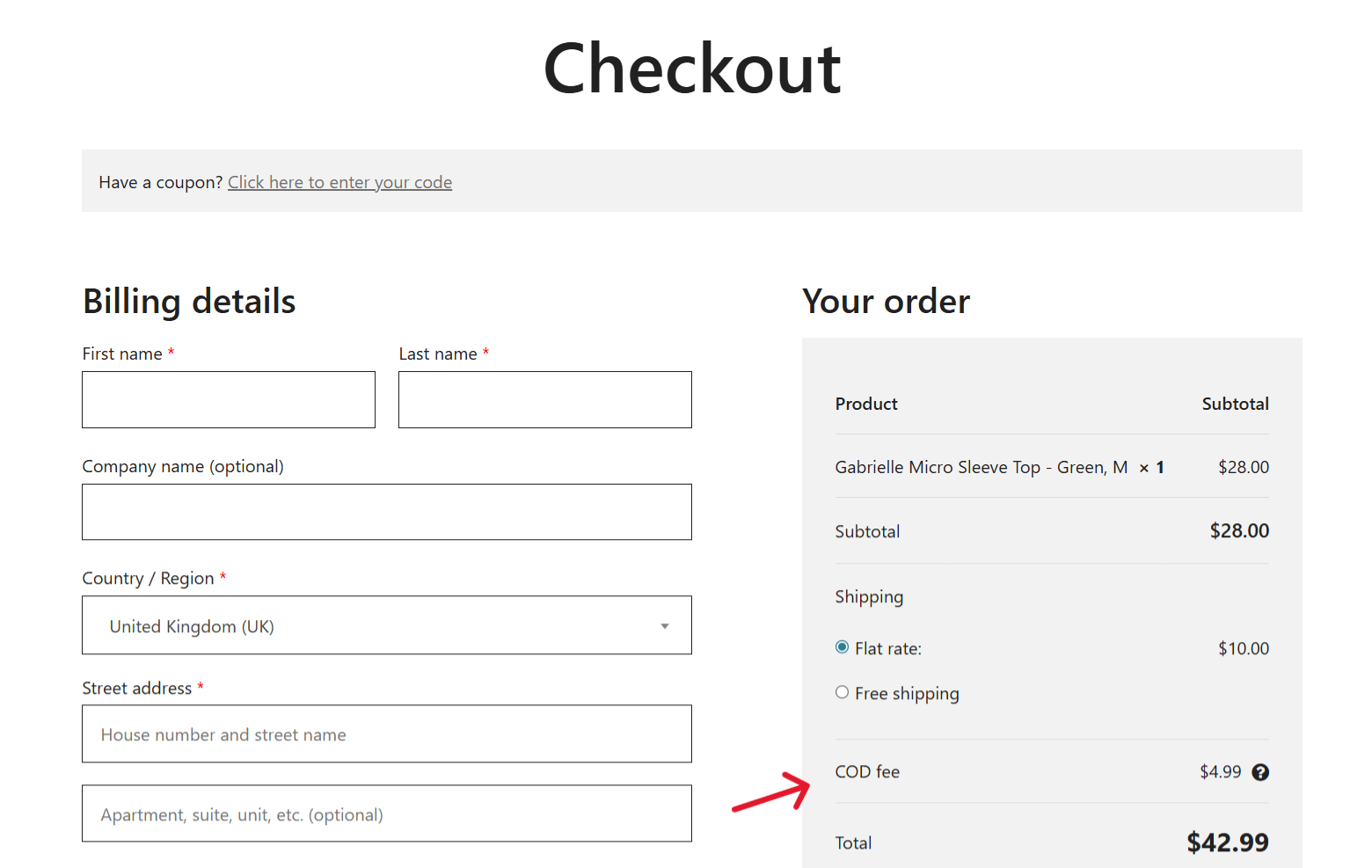
- Method 2 (Default features): WooCommerce lets you manually add fees to individual orders after they have been created. This setting is sufficient for one-off cases, but it isn’t practical as your store scales.
A quick note: Hi 👋, we’re The Dotstore! WooCommerce Extra Fees is our very own handcrafted plugin. Since 2017, thousands of ecommerce businesses across various niches have used it to add flat-rate fees, percentage-based fees, and a combination of both for a wide range of use cases. Get its free or pro version or try out its demo now.
WooCommerce Extra Fees
Make profits from every confirmed sale through smart, conditional fees.
14-day, no-questions-asked money-back guarantee.
Let’s get started.
What it means to add a fee in WooCommerce
In WooCommerce, adding a fee means applying an extra charge to customers’ orders.
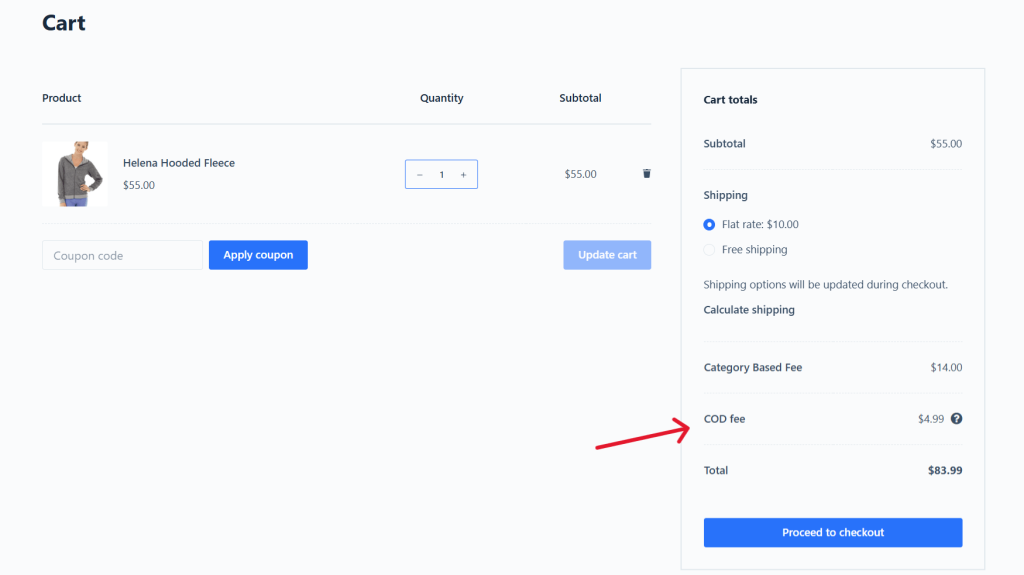
Additional fees can be a flat rate, percentage-based, or a combination of both. They are typically presented as separate line items in the checkout flow, together with the shipping cost, subtotal, and taxes.
Here are some of the most widely used types of extra fees across WooCommerce stores in various niches:
- Payment gateway-based fees (e.g., cash on delivery fees or credit card surcharges).
- Small cart fee / minimum order fees.
- Packaging or handling fees.
- Shipping location-based surcharges.
- Optional add-ons, e.g., gift wrapping, product personalization, insurance, etc.
- Rush processing or priority fulfillment fees.
- Product- or category-specific extra charges.
Why add fees to orders in WooCommerce?
Fundamentally, there are 2 purposes of adding extra fees to WooCommerce orders: (1) to recoup costs, and (2) to boost revenue.
Every benefit your business experiences falls under these. Here are the top five:
- To protect your profit margins. Minor operational costs (think: payment gateway fees, special packaging materials, oversized item handling, cold-chain shipping) can quickly add up and eat into your profits. Absorbing those costs across the board quietly bleeds margin on the orders that need the most resources to fulfill. Adding extra fees as appropriate can help recoup those costs so they don’t impact your profit margins.
- To keep product prices competitive. Inflating your products’ base prices to cover operational overheads can make them look expensive compared to your competitors. Especially in industries where it’s standard practice to add extra fees at checkout (think: electronics, furniture, B2B supplies), a store with higher base prices and no itemized fees will lose on price comparison before a customer even reads the product description. In these situations, it’s best to follow the established industry norms and add relevant extra fees at the checkout stage.
- To charge customers based on real order conditions. Some orders cost more to fulfill than others. Adjusting charges based on cart total, shipping destination, selected shipping method, specific products in the order, and other appropriate factors lets you account for those differences. In addition, listing extra fees transparently makes it more likely that customers accept them without question, which will be reflected in your store’s conversion rate.
- It delights customers with add-on services. Beyond recouping operational overhead, some fees create opportunities to capture extra revenue from the same set of customers. The most popular examples are gift wrapping, personalized notes, premium unboxing, same-day dispatch, and priority order processing. Done right, these add-on services increase average order value and improve how customers feel about their purchases, without feeling like an upsell.
- It supports flexible business models. Many businesses sell complex, bespoke products and services. A common example is those that sell items paired with optional installation, extended warranties, custom configurations, or white-glove delivery. In these situations, trying to manage all of that through the main product catalog can result in a sprawl of SKUs, confusing product variations, and hard-to-navigate website pages. A better approach for many of these stores is to define the service as a fee rule and set the conditions under which it is offered at checkout.
Introducing a powerful WooCommerce fee plugin
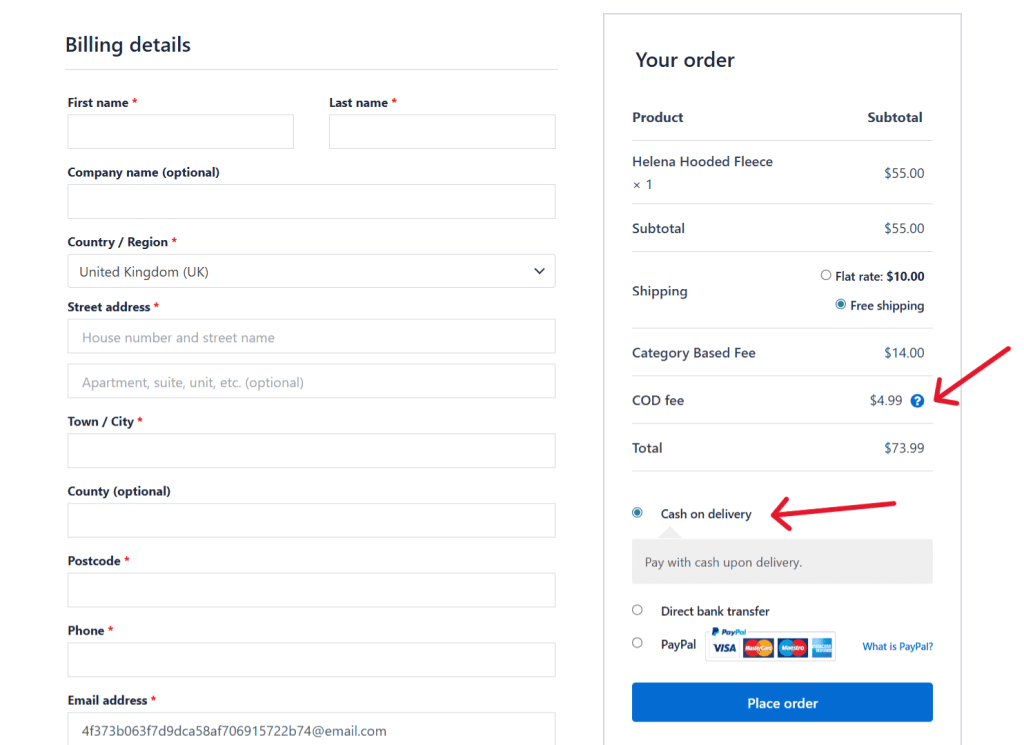
WooCommerce Extra Fees is a powerful plugin that lets you charge various types of fees in your online store. It supports 3 fee structures: flat rate fees, percentage-based fees, and a combination of both.
Since 2017, thousands of WooCommerce stores, from small boutique stores to high-volume B2B operations, trust it to set payment gateway fees, handling fees, service fees, gift wrap fees, and more.
Here’s how it works: You decide what the additional fee is for, choose the fee type, give it a name, configure relevant conditions, and activate it. From there, it appears in the checkout flow as a clearly labeled line item, separate from the product subtotal, shipping cost, and taxes, and the extra fee is automatically calculated into the order total.
Extra fees can be either mandatory or optional. Mandatory fees are applied automatically when the conditions are met; customers won’t be able to remove them. Optional fees give the customer a choice to add them or not.
There’s no restriction on the number of extra fee rules you can create, which removes the need for multiple fee-related plugins.
WooCommerce Extra Fees gives you some flexibility to choose how fees are presented. For instance, if multiple fees apply to the same order, you can either display them as separate line items or merge them under a single label in the checkout flow.
You can also display extra fees on product pages, so that customers are informed about them early on in the buyer’s journey.
WooCommerce Extra Fees’ top features
- Add unlimited extra fees. Each fee exists independently and has its own name, type, conditions, and tax settings, and you can add as many extra fees as you need at any given time.
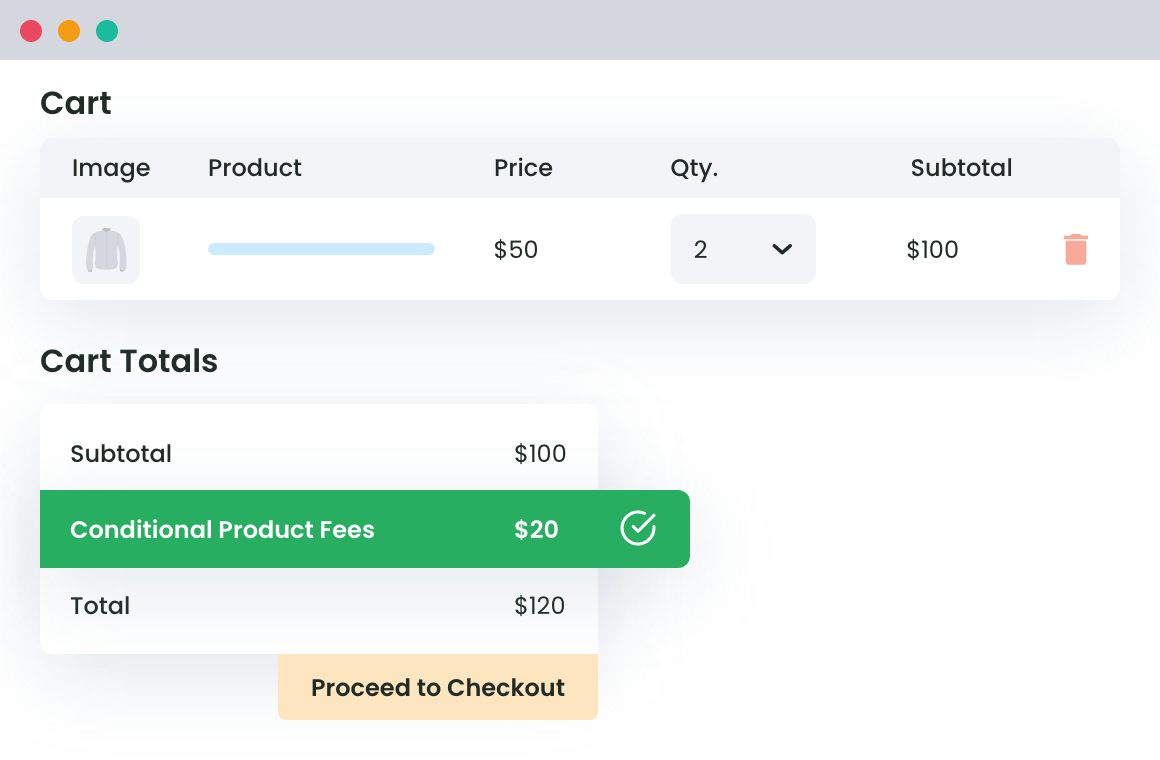
- Different types of extra fees. Every extra fee you create uses one of three calculation methods: flat, percentage, or a combination of both. Flat fees are a fixed dollar amount, e.g., a $10 handling fee. Percentage fees are applied based on the order total, e.g., a 2.5% credit card surcharge. Combination fees apply both, e.g., a payment method fee structured as $0.30 plus 1.9% of the transaction amount.
- Conditional logic. With WooCommerce Extra Fees, you can set conditions that auto-apply fees based on product or product category, cart total, shipping method, shipping destination, payment gateways, user role, and various additional factors. You can also combine multiple conditions using AND/OR logic to adapt how the extra fees are applied to your business operations.
- Taxable or tax-exempt. You can define whether or not to charge taxes on each extra fee. If a fee is taxable, you can choose which tax class applies, i.e., standard rate, reduced rate, or any custom tax class you’ve configured in WooCommerce.
- Fee scheduling. The scheduling feature lets you define a date range for which a fee is active. It automatically activates when the window opens and deactivates when it closes; there is no need to manually turn fees on and off. This is particularly useful for seasonal and promotional fees or fees tied to specific operational periods.
How to add fees to WooCommerce orders
In this section, I’ll walk you through the steps to add fees to WooCommerce orders using 2 methods: a fee management plugin (recommended) and with the default settings (manual).
Method 1: How to add a fee in WooCommerce using a plugin (recommended)
Follow this step-by-step guide to add a fee to WooCommerce orders. In this walkthrough, you’ll learn how to add fees to carts at checkout using the WooCommerce Extra Fees plugin. For this example, I’ll show you how to add a cash on delivery extra charge.
- From your WooCommerce admin, install and activate the free or pro version of the WooCommerce Extra Fees plugin on your site.
- Navigate to Dotstore Plugins → WooCommerce Extra Fees → Manage Fees, and Press “Add New”.
- Toggle on the “Status” switch to activate the cash on delivery extra charge.
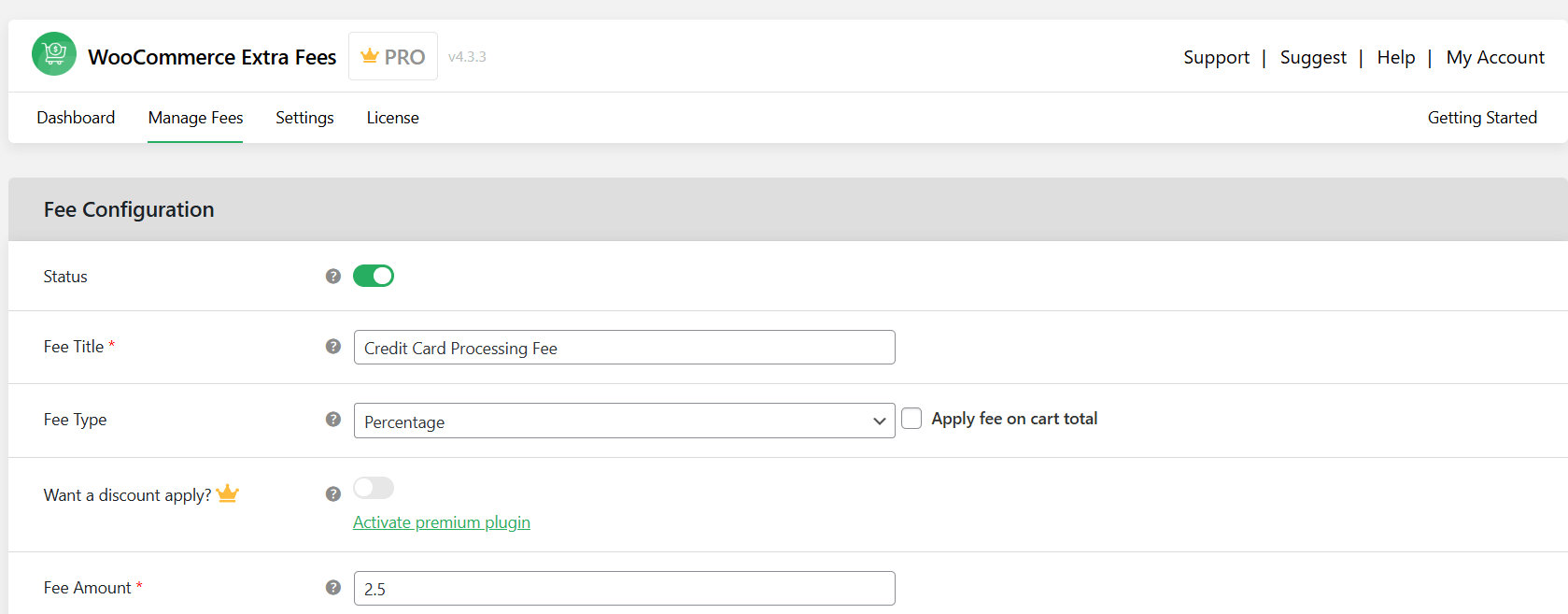
- In the “Fee Title” field, add a simple, easy-to-understand name, like “Cash on Delivery Fee”. Note: this is the label shown alongside the added fee on the cart and checkout screens.
- Next, choose your “Fee Type”, whether it be fixed, percentage, or a combination of both. Then set the amount accordingly. For this tutorial, I’ll set this cash on delivery extra charge as a percentage fee (e.g., 2.5%).
- Use the “Tooltip Description” and “Price Message on Cart” fields to add short explanations about the purpose of the charge to be shown to customers on the cart and checkout screens. For example, “This fee covers the cost of cash on delivery payment processing.” This educates customers about why a fee exists so that it doesn’t negatively impact your conversion rates.
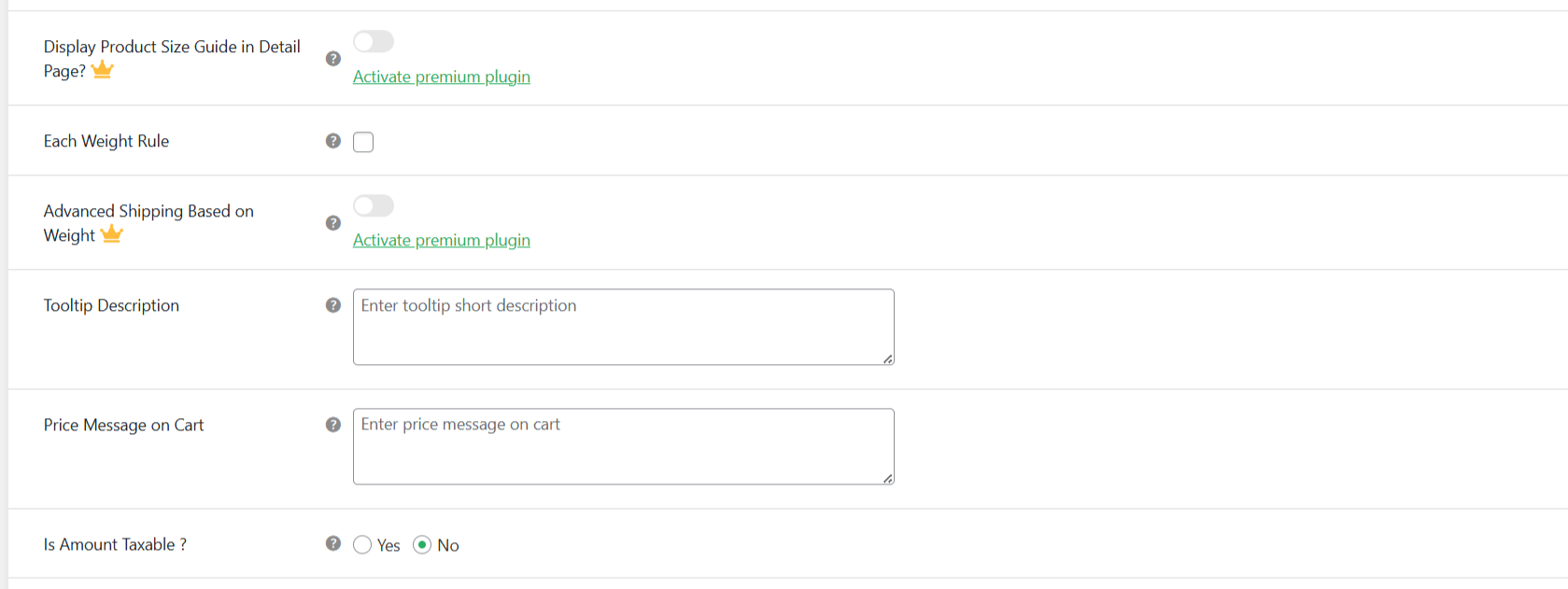
- Specify whether the fee is taxable or tax-exempt, and whether it is mandatory or optional.
- Open the “Conditional Fee Rule” modal. Select “Payment Specific” from the left dropdown menu. Leave the middle dropdown set to “Equal to.” In the right dropdown menu, choose the relevant payment gateway, e.g., Stripe or PayPal.
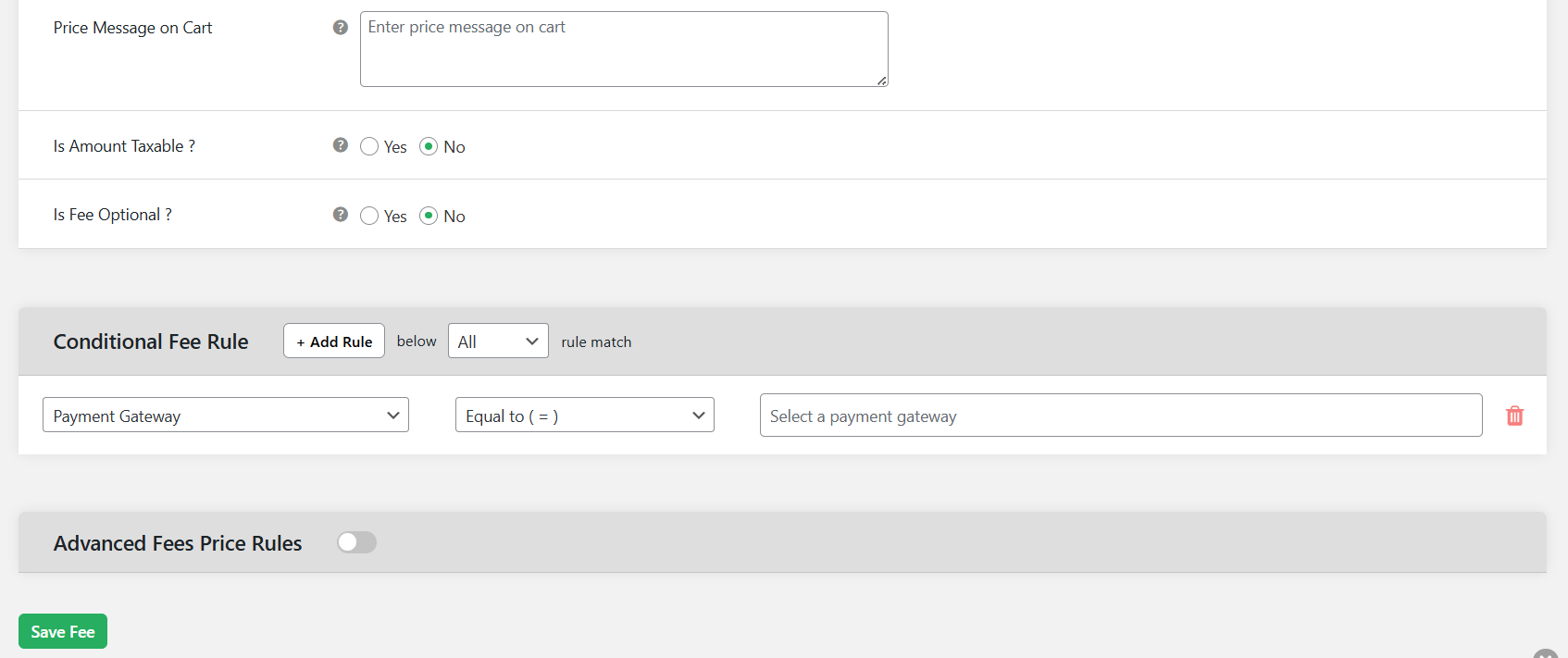
- Now, layer in any additional conditions that refine when the extra fee applies. For example, minimum cart total, shipping destination, specific products and categories, user role, etc.
- Press “Save Fee” to publish it.
That’s it. The cash on delivery extra charge will now appear automatically in the checkout flow and will be charged to orders where customers select it.
Method 2: How to add a fee in WooCommerce using the default features (manual)
WooCommerce’s default features enable you to add one-time extra charges to orders after they have been created. Because this requires you to apply one-time adjustments to individual orders, it is best suited for custom charges, B2B orders, special handling or service requests, and manual price corrections.
Key limitations of the default method
- ❌ Fees must be added manually to each order, which is time-consuming at scale.
- ❌ No conditional logic that automatically applies fee rules based on cart total, products, location, payment method, etc.
Step-by-step: How to add a fee to an existing WooCommerce order
- From your WordPress admin, navigate to WooCommerce → Orders, and find the order to which you want to add an extra fee.
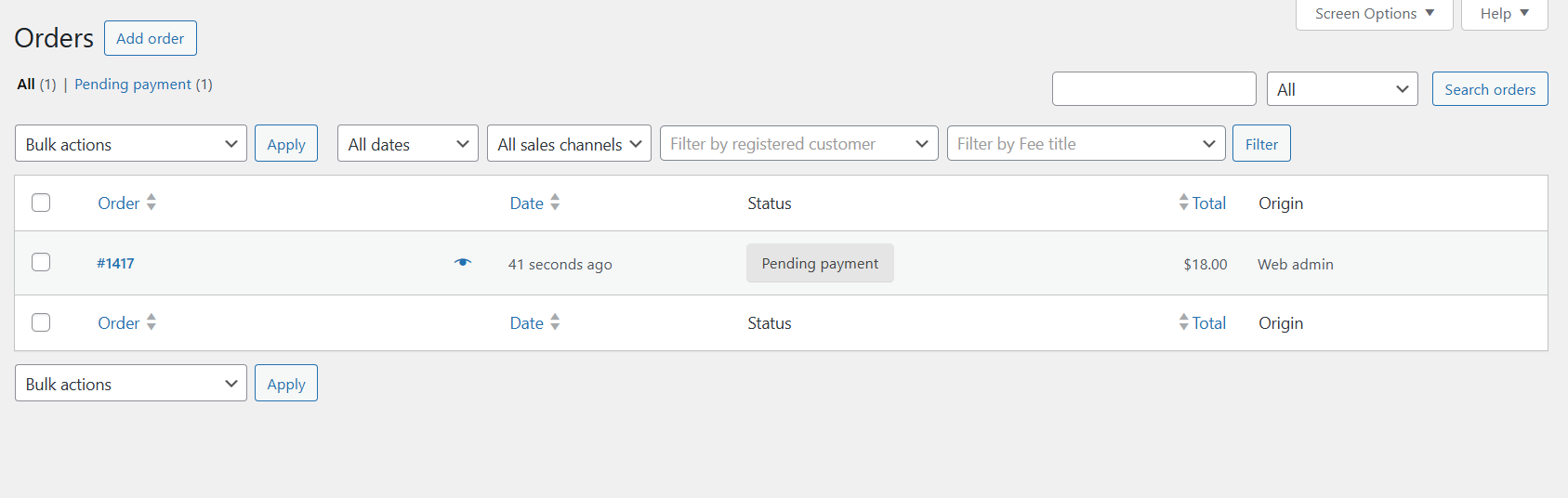
- Tap on the order number to open the Edit order details page.
- Scroll to the “Order items” modal and press the “Edit” button.
- Press the “Add item(s)” button.
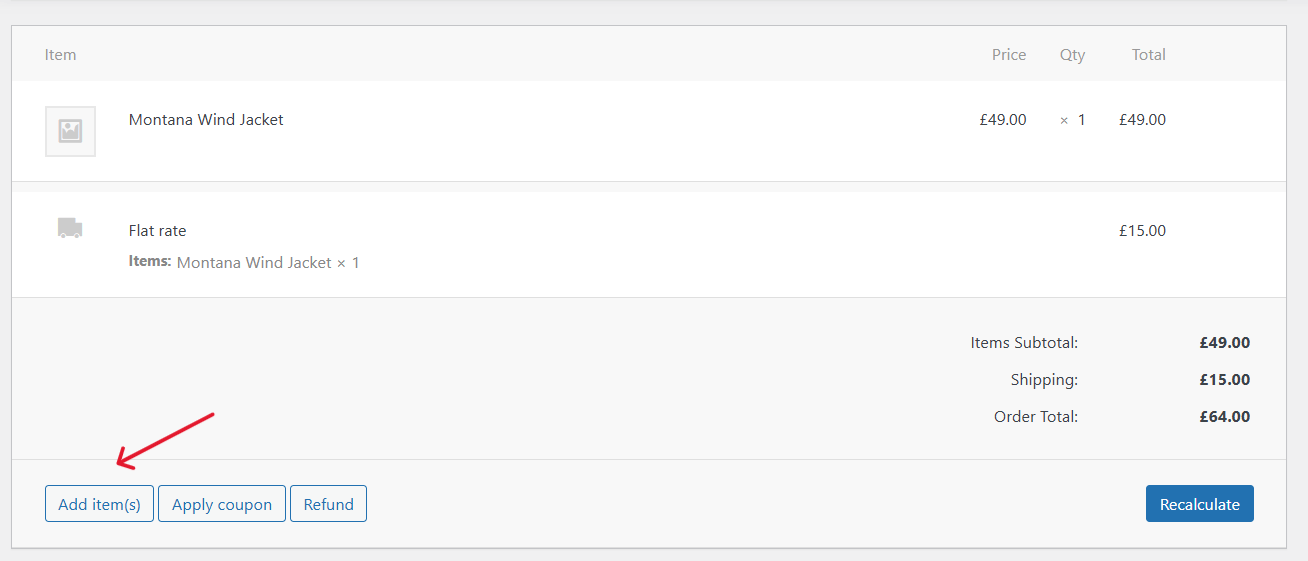
- Select “Add Fee” from the newly-added set of options.
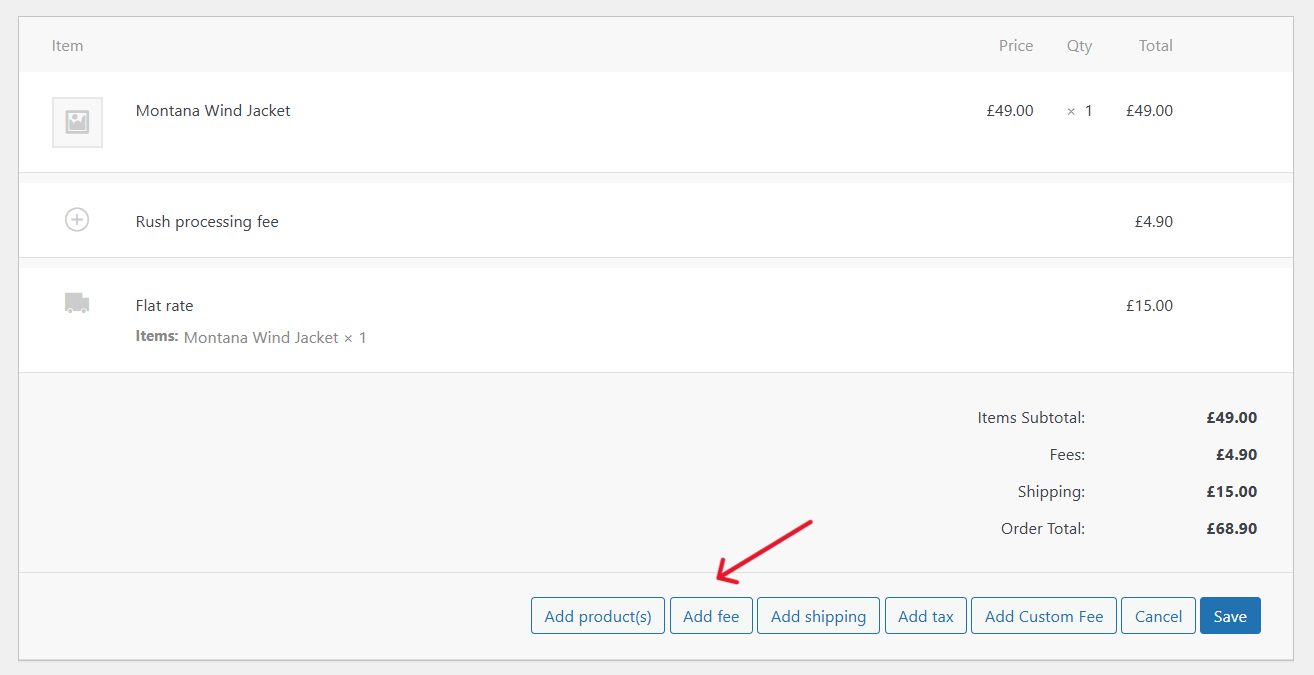
- Fill in the required fields in the new “Fee” row that appears. Note that these will be shown to customers on your WooCommerce site’s front end:
- Name – E.g., Handling fee, custom service, rush processing.
- Fee amount.
- Tax status, i.e., whether the fee is taxable or tax-exempt.
- Press the “Recalculate” button, then save the settings to apply the extra fee.
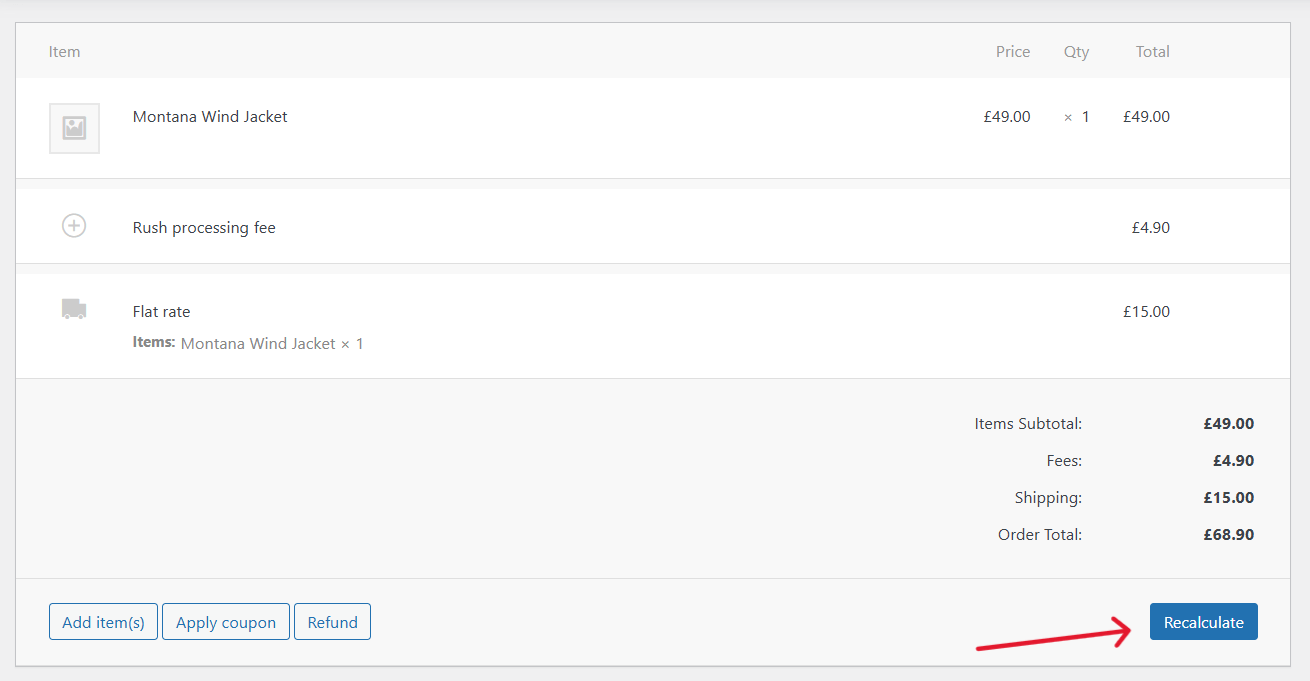
And that’s it. WooCommerce will update the order total automatically. If the order hasn’t been paid for yet, the new total will be reflected when the customer completes payment.
Best practices for adding fees to WooCommerce orders
- Use simple, descriptive labels like “Small order fee” or “Rush processing fee” that provide sufficient context on the purpose of the fee. This helps avoid negative impacts on your business’s conversion rates.
- Make sure the extra fee amount is reasonable and fair, especially when benchmarked to industry standards.
- Comply with all applicable regulations, such as credit card surcharge and tax guidelines.
- Provide alternatives that give customers comparable options to choose from. For example, if you set an extra COD fee, offer other fee-free payment methods like bank transfer.
- Regularly test and adjust your fee structure and amount to make sure they are optimal.
Ready to add fees to orders in WooCommerce?
Beyond the obvious benefit of recouping overhead costs, adding fees to WooCommerce orders lets you keep product prices competitive and charge customers based on specific order conditions. It also enables you to offer value-added services that unlock new revenue streams and enhance customers’ experiences with your brand.
WooCommerce’s default feature enables you to add one-time fees to orders after they have been created. However, this manual approach is time-consuming and therefore impractical for most stores.
A better approach is to use the free or pro version of the WooCommerce Extra Fees plugin by The Dotstore.
WooCommerce Extra Fees is a powerful plugin that lets you add various kinds of extra fees, including payment method-based fees, handling fees, rush processing fees, service fees, gift wrap fees, etc., to your online store.
You can set fixed-rate, percentage-based, or a combination of fixed-rate and percentage-based extra fees, and apply them conditionally based on products, categories, user roles, shipping methods, payment methods, cart value, and other parameters.
Additional fees integrate with WooCommerce’s tax system, are transparently displayed in the checkout flow as separate line items, and can be managed from a simple-to-use, centralized admin dashboard.
Ready to add fees to WooCommerce orders? Join the thousands of stores across various niches that have used it to add extra fees for credit card orders, handling fees, COD payments, gift wrapping, and more.
Download WooCommerce Extra Fees’ free or pro version or check out its demo now.
WooCommerce Extra Fees
Make profits from every confirmed sale through smart, conditional fees.
14-day, no-questions-asked money-back guarantee.