Table of Contents
Searching for a way to configure WooCommerce conditional pricing in your online store? In this tutorial, I’ll walk you through the steps to adjust product prices based on user roles, product type, purchase history, cart contents, product categories, dates, customer location, and other conditions.
Key Takeaways
- WooCommerce doesn’t include the built-in features to set conditional pricing, so you can’t create role-based pricing, quantity discounts, location-specific pricing, or time-bound discounts using the default settings alone.
- Conditional pricing helps you increase conversions, reward loyal customers, move slow-moving inventory, and boost your store’s profit margins, without lowering prices for every user.
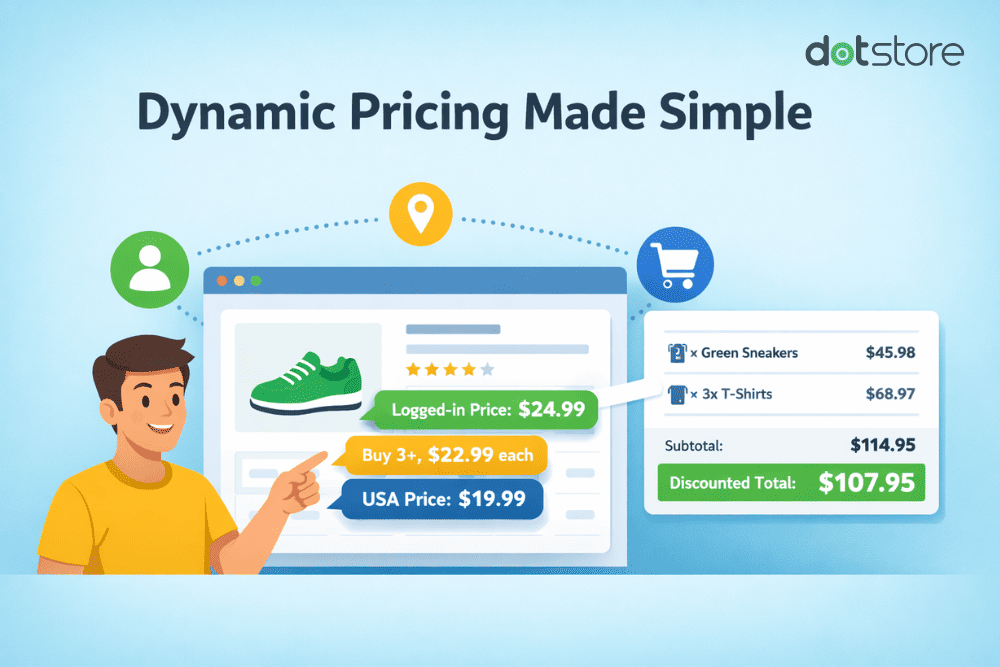
- The most popular conditional pricing strategies are: tiered quantity-based pricing, role-based and user-specific pricing, cart-total discounts, product bundle or combination offers, date and time-based pricing, behavior-based pricing tied to purchase history, and location-based pricing for different regions or countries.
- The WooCommerce Dynamic Pricing and Discount Rules plugin by The Dotstore is a powerful plugin that lets you implement WooCommerce conditional pricing. It supports product-level, category-level, cart-level, and user-level rules, and lets you combine multiple conditions to build advanced pricing rules within minutes.
- Creating a new WooCommerce conditional pricing rule takes just a few steps: choosing the discount type, setting the value, enabling quantity-level calculations if needed, scheduling the rule, and defining the conditions that trigger it, such as user role, cart subtotal, location, or purchase history.
Trying to set up WooCommerce conditional pricing in your store? Adjusting product prices based on who’s buying, what they’re buying, when they’re buying, how much they’re buying, and other relevant conditions can help increase customer satisfaction and boost profits in your online store.
In this post, I’ll show you how to fix product prices based on user roles, purchase history, cart contents, product categories, dates, customer location, and other criteria.
Since there’s no way to set up conditional prices with WooCommerce’s default settings, we’ll use the powerful WooCommerce Dynamic Pricing and Discount Rules plugin.
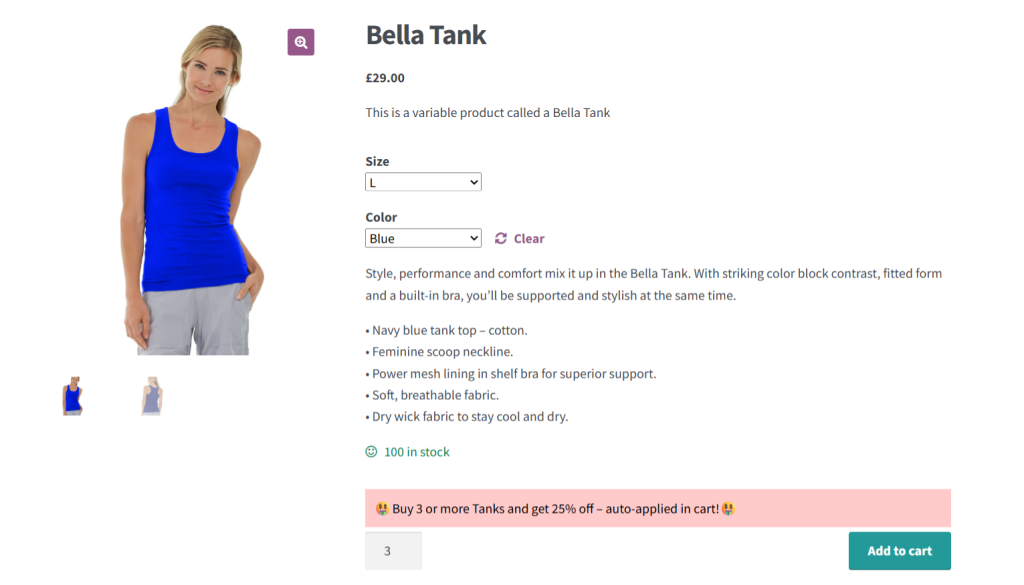
Plugin used in this tutorial:
- WooCommerce Dynamic Pricing and Discount Rules: A powerful plugin that lets you automate various kinds of conditional pricing rules based on product type (simple and variable), customer behavior, cart contents, user roles, quantity, date, time, SKU, and other parameters. Free and Pro versions available.
First things first, let’s make sure we’re on the same page about the basics.
What is WooCommerce conditional pricing?
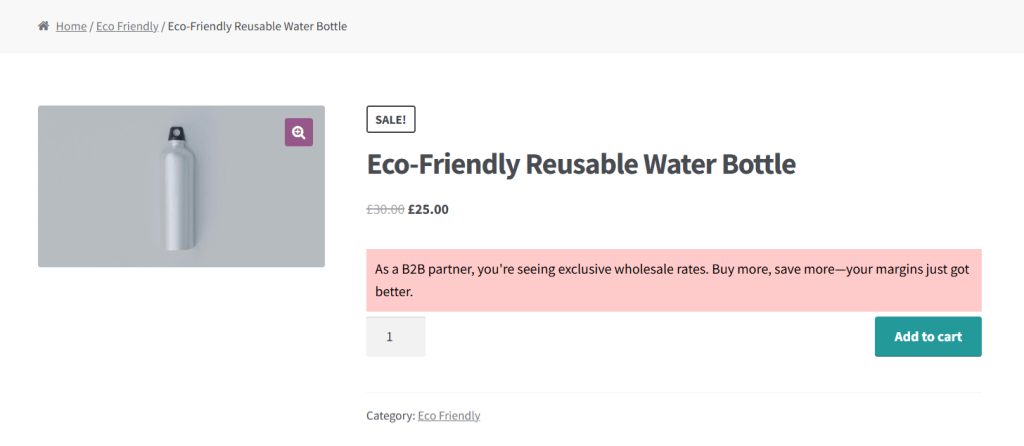
In WooCommerce, conditional pricing is a strategy that involves changing product prices based on specific rules or conditions.
These conditions can be tied to the shopping cart value, customer role, customer behavior, product quantity, shipping location, purchase history, date, custom attributes, and other parameters.
Types of WooCommerce conditional pricing strategies
WooCommerce conditional pricing allows you to automate discounts and dynamic price adjustments based on real-time customer behavior, cart contents, user roles, or product data.
Here are the top 7 conditional pricing strategies you can implement in your ecommerce store.
- Quantity-based WooCommerce conditional pricing. This encourages bulk purchases by reducing the per-unit product price as the quantity increases. For example, a stationery store might offer the following quantity-based deal for pencils: 1 to 9 units at $20 each, 10 to 24 units at $18 each, 25+ units at $15 each…and so on.
- User role-based WooCommerce conditional pricing. This strategy entails showing different product prices depending on the user’s assigned role in your WooCommerce store. For instance, a hybrid wholesale and retail apparel store can show customers with the wholesale user role reduced prices while retail customers see the maximum recommended retail prices.
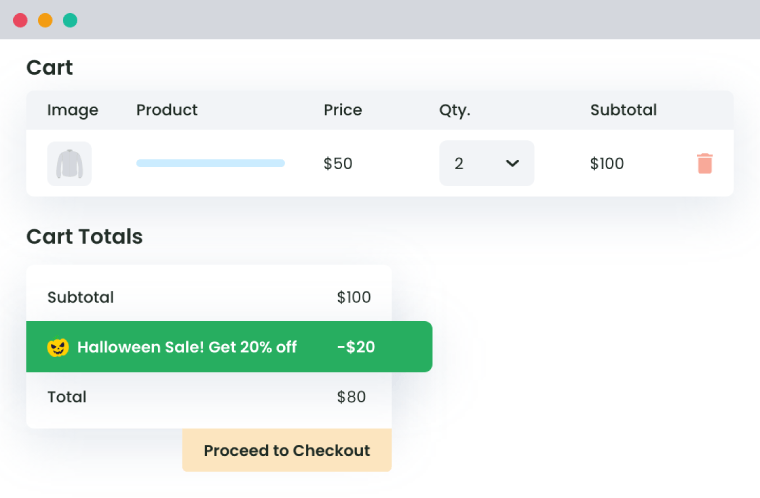
- Cart total WooCommerce conditional discounts. Cart total discounts are triggered when the items in a customer’s shopping cart total hit a specific threshold. For example, a store that sells artisanal coffee can offer a spend $100, get 10% off deal. This nudges customers to spend more to obtain the discounted price.
- Product combination deals. This strategy involves offering multiple products at a discounted rate when bought together. For instance, an electronics store that offers a “buy a camera, get 30% off a memory card” bundle deal. Product combos work best when the items recommended are relevant to each other.
- Date and time-based WooCommerce conditional pricing. With date and time-based pricing, you only apply conditional prices during specific time frames. A common example is an electronics store that offers 20% off all gadgets between 6 to 9 pm on a Wednesday to spur midweek sales.
- Customer behavior-based WooCommerce conditional discounts. Any kind of pricing rule that’s based on past purchases, login frequency, or order count is a customer behavior-based discount. For example, a footwear store can offer 10% off to all customers who have placed at least three orders in the last 30 days.
- Location-based WooCommerce conditional pricing. Stores that routinely sell to customers in different locations can adjust prices based on delivery location to factor in domestic taxes, additional processing fees, shipping costs, and buying power.
Why set WooCommerce conditional pricing?
Conditional pricing strategies empower you to grow your WooCommerce store’s revenue without slashing prices across the board or diluting your brand perception. Here are its top 4 benefits.
- It improves customer satisfaction rates. Tailoring product prices based on customer behavior, history, role, and other parameters creates a shopping experience that feels relevant. And when your customers feel like they’re getting a fair deal, they’re more likely to come back, make fewer complaints, have fewer refund requests, and leave more positive reviews.
- It improves conversion rates. Price is one of the biggest decision drivers. With WooCommerce conditional pricing, you can respond to buyers’ ordering behavior. Instead of customers bouncing or price-shopping, you can design price incentives that can push hesitant customers to complete their orders.
- It maximizes stock turnover. Stale inventory ties up capital. You can use WooCommerce conditional pricing to move slower items without hurting your overall pricing structure. A common example is stores that automatically discount last season’s clothing when stock drops below a threshold. This also helps avoid overstocking your fast-moving products while preserving margins as more frequent turnover also makes inventory management more predictable.
- It boosts profits. When implemented strategically, the right pricing rule can be used to reward the right behaviors and increase total customer value over time. For instance, you can drive higher average order value, improve customer retention, and drive repeat purchases — without slashing margins unnecessarily.
Limitations of the built-in WooCommerce conditional pricing settings
By default, WooCommerce enables you to set up a simple, flat pricing structure per product. You can set a regular base price and optionally add a sale price and schedule it for a specific date range.
Also, if your products have multiple variants (think: different sizes or colors) or are configurable, you can assign different prices to each product variation.
The default system works okay for small catalogs with simple pricing. But if you run a high-turnover store or sell to different customer cohorts, the inbuilt pricing features quickly become limiting. For example, there’s no way to set up:
- ❌ No role-based pricing. You can’t assign different prices to wholesale vs. retail customers. Everyone sees the same product pricing regardless of their user role or login status.
- ❌ No conditional pricing. You can’t set up pricing rules based on quantity, cart total, user location, or product combinations.
- ❌ No quantity-based pricing. You can’t implement tiered pricing, bulk pricing, or BOGO (Buy One Get One) rules.
- ❌ No cart-level pricing rules. You can’t set discounts at the cart level based on items, total spend, or categories purchased. The best you can do is set up basic coupons, however, customers must manually apply them.
- ❌ No location-based logic. There’s no built-in support for applying different prices by country, state, or shipping zone.
Introducing a powerful WooCommerce conditional pricing plugin
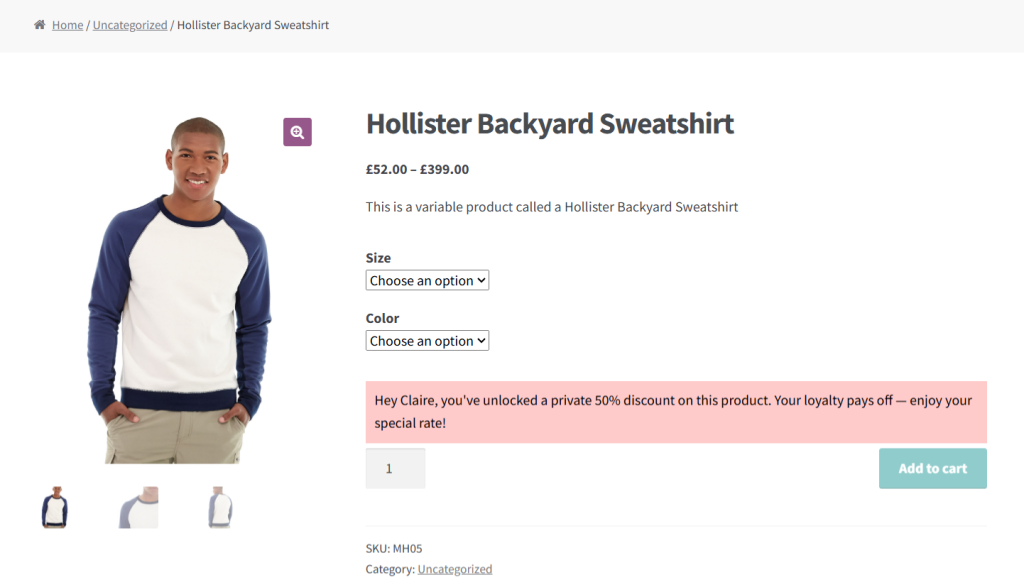
WooCommerce Dynamic Pricing and Discount Rules by The Dotstore is an advanced plugin that lets you automate various kinds of conditional pricing rules.
Thousands of WooCommerce stores across several niches use it to create pricing rules based on customer behavior, cart contents, user roles, and other parameters from a clean, easy-to-navigate user interface.
With WooCommerce Dynamic Pricing and Discount Rules, you can:
- ✔️Define pricing rules based on a wide range of conditions, including product (simple and variable), category, cart, user role, quantity, date, time, SKU, etc., and combine them to build complex pricing logic in minutes. This empowers you to fine-tune your pricing strategy to maximize profits.
- ✔️Set role-based and user-specific pricing. If your customers are segmented into different cohorts — think: retailers, wholesalers, subscribers, VIPs, or custom roles, you can set unique prices for each user role. It even lets you get more granular and target specific users with tailored pricing.
- ✔️Add volume discounts. Adjust per-unit product prices based on the quantity, order value, or total items in the shopping cart. This encourages customers to spend more during each transaction.
- ✔️Schedule discounts. Setting start and end dates for each pricing rule enables you to automate time-sensitive offers. This allows you to plan and test pricing rules well ahead of time.
- ✔️Define product-level, category-level, or global rules. You can automate price adjustments to target specific SKUs, and categories, or storewide. This reduces the manual effort to manage product prices.
How to set up WooCommerce conditional pricing
In this section, I’ll guide you through the steps to set up conditional pricing rules using the powerful WooCommerce Dynamic Pricing and Discount Rules plugin. The best part? The whole process requires ten minutes or less to set up throughout.
Step 1: Add a new conditional pricing rule
- Log in to your site’s admin panel. Install and activate the WooCommerce Dynamic Pricing and Discount Rules plugin.
- Head to the new Dynamic Pricing and Discount Rules tab in your admin panel and select “Add New” to create a conditional pricing rule.
- Enable the rule by toggling on the “Status” button.
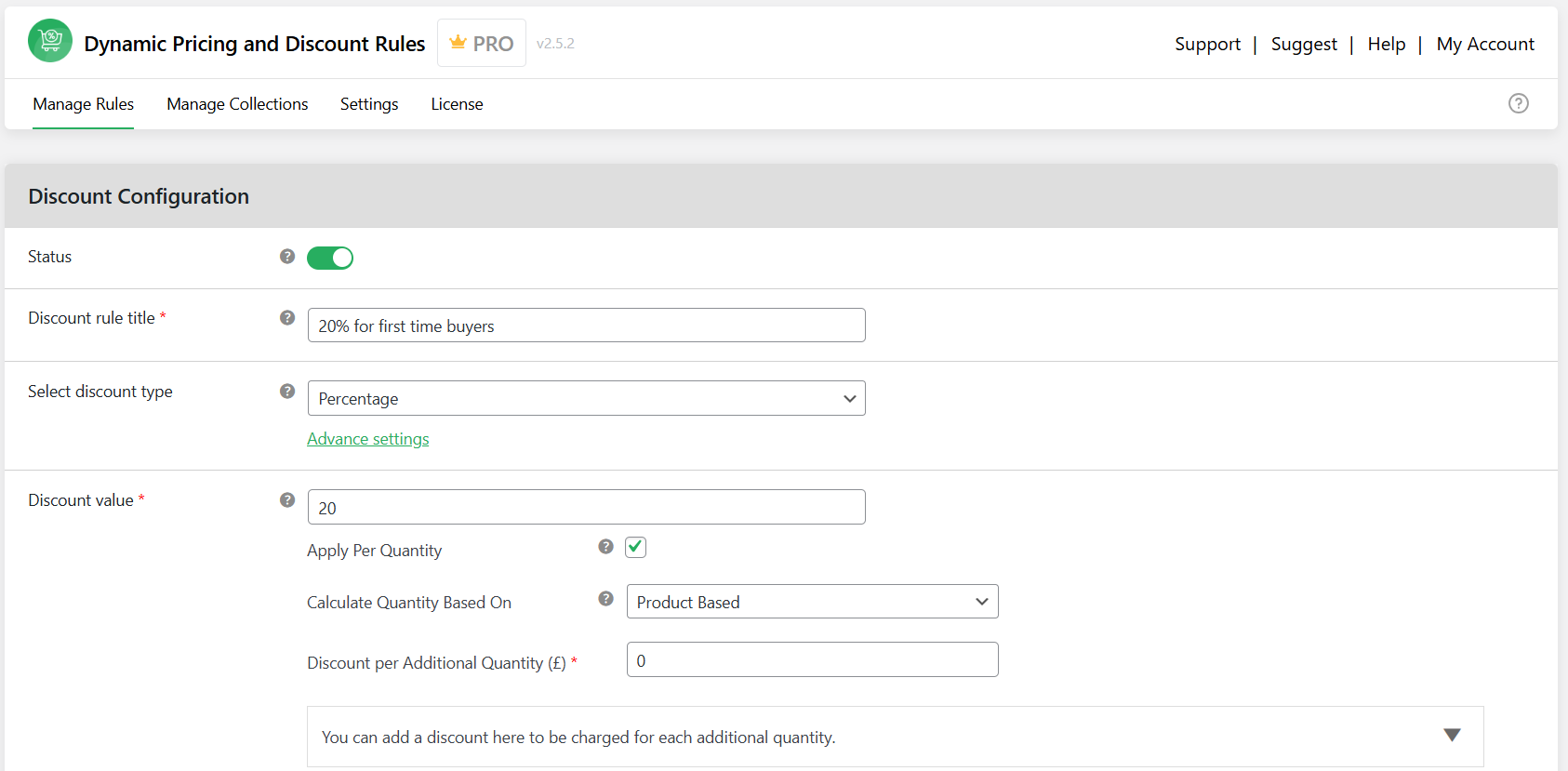
- Provide a clear name for this WooCommerce conditional pricing rule in the “Title” field. I recommend that you keep this short and simple as this label will appear to customers in the cart and during checkout.
- Choose how the price should be modified: a fixed value, a percentage, or a set price change.
- Add the exact amount you want to deduct in the Discount Value field. For example, to apply a 20% fixed percentage discount, type “20”.
- Tick the “Apply Per Quantity” box to make sure that the discount is applied to each individual item purchased.
- If you want this pricing rule to run only during a specific timeframe, press the “Advanced Settings” button located beneath the “Select Discount Type” section at the top of the page. This will expand additional options where you can define start and end dates, specific times, and applicable days of the week for the rule.
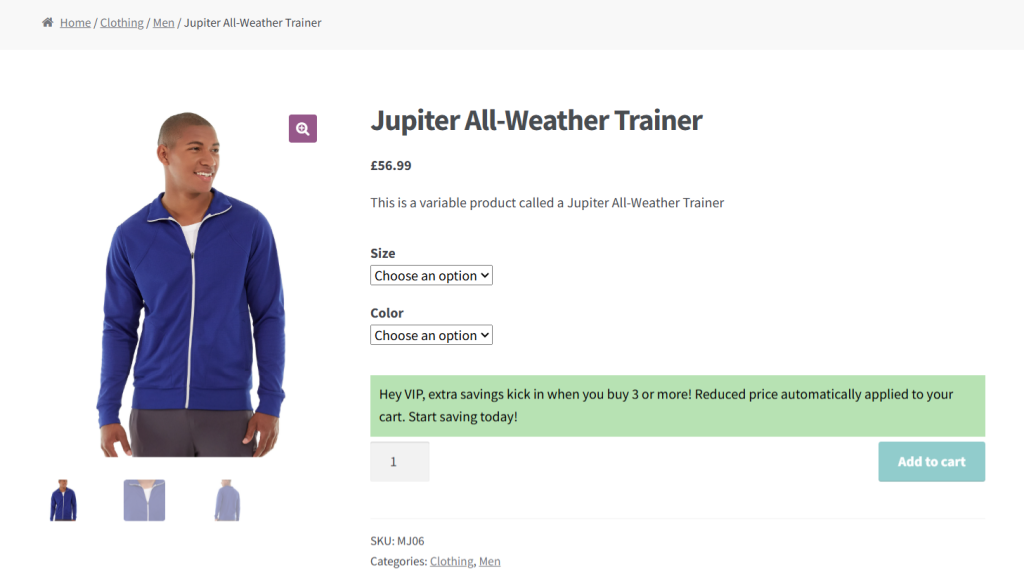
- You can also enable a promotional message by checking the “Enable Discount Message” box. This will display a banner on product pages affected by the rule. Add your custom text in the “Discount Message” field.
Step 2: Define the criteria for the WooCommerce conditional pricing rule
- Scroll down to the “Discount Rules for Checkout” section and press “Add Rule” to set the criteria under which your pricing rule should be triggered.
- To configure WooCommerce conditional pricing rules based on user roles or membership levels, use the following settings:
- Condition Type: User Role

- Operator: Equals
- Value: Wholesaler, Member, or another relevant user role
- Condition Type: User Role
- To apply WooCommerce conditional pricing rules for specific users:
- Condition Type: “User” or “User Email”
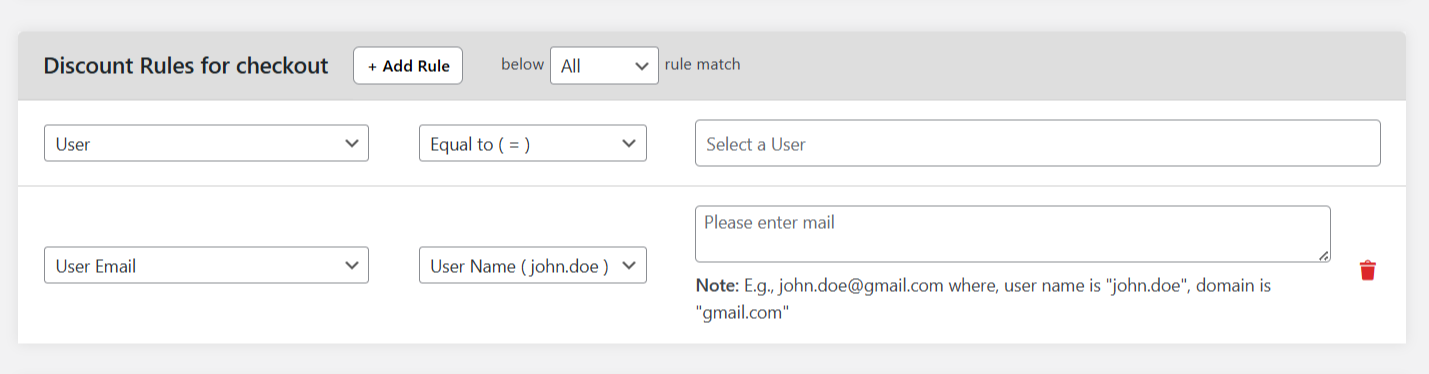
- Operator: Equals
- Value: Enter the username or the customer’s email address
- Condition Type: “User” or “User Email”
- To create quantity-based WooCommerce conditional pricing rules:
- Condition Type: “Last order spent”, “Total order spent (all time)”, Number of orders (all time), or “User repeat product”
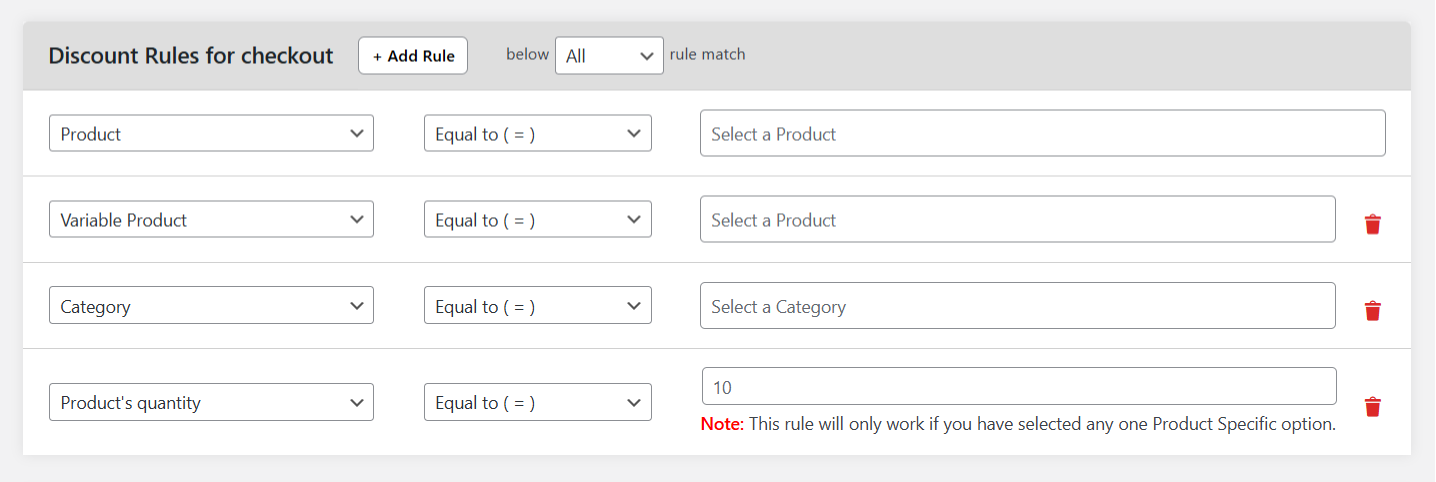
- Operator: Equals
- Value: Enter the quantity or amount required for the pricing rule to activate
- Condition Type: “Last order spent”, “Total order spent (all time)”, Number of orders (all time), or “User repeat product”
- To offer location-specific WooCommerce conditional pricing rules:
- Condition Type: Choose from the available “Location Specific” options
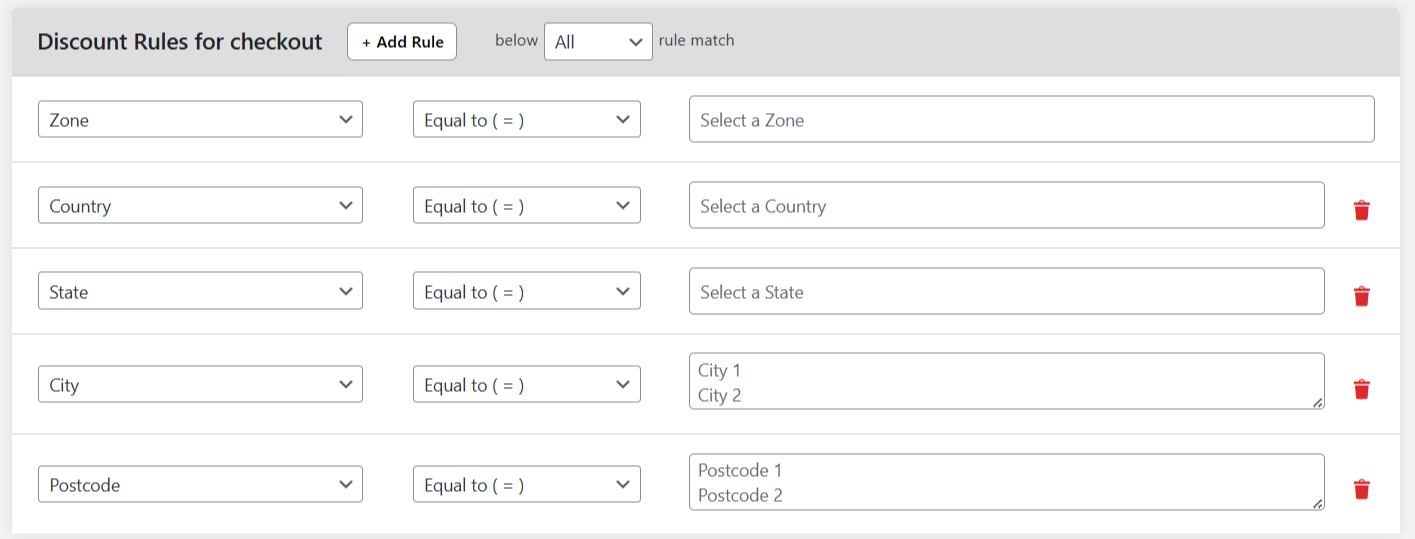
- Operator: Equals
- Value: Enter the target location (e.g., country, state, city, postcode, or zone)
- Condition Type: Choose from the available “Location Specific” options
- You can add multiple conditions as needed. Once all are set, click “Submit” to save the rule.
Your pricing rule is now active. Customers will now see different prices depending on the conditions you’ve configured.
6 best WooCommerce conditional pricing plugins
- Dynamic Pricing and Discount Rules by The Dotstore
- Dynamic Pricing for WooCommerce
- YITH WooCommerce Dynamic Pricing & Discounts
- ELEX WooCommerce Dynamic Pricing and Discounts Plugin
- WooCommerce Dynamic Pricing & Discounts
- Product Dynamic Pricing and Discounts for WooCommerce
Dotstore WooCommerce Dynamic Pricing and Discount Rules

Best suited for: WooCommerce stores want to implement conditional pricing based on a wide range of parameters like products, categories, user role, location, payment method, purchase history, customer type, etc.
WooCommerce Dynamic Pricing and Discount Rules by The Dotstore is an advanced plugin that lets you create automated discounts based on cart contents, cart total, product quantity, customer roles, product categories, purchase behavior, and various conditions.
Since 2019, more than 5,000 WooCommerce stores across a wide range of niches use it to run bulk discounts, storewide sales, seasonal discounts, offer wholesale and retail pricing tiers, and more.
The WooCommerce Dynamic Pricing and Discount Rules plugin supports various kinds of conditional pricing strategies, including percentage discounts, fixed amount discounts, fixed product pricing, and cart-level discounts.
It can also display bulk and tiered discount tables on product detail pages to clearly illustrate to customers how pricing changes as quantities increase. For example:
| Quantity | Discount |
| 1–2 | Regular price |
| 3–5 | 10% off |
| 6+ | 20% off |
Ready to set up conditional pricing in WooCommerce? Check out Dotstore’s WooCommerce Dynamic Pricing and Discount Rules’ live demo or download its free or pro version now!
Dynamic Pricing for WooCommerce
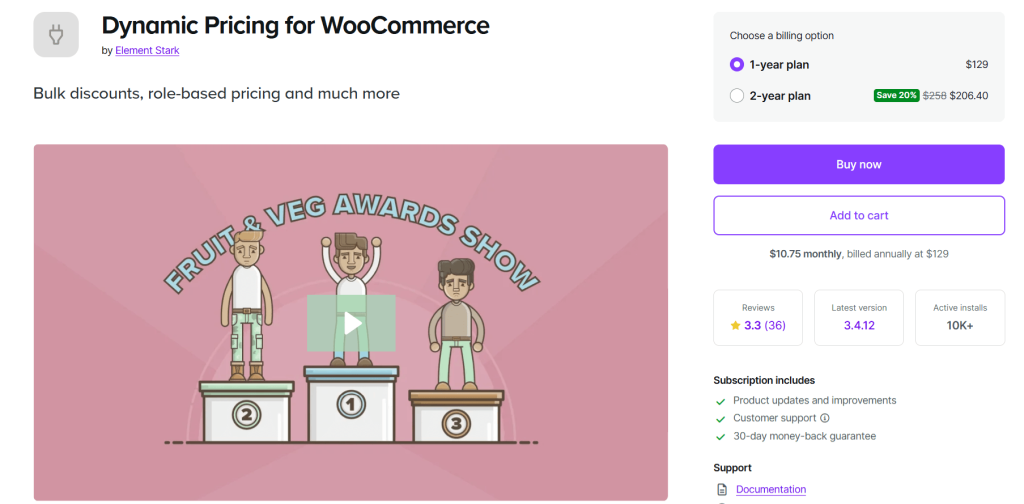
Best suited for: WooCommerce stores that want simple conditional discounts without complex pricing structures.
Dynamic Pricing for WooCommerce is a lightweight dynamic pricing plugin that lets you set rule-based conditional pricing in WooCommerce based on 3 simple parameters: specific products, specific categories, and user roles. You can set up discount tables at the individual product level, the category level, or across your entire store, with support for fixed amounts, percentage discounts, or overriding the price outright.
Its flexible cross-category logic empowers you to control the quantity tally with ease. Instead of just counting total cart items, you can tally by individual variation, by cart line item, or by category (which matters a lot if your store uses product add-ons or configurable products). For example, you could offer a 10% discount on laptop bags whenever someone has at least one item from your Laptops category in their cart.
Dynamic Pricing for WooCommerce enables comprehensive role-based pricing. For example, you can assign customers to custom roles (like “Gold Members” or “Wholesale Buyers”) and configure entirely separate pricing tiers for them. That said, the more conditions you layer, the more time you’ll spend in the settings, configuring tables and rules.
YITH WooCommerce Dynamic Pricing & Discounts
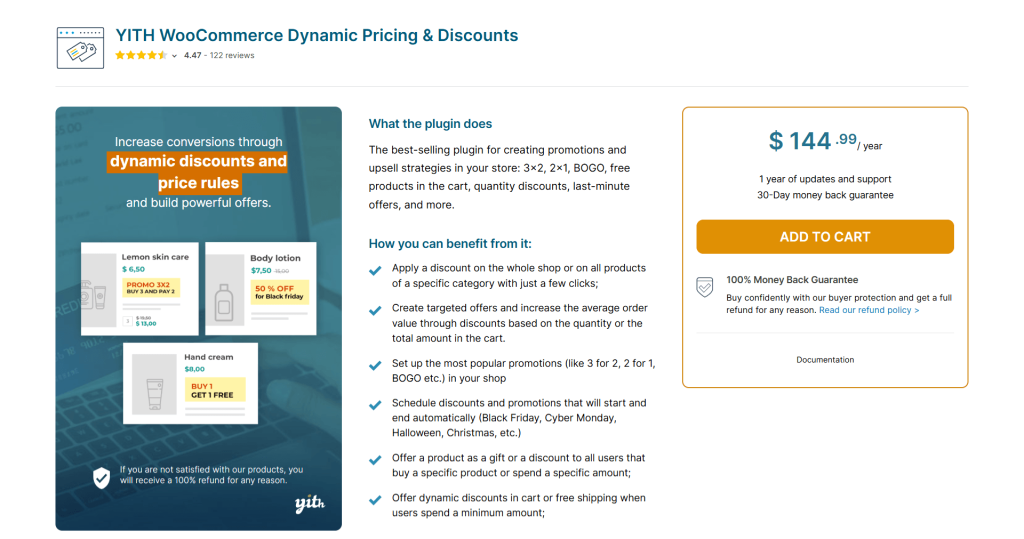
Best suited for: Running promotions, upsell campaigns, and time-sensitive discount strategies.
YITH WooCommerce Dynamic Pricing & Discounts is a popular plugin that supports simple and advanced conditional logic pricing in WooCommerce, including BOGO deals, 3-for-2 offers, quantity-based discounts, free product giveaways, scheduled promotions, etc.
Its scheduling feature is particularly useful for stores that run recurring seasonal campaigns, flash sales, or holiday promotions. You can configure discounts to go live in advance and expire automatically without having to manually toggle anything.
YITH WooCommerce Dynamic Pricing & Discounts lets you trigger cart-level incentives like free shipping or minimum spend threshold discounts. And you can apply product-specific, category-level, and storewide discounts with ease.
ELEX WooCommerce Dynamic Pricing and Discounts Plugin
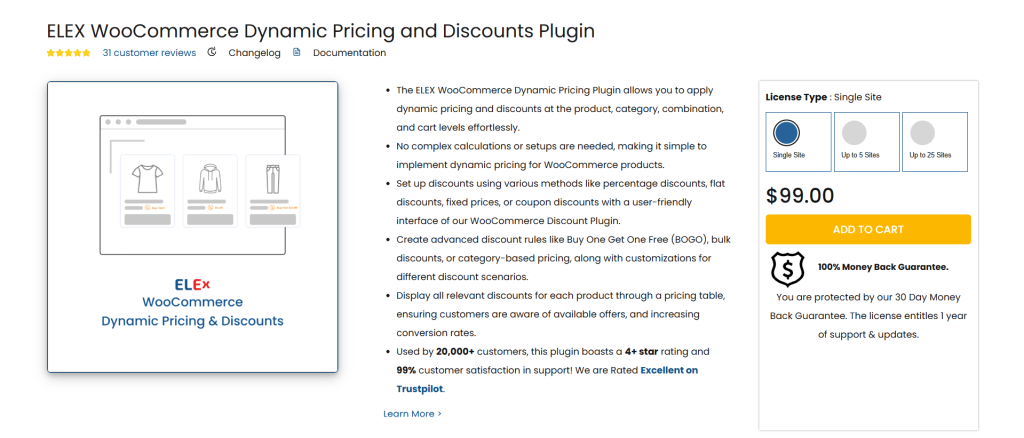
Best suited for: Granular discount control across products, categories, tags, and cart combinations.
With the ELEX WooCommerce Dynamic Pricing and Discounts plugin, you can apply conditional pricingdiscounts at the product level, category level, product tag level, or across combinations of products.
Discount types are flexible; you can create percentage discounts, flat reductions, fixed prices, or coupon-based dynamic discounts, as needed. It also supports quantity-based and weight-based triggers.
ELEX WooCommerce Dynamic Pricing and Discounts has role-based and time-limited pricing baked in. It supports buy-one-get-one-free rules across individual products, product categories, and tags. When enabled, its on-page pricing table displays all active discount rules directly on the product page, so customers can see exactly what they need to do to unlock better prices.
WooCommerce Dynamic Pricing & Discounts
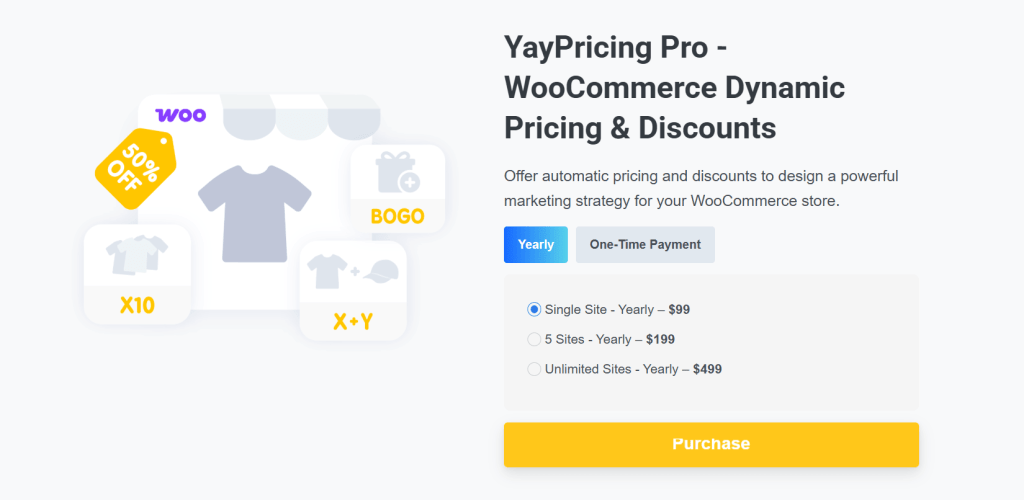
Best suited for: Combining automated discount rules, upsell prompts, and smart coupon logic.
WooCommerce Dynamic Pricing & Discounts enables you to create unlimited WooCommerce conditional pricing rules, run time-limited campaigns, personalize discounts by customer behavior, and build upsell funnels.
Its standout features are “smart coupons” and “smart discount rules”. Smart coupons are applied automatically or with a coupon code, and enable you to send personalized coupon codes directly to customers via email.
Its smart discount rules engine lets you trigger rules based on user role, purchase history, or order count. For example, you could set up an exclusive discount that only surfaces after a customer’s sixth order, or offer a returning wholesale buyer a deal based on what they’ve previously purchased. And you can configure countdown timers with sale start and end dates for promotional campaigns to add a last-minute incentive, complete with a cap on the maximum number of uses.
WooCommerce Dynamic Pricing & Discounts lets you display real-time upsell notices that show customers exactly how close they are to unlocking a better deal. You can set up order bumps at checkout that surface relevant upsell offers right before the customer completes their purchase.
Product Dynamic Pricing and Discounts for WooCommerce
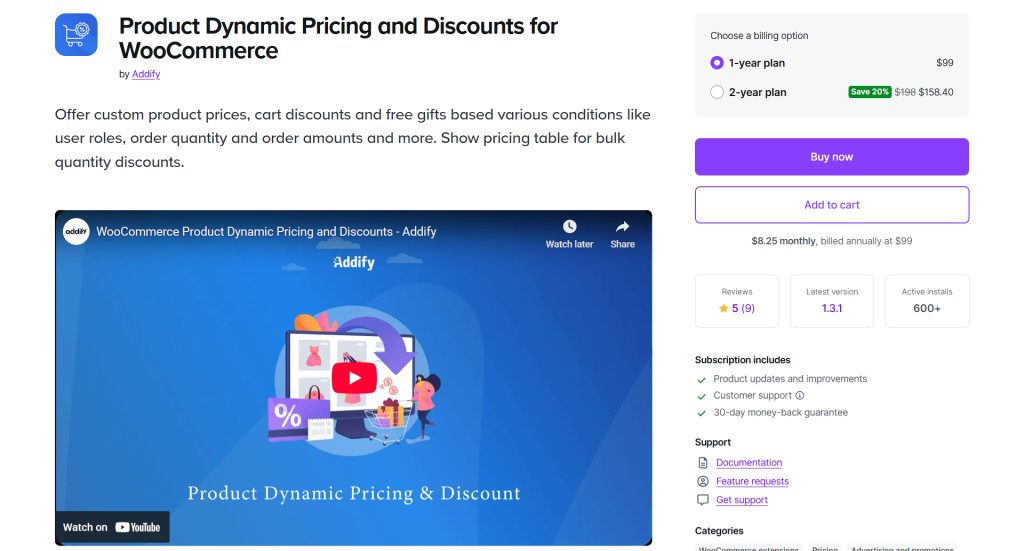
Best suited for: B2B and wholesale stores that need tiered pricing, role-based discounts, and free gift rules.
Addify’s Product Dynamic Pricing and Discounts plugin is built for stores that cater to different audiences. Whether you sell to wholesalers, retailers, VIP customers, or a mix of B2B and B2C buyers, it lets you set up distinct pricing rules for each customer segment from the same storefront.
At the product level, you can define tiered pricing based on quantity ranges and surface that pricing in a table directly on the product page. The pricing table is customizable in both position and orientation, i.e., horizontal or vertical, so that it cleanly integrates into your store’s existing product page layout.
You can trigger percentage or fixed-amount discounts based on cart total, item count, user role, or purchase history that auto-apply once certain conditions are met. For example, a VIP customer whose order exceeds $500 could automatically receive $20 off.
The plugin also lets you display targeted messages to prompt customers before they hit the threshold and confirm the reward once they do. And when multiple discount rules could apply to the same customer, the built-in priority system lets you decide which one takes precedence.
Best practices for setting up WooCommerce conditional pricing
WooCommerce stores in various niches use conditional pricing to drive conversions, clear surplus stock, reward customer loyalty, and increase profitability. No matter the type of ecommerce store you run, these tips will help you optimize your efforts.
- Define the objective of your WooCommerce conditional pricing rule and tie each rule to specific KPIs.
- Use start and end dates as well as time and day conditions to plan out offers in advance. This gives you adequate time to work out the details of the conditional pricing rule and reduces the risk that deals that are meant to expire remain live.
- Make use of the custom messaging feature in WooCommerce Dynamic Pricing and Discount Rules to communicate conditional discounts on product pages so customers can act on them.
- Combine multiple conditions to create targeted, hyper-relevant pricing rules. For instance, use location-based, user role-based, and quantity-based conditions.
- If you have multiple live conditional pricing rules, organize and document them. Keeping track of which ones are active, why they exist, and when they should expire helps you avoid setting overlapping conditions which can confusion and conflicts, or worse, adding discount conditions that impact your profit margins.
- Check every conditional pricing rule immediately after the initial setup to verify that the logic makes sense, and everything works as it should. If needed, use incognito tabs and role-switching tools.
- Set up conversion tracking for your WooCommerce conditional pricing rules so you can retire underperforming rules and double down on what works. Monitor overall revenue, margins compared to COGS, cart abandonment rates, and other important metrics.
FAQs about WooCommerce conditional pricing
Can I set different prices for wholesale and retail customers in WooCommerce?
Businesses that serve both B2B and B2C customer cohorts can set different prices for wholesale and retail customers using the same WooCommerce storefront. The most efficient way to do this is by assigning user roles (e.g., wholesale_customer, subscriber, retail_customer, etc.) to each customer and then applying role-based pricing rules with the help of a plugin like WooCommerce Dynamic Pricing and Discount Rules.
WooCommerce Dynamic Pricing and Discount Rules empowers you to scale your store without duplicating products or creating separate stores for each audience. You can set different prices for wholesale and retail customers and apply them to individual products, entire categories, and the entire store. Even better? Each customer sees the correct pricing based on their user role, right from the product page to checkout — no coupon codes are needed.
Is it possible to schedule WooCommerce conditional discounts for specific dates or times?
Yes, you can schedule discounts for specific dates or times with the help of a plugin that supports rule scheduling like WooCommerce Dynamic Pricing and Discount Rules. This is especially handy for stores that want to run flash sales, holiday sales, weekend promos, early bird discounts, seasonal offers, and other time-sensitive campaigns.
WooCommerce Dynamic Pricing and Discount Rules lets you set start date and end dates, define specific times of day, and choose days of the week when the discount rule should apply.
Plus, you can combine discount scheduling with other conditions — think: user roles, cart value, product quantity, etc.
How do I offer WooCommerce conditional discounts based on the customer’s location?
Location-based discounts are especially handy for localized promotions, adjusting pricing for different markets, or offering region-specific incentives. To offer discounts based on the customer’s location in WooCommerce, you’ll need to set up conditional pricing rules that target the customer’s country, state, zip code, or shipping zone.
Follow these steps to set up location-based discounts in WooCommerce.
- Add WooCommerce Dynamic Pricing and Discount Rules to your website.
- In your site’s admin dashboard, navigate to the Dynamic Pricing and Discount Rules section, and press “Add New”.
- Toggle on the “Status” button to enable it.
- Add a name for this location-based discount rule to the “Title” field.
- Specify how the location-based discount should be modified: a set amount, a percentage, or a fixed price change.
- Define the exact discount amount you want to apply in the Discount Value field. For example, to apply a 20% fixed percentage discount, type “20”.
- Enable the “Apply Per Quantity” checkbox to make sure that the location-based discount is applied to each item purchased.
- Press the “Advanced Settings” button underneath the “Select Discount Type” section to expand additional scheduling options. From here, you can specify start and end dates, precise times, and applicable days of the week for the rule.
- Tick the “Enable Discount Message” box and add your custom text in the “Discount Message” field to show a custom message on product pages.
- Scroll to the “Discount Rules for Checkout” section and click on “Add Rule”.
- To create a location-based discounts:
- Condition Type: Choose from the available “Location Specific” options: country, state, city, zone, postcode, etc.
- Operator: Equals
- Value: Enter the target location (e.g., country, state, or zone)
- Enter additional criteria as needed and press “Submit” to save your settings.
Ready to set WooCommerce conditional pricing rules?
Adjusting product prices based on different conditions is a great way to increase your store’s conversion rates and average order value while rewarding customers for their loyalty. In addition, when implemented well, it can help boost your revenue without sacrificing profit margins.
WooCommerce alone doesn’t include the option to set up conditional pricing rules. But with WooCommerce Dynamic Pricing and Discount Rules, you can automate various kinds of conditional pricing rules based on product type (simple and variable), customer behavior, cart contents, user roles, quantity, date, time, SKU, and other parameters.
Get WooCommerce Dynamic Pricing and Discount Rules free and pro versions and start adding conditions today!