Table of Contents
Quick answer: You can add a file upload field to WooCommerce checkout two ways. Use free PHP code with the woocommerce_after_order_notes hook to render the field, save the file to the order, and show it in the admin (you must add your own file-type, size, and security validation). Or use a plugin such as Checkout Files Upload for WooCommerce, which handles uploads, allowed file types, size limits, multiple files, and order display without code.
Key Takeaways
- Customers can make file upload to WooCommerce checkout such as design files, documents, or images directly, making it easier to handle custom orders.
- Get all required files upfront, cutting down on back-and-forth emails and avoiding miscommunication.
- Printing, apparel, architecture, events, SaaS, and even regulated sectors benefit from seamless uploads.
- Tools like Dotstore’s Product Attachment for WooCommerce plugin let you enable file uploads at checkout without coding.
- By setting file type/size limits, access controls, and retention policies, you ensure safe and GDPR-compliant uploads.
Customers ordering custom products often need to send you something before they pay: a logo for a printed mug, a brief for a design job, a prescription, a spec sheet. WooCommerce has no built-in upload field at checkout, so you either add one with code or use a plugin.
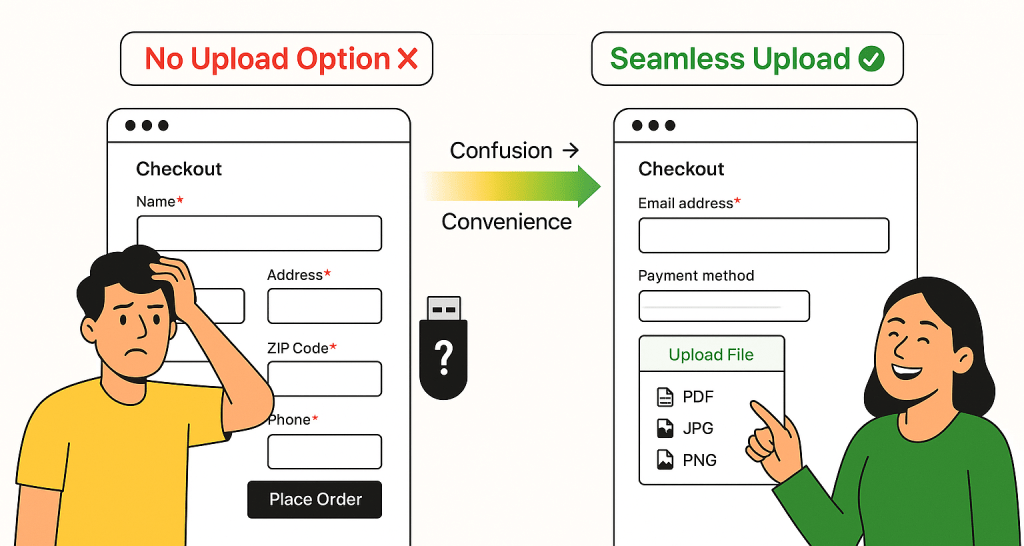
This post covers both methods, plus the parts that matter for production: why a checkout upload is worth adding, where the file shows up in the order, how it behaves in confirmation emails, and how to handle file types, size limits, multiple files, security, and GDPR.
Why add a file upload field at checkout
A checkout upload field collects the file at the moment the order is created, so the file and order are always linked. Without it, the customer places an order, you email them, they reply with the wrong format, and the job stalls. Common use cases:
- Print and design: logos, artwork, business card layouts, signage files
- Apparel and merch: custom text, photos, embroidery files for personalization
- Manufacturing and engineering: technical drawings, CAD exports, spec sheets
- Regulated or document-heavy orders: prescriptions, ID or age verification, signed forms, purchase orders
Collecting the file up front cuts the back-and-forth, reduces wrong-format submissions, and keeps your fulfillment team from chasing customers. It also removes friction from the order, which matters if you are already working to improve checkout conversions in WooCommerce.
Method 1: Add a file upload field with PHP (free)
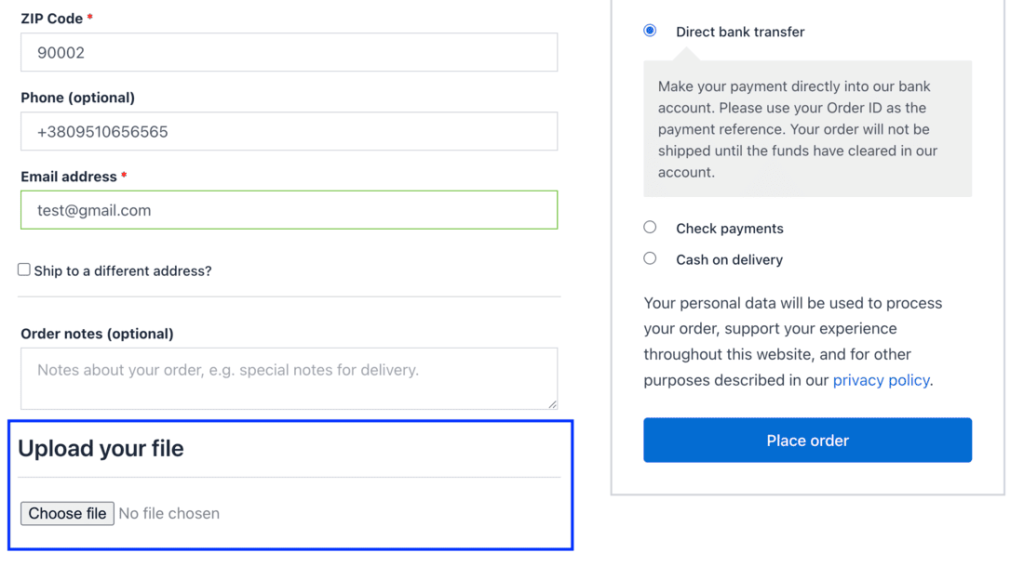
WooCommerce fires the woocommerce_after_order_notes hook right below the order notes box on the checkout page. You can print a file input there, capture the upload when the order is placed, save it as order meta, and display the link in the admin.
The snippet below adds the field, moves the uploaded file into the WordPress uploads directory, and attaches its URL to the order so it shows on the admin order screen.
// 1. Output the file upload field on checkout.
add_action( ‘woocommerce_after_order_notes’, ‘dotstore_checkout_file_field’ );
function dotstore_checkout_file_field( $checkout ) {
echo ‘<div id=”checkout-file-upload”>’;
echo ‘<h3>’ . esc_html__( ‘Upload your file’, ‘your-textdomain’ ) . ‘</h3>’;
echo ‘<p class=”form-row form-row-wide”>
<input type=”file” name=”checkout_file” id=”checkout_file” />
</p>’;
echo ‘</div>’;
}
// 2. Make the checkout form accept file uploads.
add_action( ‘woocommerce_checkout_init’, ‘dotstore_checkout_file_enctype’ );
function dotstore_checkout_file_enctype() {
add_filter( ‘woocommerce_checkout_form_tag’, function( $tag = ” ) {
return ‘enctype=”multipart/form-data”‘;
} );
}
// 3. Save the uploaded file to the order.
add_action( ‘woocommerce_checkout_create_order’, ‘dotstore_save_checkout_file’, 20, 2 );
function dotstore_save_checkout_file( $order, $data ) {
if ( empty( $_FILES[‘checkout_file’][‘name’] ) ) {
return;
}
// IMPORTANT: validate before trusting this input.
$allowed_ext = array( ‘jpg’, ‘jpeg’, ‘png’, ‘pdf’ );
$max_bytes = 5 * 1024 * 1024; // 5 MB
$file = $_FILES[‘checkout_file’];
$ext = strtolower( pathinfo( $file[‘name’], PATHINFO_EXTENSION ) );
if ( ! in_array( $ext, $allowed_ext, true ) || $file[‘size’] > $max_bytes ) {
return; // Reject disallowed type or oversized file.
}
if ( ! function_exists( ‘wp_handle_upload’ ) ) {
require_once ABSPATH . ‘wp-admin/includes/file.php’;
}
$upload = wp_handle_upload( $file, array( ‘test_form’ => false ) );
if ( isset( $upload[‘url’] ) ) {
$order->update_meta_data( ‘_checkout_file_url’, esc_url_raw( $upload[‘url’] ) );
}
}
// 4. Show the file link on the admin order page.
add_action( ‘woocommerce_admin_order_data_after_order_details’, ‘dotstore_show_checkout_file’ );
function dotstore_show_checkout_file( $order ) {
$file_url = $order->get_meta( ‘_checkout_file_url’ );
if ( $file_url ) {
echo ‘<p><strong>’ . esc_html__( ‘Uploaded file:’, ‘your-textdomain’ ) . ‘</strong> ‘;
echo ‘<a href=”‘ . esc_url( $file_url ) . ‘” target=”_blank”>’ . esc_html__( ‘View file’, ‘your-textdomain’ ) . ‘</a></p>’;
}
}
Note on validation: the snippet includes a basic extension and size check, but production code needs more. Validate the real MIME type (not just the extension), block executable types, restrict where files are stored, and treat every upload as untrusted.
Anything that accepts uploads from the public is a security surface, so treat this as a starting point, not a finished feature. The code method gives full control, but you own all of the hardening yourself.
Method 2: Use a plugin (no-code, safer)
If you would rather not write and maintain validation logic, a no-code plugin such as Checkout Files Upload for WooCommerce is a reliable, lower-maintenance option. It adds the upload field to checkout and handles the parts the snippet leaves to you: allowed file types, size limits, multiple files, and secure storage, with the uploaded file shown on the order for your team. Because the validation and protected storage are built in, it is a safer default than minimal custom code for stores that accept public uploads.
A quick note on plugin choice: a customer upload field for WooCommerce is a different tool from a “product attachment” plugin. A product attachment plugin lets the merchant attach downloadable files to a product page (manuals, datasheets), which is the opposite direction. For customer-uploaded files at checkout, you want a checkout upload plugin.
Typical setup:
- Install and activate the plugin.
- Open its settings and define which file types you allow (for example PDF, JPG, PNG).
- Set a maximum file size and choose whether the field is required.
- Decide if the field appears on all orders or only for specific products.
- Save. The upload field appears on checkout and uploaded files attach to each order automatically.
No theme edits, no PHP to keep in sync with WooCommerce updates.
Where uploaded files appear in the order
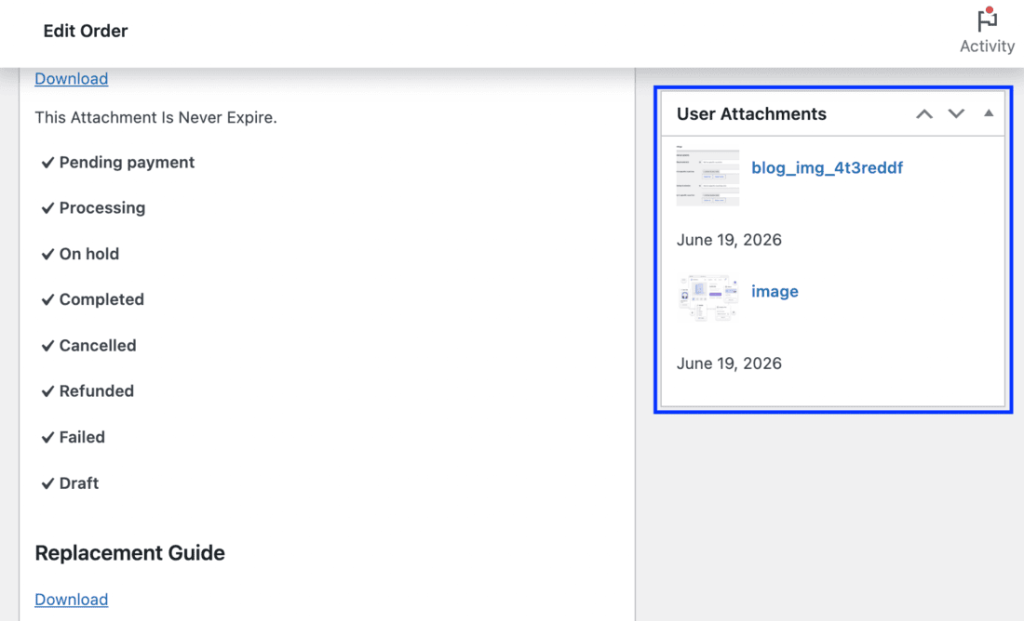
With either method, the file is attached to the order so your team can find it. Open the order under WooCommerce > Orders. With the snippet, a file link appears in the admin order details panel (under order details in the code above). A plugin shows it in its own section on the order and stores it as order meta. You can also surface the file in the customer’s account order view so they can confirm what they sent.
File upload in confirmation emails
A common request is to include the uploaded file in order emails. Two patterns:
- Link in the email: include a link to the file in the admin “New order” email so your team can grab it without opening the dashboard. This is the most reliable approach.
- Attachment in the email: attach the actual file via the woocommerce_email_attachments filter. Be careful with large files and email size limits.
A dedicated plugin usually handles email inclusion through a setting rather than custom filters.
File types, size limits, and multiple files
Allow only the formats you actually need. For most stores that means documents and images: PDF, JPG, PNG, and sometimes design formats like AI or SVG. Do not allow executables (.exe, .php, .js, .sh) or archives unless you have a specific reason and a way to scan them. Whitelisting types is also a core security control.
Set a size limit that fits your use case. A logo or brief is usually under 5 MB. Print-ready artwork can be larger, so 10 to 20 MB may be reasonable. Your server’s upload_max_filesize and post_max_size settings cap this, so confirm those allow your chosen limit, and show the limit on the field so customers are not surprised.
If buyers need to send several files (front and back artwork, multiple pages), allow multiple uploads. This is straightforward in a plugin; in code you handle the array of files yourself and save each one to the order.
Per-product vs all-orders upload
Decide whether every order needs an upload or only certain products do:
- All orders: simplest. The field shows on every checkout. Fine if most of your catalog needs a file.
- Per-product: the field appears only when a qualifying product is in the cart (for example custom-printed items but not stock items). This keeps checkout clean for buyers who do not need to upload anything. Per-product targeting is easier to configure with a plugin than to build in code.
Custom code vs plugin
Here is how the two methods compare at a glance.
| Approach | Handles security/size limits | Shows file in order | Coding needed |
| Custom code | No (you build it) | Yes (with the snippet above) | Yes |
| Checkout Files Upload plugin | Yes (allowed types and size via settings) | Yes (out of the box) | No |
Security and GDPR
Files uploaded by customers can contain personal data, so handle them carefully:
- Validate on the server, not just the browser. Client-side checks are easy to bypass. Confirm file type, real MIME type, and size in PHP.
- Block executables and scripts. A renamed .php file should never be accepted. Whitelist safe types only.
- Store files where they cannot be guessed or browsed. Public uploads folders expose URLs. A plugin with protected storage reduces this risk.
- Limit who can access uploads. Only order admins should reach customer files.
- Have a deletion path. Under GDPR, customers can request removal of their data. You need a way to delete uploaded files, not just the order record, and deleting an order should remove its files too.
- Keep records of what you collect and why. If files contain personal data, store only what you need, set a retention period, and say so in your privacy policy.
These apply whether you use the snippet or a plugin. The difference is how much you build yourself.
Conclusion
If you only need a basic field and can maintain your own validation, the PHP snippet gets you there for free, but you own all the security. If you want file restrictions, size limits, multiple files, secure storage, and order display handled without code, a plugin is the safer route.
For customer uploads at checkout, Checkout Files Upload for WooCommerce covers all of this out of the box, and it pairs well with broader work to optimize your WooCommerce store checkout. Either way, validate uploads server-side and have a plan for deleting customer files when asked.
WooCommerce Product Attachment
Increase conversion rates with detailed information using multiple attachments.
14-day, no-questions-asked money-back guarantee.
Frequently Asked Questions About File Upload to WooCommerce Checkout
Can I add a file upload to checkout without any plugin?
Yes. The PHP snippet above adds the field and saves the file to the order. You will need to add file-type, MIME, and size validation yourself before using it on a live store.
Will the custom code break when WooCommerce updates?
The hooks used here are stable, but custom code is your responsibility to test after major WooCommerce releases. A maintained plugin is updated for compatibility for you.
Where do customers’ uploaded files show up?
On the order. With the snippet, a file link appears in the admin order details panel. A plugin attaches the file to the order in its own section and stores it as order meta.
Can the uploaded file be included in order confirmation emails?
Yes. Add a link to the file in the admin order email, or attach the file itself using the woocommerce_email_attachments filter. Watch email size limits for large files. A plugin can usually do this from a setting.
Can customers upload more than one file?
Yes. A plugin can allow multiple files per field or multiple fields. In custom code you handle the file array yourself and save each file to the order.
Is it safe to let customers upload files at checkout?
It can be, with server-side validation, type restrictions, size limits, and protected storage. Without those, an upload field is a security risk. This is the main reason to use a plugin rather than minimal custom code.
Can I restrict which file types customers upload, or show the field only for certain products?
Yes to both. With custom code you write the validation and conditional logic. With a plugin you set allowed types and per-product targeting in the settings, no code required.
How does this work with GDPR if customers upload personal documents?
You are processing personal data, so store only what you need, set a retention period, delete files when they are no longer required, disclose it in your privacy policy, and make sure deleting an order also deletes its files.
Enhance your WooCommerce store with file uploads at checkout
Adding file upload capabilities to your WooCommerce checkout can make the entire shopping experience for your customers so much better. By integrating a robust plugin such as Product Attachment Plugin for WooCommerce, you can further streamline the order process and control how you want to offer this feature to your customers.
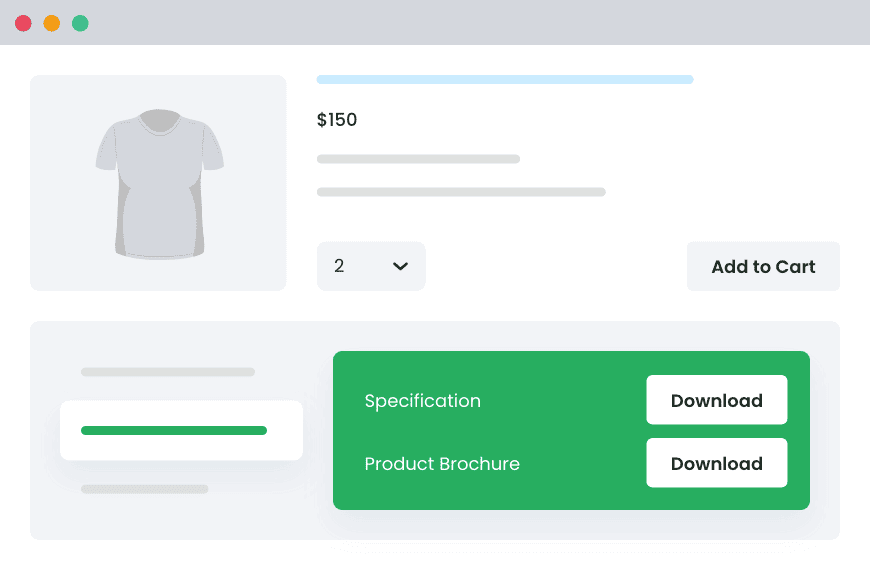
This powerful plugin allows users to upload necessary files directly at checkout, ensuring they can submit documents or designs with ease. Plus, it gives store admins the ability to attach files to order confirmation emails and add downloadable attachments on product pages.
The result is a seamless experience that supports clear communication and reduces the chances of order errors. So, don’t wait. Explore how Dotstore’s Product Attachment Plugin can transform your WooCommerce store today.
WooCommerce Product Attachment
Increase conversion rates with detailed information using multiple attachments.
14-day, no-questions-asked money-back guarantee.