Table of Contents
Quick answer: Add an extra fee to the WooCommerce cart with the woocommerce_cart_calculate_fees hook and $cart->add_fee( $label, $amount, $taxable ). The fee shows as its own line in the cart and checkout totals. Use code for a single flat or percentage fee, and a plugin when the fee depends on conditions like city, user role, or payment method.
Key Takeaways
- An extra fee is any charge added on top of product price and shipping: handling fees, surcharges, gateway fees, rush processing, small-order fees, or weight/quantity-based charges.
- Every fee type uses the same mechanism; what changes is the condition that triggers it and how you calculate the amount (fixed, percentage, or both).
- For one simple fixed or percentage fee, a free PHP snippet using the woocommerce_cart_calculate_fees hook and $cart->add_fee() does the job.
- Put the snippet in a child theme’s functions.php or a code snippets plugin, never the parent theme, since updates overwrite it.
- Use the Extra Fees plugin instead when fees depend on conditions like city, user role, payment method, or cart total, so you avoid writing and maintaining if-checks.
- Either way, fees show as their own line in the cart and checkout, save to the order, and appear in confirmation emails, with tax applied only if marked taxable.
An extra fee is any charge added on top of product price and shipping cost. Common examples are handling fees, payment-gateway surcharges, rush processing, small-order surcharges, and weight or quantity-based charges.
WooCommerce supports all of them, and the technical mechanism is the same for each. What changes is the condition that triggers the fee and how you calculate the amount. If you want a broader overview first, see our roundup of the best WooCommerce extra fees plugins.
There are two practical ways to do it. The first is a free PHP snippet, which is the right call for one fixed rule. The second is a plugin, which is the right call when the fee depends on conditions you would otherwise have to code and maintain by hand. This post leads with the code method, then covers the no-code option.
What counts as an extra fee
Before writing any code, it helps to know which charges fall into this category and how they are structured.
- Handling fee: a flat charge for packing, processing, or fragile or oversized items.
- Surcharge: an added amount or percentage applied to the cart, often regional or order-size based.
- Payment-gateway fee: a charge tied to a specific method, for example a cash-on-delivery or PayPal surcharge that passes the transaction cost to the customer. See charging payment gateway based fees for this case.
- Rush or expedited processing: an extra charge for faster handling before dispatch.
- Small-order fee: a charge applied when the cart total is below a minimum threshold.
- Weight or quantity-based fee: a charge that scales with cart weight or item count, sometimes a base amount plus an incremental cost per unit.
Each of these can be a fixed amount (a flat $5), a percentage (3% of the subtotal), or a combination (a flat base plus a percentage). The code and the plugin both handle all three. If your charge is really a shipping cost that varies by region or weight, configure it as a shipping rate instead. See our guide on WooCommerce shipping rates for that path.
Method 1: Add a fee with code (free)
WooCommerce fires the woocommerce_cart_calculate_fees hook every time the cart recalculates. Hook into it and call $cart->add_fee(). This snippet adds a flat $5 handling fee:
add_action( 'woocommerce_cart_calculate_fees', 'mds_add_handling_fee' );
function mds_add_handling_fee( $cart ) {
if ( is_admin() && ! defined( 'DOING_AJAX' ) ) {
return;
}
$fee_label = 'Handling Fee';
$fee_amount = 5.00;
$taxable = false;
$cart->add_fee( $fee_label, $fee_amount, $taxable );
}
The add_fee() arguments are the label shown to the customer, the amount, and the taxable flag. Set $taxable to true if tax should apply on top of the fee. Leave it false for a flat charge with no added tax.
The is_admin() check stops the fee from being added during admin page loads while still allowing AJAX cart updates on the front end.
Add a percentage fee
For a percentage surcharge, calculate the amount from the cart subtotal inside the same hook:
add_action( 'woocommerce_cart_calculate_fees', 'mds_add_percentage_fee' );
function mds_add_percentage_fee( $cart ) {
if ( is_admin() && ! defined( 'DOING_AJAX' ) ) {
return;
}
$percentage = 0.03; // 3%
$surcharge = $cart->get_subtotal() * $percentage;
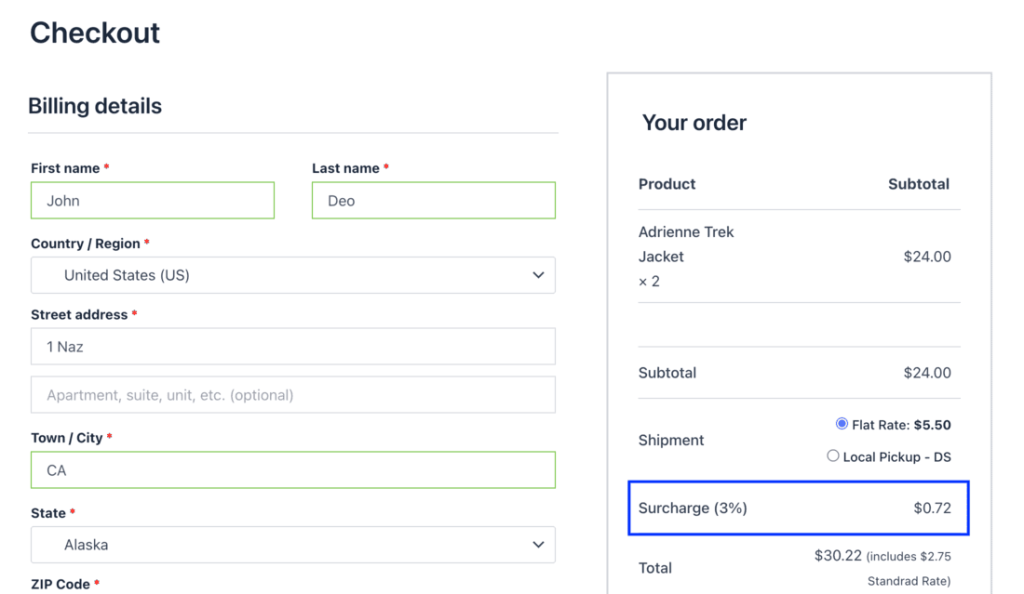
$cart->add_fee( 'Surcharge (3%)', $surcharge, true );
}
Here the fee is passed as true for taxable, so WooCommerce applies the store tax rules on top. Use get_subtotal() for the pre-discount total, or get_cart_contents_total() if you want the percentage to follow the discounted total.
Where to put the snippet
Add the code to your child theme’s functions.php, or to a site-specific plugin or a code-snippets plugin. Do not edit a parent theme directly, because theme updates overwrite it. After saving, add a product to the cart and the fee shows as its own line in the cart and checkout totals.
This works well for one fixed rule. The limits show up when the fee should apply only in certain cases.
Every condition (a specific city, user role, payment method, or cart total) means more if checks, and you maintain that logic yourself across WooCommerce and theme updates. For those cases a plugin is the easier path, since it handles the conditions and the upkeep for you. Our guide on charging extra fees in WooCommerce walks through the same trade-off.
Method 2: Add conditional fees with a plugin (no code)
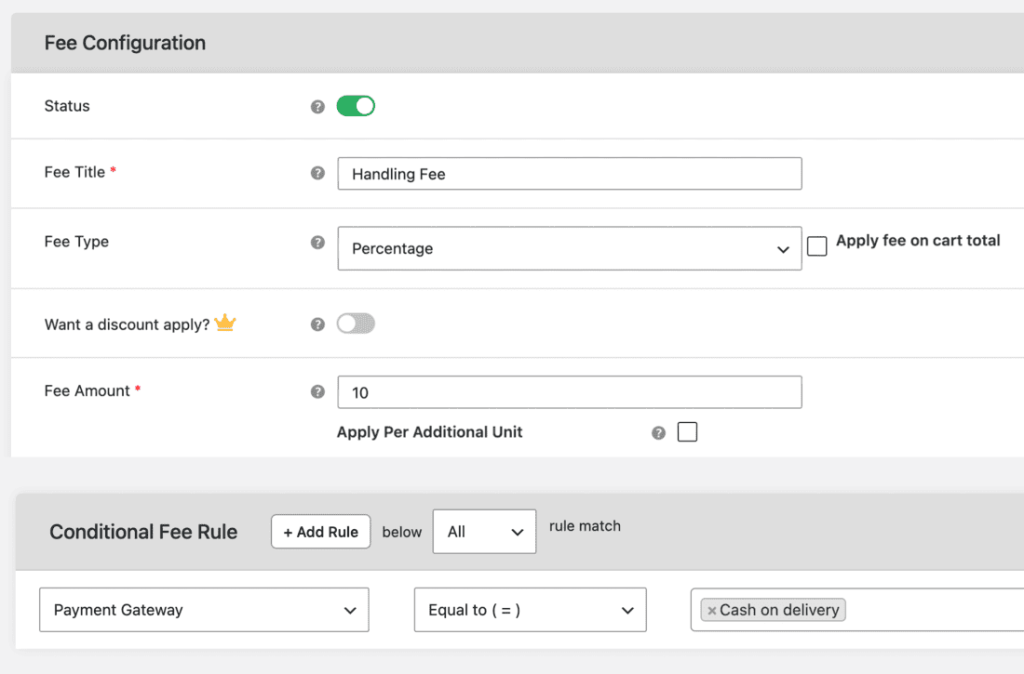
When the fee depends on conditions, a plugin sets the rules through the admin without custom code. Our Manage Extra Fees plugin lets you build fees by condition, including:
- City, state, country, postcode, or shipping zone for regional surcharges.
- User role, for example a fee for guests but not wholesale accounts.
- Payment method, such as a cash-on-delivery or specific-gateway charge.
- Cart subtotal, weight, or quantity thresholds, including small-order fees.
- Product, category, tag, or shipping class so the fee triggers only for certain items.
WooCommerce Extra Fees
Make profits from every confirmed sale through smart, conditional fees.
14-day, no-questions-asked money-back guarantee.
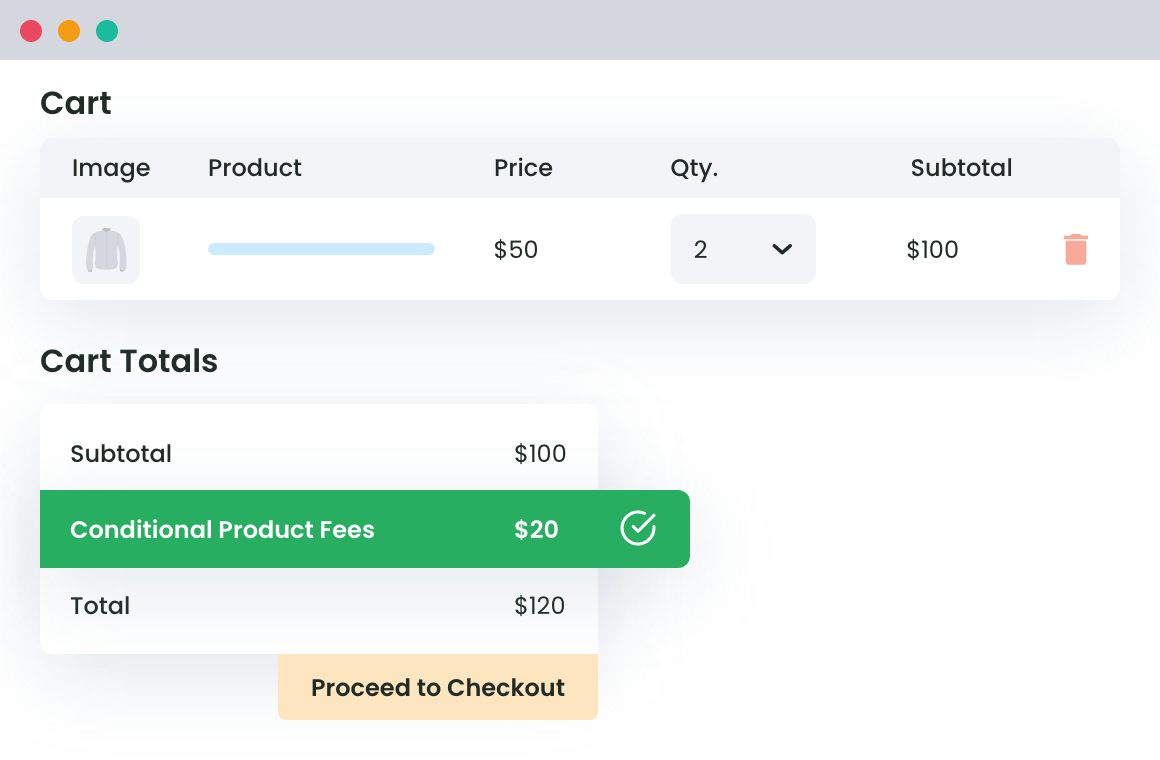
For each rule you pick the fee type (fixed, percentage, or both), set the condition, choose whether it is taxable, decide where it displays (product page, checkout, or both), and save.
You can stack multiple conditions on a single fee, which is what makes plugin rules cleaner than nested if statements. If the amount itself needs to vary, see how to charge dynamic extra fees in WooCommerce. For deeper setups that branch on what is in the cart and who is checking out, see adding conditional fees at checkout.
How the fee shows in cart and checkout
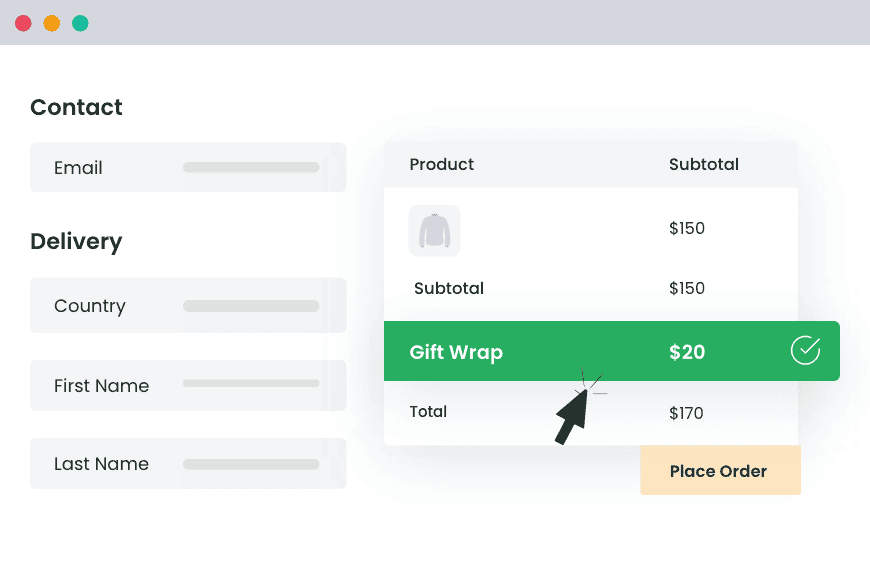
Whichever method you use, fees added through add_fee() behave the same way. They appear as a separate line in the cart totals and on the checkout page, below the subtotal and alongside shipping.
The fee is stored on the order, so it also shows in the admin order screen and in the order confirmation emails sent to the customer. If the fee is marked taxable, WooCommerce calculates and displays the tax on it according to your store tax settings.
Code vs plugin: which to use
This table compares the two approaches at a glance.
| Item | Code snippet | Extra Fees plugin |
| Setup time | Minutes, if you know PHP | Minutes, no PHP |
| Coding needed | Yes | No |
| Conditional rules | Manual if logic | Built-in (city, role, payment, total, more) |
| Percentage and fixed | Yes, calculated by hand | Yes, selected in settings |
| Tax handling | Taxable flag in code | Per-rule setting |
| Maintenance on updates | You maintain it | Handled by the plugin |
| Cost | Free | Paid, with a free version |
Use code if you need one simple fee and are comfortable editing PHP. Use the plugin if you need conditional rules, multiple fees, or you would rather not maintain code through every update.
Conclusion
For a single fixed or percentage fee, the code snippet is free and takes a few minutes. For fees that depend on city, user role, payment method, cart total, or what is in the cart, a plugin saves you from writing and maintaining conditional logic by hand.
Pick the option that matches how complex your fee rules are: code for the simple cases, a plugin once the conditions stack up. When you are ready to set up conditional fees without touching code, the WooCommerce Extra Fees plugin is the natural next step.
Shopify Extra Fees Manager
Add dynamic checkout fees for add-ons, upcharges, surcharges, etc., to your Shopify store — the easy way!
14-day, no-questions-asked money-back guarantee.
Frequently asked questions
How do I add a fee to the cart in WooCommerce?
Hook into woocommerce_cart_calculate_fees and call $cart->add_fee( $label, $amount, $taxable ). The fee appears as its own line in the cart and checkout totals. See the snippet in Method 1, or use a plugin to set it through the admin.
Is the extra fee taxable?
Only if you make it taxable. The third argument of add_fee() is the taxable flag. Set it to true to apply tax on top of the fee, or false for no added tax. In the plugin, taxable is a per-rule setting.
Can I add a percentage fee instead of a flat amount?
Yes. In code, calculate the percentage from the cart subtotal with get_subtotal() and pass the result to add_fee(). In the plugin, choose the percentage fee type, or combine a fixed base with a percentage.
Can I add a fee only for a specific payment method?
Yes. In code you check the chosen gateway inside the hook before adding the fee. With the plugin you select the payment method as a condition, no code needed. This is the common pattern for cash-on-delivery surcharges.
Can I charge a fee only for certain cities or regions?
Yes. In code you read the customer’s billing or shipping fields inside the hook and add the fee conditionally. The plugin handles this directly with city, state, country, postcode, or shipping-zone conditions.
Will the fee show on the order and in emails?
Yes. Fees added through add_fee() are saved on the order and appear in the cart, checkout, admin order screen, and customer order emails.
What is a handling fee in WooCommerce?
A handling fee is a flat charge for packing or processing an order, separate from shipping. You add it the same way as any other extra fee, with a fixed amount through code or a plugin rule.
Can I add more than one fee at a time?
Yes. Call add_fee() more than once in the hook, or create multiple rules in the plugin. Each fee shows as its own line in the totals.
WooCommerce Extra Fees
Make profits from every confirmed sale through smart, conditional fees.
14-day, no-questions-asked money-back guarantee.
WooCommerce Extra Fees
Make profits from every confirmed sale through smart, conditional fees.
14-day, no-questions-asked money-back guarantee.
Learn More:
- How to Charge Quantity Based Advance WooCommerce Extra Fees
- How to Charge Cart-Based Extra Fee In WooCommerce
- How to add WooCommerce Extra Fee Option
- How to add multiple Extra Fees For WooCommerce Order
- How to charge a WooCommerce Extra Fee In WooCommerce
- How to charge Extra Fee-based on Product In WooCommerce Store
- How to charge Extra Fee Dynamically In WooCommerce Store
- How to manage Extra Fees on your WooCommerce Store
- WooCommerce Conditional Product Fees For Checkout Review