Table of Contents
This step-by-step tutorial shows you how to block an IP address in WooCommerce together with advanced fraud and spam prevention measures to protect your store.
Key Takeaways
- Blocking unwanted IP addresses protects WooCommerce stores from spam registrations, fake orders, card testing attacks, scraping bots, and other malicious activity.
- IP address blocking alone isn’t enough because attackers can sidestep restrictions with VPNs, proxy networks, residential IP services, cloud servers, and botnets.
- There is no native feature for setting up IP-based restrictions within WooCommerce, so you’ll need a dedicated security plugin like Dotstore WooCommerce Fraud Prevention to block IP addresses.
- Combining manual IP blocks with AI-driven fraud detection, custom risk scoring, blacklists, and whitelists significantly protects WooCommerce stores compared to IP restrictions alone.
Blocking unwanted IP addresses protects your WooCommerce store from spammers, fraudsters, hackers, and other types of bad actors.
However, as bad actors increasingly use sophisticated methods of attack, it is no longer sufficient as a standalone fraud prevention mechanism.
In this tutorial, I’ll explain why securing WooCommerce takes more than blocking unwanted IPs.
By default, WooCommerce doesn’t enable you to block IP addresses. So, I’ll also show you step-by-step how to block an IP address in WooCommerce using a robust security plugin along with advanced anti-fraud and anti-spam tactics to protect your store.
Ready? Let’s begin by understanding why it isn’t enough to block offending users with IPs to safeguard your WooCommerce store from attacks.
Plugin used in this guide
- Dotstore WooCommerce Fraud Prevention: A powerful anti-fraud plugin that lets you block IP addresses alongside emails, domains, countries, ZIP codes, and more. It also includes AI-powered fraud detection and a custom risk-scoring engine to catch threats that manual IP blocks miss. Try out the live demo or install the free or pro version on your site.
WooCommerce Fraud Prevention
Equip your store with our feature-rich fraud prevention plugin to reduce risk and safeguard your profits.
14-day, no-questions-asked money-back guarantee.
WooCommerce stores need more than IP address blocks
An IP (Internet Protocol) address is a unique numerical identifier assigned to every device that connects to the internet. When a customer visits your WooCommerce store, it logs their device’s IP address along with their actions on your site (think: products browsed, items added to the cart, orders placed, etc.).
Blocking a specific IP address prevents anyone using that device from interacting with your WooCommerce store. However, considering that sophisticated attackers can easily change IP addresses, this approach alone isn’t sufficient to stop attacks permanently.
Here are three reasons why WooCommerce stores need more than IP address blocks to secure their sites from fraud, spam, bots, and scripts.
- Attackers can easily bypass IP address blocks. Attackers (especially card testers) are known to use VPNs, proxy networks, residential IP services, and cloud servers to continuously rotate IP addresses. Blocking an IP address can briefly slow down attacks, but it won’t stop them permanently.
- Multiple fraudsters can share thousands of IP addresses. Automated attacks are increasingly carried out through botnets: networks of compromised devices distributed across different countries and regions. Instead of receiving hundreds of suspicious requests from one IP address, your store may receive a small number of requests from hundreds of different IPs. In situations like these, manually blocking each offending IP is time consuming.
- Legitimate customers sometimes use shared IP addresses. People who use public Wi-Fi networks in office buildings, coffee shops, universities, hotels, etc., may share the same external IP address. If a fraudster operates from the same shared network as a legitimate customer, blocking that IP could accidentally lock out genuine users and cost your business to lose sales.
This doesn’t mean blocking unwanted IP addresses isn’t useful; it is. However, it is one component of a robust fraud prevention strategy, not the entire strategy.
Block IP addresses with the Dotstore WooCommerce Fraud Prevention plugin
Dotstore WooCommerce Fraud Prevention lets you block IP addresses, domains, names, emails, countries, states, ZIP codes, and other parameters that indicate spam and fraud.
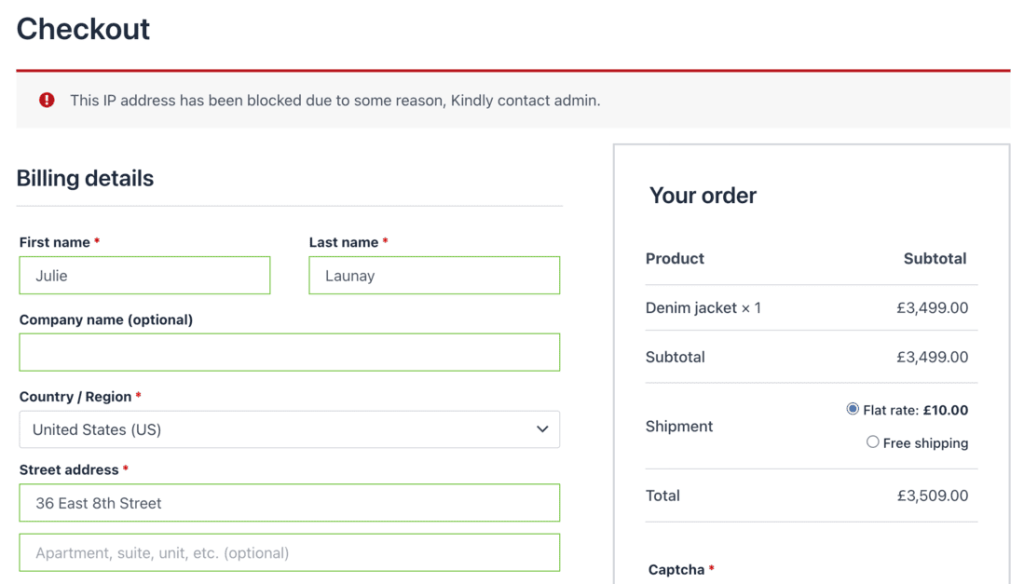
When you block an IP address with the Dotstore WooCommerce Fraud Prevention plugin, users from that IP can no longer register accounts or place orders (depending on your configuration).
Since 2017, thousands of WooCommerce stores have used it to protect against fake orders, fraudulent chargebacks, card testing attacks, bot account registrations, and other types of spam and fraud.
Unlike basic IP blocking plugins, it lets you combine IP address blocks with email addresses, domains, customer names, billing addresses, shipping addresses, countries, states, ZIP codes, phone numbers, browser type, and other identifiers to build a multi-layered defense.
This means when a fraudster who’s been blocked by IP tries again with a VPN, different email address, and fresh credentials, the plugin can still identify them and block them from signing up and placing orders based on other identifiers.
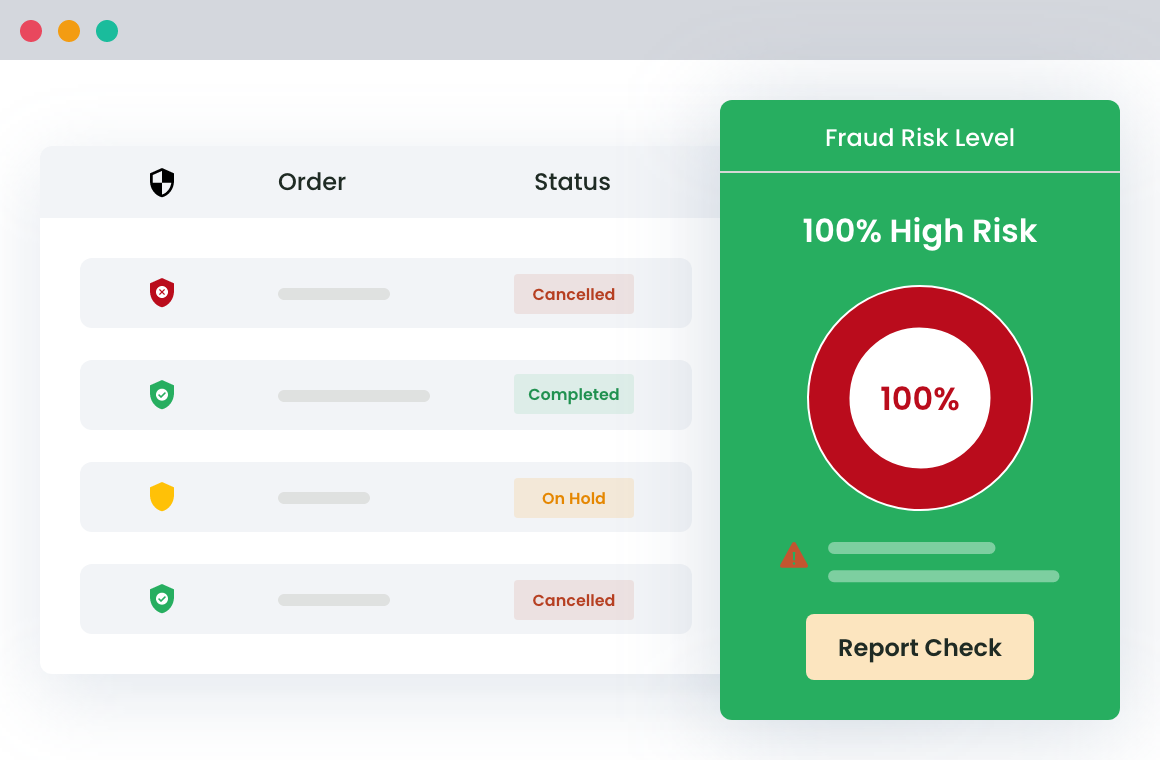
Beyond manual IP address blocking, you can also enable AI-powered fraud detection (using Google or OpenAI) and configure a custom fraud risk-scoring engine that evaluates every order in real time before a payment is processed.
Fraud detection and blocking logic runs before payments are processed. This helps you avoid chargebacks, gateway fees, and refund requests from transactions that should never have gone through.
Dotstore WooCommerce Fraud Prevention’s built-in analytics dashboard shows blocked users, flagged orders, triggered rules, and fraud trends in real time. And you can customize the message shown to blocked users to reflect your brand tone.
Standout features
- IP blocks and blacklists. You can manually add IPs one by one or bulk-upload a list of unwanted IPs via Excel (.xlsx) to block specific IP addresses from accessing your store’s checkout and registration pages.
- Combine multiple fraud and spam identifiers. It lets you combine IP blocks with email address, disposable email domains, customer names, billing details, phone prefixes, countries, ZIP codes, browser types, user role restrictions, and more.
- Custom fraud score engine. It lets you assign risk scores to different fraud indicators, like first-time orders, mismatched billing and shipping addresses, unusual order quantities, etc., and define score thresholds that trigger automatic holds, cancellations, or manual review flags.
- AI fraud detection. You can connect the plugin to Google or OpenAI to evaluate every incoming order in real time with the help of AI. The system assigns a fraud risk score and automatically blocks or flags orders that exceed your defined threshold, without requiring a manual review.
- Whitelist trusted customers. It lets you whitelist specific email addresses, IP addresses, user roles, or payment methods so that legitimate customers with unusual purchasing patterns aren’t mistakenly flagged as fraudsters.
How to locate the IP address to be blocked in WooCommerce
Before you can block an IP address in WooCommerce, you need to find it. Here are the most common ways to do that.
- From the WooCommerce order details page. Navigate to WooCommerce → Orders and click into the order. WooCommerce logs the IP address of the user who placed each order by default. In the “Order Details” or “Customer Details” section, you’ll often see the customer’s IP address listed.
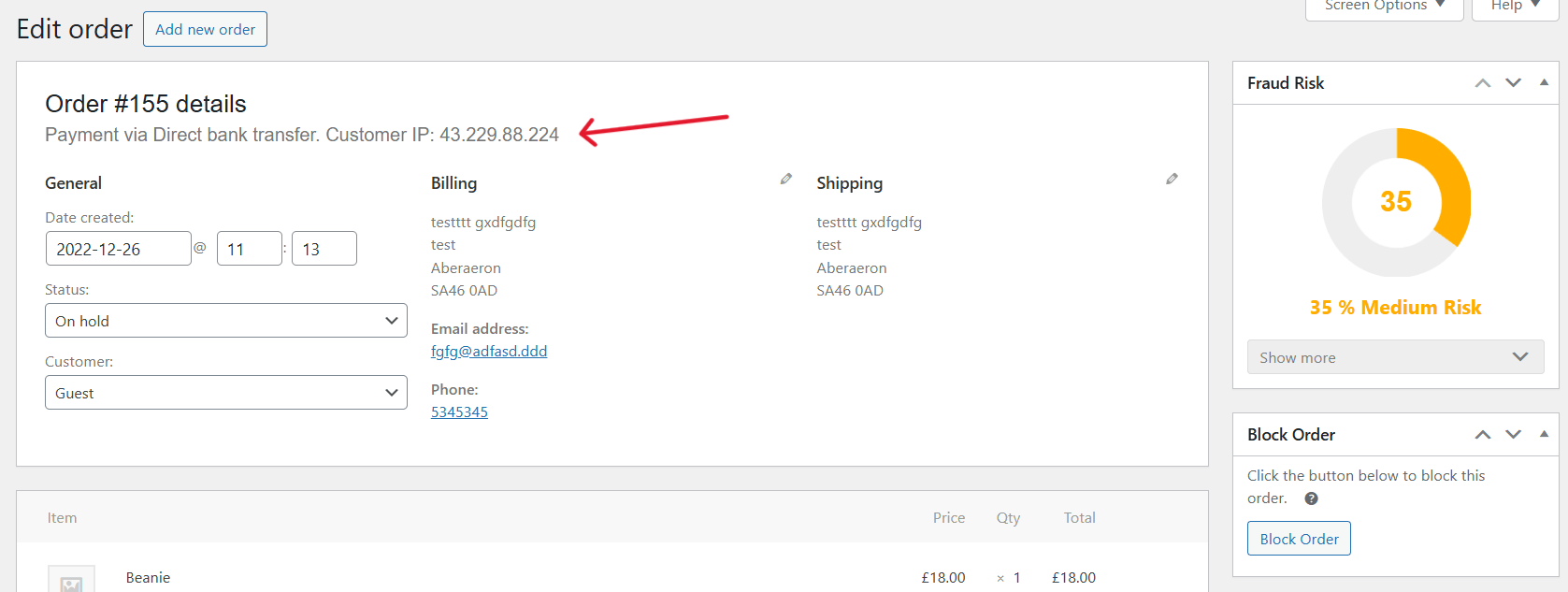
- From your server access logs. Your server’s access logs will show the IP addresses behind the requests hitting your checkout and REST API endpoints (indicative of an automated bot attack). You can access server logs via your hosting control panel (cPanel, Plesk, etc.) or through your hosting provider’s dashboard.
- From your WordPress admin panel. If you use security plugins or server-side firewall tools (like Cloudflare or Wordfence), check their dashboards for IP activity against specific actions.
- From the Dotstore WooCommerce Fraud Prevention dashboard. Once the plugin is installed and active, you can see the IP addresses associated with high-risk users and flagged orders directly inside the plugin’s dashboard under Dotstore Plugins → Fraud Prevention → Dashboard.

Once you have the IP address you want to block, follow the steps below to block unwanted IPs.
How to block an IP address in WooCommerce
Here’s a step-by-step walkthrough of how to block an IP address on WooCommerce using the Dotstore WooCommerce Fraud Prevention plugin.
Visual learner? Watch the video below. Otherwise, scroll down for written instructions.
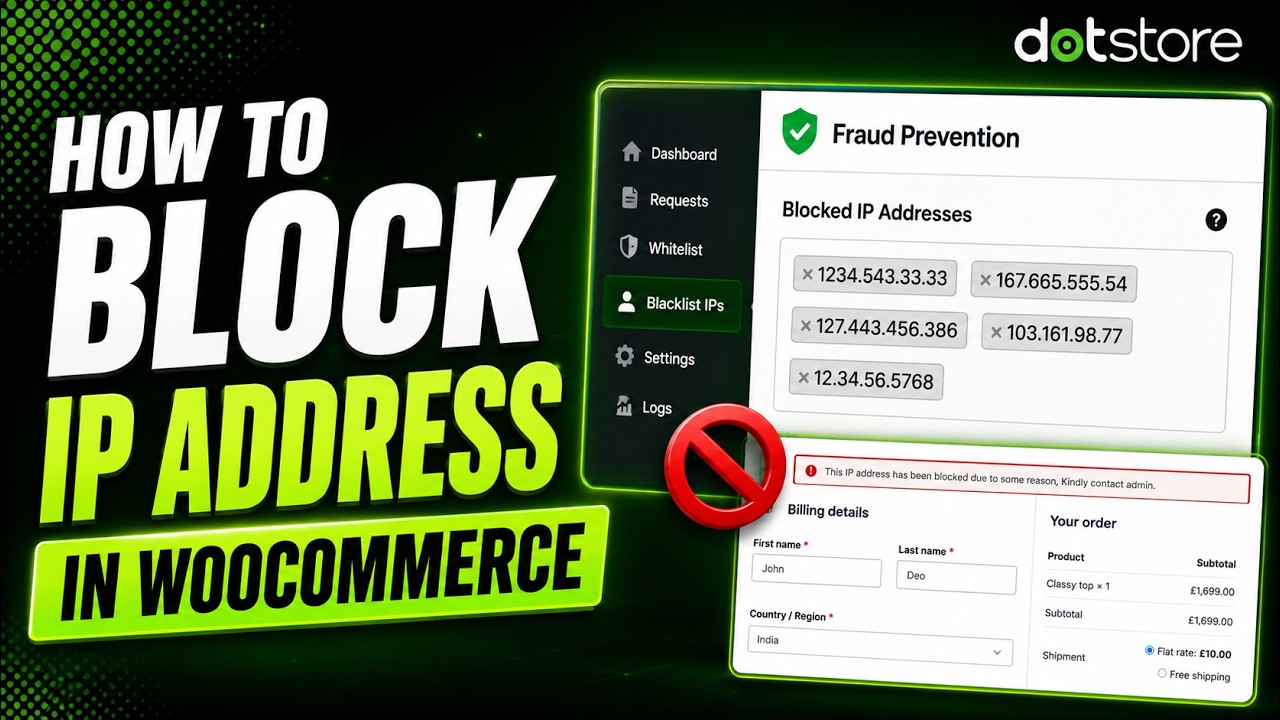
- Download and activate the free or pro version of the Dotstore WooCommerce Fraud Prevention plugin on your ecommerce website.
- In your WordPress dashboard, navigate to Dotstore Plugins → Fraud Prevention → Blacklist Settings.
- Under “Blocking Trigger Stage”, choose where the block should apply:
- Registration — blocks users from creating an account.
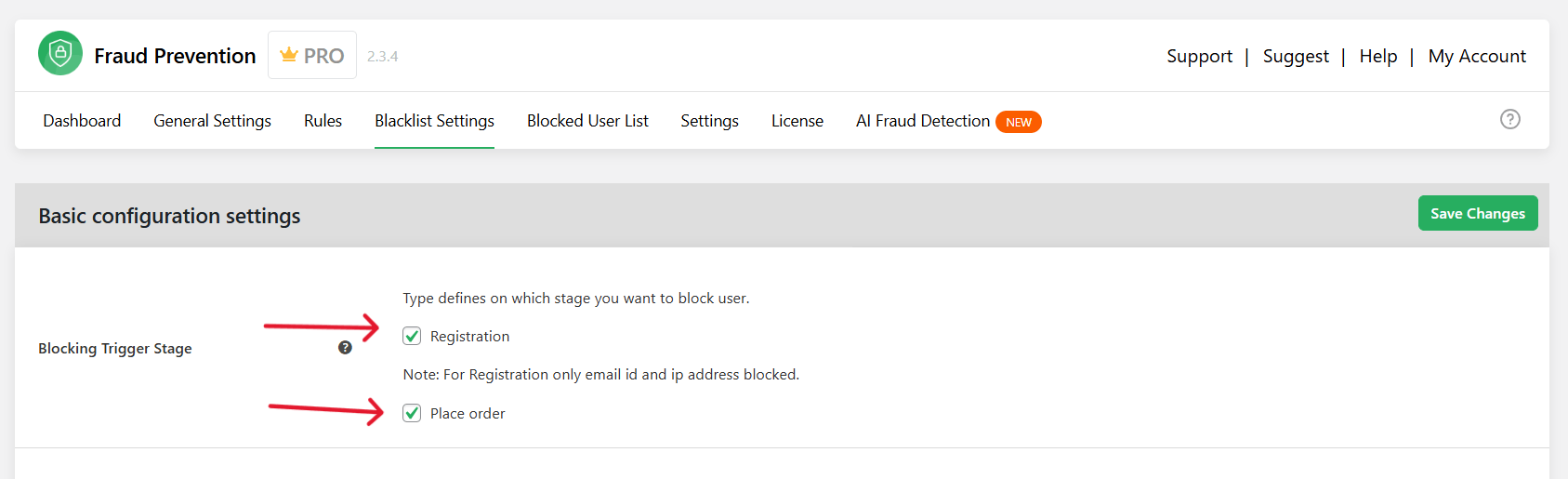
- Place Order — blocks users when they attempt to submit an order on the checkout page.
- Registration — blocks users from creating an account.
- Scroll down to the “Blocked IP Addresses” field and enter the IP addresses you want to block, each separated by a comma. You can also bulk-upload IP addresses via an Excel (.xlsx) file instead of adding them manually one by one.
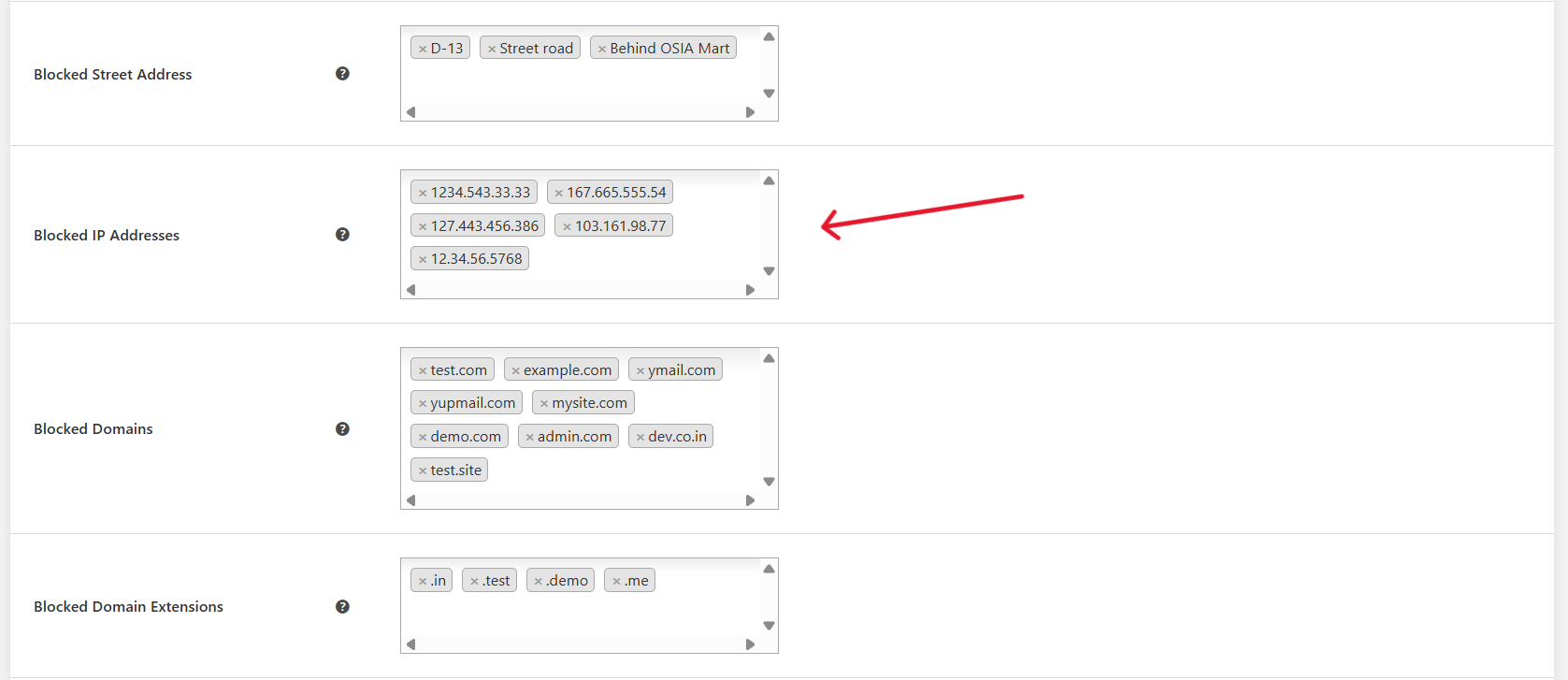
- Scroll to the “IP error message” field and update the notice shown to users whose IPs have been blocked from registering or placing orders on your WooCommerce store.
- Press the “Save” button at the bottom of the page.
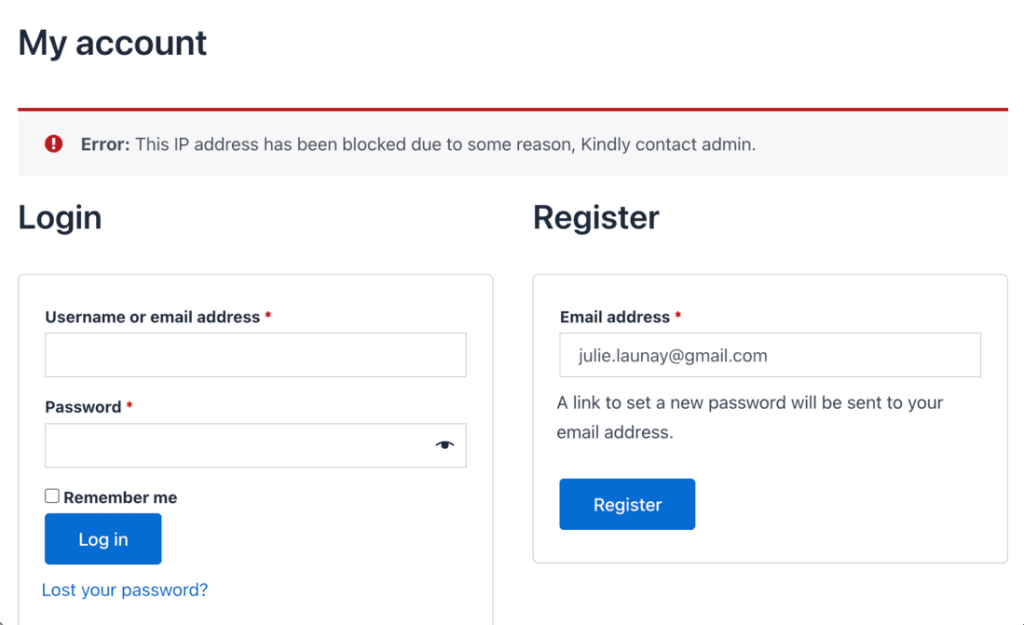
That’s it. Any user who attempts to register and/or place an order from the blocked IP address will be denied and shown an error message.
Advanced: Use AI and custom fraud rules alongwith IP blocks
These advanced features in the Dotstore WooCommerce Fraud Prevention plugin will help you stop attackers who sidestep IP address blocks with the help of proxy networks, VPNs, residential IP services, and cloud servers.
Block IPs with AI fraud detection
Dotstore WooCommerce Fraud Prevention’s AI fraud detection feature connects your store to Google and OpenAI’s models.
It analyzes incoming orders in real time and assigns each a fraud risk score based on a range of signals, including IP address, email address, phone number, country of origin, payment method, and others. Orders that exceed the fraud score threshold are automatically blocked or flagged for admin review.
Here’s how to enable AI fraud detection in WooCommerce:
- In your WordPress dashboard, navigate to Dotstore Plugins → Fraud Prevention → AI Fraud Detection.
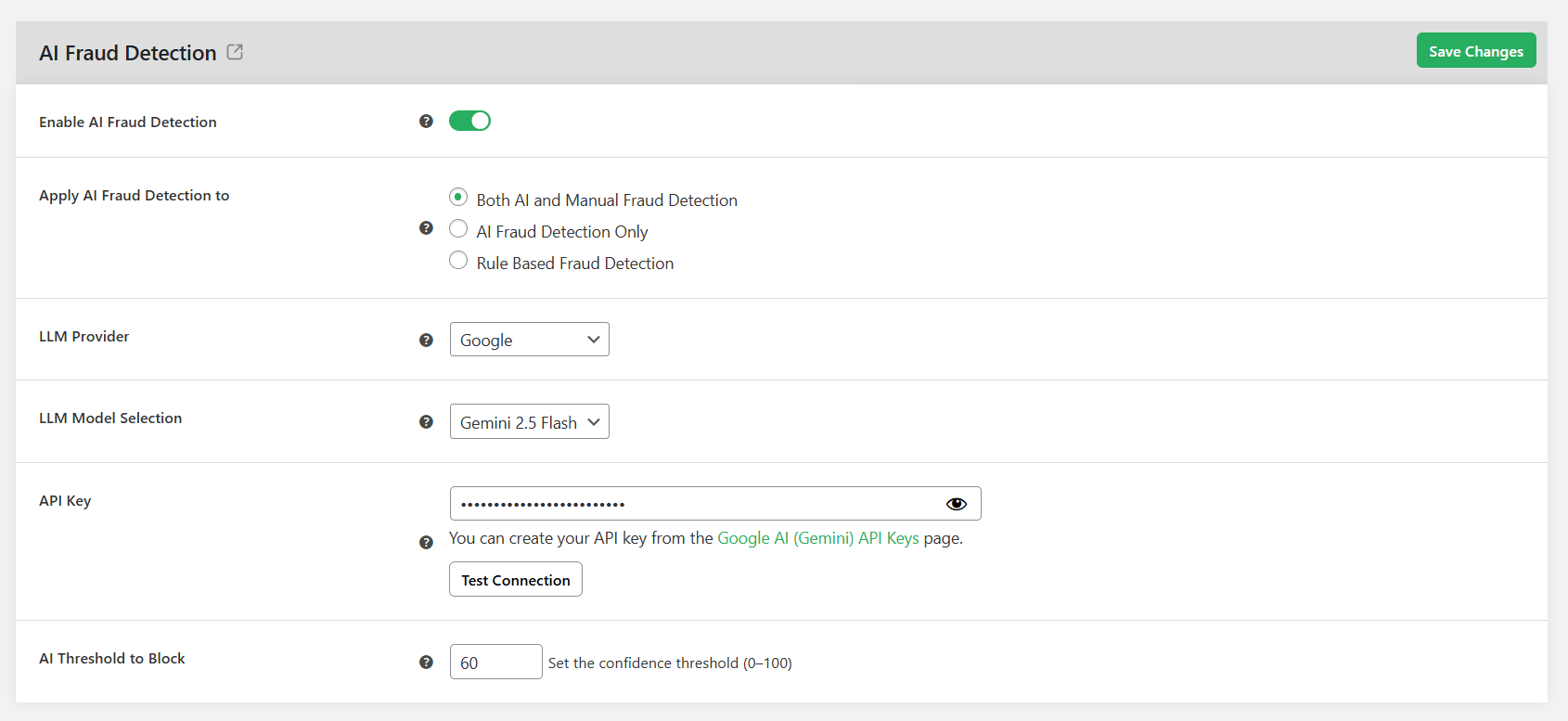
- Turn on the “Enable AI Fraud Detection” setting.
- Pick your preferred AI provider (Google or OpenAI) and select an LLM model.
- Enter your API key, then test the connection to make sure it works.
- Set your AI fraud threshold, i.e., the risk score percentage above which orders will be automatically blocked.
- Press the “Save Changes” button.
Block IPs with custom fraud detection rules
With the Dotstore WooCommerce Fraud Prevention plugin, you can create a custom fraud detection engine that scores each user based on specific identifiers to determine whether or not the user is a fraudster.
Orders that exceed the fraud score threshold are automatically blocked or flagged for admin review (based on your configuration).
Here’s how to customize your WooCommerce store’s fraud detection engine:
- In your WordPress dashboard, navigate to Dotstore Plugins → Fraud Prevention → Rules.
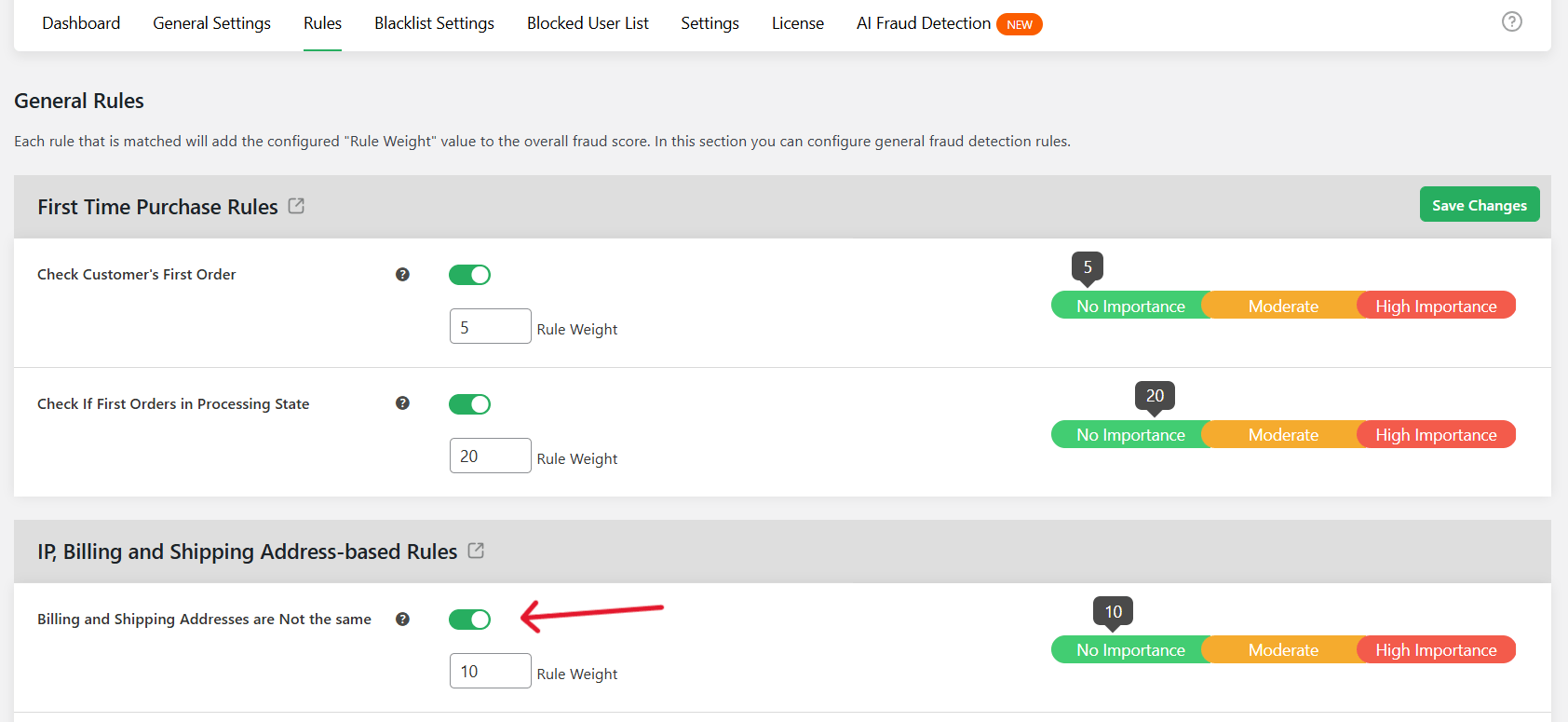
- Review the available risk factors and assign a point score to each one you want to include:
- IP and billing address mismatch (the user’s IP location doesn’t match their billing address).
- Multiple order attempts with different shipping addresses from the same IP address (a strong indicator of card testing).
- High-risk order origin country.
- First-time order (new customers with no purchase history).
- Suspicious or disposable email domain.
- Unusual number of order attempts from the same user or device.
- High order value from a first-time customer.
- IP and billing address mismatch (the user’s IP location doesn’t match their billing address).
- Scroll to the bottom of the page and press the “Save” button.
- Navigate to Dotstore Plugins → Fraud Prevention → General Settings.
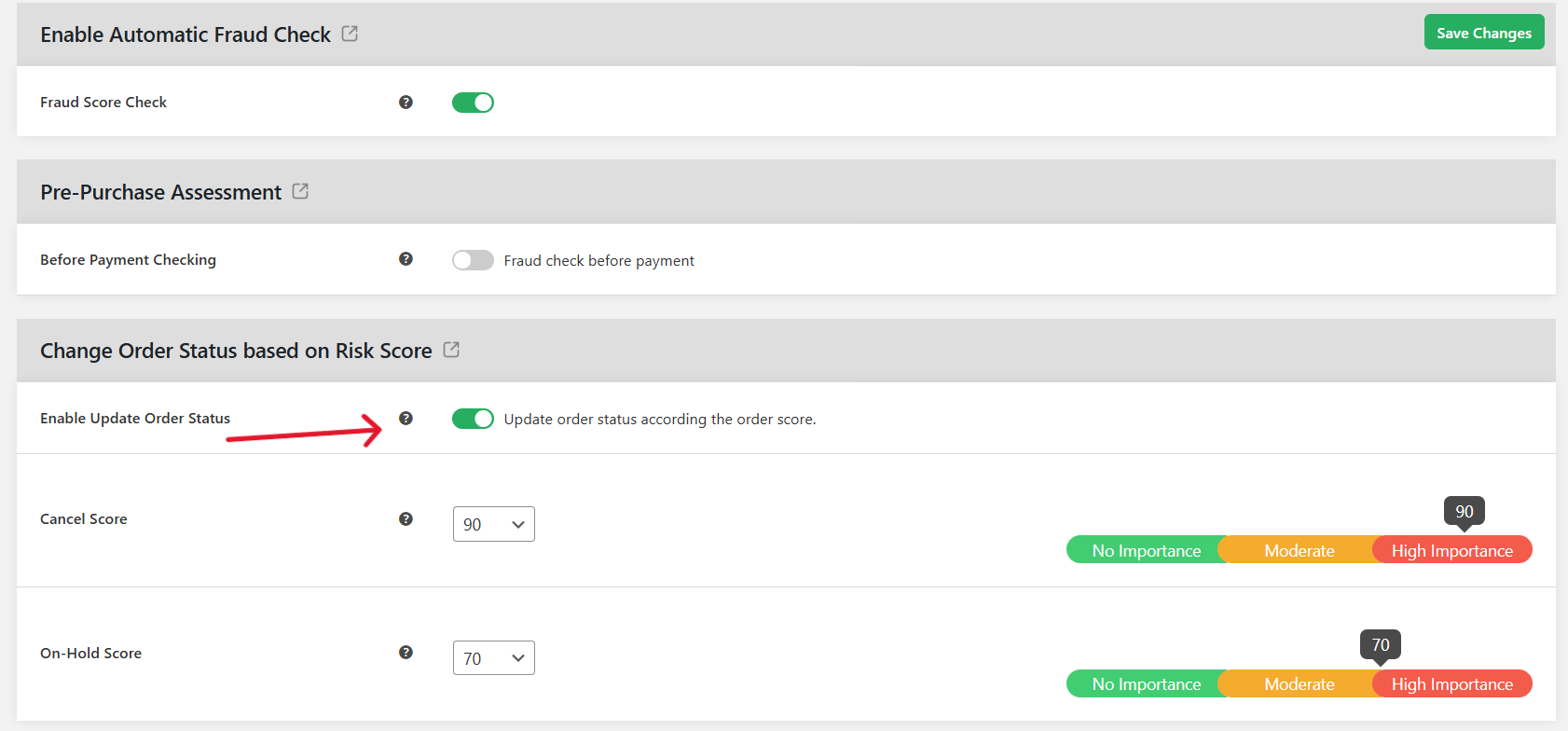
- In the “Change Order Status based on Risk Score” section, define the score thresholds that determine whether flagged users are auto-cancelled or placed on hold for manual review.
- Scroll to the bottom of the page and press the “Save” button.
Combine IP address blocks with advanced fraud prevention measures
Learning how to block unwanted IP addresses in WooCommerce is an important first step. However, IP blocking alone isn’t sufficient to keep your store safe from fraudsters, spammers, hackers, bots, and scraping scripts.
Bad actors can deploy proxy networks, VPNs, cloud servers, and residential IP services to bypass IP address blocks.
The Dotstore WooCommerce Fraud Prevention plugin is an advanced security plugin that lets you block unwanted IP addresses from your store.
And it lets you combine manual IP blocks with email restrictions, country rules, custom fraud scoring, AI-powered detection, and various additional features to prevent unwanted users from registering or placing orders.
Ready to protect your store? Check out the live demo or download the free or pro version now.
WooCommerce Fraud Prevention
Equip your store with our feature-rich fraud prevention plugin to reduce risk and safeguard your profits.
14-day, no-questions-asked money-back guarantee.