Table of Contents
Quick answer: The “No shipping options available” error means WooCommerce could not return a valid shipping rate for the customer’s cart and address. Fix it under WooCommerce > Settings > Shipping: confirm a zone covers the customer’s region, that the zone has at least one enabled method (Flat Rate, Free Shipping, or Local Pickup) with a rate set, and that products carry weight and dimensions when a method needs them. Most cases are fixed in these native settings with no plugin.
Key Takeaways
- The WooCommerce No Shipping Options Available error happens when zones, methods, or product details like weight and dimensions are missing or misconfigured.
- Common causes include incomplete shipping zones, inactive methods, missing product data, or outdated plugins.
- Quick fixes: check shipping zones, ensure at least one method is active, and confirm all products have valid weight and dimensions.
- Preventive best practices: test checkout regularly, update WooCommerce and plugins, and use reliable tools like Dotstore’s Flat Rate Shipping Plugin for flexible rules.
- In 2025, focus on automation, data-driven monitoring, and transparent shipping rules to avoid errors and improve customer trust.
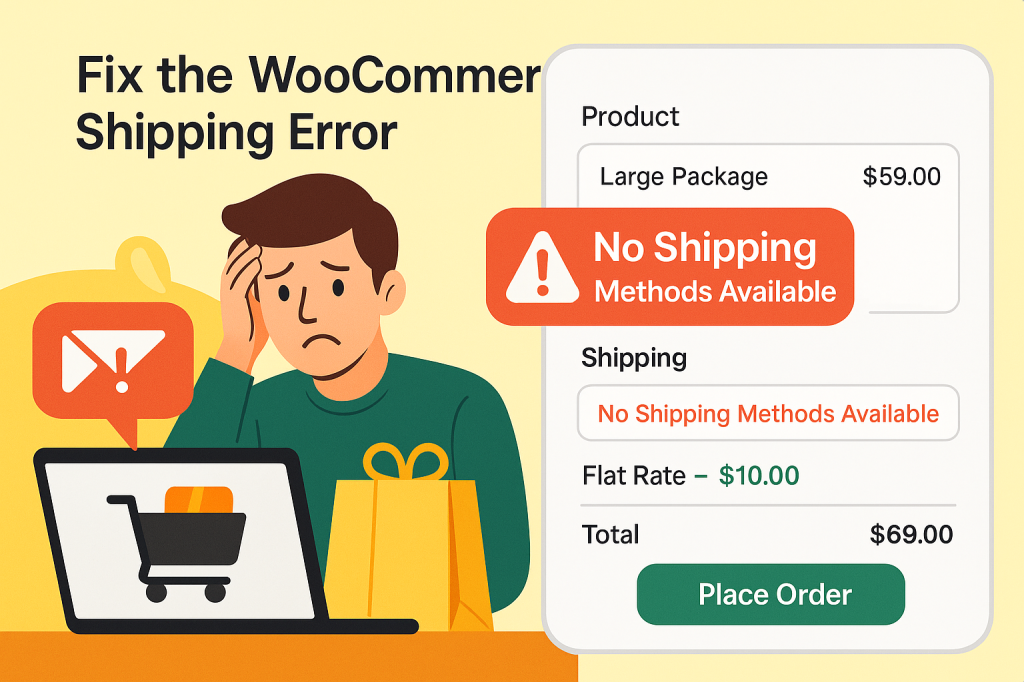
The “No shipping options available” message blocks checkout when WooCommerce cannot match a customer’s address to a shipping zone and a usable method. The customer reaches the shipping step, sees no option to select, and often abandons the cart.
It is one of the most common WooCommerce checkout problems, and almost all of it traces back to how shipping zones, methods, and product data are set up.
This post covers every cause and the exact native setting that fixes it, in the order you should check them.
What the “no shipping options available” error means
WooCommerce builds the shipping options a customer sees by running their cart and address through your shipping zones. It finds the first zone whose regions contain the address, then offers every enabled method on that zone that can return a rate. If nothing in that chain produces a valid rate, the customer sees “No shipping options available.”
So the error is never random. It is WooCommerce telling you that, for this specific address and cart, it found zero usable methods. The fix is to find which link in the chain failed.
Common causes of the no shipping options error
Before fixing, it helps to know what you are looking for. These are the causes, most frequent first:
- The address is outside every shipping zone. If the customer’s country or region is not inside any zone, WooCommerce has no rates to offer. This is the single most common cause.
- A zone covers the address but has no enabled method. The zone exists, but no method was added or the method is disabled.
- A method is enabled but has no rate or fee set. A method with a blank cost returns nothing.
- Products are missing weight or dimensions. Weight-based methods and live carrier rates cannot calculate without them.
- Minimum or maximum thresholds exclude the cart. A “free shipping over $50” rule returns nothing for a $30 cart if no other method exists. Weight or amount caps can do the same.
- A live carrier does not serve the address, or its API is down. USPS, UPS, FedEx, and similar integrations return nothing when keys are wrong, the carrier does not ship to that country, or the package is outside its size and weight limits.
- Store base location or currency conflicts with zone setup. If your base address or currency does not line up with how zones are configured, matching can fail.
- A typo in the customer’s address. A mistyped country, state, or postcode sends an address that matches no zone.
- A plugin conflict or cached checkout page hides the methods. The settings are correct but a conflict or stale cache suppresses the options.
If methods used to show and suddenly stopped, see the related breakdown of WooCommerce shipping methods not showing, which goes deeper on the disappear-after-it-worked scenario.
How shipping zones, methods, and classes fit together
Three pieces decide whether a rate appears:
- Shipping zones are groupings of regions you ship to. A US store might run one zone for North America at lower rates and another for international at higher rates. An address that falls into no zone gets no options. If you are setting these up from scratch, the guide to WooCommerce shipping zones configuration walks through the full process.
- Shipping methods are the delivery choices inside a zone: Flat Rate, Free Shipping, Local Pickup, or a live carrier. A zone needs at least one enabled method with a usable rate.
- Shipping classes group products that need their own pricing, such as bulky, fragile, or oversized items. A class lets you charge a different rate for those products within a Flat Rate method. For how zones and classes interact, see this shipping zones and shipping classes guide.
Get these three aligned and the error usually disappears.
Step-by-step troubleshooting
Open WooCommerce > Settings > Shipping in your WordPress dashboard before changing anything. Zones and methods both live here, and most fixes below happen on this screen.
1. The customer’s address falls outside every zone
This is the most common cause. If the buyer’s country or region is not inside a zone, WooCommerce has nothing to show.
- Go to WooCommerce > Settings > Shipping > Shipping zones.
- Check whether an existing zone covers the customer’s country or region.
- If not, click Add zone, name it, and add the region under Zone regions.
- Add at least one method to the zone: Flat Rate, Free Shipping, or Local Pickup.
- Save changes and test checkout with that address.
Keep a broad fallback zone (for example, one set to “Everywhere”) with a single Flat Rate method so a near-miss address still gets an option instead of a dead end.
2. A zone has a method but no rate set
A zone can have a method added with no cost entered, so it returns nothing at checkout.
- Go to WooCommerce > Settings > Shipping > Shipping zones and open the zone.
- Click the shipping method to edit it.
- Confirm a rate or cost is entered, then save. If you are unsure what to charge, this guide on how to set WooCommerce shipping rates covers the options.
- Reload checkout and confirm the method now appears.
3. Products are missing weight or dimensions
Weight-based methods and live carrier rates need every product to carry weight and dimensions, or they cannot calculate a rate.
- Open the affected product and find the Product data panel.
- Select the Shipping tab.
- Enter the product’s weight and dimensions, then update the product.
[SCREENSHOT: Product Shipping tab showing weight and dimensions fields | Alt: “Weight and dimensions fields on a WooCommerce product”]
Repeat for every product that can land in a cart. One product without weight can break checkout for the whole cart when a weight-based method is in play.
4. Minimum or maximum thresholds exclude the cart
If your only method is “Free Shipping” with a minimum order amount, any cart below that amount gets no option. The same happens with weight or price caps.
- Open each method on the zone under WooCommerce > Settings > Shipping > Shipping zones.
- Check minimum order amounts, weight ranges, and any caps.
- Add a Flat Rate method alongside Free Shipping so carts under the threshold still have a paid option.
- Confirm your store currency under WooCommerce > Settings > General matches the amounts you set on zones.
5. A live carrier returns no rate
A live-rate carrier method (USPS, UPS, FedEx, or a similar plugin) returns nothing when its API is down, its keys are wrong, the package exceeds the carrier’s limits, or the carrier does not serve the address.
- Open the carrier method under WooCommerce > Settings > Shipping and confirm the API credentials are valid.
- Check that the carrier serves the customer’s country and that package weight and size are within its limits.
- Add a Flat Rate method as a fallback on the same zone so checkout always has at least one option if the live rate fails.
- Test checkout with both a domestic and an international address.
6. A typo in the customer’s shipping details
A mistyped postcode or country sends an address that matches no zone.
- Ask the customer to recheck their country, state, and postcode at checkout.
- Enable address autocomplete or postcode validation to cut typos at the source.
- Keep the broad fallback zone from step 1 so a near-miss address still returns an option.
7. A plugin conflict or cache is hiding the methods
Sometimes the settings are correct but methods still do not appear.
- Clear your site cache and any CDN cache, then reload the checkout page.
- Temporarily switch to a default theme such as Storefront and test again.
- Deactivate shipping-related plugins one at a time, testing checkout after each.
- When the methods reappear, the last plugin you disabled is the conflict. Re-enable the others and contact that plugin’s support.
If the trouble is specifically with pickup, the dedicated walkthrough for WooCommerce local pickup not showing covers the pickup-only edge cases in detail.
Handling heavy, oversized, or oddly shaped products
Heavy, oversized, or unusually shaped items often fall outside the limits of a standard method, so carts containing them return no rate. Assign these products a shipping class and set a matching cost so they are priced correctly instead of breaking checkout:
- Go to WooCommerce > Settings > Shipping > Shipping classes and add a class such as “Bulky”.
- Assign the class to the product on its Shipping tab.
- Open the Flat Rate method on the zone and set a cost for that class.
This keeps a valid rate available for the heavy items rather than leaving the customer with nothing.
Comparison of WooCommerce shipping methods
Here is how the main WooCommerce shipping methods compare and when each one returns a rate. For a wider primer, see this overview of how WooCommerce calculates shipping rates.
| Shipping method | Best for | Returns a rate when |
| Flat Rate | A fixed or rule-based charge per order, item, or weight | The zone is active and a rate amount is set |
| Free Shipping | Orders over a threshold, or promotions | The cart meets the free-shipping condition you set |
| Local Pickup | Customers collecting in person | The pickup method is enabled on the zone |
| Live carrier rates (USPS/UPS/FedEx) | Real-time quotes from a carrier | The carrier API is connected and serves the address |
Best practices to prevent the error
- Keep a fallback method on every zone. A single Flat Rate or Local Pickup option means checkout never shows zero methods.
- Set weight and dimensions on every product. Weight-based methods and carriers need them to calculate.
- Test checkout with real domestic and international addresses after any shipping change, and after WooCommerce or theme updates.
- Show shipping costs and free-shipping thresholds on the cart and product pages so customers are not surprised at the shipping step.
- Watch your analytics for failed checkouts tied to shipping, and add or widen zones for regions where buyers keep hitting the error.
- Keep WooCommerce, your theme, and shipping plugins updated, and clear cache after changes so customers see current rates.
When you have legitimate rates that you do not want a customer to see in certain cases, such as hiding a flat rate once free shipping qualifies, conditional logic is cleaner than deleting and re-adding methods. For a full picture of how the native pieces work together, this overview of everything you need to know about WooCommerce shipping is a useful reference.
Quick fix checklist
- Verify a shipping zone covers the customer’s region.
- Make sure each zone has at least one active method with a rate set.
- Confirm all products have weight and dimensions added.
- Check minimum and maximum thresholds so the cart is not excluded.
- Confirm your store base location and currency match your zones.
- Test with different customer addresses, domestic and international.
- Update WooCommerce and all shipping-related plugins.
- If methods still do not show, clear cache and test for a plugin or theme conflict.
Conclusion
Most “no shipping options available” errors are fixed in WooCommerce’s own shipping settings with no plugin involved. Work through the causes above in order: check that a zone covers the address, that the zone has an enabled method with a rate, that products carry weight and dimensions, and that no threshold or conflict is suppressing the options.
Once those are aligned, checkout will return a shipping option again.
Hide Shipping for WooCommerce
Hide all other shipping methods when free shipping and/or local pickup are available in two minutes or less.
14-day, no-questions-asked money-back guarantee.
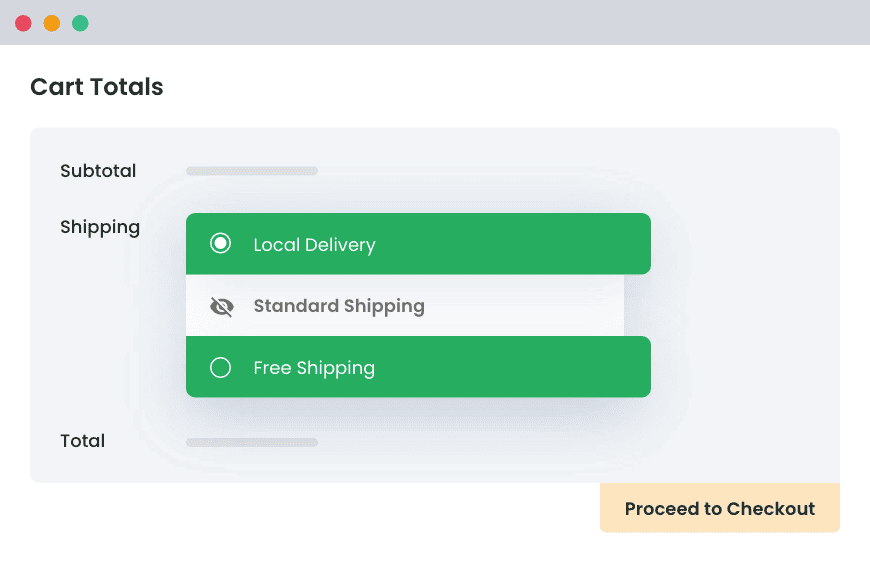
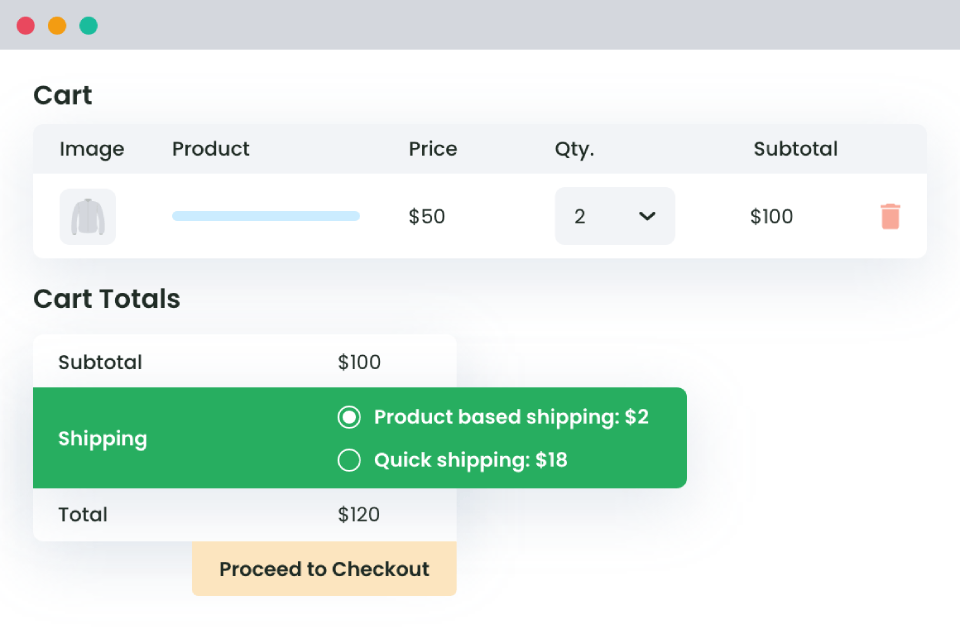
If you reach the point of building conditional rates across many products, weights, and regions, a plugin can save the time of hand-coding rules. The Flat Rate Shipping plugin lets you set up rule-based rates without custom code, and the Hide Shipping Method plugin handles cases where you want to show or hide methods based on the cart.
Advanced Flat Rate Shipping Methods
Boost your WooCommerce store’s revenue with flexible shipping options. Your business deserves the best!
14-day, no-questions-asked money-back guarantee.
Frequently asked questions
What does “no shipping options available” mean in WooCommerce?
It means WooCommerce could not return a valid shipping rate for the customer’s cart and address. Usually the address matches no shipping zone, or the matching zone has no active method with a rate set.
How do I fix the WooCommerce no shipping options available error?
Go to WooCommerce > Settings > Shipping. Confirm a zone covers the customer’s region, enable at least one method on that zone with a rate set, and make sure products have valid weight and dimensions. Then test checkout with that address.
Can missing product weight or dimensions cause this error?
Yes. Weight-based methods and live carrier rates cannot calculate without weight and dimensions. Enter both on every product under the Shipping tab in Product data.
Why does the error appear only for some customers?
Their country or region is not inside any configured shipping zone, or their cart misses a threshold (for example a free-shipping minimum) while no other method is available. Add or widen a zone, or add a fallback method.
Do I need a plugin to fix it?
No. Most cases are resolved by adjusting shipping zones and methods in native WooCommerce settings. A plugin only helps when you need advanced conditional rates across products, weights, or regions.
What is the fastest way to resolve it?
Work the checklist: confirm a zone covers the address, confirm at least one active method with a rate set, add product weights and dimensions, then test checkout with a few addresses. This clears the large majority of cases.
Can a plugin or cache conflict cause this error?
Yes. Clear your site and CDN cache first, then deactivate shipping-related plugins one at a time and test checkout after each to find the conflict.
How do I stop this error from happening again?
Keep a fallback method on every zone, set weight and dimensions on every product, test checkout after each shipping or theme change, and keep WooCommerce and plugins updated.