Table of Contents
In this in-depth tutorial, I’ll show you step-by-step how to set up simple and advanced flat rate shipping methods for WooCommerce per product, product category, and storewide. I’ll set these up using the default settings and with the help of a free, easy-to-use plugin. Also, I’ll discuss how flat rate shipping compares to free shipping, and when to use each shipping method in your WooCommerce store.
Key Takeaways
- Flat rate shipping in WooCommerce is a shipping method that lets store admins charge a fixed delivery cost per product, order, or shipping class.
- Although WooCommerce’s default flat rate settings are sufficient for basic use cases, they lack conditional logic and other advanced options that growing ecommerce stores require. This can be pretty limiting.
- The Dotstore’s Flat Rate Shipping Plugin for WooCommerce enables you to set up advanced flat rate shipping methods for WooCommerce. Using it, you can add 20+ conditions to set flat shipping rates by cart total, product category, SKU, user role, shipping class, country, payment method, and various additional parameters.
- Flat Rate Shipping Plugin for WooCommerce also supports free shipping thresholds within the same rule, so you can offer free delivery for high-value carts without having to set up a separate shipping method.
- You can use flat rate shipping alongside free shipping as applicable. For instance, offer flat rate shipping as your default option and introduce free shipping thresholds to encourage larger-sized purchases.
- WooCommerce flat rate shipping is quicker to configure, more reliable, and makes it easier to maintain predictable profit margins compared to other shipping methods.
Wondering how to set up flat rate shipping in WooCommerce?
Adding flat rate shipping to your WooCommerce store shouldn’t be complicated. It should be simple to set up and adapt to your business operations.
If you’re looking to add flat rate shipping or need more than WooCommerce’s standard setup offers then this guide is for you.
Here, I’ll show you exactly how to configure WooCommerce flat rate shipping using the default settings and with the help of a simple-to-use plugin in your online store. The best part? Even if you’re not tech-savvy, the entire process takes less than ten minutes to set up from start to finish — no coding needed.
Plugin used in this guide:
- The Dotstore’s Flat Rate Shipping Plugin For WooCommerce: Set basic and advanced flat rate shipping methods in WooCommerce with custom conditions based on 20+ criteria from a simple-to-use interface. Free and Pro versions available.
What is the flat rate shipping method in WooCommerce?
In WooCommerce, flat rate shipping is a shipping method that lets you define a fixed shipping cost per product, per order, or per shipping class — regardless of the product weight, quantity, or destination. You can set up flat rate shipping methods and fees in WooCommerce using the default settings and with the help of a plugin.
One of the most flexible and widely-used shipping options available, flat rate shipping is a preferred choice amongst WooCommerce stores that want to simplify shipping costs for customers while maintaining predictable profit margins.
Benefits of WooCommerce flat rate shipping
There are various ways to configure shipping options in WooCommerce. So why opt for flat rate shipping? Here are the top reasons why.
It is predictable for customers
This Baymard study (unsurprisingly) outlines how unexpected shipping costs at checkout are one of the top reasons for shopping cart abandonment. Customers expect to know what they’re paying upfront, shipping costs included. Instead of waiting till the end of checkout to calculate live delivery costs, flat rate shipping eliminates the guesswork. Shoppers see the charge early enough in the checkout flow and know what to expect.
It makes business forecasting easier
It’s much easier to forecast costs and profits when shipping rates are consistent. If your business doesn’t deal with fluctuating shipping carrier fees, dimensional weight surcharges, or unexpected regional rate spikes, you can bake costs per shipment into your pricing strategy or profit margins.
Instead of manually adjusting your strategy to live rates, this shipping method empowers you to plan promotions, calculate shipping subsidies, and budget for logistics in advance without diving into every shipment’s weight and zone.
It is faster to configure
Syncing to shipping companies’ websites to obtain live carrier rates often requires connecting API credentials, testing, and some amount of troubleshooting. Setting up flat rate shipping is much simpler — no need for third-party account setup or maintenance if the carrier changes its API version.
Granted, plugins like Advanced USPS Shipping Plugin handle most of the heavy lifting for you but unless you’re a relatively established business, they might be overkill. If you already know your store’s average fulfillment cost and don’t need real-time pricing, flat rate shipping is significantly faster to launch and manage, especially if you’re non-technical.
It is suitable for most use cases
Basic WooCommerce flat rate shipping is simple, but when you combine it with shipping classes or an advanced plugin, you can create layered rules that match real-world logistics without relying on live rates. This approach gives you flexibility without sacrificing speed or simplicity.
How does WooCommerce’s default flat rate shipping setting work?
Out of the box, WooCommerce allows you to set basic flat rate shipping options. You can assign them to any shipping zone, set a base cost, and optionally add costs per item, per class, or per quantity.
Using this, you could, for example, charge a $5 flat rate for all domestic orders, or $10 per item for international orders.
Key things to note about WooCommerce’s default flat rate shipping options
- Using fixed pricing logic, it enables you to set a fixed cost per order (base cost), per item (qty), or even based on shipping classes.
- It works within shipping zones and allows different flat rates based on country, region, or postal code.
- It supports cost calculations using basic tags like [qty] for the number of items, [cost] for the cost of items as well as conditional formulas like 10 + (2 * [qty]) for more control.
- If you assign shipping classes to products, you can set different flat rates per class.
- You can define multiple flat rate methods per zone (e.g., Standard vs. Express).
Limitations of WooCommerce’s default flat rate shipping settings
The in-built WooCommerce flat rate shipping settings offer a decent starting point to set up basic shipping methods and costs, however, growing ecommerce businesses quickly find that they aren’t robust enough.
Here are its top limitations.
- Lack of conditional Logic. There are no built-in rules for setting shipping costs based on parameters like cart subtotal, product weight, product category, user roles (e.g., wholesale vs. retail), time (e.g., weekend or holiday rates), etc.
- Limited cost formula options. You can only use basic placeholders like [qty] for item quantity or [cost] for product subtotal. You can’t do advanced math or logic (e.g., tiered pricing, weight-based brackets, if-else conditions, dimensional weight calculations, etc.).
- No support for multiple conditions per method. You can’t define layered conditions like “If cart total > $100 and weight < 5kg, charge $5”. You’re allowed only one cost formula per method with no branching logic.
- Limited shipping class handling. You can set a flat rate per shipping class, but it only applies the highest cost or per-class cost, not both. There’s no way to mix and match or combine shipping class costs flexibly.
- No geo-specific logic beyond zones. Shipping zones are static and don’t support location exclusions (e.g., “ship everywhere except Alaska”).
- No product-level overrides. Unless you use shipping classes or a plugin, you can’t define flat rates on individual products.
- No support for free shipping thresholds. If you want to offer free shipping over a certain cart total, you need to set up a separate method. Free shipping is a separate shipping method that doesn’t integrate with flat rate logic and can’t conditionally turn itself off. For example, you can’t enable flat rate shipping for all orders with the exception of cart totals over $75.
How do I add flat rate shipping in WooCommerce with the built-in feature?
In this section, I’ll outline how to set up flat rate shipping in WooCommerce using the default settings alone. Follow these steps:
- Access your WordPress dashboard, and navigate to WooCommerce → Settings → Shipping → Shipping Zones.
- Press “Add shipping zone” and fill in the required details. For this tutorial, we’ll create a shipping zone that comprises the entire state of New York, US.
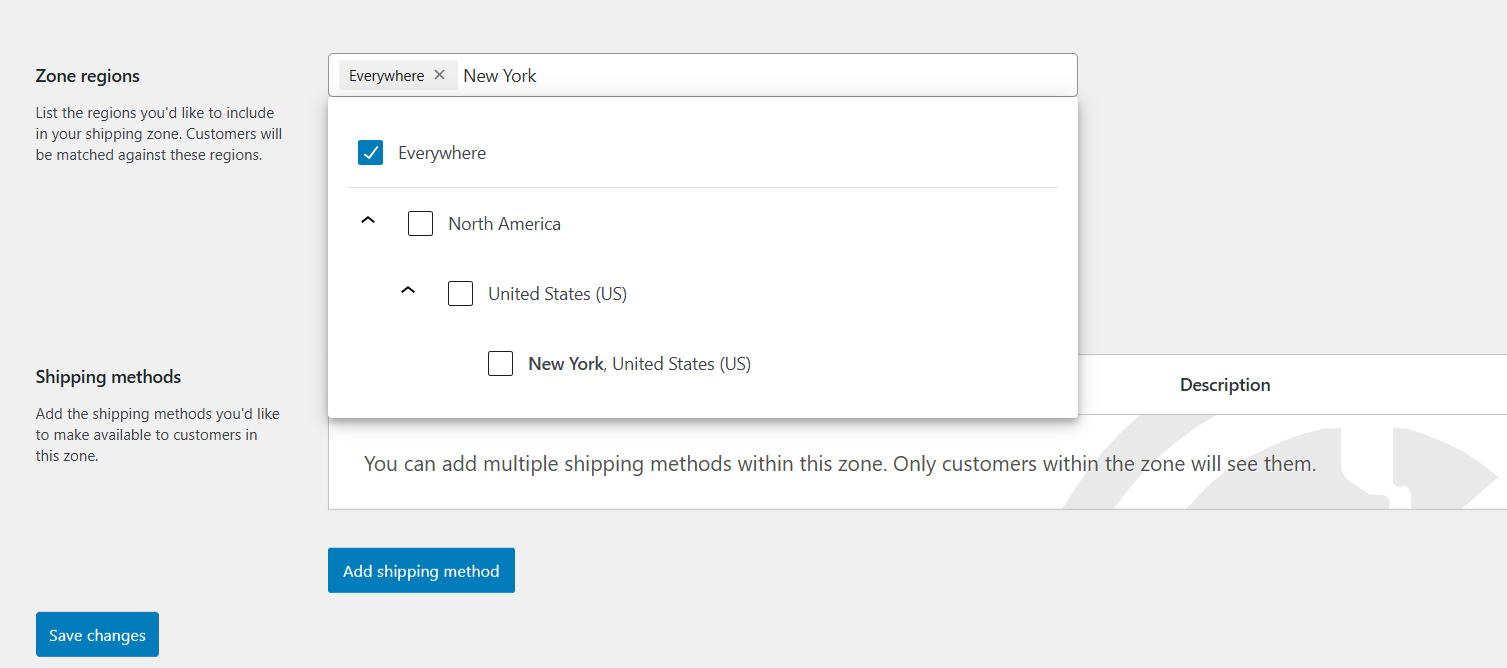
- Give the zone a name like “New York” so it’s easy to identify later.
- Type “New York” into the Zone regions field, then select it.
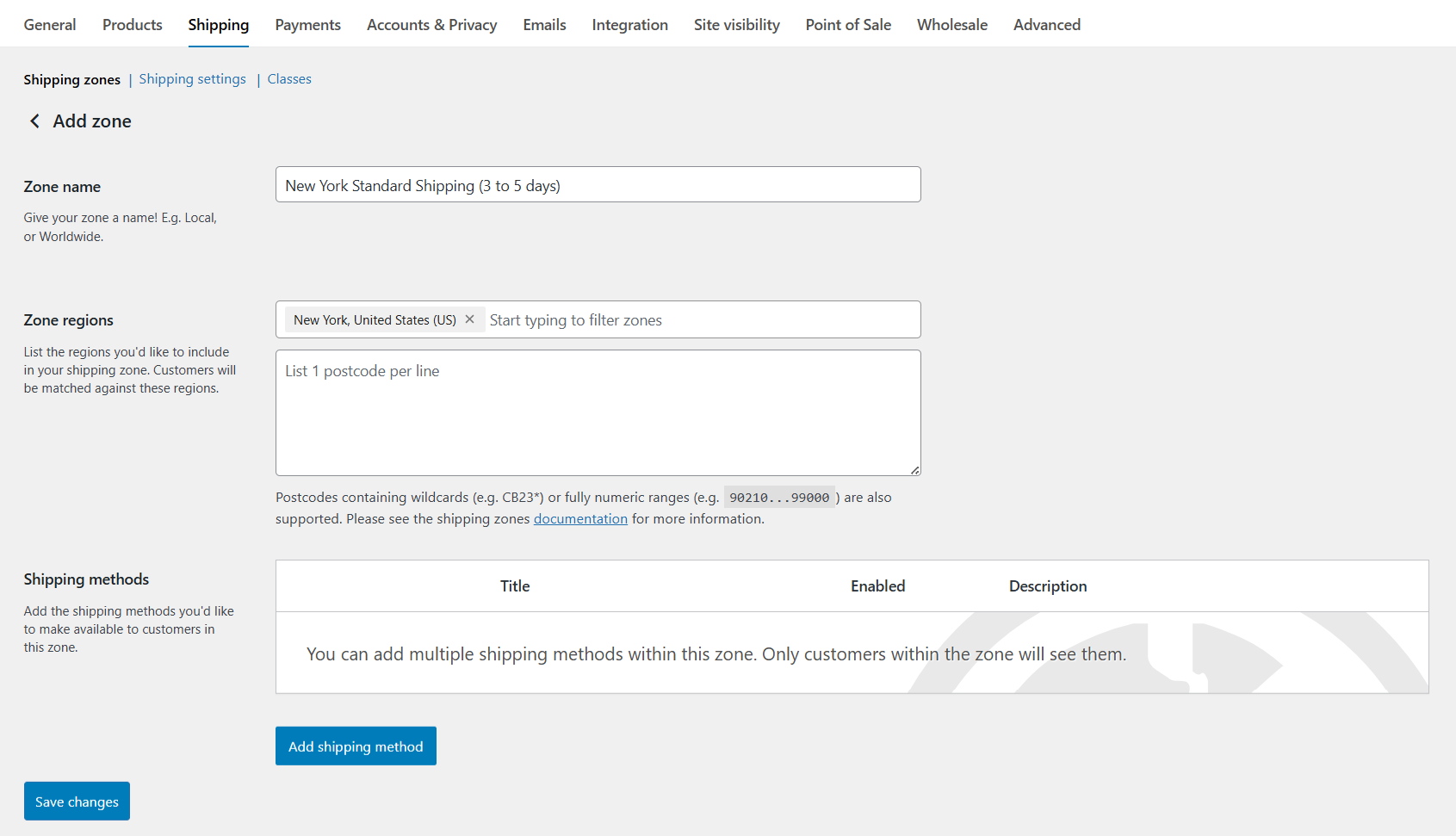
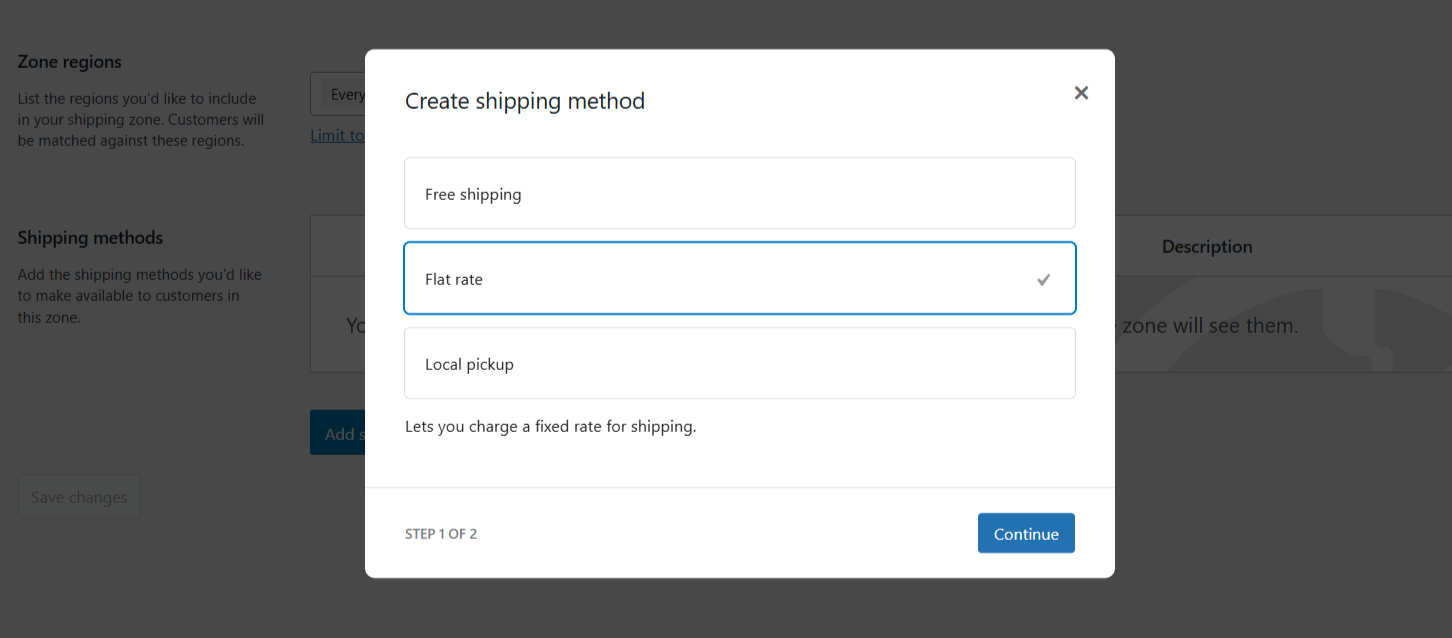
- Next, press “Add shipping method”.
- Select “Flat rate” from the options, and press “Continue”.
- Add details to this WooCommerce flat rate shipping option on the next screen:
- Method Title: This is what your customers will see during the checkout flow. You can leave it as “Flat rate” or rename it to something like Standard Shipping.
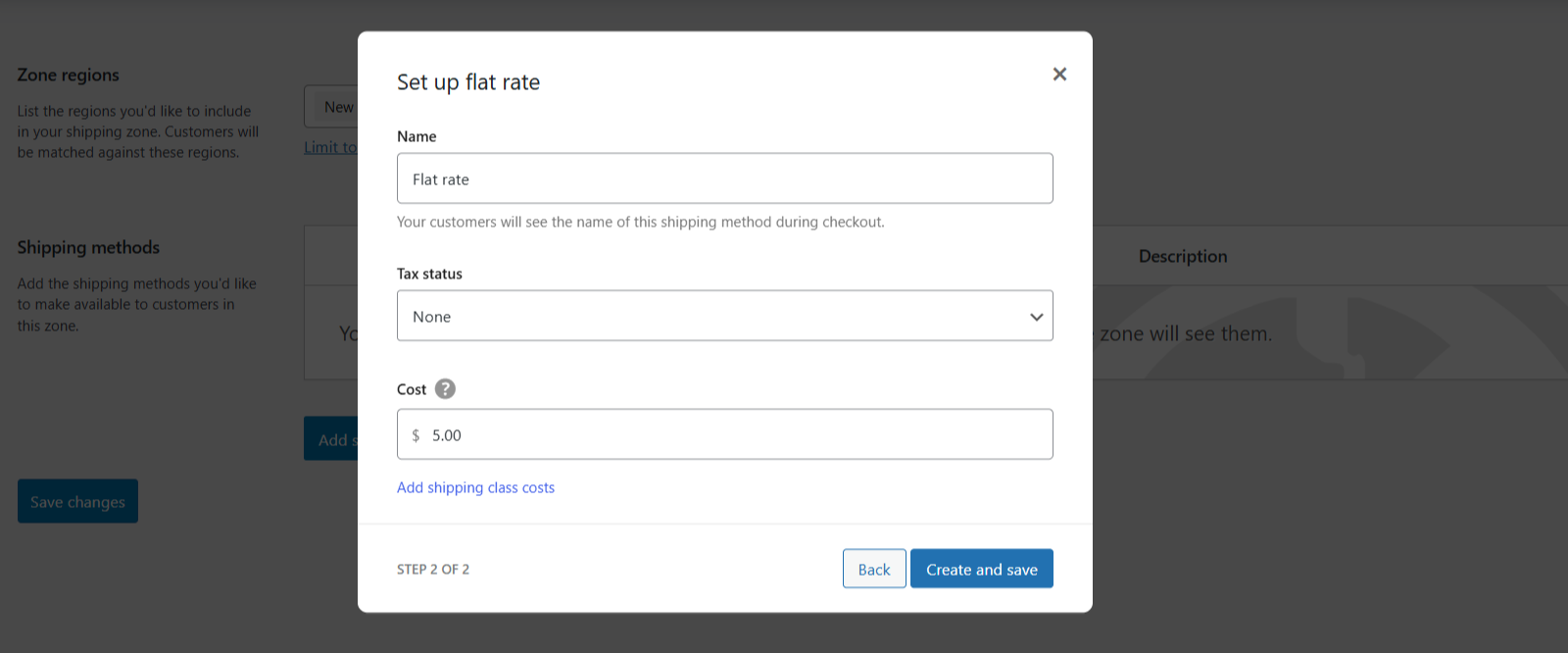
- Tax Status: If your store charges sales tax on the shipping fee, select “Taxable”. Otherwise, select “None”.
- Cost: Add the set flat rate amount or a pricing formula using shortcodes. For example, to charge a:
- Fixed price per order: Enter 5 to charge $5 per order.
- Fee per item: Enter [qty] * 3 to apply $3 for each product in the cart.
- Percentage of the cart total: Use [cost] * 0.05 to charge 5% of the subtotal.
- Combined base fee and per-item cost: Enter 4 + (2 * [qty]) to charge $4 plus $2 per item.
- Method Title: This is what your customers will see during the checkout flow. You can leave it as “Flat rate” or rename it to something like Standard Shipping.
- If you plan to use Shipping Classes, you can add class-specific fees. In this case, you’ll also need to choose whether these apply per shipping class or per order.
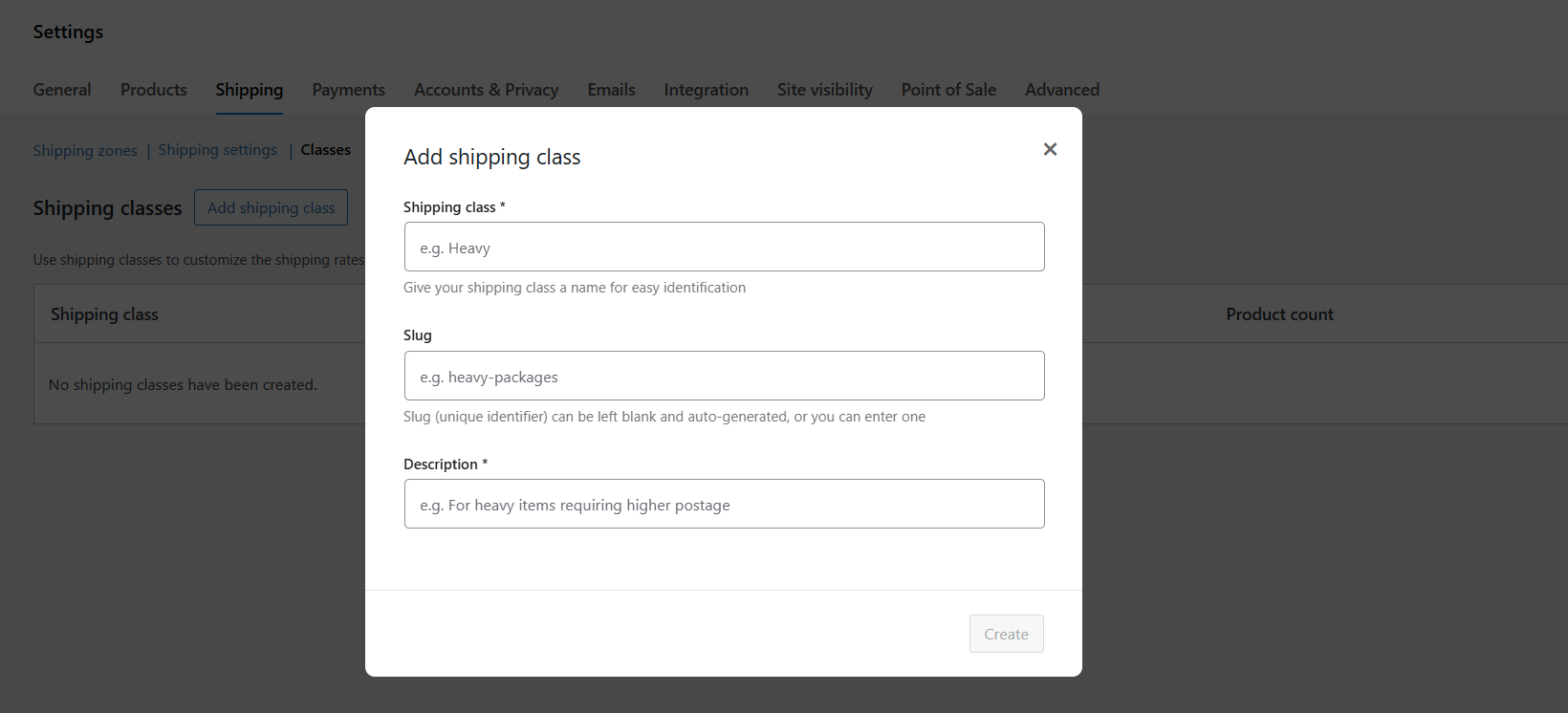
- Once done, press “Create and Save”. Then press “Save changes” on the main settings page.
That’s it. If you want to set up more than one flat rate in the same shipping zone, press “Add shipping method” again and choose “Flat Rate” then configure each method differently. Customers will see multiple options and can select their preferred one during the checkout flow.
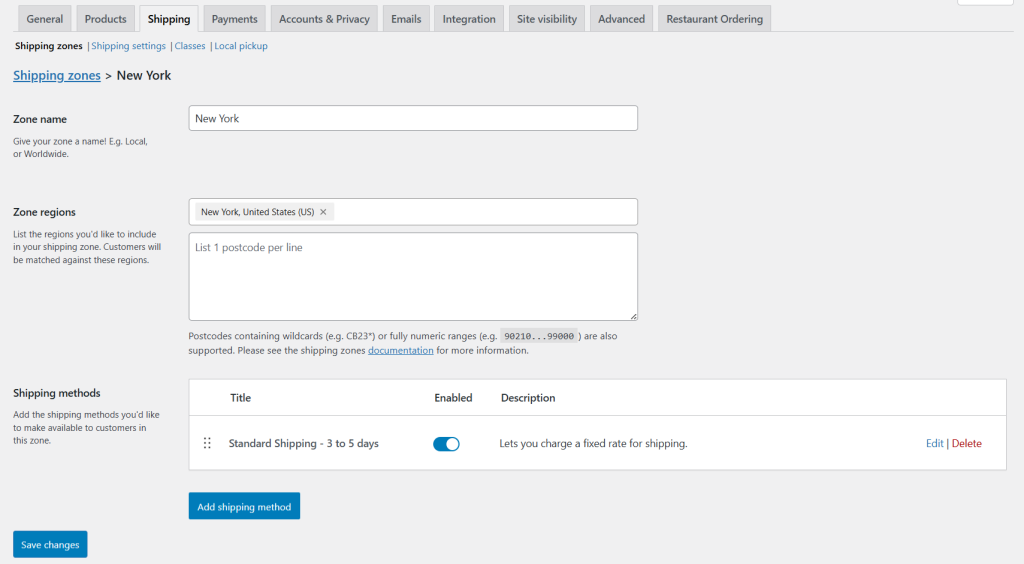
Important note: As mentioned, the inbuilt settings allow you to set basic WooCommerce flat rate shipping rules. However, there’s no option to set advanced rules based on cart total, product weight, user roles, and other real-world conditions. Similarly, the price formula options are pretty basic. To avoid these limitations, many store admins prefer to use a plugin like Flat Rate Shipping Plugin For WooCommerce, which we’ll explore in detail below.
Introducing the best WooCommerce flat rate shipping plugin
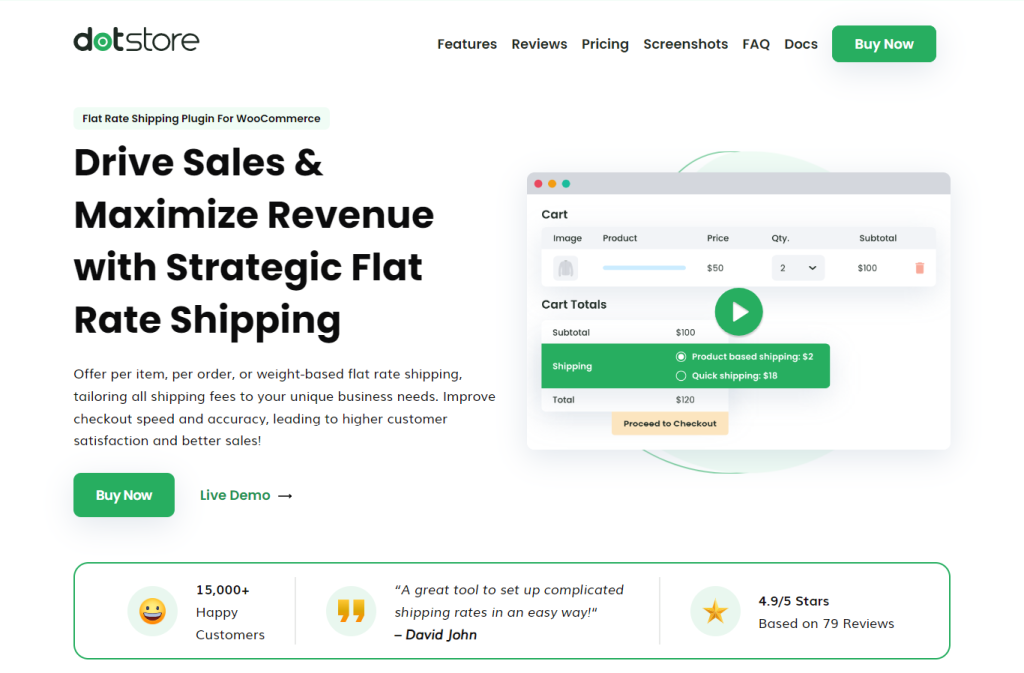
Used by more than 15 thousand stores with a rating of 4.9 out of 5, Flat Rate Shipping Plugin For WooCommerce gives you total flexibility to configure advanced shipping rules in your online store.
Whether you sell to customers located in different countries, offer bulk discounts, or monthly subscription boxes, this plugin lets you create shipping rules custom-tailored for your business model.
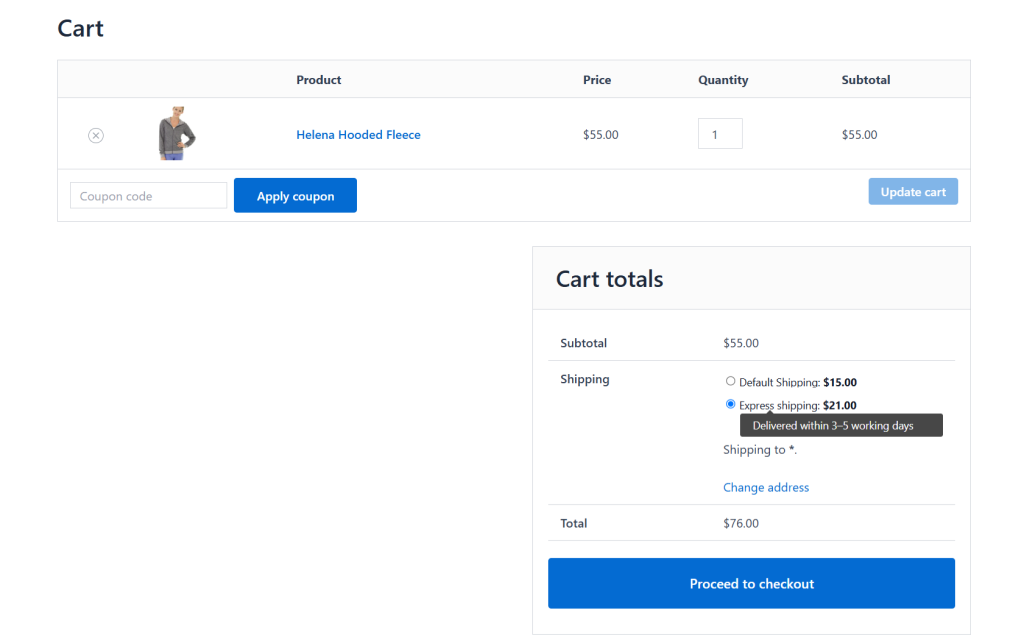
Here’s an overview of Flat Rate Shipping Plugin for WooCommerce’s top features.
Key features
- Advanced conditional logic. It lets you set rules based on 20+ conditions including cart total, simple products, product variations, product category, SKU, shipping class, country, state, zip code, customer role, day of the week, item weight or quantity, and more. What’s more, you can set up overrides to exclude products from shipping rules, if needed.
- Support for free shipping thresholds inside flat rate rules. With Flat Rate Shipping Plugin For WooCommerce, you can offer free shipping for shopping carts that reach a specific value within the same rule set, without having to set up separate shipping methods.
- Cart-level and product-level flexibility. It lets you apply flat rates at the cart level or tie them to specific products or product categories — whichever works best for your business. For example, a home decor store might choose to add a $10 shipping surcharge only to the shopping carts that contain framed artwork while every other product follows a general $6 flat rate.
- Shipping method visibility control. You can hide paid shipping methods when free shipping is available for eligible customers. This prevents confusing them with irrelevant options which can increase cart abandonment rates.
- Shipping class enhancements. Unlike WooCommerce’s in-built shipping class settings, this plugin gives you full control over how shipping classes interact. For example, if both small items and oversized items are in the shopping cart, you can choose between applying only one shipping cost or both.
How to set up advanced flat rate shipping in WooCommerce
Now that we’ve outlined how flat rate shipping works, it’s time to get it up and running on your website. In this section, I’ll show you how to set it up with with the help of an easy-to-use advanced WooCommerce shipping plugin.
Follow these steps to set up advanced flat rate shipping settings with rules, conditions, and criteria using Flat Rate Shipping Plugin For WooCommerce.
Prefer to refer to a visual guide? Watch this video walkthrough that takes you through the steps to set up both simple and advanced flat rate shipping in WooCommerce.
Step 1: Create the advanced WooCommerce flat rate shipping rule
- Get the free or premium version of Flat Rate Shipping Plugin For WooCommerce and activate it on your website.
- In your site’s admin menu, navigate to Flat Rate Shipping → Manage Rules, and press “Add New” to create your first flat rate shipping rule.
- Toggle on the “Status” option to enable the rule.
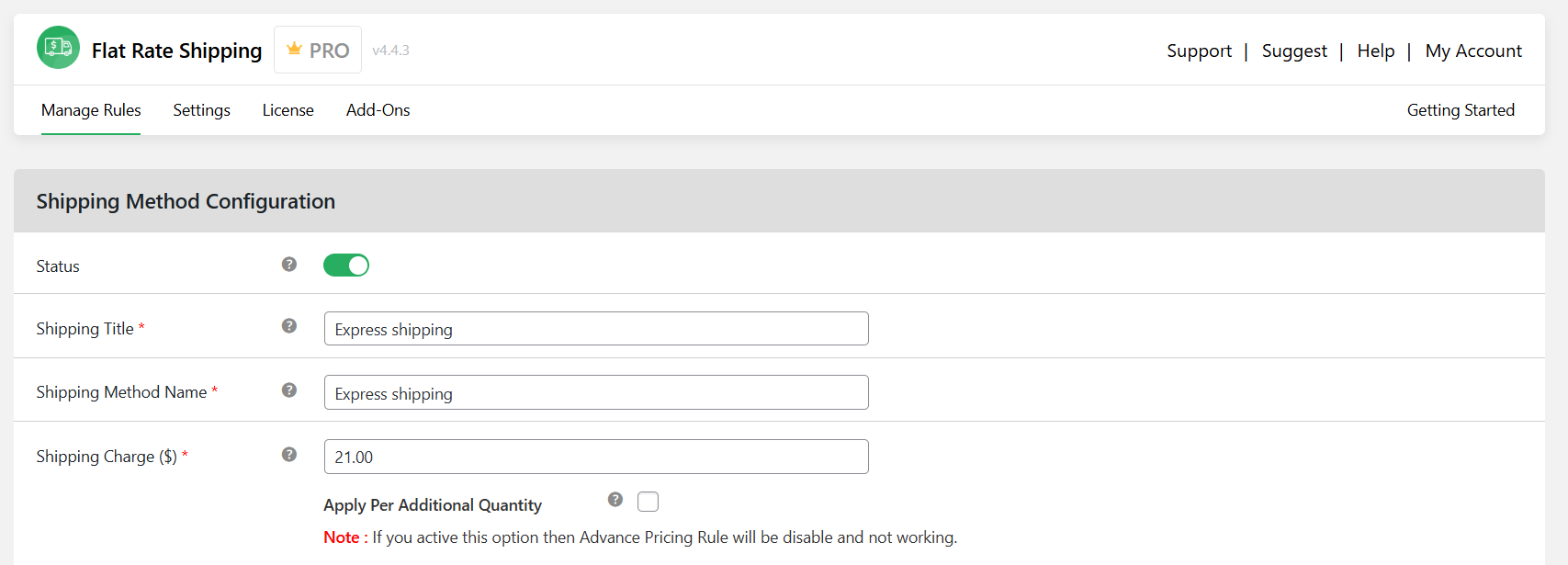
- Shipping Title: Give your shipping method a name (visible to admins only).
- Shipping Method Name: Give your shipping method a name that will be visible to customers on the front end (e.g., Standard Shipping – US).
- Choose from the below primary parameters for this flat rate shipping rule as appropriate:
- Shipping Charge: If appropriate, enter the amount for this flat rate shipping rule (e.g., $5) and tick the “Apply Per Additional Quantity” checkbox if you want WooCommerce to apply the flat rate shipping fee per item.
- Allow Free Shipping: To apply zero shipping charges.
- Each Weight Rule: To enable weight-based shipping.
- Each Quantity Rule: To enable quantity-based shipping.
- Pick the tooltip style: tooltip or subtitle. Then add the tooltip description.
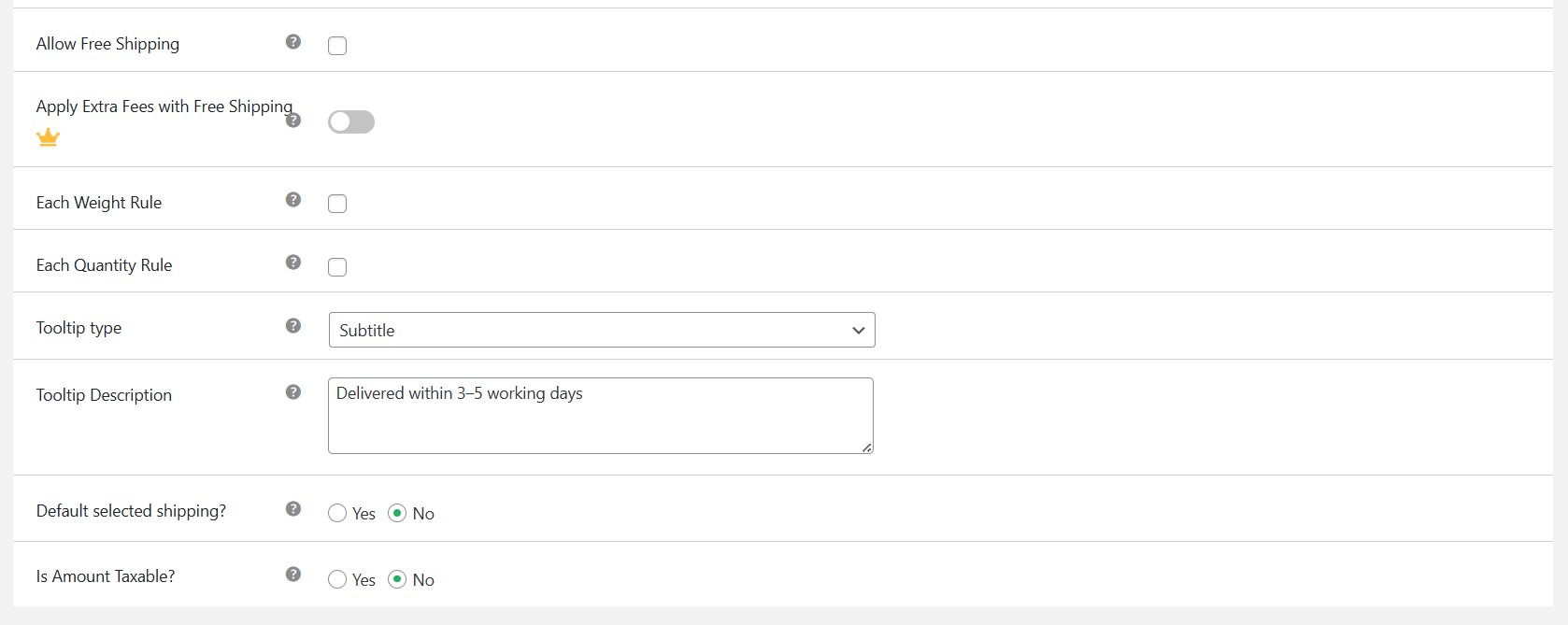
- Decide whether or not this shipping option is the default shipping method.
- Choose whether or not to apply tax to this shipping rate.
Step 2: Add advanced WooCommerce flat rate shipping conditions
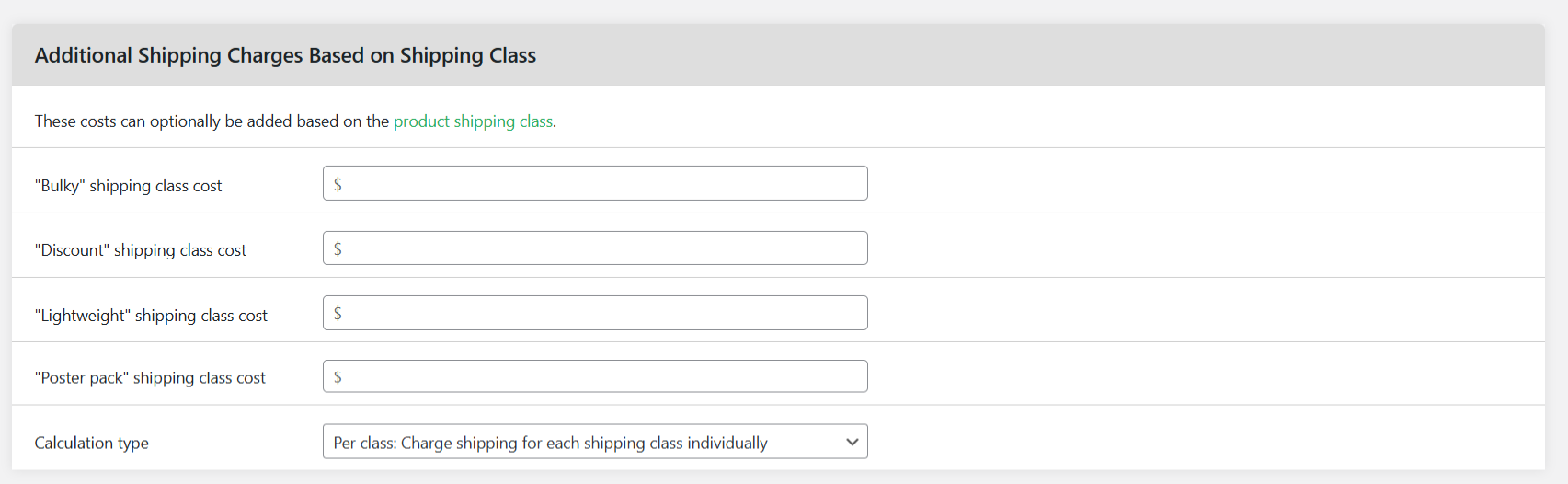
- If appropriate, set shipping rates based on shipping class in the “Additional Shipping Charges Based on Shipping Class” section. You can set this for a wide range of parameters including bulky, discounted, lightweight, or poster pack products, and define how they are enforced.
- If needed, scroll down to the “Shipping Method Rules” section and press “Add Rule”.
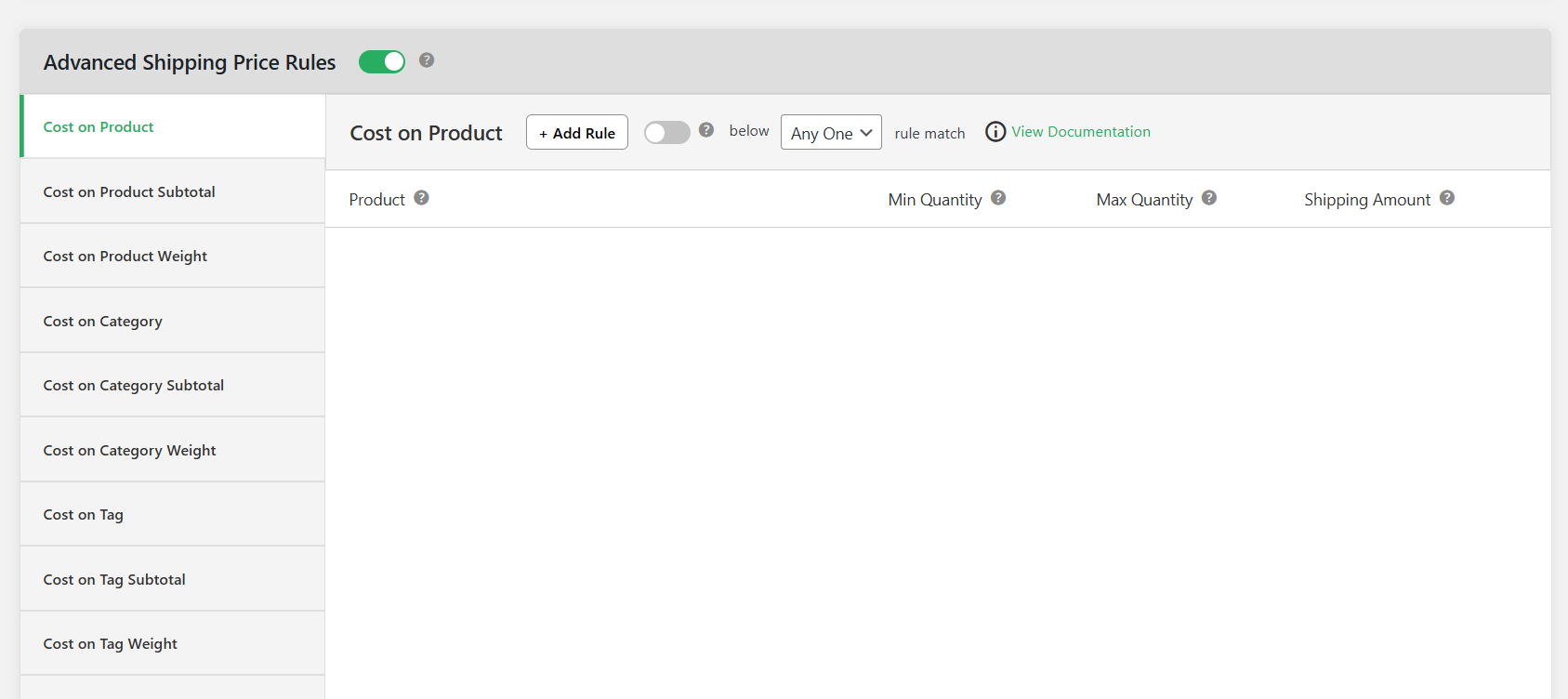
If needed, scroll down to the “Advanced Shipping Price Rules” section and toggle it on. From here, you can set up additional cost rules to create dynamic pricing within the flat rate shipping rule based on various parameters. For example, you can charge a $5 base rate + $1 per item or a $10 base rate + $2 per kg rate.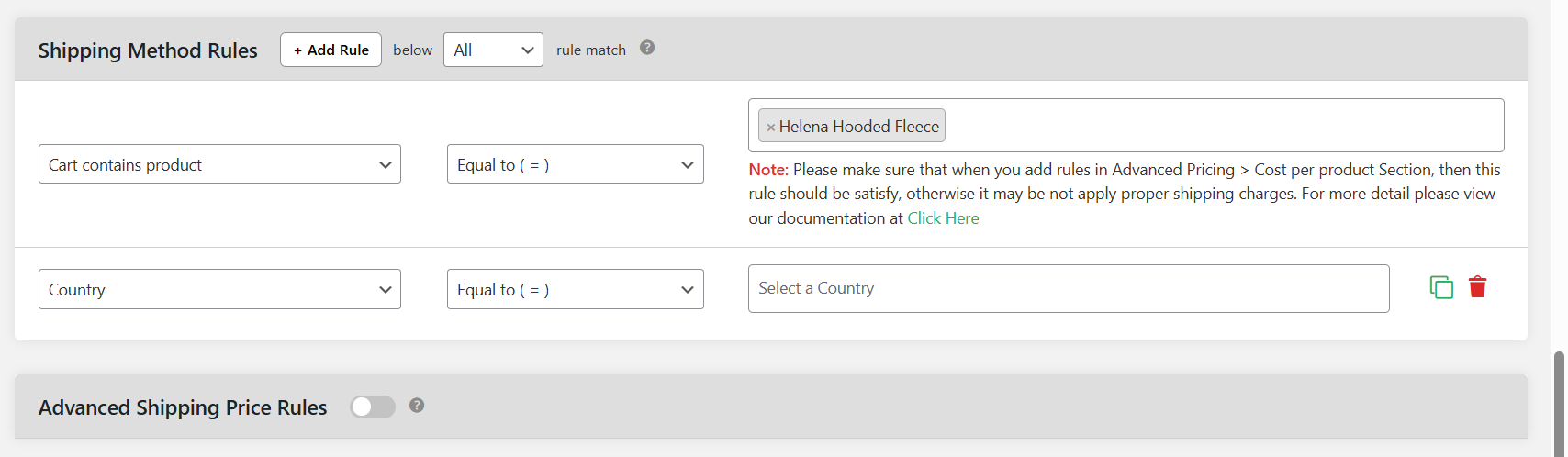
- Choose your condition type, operator, and value. First, to set WooCommerce flat rate shipping per product, specify applicable products or product variants for this shipping method.
- Once done, you can add multiple rules per WooCommerce flat rate shipping option.
- Press save changes at the bottom of the page.
Step 3: Add additional conditions to this advanced flat rate shipping method (optional)
- Prioritize rules: If you set up multiple WooCommerce flat rate shipping rules, you can prioritize how they are shown on your site’s front end. Navigate to Flat Rate Shipping → Manage Rules and reorganize shipping rules as appropriate. Note that the higher the rule is on the list, the higher its priority.
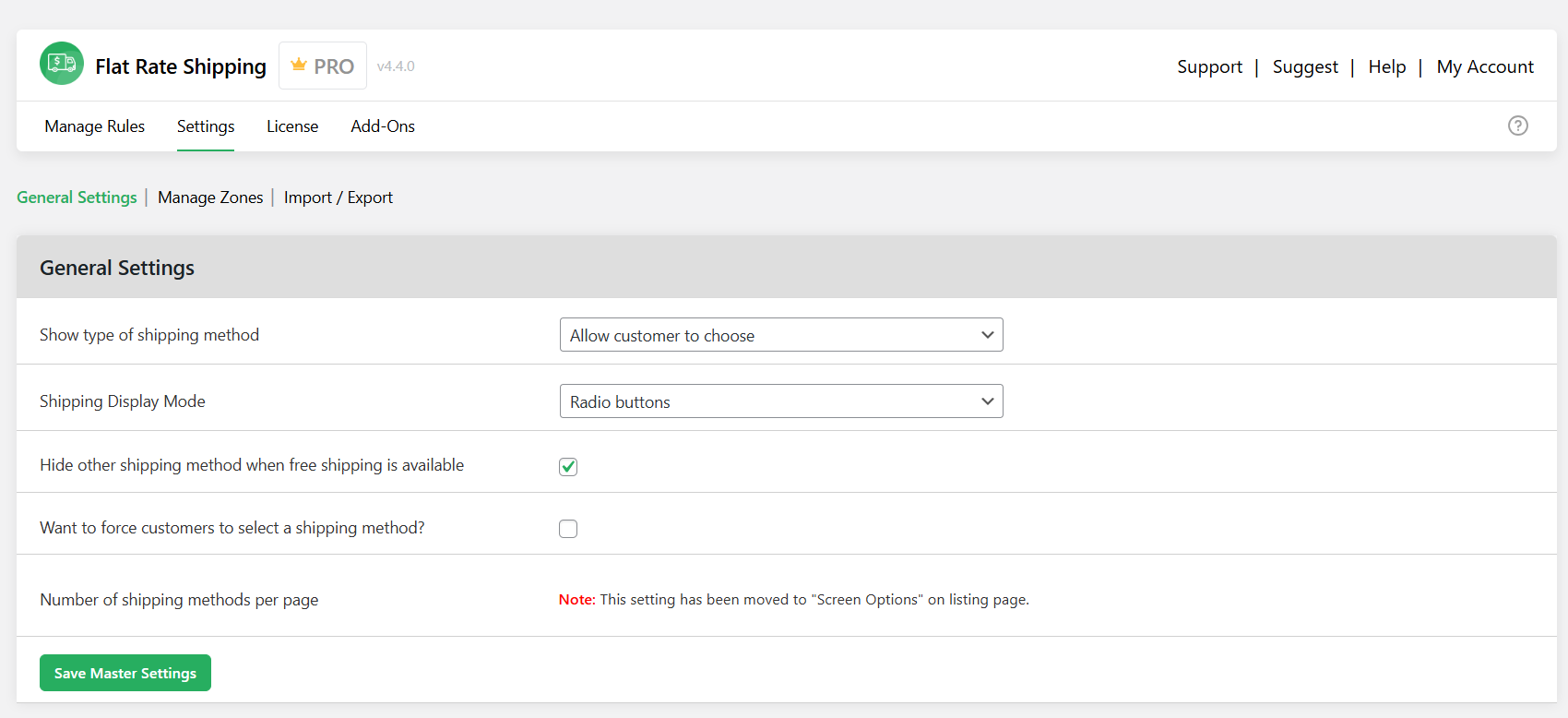
- Hide other shipping methods: To only show free shipping if it is applicable, navigate to Flat Rate Shipping → Settings → General Settings and enable the “Hide other shipping method when free shipping is available” option.
Finally, head to your store’s front end, add a few products to the shopping cart, and go through the checkout flow to verify that the correct shipping rate appears based on your set rules and conditions.
Free shipping vs. flat rate shipping in WooCommerce: Which is better?
Trying to decide between free shipping versus flat rate shipping for your WooCommerce store? Given that both shipping methods are popular and effective for stores in various niches, the right choice for your store depends on your target customers, the items in your product catalog, profit margins, and overall business strategy.
Let’s unpack what each method does well and when to use it.
What is free shipping in WooCommerce?
Free shipping eliminates one of buyers’ biggest barriers to checkout: unexpected delivery costs. It is a powerful conversion-boosting tool because the vast majority of online shoppers have come to expect zero shipping fees at checkout.
However, considering that your business absorbs the entire shipping cost, it is not sustainable for low-margin or heavy products.
You can set up a free shipping threshold in WooCommerce, offer free shipping unconditionally for all orders, only apply free shipping to specific products or product categories, and enable free shipping for certain regions (such as local delivery zones).
When to use free shipping in WooCommerce
- Stores that are focused on driving conversions or higher order values.
- Stores with high profit margins that can afford to build shipping costs into product prices.
- While running promotions, loyalty programs, or special campaigns.
- Stores that want to attract new customers and lower cart abandonment rates.
What is flat rate shipping in WooCommerce?
WooCommerce flat rate shipping charges a fixed delivery fee for every product or for the entire order. It is predictable, easy to set up and manage, and can help your business maintain consistent profits.
You can set up basic flat rate shipping methods using WooCommerce’s built-in settings or use an advanced plugin like The Dotstore’s flat rate shipping for WooCommerce to create powerful conditional rules (like per category, user role, or customer location).
When to use flat rate shipping in WooCommerce
Flat rate shipping isn’t the right fit for every store — but when it makes sense, it can simplify logistics, improve checkout speed, and protect your profit margins. Here’s when you should consider adding flat rate shipping in WooCommerce.
- Stores that sell lightweight or similar-sized products. If many products in your catalog fall within a consistent size and weight range, there may be no need for complex shipping calculations. With flat rate shipping, you can apply a fixed cost per order or item, no matter the delivery destination. For example, if you run a cosmetics store and most of your orders fit in a small box under 1kg, you could charge a $5 per order shipping fee across the board. This keeps things simple for both your team and your customers.
- To speed up the checkout flow. If not properly optimized, showing real-time rates via APIs from shipping carrier websites can slow down your WooCommerce site’s checkout experience or cause it to fail to load properly. In contrast, flat rate shipping is calculated based on preset rates and criteria which makes it faster and more stable as it doesn’t depend on third-party services. Many stores with high cart abandonment rates caused by unclear or delayed shipping costs find that switching to a flat rate can help recover those lost sales.
- Stores that sell in specific geographic zones. In WooCommerce, flat rate shipping is defined by zone so you can easily tailor shipping rates by country, state, or region. If, for example, you want to charge $10 for the U.S. and $20 for Canada, you can set that up in minutes.
- To account for complete shipping and handling costs. The costs of shipping products vary depending on various criteria like cart subtotal, shipping class, product category, user role, day of the week, quantity, weight, etc. Flat rates make it easier to account for the complete costs of shipping and handling products based on custom logic — which may not be possible with other shipping methods.
Free shipping vs flat rate shipping: final verdict
We recommend that you use both free and flat rate shipping strategically. You can offer flat rate shipping as your standard to cover basic operational overheads and then introduce free shipping thresholds as an incentive for larger orders or special promotions.
6 best WooCommerce flat rate shipping plugins
- WooCommerce Advanced Flat Rate Shipping by Dotstore
- WooCommerce Table Rate Shipping (Official Plugin)
- Flexible Shipping PRO (Table Rate Shipping) by Octolize
- Flat Rate Box Shipping for WooCommerce
- Advanced Conditional Shipping for WooCommerce
- Weight Based Shipping for WooCommerce
WooCommerce Advanced Flat Rate Shipping by Dotstore
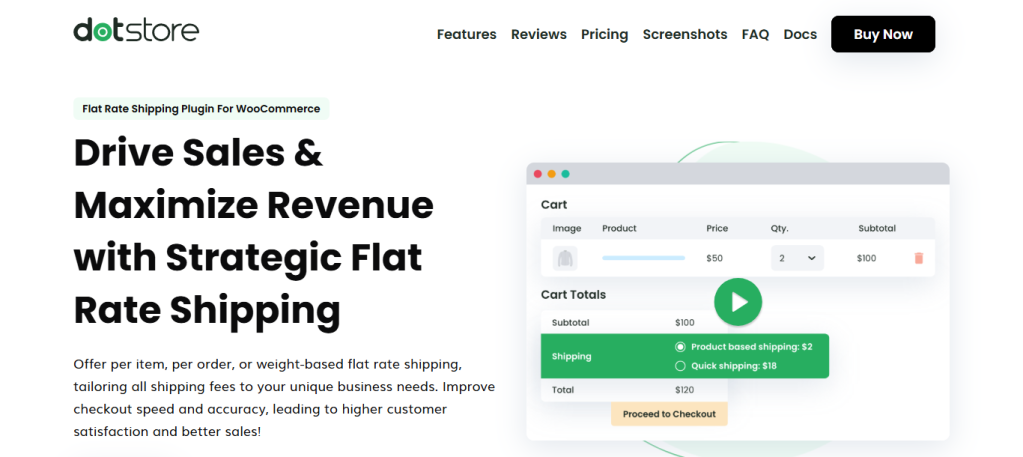
Best suited for: Stores that need rule-based flat rate shipping with smart conditional logic.
WooCommerce Advanced Flat Rate Shipping by Dotstore is a powerful plugin that enables you to define flat rate shipping for WooCommerce stores based on a wide range of conditions, including product category, cart subtotal, item weight, order quantity, user role, etc.
Since 2015, more than 15,000 WooCommerce businesses across various niches have used it to adapt their store’s shipping settings to their business operations.
True to its name, this advanced flat rate shipping WooCommerce plugin lets you create as many flat rate shipping rules as needed. You can create and reuse rule groups across multiple zones, which saves you from having to rebuild the same logic from scratch every time. To make sure that the right rate is always applied at the checkout screen, it also enables you to set priority levels that help prevent rule conflicts.
And instead of juggling separate overlapping rules, you can stack multiple conditions per rule and customize each shipping rule exactly as needed. For instance, a hybrid wholesale-retail home interiors store can create a flat rate rule that is only applied when the cart contains items from the ‘fragile’ category, the subtotal is between $50 and $200, and the customer’s user role is that of a ‘wholesale’ buyer.
Ready to set up WooCommerce flat rate shipping with advanced conditions? Check out WooCommerce Advanced Flat Rate Shipping’s live demo or download its free or pro version now!
WooCommerce Table Rate Shipping (Official Plugin)

Best suited for: Developers and agencies who prioritize native WooCommerce compatibility.
Built and maintained directly by WooCommerce, WooCommerce Table Rate Shipping lets you create complex shipping rules and extend the default WooCommerce flat rate shipping system with table-based rules based on weight, destination, item count, and shipping classes. It tightly integrates with shipping zones and has reliable compatibility as WooCommerce updates roll out.
The WooCommerce Table Rate Shipping plugin supports both per-order and per-item rate calculations, which is handy for managing a variety of multi-condition shipping scenarios. That said, it’s a bit more developer-oriented than beginner-friendly. There’s a tiny bit of a learning curve for folks who are not already comfortable with WooCommerce’s backend.
WooCommerce Flexible Shipping PRO (Table Rate Shipping) by Octolize
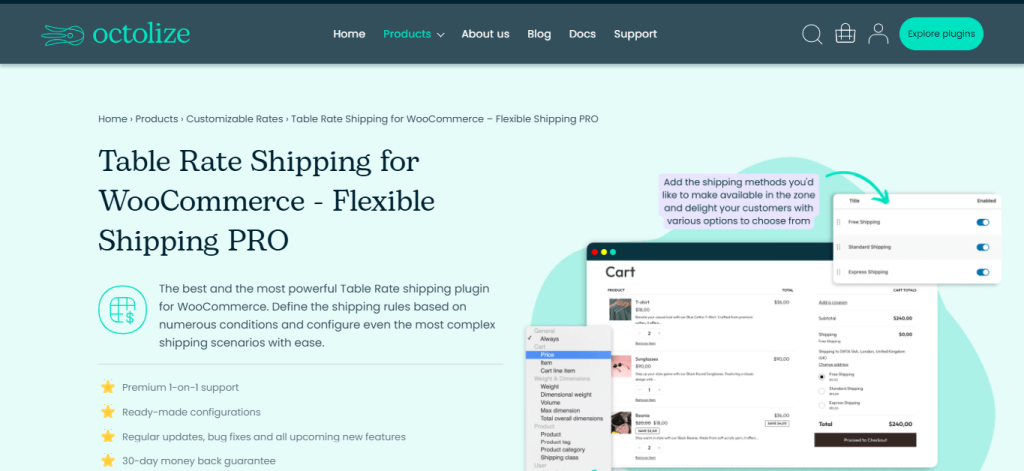
Best suited for: Stores that need weight-based flat shipping calculations.
WooCommerce Flexible Shipping PRO (Table Rate Shipping) is one of the most widely used flat rate shipping WooCommerce plugins available, and it’s earned that install count for good reason. Its core strength is its advanced shipping tables based on weight ranges; this makes it a great choice for physical product stores where shipping cost scales directly with order weight.
WooCommerce Flexible Shipping PRO is compatible with many shipping carriers for hybrid rule setups. And it includes solid debugging tools that let you test and validate shipping rules before publishing them—mandatory for stores that need to manage a large rule table.
Flat Rate Box Shipping for WooCommerce
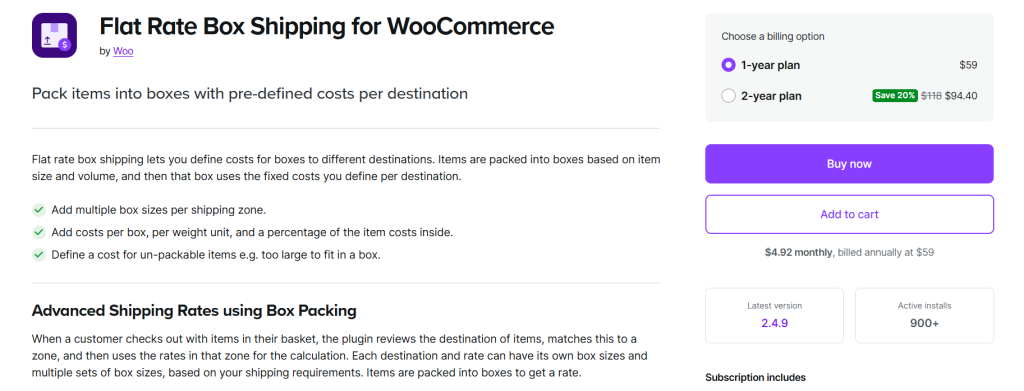
Best suited for: Stores that ship standardized, packaged products.
Compared to most of the other flat rate shipping plugins, Flat Rate Box Shipping for WooCommerce takes a unique approach to calculating shipping fees. Instead of calculating rates based on cart totals or weight ranges, it figures out how your products physically fit into predefined shipping boxes and then charges accordingly.
Here’s a simple example of how this works in practice:
| Small box | $6 |
| Medium box | $9 |
| Large box | $14 |
So if a customer orders six cosmetics kits that fit into one medium box, they pay $9. If their order requires two boxes, the plugin calculates accordingly and charges $18.
Flat Rate Box Shipping for WooCommerce is a great fit for stores that consistently ship standardized packages with predictable dimensions and weights and want to reliably automate packaging calculations without setting up carrier API integrations.
Advanced Conditional Shipping for WooCommerce
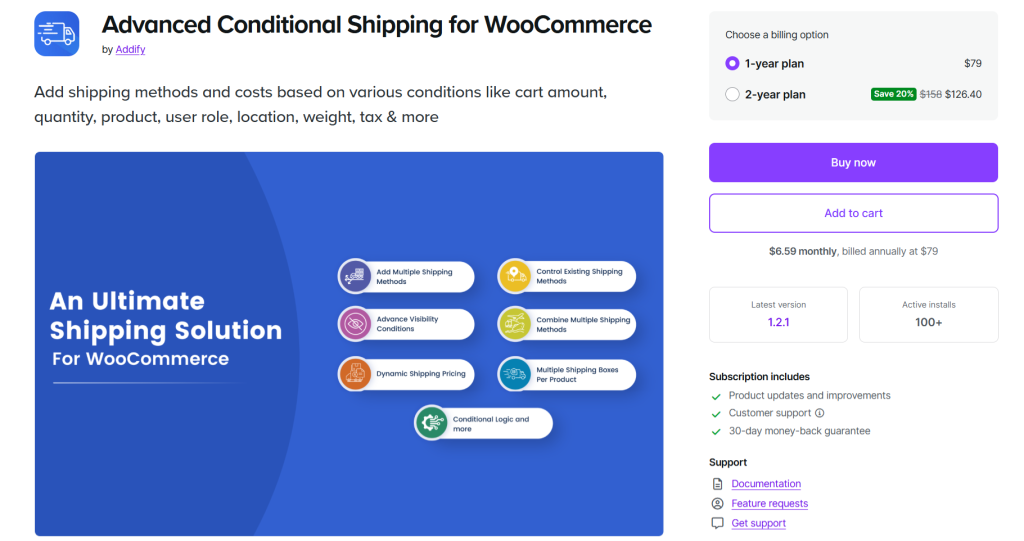
Best suited for: Stores that need extremely complex shipping rules.
Does your store’s shipping logic need maximum flexibility? The Advanced Conditional Shipping for WooCommerce lets you create unlimited shipping rules and expand how flat rate shipping works in WooCommerce using a visual rule builder and flexible logic operators.
It is designed for stores whose shipping requirements involve combinations of complex conditions. Its standout feature is its visual rule builder that helps you build and review shipping rules from a highly intuitive interface.
Advanced Conditional Shipping for WooCommerce supports unlimited conditional rules without tiered pricing restrictions. It handles complex combinations of cart conditions in a single rule and is compatible with custom WooCommerce data fields for stores with unique product attributes.
As you might expect, there’s a bit of a learning curve before you can build complex rules confidently. However, with a little practice, this gets easier over time.
WooCommerce Weight Based Shipping
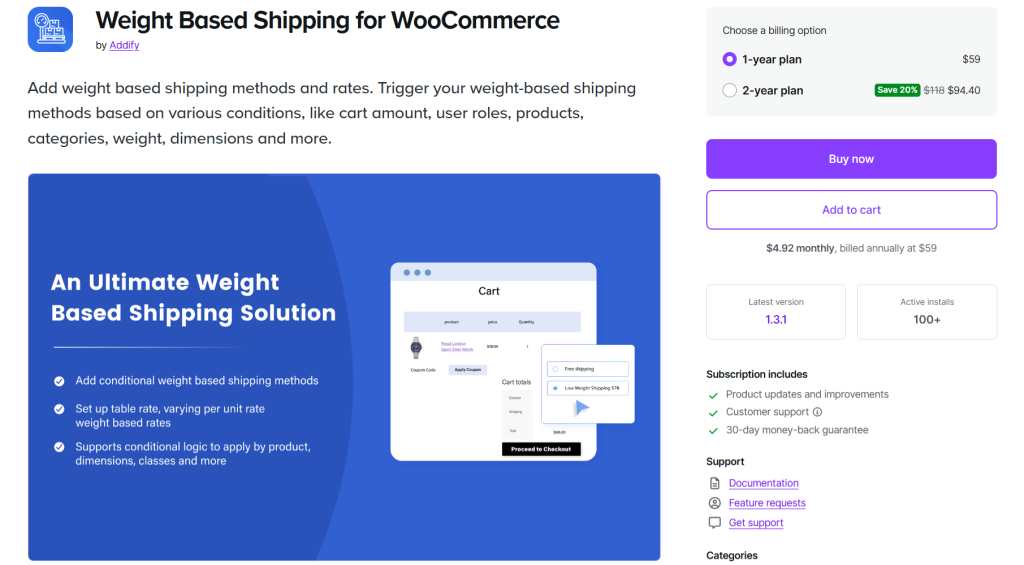
Best suited for: Stores where product weight is the primary driver of shipping cost.
Weight Based Shipping for WooCommerce lets you set shipping rates based on total cart weight, optionally layered with cart subtotal conditions. It is lightweight, fast to configure, and doesn’t add unnecessary complexity for stores that don’t need it.
There are limited advanced conditions: for instance, no product category rules or user role targeting, and it is less flexible overall than table rate or condition-based plugins. However, if your entire product catalog is physical goods with predictable weights, and you want an easy rule setup without learning a full table-rate system, WooCommerce Weight Based Shipping gives you a direct path to set up flat rate shipping in WooCommerce by weight.
FAQs about how to set up WooCommerce flat rate shipping
What is the advanced flat rate shipping method for WooCommerce?
The Advanced Flat Rate Shipping Method for WooCommerce plugin by The Dotstore is a powerful plugin that upgrades WooCommerce’s default flat rate shipping system.
It gives store admins far more flexibility to create conditional shipping rules that charge customers different flat rates based on various parameters: what’s in their cart, where they’re located, how much they’re spending, etc. You can base your rules on any combination of parameters:
- Location: Country, state, city, or postal code.
- Product details: Specific product, categories, tags, or SKU.
- Cart details: Subtotal, weight, quantity, or number of items.
- User roles: Retail versus wholesale customers.
- Shipping classes: Lightweight versus bulky items.
- Payment gateways: Offer different rates for prepaid versus cash-on-delivery orders.
- Coupons: Adjust shipping fees based on discounts applied.
Whether you’re charging per product, per category, or by customer type, this method gives you the control to design a transparent, fair, and profitable shipping strategy.
Flat rate vs standard shipping in WooCommerce
Many new WooCommerce store admins confuse standard shipping and flat rate shipping, but they aren’t the same thing. Here’s a quick overview of how they differ from a technical and functional standpoint.
Flat rate shipping is a shipping method in WooCommerce that lets you define a fixed cost for shipping, either per order, per item, or per shipping class based on customers’ shipping zones. It doesn’t change based on weight, size, or location — unless you add custom logic using a plugin or custom code.
For example, an ecommerce store that charges $7 shipping for all U.S. orders and $10 per item for international orders, no matter how many items are in the cart.
Standard shipping, on the other hand, isn’t a built-in WooCommerce method by itself. It’s a popular name store admins give to a shipping method to describe the delivery speed or carrier service.
Store admins, in most cases, will:
- Rename a flat rate or free shipping method as “Standard Shipping”.
- Use it to indicate non-expedited delivery (e.g., 3–5 business days).
- Pair it with other options like “Express” or “Next Day” shipping.
Look at the below example of a store that offers two options at checkout:
- Standard Shipping – $6.99 (3–5 business days)
- Express Shipping – $19.99 (1–2 business days)
In this case, both “Standard Shipping” and “Express Shipping” are likely just WooCommerce flat rate shipping methods that have been renamed for clarity.
That’s how to set up flat rate shipping in WooCommerce
There’s no surprise as to why flat rate is one of the most popular WooCommerce shipping methods. It makes business forecasting easier, it’s predictable for customers, and, compared to other methods, is faster to configure.
In this tutorial, I’ve shown you how to add flat rate shipping in WooCommerce using the default settings and with the help of a simple-to-use plugin.
Flat Rate Shipping Plugin For WooCommerce’s free and pro versions enable you to set basic and advanced flat rate shipping rules in your store. With the pro version, you can apply 20+ parameters to shipping rates, including cart subtotal, specific products, product variations, SKU, shipping class, location, user role, time, item weight or quantity, and more.
Additionally, you can use it to offer free shipping for shopping carts that reach a specific value and hide paid shipping methods when free shipping is available for eligible customers — all within the same rule set.
Add Flat Rate Shipping Plugin For WooCommerce to your online store and configure simple and advanced shipping rates in ten minutes or less!