Table of Contents
Build a successful WooCommerce clothing store with this step-by-step guide to adding apparel products, managing variants like sizes and colors, optimizing UX, setting up payments and shipping, and marketing to customers.
Key Takeaways
- WooCommerce is an excellent platform for setting up and managing an ecommerce fashion store that works great on desktop and mobile.
- WooCommerce supports product variations, inventory management, flexible payment and shipping options, and plugins that optimize apparel websites for increased revenue.
- Once you’ve created your WooCommerce clothing store, use marketing channels like email, SEO, social media, affiliate programs, paid advertising, and in-person events to help drive traffic and sales.
- 11 key performance metrics for WooCommerce apparel stores to track are: revenue, conversion rate, average order value, product views, add-to-cart rate, checkout abandonment, return rate, best-selling products, profit margin, customer acquisition cost, and repeat purchase rate.
Do you want to sell clothes online with WooCommerce but aren’t sure how to start?
WooCommerce is a solid platform for building an online fashion business. It’s free, easy to use, and provides the core ecommerce infrastructure apparel businesses need to sell online successfully.
In this detailed guide, I’ll walk you through the entire process of how to sell clothes online with WooCommerce.
We’ll cover everything from installing WordPress and WooCommerce, adding clothing products and variants, optimizing the user experience for conversions, to accepting payments, handling shipping and returns, marketing strategies to get your first hundred sales, and more.
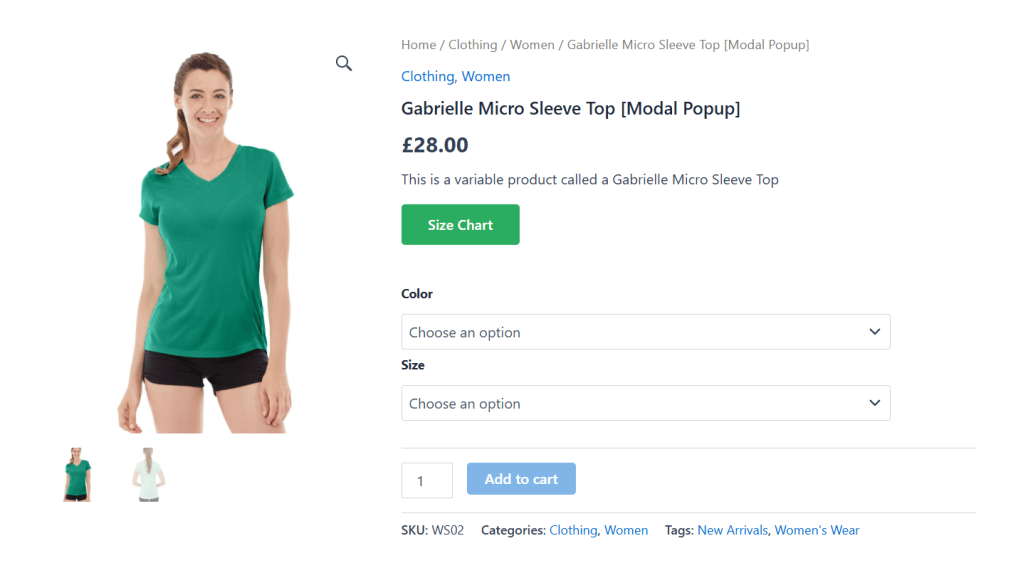
Even if you’ve never sold a single product online before, following these steps in order will take you from idea to launch to getting paid.
Let’s get started.
A quick note: Wondering how we know so much about WooCommerce? At DotStore, we’ve been building WordPress and WooCommerce plugins for ecommerce merchants since 2016. Today, our plugins are used across 100K+ stores worldwide. The advice we’re sharing below comes from first-hand experience figuring out what works (and what doesn’t) across thousands of stores. Check out our plugin catalog or learn more about us.
Is WooCommerce good for a clothing store?
WooCommerce is an excellent ecommerce platform. It lets you set up an online fashion store where customers can browse, pick the desired clothing sizes, pay, and get automated shipping confirmation without you (the store admin) having to manually accept their orders.
Here are a couple of reasons WooCommerce works particularly well for selling clothes online:
- Product variations for sizes and colors. If you have multiple variants of the same product, you can set up one product as the “base” and add every size/color combination as its own trackable variation.
- Product categories and attributes that let shoppers quickly filter based on size, color, fabric, material, etc., without having to scroll through your entire catalog.
- Inventory management at the product variation level. This saves you from mistakenly accepting orders for product variants once they are sold out.
- Flexible shipping and payment gateway options. You are free to configure shipping settings, including flat rates, real-time carrier rates, etc., and you can accept payments using various payment processors.
- Thousands of WooCommerce extensions. There are thousands of readily available plugins that can add extra features to customize your fashion store with additional features like size charts, product bundles, subscription boxes, wishlist features, etc., as desired.
Step-by-step: Sell clothes online with WooCommerce
Step 1: Install WooCommerce
Before you can install WooCommerce, you need to set up three things: a domain, hosting, and WordPress.
Note: Although WooCommerce is easy to use, there is a slight learning curve while you get familiar with how the platform works. If any of the setup steps feel too outside your comfort zone, it’s reasonable to bring in help. You can hire expert freelance developers from Codeable, Fiverr, or Upwork for a fixed, modest fee.
How to set up web hosting for your online clothing store
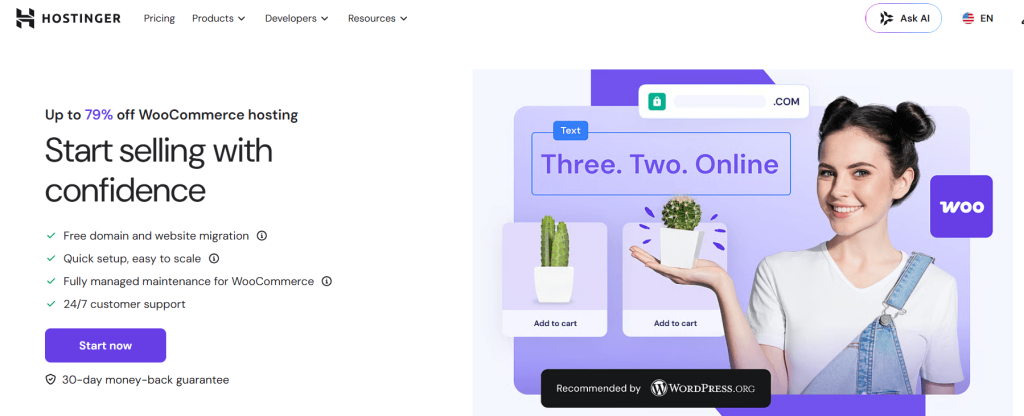
Instead of a generic shared hosting provider, choose a WooCommerce host that offers WooCommerce-ready hosting, i.e., pre-installed caching, staging environments, and support techs trained on the WooCommerce platform.
My top recommendations for WooCommerce hosts that offer plans with 99%+ uptime, free SSL, automated backups, and WooCommerce-specific support are Hostinger (best value), Bluehost or SiteGround (for small to mid-sized stores), and Kinsta (for large-sized stores).
Register and connect your domain name
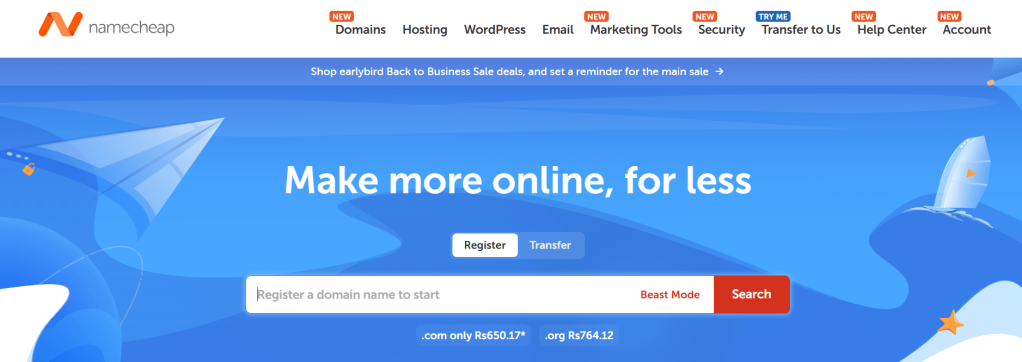
Your web domain name is the online address for your clothing store. Hostinger, Bluehost, and some other hosting providers include a free 1-year domain name with your hosting plan (note that additional terms may apply).
If your web host doesn’t provide a free domain name, you can get one from budget-friendly registrars like Namecheap or Cloudflare Registrar. Then, check the technical documentation or reach out to their support team to point its DNS records to your new hosting provider.
Create a fresh WordPress installation
Once you’ve signed up for a hosting plan, installing WordPress only takes a few minutes.
- Locate the one-click WordPress installer in your hosting account dashboard.
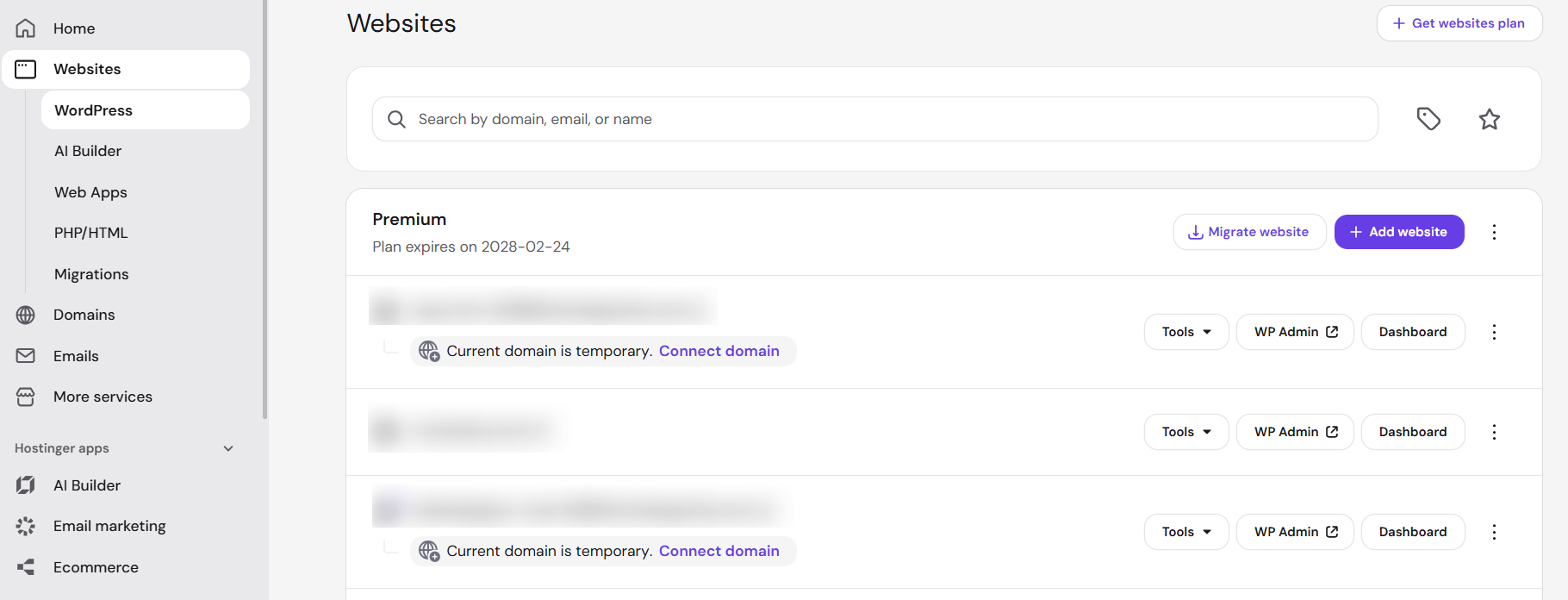
- Follow the steps and prompts to create a fresh WordPress installation.
- Connect your domain name to your new WordPress website.
Install WooCommerce
- In your WordPress admin panel, navigate to Plugins → Add New.
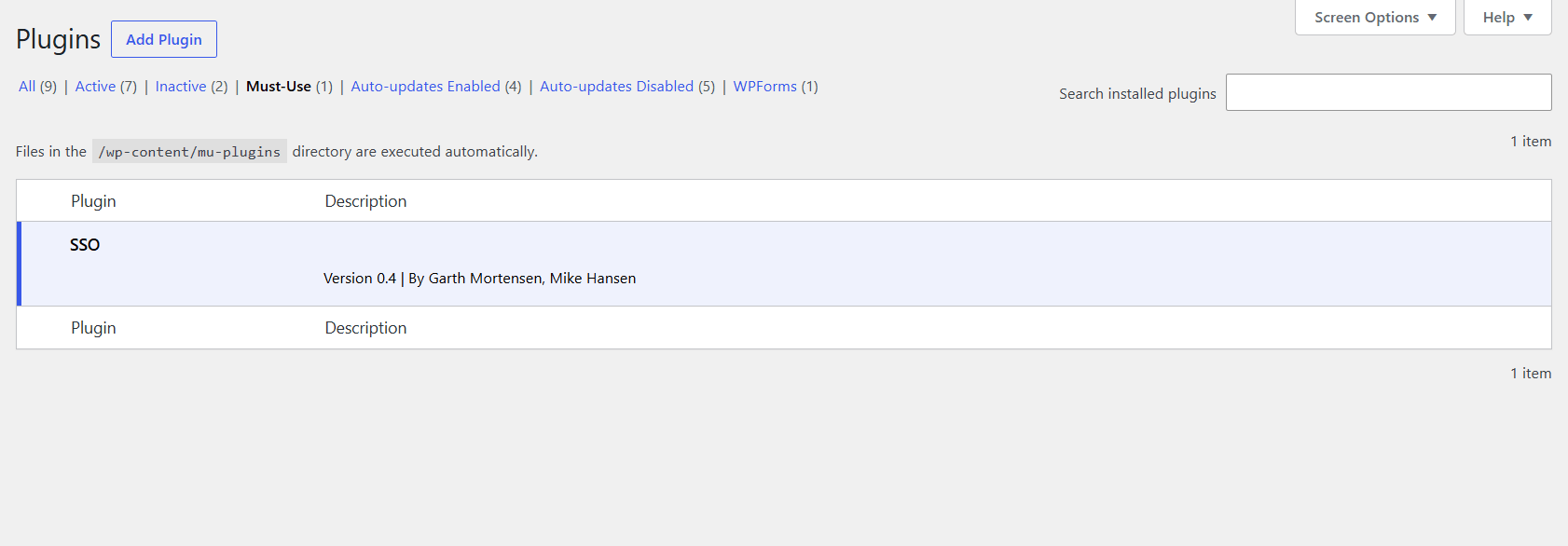
- Search for “WooCommerce”.
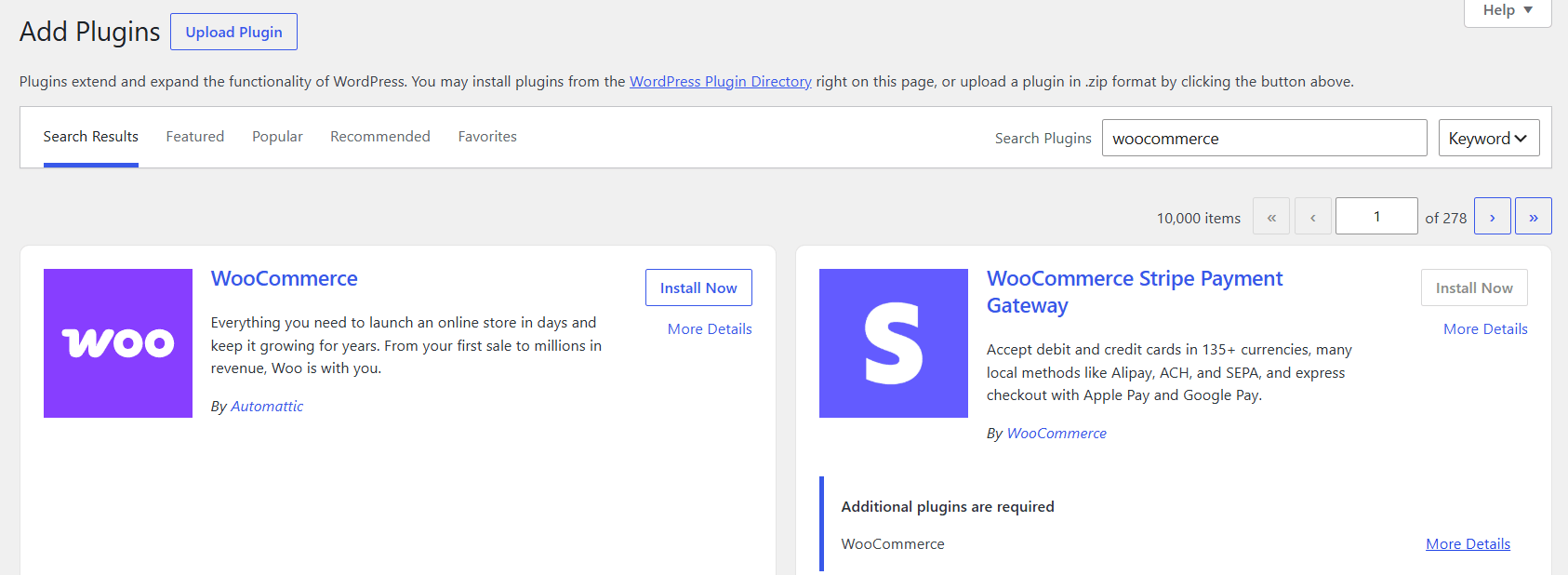
- Press the “Install Now” button, followed by “Activate”.
- WooCommerce’s setup wizard walks you through the steps to configure your website. It’ll ask for details like your physical store address, industry, whether you want to sell physical or digital products (choose physical for clothing), and more. Note that you can amend these details anytime, so respond to the best of your ability for now. If needed, you can change this in the future.
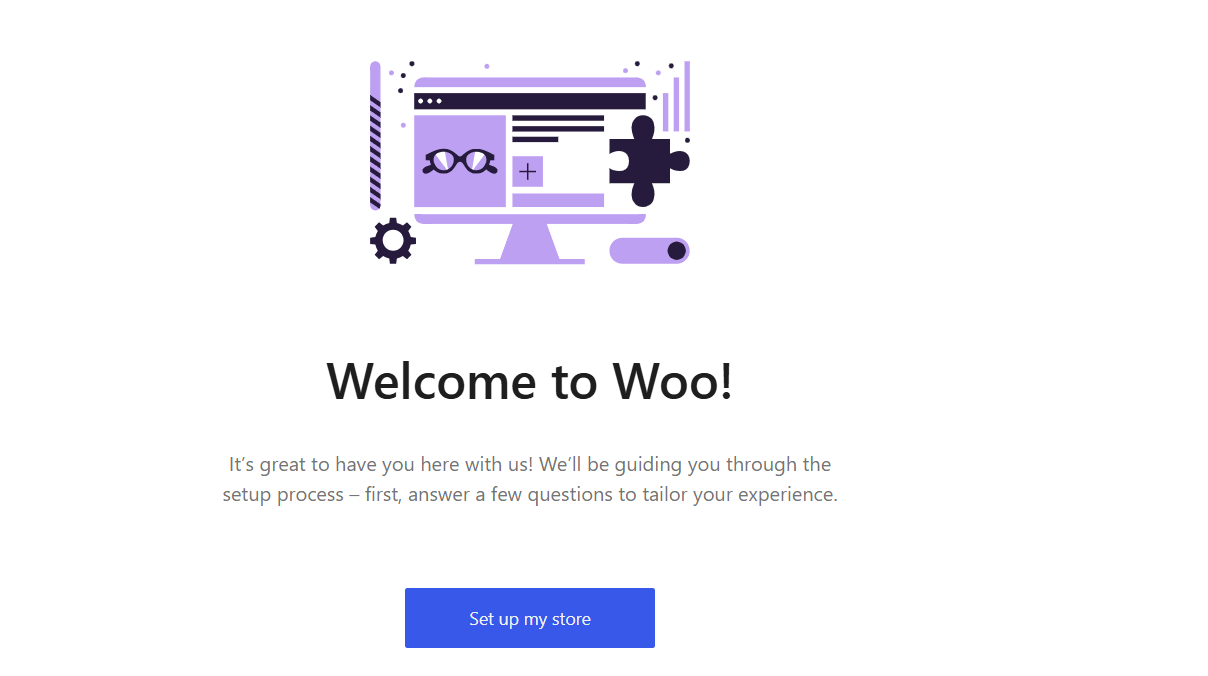
- After you complete the setup wizard, it will redirect you to your WooCommerce Home screen and setup checklist.
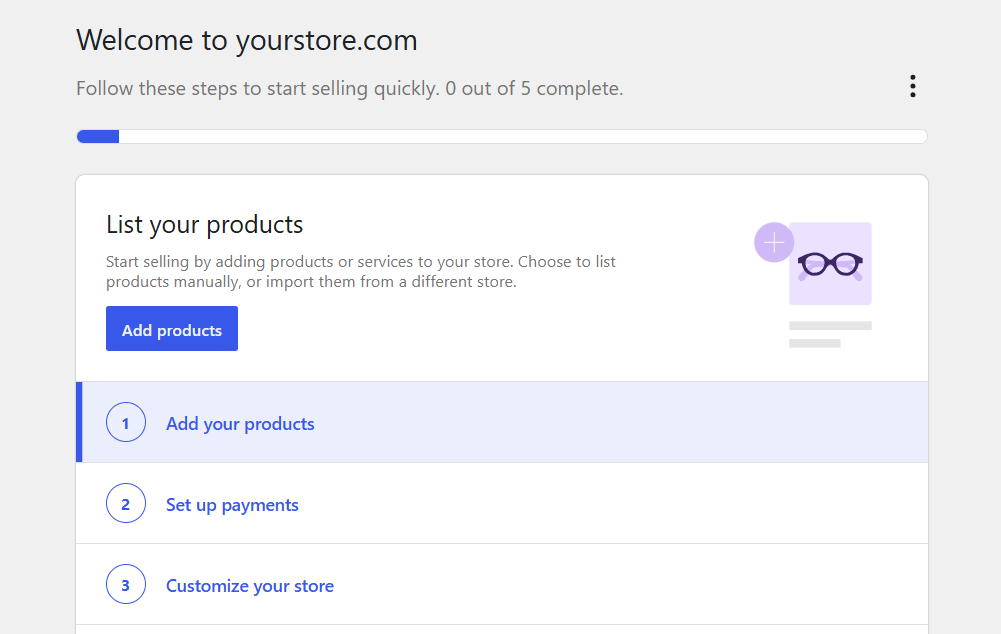
- Navigate to WooCommerce → Settings, and configure important settings like Store location, Currency, Tax, Payments, Shipping, Accounts/Privacy, and Emails.
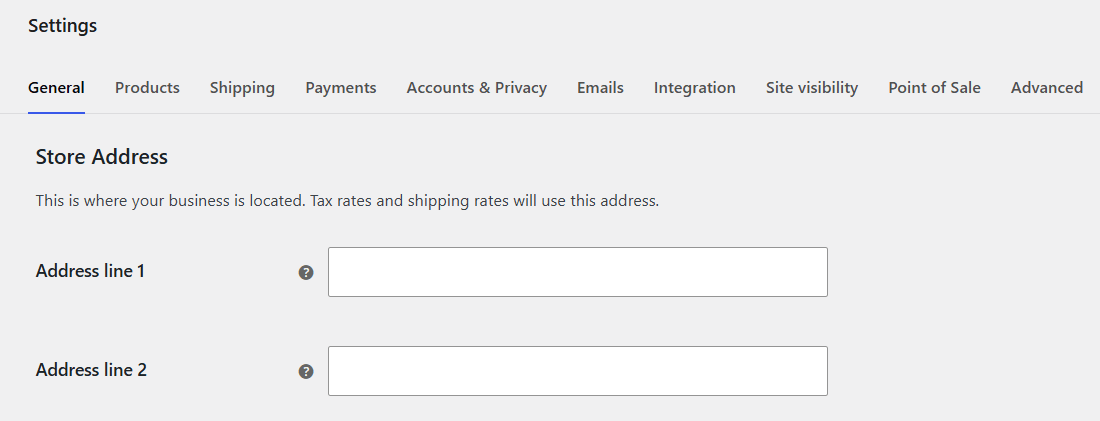
Recommended reading: Want more guidance with setting up your WooCommerce store? Check out our in-depth, beginner-friendly tutorial on setting up and configuring important WooCommerce settings.
Step 2: Add and customize a fashion-focused theme
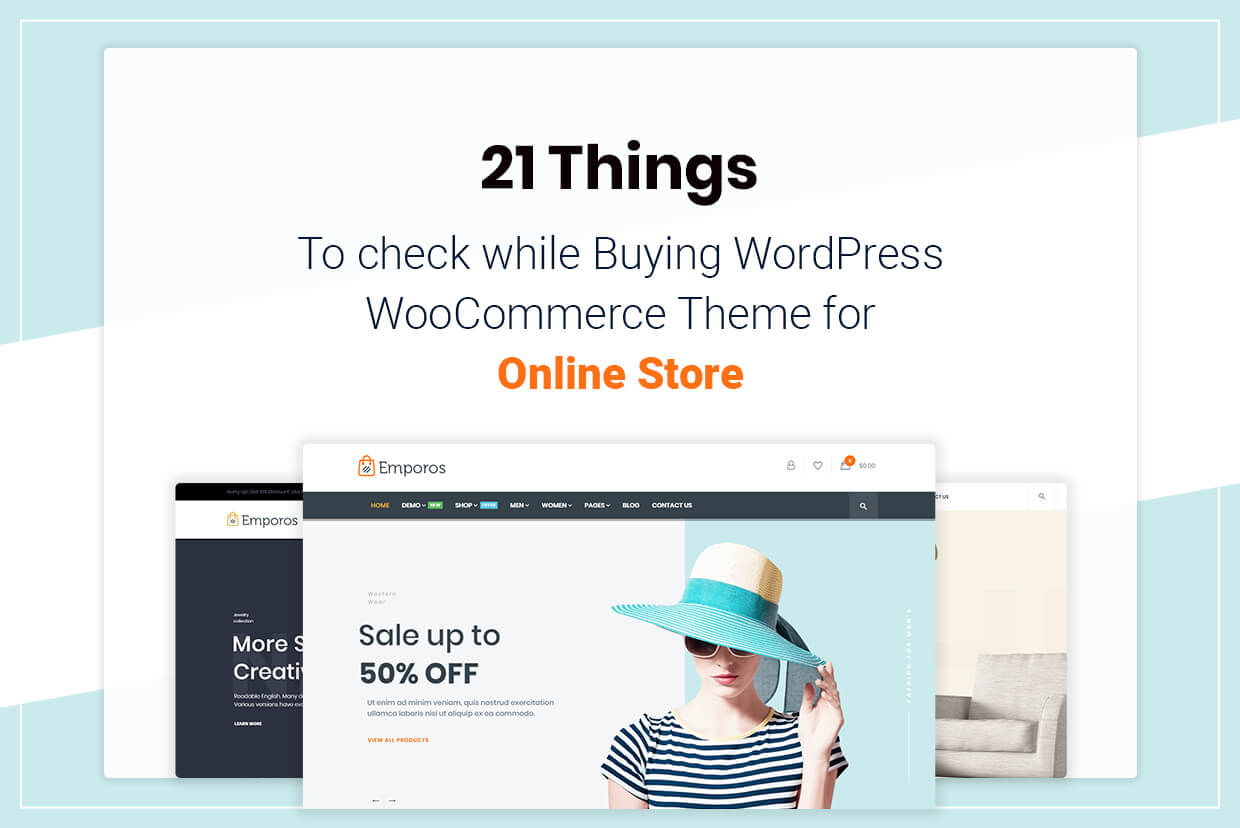
Your website’s theme controls its design and what customers see on the front end. You don’t need to code a fashion theme; there are tons of ready-made templates you can modify to suit your preferences (similar to editing a Canva template).
My top recommendations for WooCommerce themes for online clothing websites are: Storefront (free), Kiosko (free), Botiga (premium), Flatsome (premium), and WoodMart (premium).
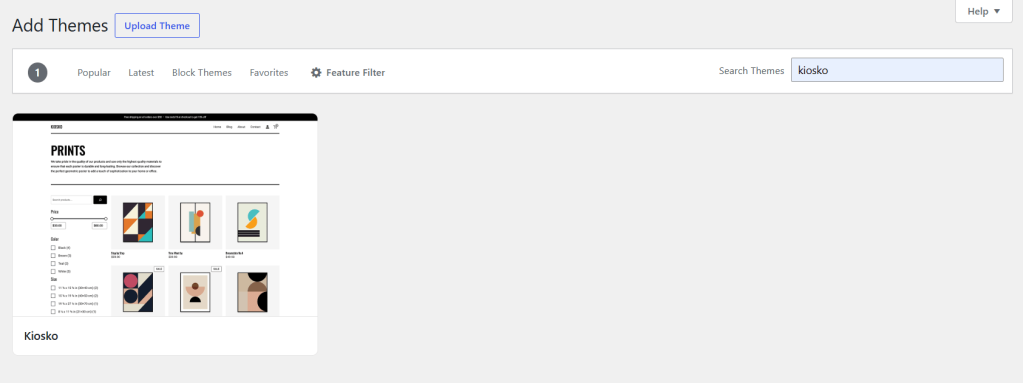
When comparing WooCommerce themes for your online clothing website, prioritize the following:
- Performance. Themes that are mobile-responsive and fast-loading.
- General usability. Clean navigation, a working product search, and filtering features are non-negotiable.
- Support for fashion-specific features. Themes that look good after you add plugins for variation swatches, image and video galleries (multiple angles, zoom), etc.
Install your chosen theme via WooCommerce via Appearance → Themes → Add New in your site’s admin panel. Then customize the layout, design, and content with a focus on the home page, shop page, and product pages.
Step 3: Add clothing products to WooCommerce
Navigate to Products → Add New in your WordPress admin panel.
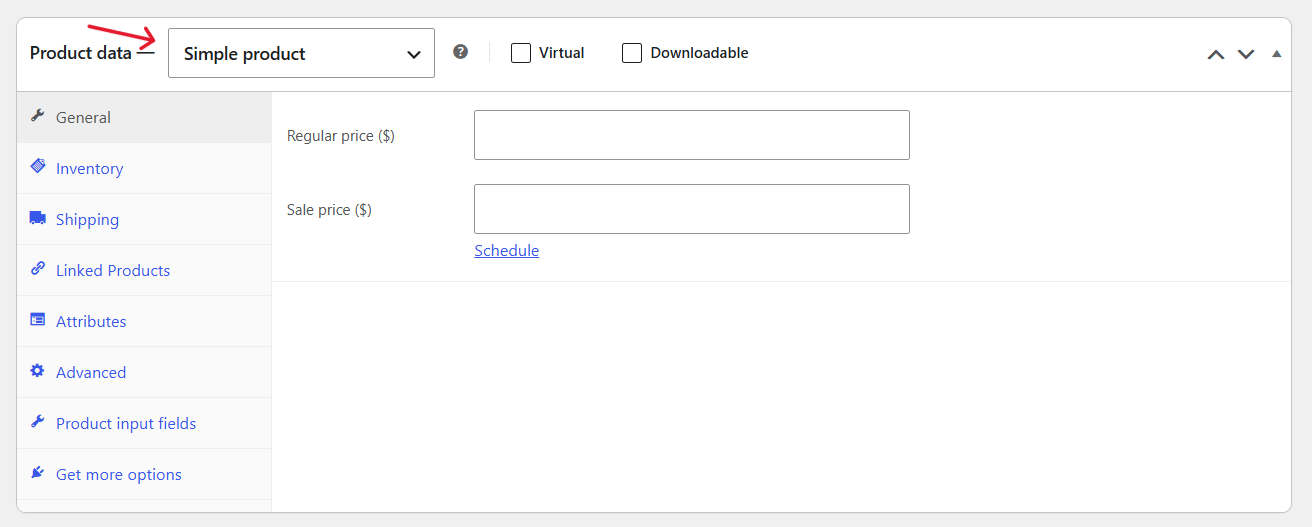
- Adding a simple clothing product to WooCommerce. To add a product without variants (no size/color options), scroll down to the “Product data” panel and choose “Simple product” as the product type. Then scroll back up and configure the remaining details. Refer to this in-depth tutorial for the steps to add a simple clothing product.
- Adding a variable clothing product to WooCommerce. Products with variants are best listed as variable products. For example, a hoodie that comes in 4 sizes (S, M, L, XL) and 3 colors (Black, White, Navy). Refer to this in-depth tutorial for the steps to add a variable clothing product.
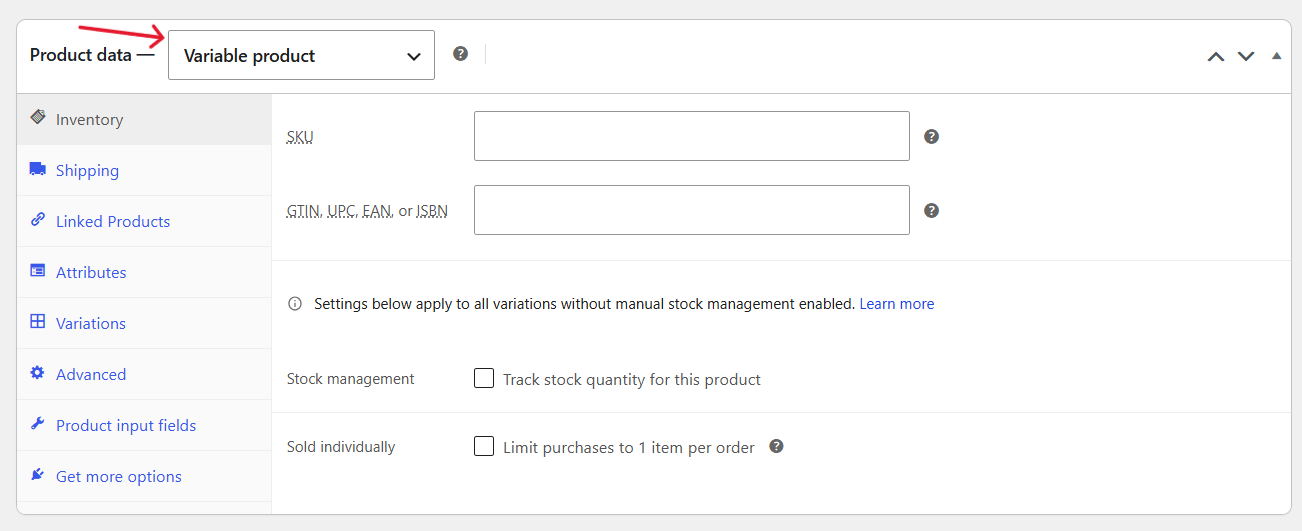
Stores with heaps of size/color combinations across many products can benefit from using a bulk variation plugin like Dotstore WooCommerce Attribute Stock to sync across your catalog and save time instead of building variations one product at a time.
Step 4: Configure payments, shipping and returns
Accepting payments in your WooCommerce clothing store
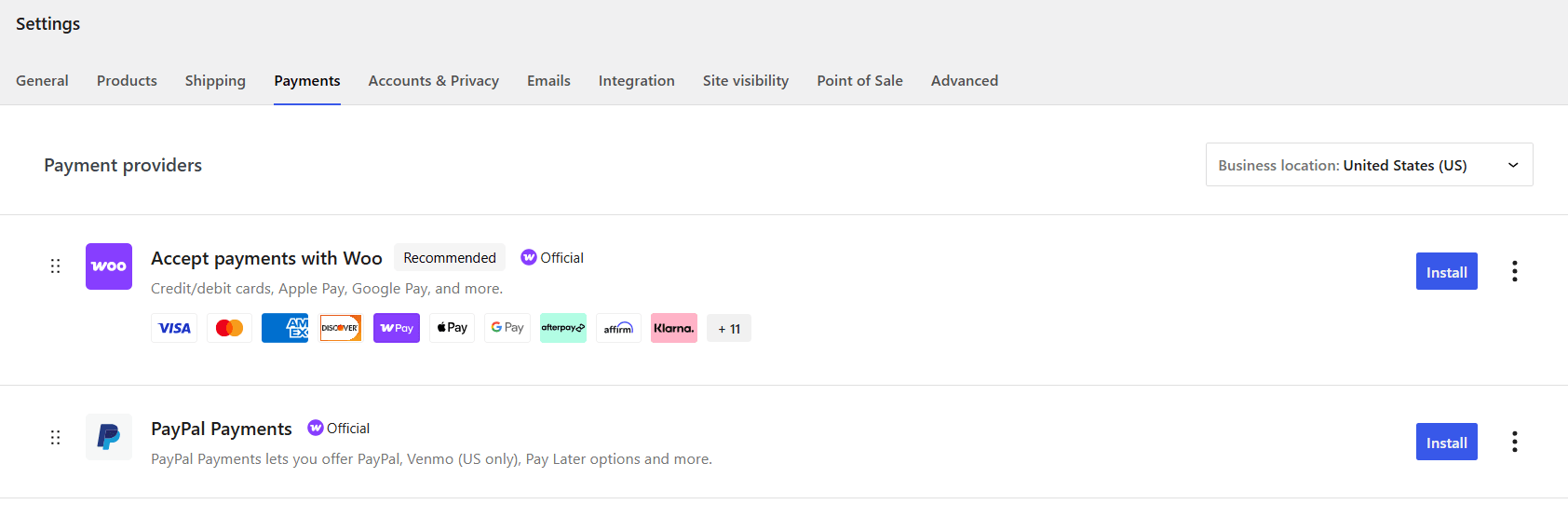
With WooCommerce, you can accept pretty much any payment method, including credit and debit cards, Digital wallets (Apple Pay, Google Pay), PayPal, Stripe, BNPL (Klarna, Afterpay), cash on delivery, as well as other local/regional payment methods.
- Navigate to WooCommerce → Settings → Payments to configure your preferred payment processors.
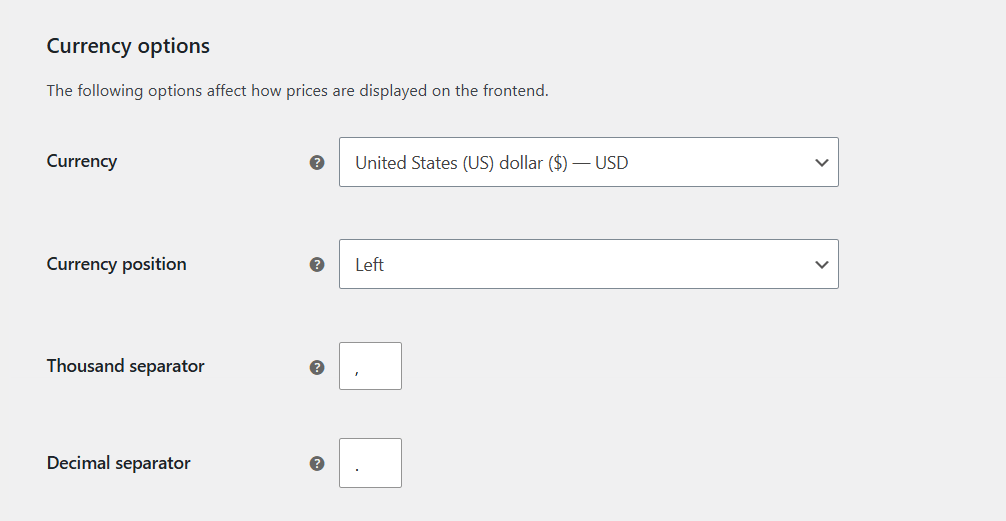
- Head to WooCommerce → Settings → General to set your store’s base currency. And you can reduce friction by using a multi-currency plugin to show international shoppers prices in their own currency at checkout.
Configure shipping in your WooCommerce clothing store
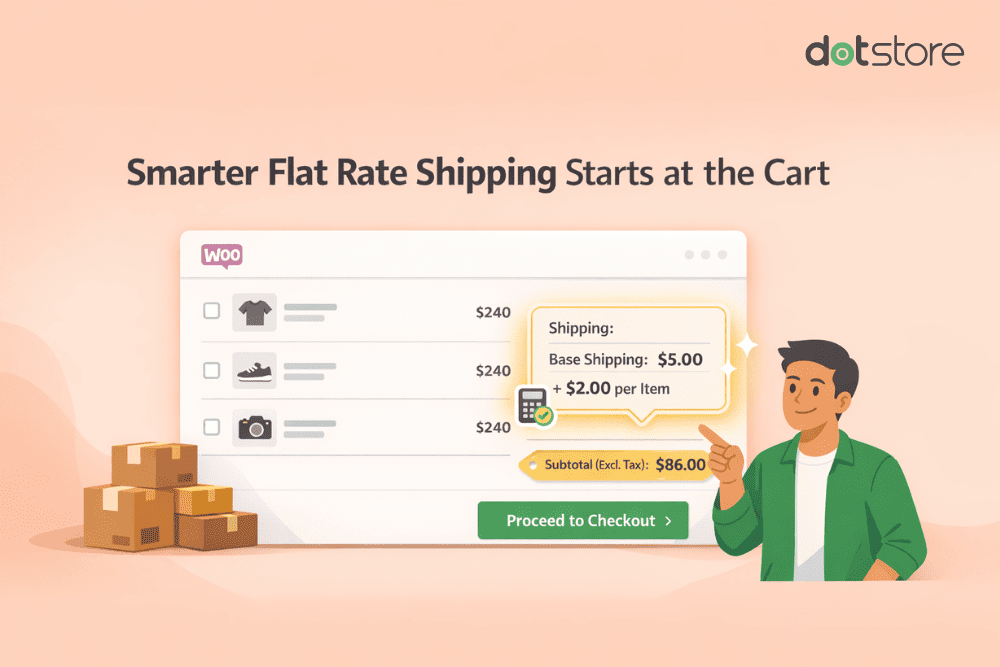
WooCommerce gives you nearly unlimited flexibility to configure your shipping settings in WooCommerce → Settings → Shipping, as desired.
You can add shipping zones (places your store ships to) and shipping methods (such as free shipping, flat rate shipping, weight-based shipping, etc.). You can also connect your website to third-party shipping companies like USPS, UPS, FedEx, DHL, etc., and charge real-time carrier rates.
Many carriers set shipping charges based on the packing box dimensions. Remember to factor in costs for packaging materials like bags or boxes, printed labels, tissue paper, poly mailers, etc., as well as the time spent packing orders.
Pro tip: Sharing delivery estimates on your product pages and checkout flow can help reduce cart abandonment. Enable this in your store using the Product Lead Time for WooCommerce plugin.
Step 5: Optimize your WooCommerce fashion store
Customers who shop online for clothes can’t touch the fabric, try on outfits, and see how it drapes on their bodies. Below, I’ll share various strategies and plugins you can use to optimize your WooCommerce clothing store for increased revenue and reduced returns.
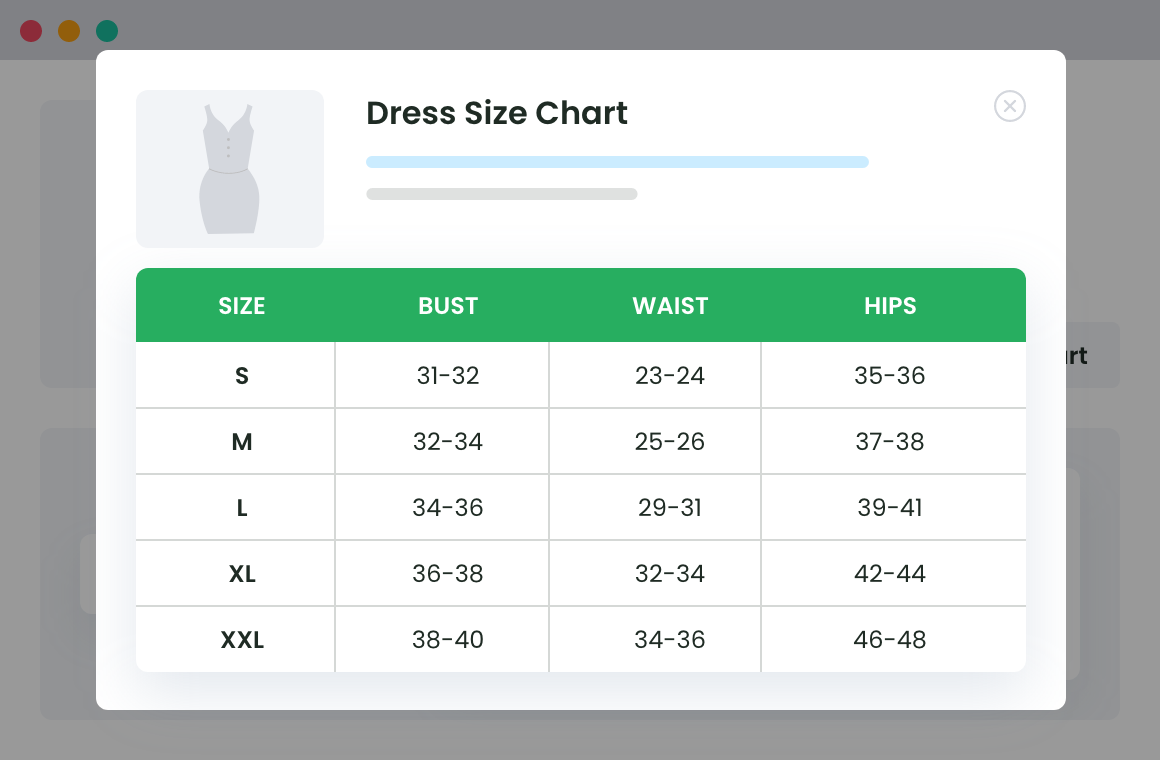
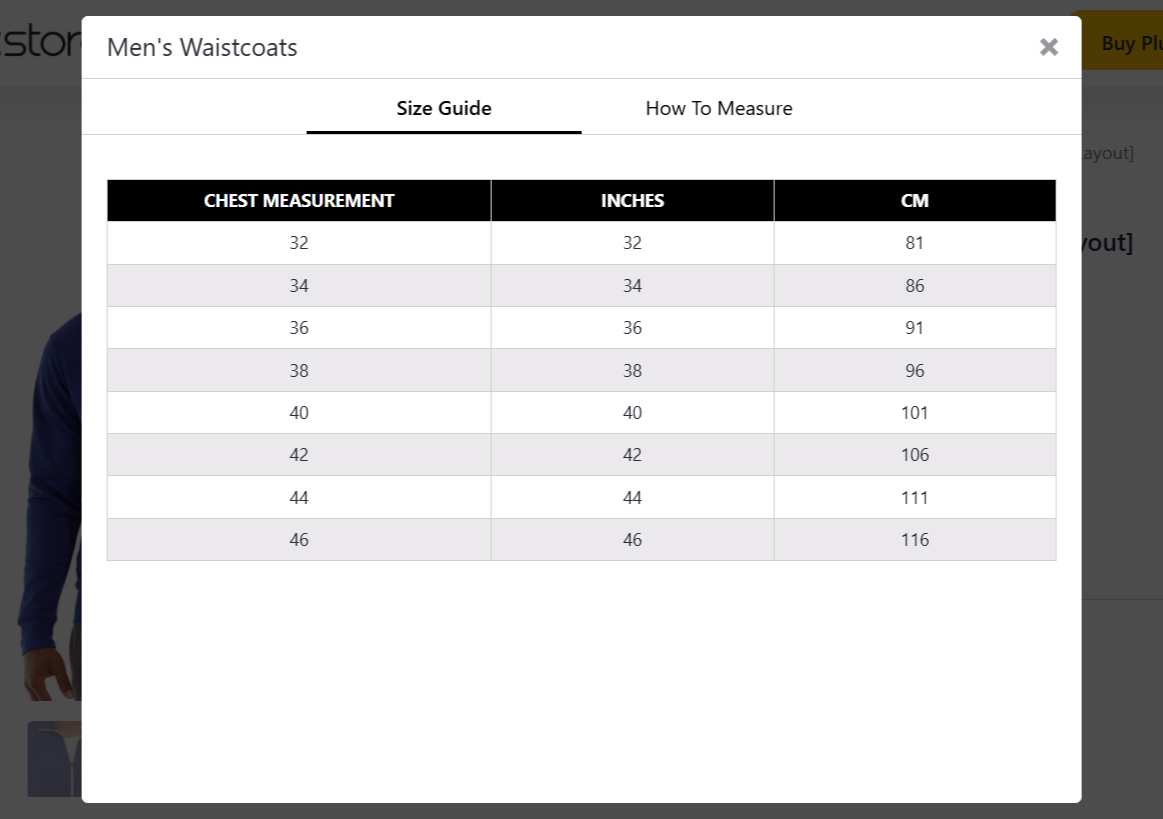
- Add a size chart. Use the Dotstore Product Size Charts Plugin for WooCommerce to add product sizes, measurements, and model measurements, and manage sizes across large catalogs (with 50+ SKUs).
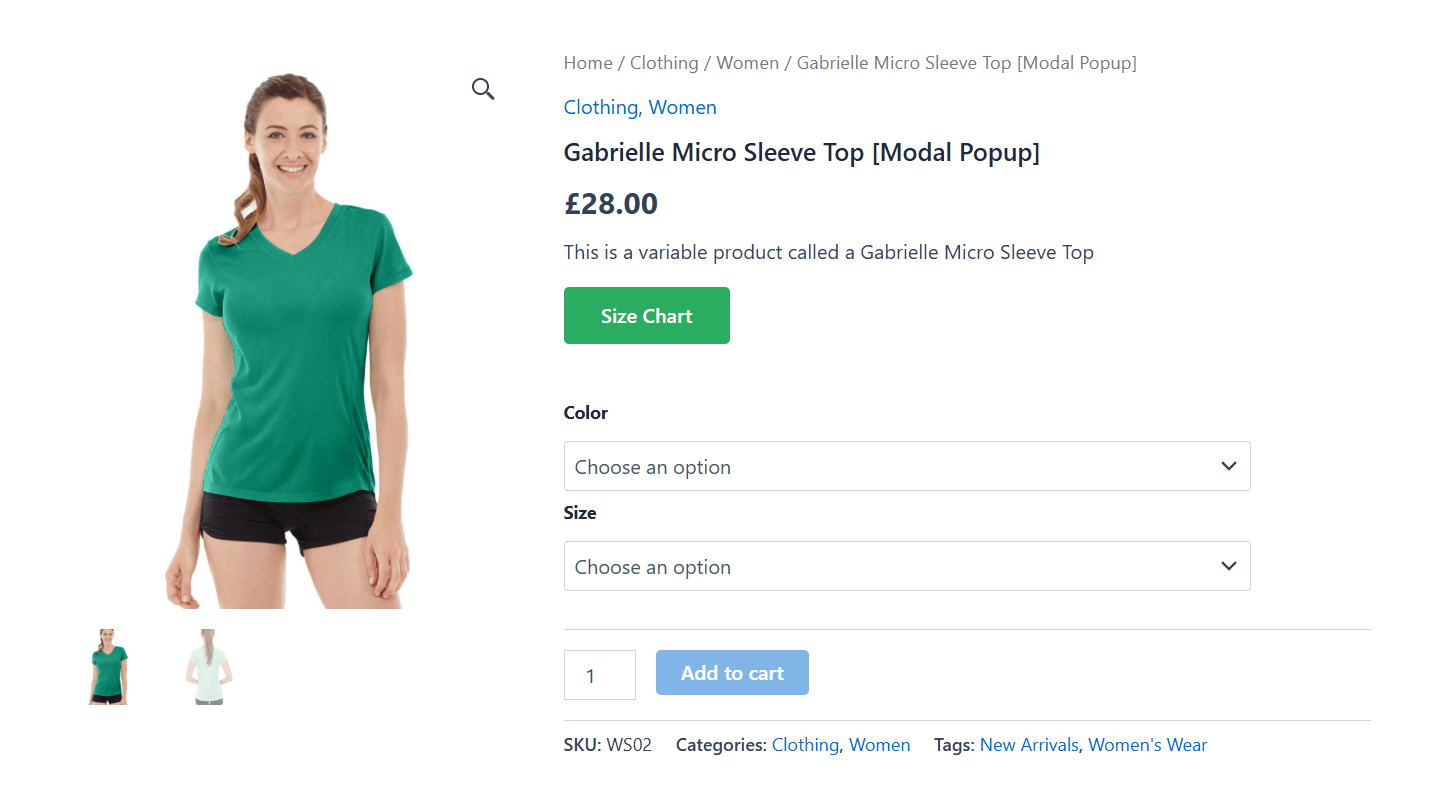
- Use high-quality product photos. At minimum, show front, back, and side views, plus a close-up of the fabric and key details like stitching or prominent buttons. Model shots (not just flat-lay or ghost-mannequin images) help customers picture how clothes fit. If an item comes in multiple colors, photograph each one instead of relying on color swatches alone. Additionally, lifestyle images of shoppers wearing the item in real life tend to perform well on product pages and in ads.
- Add product videos. Add simple 10- to 15-second clips using Ultimate Product Gallery for WooCommerce. Showing someone walking, sitting, or turning in a garment tells shoppers more about fit and movement than ten photos combined. And product videos take more effort to create; competitors who sell the same wholesale item are less likely to make them.
- Write detailed clothing descriptions. Discuss material composition, fit (relaxed, slim, true-to-size), color, precise measurements, care instructions, notable features, and (if it matters to your audience) where and how the item is made. Skipping these details can impact your conversion rate, push the question to your Support inbox, or lead to returns.
- Add reviews and social proof. No matter how good your studio-shot product photos are, they can’t fully substitute for customer reviews with photos that show how the clothes fit on real bodies. Use Product Reviews Pro for WooCommerce to add it to your clothing store. Where possible, add star ratings and user-generated content (UGC) pulled from social media using Reviews Feed Pro by Smash Balloon.
- Add a product filtering and sorting system. If you plan to sell various clothing styles and sizes, using YITH WooCommerce Ajax Product Filter to add relevant product filters and advanced sorting to the Shop and Collections pages can help shoppers narrow down items based on size, color, price, category, brand, material, fit, availability, etc., with ease.
- Improve your WooCommerce product search. WooCommerce’s default search feature is limited. Using a dedicated search plugin like SearchWP improves the search experience by increasing typo tolerance, search-by-attribute (a customer typing “navy hoodie” should actually find your navy hoodie), and sharing results ranked by relevance.
- Make selecting product variations simpler. Set up color and pattern swatches (small clickable image thumbnails instead of text like “Navy”) using Advanced Product Fields (Product Options) for WooCommerce. They are proven to lift conversion rates for variable products by reducing the mental effort of choosing variants.
Step 6: Test and launch your WooCommerce clothing store
Here’s a checklist to run through to test that your WooCommerce clothing store works as expected. Run these tests on both mobile and desktop devices and fix any issues flagged before launch.
- ✔️ Product testing: Confirm that each size and color option displays and can be selected correctly, variation images swap properly, product stock counts update accurately, and all product images load cleanly (especially on mobile screens).
- ✔️ UX testing: Navigate through top pages on your site, run several searches, apply filters, and complete the full cart-to-checkout flow on both desktop and mobile at least once. The experience should be as frictionless and easy as possible; if things feel clunky to you, they will feel clunky to first-time site visitors too.
- ✔️ Checkout testing: Confirm that payments are processed successfully by completing an order just like a real customer would. Use incorrect card details to see how the process works when cards are declined, and note the error messages. Test that discount codes, shipping costs, and taxes are calculated correctly during the checkout flow.
- ✔️ Operational testing: In your WooCommerce admin, confirm that the test orders you place are received, stock decreases by the correct variation, and transactional notifications (order confirmation, shipping, and refund) are sent on schedule. Test refund processes through your payment gateway.
Step 7: Market your WooCommerce clothing store
Once your online clothes store is up and running, here’s how to acquire and retain customers. As with most business decisions, you don’t need to implement every tactic outlined below; pick the combination that best suits how your fashion brand operates.
- Email marketing. Email is the #1 marketing channel (aside from your website) that you fully own. It isn’t affected by social media algorithm changes or platform bans. Start collecting emails as early as possible, even before launch. Discounts-for-signup popups are effective at encouraging signups. Once you have a substantial email list, send abandoned cart reminders, restock alerts, and new-arrival announcements to drive revenue.
- Ecommerce SEO. SEO plugins like Rank Math, Yoast SEO, All in One SEO (AIOSEO), and others include ecommerce-focused features for optimizing product titles, meta descriptions, and category pages. Optimizing your WooCommerce store for organic rankings ensures that people searching for products you sell can find it.
- Social media marketing. Social platforms with a strong visual focus offer effective marketing capabilities. As of this writing, Facebook and Instagram are the default for apparel brands (with product tagging and Shops integration). Hauls, try-on, and styling content tends to do well on YouTube. Pinterest drives strong traffic from users who actively search for outfit inspirations.
- Affiliate marketing. Recruiting micro-influencers and fashion bloggers to promote pieces for a paid commission can be cheaper and more authentic than paid ads, especially for early-stage brands. An affiliate plugin like Solid Affiliate is perfect for the job.
- Paid ads. While waiting for organic traffic to build, it can be worthwhile to use Meta and Google Shopping ads to figure out margin, average order value, and other key metrics and scale demand deliberately.
- IRL events. A limited-time pop-up shop, market stall, and other kinds of IRL events enable people to experience your brand in real life and build a loyal community of repeat customers.
Step 8: Track & optimize your WooCommerce clothing store performance
Once your WooCommerce fashion store starts receiving orders, there are 11 key metrics to keep an eye on: revenue, conversion rate, average order value, product views, add-to-cart rate, checkout abandonment rate, return rate, best-selling products, profit margin, customer acquisition cost, and repeat purchase rate.
You can then use this information to make business decisions like identifying what products to reorder, what to feature in ads and homepage banners, products to discontinue, where customers drop off from the funnel, and others.
Top WooCommerce plugins needed to sell clothes online
Here’s a round-up of the plugins referenced throughout this guide, plus a few others worth knowing about. You likely won’t need every single plugin. Review them to see how they work, then pick the ones that best suit your specific business requirements and skip the rest.
| Key feature | Plugin name | Description |
| Size charts | Dotstore Product Size Charts Plugin for WooCommerce | Create reusable size charts with measurements, fit information, and other sizing details, then assign them to specific products, categories, tags, or attributes. Display charts as popups, tabs, inline content, or shortcodes. |
| Product options | Advanced Product Fields (Product Options) for WooCommerce | Replace the standard WooCommerce variation dropdowns with clickable color/pattern thumbnails. Offer gift wrapping, monograms, custom text, embroidery, customer-selected options, and other customization options. |
| Product gallery (images and videos) | Ultimate Product Gallery for WooCommerce | Add product videos alongside images, including uploaded videos and videos from YouTube, Vimeo, and other platforms. |
| Product attachments | Dotstore Product Attachment Plugin for WooCommerce | Add downloadable files or links to clothing product pages, such as detailed size guides, care instructions, fabric information, warranties, or other supporting documents. |
| SEO | Rank Math, Yoast SEO, All in One SEO (AIOSEO) | Optimize WooCommerce product and category pages with product schema, SEO titles, meta descriptions, XML sitemaps, WooCommerce-specific structured data, and more. |
| Product search | SearchWP | Make product attributes, taxonomies, custom fields, SKUs, categories, sizes, colors, and other product information searchable to help shoppers find the right products quicker. |
| Reviews | Product Reviews Pro for WooCommerce | Collect and display customer reviews with photos and other media for visual social proof. |
| UGC | Reviews Feed Pro by Smash Balloon | Display customer reviews and ratings from supported third-party review platforms for external social proof that builds credibility. |
| Dynamic pricing and discounts | Dotstore Dynamic Pricing and Discount Rules for WooCommerce | Create promotional offers based on products, quantities, cart conditions, customer roles, payment methods, BXGY, etc. |
| Attribute-level stock management | Dotstore Attribute Stock Plugin for WooCommerce | Manage inventory based on product attributes, and handle shared stock across combinations such as sizes and colors. |
What’s the cost of managing a WooCommerce clothing store?
While researching this blog post comparing WooCommerce vs Shopify, I found that it costs approximately $220 per year to create a functional, professional-looking WooCommerce store. However, the specific costs for your online fashion business vary based on your operating model.
For example, a single-boutique business that wants to list items online has a completely different cost structure than a 50-person team that stocks inventory across multiple warehouses.
Below, I’ll share a framework to help you calculate how much managing a WooCommerce apparel store will likely cost.
If you’re on a tight budget, I recommend that you use free versions of each tool where possible. You can add paid tools to your stack as your business grows.
Initial costs to set up a WooCommerce clothing store:
- Domain registration.
- WooCommerce hosting (most hosting companies offer attractive deals on 3+ year contracts).
- Premium theme (optional, as there are free options).
- Product photography (DIY with a phone and a lightbox, or hiring a photographer).
- Branding (logo, packaging design).
- Initial inventory purchase.
Ongoing costs:
- Domain name renewal.
- WooCommerce hosting renewal.
- Payment processing fees (typically 2.5–3% per transaction, depending on the payment processor).
- Plugin subscriptions.
- Marketing spend (ads, email tool, affiliate commissions).
- Inventory restocking.
- Packaging materials.
- Shipping costs.
- Returns and refund losses.
Start an online clothing store with WooCommerce
In this guide, we’ve discussed how to choose the right website host, pick a fashion-ready theme, add and manage simple and variable products, configure payments and shipping, optimize UX, marketing, and measure key business metrics for an online fashion business.
If you follow the steps outlined, you’ll go from a fantastic business idea to a working WooCommerce clothing store within a few hours.
Looking for ways to boost revenue in your apparel store? Check out the Dotstore Product Size Charts Plugin for WooCommerce, the Dotstore Product Attachment Plugin for WooCommerce, and the Dotstore plugin catalog.

📏 Offer Clear Size Guides to Improve Customer Satisfaction
Try the plugin 100% risk free!