Table of Contents
Everything you need to know about how to access and use key tabs and settings in your WooCommerce admin dashboard, along with seven top-notch plugins to optimize admin tasks and improve your store’s backend experience.
Key Takeaways
- There is no separate WooCommerce admin login page. Access your WooCommerce admin by logging in at yourdomain.com/wp-admin with your WordPress credentials.
- There are four main WooCommerce menu tabs: WooCommerce, Products, Analytics, and Marketing.
- Administrators and Shop Managers are the two main roles responsible for managing the WooCommerce store backend.
- Plugins like Smart Manager, Commandify, Query Monitor, and others can help you manage products and orders, troubleshoot a slow WooCommerce admin, customize navigation, and monitor user activity.
If you’re new to WooCommerce, finding your way around the admin dashboard can be confusing.
Where do you log in? Which menus control your products and orders? And how do you give staff access without handing over complete control of your website?
In this detailed guide, I’ll show you how to access the WooCommerce admin and walk you through the main dashboard sections.
I’ll also discuss how user roles and permissions work, and share the 7 best WooCommerce admin plugins that make managing your online store easier.
A quick note: Want to get more out of your WooCommerce store? Explore Dotstore’s WooCommerce plugins to simplify store management, automate repetitive tasks, and improve your store’s performance. You can also browse our WooCommerce blog articles for practical tutorials, tips, and guides to help you grow your store.
What is the WooCommerce admin dashboard?
The WooCommerce admin dashboard is the control center for managing your online store. It brings together WooCommerce-specific settings, order management, product information, customer records, taxes, shipping, reports, and other ecommerce tools within your WordPress backend.
By default, only users who have Administrator and Shop Manager roles can access your WooCommerce admin.
Where is the WooCommerce admin dashboard?
Once you activate WooCommerce on your site, it adds ecommerce-specific settings to the WordPress admin area in the left-hand sidebar.
These settings are spread across four main menu tabs, namely: WooCommerce, Products, Analytics, and Marketing.
You don’t need a separate WooCommerce dashboard login. Instead, you access the WooCommerce admin dashboard through your existing WordPress admin account.
How does the WooCommerce admin fit into WordPress?
WooCommerce is a plugin that runs on top of WordPress. It doesn’t have its own separate login page. Instead, it adds its menus and screens to your existing WordPress installation. You can then access your WooCommerce admin from the WordPress admin dashboard.
There are two separate dashboards:
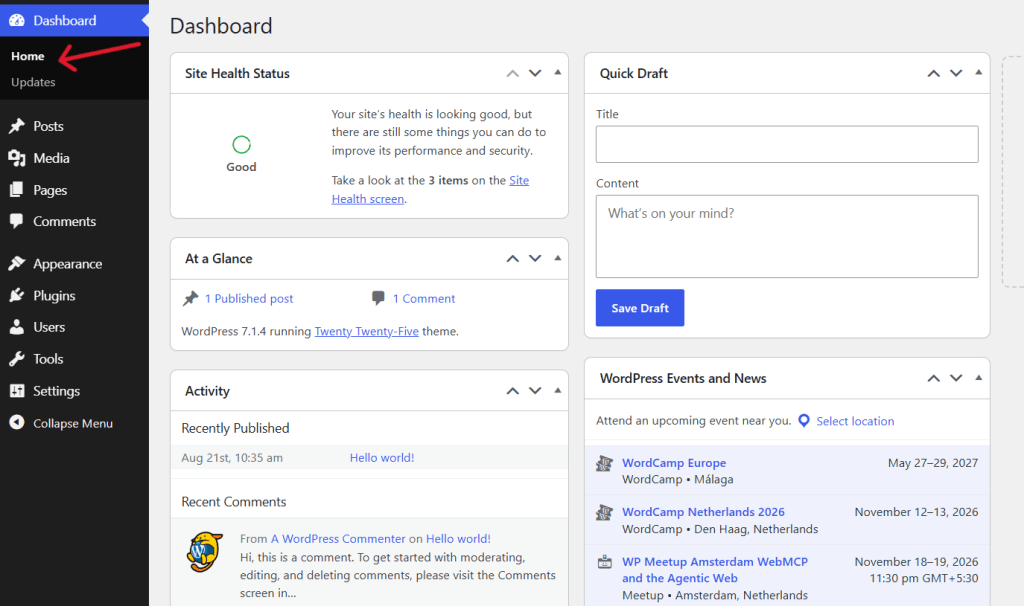
The WordPress dashboard
(Dashboard → Home) is the general site overview, and is the screen you land on right after you log in. It shows WordPress news, site health, activity widgets, and pending plugin, theme, and core software updates.
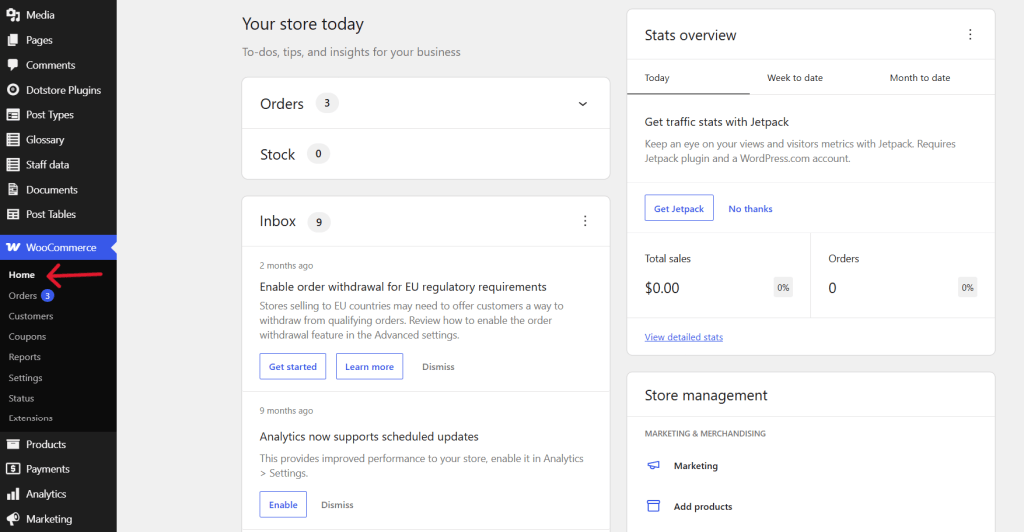
The WooCommerce Home screen
(WooCommerce → Home) shows your setup checklist, performance stats, a store activity panel, and shortcuts to common tasks specific to your store. Products, Analytics, and Marketing show the appropriate settings.
The WooCommerce admin was initially released as a separate plugin in February 2019. It was later merged into the WooCommerce core plugin in March 2020 with the release of WooCommerce 4.0.
How to access your WooCommerce admin dashboard
Here’s a step-by-step guide on how to log into the WooCommerce admin through WordPress and access your online store’s backend.
Note: This guide assumes that you’ve previously installed and activated the WooCommerce plugin on your WordPress website.
Step 1: Open your WordPress login page
Type your website’s address followed by /wp-admin into your browser. Like this: yourdomain.com/wp-admin.

WordPress will redirect you to the login page (yourdomain.com/wp-login.php). Most WooCommerce hosts also add a “Log in to WordPress” or “Edit website” button in your hosting control panel that does the same thing.
Step 2: Sign in with your WordPress credentials
Enter the username or email and password you set up when you installed WordPress. There’s no separate WooCommerce login.
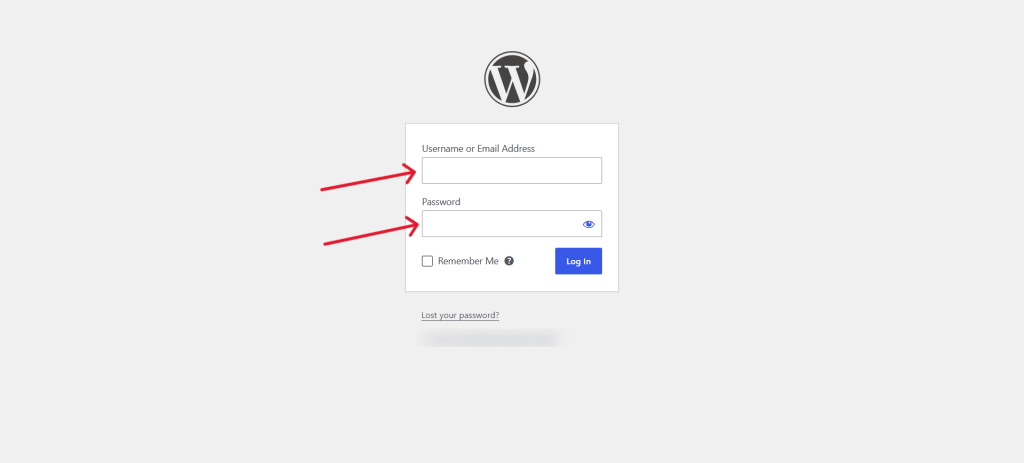
Your WordPress account is what you use to access the WooCommerce backend, so the WooCommerce login and WordPress admin login use the same login page.
Step 3: Open WooCommerce from the admin menu
Use the left-hand WordPress sidebar to navigate to WooCommerce for store controls, Products for catalog management, or Analytics for reports.
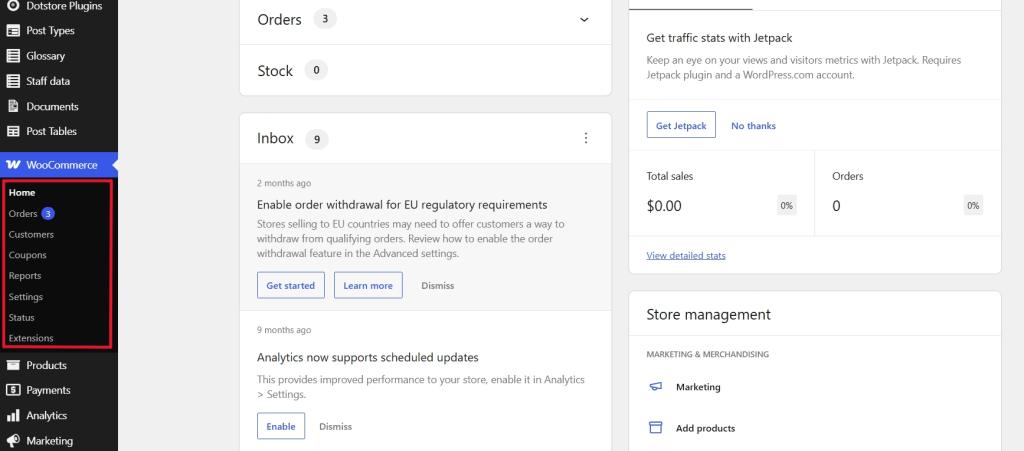
The exact appearance and contents of your WooCommerce admin panel depend on your WooCommerce version, user permissions, and installed extensions. New stores will include a setup checklist here along with the tasks left to finish before launch.
Understanding the WooCommerce admin panel
Here’s an overview of key sections of the WooCommerce admin panel, their contents, and where to find them within your site’s dashboard. Settings for shipping, payments, accounts, emails, and others are contained within sub-tabs, so feel free to browse each for more.
Also, additional options and settings may appear when you install compatible extensions.
- WooCommerce. The WooCommerce admin dashboard is the command centre that houses WooCommerce-specific settings and information for your online store. Here are the key sub-tabs within it along with their purposes:
- Home: View your store overview, setup checklist, and performance information.
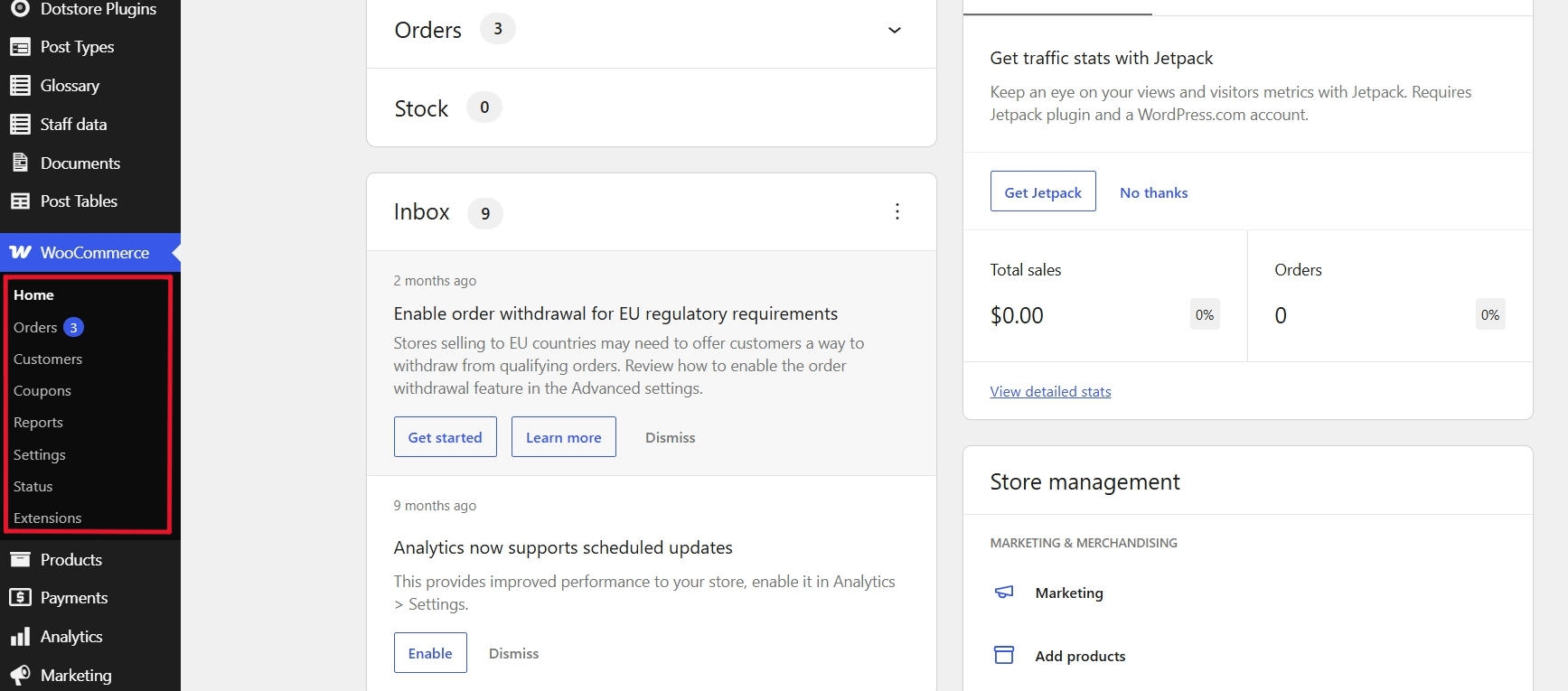
- Orders: View, manage, and manually create orders.
- Customers: Search and review customer records.
- Reports: Access legacy reports, where available.
- Settings: Configure shipping, payments, taxes, emails, accounts, and other store settings.
- Status: Troubleshoot issues and access system information, scheduled actions, logs, and tools.
- Extensions: Discover and manage WooCommerce.com extensions.
- Home: View your store overview, setup checklist, and performance information.
- Products. From here, you can manage and organize your product catalog from the WooCommerce backend.
- All Products: Add, view, and edit existing products.
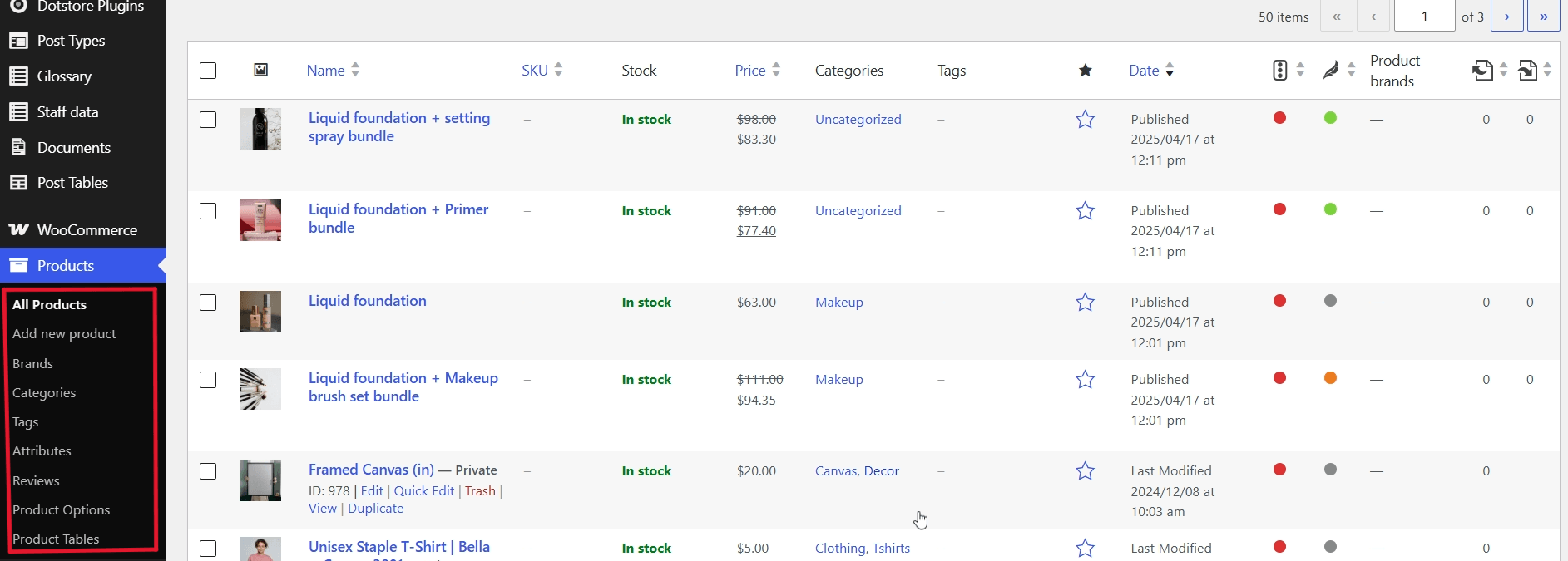
- Add New: Create products.
- Categories: Organize products into categories.
- Tags: Add and manage product tags.
- Attributes: Manage product attributes used for product organization and variations.
- Reviews: Customer reviews for each product.
- All Products: Add, view, and edit existing products.
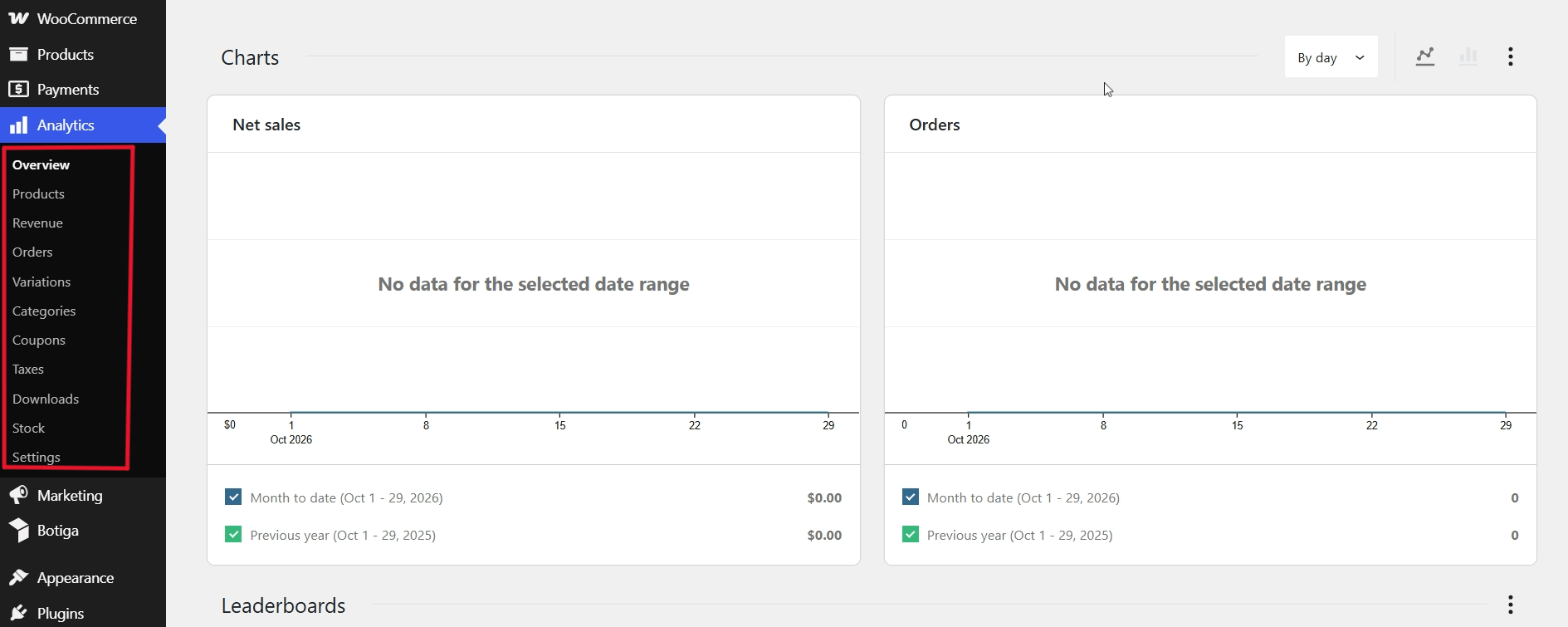
- Analytics. The Analytics tab contains reports of your store performance. You can use filters and date ranges to investigate performance and export report data where supported. Reports cover revenue, orders, products, product categories, coupons, taxes, inventory, stock, customers, and downloadable products.
- Marketing. WooCommerce ships with basic marketing tools to help you promote your store.
- Overview: The Marketing Hub contains tools and guidance for promoting your store.
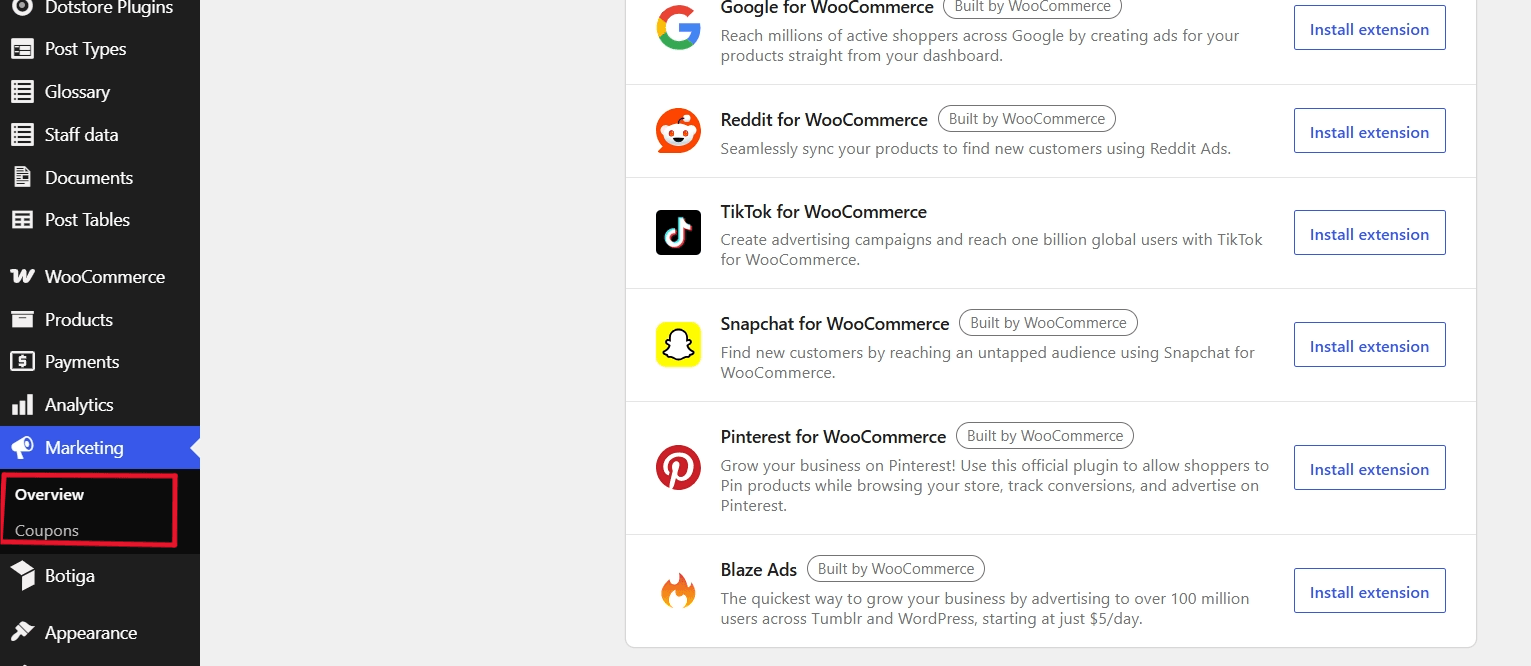
- Coupons: Create and manage discount coupons.
- Overview: The Marketing Hub contains tools and guidance for promoting your store.
WooCommerce admin user roles and permissions
WooCommerce adds two user roles to WordPress’s defaults: Customer and Shop Manager. It also gives the existing Administrator role extra store capabilities.
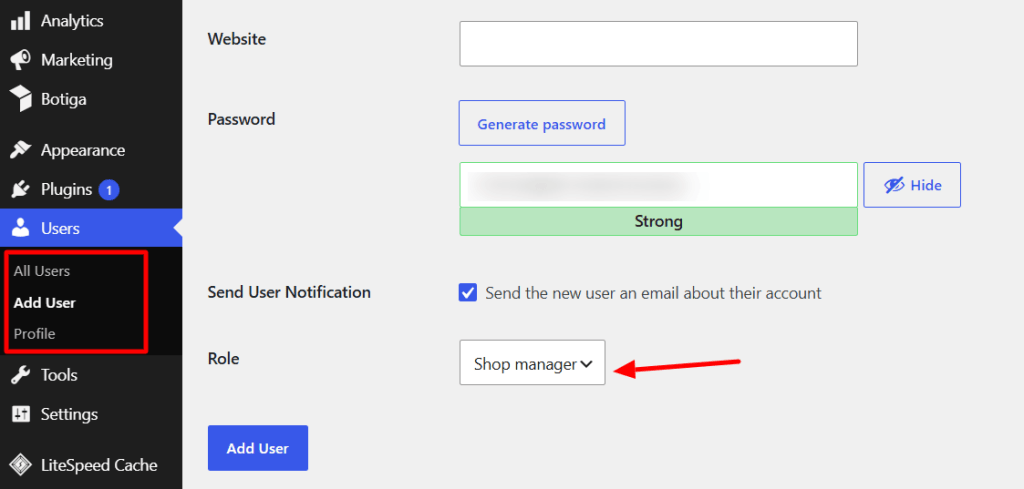
User roles determine the extent to which users can access and modify your WooCommerce admin panel.
Administrators have full access to website code, site-wide settings, WooCommerce configurations, and all analytics reports.
Shop Managers are allowed enough access to run the store without breaking it; they can manage products, orders, and reports without access to core WordPress code or site files.
Customers are limited to viewing their own past orders and updating personal account details.
Administrator vs. Shop Manager role permissions
| Products, orders, coupons | Full access | Full access |
| WooCommerce settings and reports | Full access | Full access |
| Install or edit plugins and themes | Yes | No |
| Manage users and roles | Yes | No |
| WordPress site-wide settings | Yes | No |
Important: Give each staff member their own account so you can clearly identify each user’s activity. Never share admin credentials.
7 best WooCommerce admin plugins
I’ve rounded up the seven best WooCommerce admin plugins that remove friction from the backend interface, speed up the WooCommerce admin, automate repetitive aspects of managing the WooCommerce admin, and improve your store’s backend experience.
1. Smart Manager
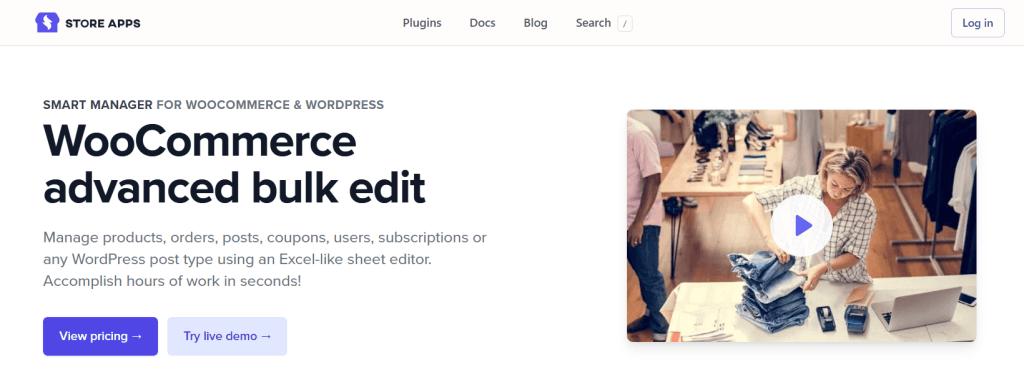
Best for: Bulk editing products, orders, and coupons.
Smart Manager adds an Excel-like spreadsheet interface to WooCommerce. Instead of having to open individual product or order pages, you can search, filter, and bulk-edit product prices, stock, order statuses, and coupons from one screen.
It is available in a free Lite version and a Pro version with inline editing, scheduled changes, and advanced search.
2. Admin Menu Editor
Want to customize your admin menu? Admin Menu Editor lets you reorganize the dashboard according to your preference. You can reorder and rename admin menu items, change menu icons, hide unnecessary menu items, configure menu permissions and access rules, and more.
Admin Menu Editor is available in a free version, with additional functionality like the ability to set per-role menu permissions, export the admin menu, hide the menu from specific users, etc., in Pro.
3. Commandify
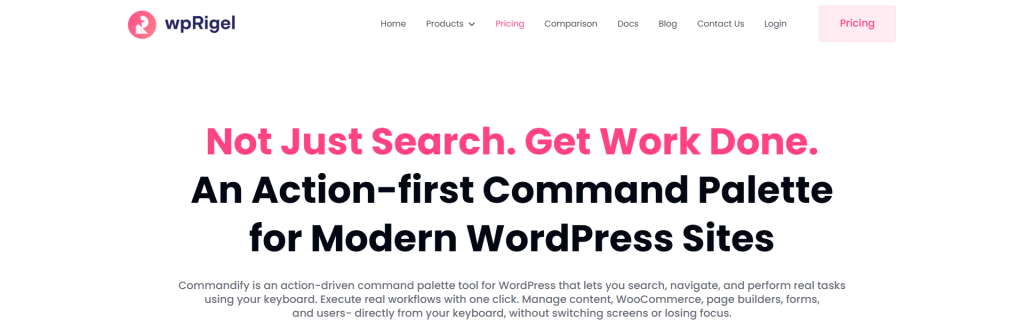
Best for: Navigating the WooCommerce admin with ease
Commandify adds a command palette which you open by pressing Cmd/Ctrl + K. Type what you need into the search bar and immediately jump straight to it: an order number, a customer email, a product SKU, or any admin screen.
Commandify’s free version covers admin navigation and search. Pro adds WooCommerce commands, so you can change an order status or add a note without having to open the order screen.
4. Query Monitor
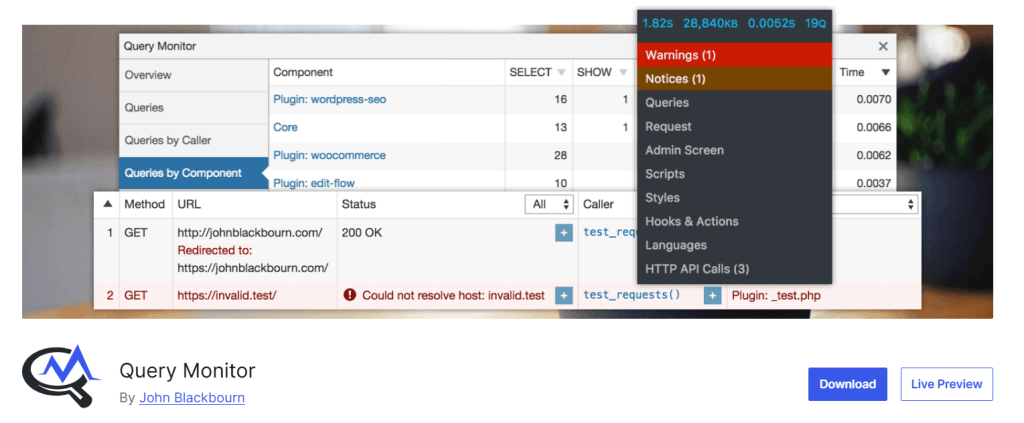
Best for: Troubleshooting slow WooCommerce admins.
Query Monitor is a free developer-tools panel that sits in your admin bar. It flags slow, duplicate, and erroneous database queries, and groups them by plugin, theme, or function so you can pinpoint which one is slowing down your website’s backend. By default, only users with the “Administrator” role can see its output.
Query Monitor flags issues but doesn’t fix them. Plus, the readout is geared toward developers, so it’s common for WooCommerce admins to install it for a diagnostic session and deactivate it afterwards.
5. WP-Optimize
Best for: Clearing database bloat.
WP-Optimize cleans out expired transients, post revisions, and orphaned metadata. To avoid removing useful data, it previews what it’ll remove before anything gets deleted.
WP-Optimize can also remove tables left behind by plugins you’ve already deleted, and it works with UpdraftPlus to take a database backup first.
It is available in 2 versions: Free and Pro, which starts at $49 a year.
6. User Role Editor
Best for: Creating custom user roles.
Some stores employ customer service representatives, fulfillment assistants, store managers, and other staff who need access to parts of the admin panel to perform their jobs.
Once installed, the User Role Editor plugin adds a screen under Users → User Role Editor. From here, you can create custom roles and tick individual capabilities on or off.
For example, an online clothing store can create a custom “fulfillment assistant” user role that can handle orders but can’t change settings.
7. WP Activity Log
Best for: Monitoring users’ activities on your website.
When multiple users have access to your store’s backend, recording who changed a setting, edited content, or performed another tracked action helps with troubleshooting and accountability.
WP Activity Log supports security and auditing workflows by letting you track supported user activities and changes, review event history, and more.
It is available in both free and premium versions.
FAQs about the WooCommerce admin panel
Can admins access a user’s wishlist in WooCommerce?
The wishlist feature isn’t built into WooCommerce core. Several popular wishlist plugins, including WooCommerce Wishlists and Iconic’s Wishlists for WooCommerce, let store admins view and manage customers’ wishlists from the backend.
However, this feature depends entirely on your specific Wishlist plugin, so you’ll need to check its documentation to confirm.
Can you enter a shortcode on a product in the WooCommerce admin?
Yes. If you paste the shortcode into the product’s description or short description, WooCommerce will render it on the product page. The plugin that owns the shortcode must be active, or it’ll just show the raw code and text. If your theme or page builder uses custom product templates, test it on the live page first.
How can I delete a WooCommerce admin user?
There are 2 main rules for deleting a WooCommerce admin user. You can’t delete the account you’re logged in with, and you must always maintain a minimum of one working Administrator account.
To delete a user, navigate to Users → All Users in your website admin. Hover over the user and press the “Delete” button. WordPress will confirm whether to delete the user’s content or attribute it to another user.
How to change a WooCommerce admin email?
WooCommerce uses the WordPress administration email. To change it, navigate to Settings → General, update the Administration Email Address, and press the “Save” button. WordPress will send a confirmation link to your new email address, and the change will take effect after you click on it.
You can also update the email on your own profile under Users → Profile. And WooCommerce’s order and customer notification emails have their own settings under WooCommerce → Settings → Emails.
Does WooCommerce admin work better on Firefox?
No, the WooCommerce admin works the same in any modern, up-to-date browser, no matter if it’s Chrome, Firefox, Edge, or Safari.
The newer admin screens are JavaScript-driven, so an outdated browser can cause glitches. If a specific browser feels slow, try disabling its extensions, clearing the cache, or opening a private window.
What is Energy+, a beautiful admin for WooCommerce?
Energy+ is a premium third-party plugin that restyles the WordPress and WooCommerce backend into a cleaner, store-focused admin panel.
If you’re considering it, check its last-updated date and WooCommerce compatibility notes first.
Also, make sure you test it on a staging site before installing it on your live site, as plugins that restyle the whole admin are known to clash with other plugins.
Mastering the WooCommerce admin
If you’re new to WooCommerce, the admin dashboard can seem overwhelming.
To start, I recommend that you familiarize yourself with the main WooCommerce dashboard sections and the settings contained within each sub-tab. Then make sure each team member has the correct user role and level of access to perform their tasks.
Once you have a better handle on how the WooCommerce admin works, identify repetitive tasks that eat up too much time and install plugins to manage them more efficiently.
A quick note: Ready to streamline your WooCommerce store management? Discover Dotstore’s WooCommerce plugins to save time and simplify everyday tasks. For more actionable advice, explore our collection of WooCommerce tutorials and articles to learn how to optimize your store, improve the customer experience, and increase sales.