Table of Contents
Learn how to set up enhanced ecommerce tracking in WooCommerce with Google Analytics 4 (GA4), so you can track every stage of the customer journey and collect the data needed to optimize your store’s performance.
Key Takeaways
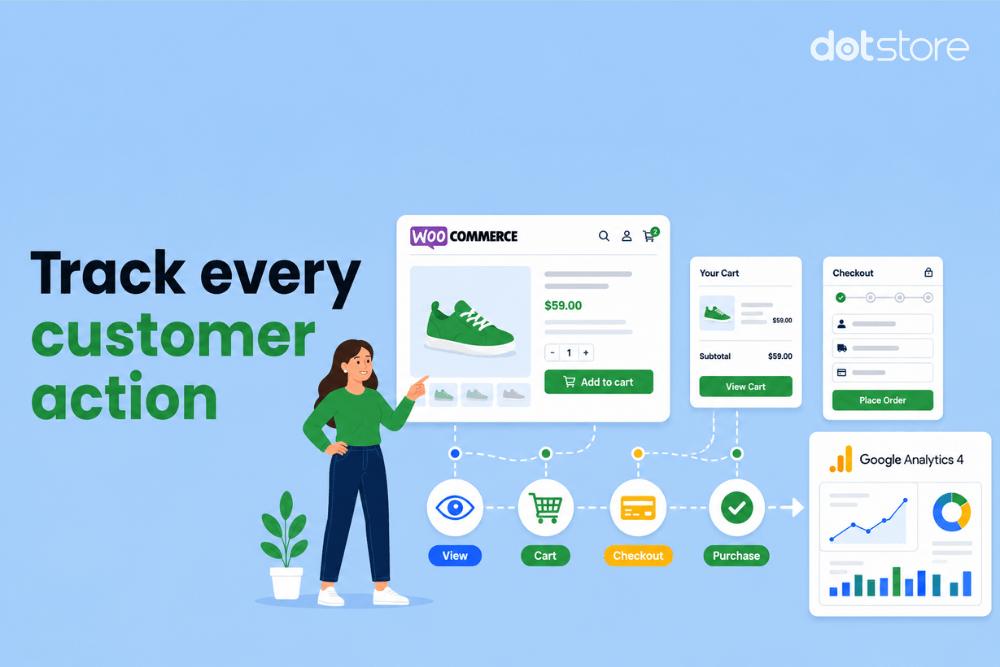
- Enhanced ecommerce tracking in GA4 captures the entire customer journey, including product views, add-to-cart actions, checkout steps, coupon usage, and purchases.
- Compared to standard GA4 tracking, enhanced ecommerce provides richer insights into customers’ behavior on your site.
- The Dotstore Enhanced Ecommerce Google Analytics for WooCommerce plugin is an advanced plugin that lets you enable enhanced ecommerce tracking in minutes (100% no code).
- Duplicate GA4 tags, caching plugins, AJAX checkouts, consent management tools, and theme conflicts can prevent events from being tracked correctly in GA4.
If you run a WooCommerce store, you already know that you need detailed ecommerce analytics to make informed business decisions. Google Analytics is the most widely used analytics tool in the world, so you’ve likely connected it to your site.
But unless you enable enhanced ecommerce, Google Analytics won’t collect the detailed ecommerce events needed to generate actionable reports about customers’ activity on your website.
In this post, I’ll explain what enhanced ecommerce tracking is and show you how to implement it using the powerful Dotstore Enhanced Ecommerce Google Analytics for WooCommerce plugin.
Finally, I’ll answer common questions about enabling enhanced ecommerce tracking on a WooCommerce store.
In a rush? Here’s a quick overview of the setup process. You can jump straight to any step using the links below.
- Connect GA4 and WooCommerce using Dotstore Enhanced Ecommerce Google Analytics for WooCommerce’s free or pro plugin.
- Enable enhanced ecommerce tracking for WooCommerce.
- Enable search, sign-up, demographics, and interests tracking.
- Set up tracking for custom events and dimensions.
- View tracked enhanced ecommerce events.
Enhanced Ecommerce Tracking
Leverage the power of analytics to boost your store’s performance and maximize profits.
14-day, no-questions-asked money-back guarantee.
What is enhanced ecommerce tracking in WooCommerce and GA4?
Enhanced ecommerce tracking is a Google Analytics 4 (GA4) feature that sends detailed customer interaction data from your WooCommerce store to Google Analytics.
Instead of only recording completed purchases, it captures customers’ actions at key touchpoints of the buying journey, from viewing a product to successfully placing an order.
For example, imagine a site where 1,000 visitors visit a product page in a week and only 35 bought the product. Enhanced ecommerce tracking helps you understand why the other 965 visitors didn’t purchase by recording product impressions, product views, add-to-cart actions, cart quantity changes, cart removals, coupon usage, and more.
GA4 can then use collected events to populate detailed funnel reports that paint a more accurate picture of how customers behave while shopping on your site, so you can identify potential points of friction. This is what makes enhanced ecommerce tracking on WooCommerce so valuable for improving conversions and measuring marketing performance.
Basic GA4 tracking vs enhanced ecommerce tracking
Basic GA4 ecommerce tracking records one event: the final purchase. Enhanced ecommerce tracking, on the other hand, records the entire sequence of meaningful interactions leading up to the purchase as distinct events in Google Analytics, with their own parameters (product ID, price, quantity, category, etc.).
Here’s how the two approaches compare:
| Basic GA4 tracking | Enhanced ecommerce tracking |
| Tracks page views and basic website events. | Tracks key touchpoints throughout the complete shopping journey. |
| Records completed purchases. | Records product interactions, cart activity, checkout steps, and purchases. |
| Limited visibility into on-site customer behavior. | Reveals how customers move through your sales funnel. |
| Makes it tough to identify drop-off points. | Pinpoints exactly where customers abandon their journey. |
| Provides basic reporting. | Enables detailed ecommerce reports, funnel analysis, audience building, and remarketing. |
For instance, in a clothing store, imagine a visitor browses your “Summer Sale” collection, clicks into a dress, adds it to their cart, and then leaves without buying. Enhanced ecommerce tracking on WooCommerce will record the entire sequence in GA4 as view_item_list → select_item → view_item → add_to_cart.
You can then use the insights to make informed business decisions.
The best enhanced ecommerce tracking GA4 plugin for WooCommerce
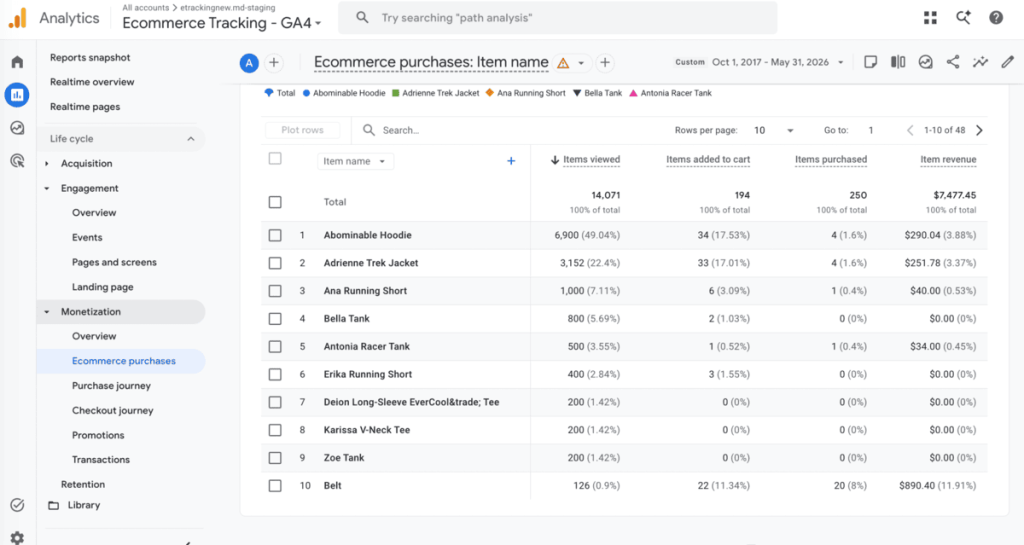
Aptly named, Dotstore Enhanced Ecommerce Google Analytics for WooCommerce plugin lets you connect your WooCommerce site to Google Analytics and enable enhanced ecommerce tracking.
It is popular amongst small, mid-sized, and large stores, as well as agencies that want to set up clients’ sites with an advanced plugin that is simple to use for non-technical folks. Setup takes minutes, and since 2015, thousands of websites have used it to track the entire customer journey with ease.
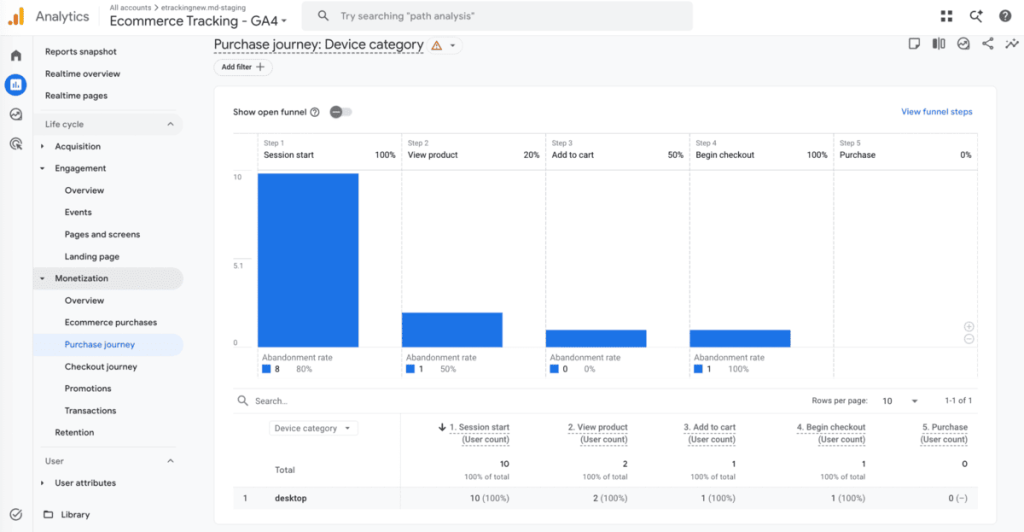
Dotstore Enhanced Ecommerce Google Analytics for WooCommerce is available in free and pro versions, and you can use it for:
- Comprehensive ecommerce tracking. It tracks product impressions, clicks, views, add-to-cart actions, checkout activity, purchases, and more as individual GA4 events. This shows you the complete customer journey to purchase.
- Custom event tracking. Alongside the standard ecommerce events, it lets you track events unique to your store, such as coupon usage, wishlist additions, downloaded spec sheets, etc.
- Custom dimensions and metrics. For each custom event you set up, you can track extra data points about your products, customers, or transactions beyond what standard GA4 reports capture.
- Dynamic remarketing support. It feeds product interaction data to GA4 so you can build remarketing audiences based on what people actually viewed or added to their carts, not just who visited the site.
- Advanced analytics and reporting. Want access to detailed purchase reports, product-level sales data, session information, and search term tracking? You can view the details inside your GA4 account.
- Setting role-based exclusions. You can exclude admins, staff, and other internal roles’ actions on your site from being included in reports so they don’t skew your site’s analytics.
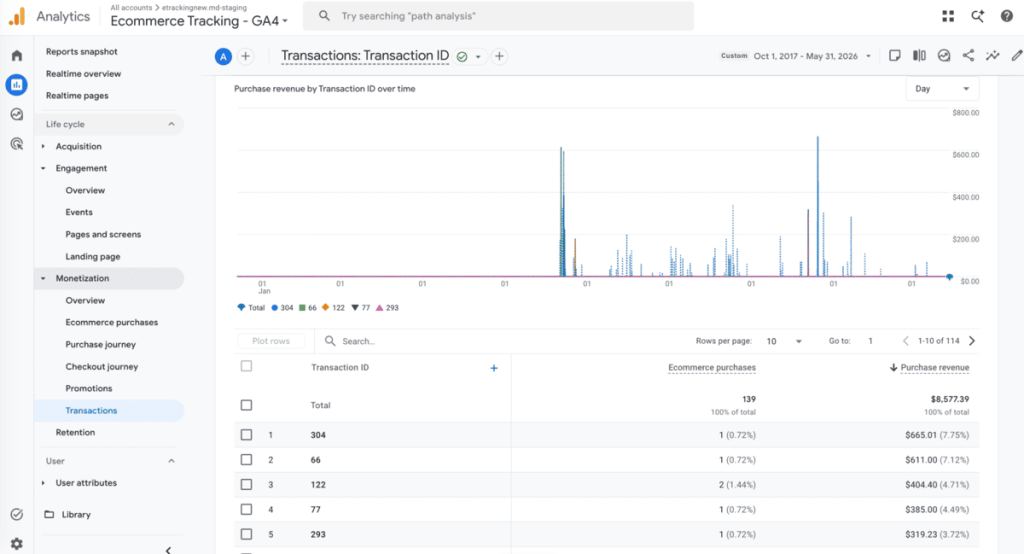
How to set up enhanced ecommerce tracking in WooCommerce
In this section, I’ll show you step-by-step how to implement enhanced ecommerce tracking in WooCommerce.
Visual learner? Check out the video walkthrough below. Otherwise, continue reading.
Step 1: Connect GA4 and WooCommerce using the Dotstore plugin
- Install and activate the free or pro version of the Dotstore Enhanced Ecommerce Google Analytics for WooCommerce plugin.
- In your WordPress admin panel, navigate to Dotstore Plugins → Ecommerce Tracking.
- There are two methods to complete the connection:
- To use the setup wizard: Press “Start to Setup” to launch the connection wizard, then click “Sign in with Google” and select your Google Analytics account. The plugin will pull in the GA4 properties tied to that account. Pick the right one and press “Complete Connection”.
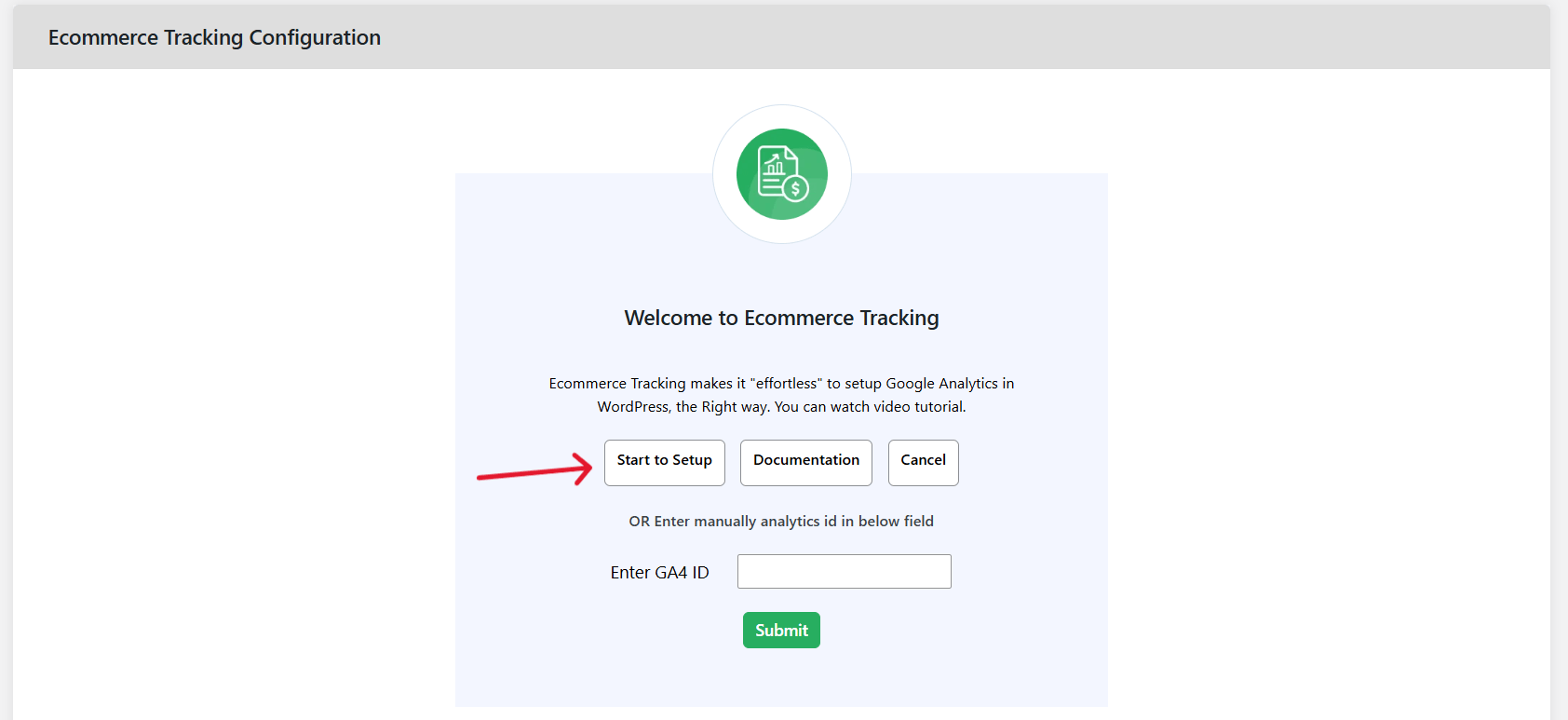
- To skip the wizard and connect manually: In Google Analytics, navigate to Admin → Data collection and modification → Data streams. Click on your store’s data stream and copy the Measurement ID. Paste that into the “Enter GA4 ID” field in the plugin and press “Submit”.
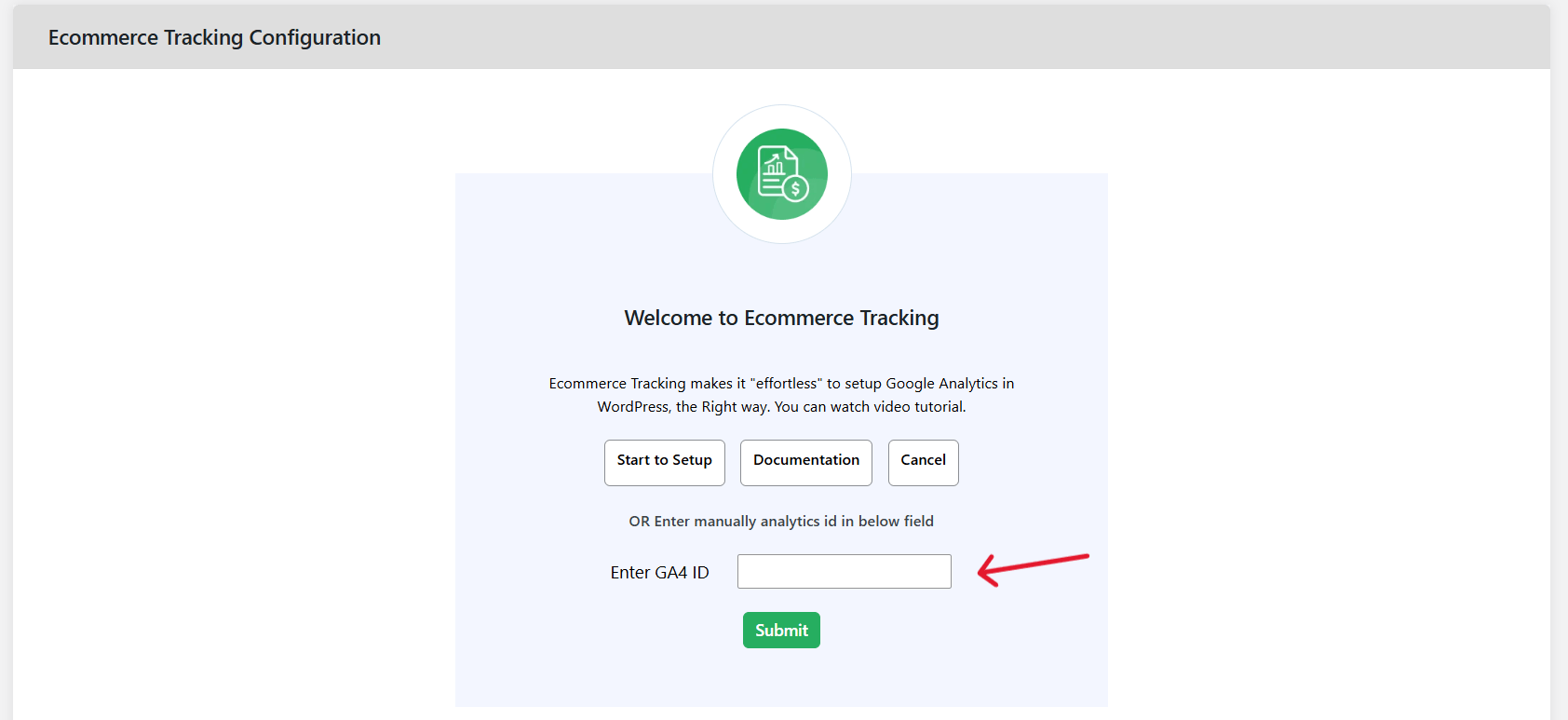
- To use the setup wizard: Press “Start to Setup” to launch the connection wizard, then click “Sign in with Google” and select your Google Analytics account. The plugin will pull in the GA4 properties tied to that account. Pick the right one and press “Complete Connection”.
Step 2: Enable enhanced ecommerce tracking for WooCommerce
It’s time for the most important part. Once the WooCommerce and Google Analytics integration is complete, turn on the “Enable Enhanced eCommerce” toggle in the plugin settings.
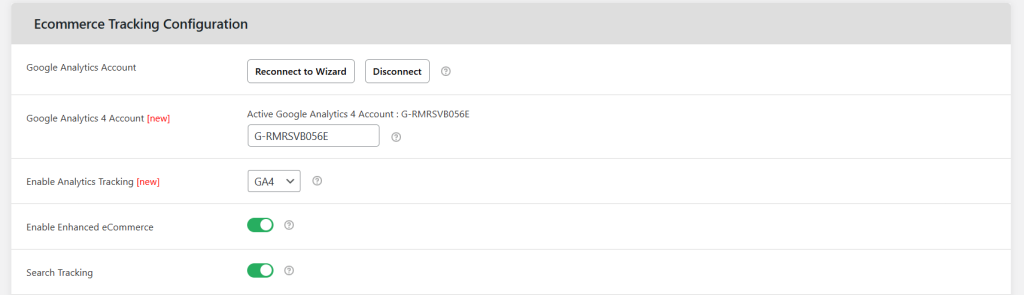
This setting sends structured GA4 ecommerce events from WooCommerce, including product views, add-to-cart actions, cart removals, coupon applications, cart quantity changes, transactions, and revenue data.
Step 3: Enable tracking for additional dimensions
Now that enhanced ecommerce is switched on, turn on tracking for other relevant dimensions, such as:
- Search Tracking. To send every on-site search term to GA4, so you can see what customers are looking for (and struggling to find).
- Sign-Up Tracking. To fire the sign_up event whenever a website visitor registers for an account on your website.
- Demographics and Interests Reports. To unlock age, gender, and interest data in GA4, which you can later use for remarketing and ad targeting.
None of these are required for enhanced ecommerce tracking to function. However, skipping them means leaving usable data on the table as they help round out your reports.
Step 4: Set up tracking for custom events and dimensions
If your store needs to track extra customer interactions alongside GA4’s default ecommerce events, such as a size guide download, a specific upsell flow, or submitted “book a consultation” forms, you can use the plugin’s “Custom Event” settings to define and track them.
You can also pair custom events with custom dimensions to segment reports by something GA4 doesn’t track natively, such as coupon usage, customer tier, or a product’s supplier.
Step 5: View tracked enhanced ecommerce events
Scroll to the bottom of the page and press the “Save changes” button. GA will start recording enhanced ecommerce events from now on so all you have to do is wait for some time to collect useful data. Note that you can open GA4’s Realtime report within a couple minutes of setup to see events start populating almost instantly.
What can break a WooCommerce site’s enhanced ecommerce tracking implementation?
Enhanced ecommerce tracking on WooCommerce is typically reliable if you set it up correctly. (With the Dotstore Enhanced Ecommerce Google Analytics for WooCommerce plugin, setup means pushing a button). However, a handful of technical issues can prevent GA4 ecommerce events from firing as expected, namely:
- Caching plugins. Aggressive page caching can serve a cached version of your site that doesn’t include updated tracking scripts, especially right after you change a setting.
- Duplicate GA4 tags. If your theme, another SEO plugin, or Google Tag Manager also injects a GA4 tag on your site, it can record duplicate or conflicting events in GA4, resulting in inflated or inconsistent numbers.
- AJAX-based add-to-cart and checkout. Themes and page builders that use AJAX for add-to-cart or a one-page checkout can fire events out of order, or not at all, if the plugin isn’t hooked into the right actions.
- Consent management tools. Cookie consent plugins that block scripts by default can prevent GA4 tags from loading until (or unless) a visitor accepts analytics cookies. Note that this will show up as a drop in tracked sessions, not as a tracking bug.
- Theme or plugin conflicts. A checkout page builder or custom theme template can sometimes override or strip out tracking code. If you suspect this, check the plugin’s compatibility list, and test the checkout flow in GA4 DebugView after any theme update.
Important note: Due to ad blockers, browser privacy features, and consent preferences, some customer interactions may never be tracked, no matter how your plugin is configured.
FAQs about enhanced ecommerce tracking in WooCommerce
What GA4 events does enhanced ecommerce tracking fire in WooCommerce?
At minimum, Google recommends the following GA4 ecommerce events that cover the entire online customer journey, from the initial product discovery to refund requests.
| GA4 ecommerce event | When it fires |
| view_item_list | A customer views a list of products (e.g. category page, shop page, search results). |
| select_item | A customer clicks or selects a product from a product list. |
| view_item | A customer views an individual product page. |
| add_to_wishlist | A customer adds a product to their wishlist. |
| add_to_cart | A customer adds a product to their shopping cart. |
| remove_from_cart | A customer removes a product from their cart. |
| view_cart | A customer views the shopping cart. |
| begin_checkout | A customer starts the checkout process. |
| add_shipping_info | A customer selects or submits shipping information. |
| add_payment_info | A customer selects or submits payment information. |
| purchase | A customer completes an order. |
| refund | A purchase is fully or partially refunded. |
What parameters should accompany each event in GA4?
Event parameters provide the context required to generate accurate ecommerce reports. For example, the add_to_cart event demonstrates that a visitor added an item to their shopping basket, while its parameters identify the product, its value, and the number of items added.
The exact parameters vary slightly by event; however, Google recommends including the following wherever applicable:
| Parameter | Purpose |
| items | An array containing information about the products involved in the event. This is the most important ecommerce parameter. |
| item_id | A unique product or SKU identifier. |
| item_name | The product name shown in reports. |
| item_brand | The product’s brand or manufacturer. |
| item_category | The primary product category. |
| item_variant | The selected variation, such as size or colour. |
| price | The price of each product. |
| quantity | The number of units involved in the event. |
| currency | The currency used for the transaction, such as GBP or USD. |
| value | The total monetary value associated with the event. |
| coupon | The coupon code applied, if one was used. |
| affiliation | The store or sales channel associated with the purchase. |
| shipping | The shipping cost for completed orders. |
| tax | The tax amount charged on the order. |
| transaction_id | A unique identifier for each completed purchase or refund. |
Which ecommerce reports does enhanced ecommerce tracking populate in GA4?
GA4 auto-populates the following ecommerce reports about product performance, customer behavior, and purchase trends:
- Ecommerce purchases – This shows top-selling products, revenue, quantities sold, refunds, and average purchase revenue.
- Purchase journey – This visualises how users move from their first visit to completing a purchase, making it easier to identify where customers drop out of the funnel.
- Checkout journey – This tracks each stage of the checkout process, including checkout starts, shipping information, payment information, and completed purchases.
- Monetisation reports – This summarizes your store’s revenue, purchases, average order value, and ecommerce conversion metrics.
- Promotions report – This measures how promotional banners and offers perform if you’re tracking the view_promotion and select_promotion events.
- Realtime report – This lets you verify that ecommerce events are firing as customers browse your store. It is especially useful when testing a new implementation.
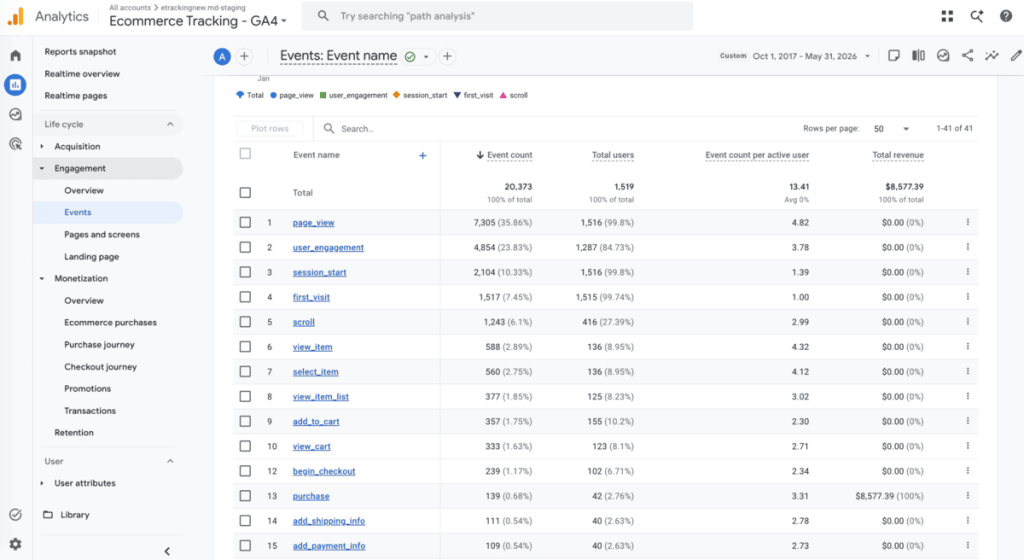
- Events report – This lists every ecommerce event your site sends to GA4, along with how frequently each event occurs.
- Conversions (Key events) – This displays the events you’ve marked as key business outcomes, such as purchase.
Enable GA4 enhanced ecommerce on your WooCommerce site
Enhanced ecommerce tracking empowers you to identify friction points, optimize your conversion funnel, and make more informed marketing decisions.
Dotstore Enhanced Ecommerce Google Analytics for WooCommerce lets you connect your WooCommerce site to GA4 and enable enhanced ecommerce tracking by turning on a single setting. Then the plugin starts logging product impressions, clicks, cart activity, checkout steps, purchases, and other key actions as structured GA4 events.
With Dotstore Enhanced Ecommerce Google Analytics for WooCommerce, you can implement:
- Full-funnel event tracking that records drop-off points between customers’ first view of a product and completing the checkout process.
- Custom event and dimension tracking of store-specific interactions, such as coupon usage, wishlist adds, custom checkout steps, and others, alongside the standard ecommerce events.
- Dynamic remarketing support that feeds product-level interaction data into GA4 so your remarketing audiences reflect items visitors viewed or added to their shopping carts.
- Role-based exclusions that exclude admin and staff activity from your funnel data so your reports remain accurate and only contain real customer behavior.
Try the live demo or get the free or pro plugin to set up enhanced ecommerce tracking on your store today!
Enhanced Ecommerce Tracking
Leverage the power of analytics to boost your store’s performance and maximize profits.
14-day, no-questions-asked money-back guarantee.