Table of Contents
You connected Google Analytics to WooCommerce, placed a test order, and saw the purchase appear in your GA4 reports. Everything looked fine. Then you compare a full month of WooCommerce orders against GA4 purchases, and the numbers don’t match. Here’s how to fix it with GA4 WooCommerce server-side tracking.
Key Takeaways
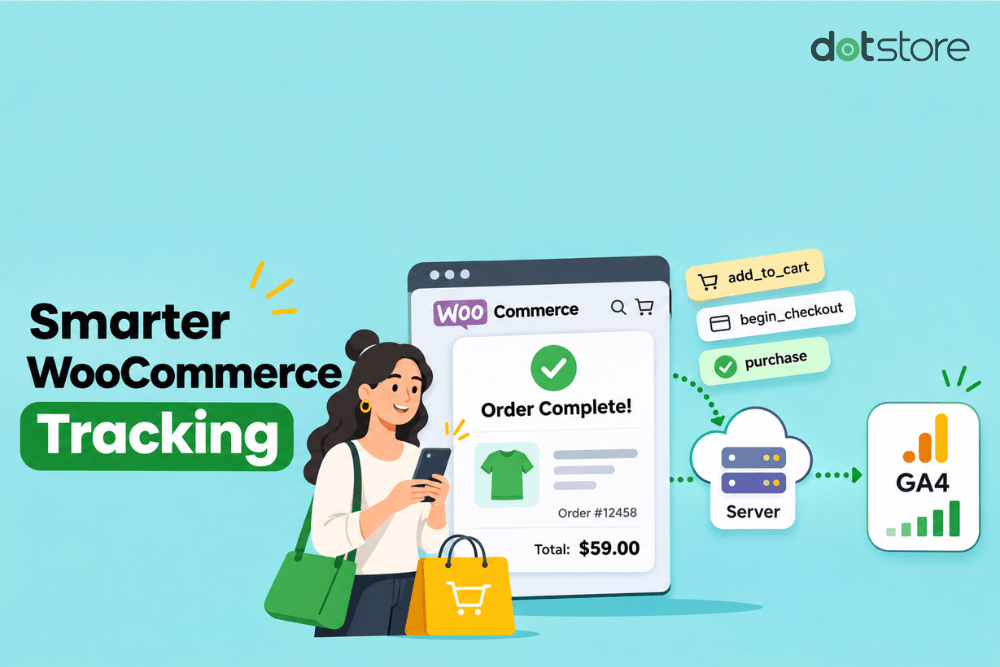
- WooCommerce GA4 server-side tracking sends your store’s events to GA4 through a server instead of relying only on site visitors’ browsers.
- Server-side tracking improves event delivery, not event accuracy.
- Ideally, you should run both client-side and server-side tracking, and each event should have a GA client ID so it’s counted once.
- The Dotstore Enhanced Ecommerce Google Analytics for WooCommerce plugin is the best server-side tracking solution for WooCommerce that doesn’t require developer implementation.
Browser-only tracking has limitations that can affect the reliability of your GA4 data. This can happen for a variety of reasons: ad blockers that stop requests before they leave the browser, Safari famously clears browser cookies after seven days, and shoppers who pay through an external gateway and then close the tab before the confirmation page loads.
Enabling server-side tracking in WooCommerce closes those gaps in your store’s reporting.
In this guide, I’ll explain how WooCommerce GA4 server-side tracking works and how it compares to client-side tracking.
I’ll also show you step by step how to set up and test server-side tracking for Google Analytics with the Dotstore Enhanced Ecommerce Google Analytics for WooCommerce plugin.
Enhanced Ecommerce Tracking
Leverage the power of analytics to boost your store’s performance and maximize profits.
14-day, no-questions-asked money-back guarantee.
What is WooCommerce GA4 server-side tracking?
WooCommerce GA4 server-side tracking routes your store’s e-commerce events through a server-side plugin or your own custom subdomain and a Google Tag Manager (GTM) server container before sending them to Google Analytics.
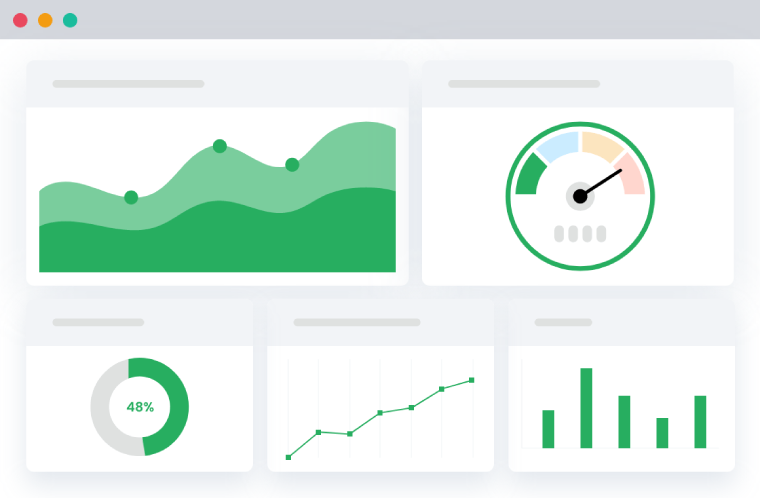
With GA4 server-side tracking, the flow of data looks like this:
- A shopper takes an action on your website, such as viewing a product, adding it to their cart, or completing a purchase.
- Your GA4 tracking plugin records the event and its details, such as the product, price, currency, and order ID.
- The event is sent to your site’s server (if your plugin uses the GA4 Measurement Protocol Backend Tracking plugin) or server container ( if you’re using a server-side Google Tag Manager or sGTM).
- Your site’s server or the server container sends the event on to GA4.
Server-side tracking isn’t server-only. In many setups, the browser still records storefront events like product views and add-to-cart clicks, and the server handles delivery. This bypasses browser-based ad blockers, ITP privacy restrictions, and cookie limits.
Server-side tracking can’t fix an incorrect GA4 setup
Server-side tracking doesn’t improve tracking accuracy or repair broken events; it improves delivery. If an event carries the wrong value, wrong currency, or a missing transaction ID, server-side tracking will send that same flawed data from WooCommerce to GA4.
Server-side tracking also doesn’t work around consent. If a website user declines tracking, the event shouldn’t be sent. And it can’t recover an event that a blocker stopped before it left the browser.
WooCommerce GA4 server-side tracking vs. client-side tracking
Client-side tracking (or browser tracking) runs tracking scripts in site visitors’ browsers (the “client”) and sends each event to GA4. It is the default setup for most GA4 integrations.
However, event delivery depends on each site visitor’s browser. Ad blockers, page load dependencies, cookie limits, and closed tabs can prevent events from being tracked and recorded properly in Google Analytics.
The main difference between client-side tracking in WooCommerce and server-side tracking is where events originate and how they’re delivered to Google Analytics. Here’s how both approaches compare.
| WooCommerce GA4 server-side tracking | WooCommerce GA4 client-side tracking | |
| Where events are sent from | Your website’s server. | The site visitor’s browser. |
| Browser-dependent | No. The event is sent in the background after the order is placed. | Yes. Both the script and the page have to load. |
| Browser ad blockers | Don’t affect it, as the event tracking request doesn’t come from the browser. | Can stop the request. |
| Closed-tab purchases | Captured, because the order is queued when it’s placed. | Missed if the order Thank You page doesn’t load. |
| Refunds | Sent even if the customer never revisits your website. | Only tracked if a browser event fires. |
| What the tracking script can see | Order data straight from WooCommerce. | Page context: the URL, traffic source, browser details, and on-page interactions. |
| What it tracks in the Dotstore plugin | Purchase and refund events, once Measurement Protocol Backend Tracking is on. | Product impressions, clicks, views, add to cart, remove from cart, coupons, quantity changes, and checkout activity. |
Why use GA4 server-side tracking for WooCommerce?
WooCommerce stores have tons of moving parts (Block checkout, AJAX carts, external payment gateways, caching, overlapping plugins, etc.) that can lead to inaccurate tracking in GA4.
Here are three top benefits of enabling server-side tracking to send events from your WooCommerce store to GA4.
- More reliable customer funnels. GA4 depends on a chain of events: view_item, add_to_cart, begin_checkout, add_payment_info, purchase to accurately track the entire customer journey. Missing a single key event can distort funnel reports and make certain stages appear to have higher drop-offs, which messes up your customer funnel.
- More reliable attribution data. Accurate marketing attribution can be tricky. GA4’s ability to connect sessions depends on available identifiers and attribution settings. For example, if a shopper discovers your store through organic search, returns through an email campaign, and converts a couple of weeks later, you want to make sure that GA4 connects those sessions. Longer-lived first-party cookies help keep that connection intact.
- Better signals for your ad platforms. If you import GA4 conversions into Google Ads, a missing purchase event means Google Ads optimizes against incomplete data. For instance, add-to-cart events missing for mobile users can result in Google Ads wrongly assuming that mobile traffic has weaker purchase intent and automatically shifting budget away from it.
The best GA4 server-side tracking plugin for WooCommerce

The Dotstore Enhanced Ecommerce Google Analytics for WooCommerce plugin is the best server-side tracking solution for WooCommerce if you want to send purchase and refund events to GA4 without developer implementation or managing your own tagging server.
Among the different WooCommerce server-side tracking solutions available, plugin-based tracking is one of the simplest options for store owners who don’t want to configure a separate server-side Google Tag Manager container.
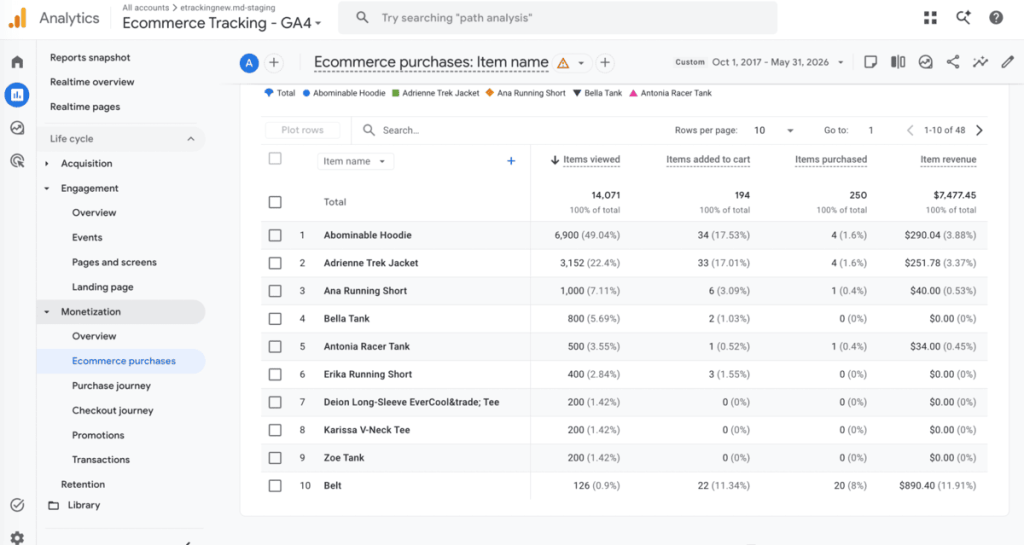
It uses GA4’s Measurement Protocol to track events in your store in 2 layers:
- Layer 1: Browser-side ecommerce tracking, including product impressions, product clicks, product views, add-to-cart and remove-from-cart actions, coupon use, cart quantity changes, and checkout activity.
- Layer 2: Measurement Protocol Backend Tracking. This is the server-side tracking that sends your purchase and refund events to GA4 from your server, using GA4’s Measurement Protocol.
Here’s how its WooCommerce GA4 server-side tracking feature works:
- A customer places an order.
- The plugin queues that order in a background scheduler.
- Your server sends the purchase event to your GA4 account.
- Refund requests, if made, are tracked too.
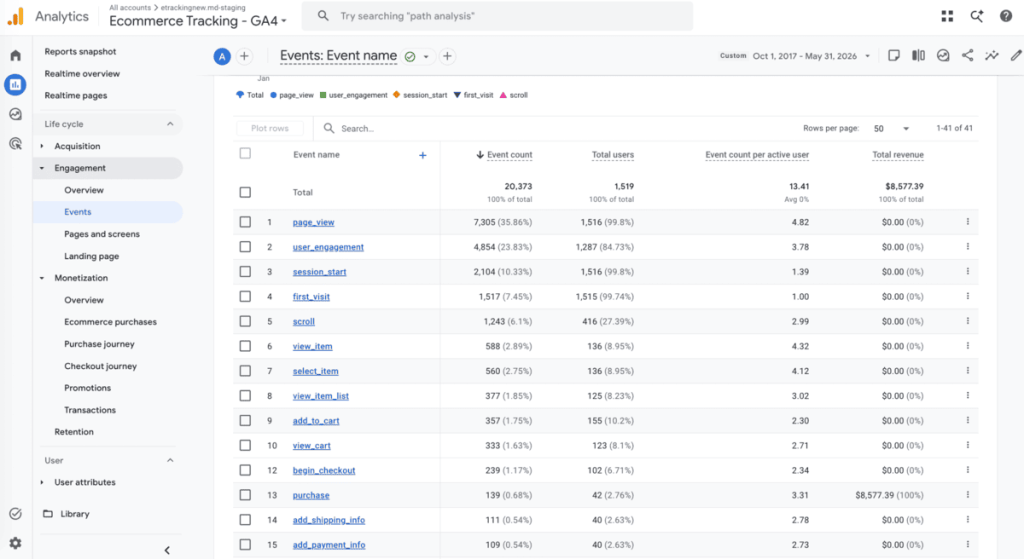
The Dotstore Enhanced Ecommerce Google Analytics for WooCommerce plugin also stores each site visitor’s GA client ID, so the server event matches the same user GA4 already saw in the browser, and not as a separate, anonymous visitor.
And because events don’t depend on the customer’s browser, supported events still reach GA4 when ad blockers are running, when the “Thank-you” page loads slowly, or when a customer doesn’t return to your site after a refund.
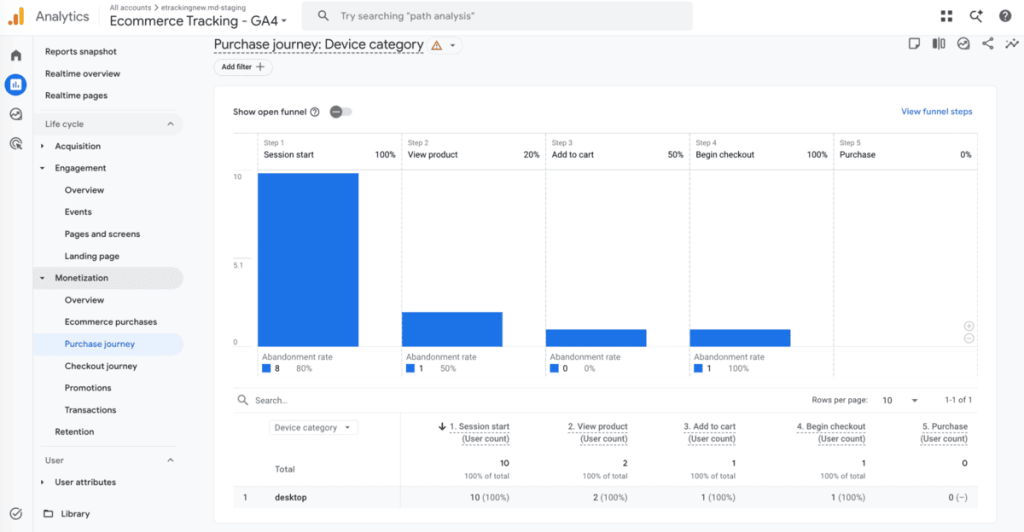
Best of all, the Dotstore Enhanced Ecommerce Google Analytics for WooCommerce plugin is super easy to use. The setup takes less than ten minutes from start to finish. It only involves your WordPress admin and your GA4 account; you don’t need to build a data layer or host a tagging server.
This makes it ideal for WooCommerce admins who want more than a surface-level view, ecommerce marketers running paid campaigns, agencies managing client reporting, and stores that rely on remarketing or audience-based advertising.
Top features
Alongside enabling server-side GA4 tracking for WooCommerce, here’s an overview of the Dotstore Enhanced Ecommerce Google Analytics for WooCommerce‘s plugin key features.
- Detailed ecommerce tracking. It tracks product impressions, clicks, views, add-to-cart actions, checkout activity, purchases, and other key actions as individual GA4 events. This shows you the full path customers take before they buy, not just the sale.
- Custom dimensions and metrics. If required, you can monitor extra data points about your products, customers, or transactions, in addition to the standard GA4 reports.
- Dynamic remarketing support. The plugin feeds product interaction data to GA4 for you to build effective remarketing audiences based on products your website visitors viewed or added to their shopping carts.
- Custom event tracking. It lets you track events specific to your store, such as a coupon applied, a wishlist add, a downloaded spec sheet, and other important events, alongside the standard ecommerce events.
- Advanced analytics and reporting. Because this WooCommerce GA4 plugin lets you capture so much information about customers’ activities on your website, you can compile and access detailed purchase reports, product-level sales data, session information, search term tracking, and others, inside GA4.
- Role-based exclusions. Exclude site admins, staff, and other internal roles from your analytics so their actions don’t skew customer data.
How do I set up GA4 server-side tracking in WooCommerce?
Here’s the step-by-step tutorial on setting up server-side tracking between WooCommerce and GA4.
This is a straightforward method that doesn’t require you to configure a separate GA4 server-side tracking platform or manage your own server container.
- Download and activate the Dotstore Enhanced Ecommerce Google Analytics for WooCommerce plugin on your site.
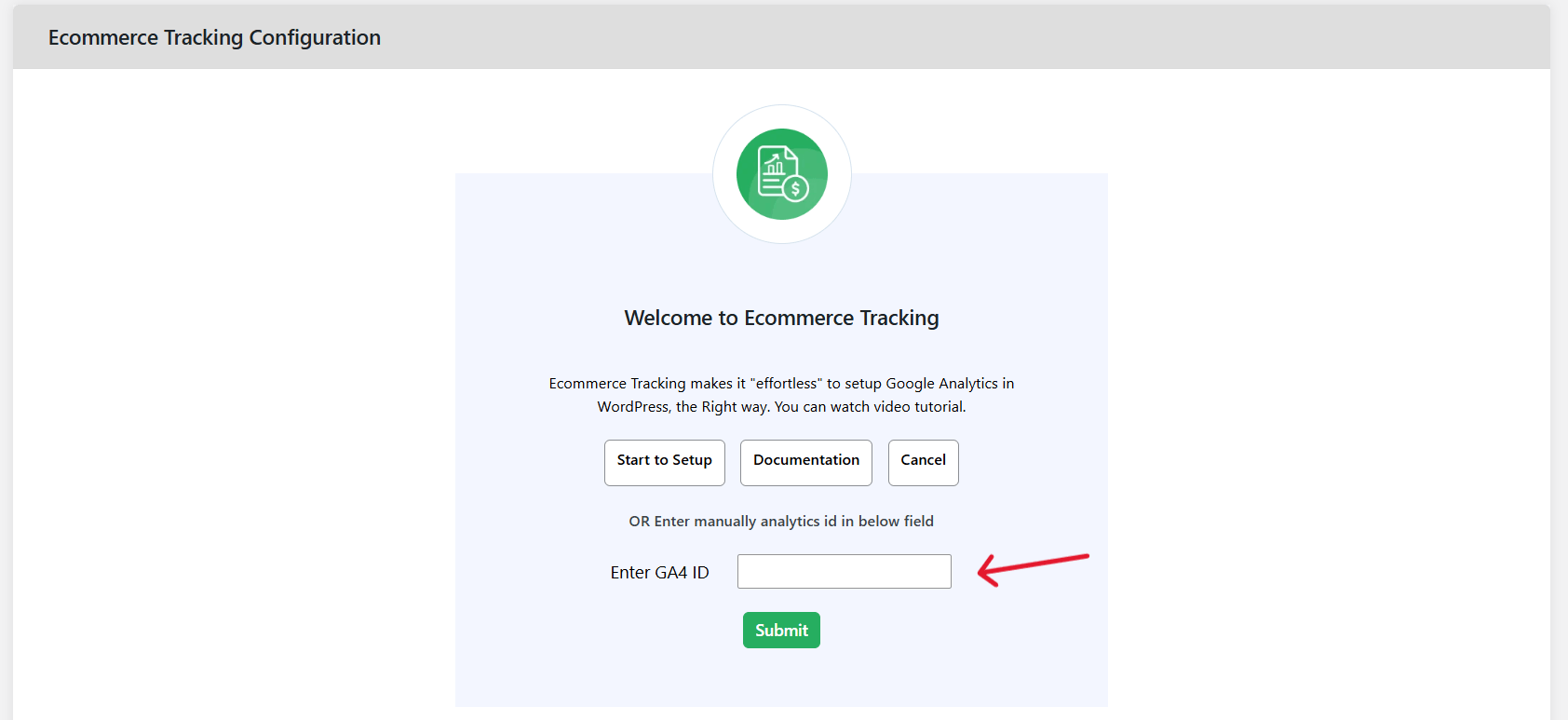
- In your WordPress admin, navigate to Dotstore Plugins → Ecommerce Tracking.
- Connect GA4 using one of these two methods.
- Method A: Setup wizard
- Tap “Start to Setup” to launch the wizard.
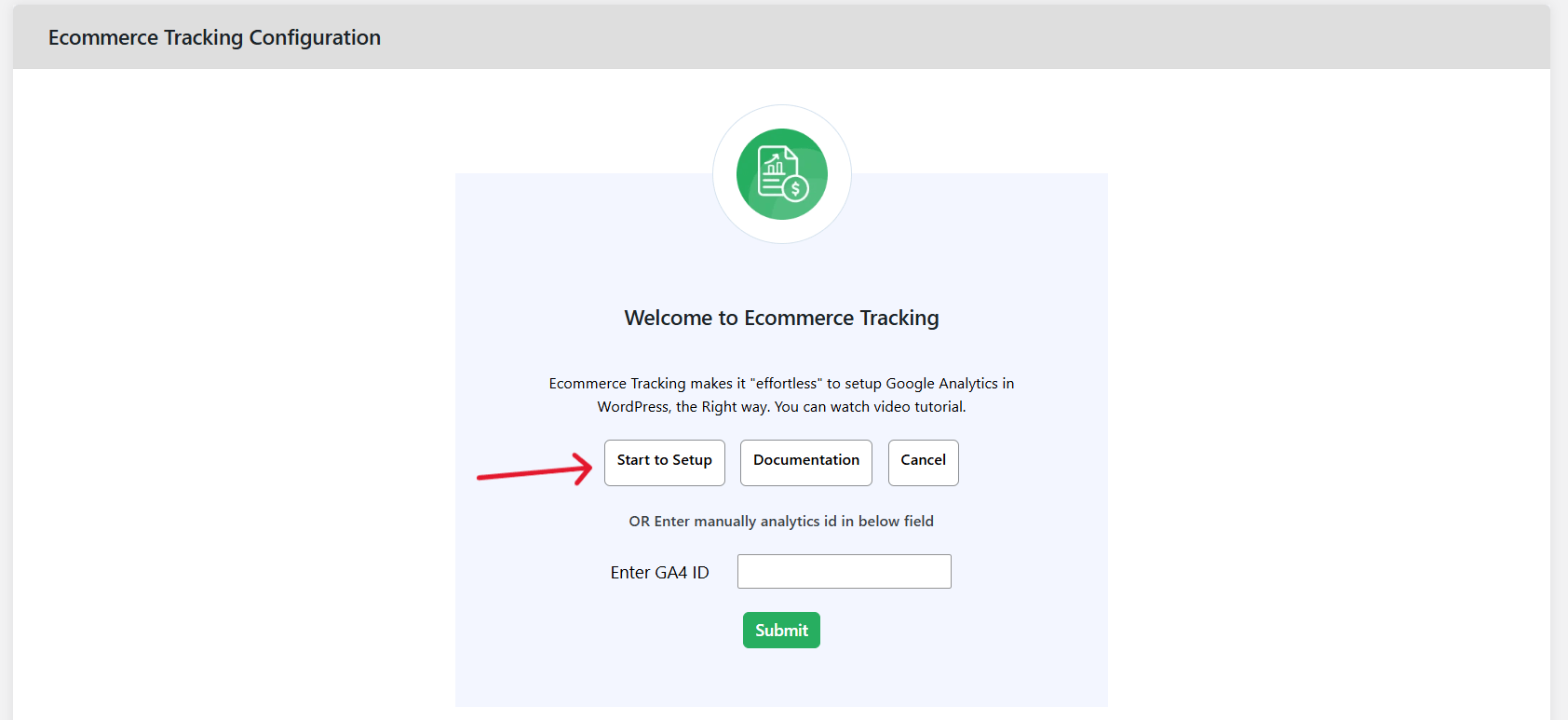
- Tap “Sign in with Google” and select your Google Analytics account.
- The plugin pulls all the analytics IDs associated with that account. Select the right GA4 ID, then click on the “Complete Connection” button.
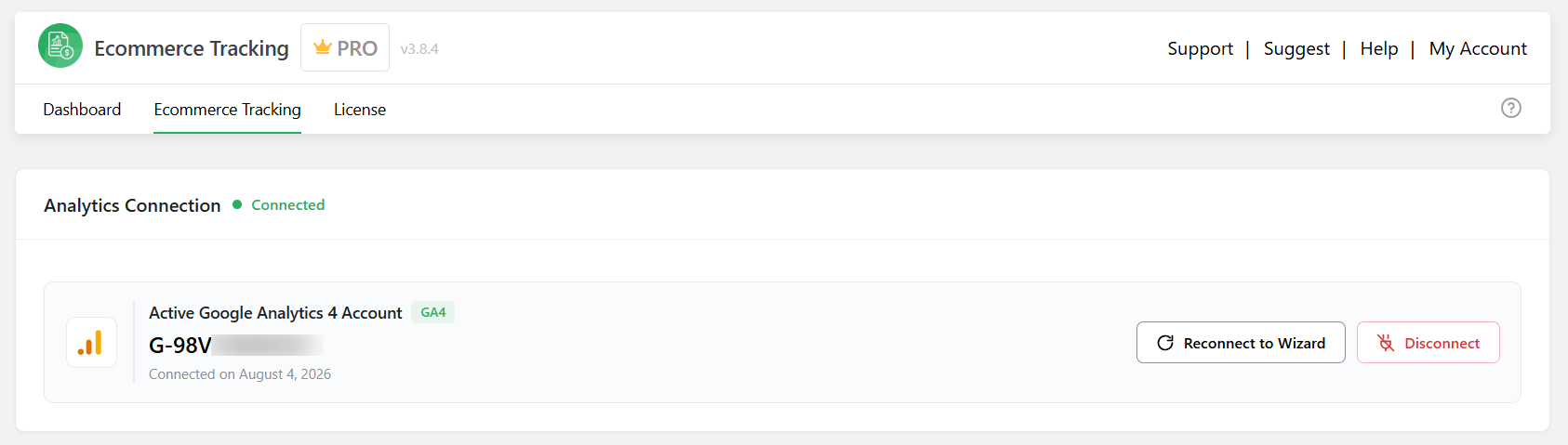
- Tap “Start to Setup” to launch the wizard.
- Method B: Paste your GA4 ID directly
- Log in to Google Analytics and tap “Admin”.
- Under Data collection and modification, click on “Data streams”.
- Click on your store’s data stream and copy the Measurement ID.
- Back in the plugin, paste it into the Enter GA4 ID box and tap “Submit”.
- Log in to Google Analytics and tap “Admin”.
- Method A: Setup wizard
- Turn on WooCommerce GA4 server-side tracking for purchases and refunds:
- Under “Ecommerce Tracking”, open the Measurement Protocol Backend Tracking panel.
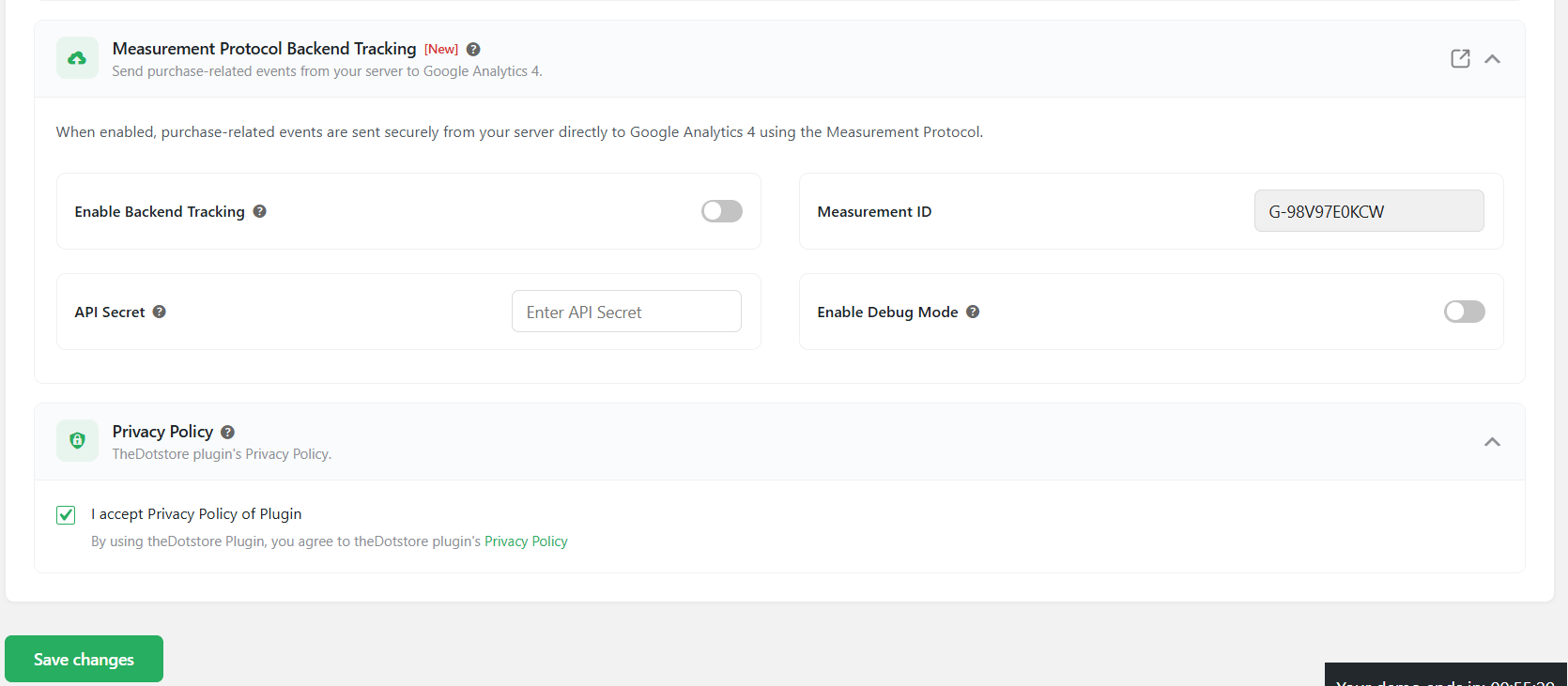
- Turn on the Enable Backend Tracking toggle.
- The Measurement ID field should be autofilled from your connected GA4 property. If it’s blank, enter your GA4 Measurement ID (it starts with G-).
- In Google Analytics, go to Admin → Data Streams, select your web stream, and open Measurement Protocol API secrets. Tap “Create” to generate a new API secret key, or copy an existing one.
- In your WordPress admin, paste the secret into the API Secret field.
- Optional: You can turn on Enable Debug Mode while you test to confirm events are recorded in GA4.
- Scroll to the bottom and tap “Save changes”.
- Under “Ecommerce Tracking”, open the Measurement Protocol Backend Tracking panel.
- Open the remaining panels to review other WooCommerce GA4 settings and enable them as appropriate:
- Enable Enhanced eCommerce: This sends transactions, revenue, product views, add to cart, remove from cart, coupon use, and cart quantity changes to GA4.
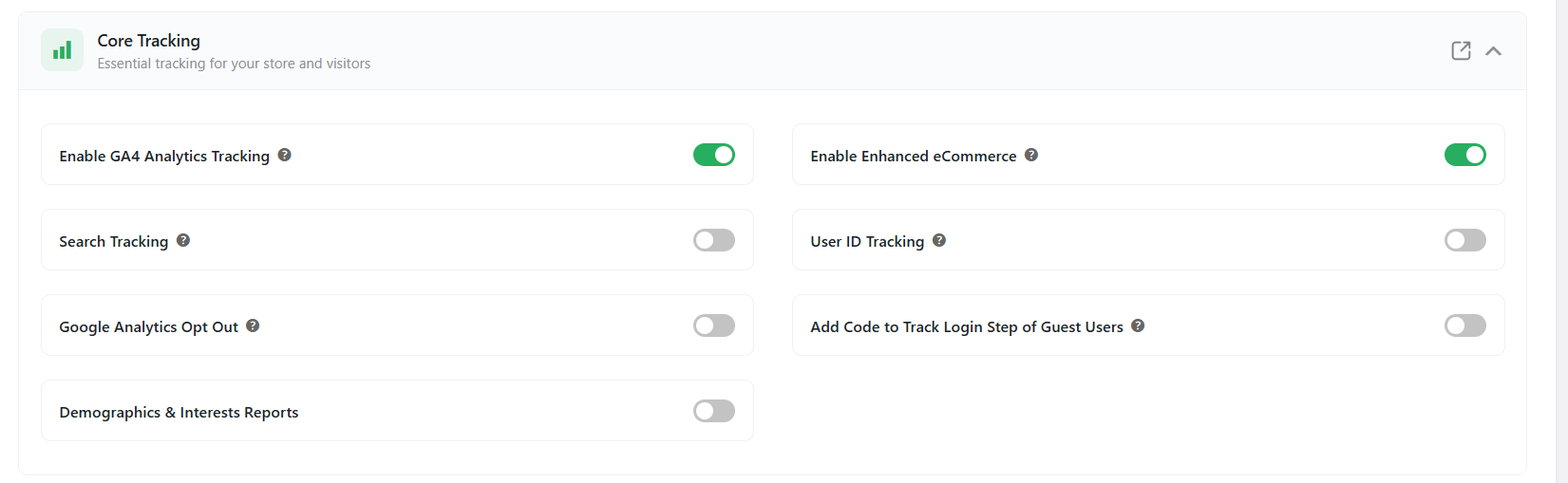
- Search Tracking: Sends your site’s search terms to your GA4 account.
- Sign Up Tracking: Records sign_up events when website visitors register.
- Custom Event: Lets you track custom events and actions.
- Demographics and Interests Reports: Turns on data for remarketing and advertising.
- Enable Enhanced eCommerce: This sends transactions, revenue, product views, add to cart, remove from cart, coupon use, and cart quantity changes to GA4.
- Scroll to the bottom of the page and tap “Save changes”.
How to test your WooCommerce GA4 server-side tracking setup
The best approach is to mirror how real shoppers would behave on your WooCommerce store.
Place test orders from a few different starting points: a product page, a category page with AJAX add-to-cart, and a guest checkout.
Then use GA4’s Realtime report or go to Admin → DebugView and confirm you see each event in order. Missing events point to leakages in your funnel reports:
- view_item (and product impressions where applicable)
- add_to_cart and remove_from_cart
- begin_checkout
- add_payment_info
- purchase
FAQs about WooCommerce GA4 server-side tracking
Is WooCommerce GA4 server-side tracking GDPR-compliant?
It can be, but the tracking method alone doesn’t make you compliant. With client-side and server-side tracking, consent rules still apply. So if a website visitor declines tracking, events shouldn’t be sent.
Review your consent management platform’s configuration and make sure that your consent choices reach your tracking setup.
What is the best WooCommerce GA4 server-side tracking solution?
The Dotstore Enhanced Ecommerce Google Analytics for WooCommerce plugin is the best GA4 server-side tracking solution for WooCommerce.
Alongside enabling browser-side e-commerce tracking, it uses GA4’s Measurement Protocol to send your purchase and refund events to GA4 from your server.
Plus, it is 100% no-code and takes less than ten minutes to set up from start to finish.
Can I use server-side tracking without Google Tag Manager?
Yes, setting up the Dotstore Enhanced Ecommerce Google Analytics for WooCommerce plugin involves connecting your GA4 account and turning on settings in your WordPress admin. No need to set up a GTM container or your own tagging server.
Does server-side tracking improve GA4 accuracy?
Server-side tracking improves how reliably events reach GA4, considering that ad blockers, browser cookie limits, or closed tabs would otherwise drop them.
It doesn’t correct bad data, wrong values, missing transaction IDs, or duplicate events.
Is your WooCommerce GA4 data complete?
If your GA4 revenue doesn’t match your WooCommerce orders, or your funnel shows drop-offs you can’t explain, the cause is usually events that never arrive or arrive twice.
In this guide, we’ve covered how WooCommerce GA4 server-side tracking works, how it compares to client-side tracking, and how to implement and test server-side tracking for Google Analytics in your store.
Although there’s more than one way to set up WooCommerce server-side tracking for GA4, there are 2 main reasons to use the Dotstore Enhanced Ecommerce Google Analytics for WooCommerce plugin:
- It is super easy to use. You don’t have to configure server containers or wrangle Google Tag Manager and other more complex platforms. The setup process takes less than 10 minutes and is 100% non-technical.
- It facilitates trustworthy data. It can capture enhanced ecommerce events, search terms, signups, and tons of additional data points. And because it tracks events from both browser-side and server-side, it ensures you successfully capture all customer data.
Ready to track the full WooCommerce customer journey in GA4? Learn more about the Dotstore Enhanced Ecommerce Google Analytics for WooCommerce plugin or get started with its free or pro version today.
Enhanced Ecommerce Tracking
Leverage the power of analytics to boost your store’s performance and maximize profits.
14-day, no-questions-asked money-back guarantee.